The help article for processing already set-up website leads is here; click the link to access it.
If you need to invite a 3rd-party user to VIEW only our developer documentation, please click here.
Rave offers an optional Website Lead integration module that lets leads submitted through 3rd-party sites like your website, META, and Google flow directly into Rave Build CRM, helping your team capture and manage new leads without manually entering their details.
We have 3 source of leads avaialable, this article covers Google sourced leads.
- Website - Live for use. The setup help article is available here.
- META - Live for use. The setup help article is available here.
When Website Leads is enabled, both the Source of Lead and New Enquiry Branch and Company reports include three extra columns: UTM Source, UTM Medium, and UTM Campaign.
Permissions Required
To access these instructions, you must have the Branch Setting: Integrations + Website Leads enabled.
The permission sits under Manage Users - Branch Settings and is called Website API Tokens. You need the edit version in order to make changes/ set up this feature.
By default:
Franchised businesses: Head Office and Marketing groups have access.
Non-franchised businesses: Branch Owner and Marketing roles have access.
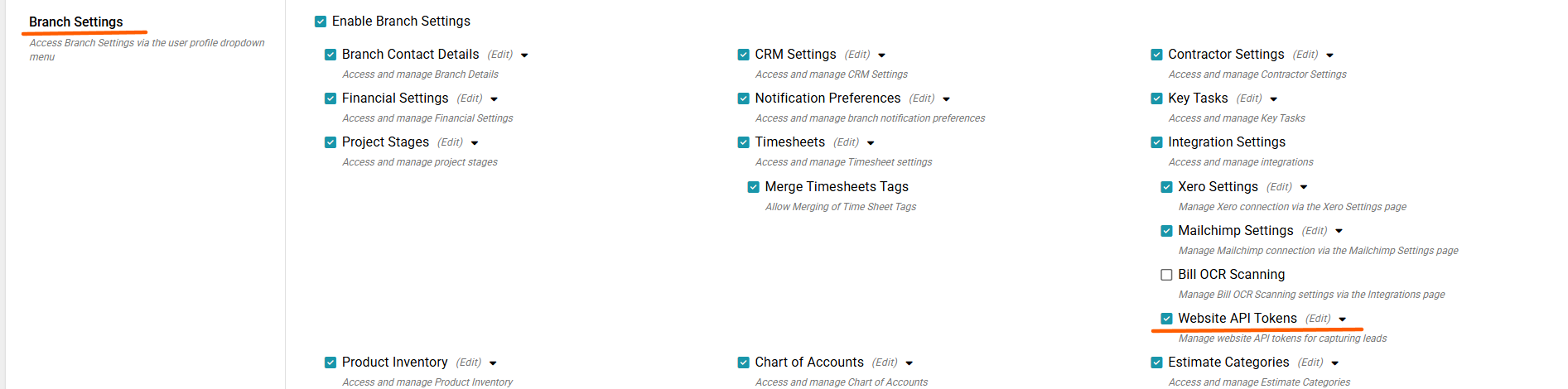
How to Enable Website Leads
Open your Branch Settings.
Navigate to Integrations then Website Leads
Click Manage
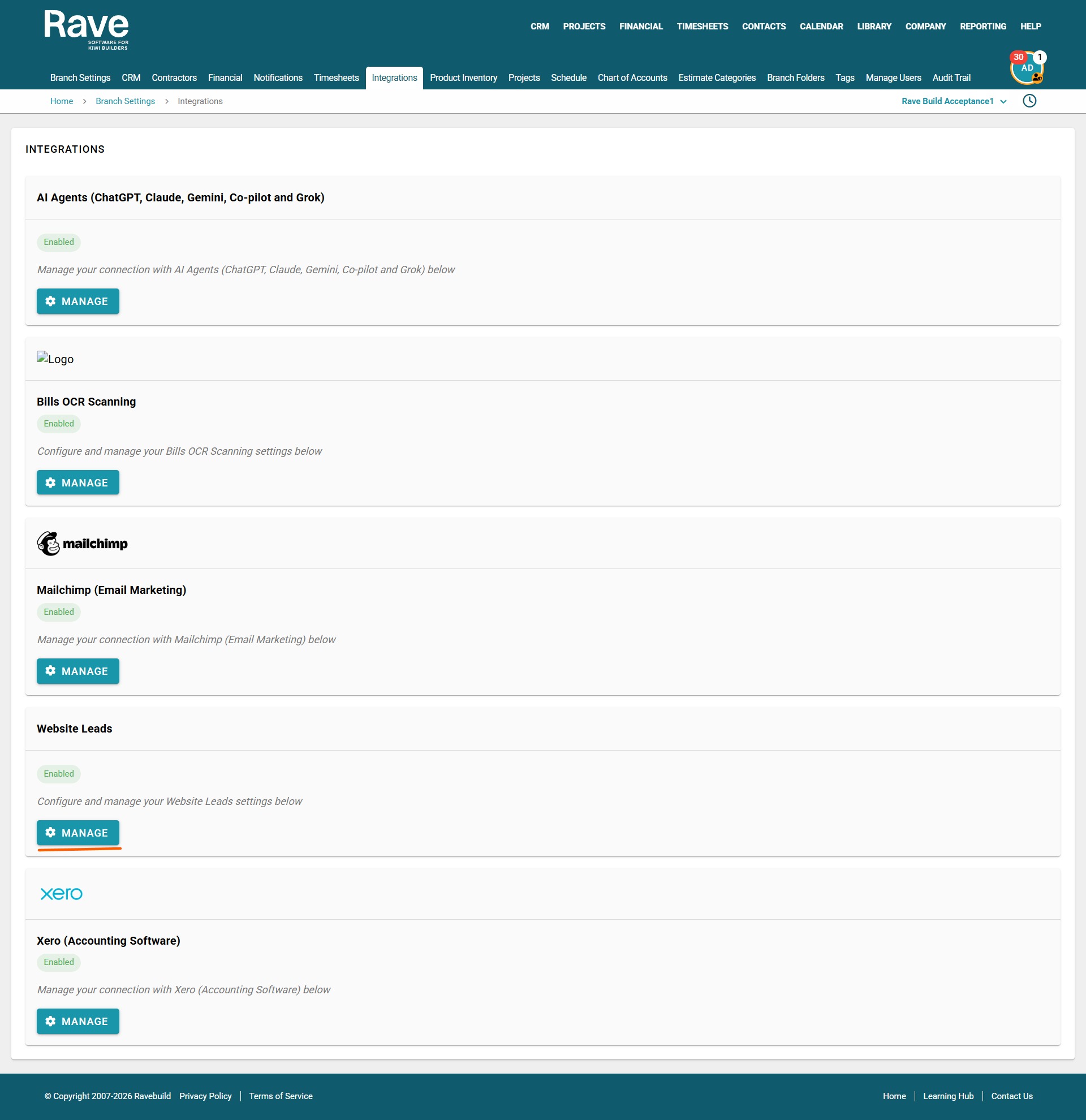
The Website Leads area contains two tabs:
- General – configure your Website Leads settings.
- Sources – connect your website to Rave using the API or Embed Form.
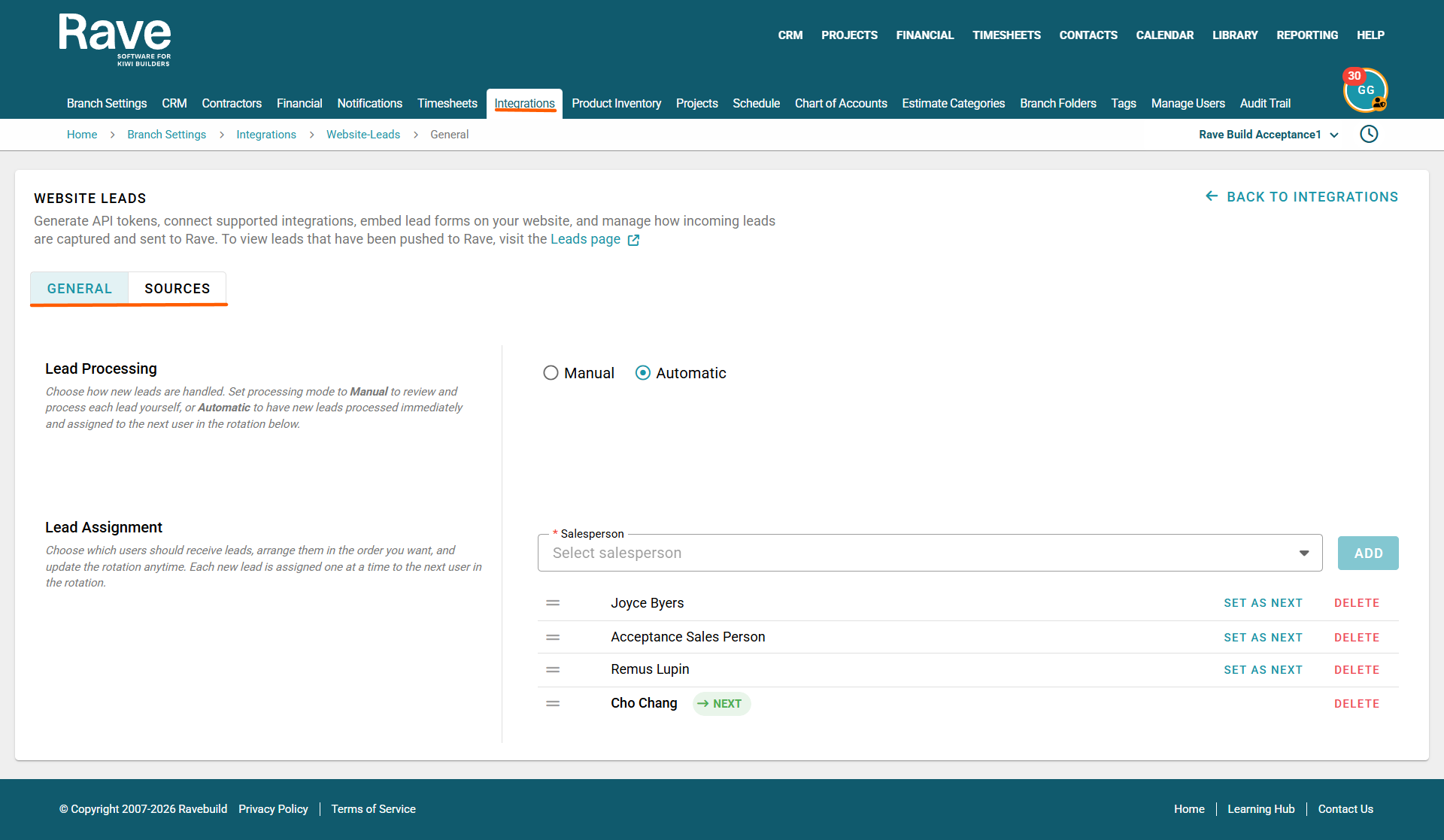
Open the General tab to configure how new website leads are handled after they arrive in Rave.
Lead Processing
Choose how you want new leads to be processed:
- Manual – new leads are held for review so your team can check and process each lead themselves.
- Automatic – new leads are processed immediately and assigned to the next salesperson in the rotation.
Select the option that best suits your sales process.
Lead Assignment
The Lead Assignment section controls which salespeople receive automatically assigned website leads.
To set up the assignment rotation:
- Select a Salesperson from the dropdown.
- Click Add.
- Repeat this for each salesperson you want included in the rotation.
- Arrange the salespeople in the order you want leads to be assigned.
Each new lead is assigned one at a time to the next salesperson in the rotation.
The salesperson marked Next will receive the next automatically assigned lead.
You can select Set as Next beside another salesperson if you need to change who receives the next lead.
Select Delete to remove a salesperson from the website lead assignment rotation.
How to Set Up Google Leads in Rave
Rave’s Google Lead Ads integration allows leads submitted through your Google Ad forms to flow directly into Rave. Once connected, you can choose which campaigns/lead forms to sync, map your lead form fields to Rave, and control which forms actively capture leads.
Before you begin setting up the integration, make sure you have:
- Access to your Google Ads account
- And permission to manage your Google Lead Ads forms
- Access to Branch Settings > Integrations in Rave
- At least one Google Leads Ad form already created
From the Branch Settings / Integrations / Website Leads / Sources page
Select Sources > Google Ads
If Google Ads has not yet been connected, you'll see a Generate Webhook Key button to the right, this allows you to receive real-time data from your Google Ads. Click the Generate Webhook Key button to continue.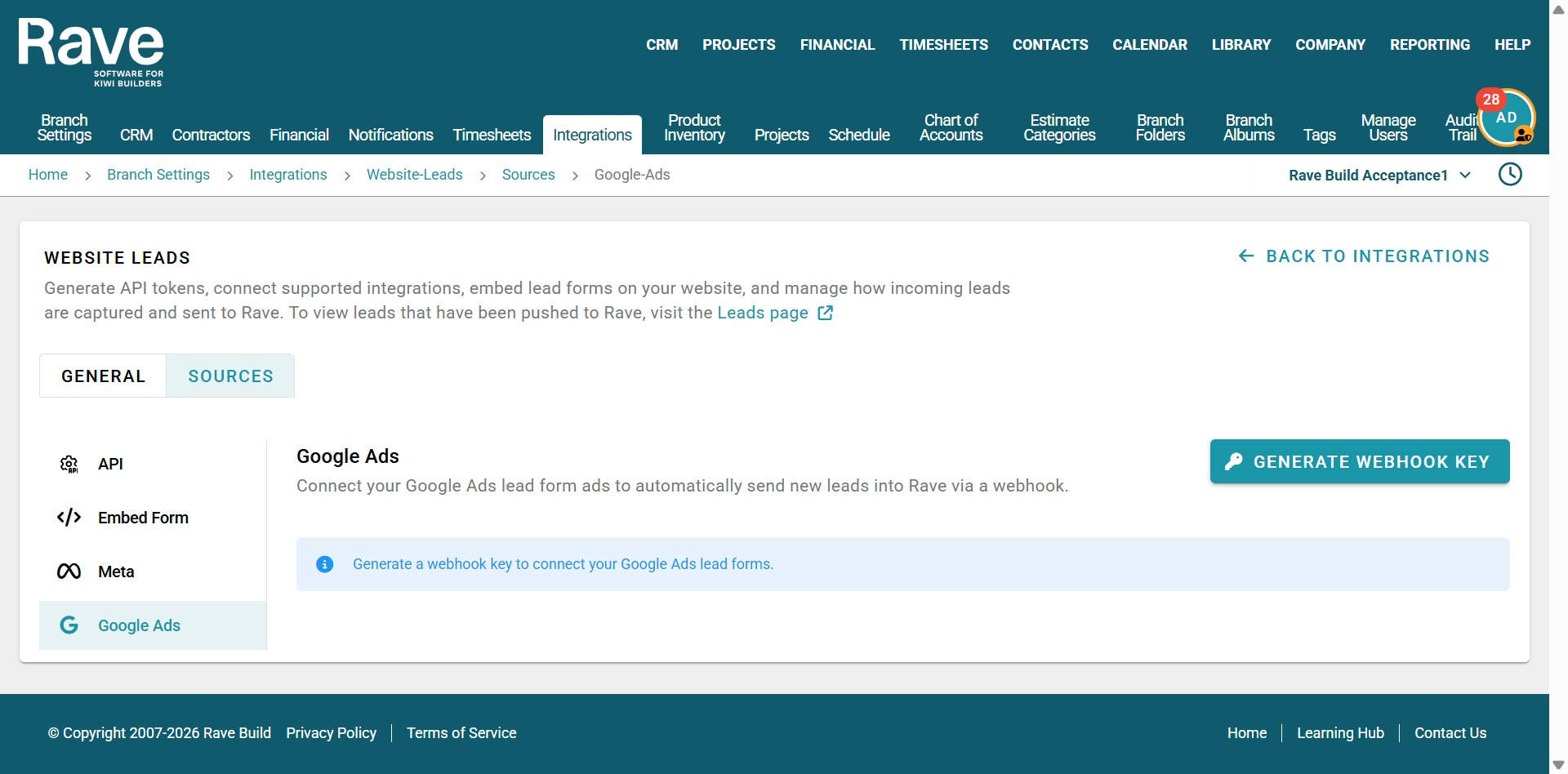
This will open the Generate Webhook Key pop-up for you to copy your Webhook URL and Key to your Google Ads setup. The weekhook URL is where you would like google ads to send your leads to, the webhook it a security token used to validate the transfer. If required, you can view the webhook key via the eyeball icon.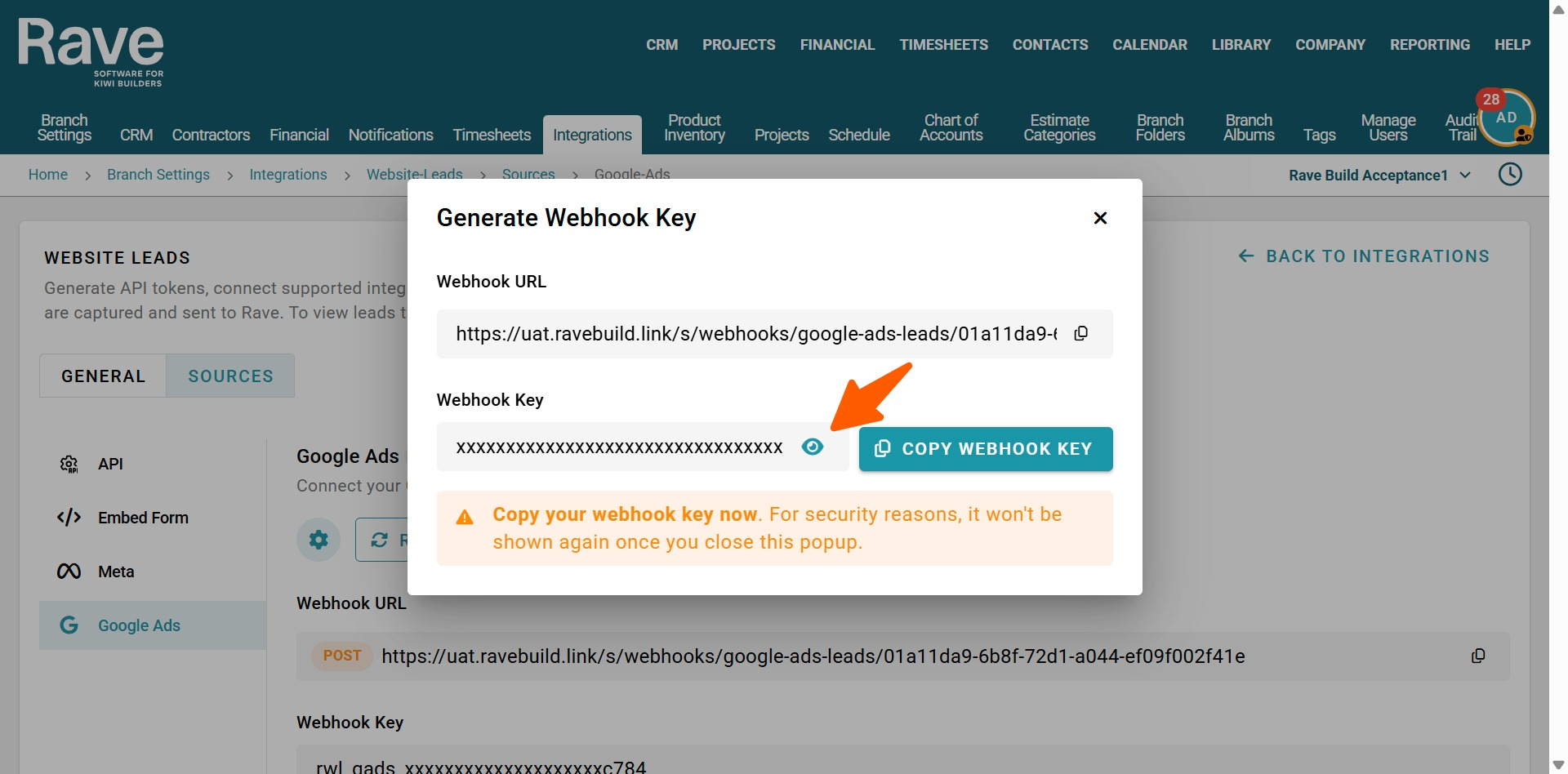
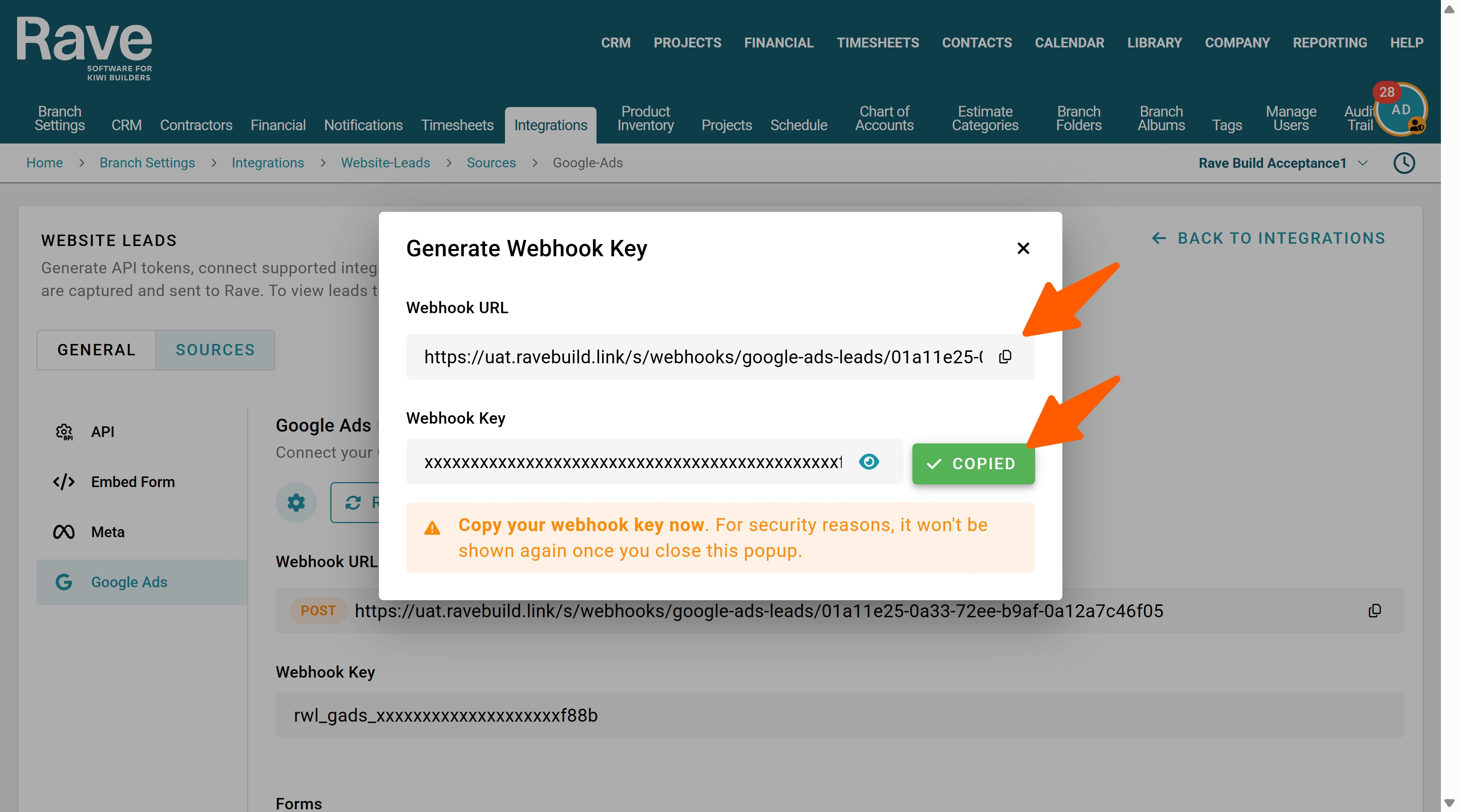
Copy your Webhook URL and Key to your Google Ads setup.
Log in to your Google Ads account.
Navigate to your campaign settings or go to Assets (previously Extensions) and select Lead form.
Choose to edit an existing lead form or click the blue plus button to build a new one.
Expand the Manage leads with a webhook option.
Copy and paste your Webhook URL
Then copy and paste your Webhook Key
Once the webhook details are filled in, you will see a "Send test data" or "Test" button appear directly below the webhook setup fields.
Click the Test button.
Google Ads will automatically generate and send a mock payload (fake lead data) to Rave.
In Google Ads: If your system successfully acknowledges the message, the user interface will display a green success message indicating an HTML status code 200.
In Your CRM / Destination: Log back in to Rave and check your recent incoming data. You should look for a newly created lead containing test parameters like test@example.com or Google Ads Test Lead to ensure all fields map correctly.
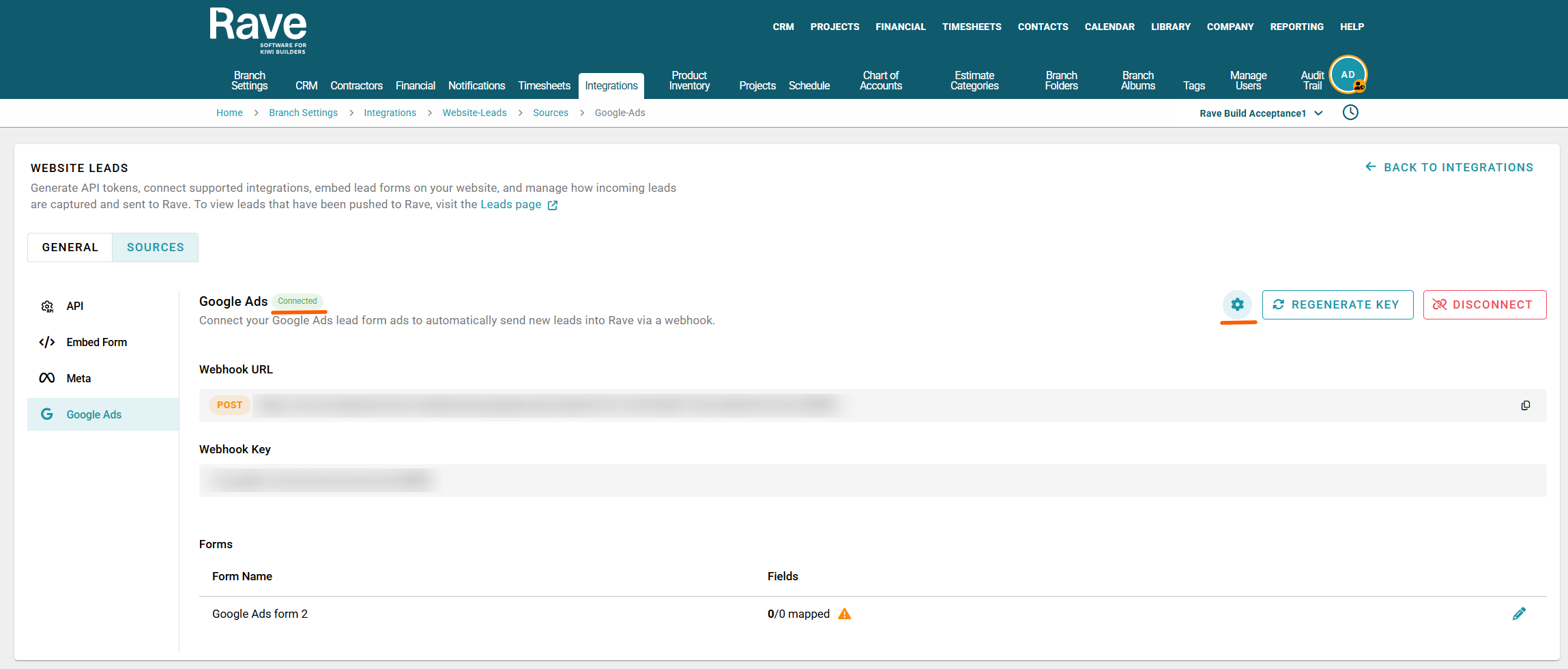
Back to your Rave Integrations Website Leads screen, you will see a green connected icon to the right of your Google Ads header, with the ability to:
Access your Rave Google Ads settings via the cogwheel icon
A Regenerate Key and a Disconnect button
Your current Webhook URL and Webhook Key and any Google Ad Forms you've connected to
Note: Any issues with the form field mapping will be visible via the orange warning icon - hover over this to see what needs to be fixed.
Disconnecting Google Ads
If you need to remove the connection, click the Disconnect button.
Once disconnected, Rave will stop receiving new leads through the Google Ads integration.
Note: Disconnecting Google Ads does not delete leads that have already been received or processed in Rave.
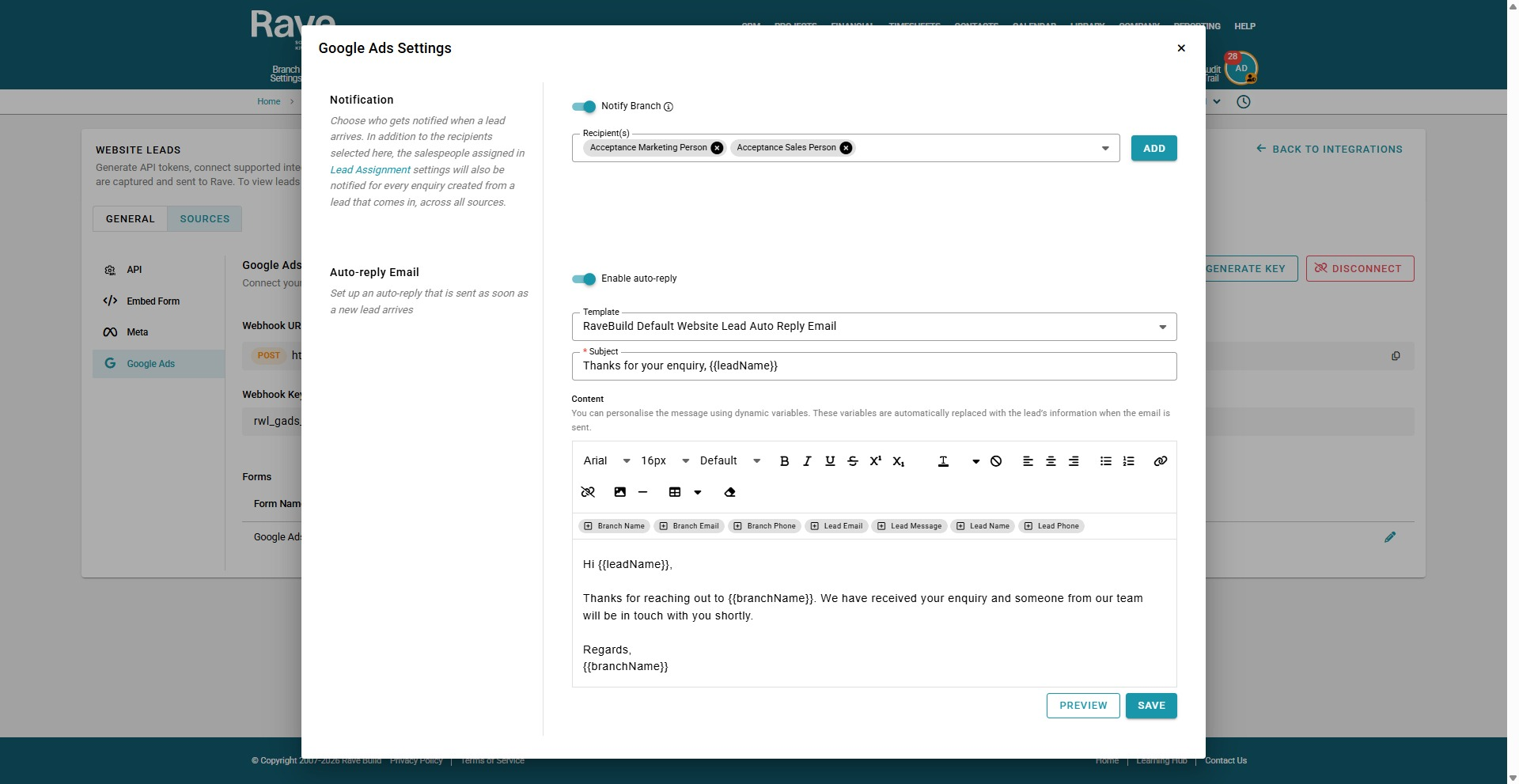
You can choose who gets notified of new leads via the Notify Branch Recipients drop-down of the Google Ads Settings pop-up, available by clicking on the cog-wheel. If a sales person has been automatically assigned to the lead they will also be notified.
The enable auto-reply switch allows you to set up/format an auto-reply email to be sent out too.
Troubleshooting
If you can not see any of your required Website Lead options, contact Rave Support for assistance.
Was this article helpful?
That’s Great!
Thank you for your feedback
Sorry! We couldn't be helpful
Thank you for your feedback
Feedback sent
We appreciate your effort and will try to fix the article