To access your b you must have the Branch Settings Permission enabled and the Branch Details tab selected.
Select Your Profile drop down and under Branch Settings select Branch Details
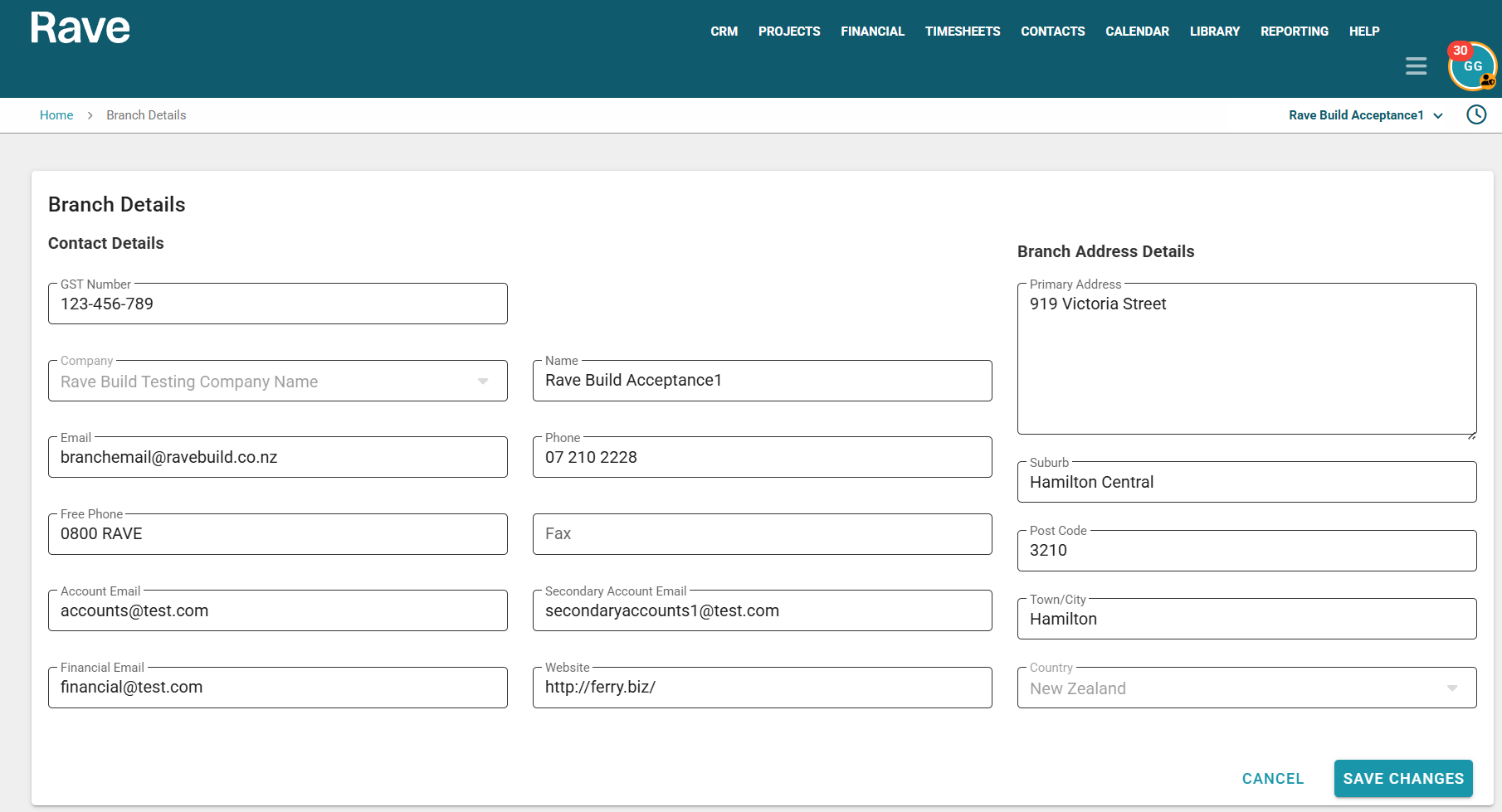
This is where you will find all of your Branch information, including your GST Number, Address, Contact Information, Website and also your default branch emails such as General, Financial and Accounts.
Note: Changing your branch name here will change all places we display your Branch name, such as emails to clients/contractors, variation or estimate print-outs, and Purchase Orders. It will also change for your Internal Branch Contact used for Financial Management so please only edit this if necessary. To read more about the Internal Branch Contact, click here for the help article.
Note: It is mandatory to have at least one accounts email and if using our Financial Management System a Financial email. Both can be the same as they receive similar but not always the same notifications.
Single Sign-on Options for Timesheet and Site Staff Users
As your Site Staff and Timesheet users have limited access to Rave, you can choose whether they are required to use Two-Factor Authentication (2FA).
Use the toggle to control this setting:
On – Mandatory 2FA is enabled for all Site Staff and/or Timesheet users.
Off – Site Staff and/or Timesheet users are not required to use 2FA when signing in.

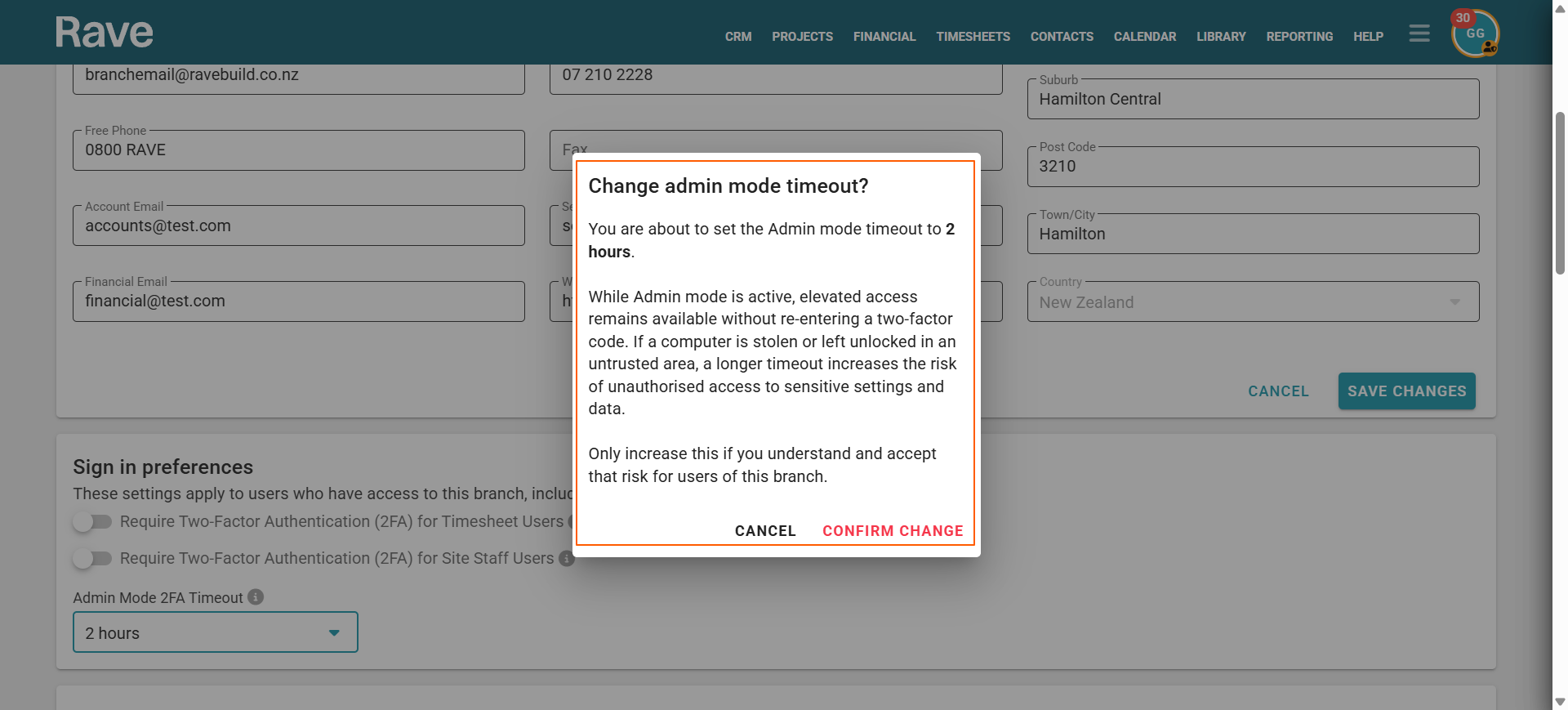
Admin Mode 2FA setting
This setting allows you to choose how long Admin Mode (2FA) remains enabled before you need to re-enter your verification code. The default time is 1 hour. Changing this setting is Audit Trailed.

Trade Names
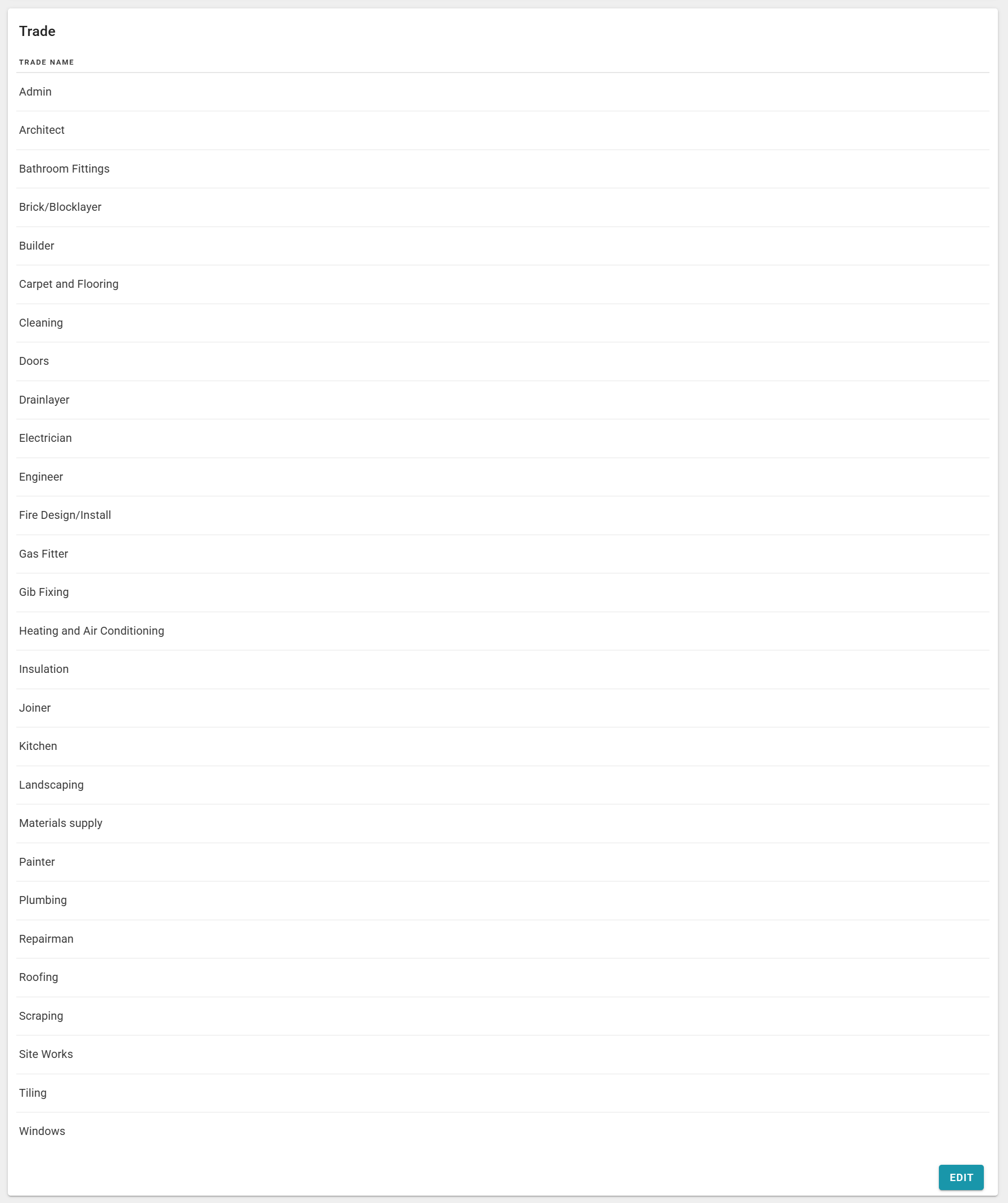
With permission you can edit your Trade Names that are available for your Contractors/Contacts to select for scheduling and schedule reporting filters.
Note: Remember, you will only see the tabs to which you have been given access in the Branch Settings tab.
Was this article helpful?
That’s Great!
Thank you for your feedback
Sorry! We couldn't be helpful
Thank you for your feedback
Feedback sent
We appreciate your effort and will try to fix the article