Rave offers an optional MailChimp integration module that allows your client database to automatically sync with your MailChimp account.
When enabled, your existing client records in Rave Build will be copied to MailChimp and tagged with the selected information.
After the initial setup:
Any new clients added to Rave Build will automatically be transferred to MailChimp. If they are set to opt out of Marketing in Rave, we will still sync them to Mailchimp but as UnSubscribed.
Any updates made to client records in Rave Build will also automatically update in MailChimp.
This ensures your MailChimp audience list remains up to date, removing the need for manual exports or imports.
Permissions Required
To access these instructions, you must have the Branch Setting: Integrations + MailChimp enabled.
By default:
Franchised businesses: Head Office and Marketing groups have access.
Non Franchised businesses: Branch Owner and Marketing roles have access.
If you have a single Rave Branch to a Single Mailchimp you need to only complete these steps once.
If you have a Single Mailchimp with more than one Rave Branch you need to repeat the steps for each branch you are conecting making sure to switch branches each time you finish the Sync.
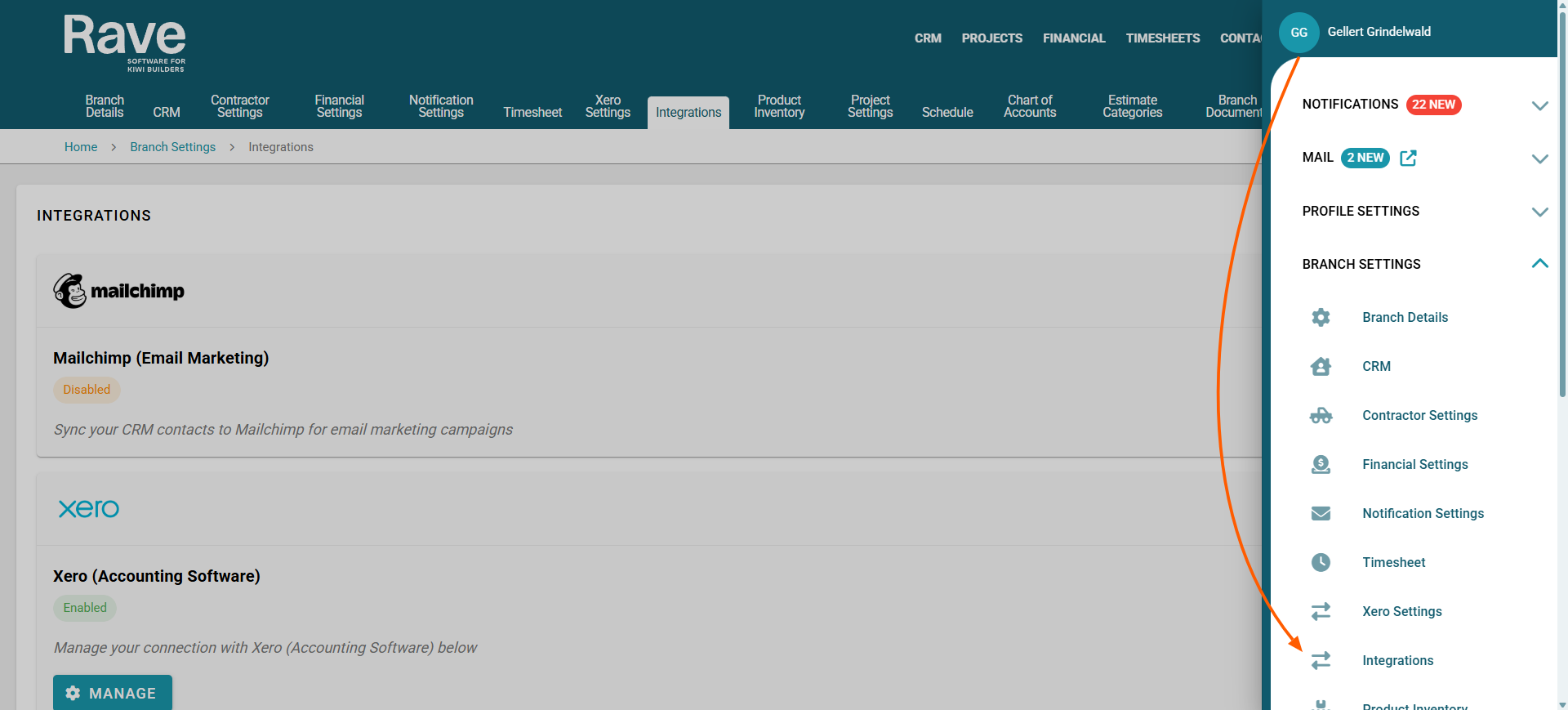
Click your Profile dropdown.
Under the Branch Settings section select Integrations
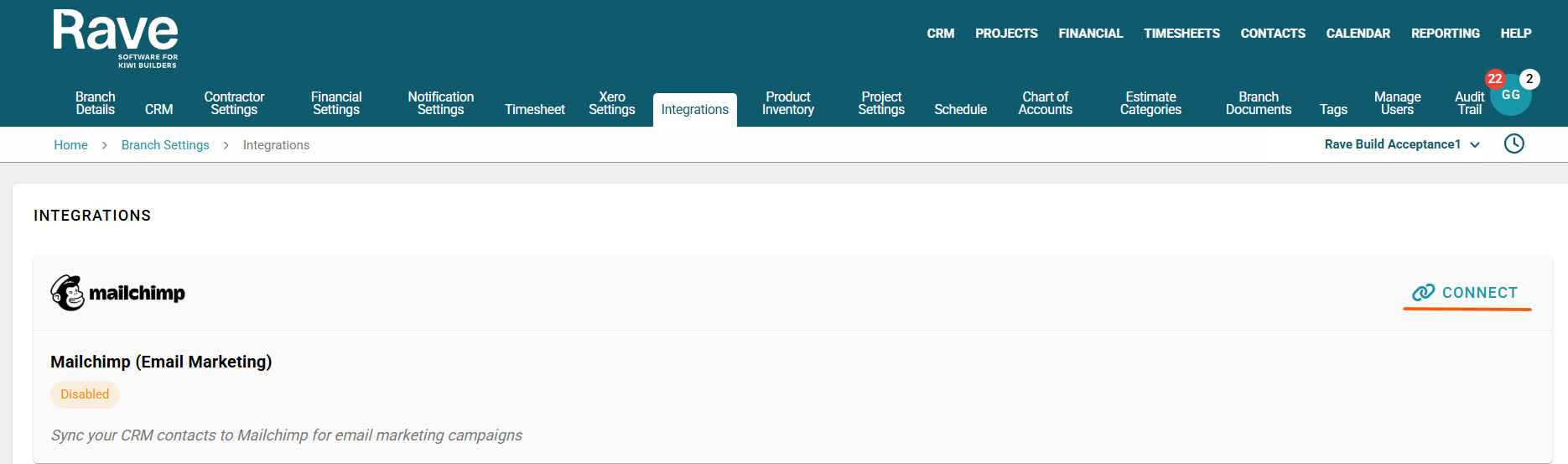
At the top of the page you will see Mailchimp with the Connect button.
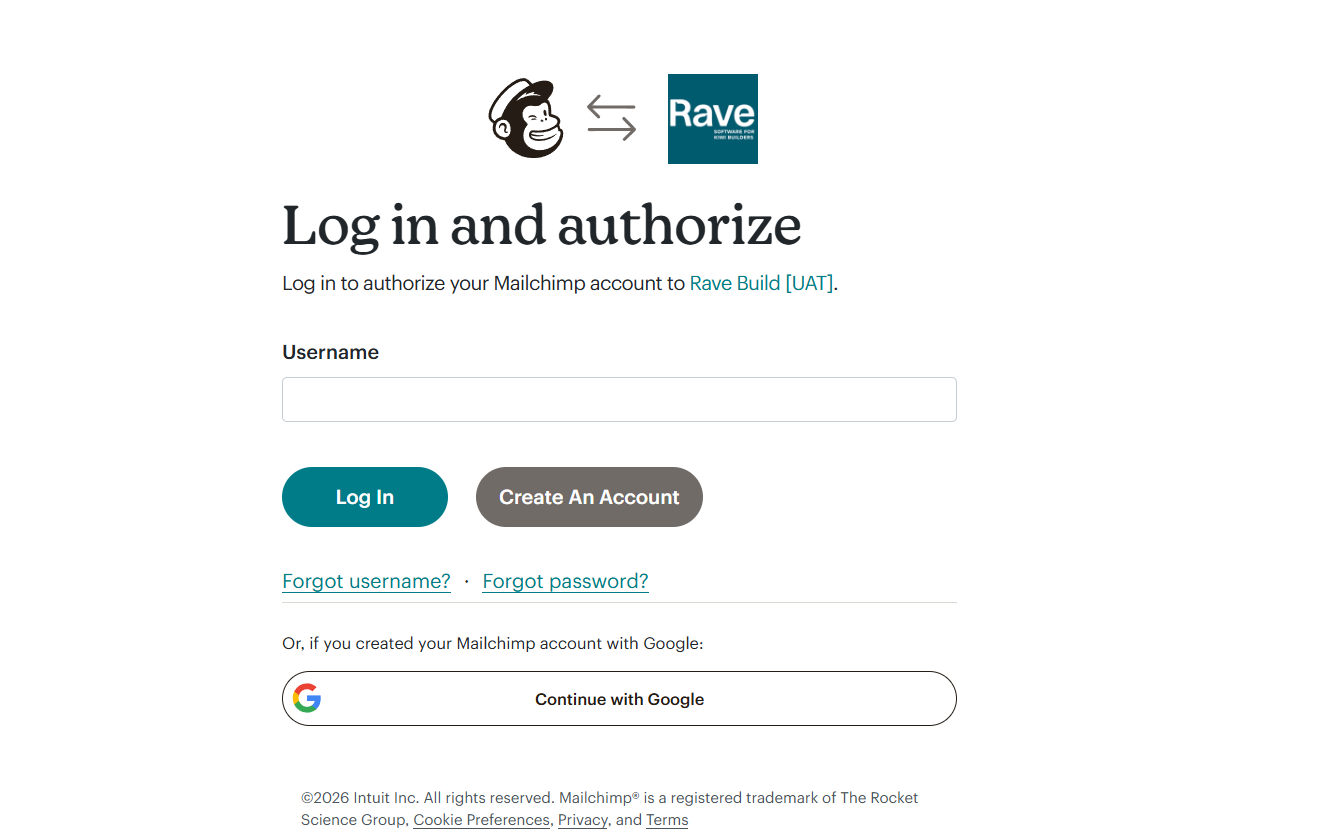
After pressing Connect you will be directed to the Mailchimp authorisation screen.
Type your username and password for mailchimp into the box and press Log in
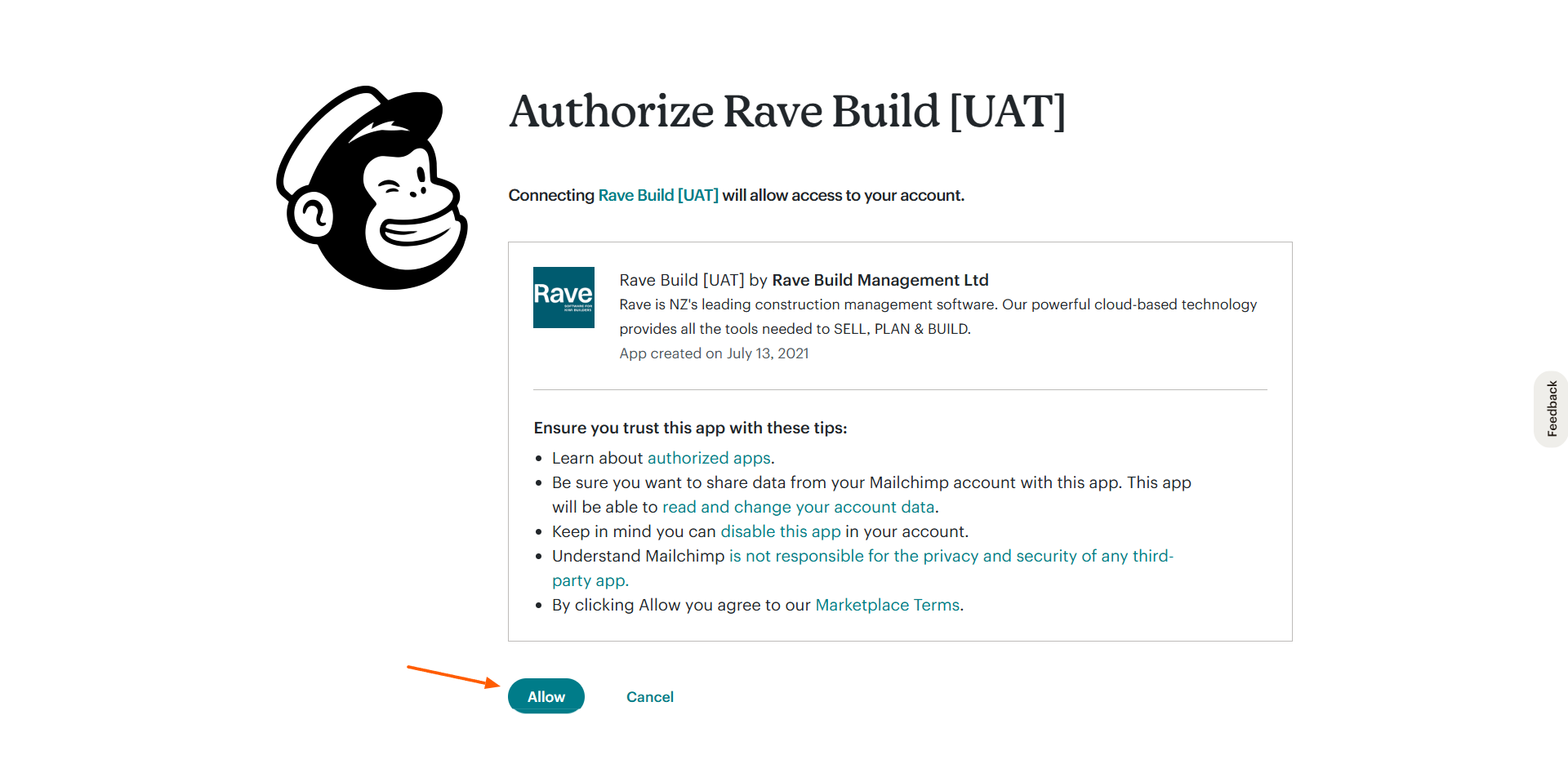
The next screen will ask you to Allow Rave to send Data to Mailchimp you need to Press Allow
Once connected, you will be directed to the Sync Page.
Before starting the sync, you will need to configure your Settings.
By default, the only information sent to MailChimp is:
Client Name
Email Address
You can choose to sync additional information that is important to your marketing or reporting.
Tag Prefix
The Tag Prefix should be something that clearly identifies where your audience has come from.
If you are a franchise business, we recommend using your Franchise Short Code or something simple like “Rave”.
This makes it easy to recognise which tags are created by the Rave sync. These tags should not be edited or deleted in MailChimp, as they are part of the automatic sync process.
Tag Options
You can choose which information is sent to MailChimp through the available tag options. These are grouped into:
Client Tags
Enquiry Tags
Project Tags
This allows you to send as much or as little information as you like to MailChimp.
To enable a tag option:
Move the slider to ON (green) to include the information in the sync.
Leave the slider OFF (grey) if you do not want that information sent to MailChimp.
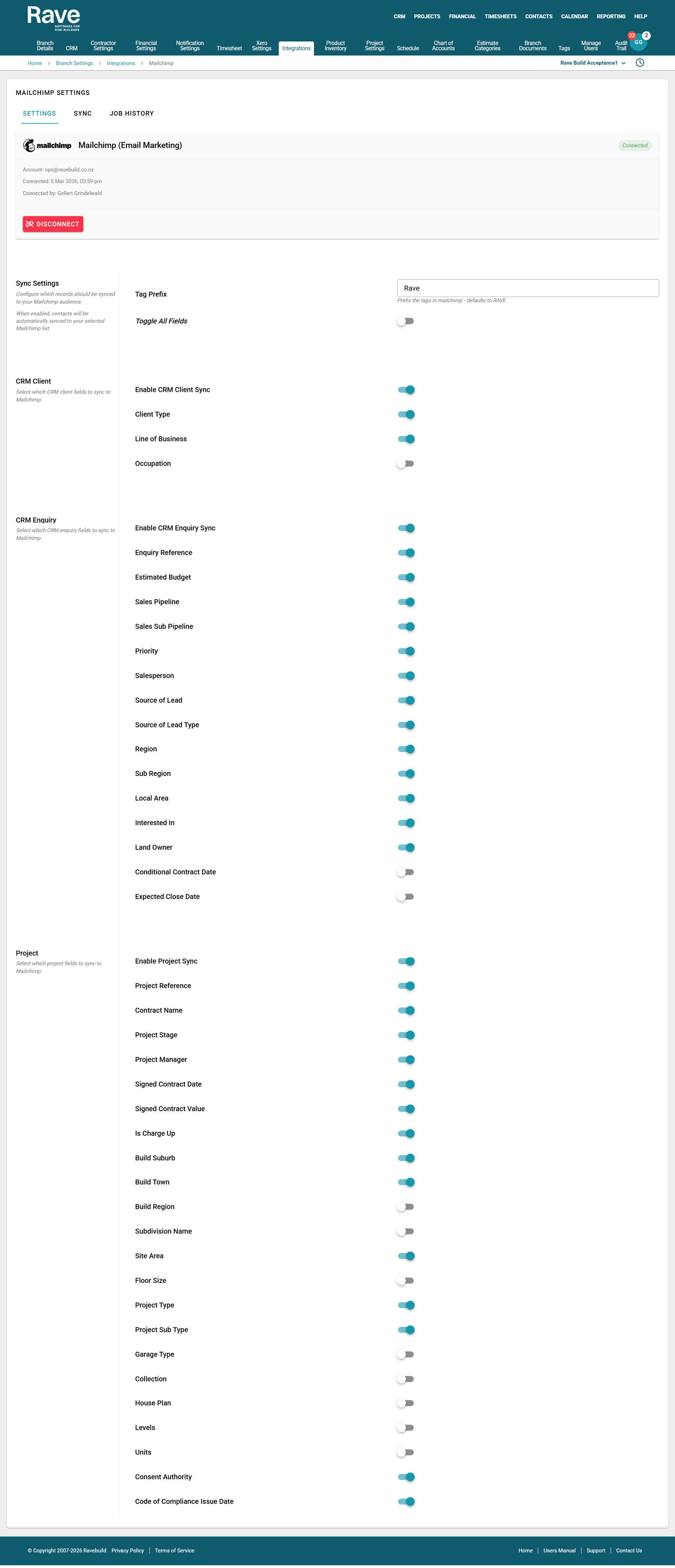
Once you have made your selections, click the Sync button.
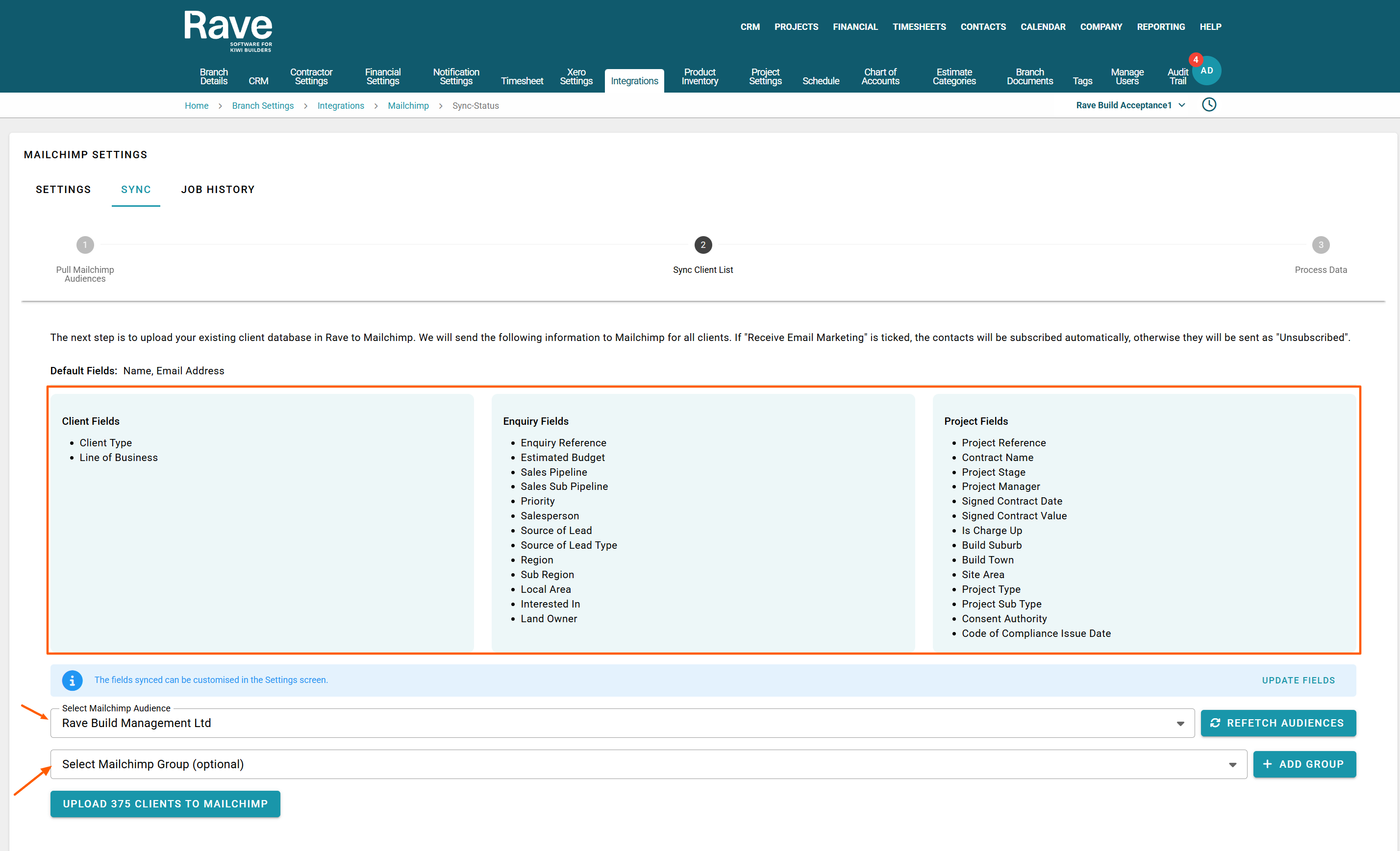
The system will display all of the fields you have chosen to sync.
Next:
Select your MailChimp Audience.
If required, select your MailChimp Group.
Click Upload XX Clients to MailChimp to begin the sync
MailChimp Audience
A MailChimp Audience is the main list where all clients synced from Rave will be stored.
We recommend creating an audience with a clear name such as:
Rave Audience
Rave Build
Rave Data
Using a name like this helps identify that the contacts in this list are managed by the Rave integration, so you know not to edit or change important settings that may affect the sync.
MailChimp Groups
A MailChimp Group is useful when you have multiple Rave branches and want to organise clients by branch.
We recommend setting up a group in MailChimp called “Branch.”
Once this group is created:
Rave will automatically create the group names within that group based on your Branch Name.
Clients will then be synced into the correct branch group list.
You do not need to manually create each branch group.
Simply create one group called Branch using the + Add Group button, and Rave will manage the rest automatically.
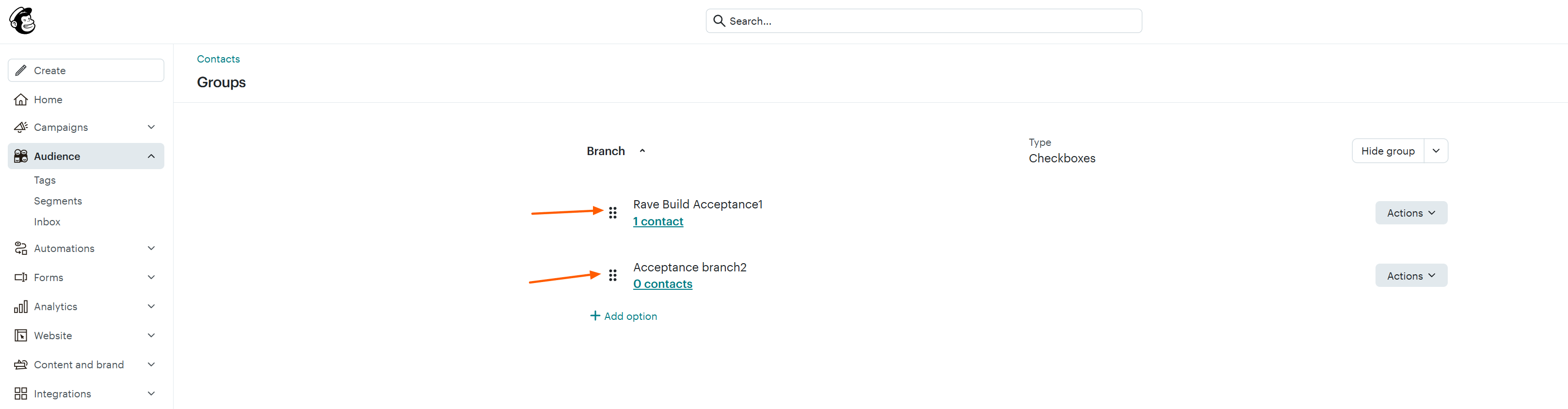
If you have more than one branch to manage in MailChimp, you can view and manage the Groups within your Audience.
To find these:
Go to your Audience in MailChimp.
Click the three-dot dropdown menu.
Select Groups.
In this example, the Group Category is called Branch.
Within that group you may see group names such as:
Rave Build Acceptance1
Acceptance Branch2
These group names are automatically created and populated when syncing multiple Rave accounts to MailChimp.
Each client will be placed into the correct branch group based on the branch they belong to in Rave, allowing you to easily filter and send campaigns to specific branches.
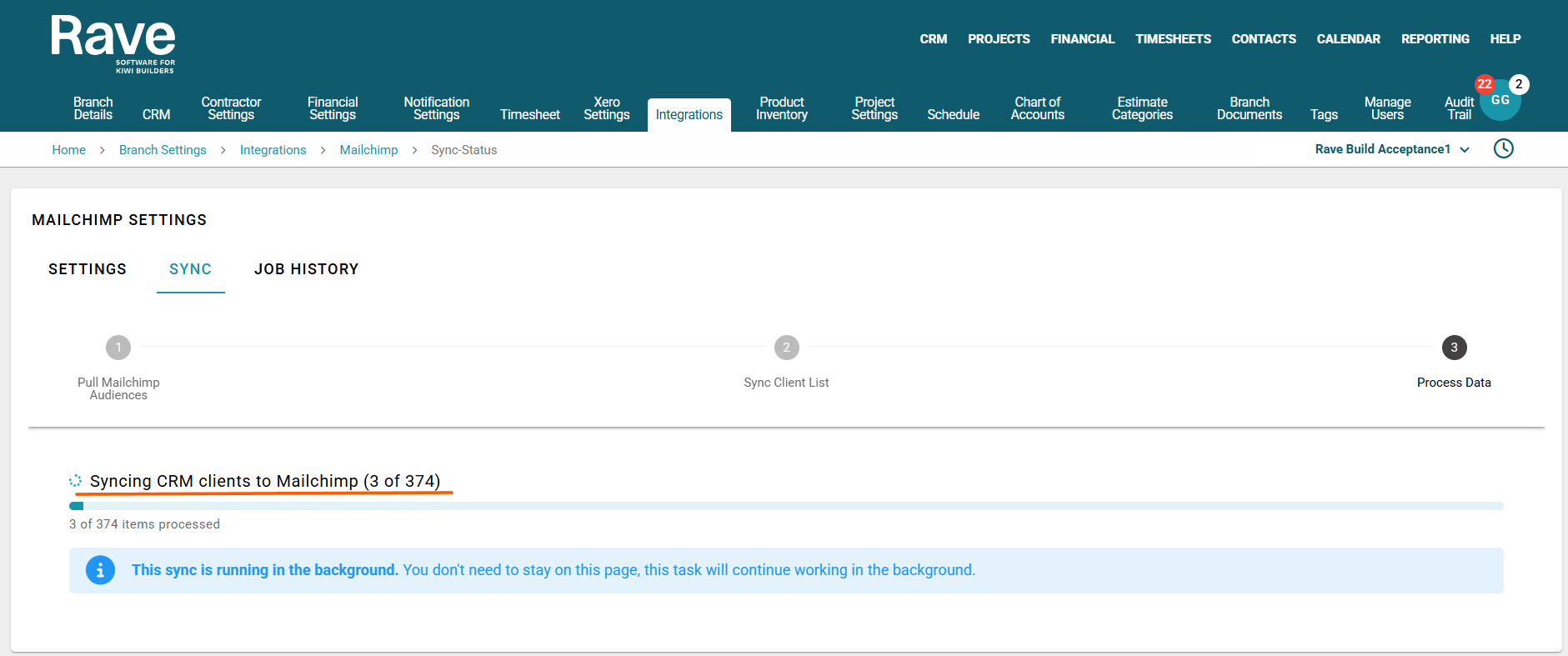
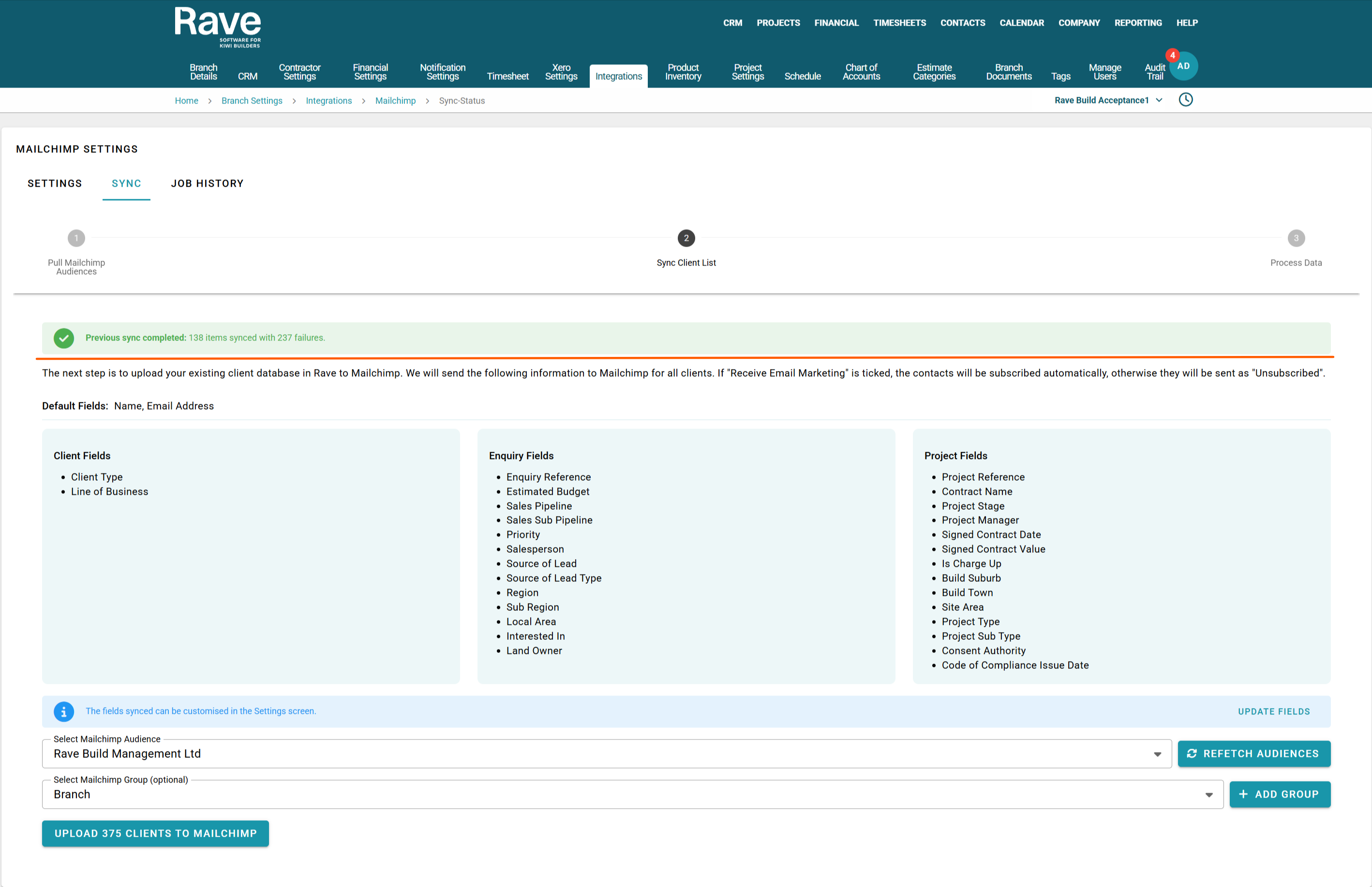
When you press Sync you will now see a Syncing screen like below. Its ok to navigate away from this page while it continues to work.
Once the Sync is complete you will see the green success line. You are now set up and dont need to do anything further.
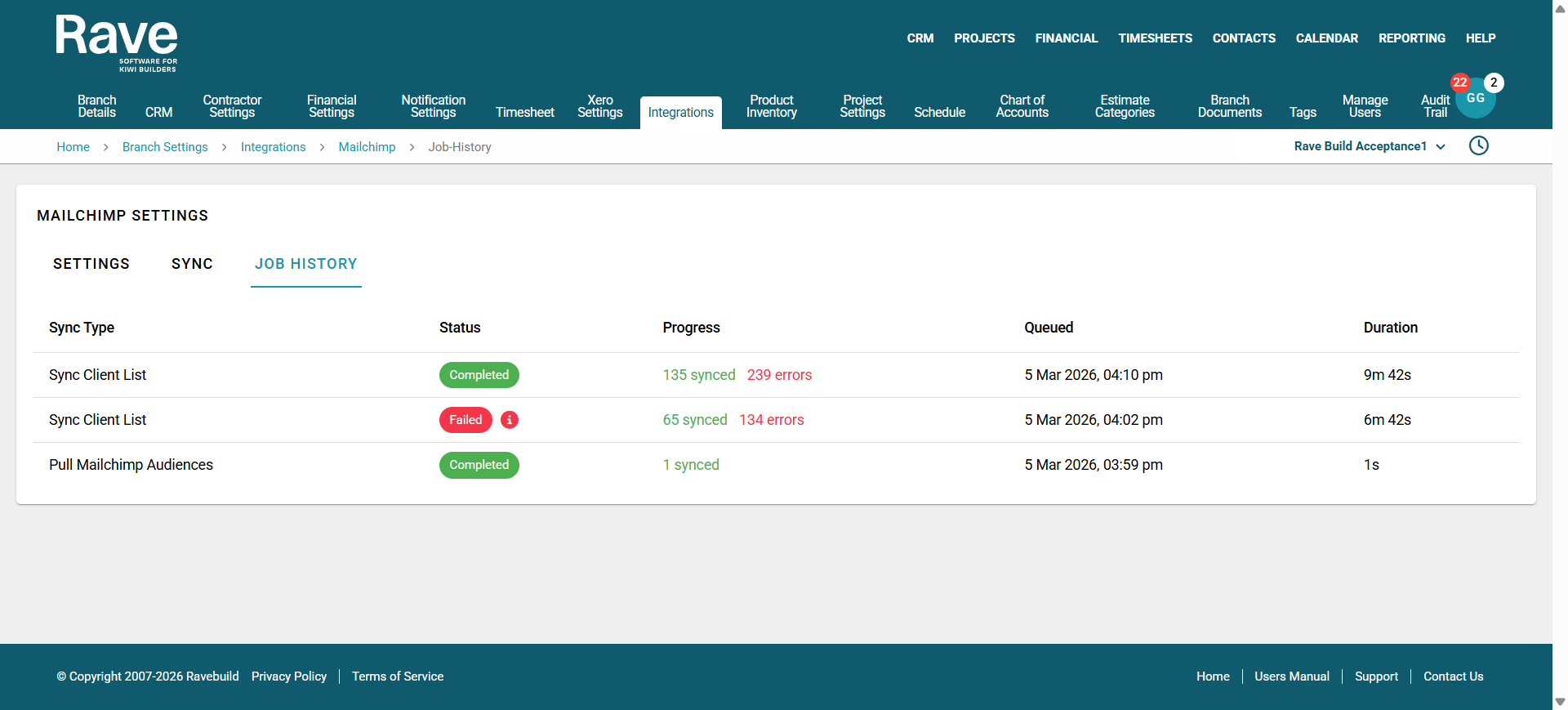
The Job History tab displays the audit trail for your MailChimp sync activity.
Here you can see:
The number of successful syncs
The number of unsuccessful sync attempts
During the sync process, the system will continue loading and sending all client records that are able to be transferred to MailChimp.
Any records that fail to sync will appear highlighted in red.
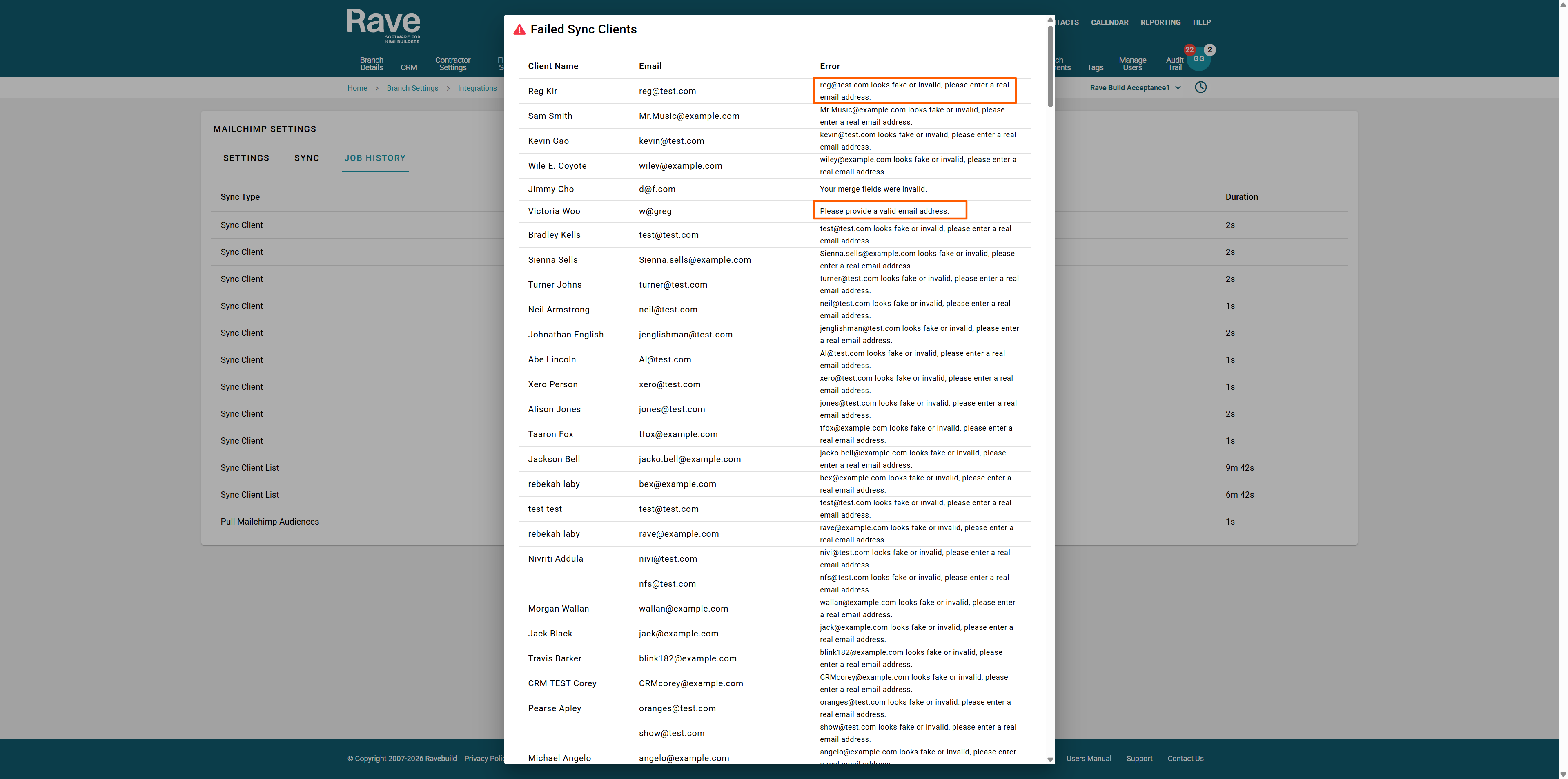
By clicking on the red errors, you can view a list of:
The clients that failed to sync
The reason for the failure
You can also filter by reason, allowing you to quickly skip errors you don’t need to review and focus on the ones that require attention.
Common Reasons for Sync Failures
The following issues may prevent a client from successfully syncing to MailChimp:
1. Fake Email Addresses
Email addresses such as @example.com or @test.com are commonly used as placeholders. MailChimp automatically blocks these to prevent fake or test data from being added to an audience.
2. Incomplete Email Addresses
Email addresses that are missing required parts (for example @gmail.com or .co.nz) will be rejected. MailChimp validates email formatting and will block any address that appears invalid.
3. Invalid Data in the Email Field
If incorrect data has been entered into the email field (for example a phone number instead of an email address), MailChimp will prevent it from being synced.
Since the Rave CRM update released in August 2025, Rave prevents invalid email formats from being entered. However, if you have been using Rave for a long time, you may still have older records with incorrect email data that will need to be corrected before they can sync successfully.
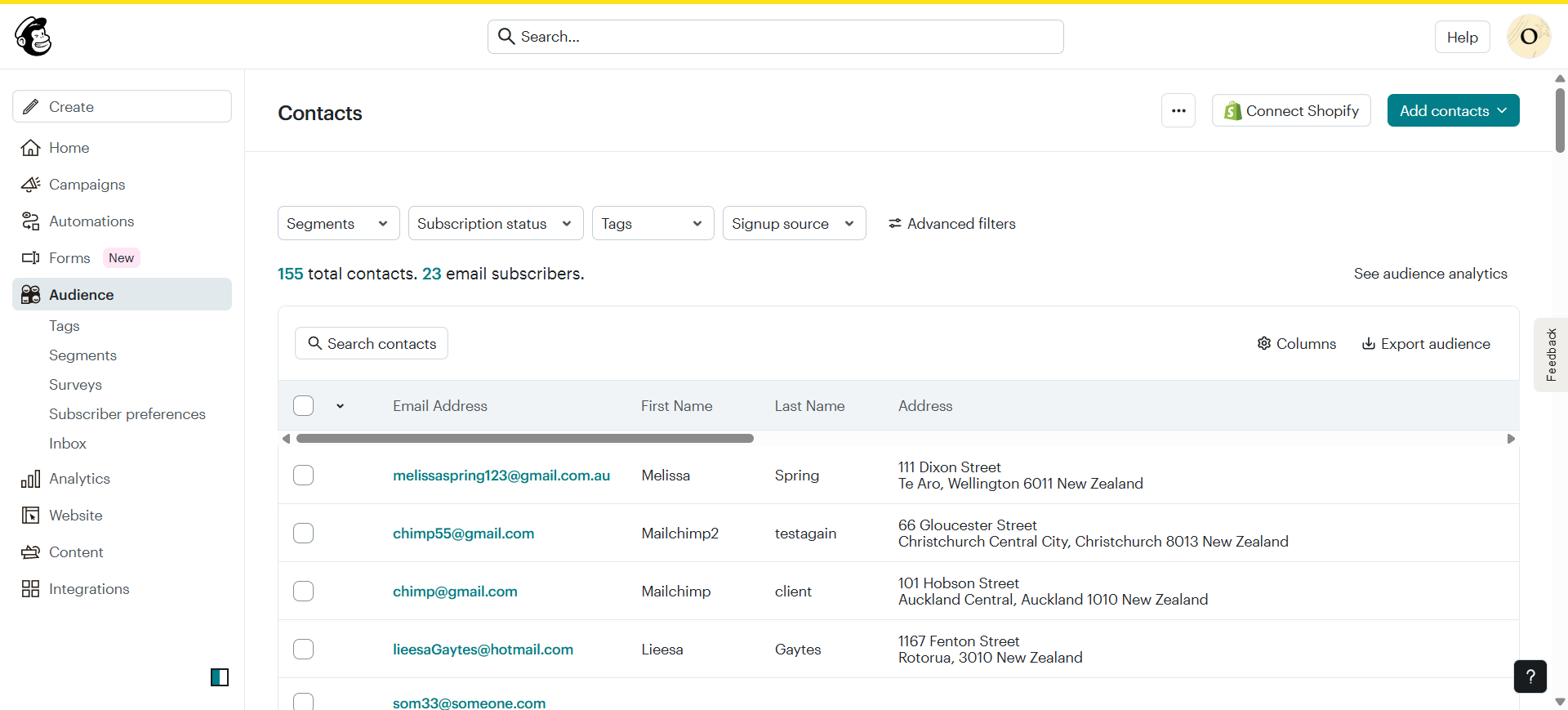
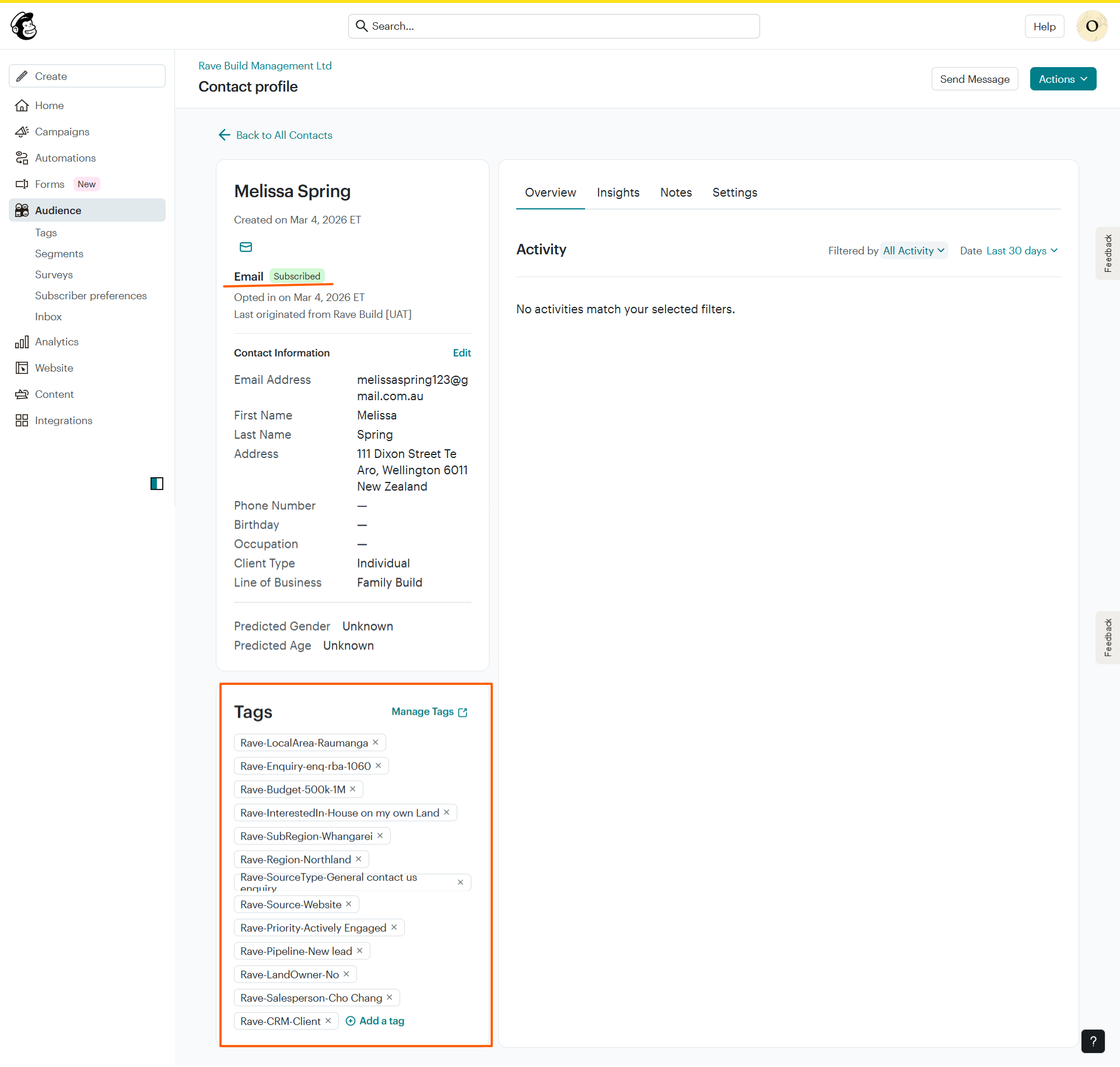
Once the sync is completed you can navigate into Mailchimp. Select Audience and find your clients.
If your client in Rave is set to opt out of marketing they will be set to unsubscribed in Mailchimp. We will however still keep their data in sync.
If your client is subscribed in Rave but then chooses to unsubscribe via an email from Mailchimp they will be opted out until they resubscribe.
If your client has multiple enquiries and/or projects we will send the information for each one to mailchimp. If the tags are the same we will only tag it once. If they are different they will have two tags or more.
Note: Editing/Deleting tags in Mailchimp will break the link and cause sync issues so ensuring you only edit tags that are not from Rave.
As the clients are updated in Rave their Tags in mailchimp will change to ensure their data is kept accurate.
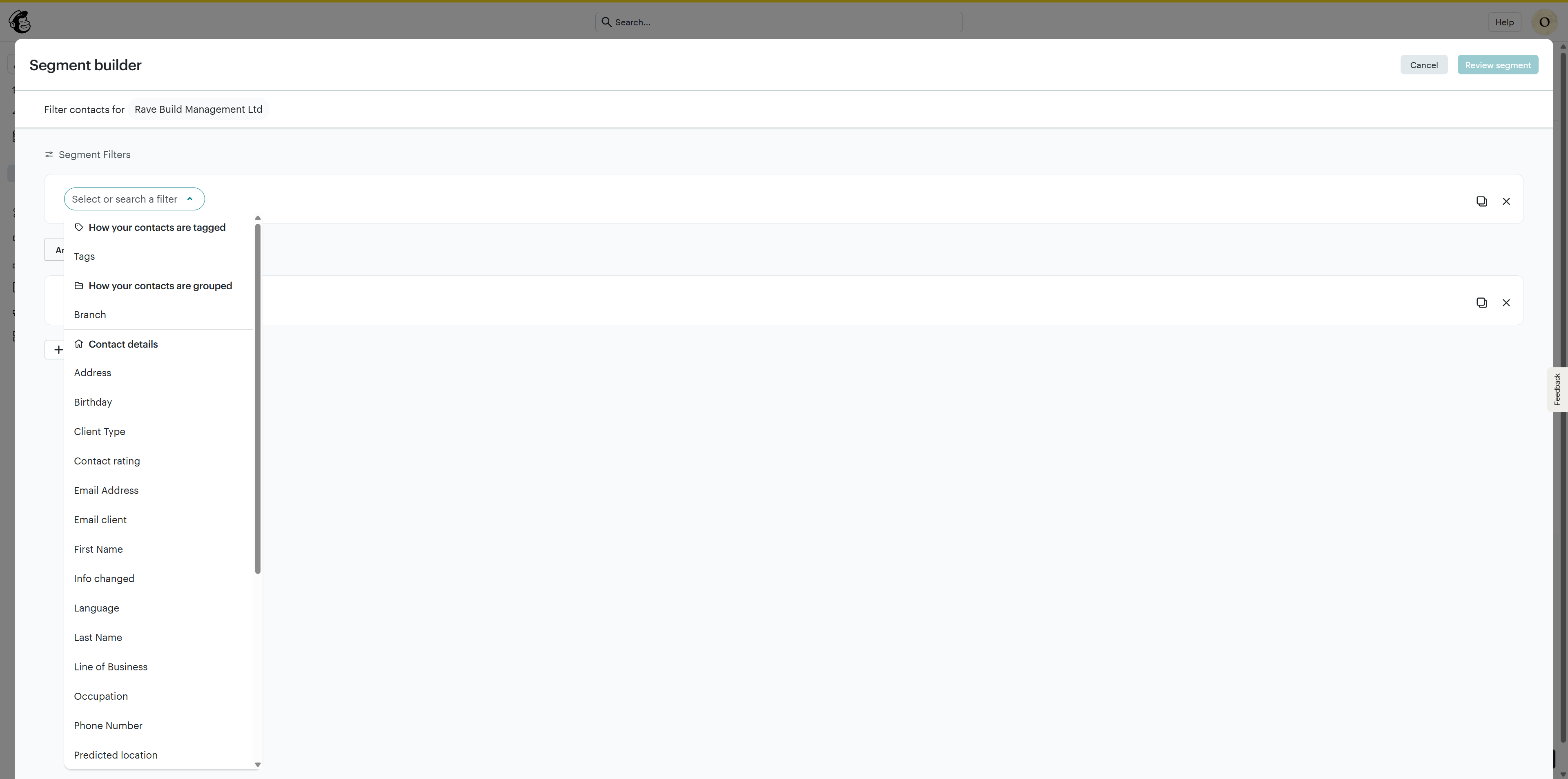
Now that your Mailchimp and Rave are connected you can create your campaigns.
The Segments feature allows you to select multiple tags and other relevant information to create different campaigns based on your selection.
Was this article helpful?
That’s Great!
Thank you for your feedback
Sorry! We couldn't be helpful
Thank you for your feedback
Feedback sent
We appreciate your effort and will try to fix the article