Integrating RAVE FMS with Xero allows you to sync your Chart of Accounts, manage payments, link project tracking and more.
You must have the Branch Settings - Integration - Xero permission enabled in order to complete this set-up. If you don't see this option, contact your branch owner or Rave Support.
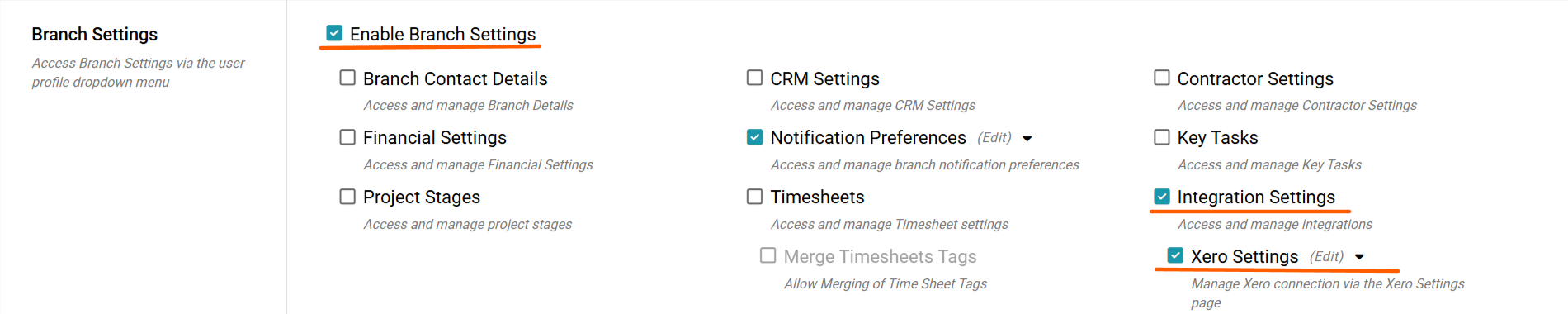
Our Previous Articles stepped you through how to conenct to Xero, you can read that article Here. Or, how to set up your Xero Settings, you can read that article here.
We will now run through the Job History Tab
Click your Profile dropdown in RAVE.
From the Branch Settings menu, select Integrations
If you don’t see this option, contact your Business Owner for access permissions.
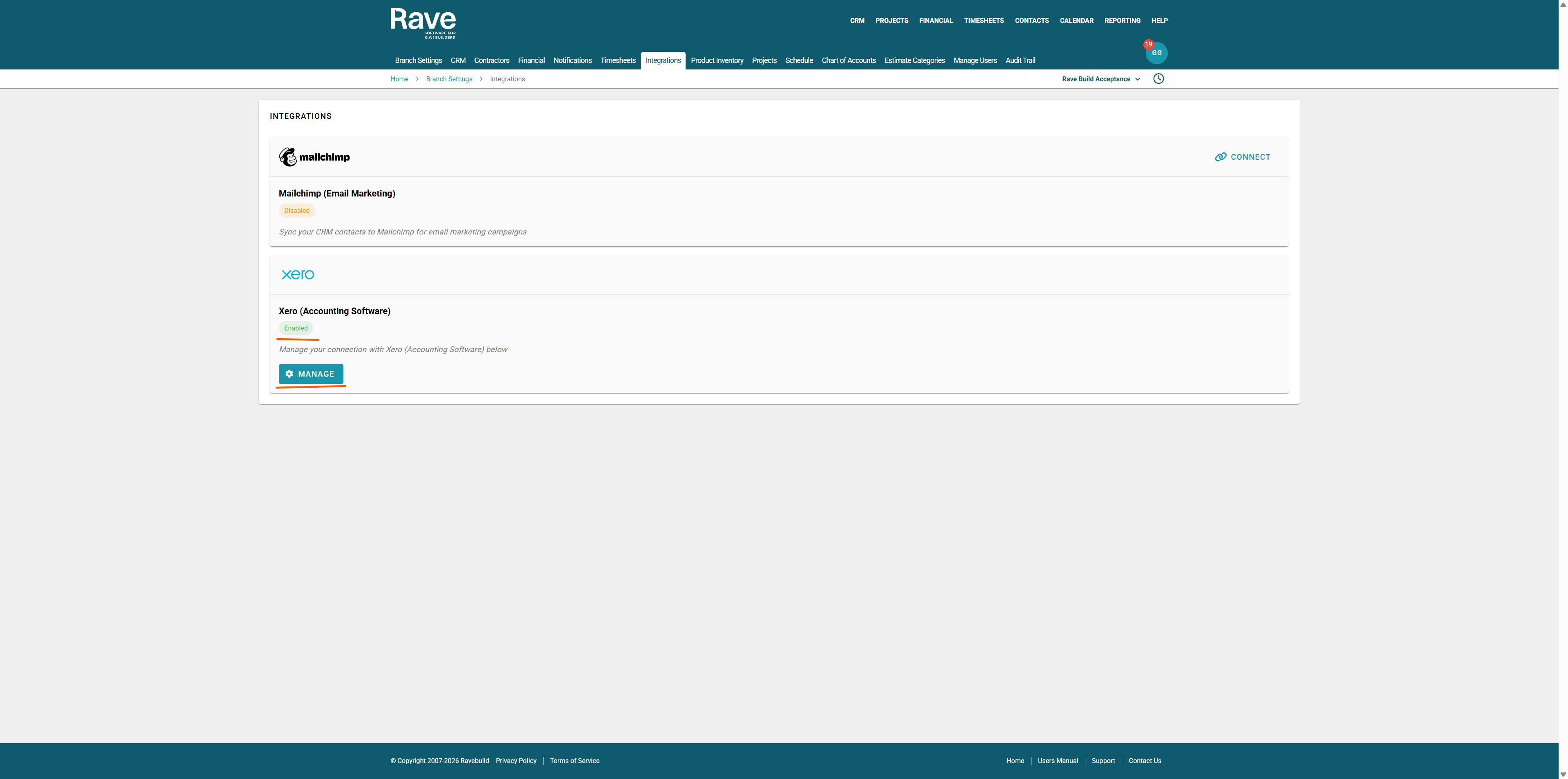
Once in Integrations, find Xero and click Manage.
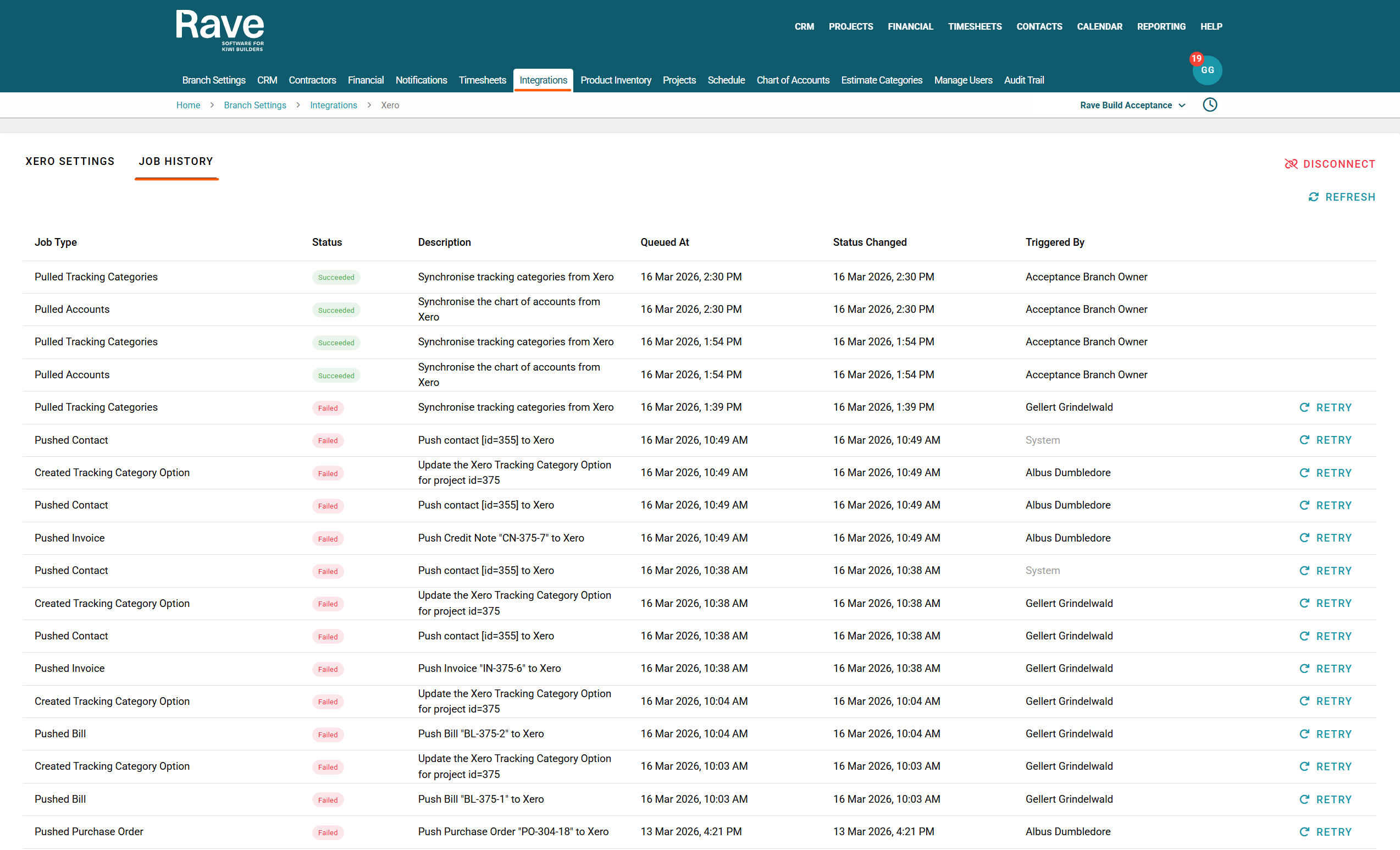
Select the Job History Sub Tab
The Job History tab shows all communications between Rave and Xero. It shows if the action was successful or Failed.
If a transaction failed, you can click the Red Failed icon to see why the error occurred, fix the issue, and then click Retry.
If you want to refresh the page once you have retried an errro use the Refresh button to the top of the page.
If the transaction still fails to send, you can create a support ticket by emailing Help@ravebuild.co.nz, and a Rave Team member can assist.
We also send an email notification to the user who created the document when there is a Failure to send to Xero. This email will include:
- A clear message stating the document failed to send to Xero
- The reason for the failure, if available
- Next steps, including guidance or links to support if needed
Common failure reasons include:
- Missing client email address
- Incorrect Xero account code (e.g., using a sales code on a purchase or vice versa)
- Attachment issues (e.g., file too large or unsupported file type)
If Xero does not return a clear reason, we’ll let the user know and prompt them to create a support ticket, including the failed email, so we can investigate further.

Was this article helpful?
That’s Great!
Thank you for your feedback
Sorry! We couldn't be helpful
Thank you for your feedback
Feedback sent
We appreciate your effort and will try to fix the article