The following is the recorded version of the audit trail overview covering the article below and more i.e. the client, project, project financial, Xero, timesheet, branch, and integration audit trails.
The Branch Audit Trail is a new feature added to the Rave Branch Settings page.
It allows users who have permission to view all changes made at the branch level that do not directly affect the CRM Audit, Timesheet Audit, Financial Audit or Project Audit.
To access it, click on your user profile circle, select "Branch Settings," then click on "Audit Trail.".
If you do not see these options please contact your branch owner or Rave Support to turn this on.
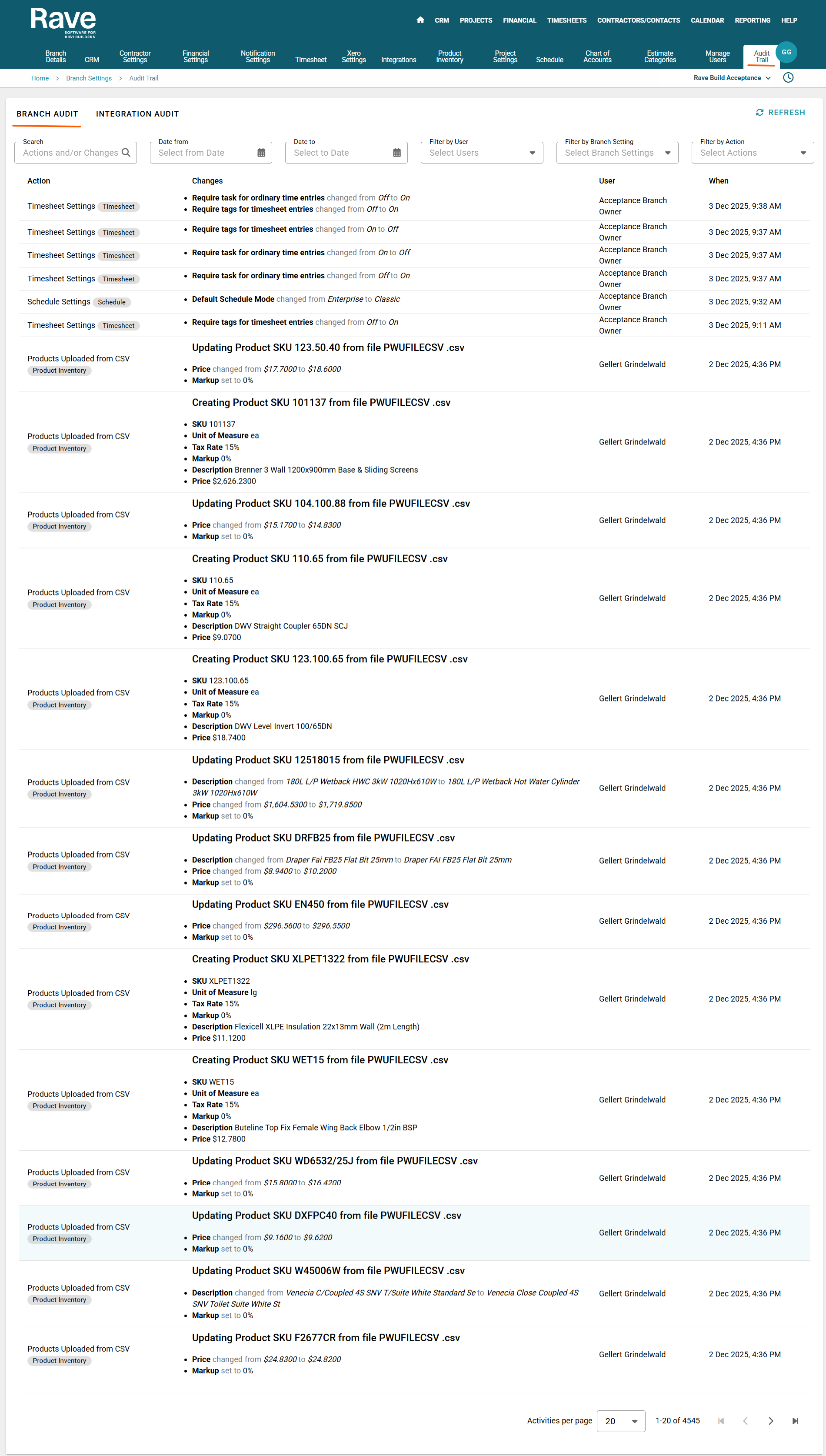
You'll now see two different tabs. The Branch Audit and Integration Audit.
In the Branch audit, you'll find a search box to search and filter by specific actions or changes.
- Filter by Date From and To will allow you to pick a certain date range or ranges to find audit actions taken.
- Filter By User will allow you to select a specific person or people in your branch and see all actions they took in the branch settings page or show all downloads they have made from the system.
- Filter by Branch Settings Section will allow you to pick a certain branch setting and view all changes made to that section. i.e. CRM settings or Project Settings.
- Filter By Action will allow you to select a specific action and view all users, days and times this action was performed in your branch.
The audit trail logs every action in the branch settings page tabs, including every time a user downloads anything from your Rave account, providing a comprehensive record of modifications for monitoring and security. We are adding more options to this feature each week so if a specific change isn't showing it is still being added.
Integration Trail
The integration audit captures a complete record of all actions taken by a user while syncing their Google or Microsoft/Office 365 calendar to Rave. Logged events include:
Initial connection and authorisation attempts
Successful and failed sync operations
Changes to sync settings or permissions
Disconnection or reauthorisation events
Any errors returned by the provider (Google or Microsoft)
This ensures administrators have full visibility into user-level calendar integration activity.
Was this article helpful?
That’s Great!
Thank you for your feedback
Sorry! We couldn't be helpful
Thank you for your feedback
Feedback sent
We appreciate your effort and will try to fix the article