With the introduction of Two-Factor Authentication (2FA), you will be prompted to verify your identity before accessing or making changes to sensitive Branch Settings. This additional security measure helps protect your business data and ensures that only authorised users can update critical settings.
Once you have successfully verified your identity using 2FA, Admin Mode will remain active for one hour. During this time, you can make any required changes to Branch Settings without needing to authenticate again.
Who is affected?
- All users who have access to and use Branch Settings
Why has this changed?
This extra security layer helps prevent unauthorised changes to your branch configuration, even if someone gains access to a signed-in device.
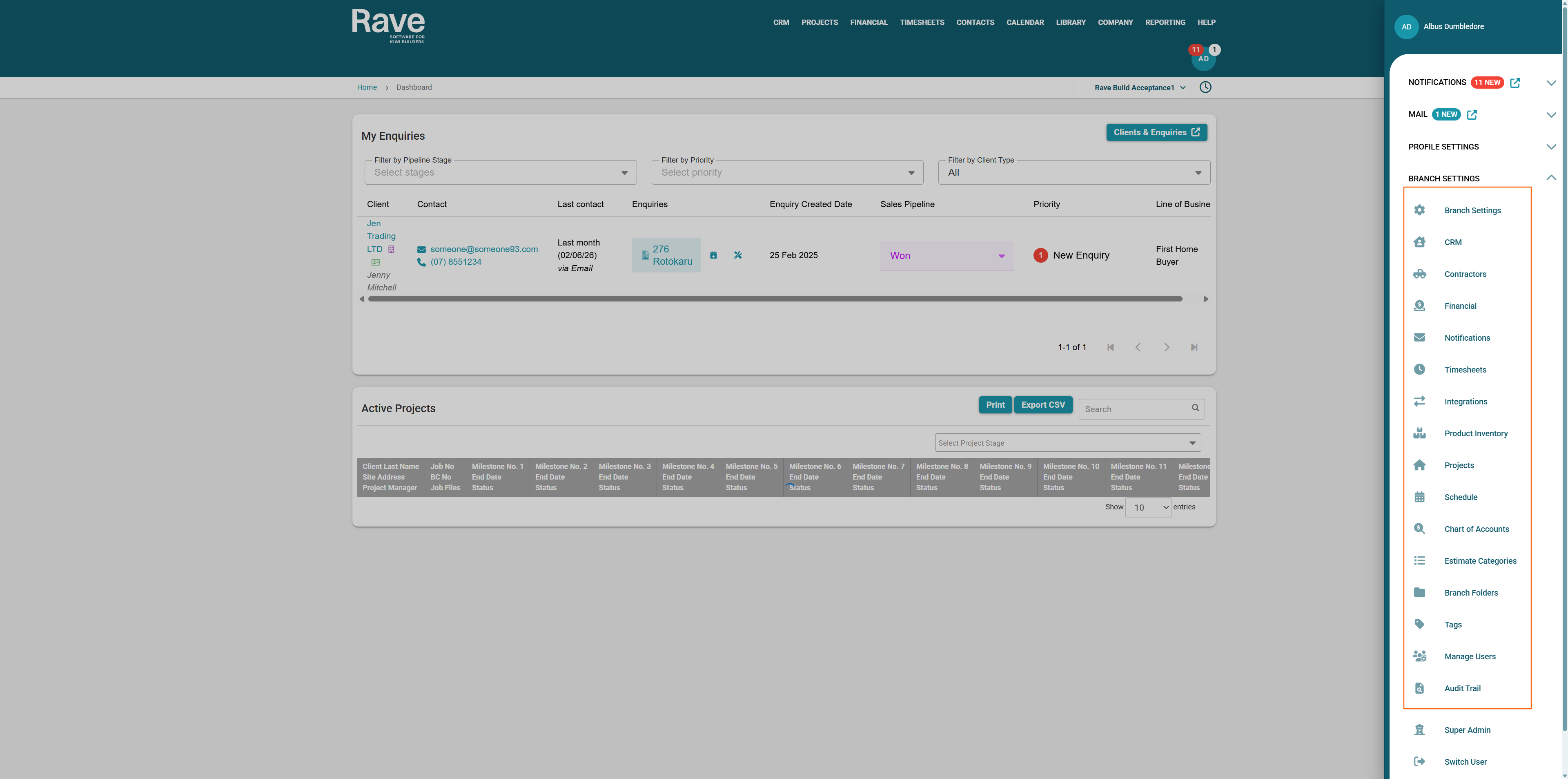
To access Branch Settings, click your profile in the top-right corner of Rave and select any option listed under Branch Settings.
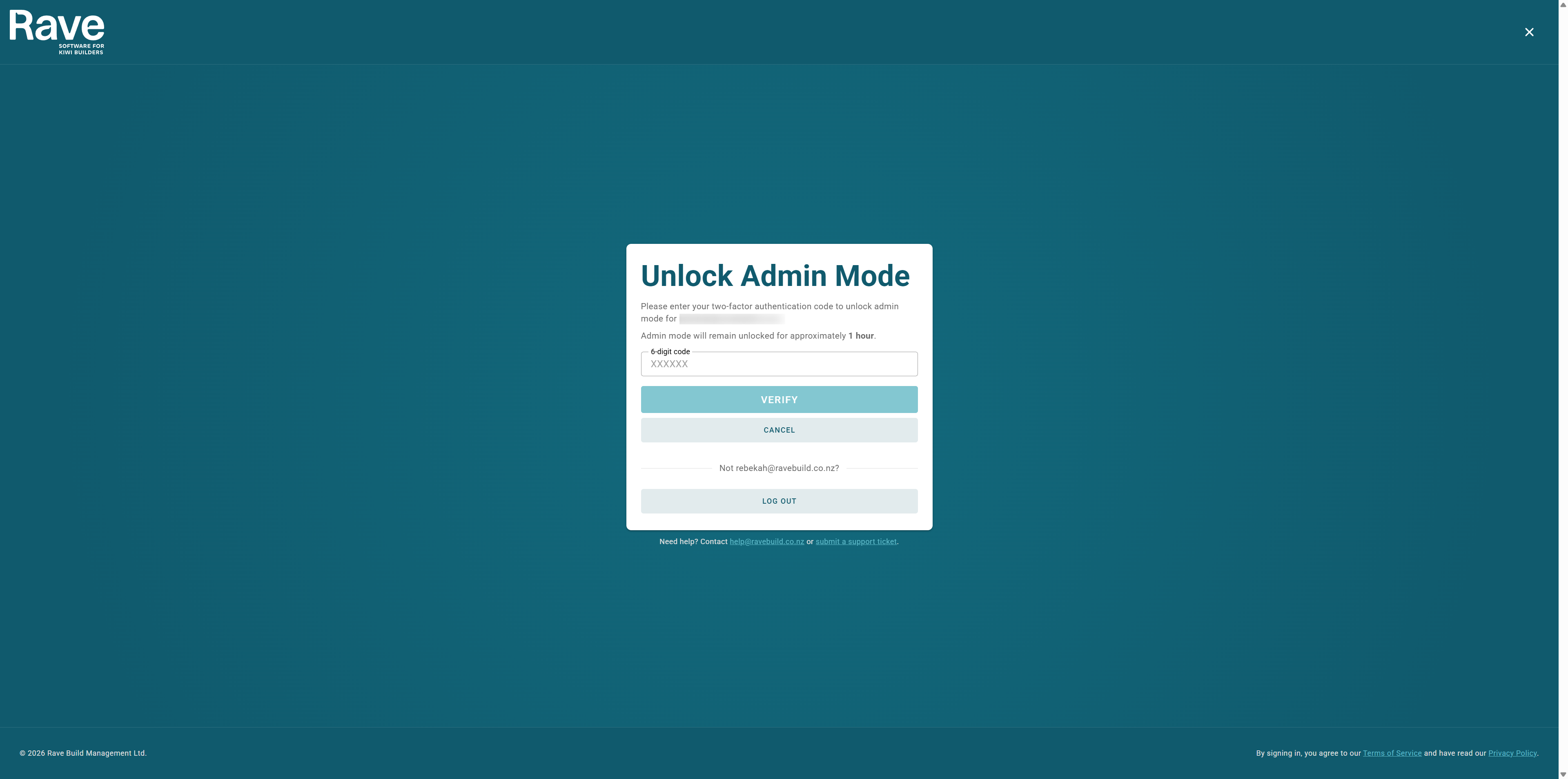
If you are not already in Admin Mode, a Two-Factor Authentication (2FA) prompt will appear asking you to enter the verification code from your authenticator app.
Once you have entered the correct code, Admin Mode will be activated. Your profile icon will display an orange ring, indicating that you are authenticated and can access and make changes to sensitive Branch Settings.
When you have finished making your changes, click Exit Admin Mode from the Branch Settings menu to end your authenticated session immediately. If you do not exit manually, Admin Mode will automatically expire after one hour, at which point you will need to verify your identity again before making further changes.

Was this article helpful?
That’s Great!
Thank you for your feedback
Sorry! We couldn't be helpful
Thank you for your feedback
Feedback sent
We appreciate your effort and will try to fix the article