If you are looking for the help article on the Branch Library, click here to read it.
If you are looking for the help article on Branch Folders and Trash, click here to read it.
If you are looking for the help article on Project Documents, click here to read it.
If you are looking for the help article on Document Permissions, click here to read it.
If you are looking for the help article on Document Notifications, click here to read it.
From the profile dropdown, select Branch Settings, then click Branch Folders and open the Settings tab.
Here you will find the following configuration options: Active Document Tags and Document Notification Defaults.
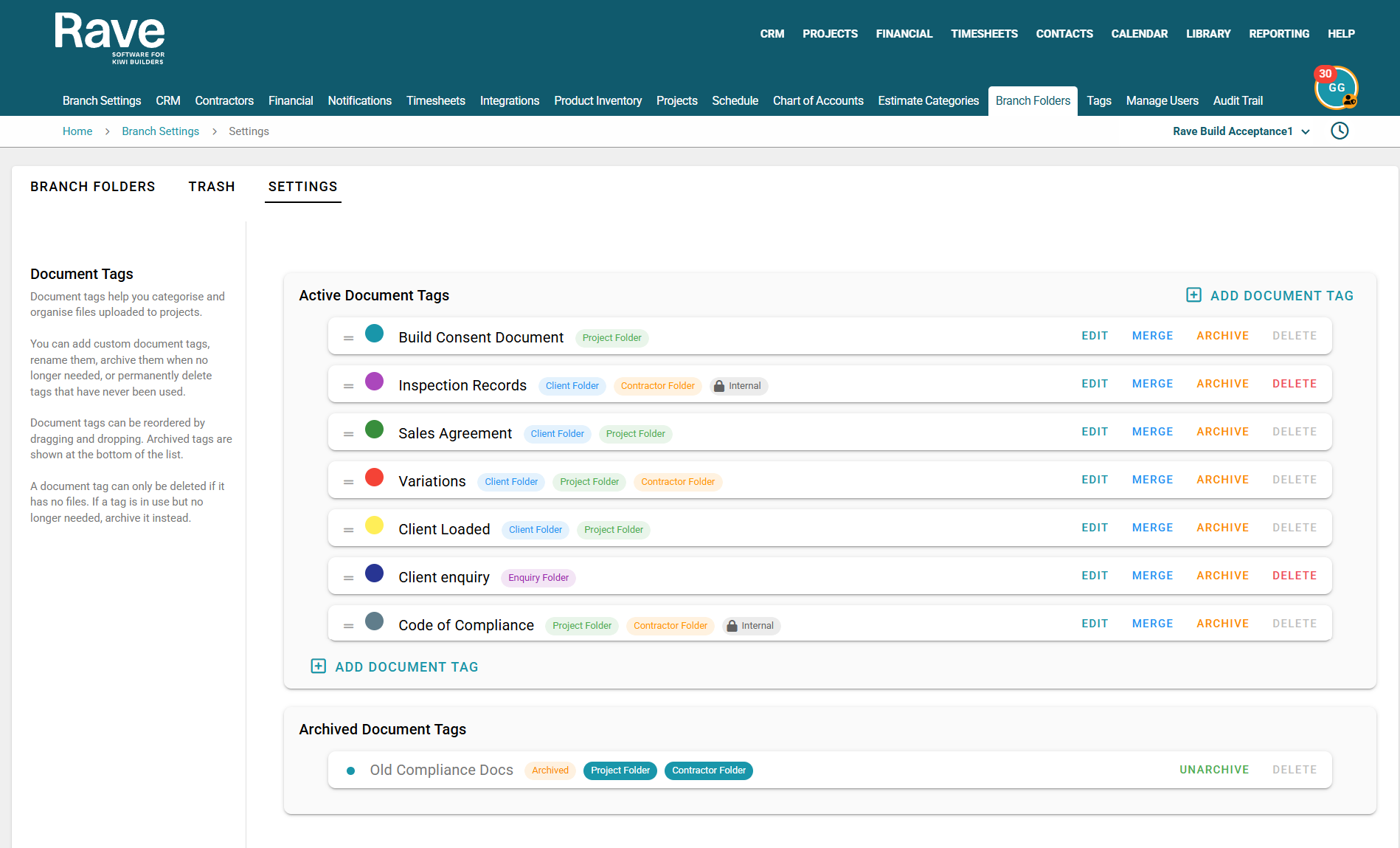
Active Document Tags
Document Tags are colour-coded labels that help organise and identify important documents across your projects. Tags make it easy to quickly filter, search, and locate key information without needing to browse through multiple folders.
Tags can be customised to suit your business processes and document management requirements.
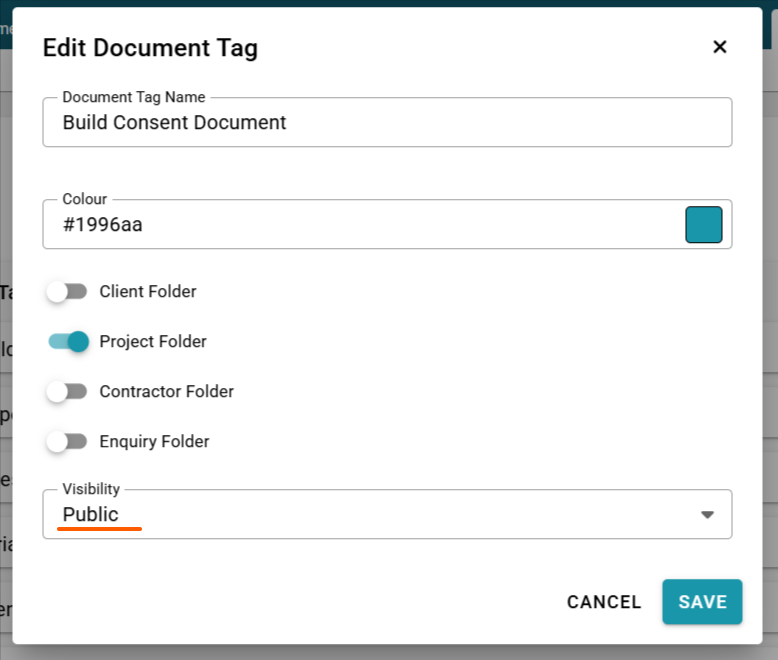
Private vs Pubic Tags
You can also choose if the document tags are Private or Public.
If the tag is Public, your clients and contractors will be able to see/use the tags when they are invited to participate in document sharing.
If the tag is private, only internal staff can view/use the tags. The documents will still be visible to users with permission to see the document.
Examples of commonly used tags include:
- Code Compliance Certificate
- Final Consented Plans
- Client Selections
- Variations
- Warranties
- Engineering Documentation
- Health & Safety Documents
- Site issues
Using consistent tag names and colours across your branch helps maintain a clear and organised document structure for all users.
Creating Active Document Tags
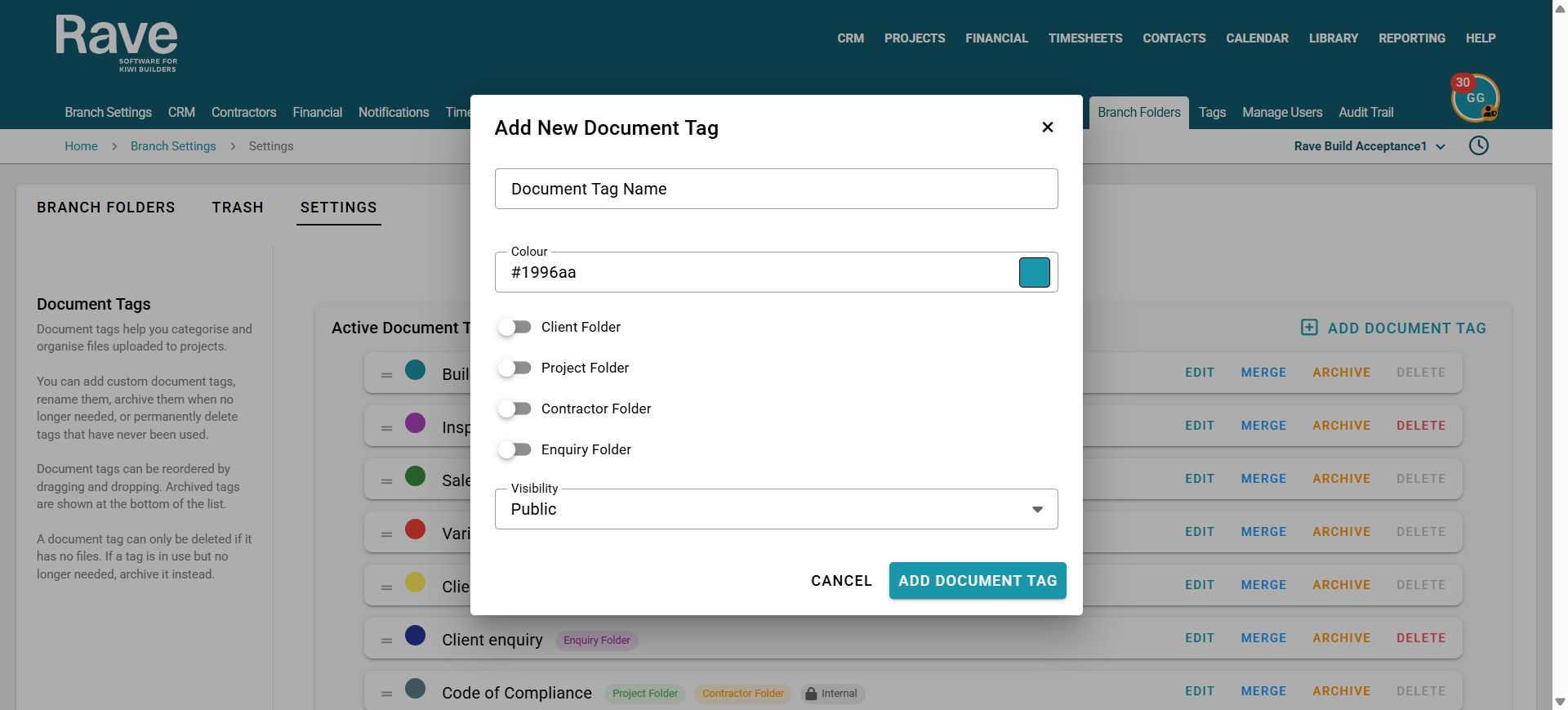
To create a new document tag, click the + icon.
Enter the Document tag name and choose a colour for the tag.
Now select where it will be available to use:
- Client Folder - Only used in the client folder in Project Documents
- Project Folder - Used anywhere in the project documents Folders
- Contractor Folder - Only used in the Contractor folders in Project Documents
- Enquiry Folder - Only used in CRM enquiry Documents
- Or any combination of the above
Now choose if the document tag is for public use or Private (internal use only)
Once you have complete click Add Document Tag to confirm. The tag will then be available for users to apply to documents throughout the system. Tags can be used to highlight important files, improve document visibility, and create a consistent method of categorising information across projects.
Editing, Deleting, Merging and Archiving a Document Tag
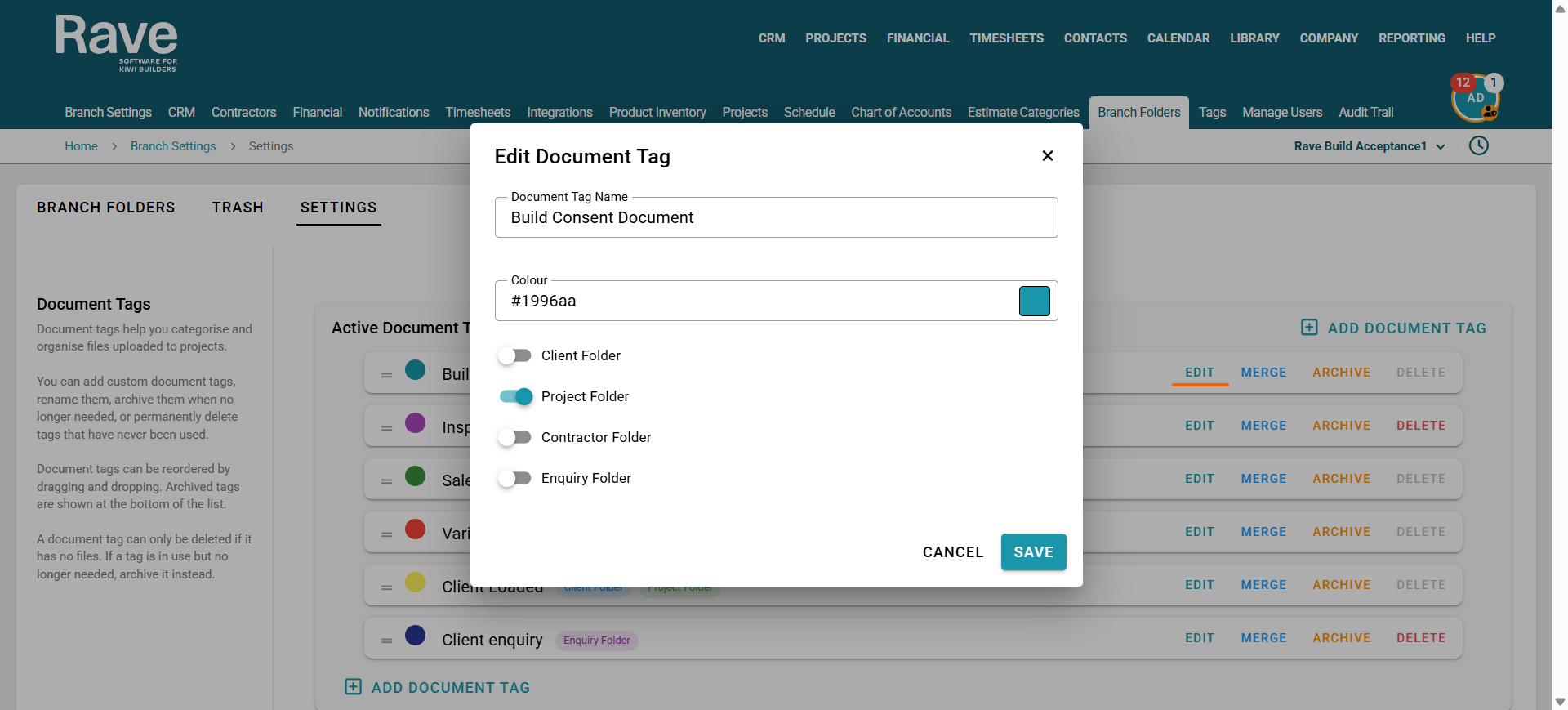
Click the Edit button to update a document tag. You can change the tag name, tag colour, and select which folders the tag is available to use in.
You cannot delete a document tag while it is in use.
Instead, you can:
Archive the tag to prevent it from being used on new documents while keeping it on any existing documents that already use it.
Merge the tag into another existing tag. This will replace the old tag with the selected tag across all documents.
Note: Merging document tags is permanent and cannot be undone.
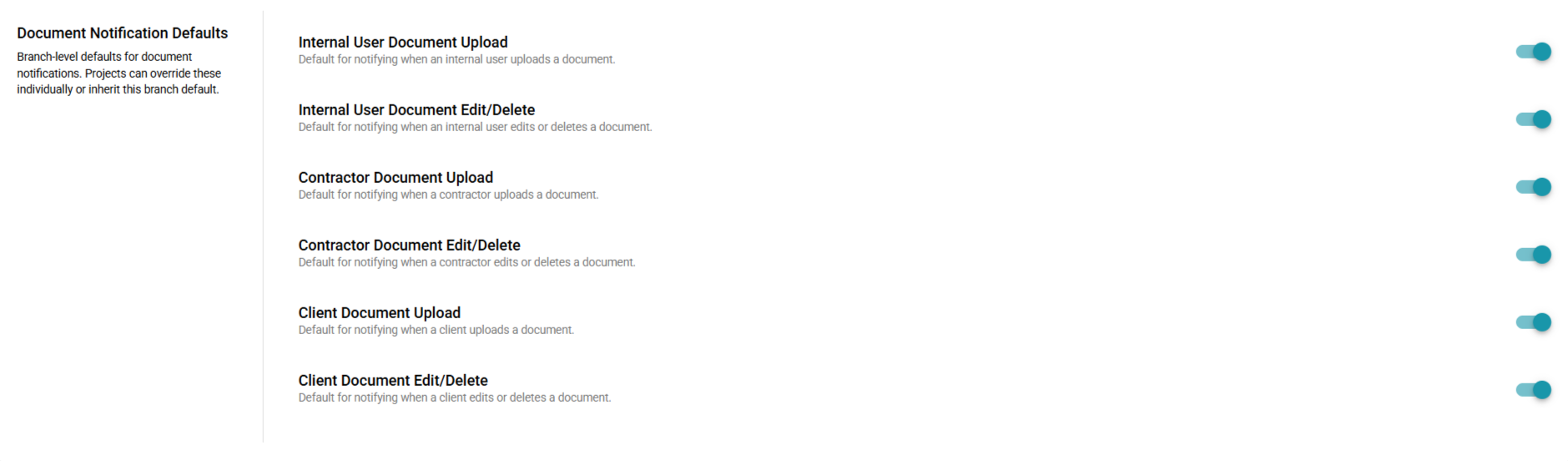
Document Notification Defaults
These settings control the default document notification behaviour at the Branch level.
Notification settings work across three levels:
- Branch Level – Sets the default notification preferences for all new projects within the branch. As all of these are new options, they are all turned off by default.
- Project Level – Individual projects can override the branch defaults to suit specific project requirements.
- User Profile Level – Each user can manage their own notification preferences within their Profile settings.
This hierarchy provides flexibility while ensuring consistent default behaviour across the branch.
Simply slide the notification options you want to use in your branch on or off as a default.
Was this article helpful?
That’s Great!
Thank you for your feedback
Sorry! We couldn't be helpful
Thank you for your feedback
Feedback sent
We appreciate your effort and will try to fix the article