RAVE’s financial management system is designed to help you manage all the financial aspects of your projects, including budgeting, bills, and invoices, with ease. There are multiple ways to create Client Invoices.
This article shows you how to create a Charge-Up Invoice from one or more Approved Quotes
To learn how to create a charge-Up Invoice from Multiple Purchase Orders, click here.
To learn how to create a charge-up invoice from Bills/Multiple Bills, including consolidating, click here.
Note: You can only create a client invoice from an approved quote, not from a pending one.
How to Create a Client Invoice from Multiple Quotes
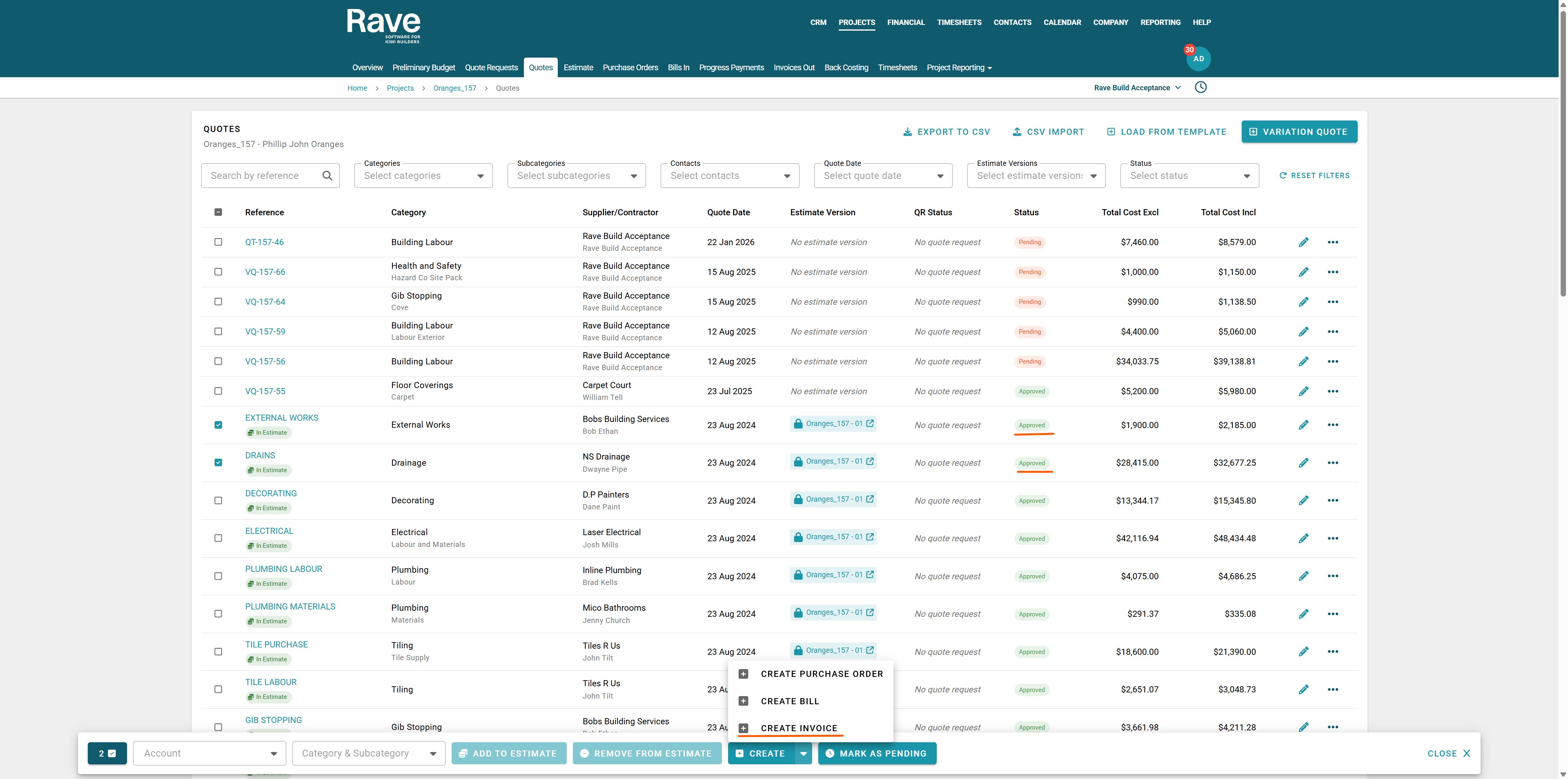
To create the client invoice, select multiple quotes using the square icon to the left of the reference, then, when the bulk action bar appears, select + Create Invoice from the + Create drop-down.
If the selected quotes total a negative amount, Rave will generate a Client Credit Note. This applies whether you select a single negative quote or multiple quotes that sum to a negative value. If the total amount is positive, Rave will create a client invoice.
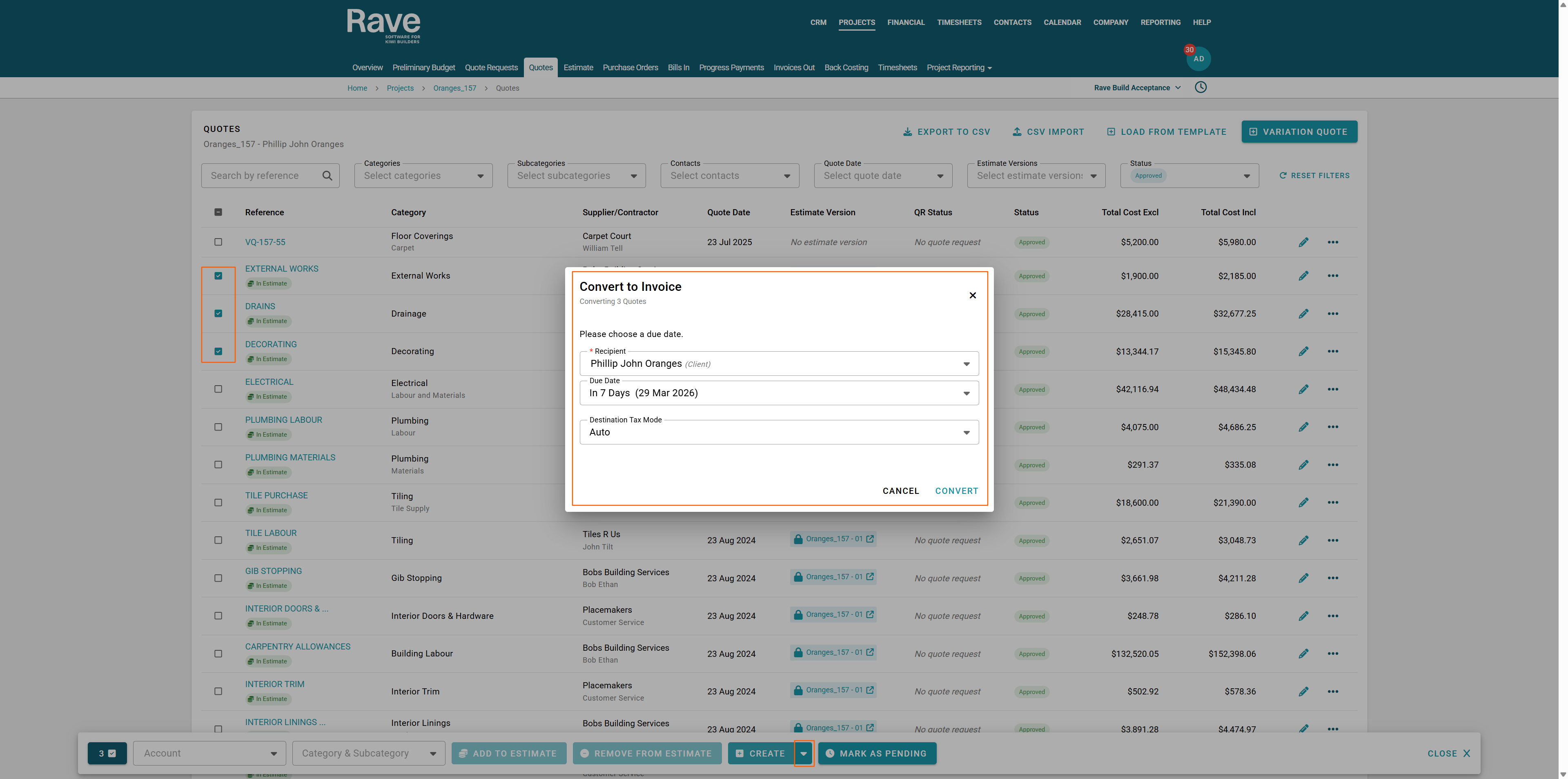
The Invoice Creation modal will then appear, prompting you to choose the recipient. You can select the primary client, or secondary client(s), or, if applicable, create an on-charge invoice (see the help article for on-charge invoices here).
Next, select the invoice due date.
Then Click Convert.
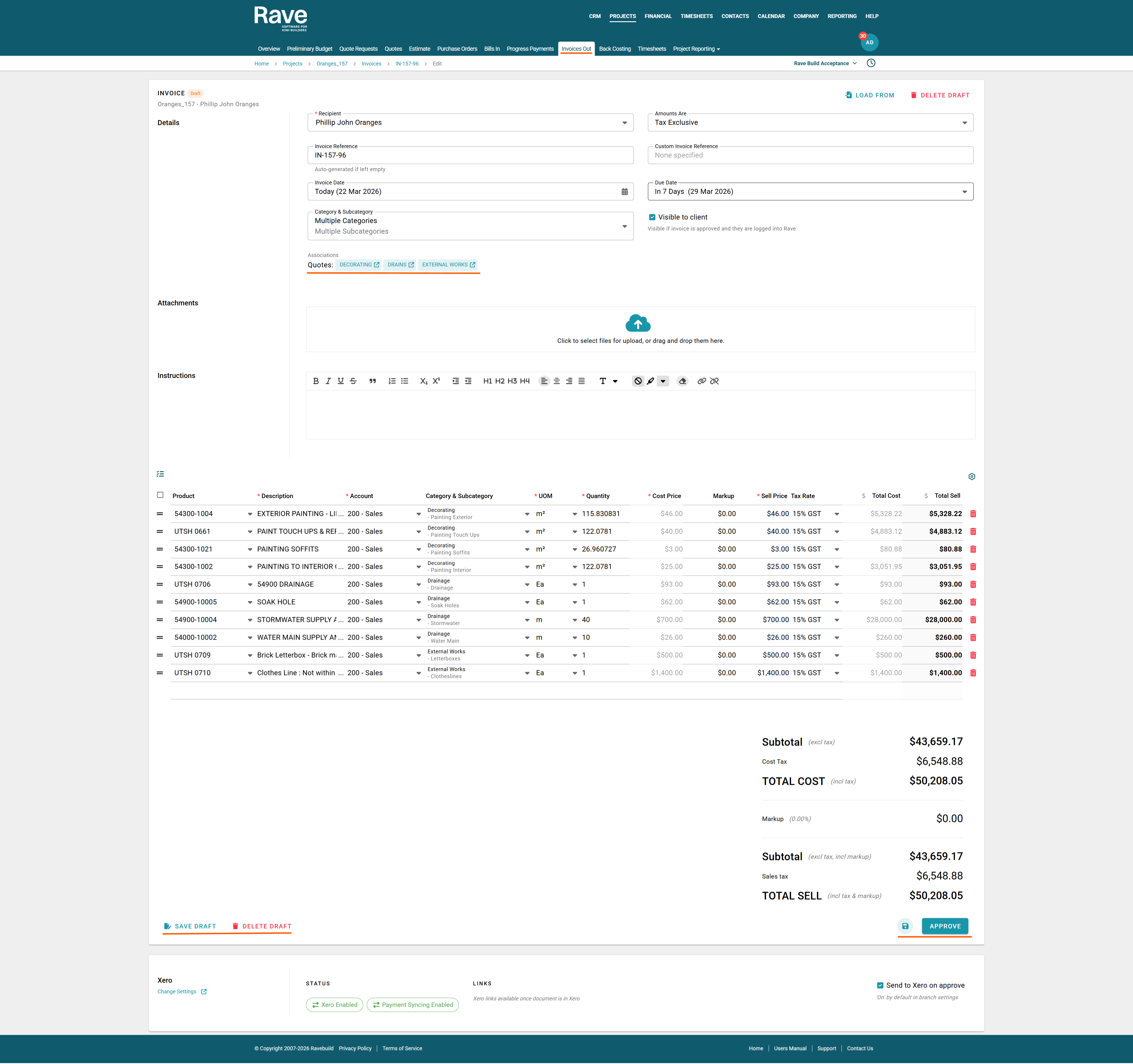
The Invoice creation model will now open in Draft status.
You can review and edit any information that has come through for the selected quotes.
The associations box will show all quotes you have chosen to create this invoice from.
The Visible to Client box will be auto-checked by default. If you uncheck this, the invoice will not appear in the primary client's login.
You can choose to type in invoice instructions, which will appear on your Xero invoice and the Rave PDF
The square icon beside the first line item will open the bulk select option, where you can select multiple lines to change the Account Code, Category, and Sub Category, edit/add markup in one action, or delete the lines.
Once you are happy with your invoice, press Approve.
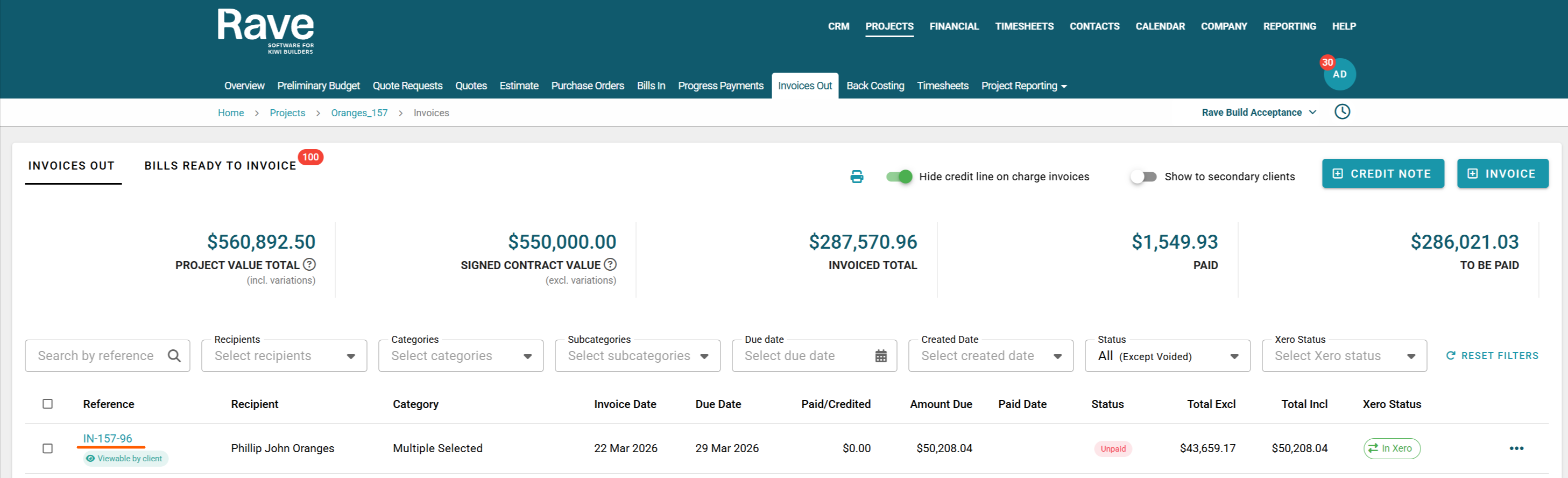
Your invoice will now display under the Invoice Out tab, and if connected to Xero, will be in Xero as a draft ready to send.
If you need to save the invoice as a draft to come back to later, select Save Draft.
If you select Delete Draft, the invoice will be deleted, and the bills/credit notes will revert to ready-to-convert status.
Was this article helpful?
That’s Great!
Thank you for your feedback
Sorry! We couldn't be helpful
Thank you for your feedback
Feedback sent
We appreciate your effort and will try to fix the article