RAVE’s financial management system is designed to help you manage all the financial aspects of your projects, including budgeting, bills, and invoices, with ease.
This article covers how to create a Charge-Up Invoice from Bills and the available Consolidation Options.
To learn how to create a charge-up Invoice from Bills/Muliple Bills, click here.
To learn how to create a charge-up Invoice from Multiple Purchase Orders, click here.
To learn how to create a charge-up invoice from Quotes/Multiple Quotes, click here.
You can access your Project’s financial workflows from either the Financial button or the Project button's Project list, clicking on the project’s reference number, and finally selecting the Budget sub-tab, then Invoices.
Note: Consolidating your Bills into single lines will prevent you from using the carge up report by Category as you will be removing the Category and Sub Category information off the invoice when consolidating.
Single Line Client Invoicing
If you need to simplify your charge-up invoices so your client only sees a single line, such as Labour – June 2026 or Materials – June 2026, you can now use the new Consolidate By → Single Line Item option.
Creating a Single Line Invoice
From the Bills Waiting to be Invoiced screen, filter your bills if required.
Filter by Category, Subcategory, or Supplier if you want to invoice items separately (for example, one invoice for labour and another for materials).
If you want everything combined into a single invoice, simply leave all bills visible.
Bulk select the bills you want to invoice.
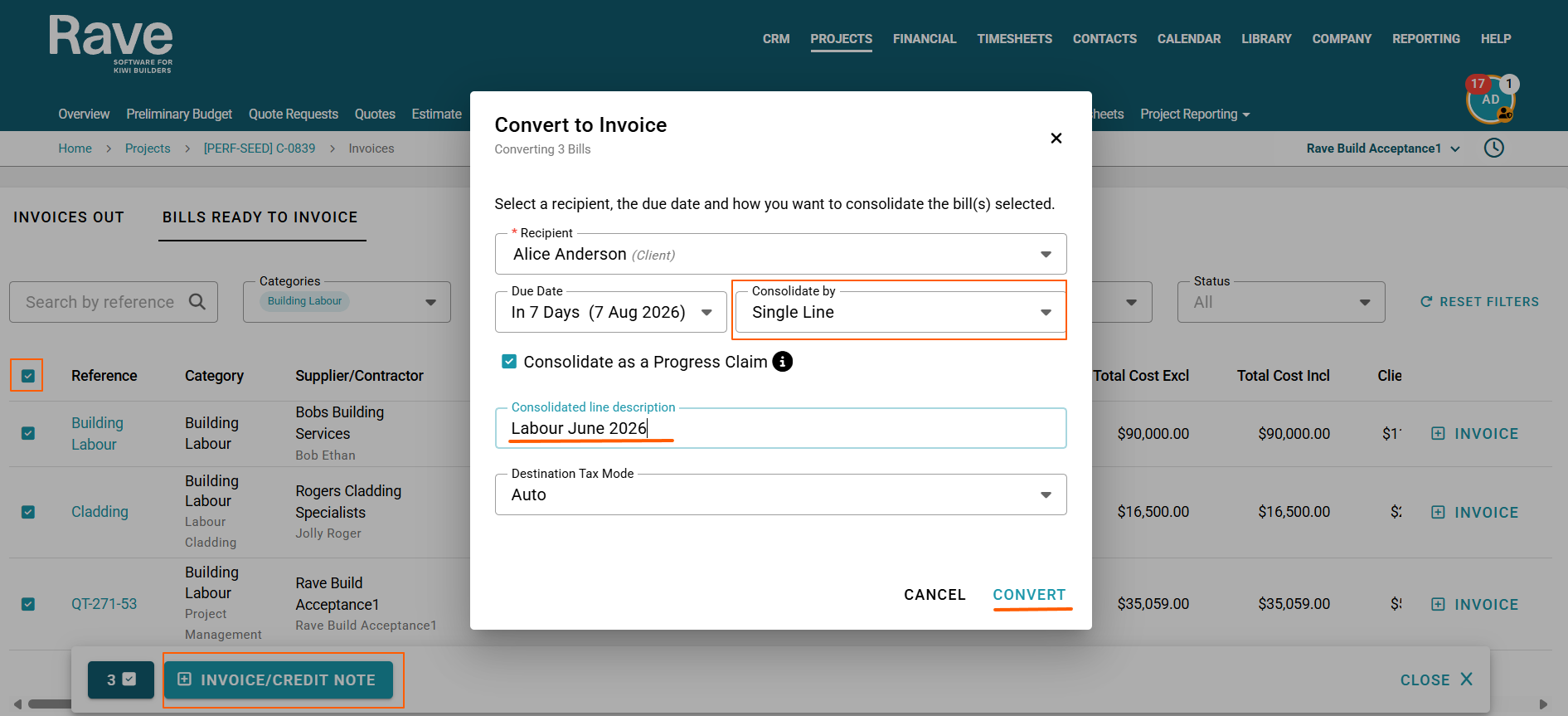
Click + Client Invoice/Credit Note.
If the total value of the credits exceeds the bills, Rave will automatically create a Client Credit Note instead of an invoice.
In the pop-up window, select Consolidate By → Single Line Item.
Enter the description you want your client to see, for example:
Labour – June 2026
Materials – June 2026
Charge-Up Costs – June 2026
Leave the Tax option set to Auto Calculate. Rave will automatically calculate the correct GST based on the bills being invoiced.
Click Convert
Your client invoice will be created with a single line item, while still accurately calculating the value and GST from the underlying bills. Review the information and then click Approve on the invoice/Credit Note screen.
You can then go back to step 1 and repeat the same for creating a Materials bill.
Note: Ensure your bills all have Markup added before converting to client invoices; otherwise, the invoice will convert at Cost price. To bulk update bills markup, click Bills in bulk select, and on the pop-up bar you can enter a % markup and hit apply. 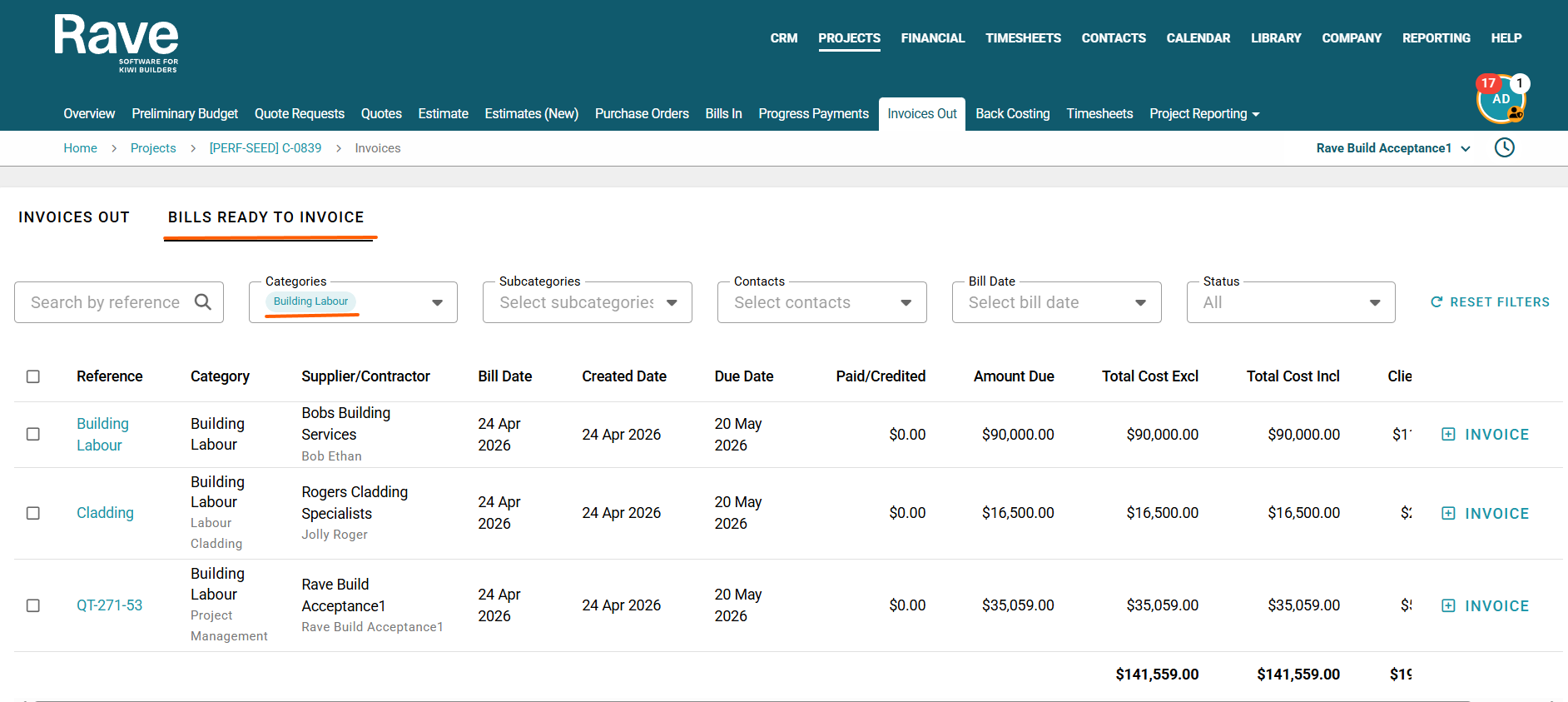
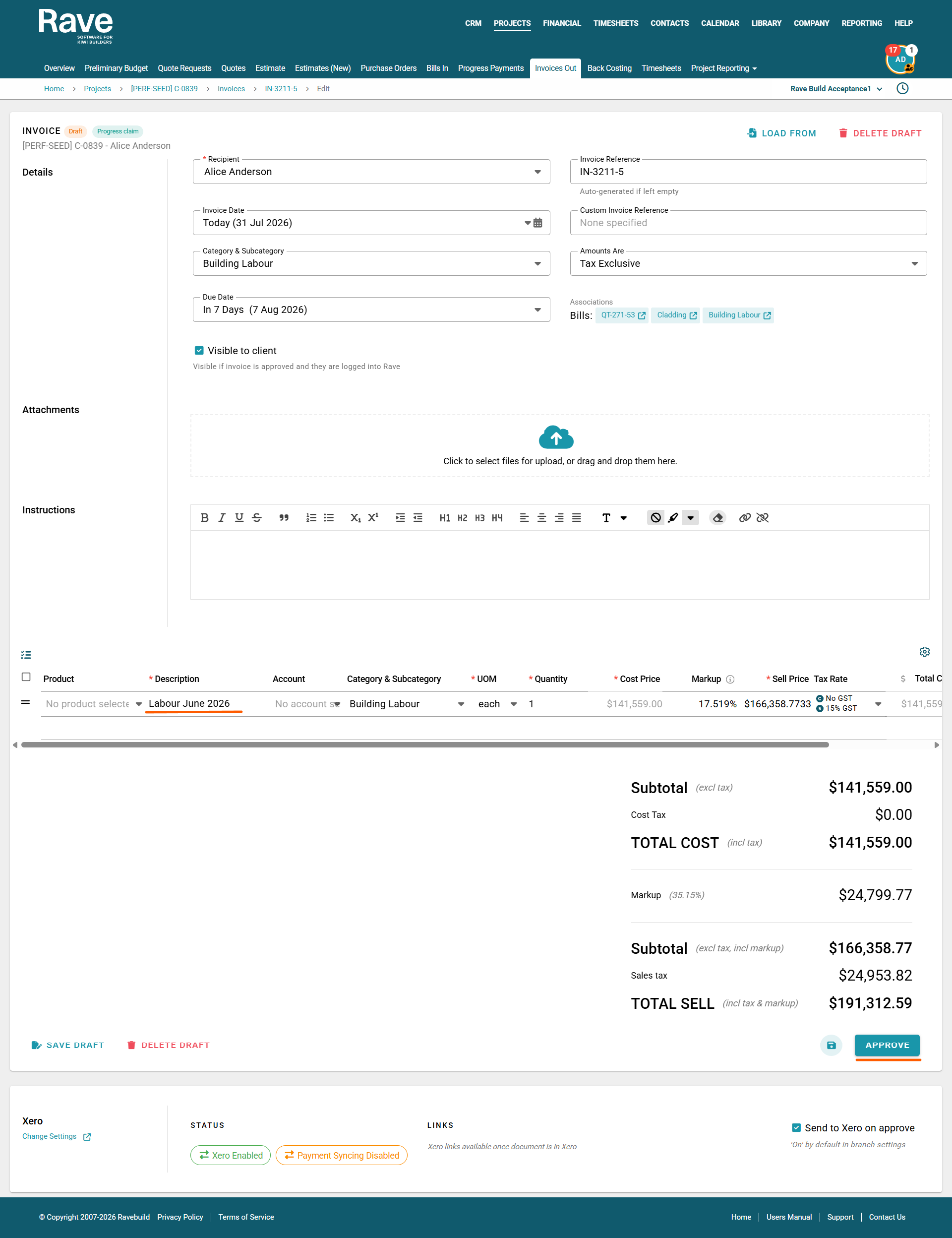
Note: If you want the Category and/or Subcategory information from the bill to be retained on the client invoice for accurate reporting, including the Charge Up Report and Budget vs Actual. Do not enter a Category or Subcategory when creating the single-line item on the client invoice.
Leave these fields blank, and Rave will automatically populate the Category and Subcategory information from the bill source document.


Was this article helpful?
That’s Great!
Thank you for your feedback
Sorry! We couldn't be helpful
Thank you for your feedback
Feedback sent
We appreciate your effort and will try to fix the article