RAVE’s financial management system is designed to help you manage all the financial aspects of your projects, including budgeting, bills, and invoices, with ease.
You can access your Project’s financial workflows from either the Financial button or the Project button's Project list, clicking on the project’s reference number, and finally selecting the Budget sub-tab, then Invoices.
To learn how to create an on-charge invoice for a supplier or Contractor, click here.
To learn how to create a charge-up invoice or credit note from Bills, click here.
To learn how to create a charge-up invoice or credit note from Purchase Orders, click here.
To learn how to create a charge-up invoice or credit note invoice from Quotes, click here

This page displays all Invoices and Credit Notes for the project you have selected.
You can use the Search box to search for the Invoice or Credit Note Reference.
Filters along the top allow filtering by Recipients, Category, Sub Category, Due Date, Created Date, Status, and, if connected to Xero, Xero Status.
When creating an On-Charge Invoice, you have the option to select the checkbox shown below.
If this option is selected, a “Hide Credit Line On-Charge Invoices” filter will be applied on the Invoices Out page. This means that these invoices will be hidden from the list view by default.
You can adjust this filter at any time to show or hide these invoices as needed. You can hide Closed projects and Hide Internal Documents
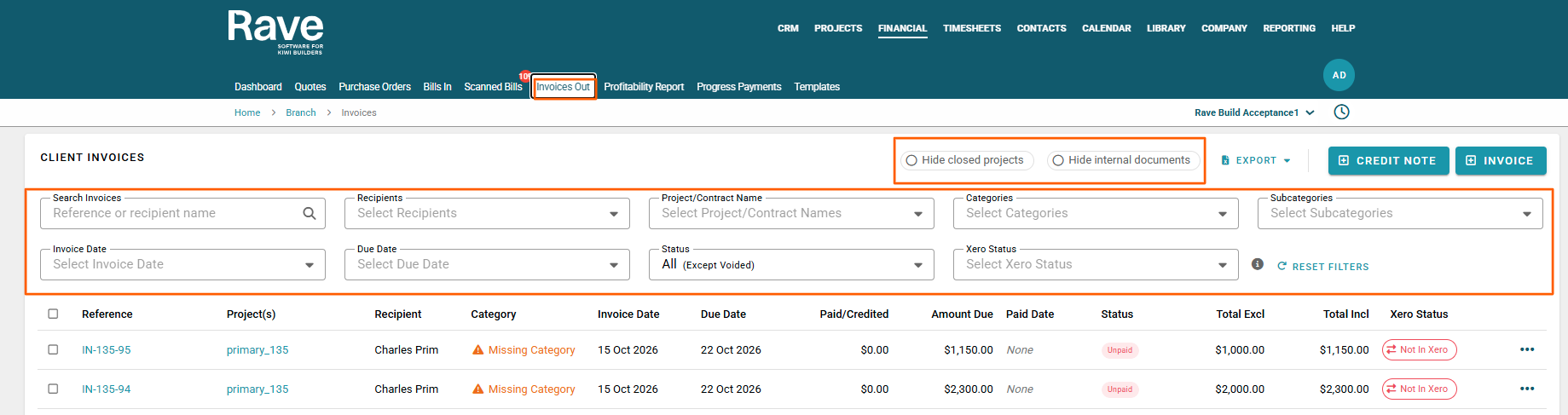
Beside each Draft document is the pencil edit icon, which allows you to edit it.
The three-dot ellipsis beside each document allows you to perform different actions depending on status:
If in Draft
Duplicate
Delete
If Approved and Connected to Xero Payment Syncing
View in Xero if already sent
Send to Xero if not already sent
Create a credit Note
Duplicate
Void
Approved and Not Connected to Xero Payment Syncing
Add a payment
View/Remove Payments
Create a credit Note
Duplicate
Void
Bulk Action Items
- When bulk/Multi-selecting Invoices or Credit Notes in Draft status, you can Approve or Delete from the bulk action bar.
- When bulk/Multi-selecting Invoices or Credit Notes in Approved Status with No payments, you can send them to Xero if not already sent. If not connected to Xero Payment Syncing, you can add a payment.
- When bulk/Multi-selecting Bills in Approved Status with payments, you can send them to Xero if not already sent. If not connected to Xero Payment Syncing, you can add/remove payments.
- When bulk/Multi-select any documents in any status, you can update the Account Code, Category and Subcategory or Markup
Branch Financial Invoices Out Sub-Tab
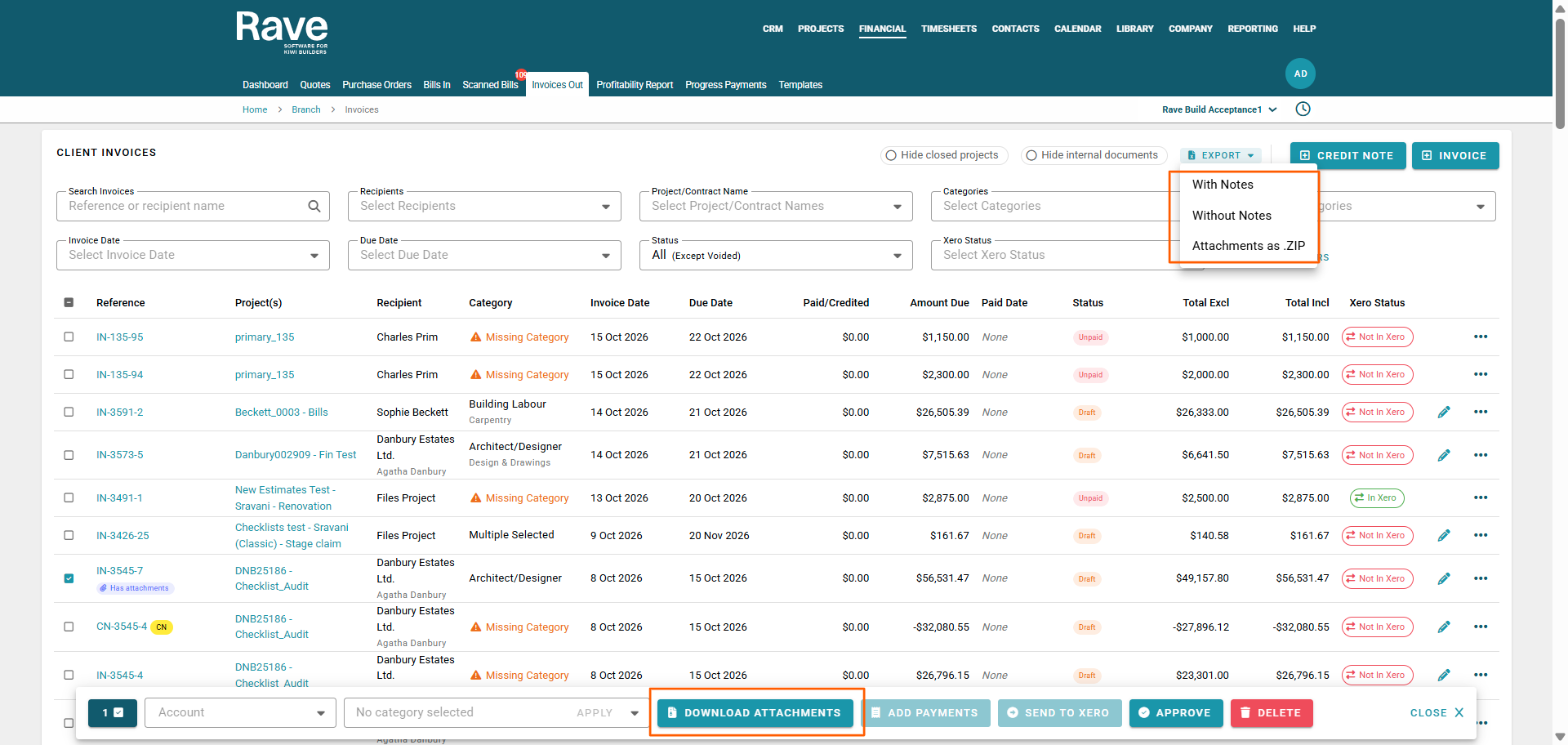
When working in the Financial Invoices Out Sub-tab you now have the ability to Export Attachments as a ZIP. This feature is available also at a Project level.
Bulk Select the Quotes
Select Download as Zip
OR Export Attachments as a Zip
If you choose to download the zip will appear in your downloads
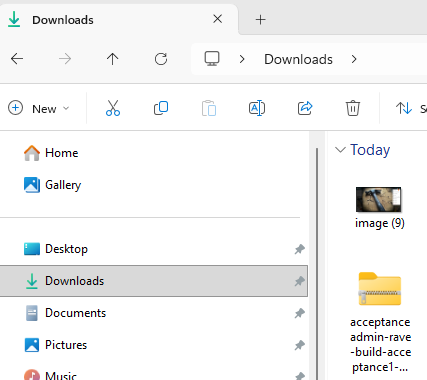
If exported as a Zip File the Zip will export and email it to the user who performed the action.
Was this article helpful?
That’s Great!
Thank you for your feedback
Sorry! We couldn't be helpful
Thank you for your feedback
Feedback sent
We appreciate your effort and will try to fix the article