We all know things can sometimes go wrong on-site, and a sub-trade or contractor is required to pay for remediating work. RAVE's Financial Management System handles this via our 'On Charge Invoices' tool - which is also handy for insurance work where the primary client pays for the majority of the work, but you need to charge an excess to someone else.
How to Create an On-Charge Invoice
To create an On-Charge Invoice in RAVE:
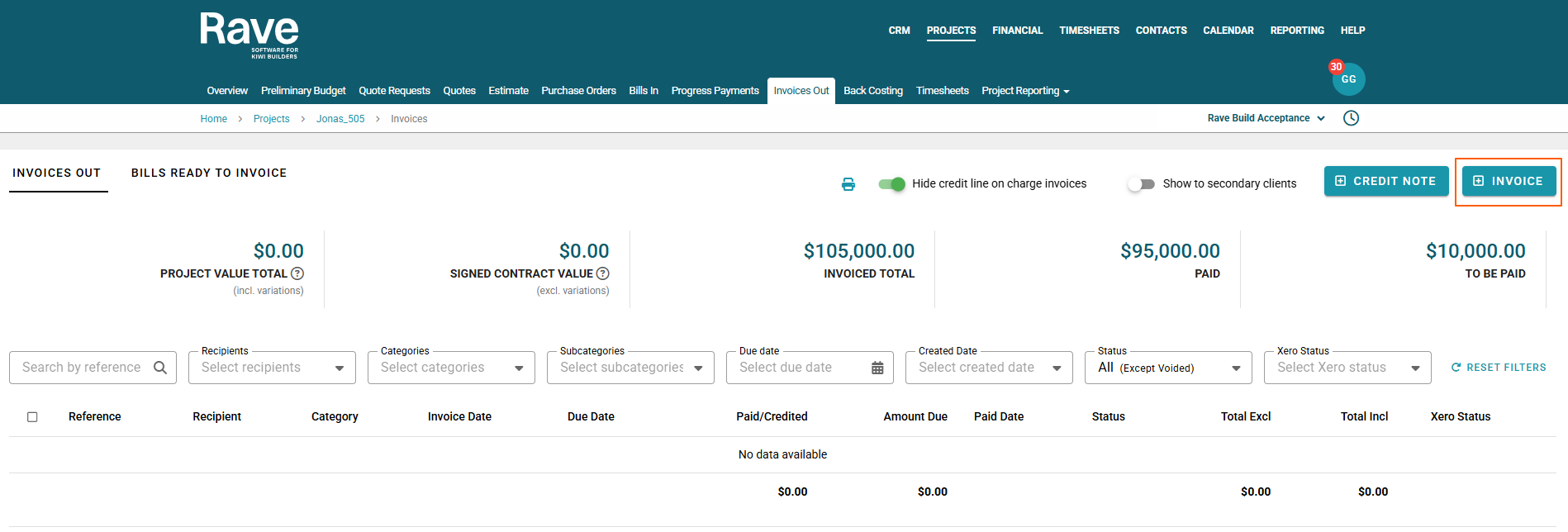
- Navigate to the Projects Budget tab and select invoices Out
- And click on + Invoice
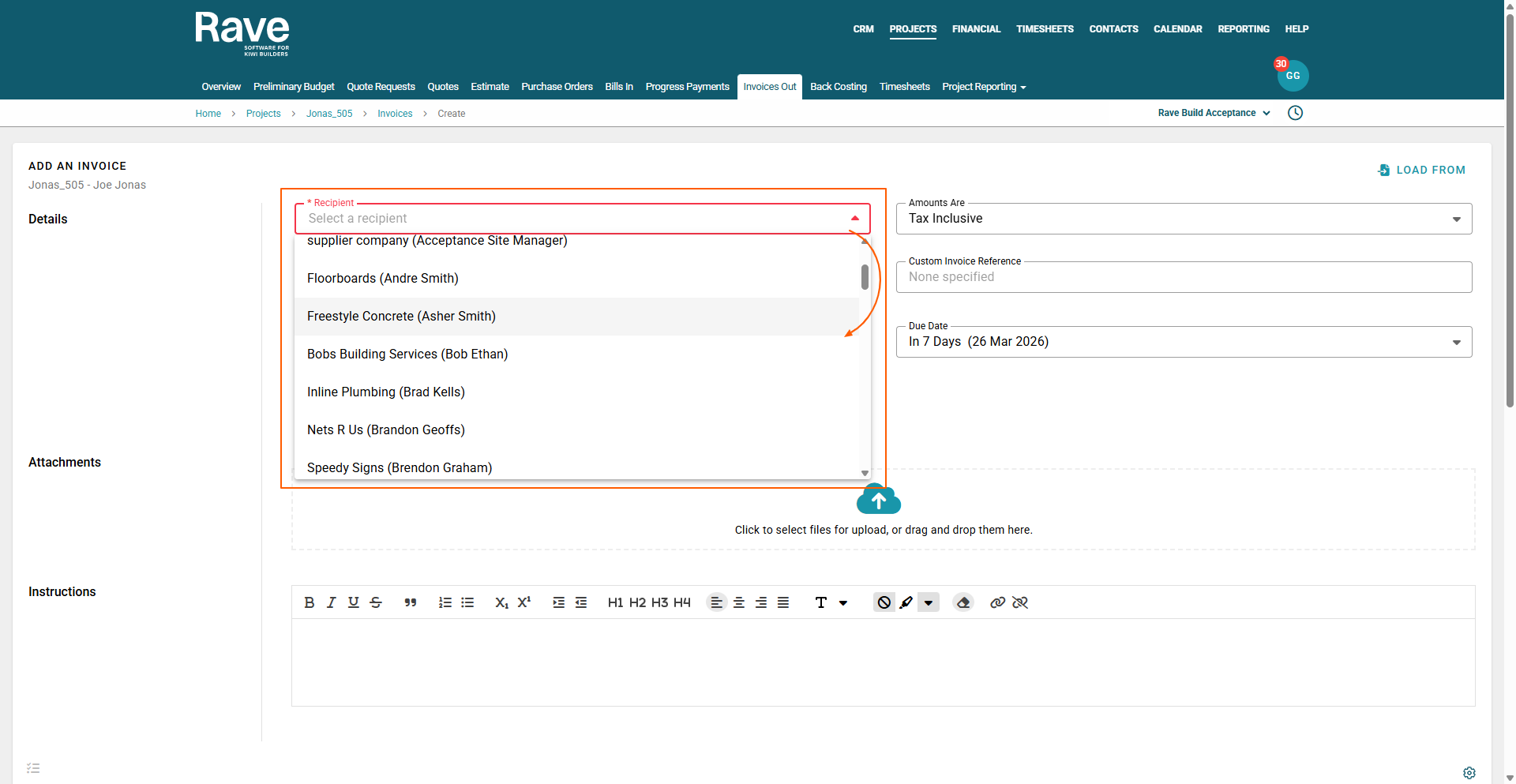
Here, you'll have the option to choose your business as an internal on charge, a supplier or a contractor to charge this invoice to.
Remember that contractors must be added to the project via the People tab, while suppliers will automatically appear here.
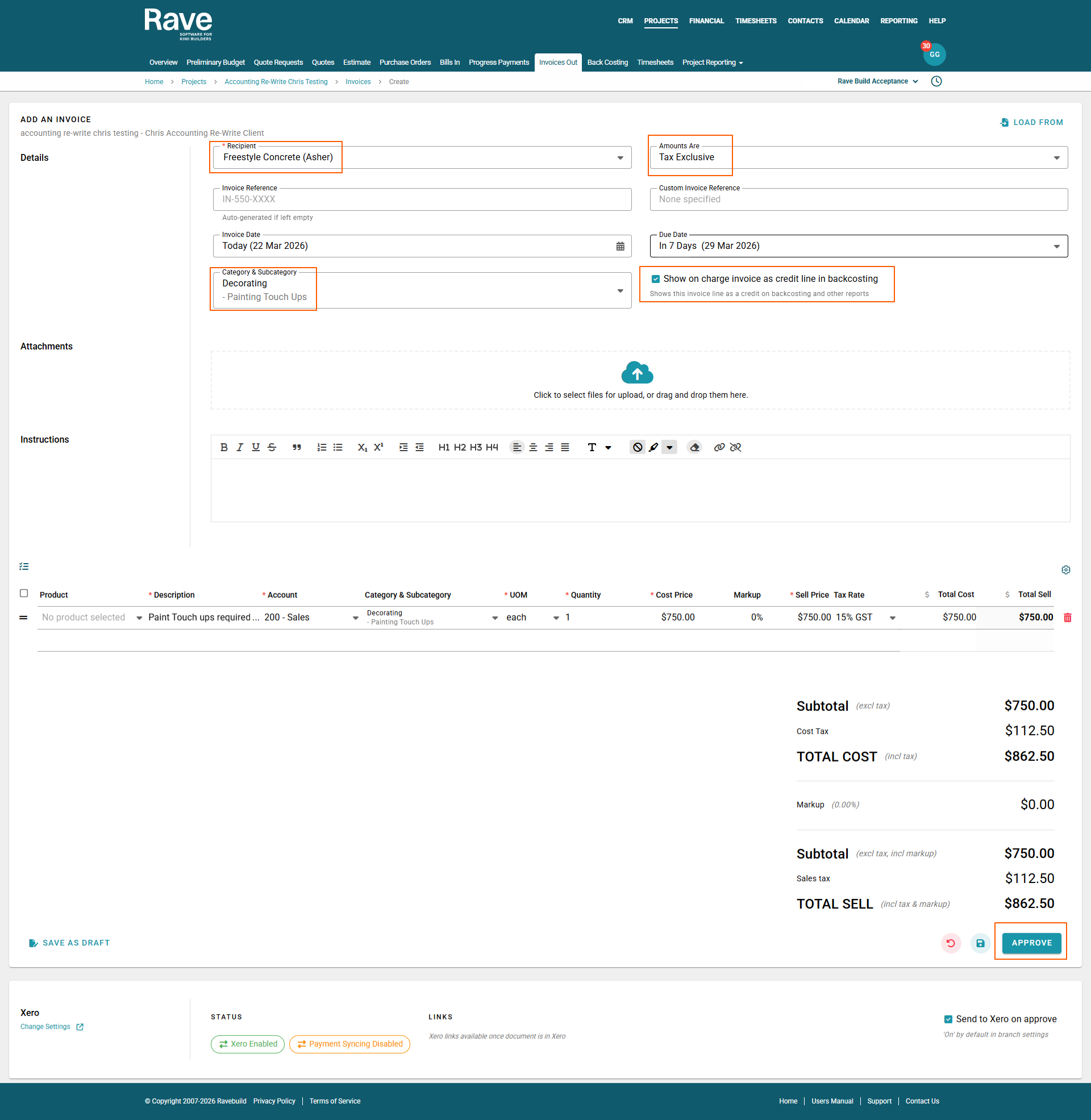
It's important to remember to tick the Show on Charge Invoice as a credit line in Backcosting if you wish for this invoice to be credited against a bill in the project.
The “Show On-Charge Invoice as a Credit in Backcosting” option controls how an On-Charge Invoice is reflected in your project’s back costing view.
When enabled, the on-charge amount is treated as a credit (cost recovery) rather than as additional income, giving you a more accurate picture of the project's true costs.
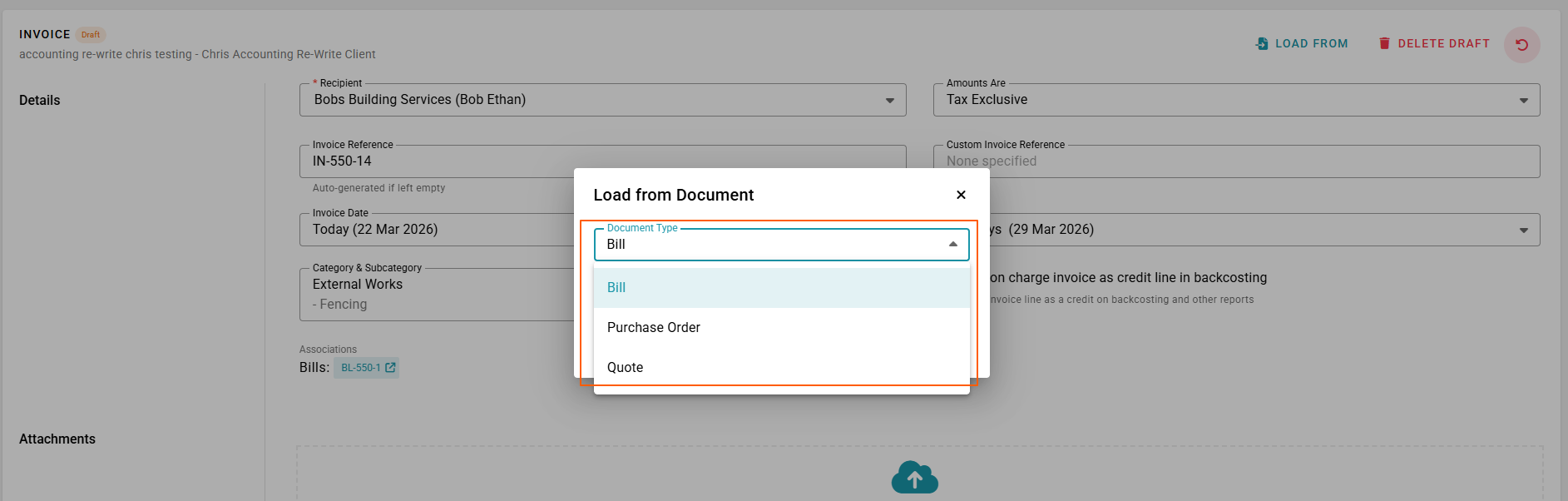
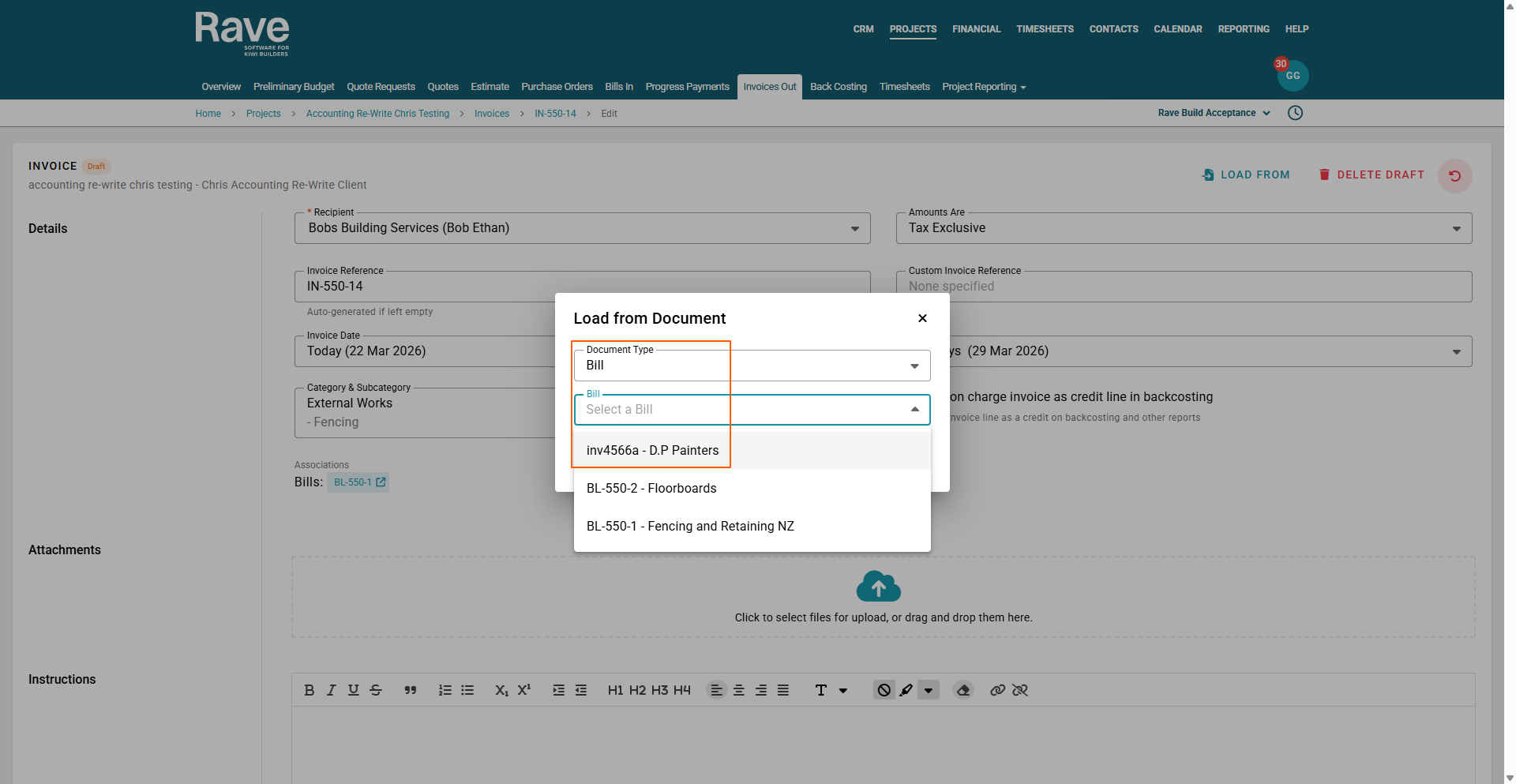
You also have the option to load an on-charge straight from a Bill that may have already been sent to you by a contractor or supplier, a purchase order or a quote. To use this feature, click Load From, select Bill as the document type, and then select the correct bill reference from the drop-down. Complete the on charge invoice, making sure to add markup if you intend to recover costs with profit.
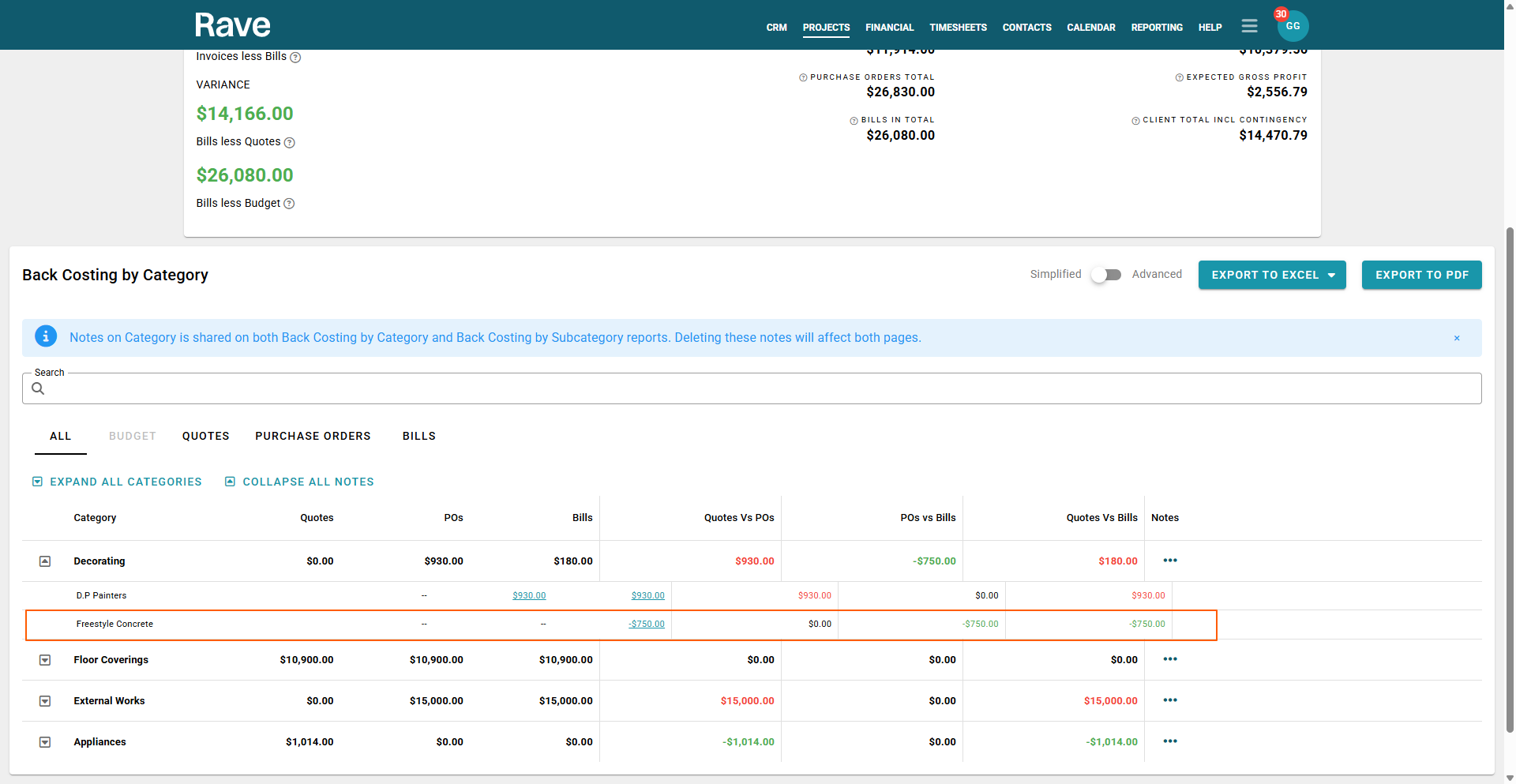
See the screenshot below of cost recovery shown as a credit in the Backcosting Report.
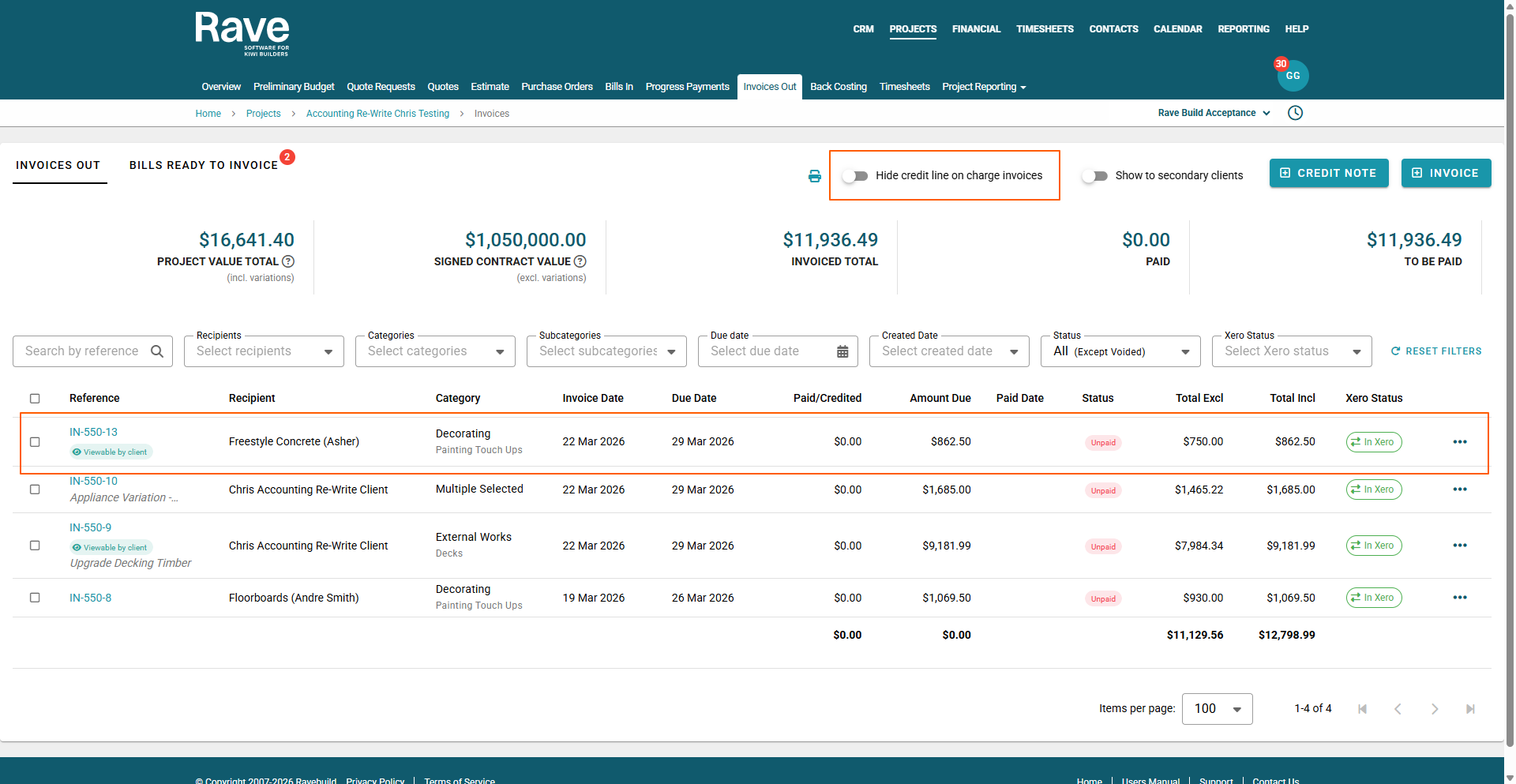
On your Projects Invoices Out Tab, you can also hide invoices that have been on-charged.
Screenshot below of the toggle NOT turned on. This shows the invoice as an on-charge to the Concrete Supplier and states "Viewable by Client".
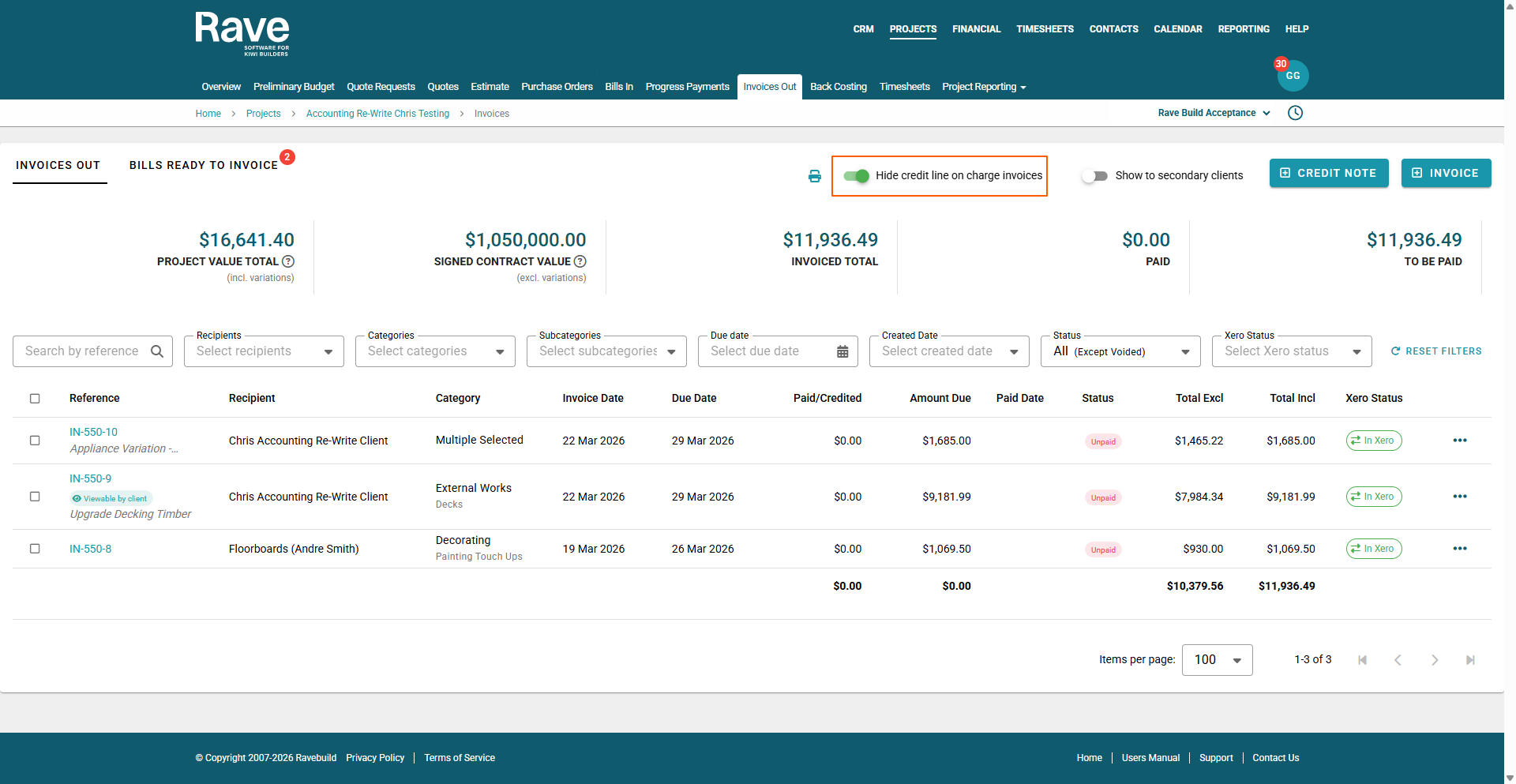
Screenshot below showing the on-charge Invoice now hidden with the toggle slide on.
Summary
The “Show On-Charge Invoice as a Credit in Backcosting” setting helps you:
- Accurately reflect true job costs
- Avoid overstating expenses
- Clearly separate cost recovery vs profit
To set the Default Invoice due date for projects click on the Project Settings tab inside the project
Navigate to Financial and then set the default due date for this projects invoices. 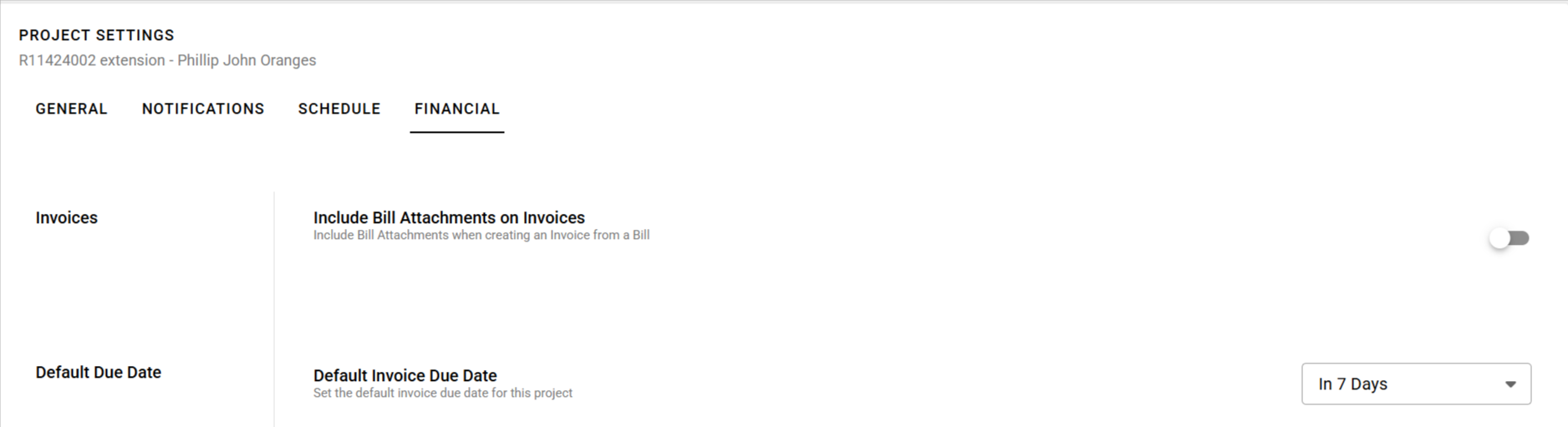
Was this article helpful?
That’s Great!
Thank you for your feedback
Sorry! We couldn't be helpful
Thank you for your feedback
Feedback sent
We appreciate your effort and will try to fix the article