RAVE’s financial management system is designed to help you manage all the financial aspects of your projects, including budgeting, bills, and invoices, with ease.
This article shows you how to create a Charge-Up Invoice from one or more Approved Purchase Orders.
To learn how to create a charge-up invoice from Quotes/Multiple Quotes, click here.
To learn how to create a charge-up invoice from Bills/Multiple Bills, including consolidating, click here.
You can access your Project’s financial workflows from either the Financial button or the Project button's Project list, clicking on the project’s reference number, and finally selecting the Budget sub-tab, then Purchase Orders.
The Search by Reference box lets you find a specific Purchase Order or Orders by its reference number. You can also filter documents by Category, Subcategory, Contact, or Document Status.
Note: You can not create a client invoice from a pending or cancelled purchase order, only approved or approved and sent purchase orders.
How to Create a Client Invoice from Multiple Purchase Orders
To create a Client Invoice from Purchase Orders:
- Go to the project's Budget Purchase Orders sub-tab.
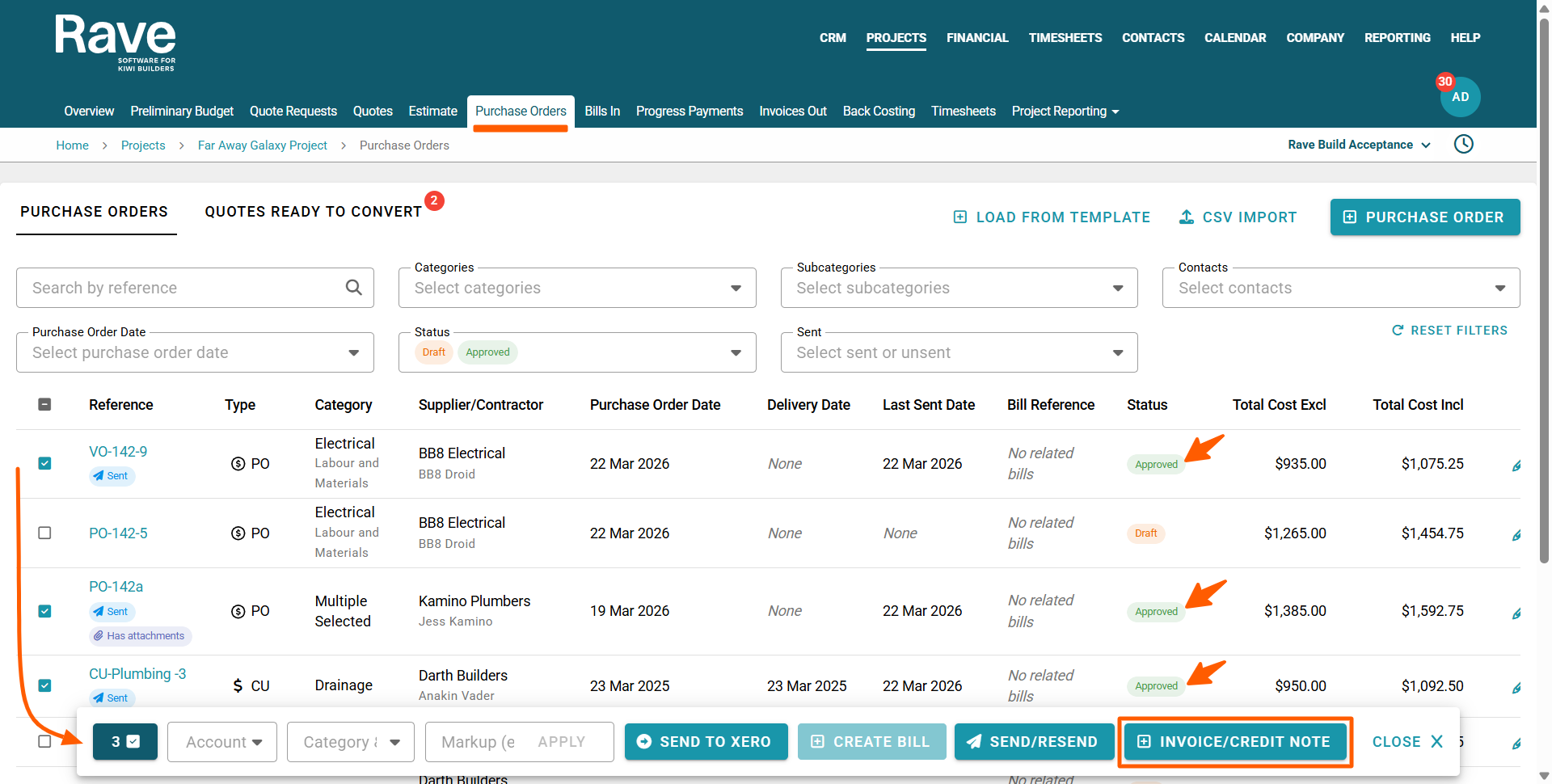
- Select the approved purchase order(s) you want to convert to a Client Invoice by clicking the checkboxes to the left of each purchase order line.
This will open the bulk action bar, displaying the number of purchase orders selected (to the left), with a teal-coloured '+ Invoice/Credit Note' button to the right.
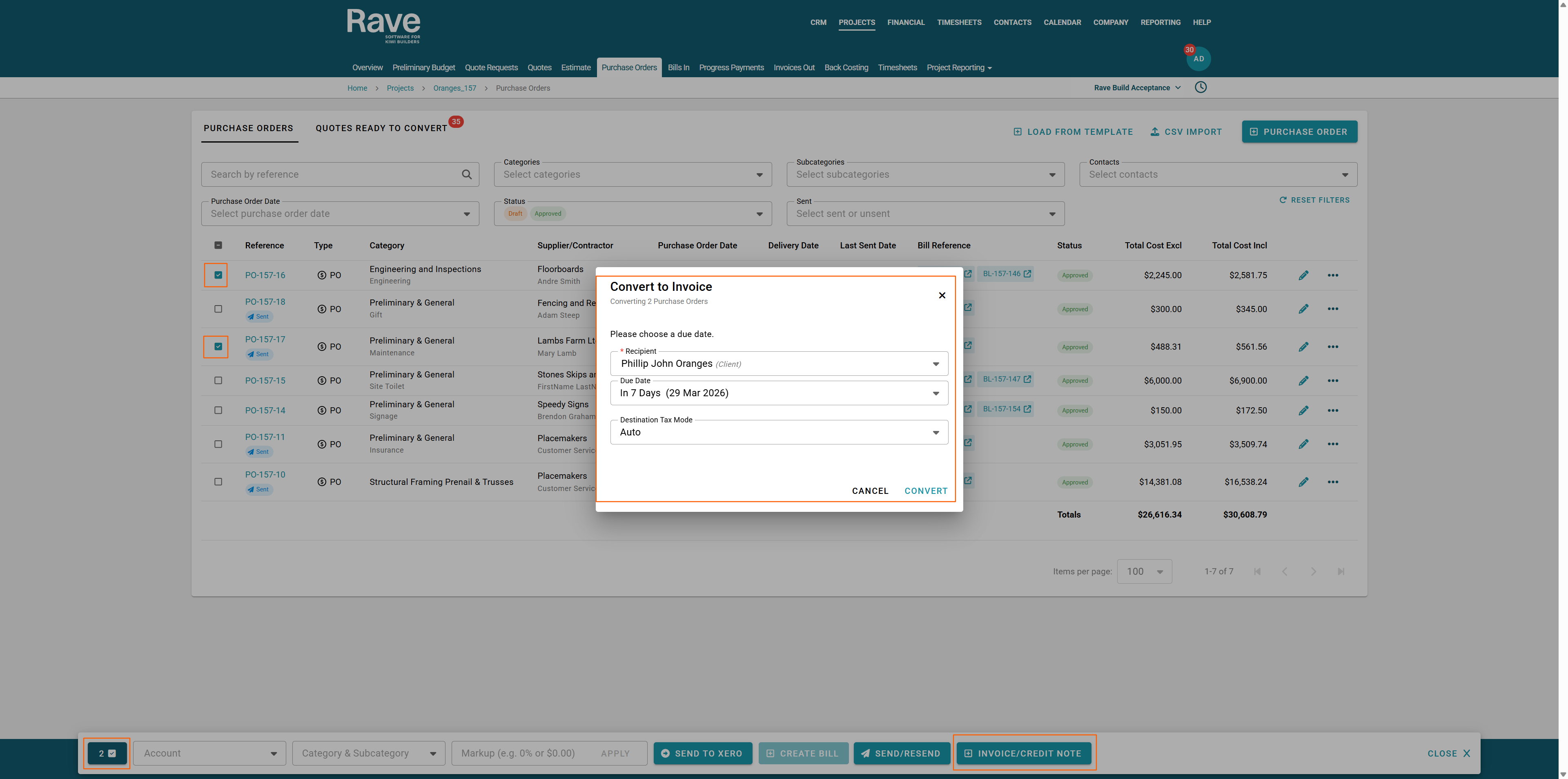
Note: You can apply an 'approved' status filter on this page to only display approved purchase orders for selection. - Clicking on the '+ Invoice/Credit Note' button opens a 'Convert to Invoice' pop-up where you can confirm:
- The Invoice Recipient
- The Due Date - which will default to 7 days
- The destination Tax Mode - Auto, No Tax, Tax Exclusive, and Tax Inclusive - Once you have made any necessary corrections, click the 'Convert' button to proceed.
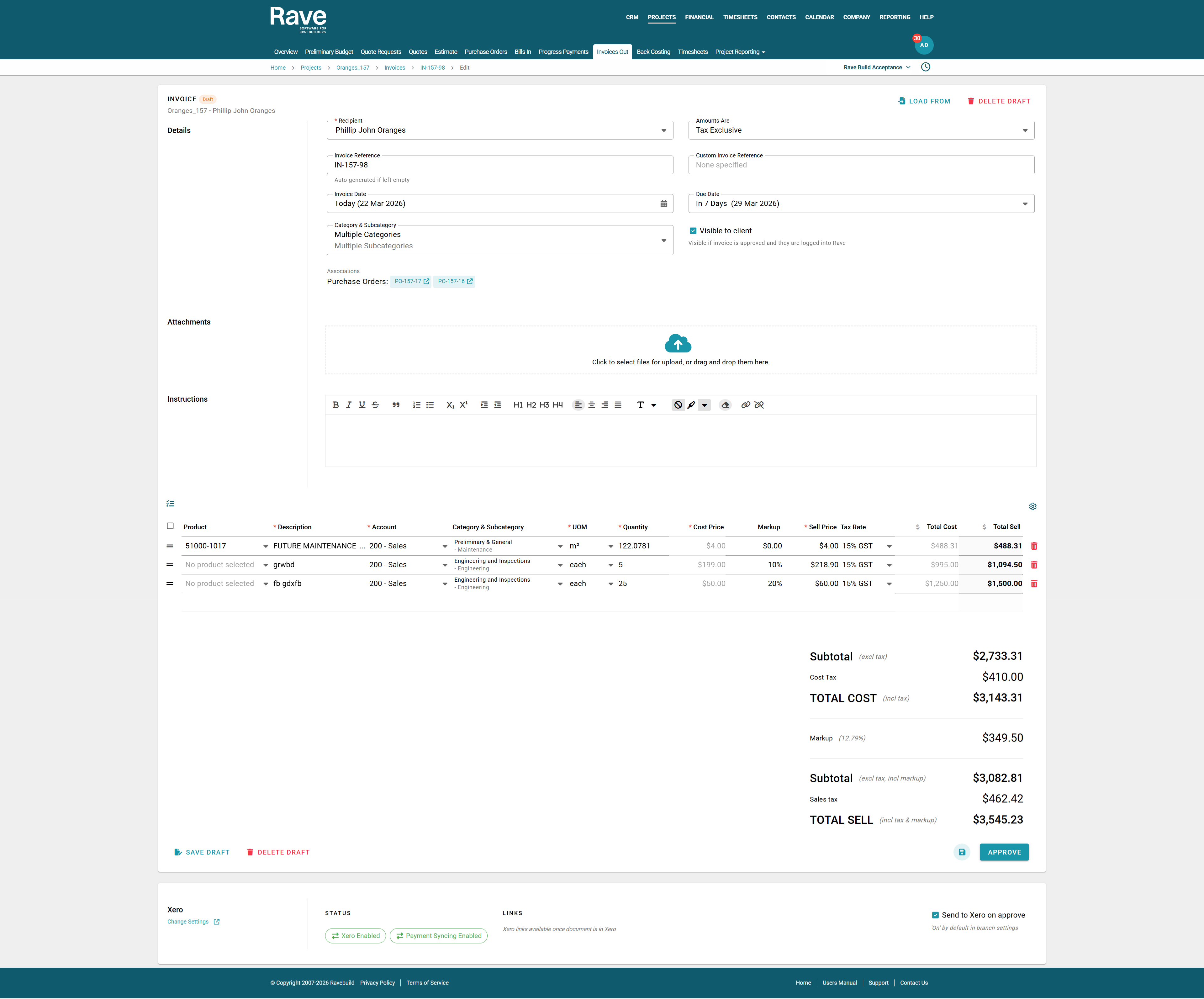
- This will open a draft add Invoice screen, which sits in the Invoices Out sub-tab, where you can:
- View the contributing purchase orders that made up this invoice, under the 'Associations' header
- Complete the invoice fields
- Upload any required files
- Add any instructions
- And amend/add any line items - Once you have filled in all of your Invoice's details, you can select:
- Save Draft - allowing you or another person to approve it later
- Delete Draft - to discard and delete this invoice
- Save and Continue Editing - handy when editing a lot of line data, via the teal disc icon
- Approve - to create the client invoice, notify accounts, and push a draft to Xero - if you have Xero connected. - You will then be taken back to your Invoices Out sub-tab, with your newly created Client Invoice listed.
Was this article helpful?
That’s Great!
Thank you for your feedback
Sorry! We couldn't be helpful
Thank you for your feedback
Feedback sent
We appreciate your effort and will try to fix the article