Once the client has made payment (or partial payment) to their invoice, all branches without the FMS module, must record this payment received via the project's Invoices Out sub-tab.
You can access your Project’s financial workflows from either the financial button or the Project button's Project list, clicking on the project’s reference number, and finally selecting the Invoices Out Subtab.
To add a payment to an invoice we:
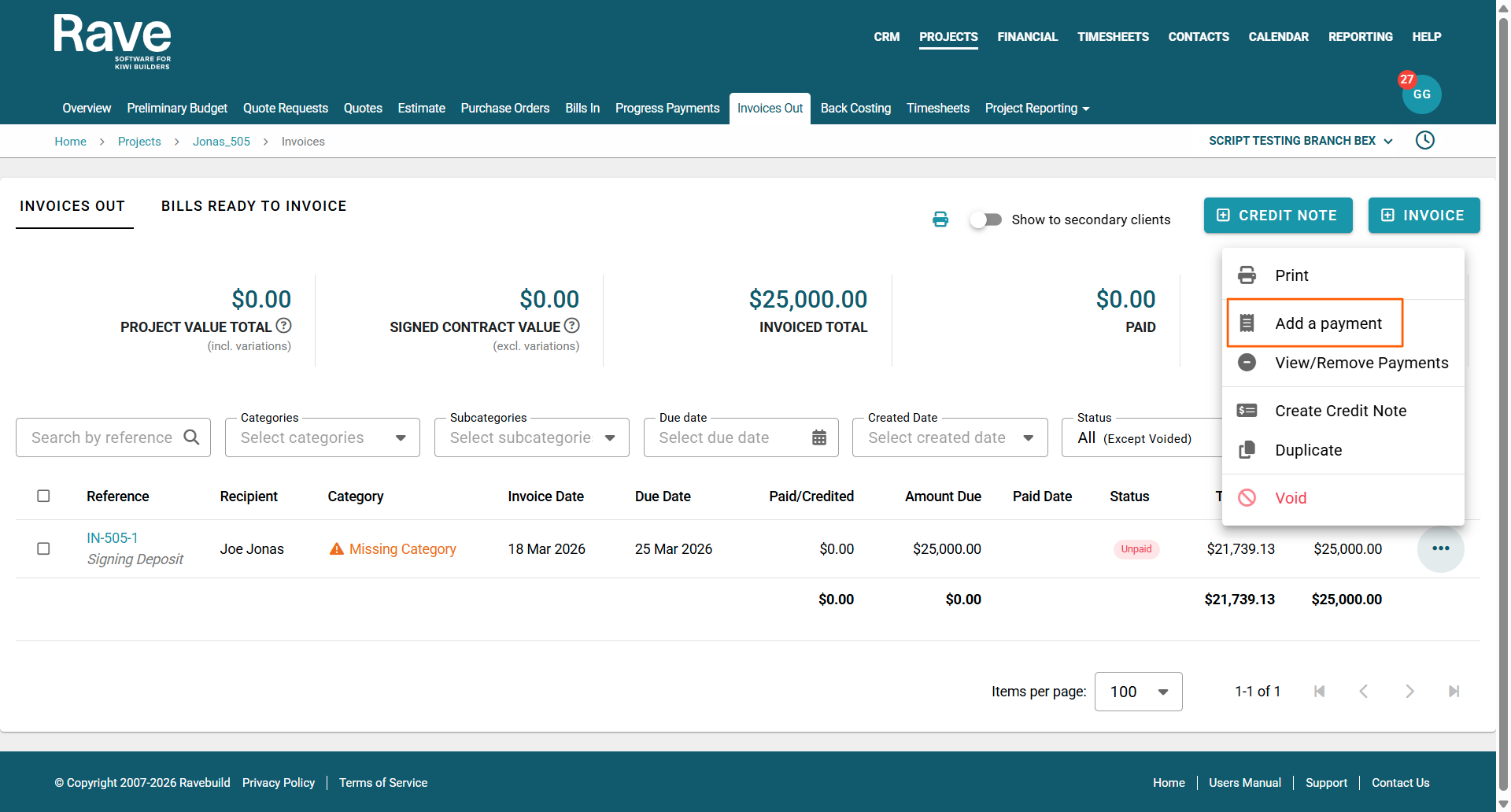
- Click on the 'Invoices Out' sub-tab - this will display all of the Invoices created for this project so far
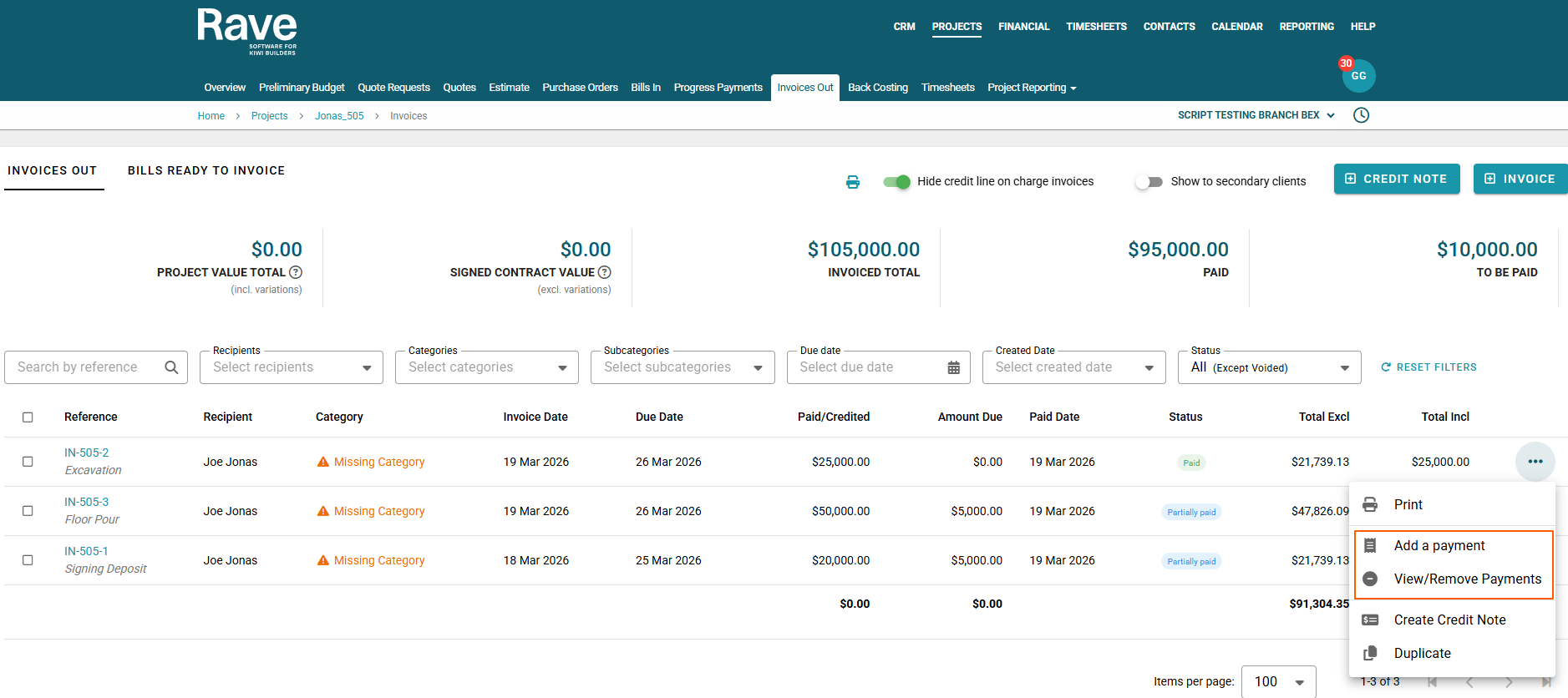
- Click on the ellipses dropdown of the invoice you want to add a payment to
- Select the 'Add a Payment' option
This will open the Add a Payment pop-up screen, allowing you to set the Payment Amount (a partial payment), and the Date Paid.
NOTE: You can add as many partial payments as you need to. If your branch has the FMS module, and Xero syncing is turned on, the 'Add a Payment' option is disabled as Xero's reconciliation of the payments will already auto-update RAVE.
Once you've made your selections, click the 'Add Payment' button to confirm.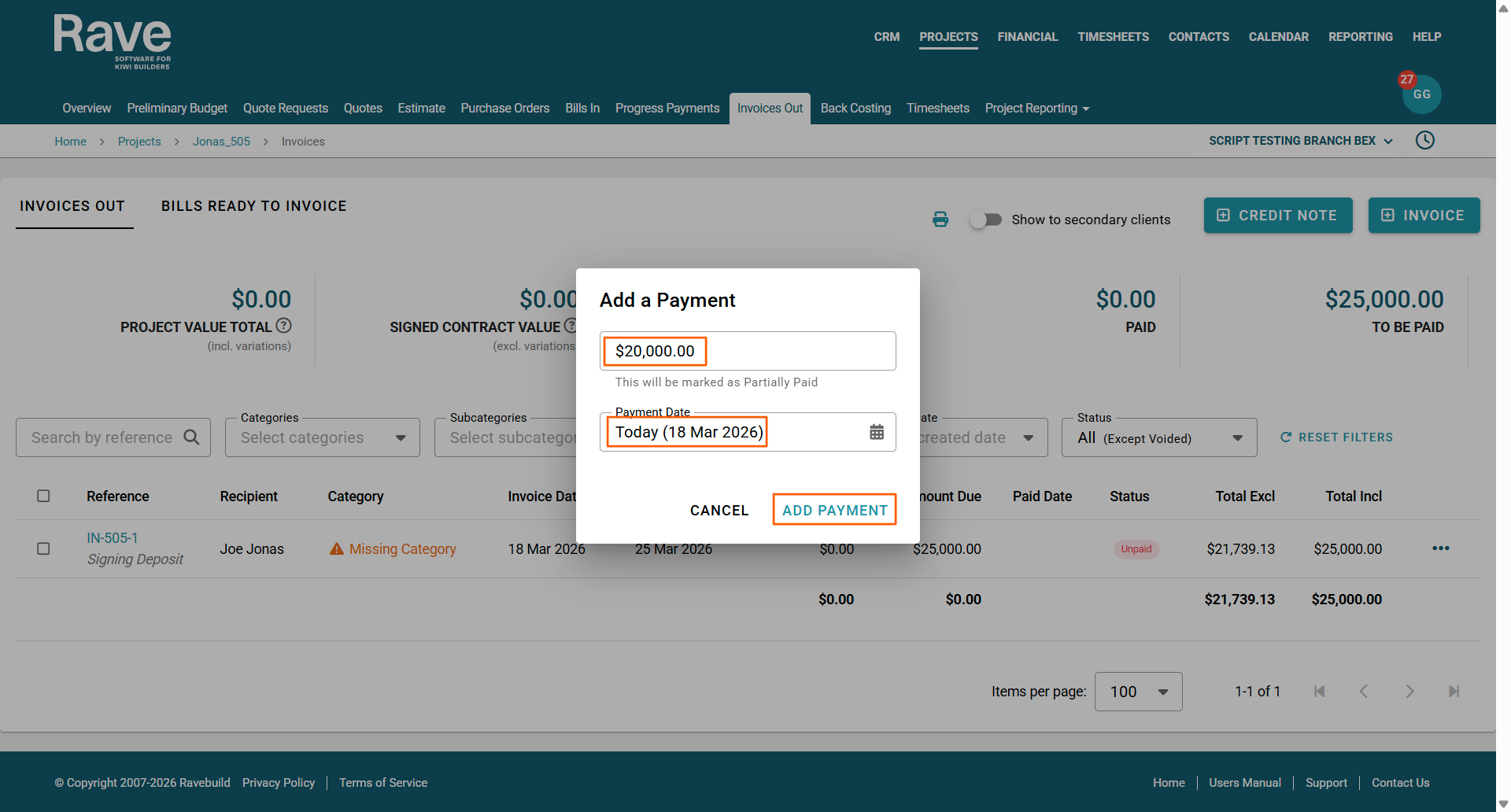
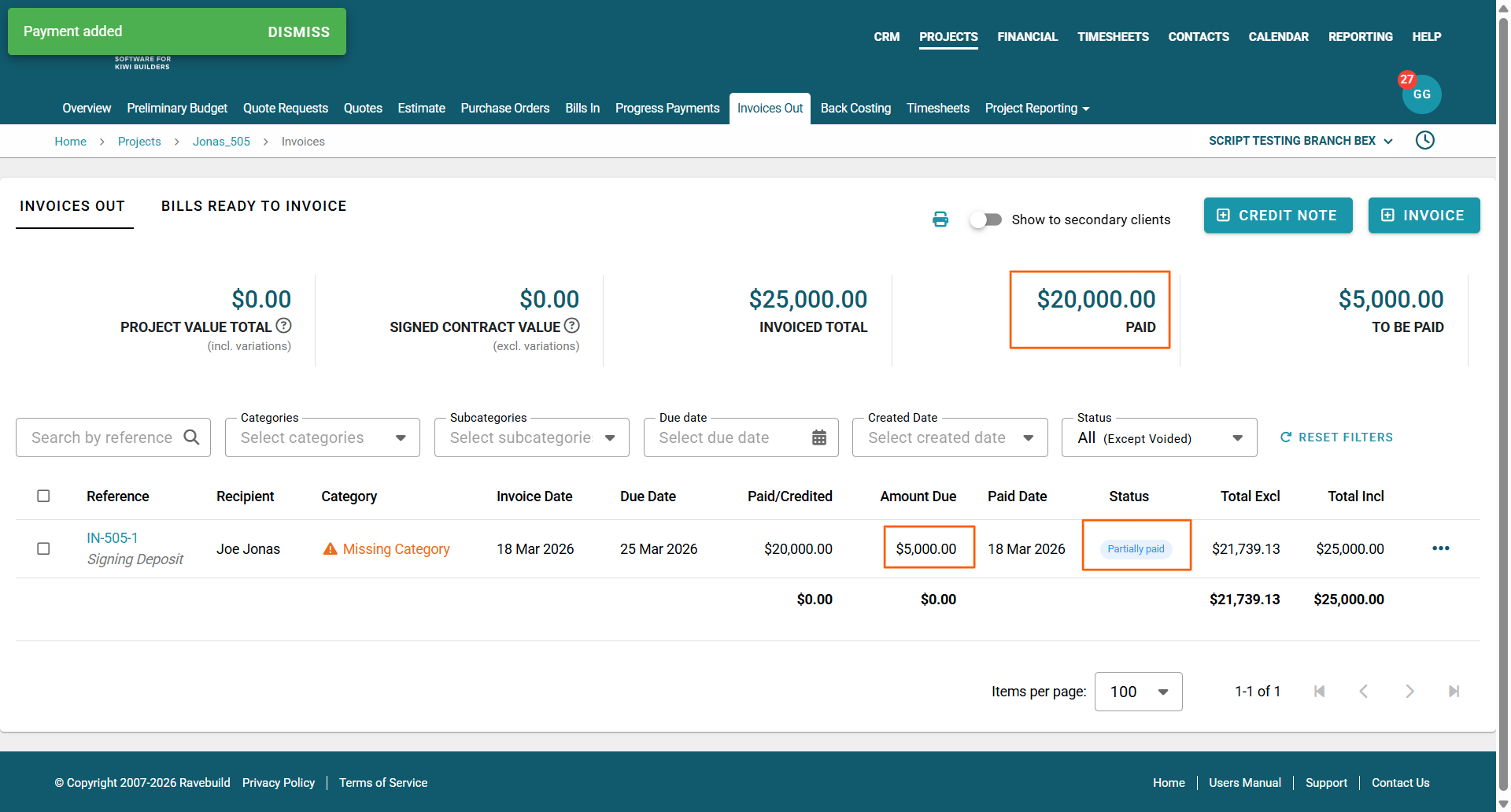
This will change the amount paid figure for that invoice, change the status to paid, and also update the paid and to-be-paid figures in the table summary at the top of the page.
You'll notice the table summary at the top of the page has been updated too - that is the paid and the to-be-paid amounts. As has the summary at the bottom of the screen.
RAVE allows you to select multiple invoices & credit notes for full and partial payment via the Invoices Out sub-tab.
NOTE: Clients with RAVE's Xero syncing turned on do not need to worry about this process, as Xero is already receiving these payments and updating RAVE automatically for you.
If you are looking for the Settlement Statement print button, please click here to read our FAQ Settlement Statements
How to Receive a Bulk Payment to Multiple Invoices & Credit Notes
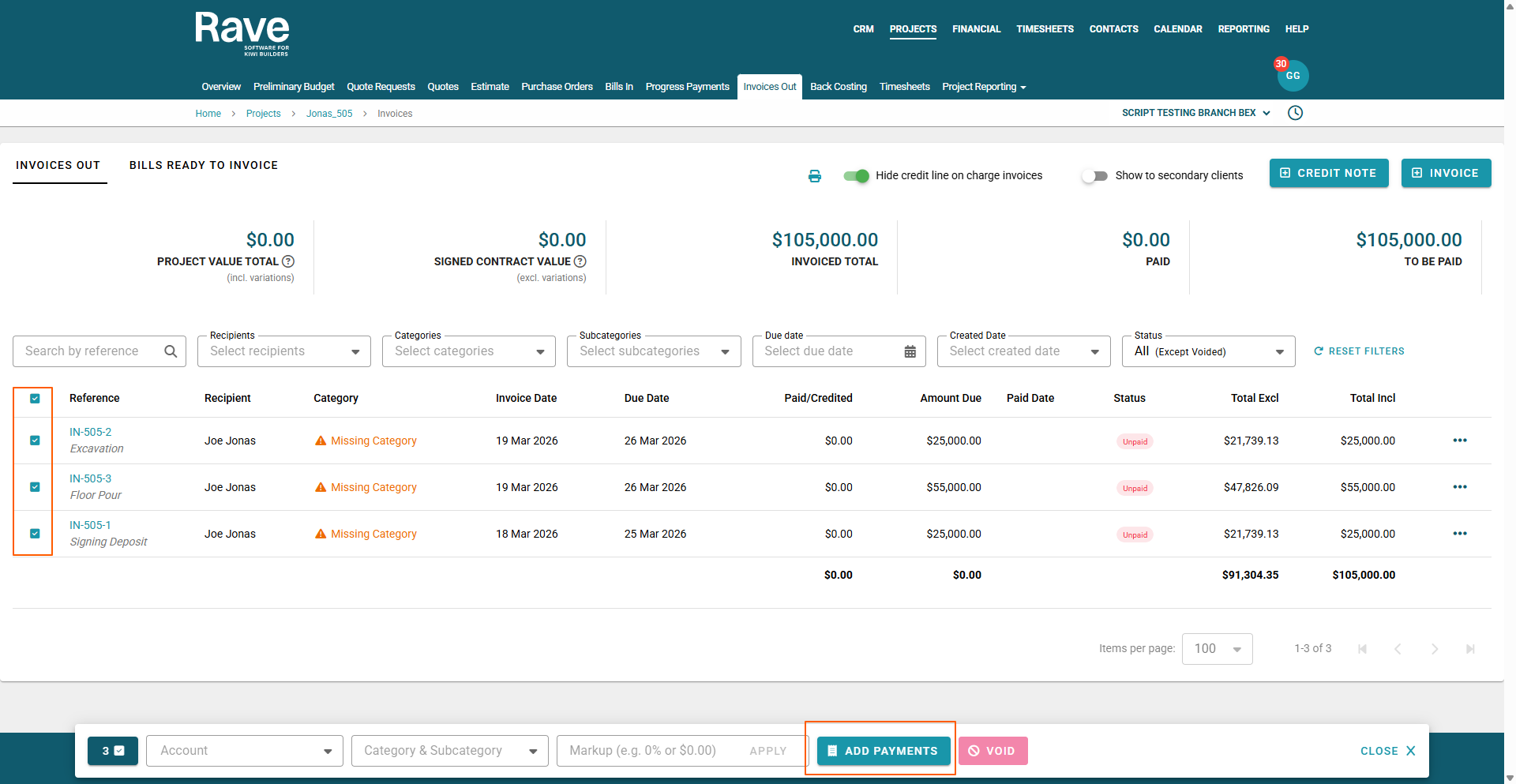
You can start the process of receiving a bulk payment to multiple invoices and credit notes by:
- Clicking on a project's 'Invoices Out' sub-tab
- This will display a table listing all of your project's current Invoices and Credit Notes
On the left-hand side of this table is a check box column - check the boxes for any lines you're receiving payment for. - As soon as you check a box - you'll see an 'Add Payments' modal appear at the bottom left of your screen, also displaying the number of invoices/credit notes that have been selected
- Once you've selected all of the lines you want to add payments to, click the 'Add Payments' button
This will open the 'Add Payments to Selected Documents' pop-up - displaying the list of the selected invoices/credit notes
- The leftmost column lists the invoice/credit note Reference
- Next is the Amount to be paid field - this is where you'll enter the actual amount paid - it will default to the current balance to be paid - a negative amount here means it is a credit
NOTE: An Invoices Total line below this table displays the total amount being paid - to ensure you've loaded these amounts correctly - Then the Total column - which displays the total amount charged to the client for this line
- And lastly the Remaining to be Paid column - which displays the current balance to be paid
- The Payment Date (to the top left) will be set as today's date - but you can backdate that by clicking on the date field, and scrolling back as required.
- And finally, an 'Invoice Total/Less Credit Notes/Grand Total' summary to bottom right - again ensures all payments are being accounted for
4. Add in the payment amount you are receiving for each line
NOTE: If it is not the full amount - it will display a 'This will be marked as Partially Paid' note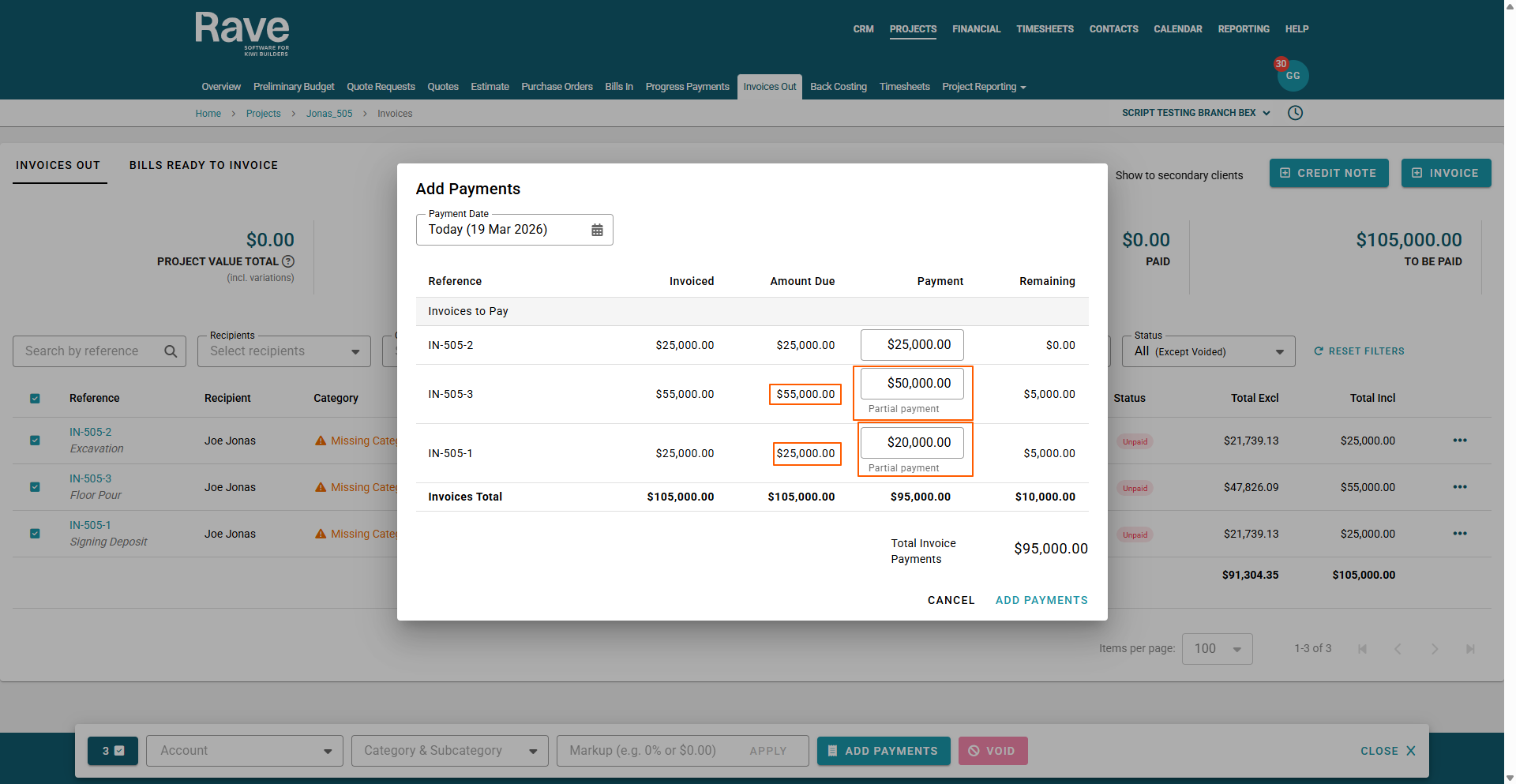
Once you have finished allocating ALL of the required payments to their lines, we confirm the payments by clicking the 'Add Payments' button to the bottom right of the screen.
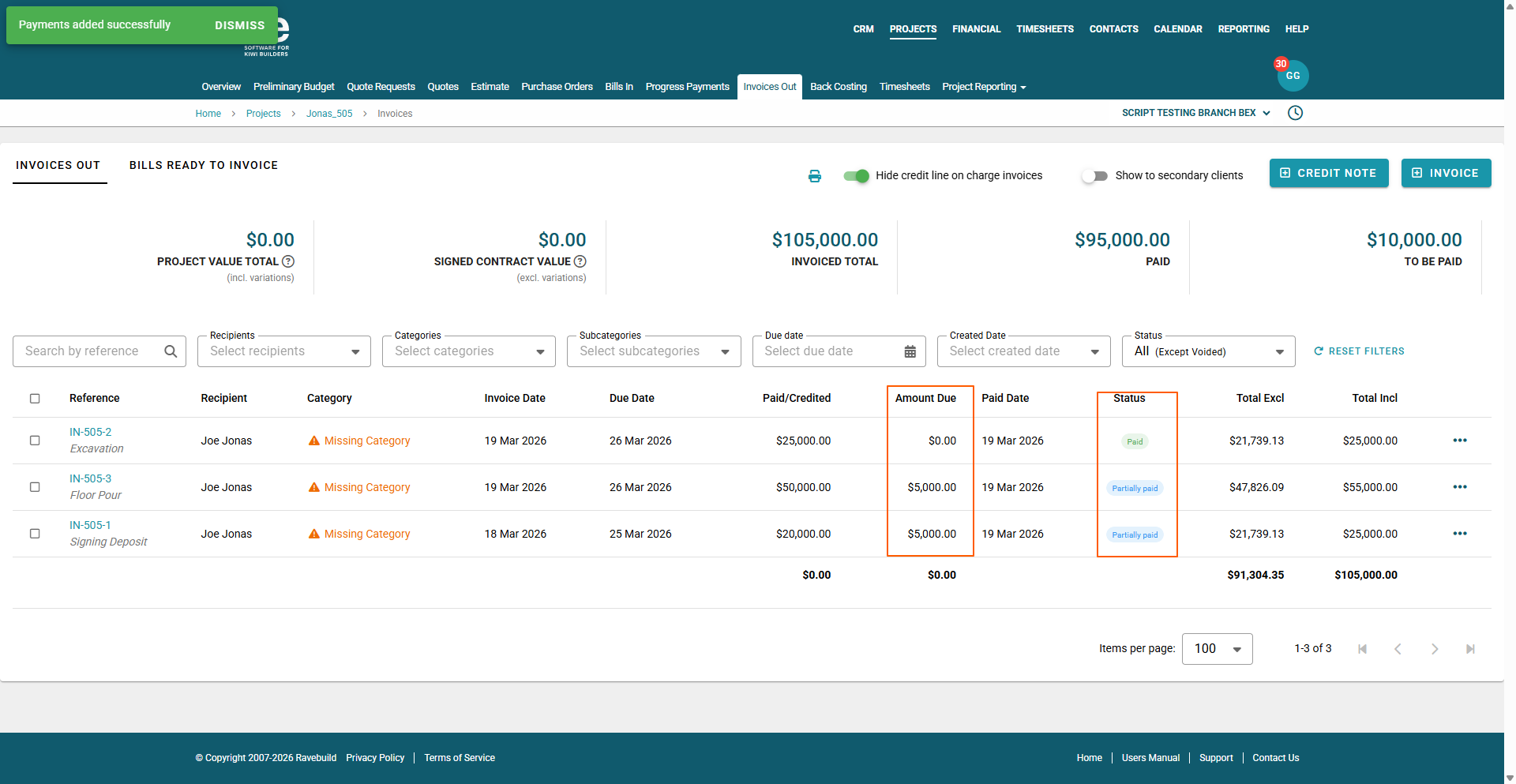
This will refresh the Invoices Out sub-tab. You'll see that:
- All invoices/credit notes fully paid (with a $0.00 balance in the Amount Due column) will have a Status of 'Paid' in green
- While invoices/credit notes that have received some payment, but are not yet fully paid, will have a Status of 'Partially Paid'
You can open a copy of the invoice/credit note by clicking on the invoice/credit reference number - this will display:
- All of the invoice/credit note details
- The Status - Paid or Partially Paid
- The ellipses action dropdown to the top right - provides options to:
- Print the invoice/credit note
- Add a Payment
- Remove a Payment
- Copy to Credit Note
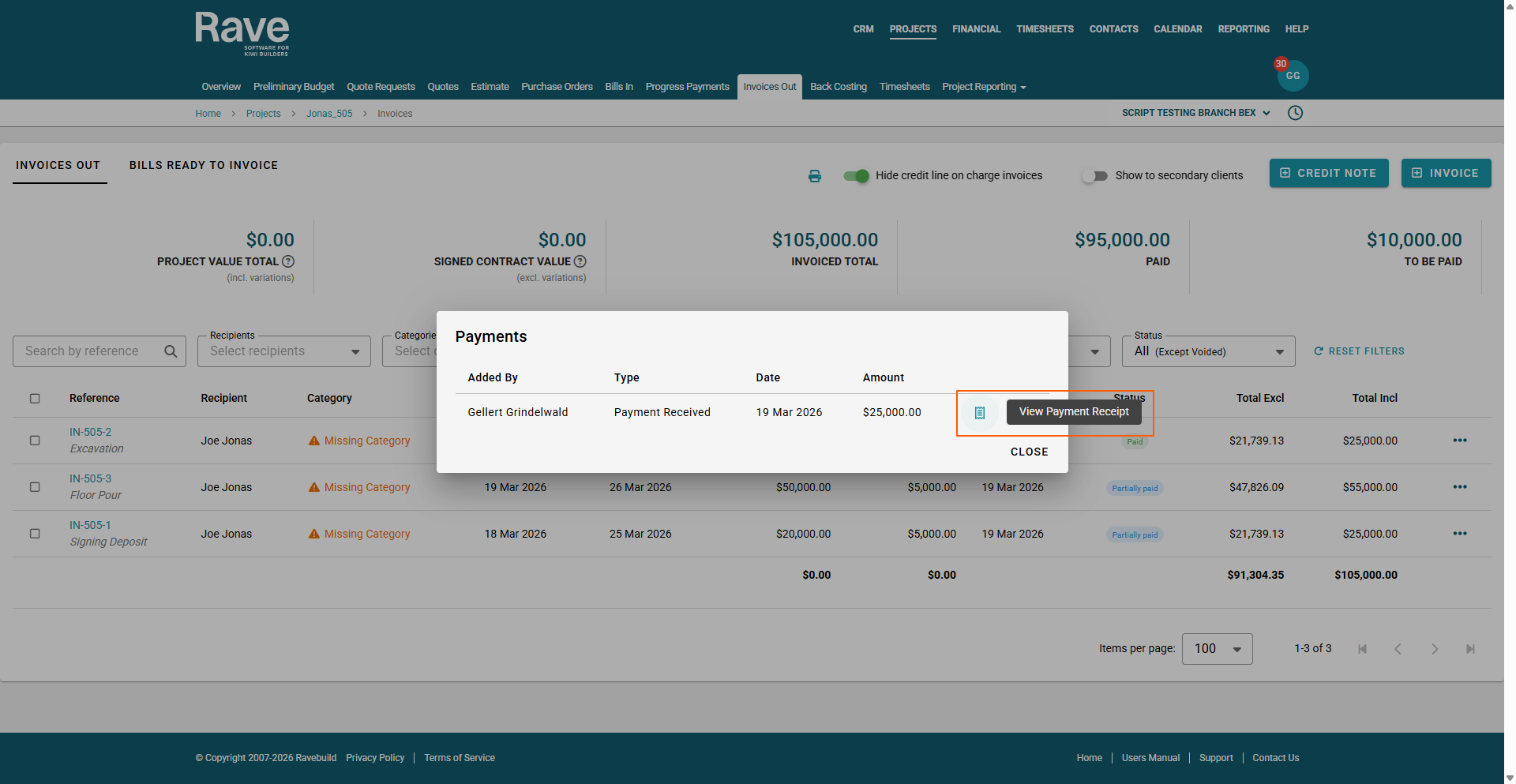
To the bottom left, we display all payments received thus far - showing who received the payment, the date paid, and the amount paid.
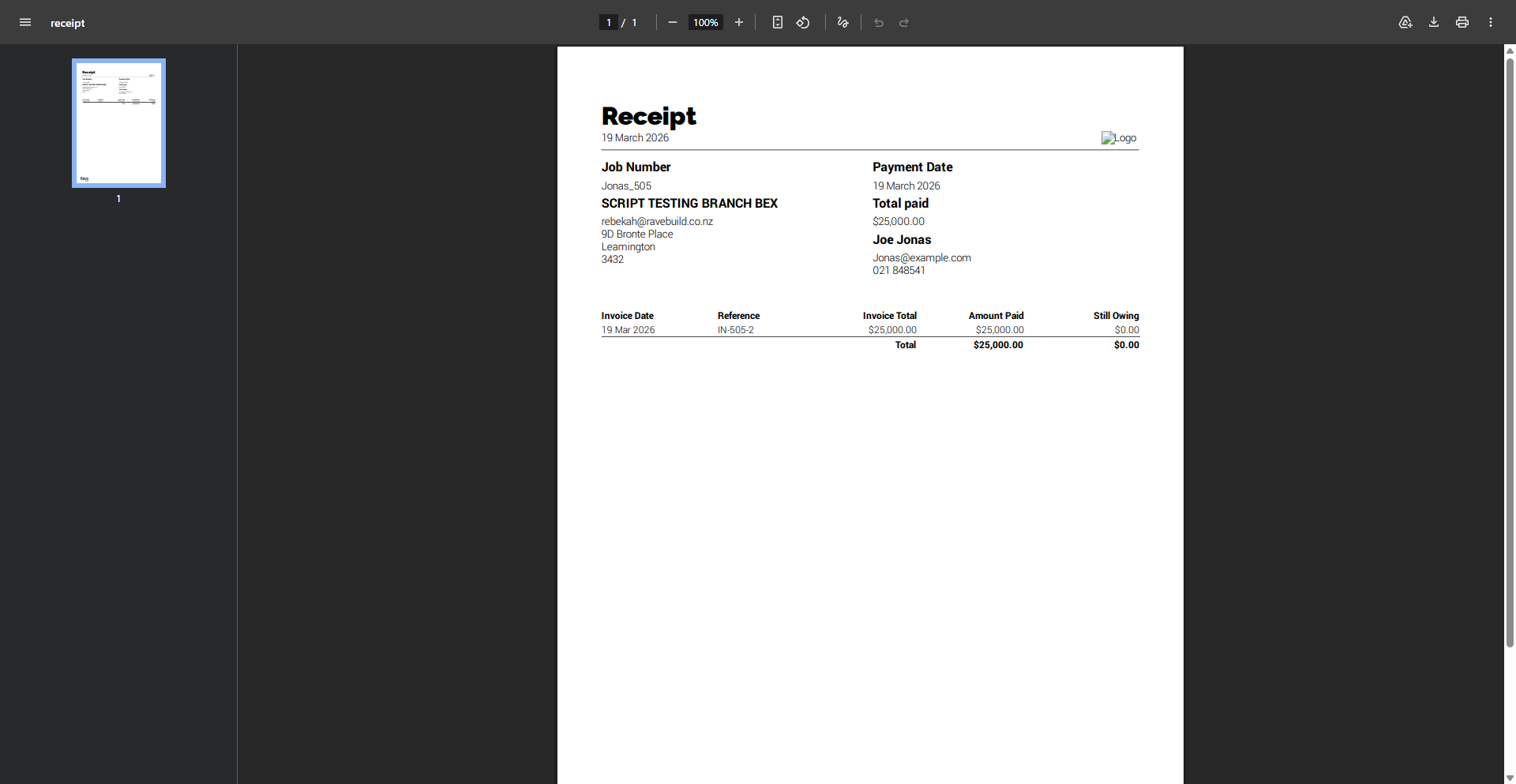
The payments 3-dot action dropdown - allows you to Delete that payment or view the payment receipt.
- Any balance still to be paid will populate the 'Add a Payment' section to the bottom right
- This amount can be edited if required - for a partial payment.
- Any additional payments can be confirmed via the 'Add Payment' button
NOTE: As mentioned previously, clients with RAVE's Xero syncing turned on, do not need to worry about this process, as Xero is already receiving these payments and updating RAVE automatically for you.
In this example, Xero syncing has been turned off for the branch, and the staff member has had to do this manually by following the above processes.
Was this article helpful?
That’s Great!
Thank you for your feedback
Sorry! We couldn't be helpful
Thank you for your feedback
Feedback sent
We appreciate your effort and will try to fix the article