RAVE’s financial management system is designed to help you manage all the financial aspects of your projects, including budgeting, bills, and invoices, with ease.
This article covers how to create a Charge-Up Invoice from Bills and the available Consolidation Options.
To learn how to create a charge-Up Invoice from Multiple Purchase Orders, click here.
To learn how to create a charge-up invoice from Quotes/Multiple Quotes, click here.
You can access your Project’s financial workflows from either the Financial button or the Project button's Project list, clicking on the project’s reference number, and finally selecting the Budget sub-tab, then Invoices.
To create a charge-up invoice, select Bills Ready to Invoice. This page shows all bills that are either un-invoiced or partially invoiced. The red number at the top of the page indicates how many bills or credit notes are available to charge to your client. If you use the Non-Chargeable feature from the bills page to mark a bill as non-chargeable, it will automatically be excluded from this page.
The Search by Reference box lets you find a specific bill or credit note by its reference number. You can also filter documents by Category, Subcategory, Contact, or Document Status.
Note: You can not create client invoices from draft Bills, only approved.
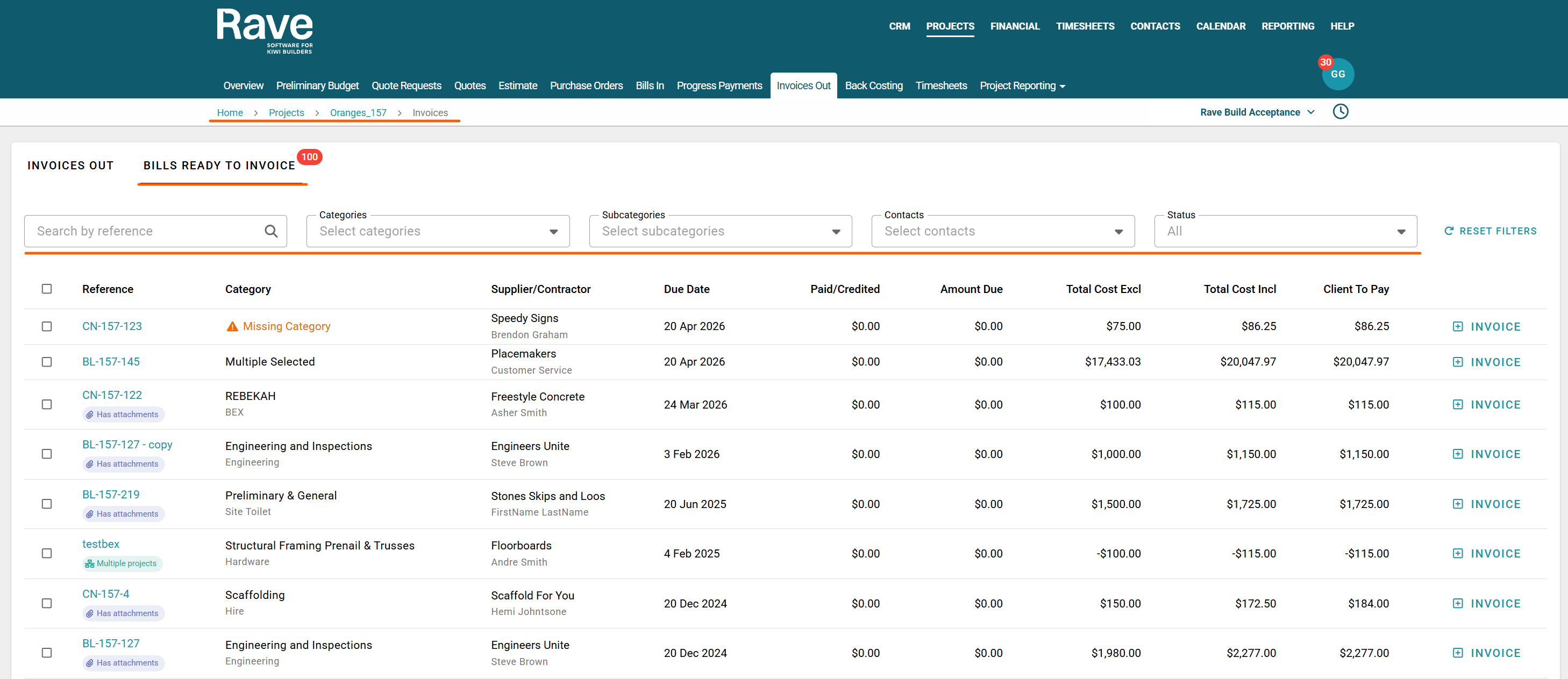
To create the client invoice, you can either click the + Invoice button to the right of the relevant bill or credit note, or you can select multiple bills/credit notes by using the square icon to the left of the reference and then, when the bulk action bar appears, select + Invoice/Credit Note
If the value of your credit notes is greater than the value of your bills, Rave will automatically create a client credit note. If the value of your bills is higher, Rave will create an invoice.
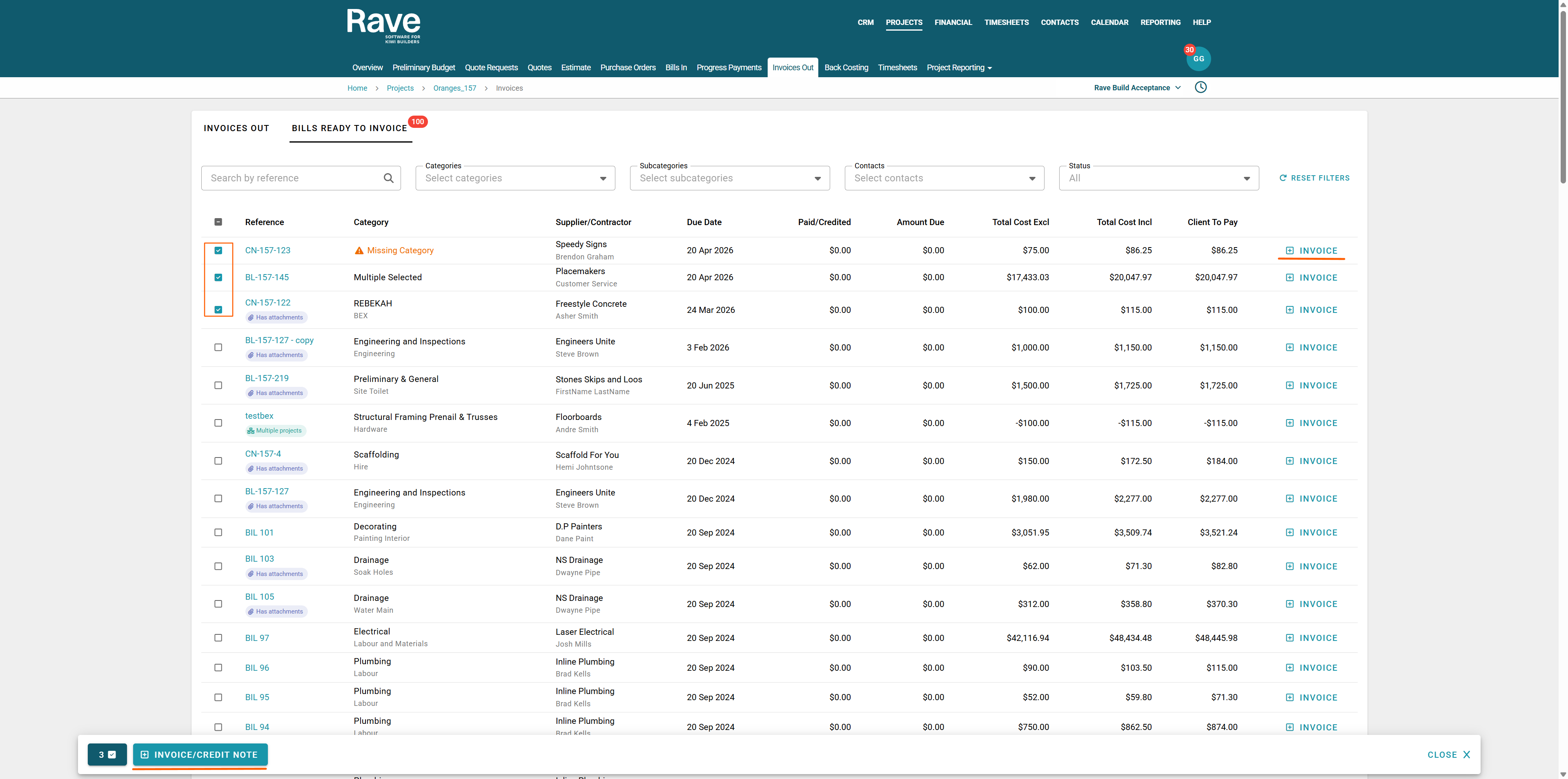
The Invoice Creation modal will then appear, prompting you to choose the recipient. You can select the primary client, or secondary client(s), or, if applicable, create an on-charge invoice (see the help article for on-charge invoices here).
Next, select the invoice due date.
You can then choose how your invoice will be displayed in both Rave (PDF print version) and in Xero, if you are using Xero via the Consolidate by options. 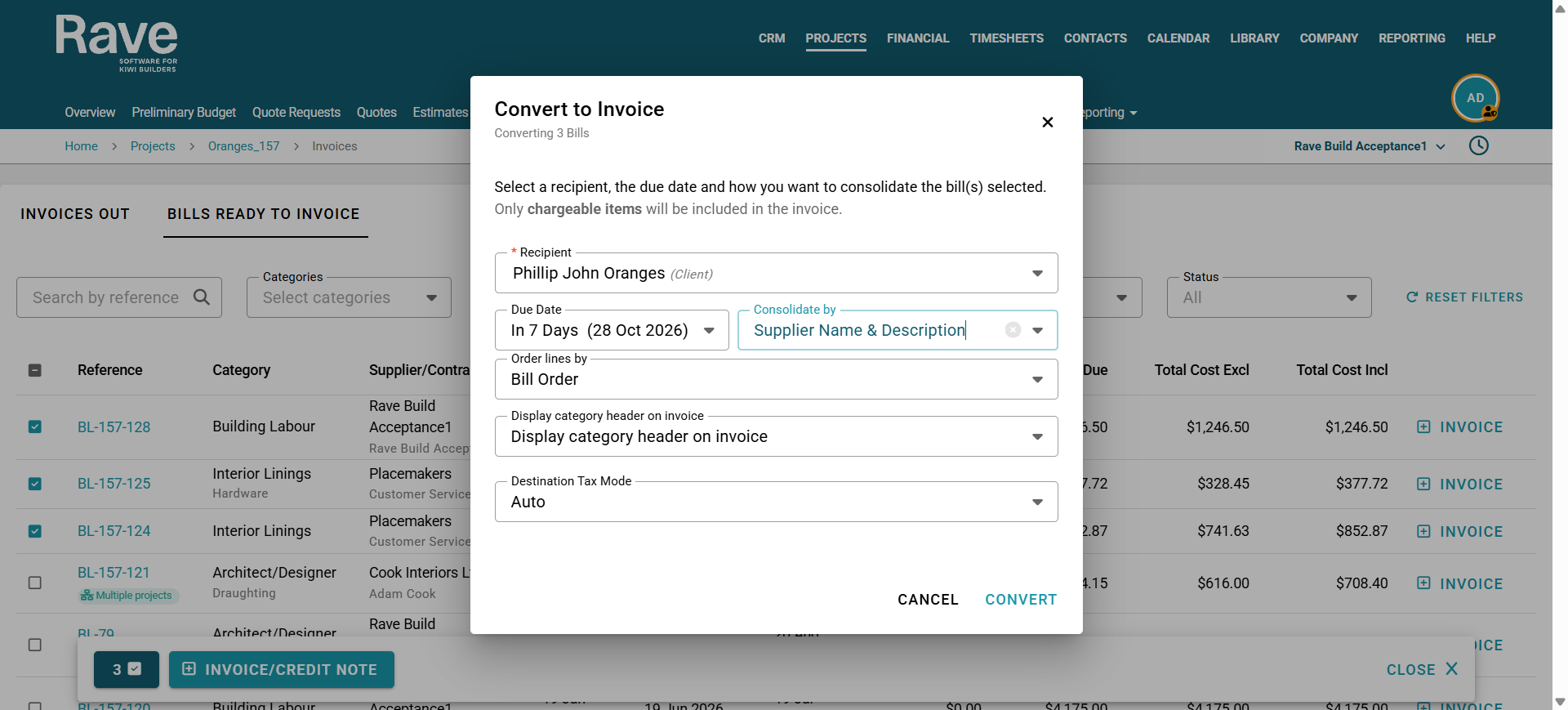
Consolidate by None - This will leave the bill/credit note line items all as single lines on the client invoice.
Consolidate by Supplier Name - This will merge all the line items by their Supplier and will display the supplier company name in the description box
Consolidate by Supplier Name & Description - This will add the Supplier Name to the item description for each line item in the description box
Consolidate by Account Code - This will consolidate all line items into the chart of accounts.
Consolidate by Category - This will consolidate all line items into Category headers. When a Category header is missing, the lines will display those entries together on a single line.
Consolidate by Category and Subcategory. This will consolidate all line items into Category headers by Subcategory. When a Category or Subcategory header is missing, the line items will display those entries together on a single line.
Consolidate by Inventory Code - This will consolidate all line items by inventory code. Where Inventory codes are missing, the line items will display those entries together on a single line.
Consolidate by Single Line - This will consolidate all line items into a single line where you then choose to enter a description for that line. You also choose if you wish to consolidate the single line as a progress claim against the billed items. Hovering over the information icon will give you more details on this feature.
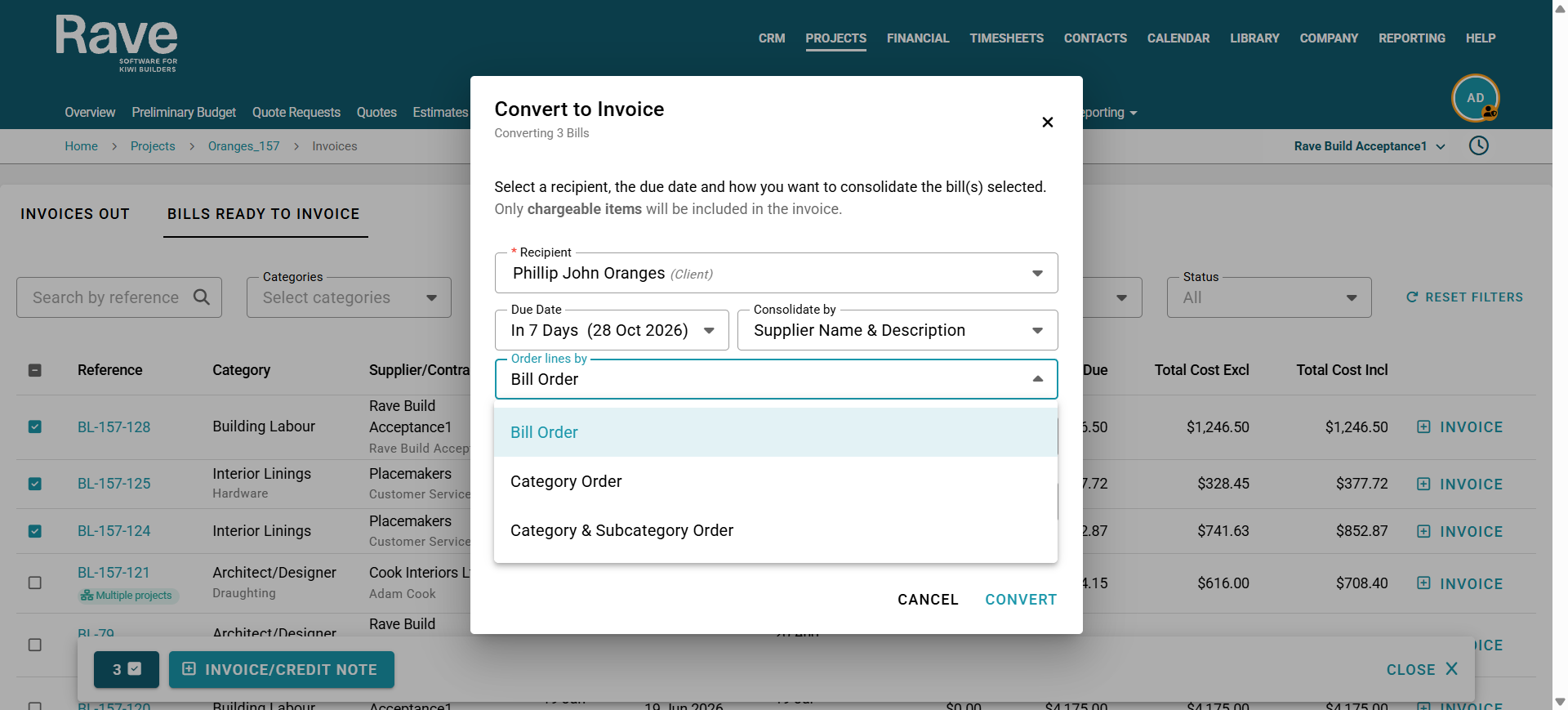
You also have the option of choosing how your lines display on the invoice: Order Lines by
Bill Order -This will display the lines as per the selected bill order.
Category Order - This displays the invoice lines by your Category Order.
Category & Subcategory Order - This displays invoice lines by Category, then Subcategory.
The next box will depend on your Branch Settings.
Under Branch Settings > Financial, a slider lets you enable the Category Header or Category and Subcategory header on the invoice.
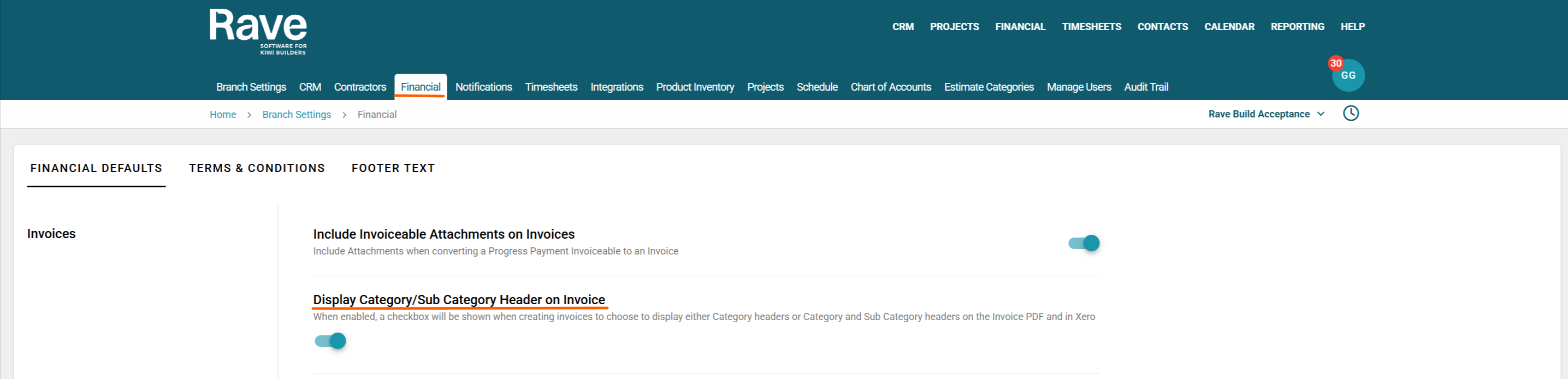
This feature is for Clients who wish to show detailed line items without consolidating but wish to group the items by Category or Subcategory.
Select if you wish to show no Category Header, Only Category or both Category and Subcategory.
Then allow the Tax mode destination to be auto-selected. Press Convert.
The Invoice creation model will now open in Draft status.
You can review and edit any information that has come through for the selected bills/credit notes.
The associations box will show all Bills/Credit notes you have chosen to create this invoice from.
If you have also chosen to turn on under your Xero settings the ability to copy Document attachments from the Bills/Credit Notes to the Client invoice, you will see a copy of all the attachments next.
The Visible to Client box will be auto-checked by default. If you uncheck this, the invoice will not appear in the primary client's login.
You can choose to type in invoice instructions, which will appear on your Xero invoice and the Rave PDF
The square icon beside the first line item will open the bulk select option, where you can select multiple lines to change the Account Code, Category, and Sub Category, edit/add markup in one action, or delete the lines.
Once you are happy with your invoice, press Approve.
Your invoice will now display under the Invoice Out tab, and if connected to Xero, will be in Xero as a draft ready to send.
Note: Altering line item quantities down or deleting lines will keep those documents as Bills ready to invoice, as they will not be 100% completed.
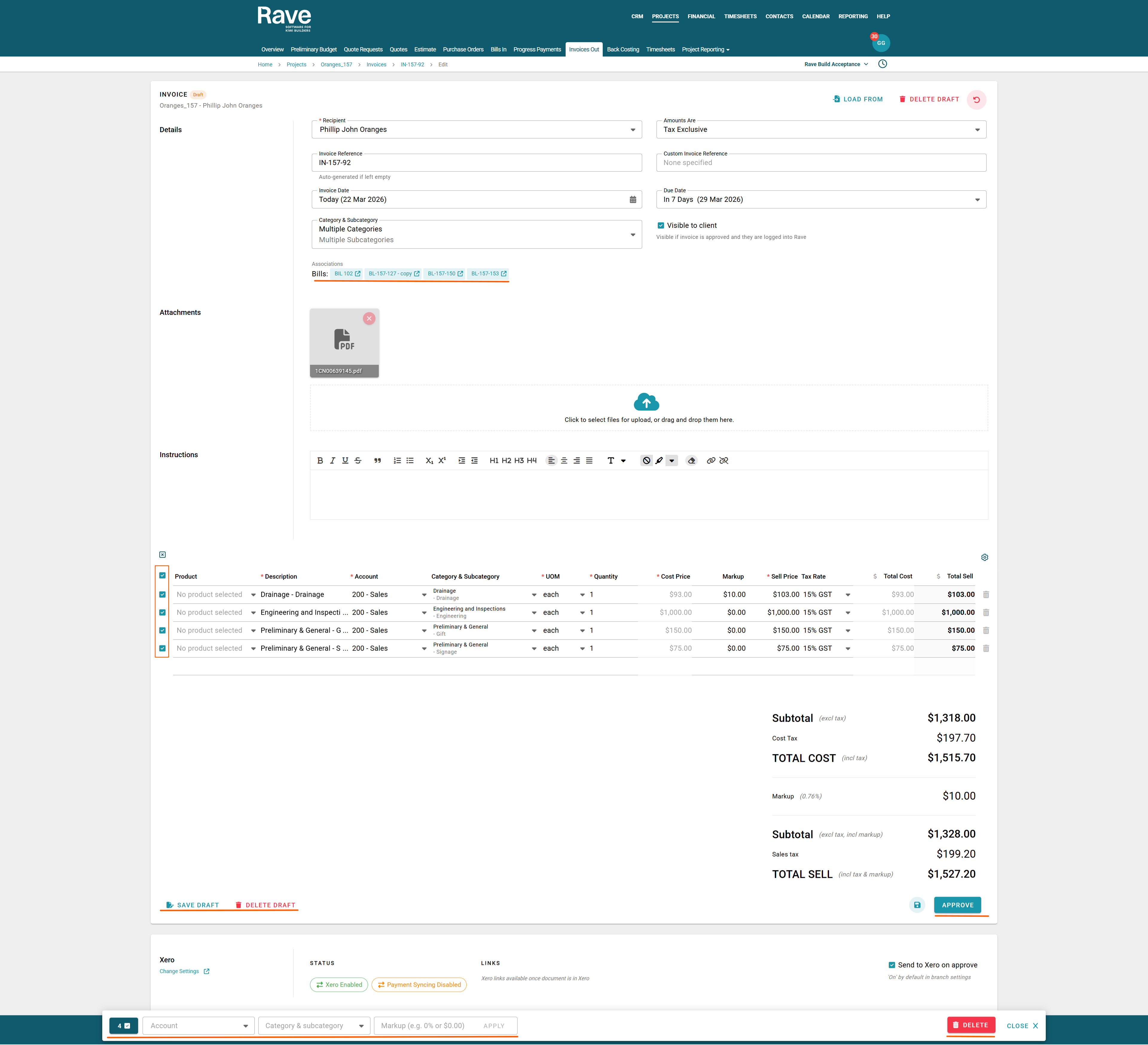
If you need to save the invoice as a draft to come back to later, select Save Draft.
If you select Delete Draft, the invoice will be deleted, and the bills/credit notes will revert to ready-to-convert status.
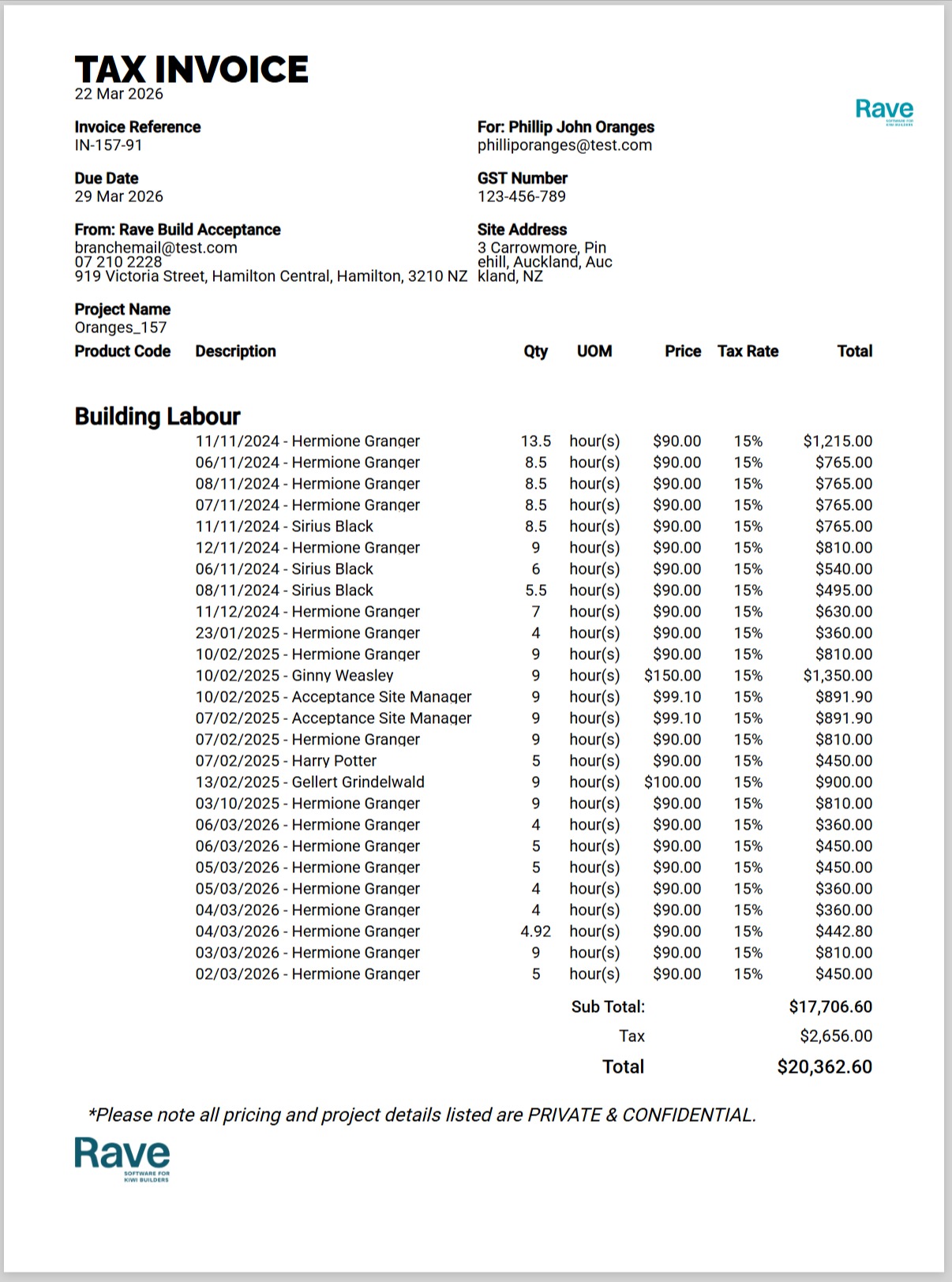
Rave Invoice PDF showing Time sheet Bill Consolidated by User/Date, and then with the Category Header displaying
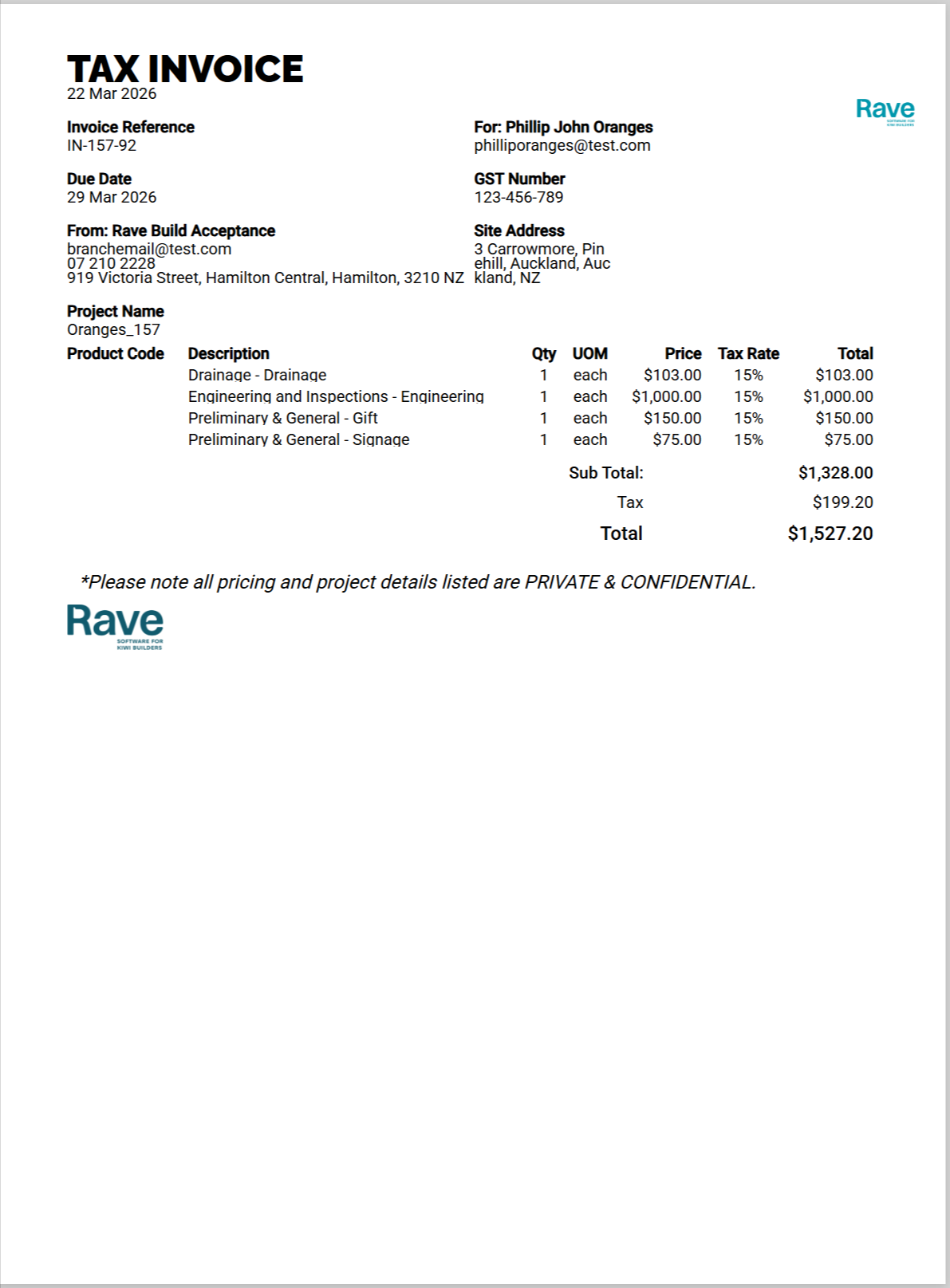
Rave Invoice PDF showing Bill Consolidated by Category and Sub Category with No Category Header displaying
To Manage Payments or assign Credit notes to invoices, please read our Invoices article here.
Was this article helpful?
That’s Great!
Thank you for your feedback
Sorry! We couldn't be helpful
Thank you for your feedback
Feedback sent
We appreciate your effort and will try to fix the article