Once the client has made payment (or partial payment) to their invoice, all branches without the FMS module, must record this payment received via the project's Invoices Out sub-tab.
You can access your Project’s financial workflows from either the Financial button or the Project button's Project list, clicking on the project’s reference number, and finally selecting the Invoices Out Subtab.
To add a payment to an invoice we:
- Click on the 'Invoices Out' sub-tab - this will display all of the Invoices created for this project so far
- Click on the ellipses (3 dot dropdown) of the invoice you want to add a payment to
- Select the 'Add a Payment' option
This will open the Add a Payment pop-up screen, allowing you to set the Payment Amount (a partial payment), and the Date Paid.
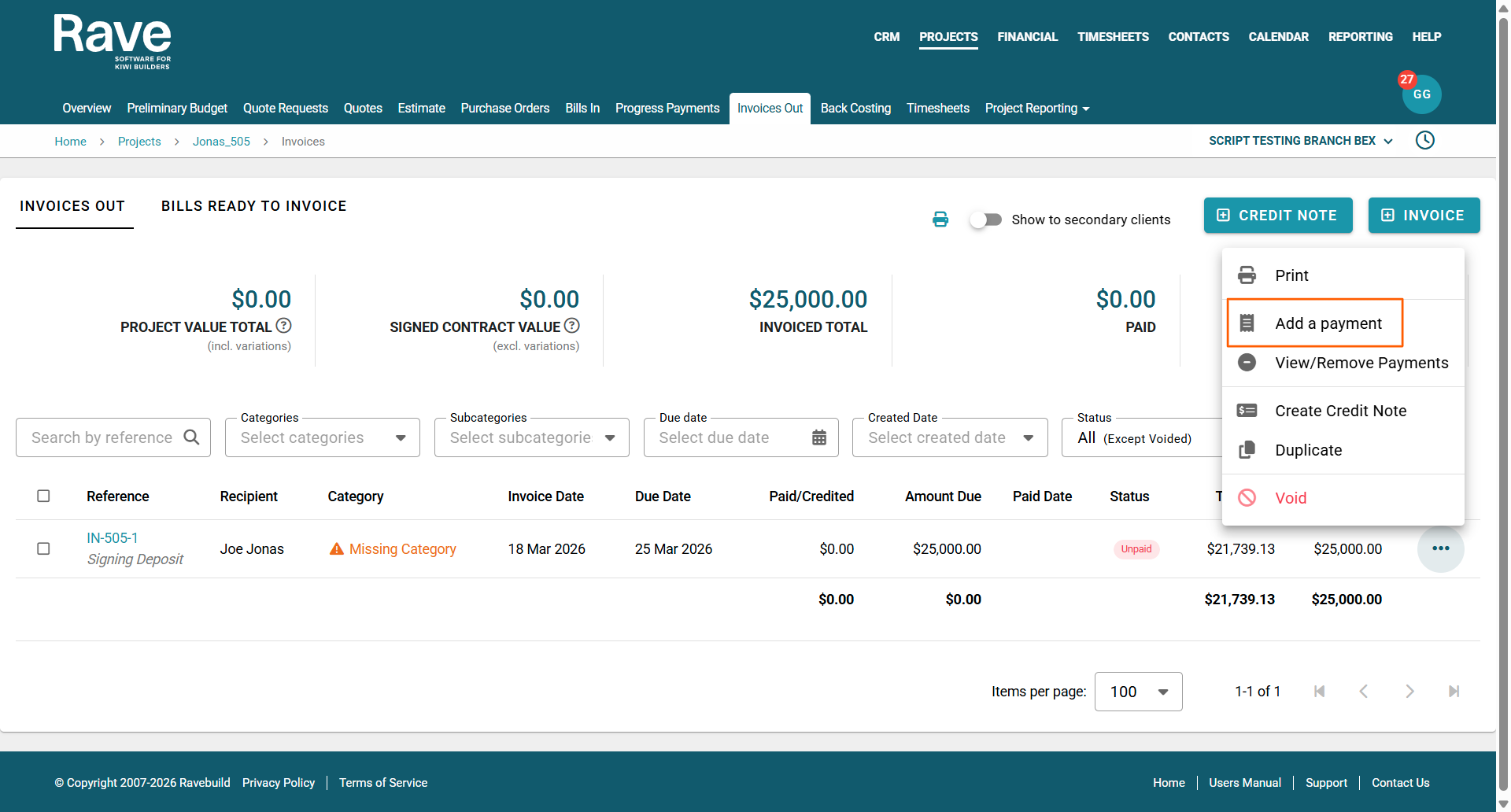
NOTE: You can add as many partial payments as you need to. If your branch has the FMS module, and Xero syncing is turned on, the 'Add a Payment' option is disabled as Xero's reconciliation of the payments will already auto-update RAVE.
Once you've made your selections, click the 'Add Payment' button to confirm.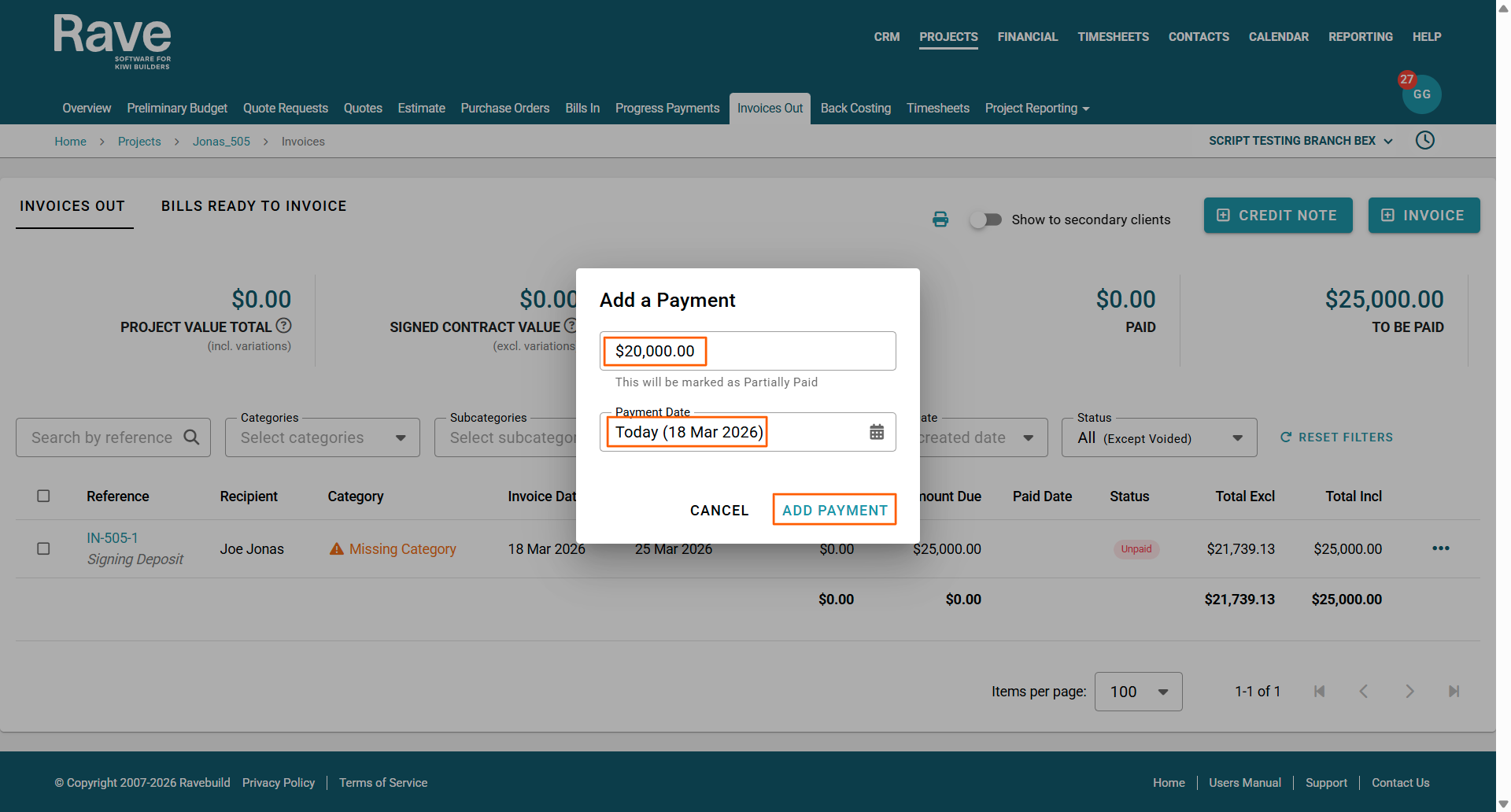
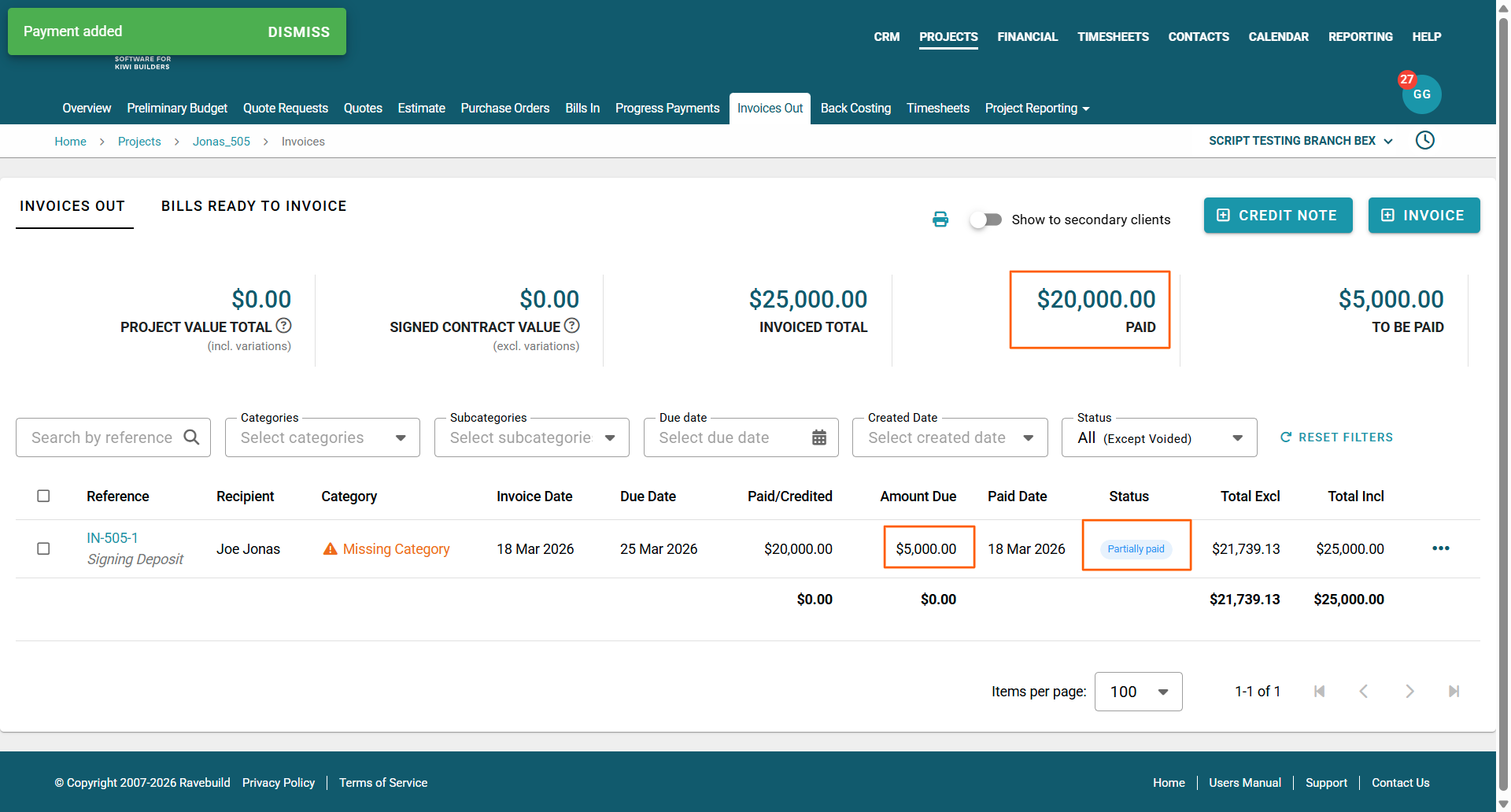
This will change the amount paid figure for that invoice, change the status to paid, and also update the paid and to-be-paid figures in the table summary at the top of the page.
You'll notice the table summary at the top of the page has been updated too - that is the paid and the to-be-paid amounts. As has the summary at the bottom of the screen.
Was this article helpful?
That’s Great!
Thank you for your feedback
Sorry! We couldn't be helpful
Thank you for your feedback
Feedback sent
We appreciate your effort and will try to fix the article