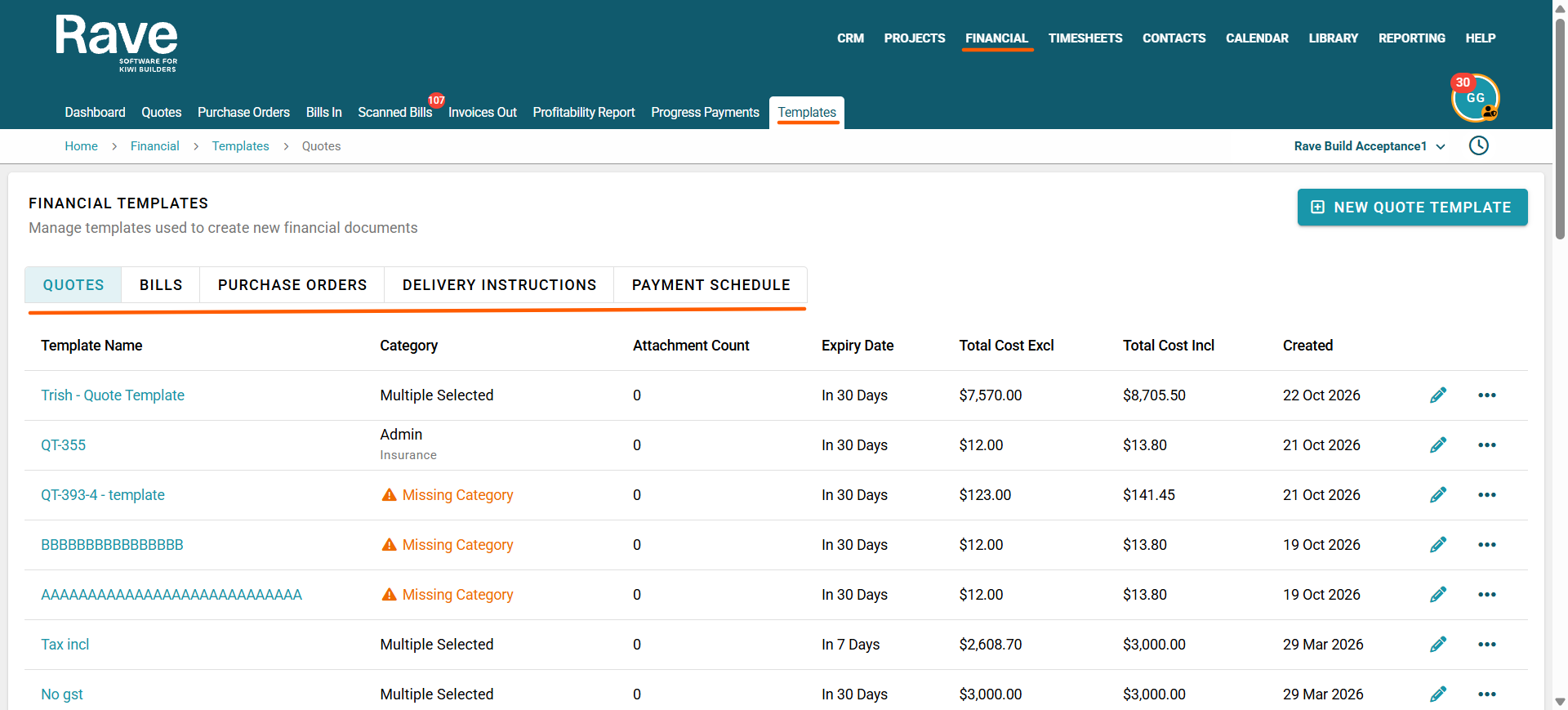
To access Rave Financial Templates, click on Financial, then the Templates Sub-Tab.
You will now see Quote Templates, Bill Templates, Purchase Order Templates, Purchase Order Delivery Instruction Templates, and Payment Schedule (Progress Claim) Templates.
Overview
RAVE’s Financial Templates provide a faster, more consistent way to create financial documents across your projects.
These templates let you predefine line items, pricing structures, and formatting, reducing manual entry, improving accuracy, and standardising your financial workflows.
What Are Financial Templates?
Financial Templates are pre-built layouts used when creating:
- Quotes
- Bills
- Purchase Orders
- Delivery Instructions for Purchase Orders
- Payment Schedule (Progress Payments)
They can include:
- Preloaded Product Inventory items
- Standard descriptions and scopes
- Preset pricing and markups
- Default GST settings
- Account codes
- Delivery or Note Instructions.
Key Benefits
Using Financial Templates helps you:
- Save time on repetitive data entry
- Maintain consistency across projects
- Reduce errors in pricing and GST
- Standardise documentation for your team
- Improve professionalism in client-facing documents
Creating a Financial Template
- You can create a new template for Quotes, Purchase Orders and Bills directly from the templates menu by selecting New Quote Template, New Purchase Order Template or New Bill Template. You will then be able to enter the mandatory and optional requirements for each template and press Save as Template.
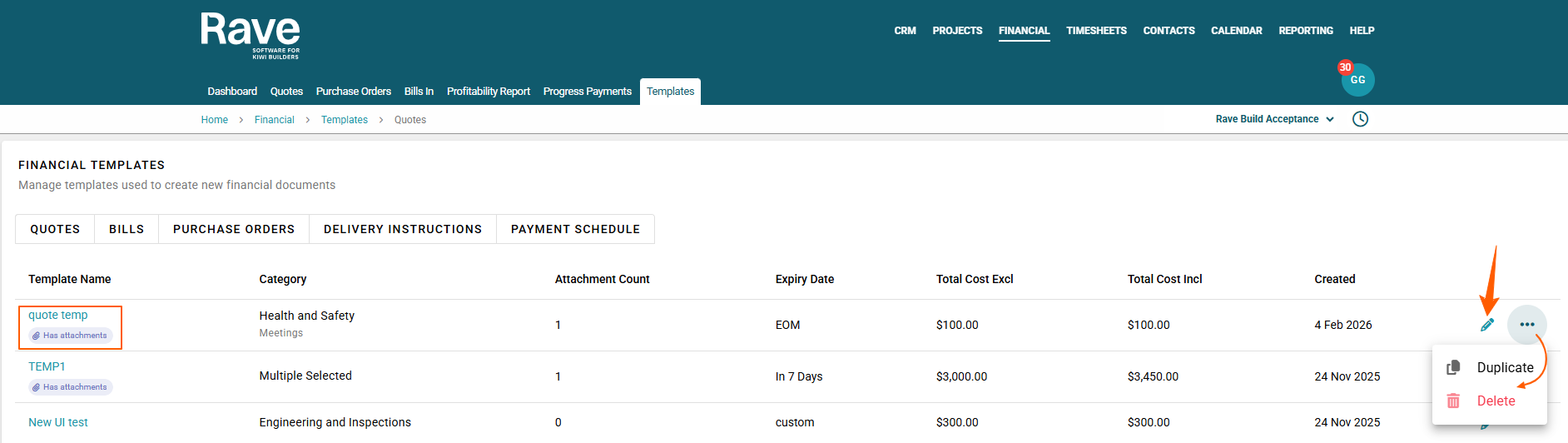
- You can also navigate to the part of Rave that you want to create the Template from i:e Project Quotes, Populate the Quote & Save as Template. Once the quote is saved, go to the Financial Template Tab, find the quote template, and Edit & Save a new Template, Edit, Delete, or Duplicate Templates.
Using a Financial Template
You can apply templates when creating financial items within a project.
To Use a Template:
- Open your project
- Navigate to the relevant financial area:
- Progress Payments
- Payment Schedule
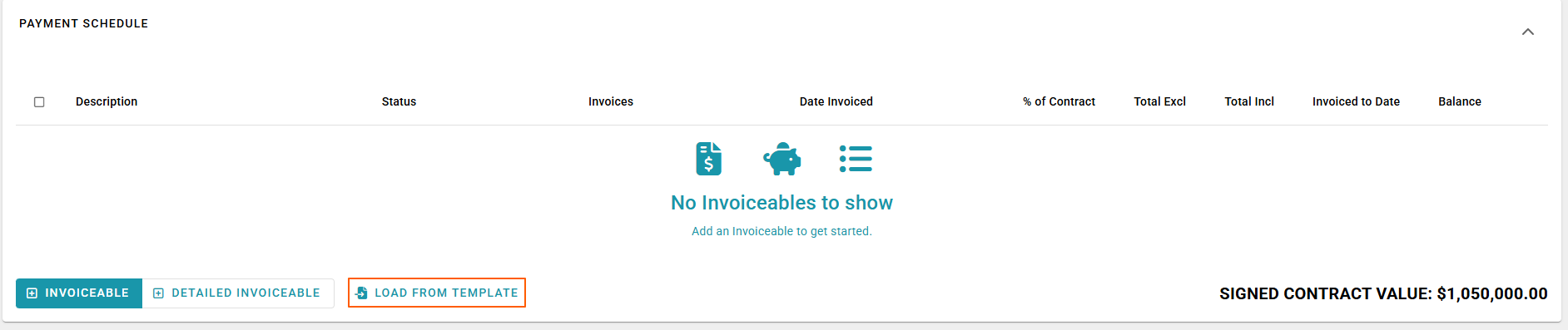
- Select Load from Template
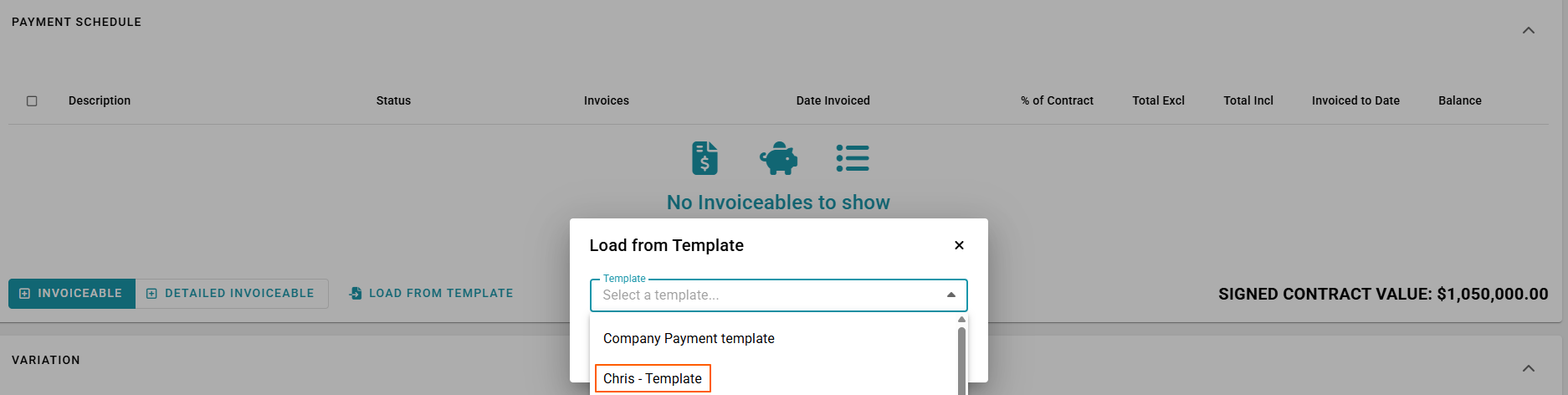
- Choose the Template you want to use from the drop down.
- Select Apply Template
What Happens Next:
- All predefined line items and settings are automatically populated
- You can:
- Edit quantities
- Adjust pricing if required
- Add or remove items
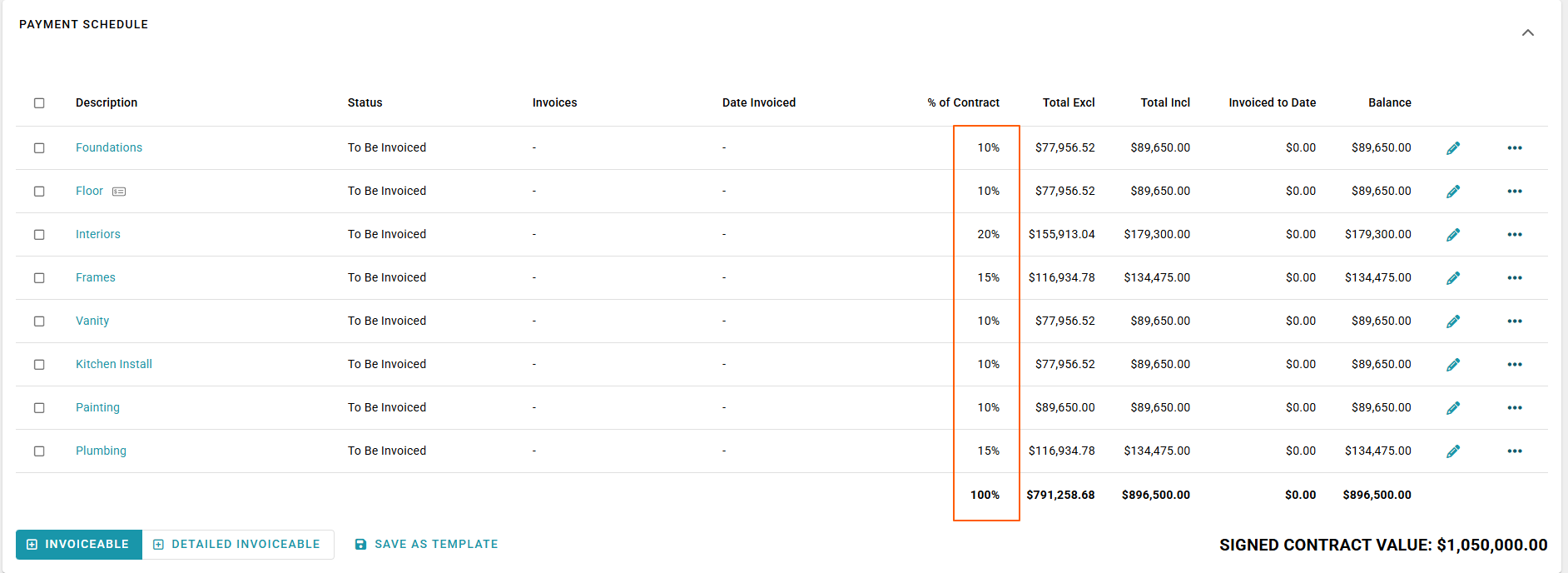
Editing a Financial Template
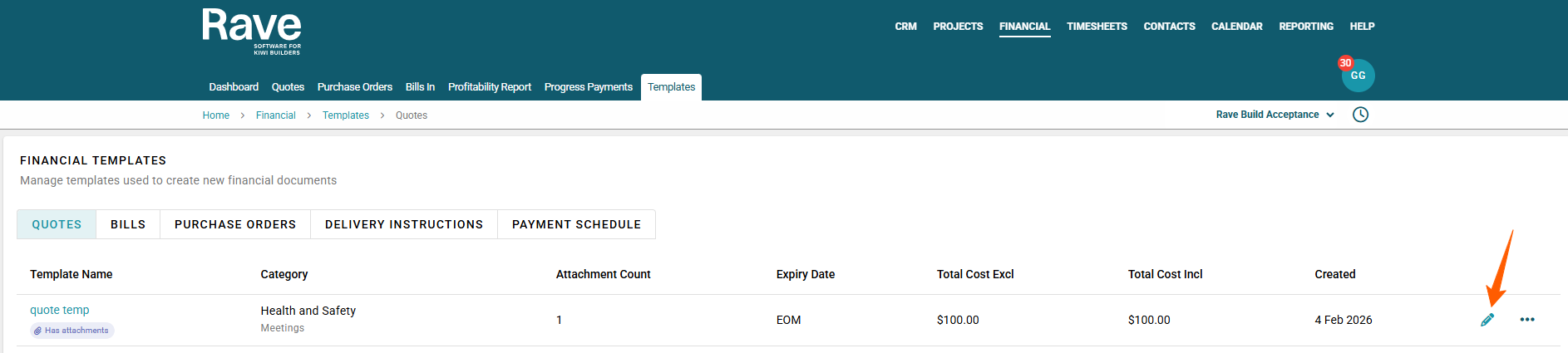
- Go to Financial Settings → Templates
- Select the template you want to update
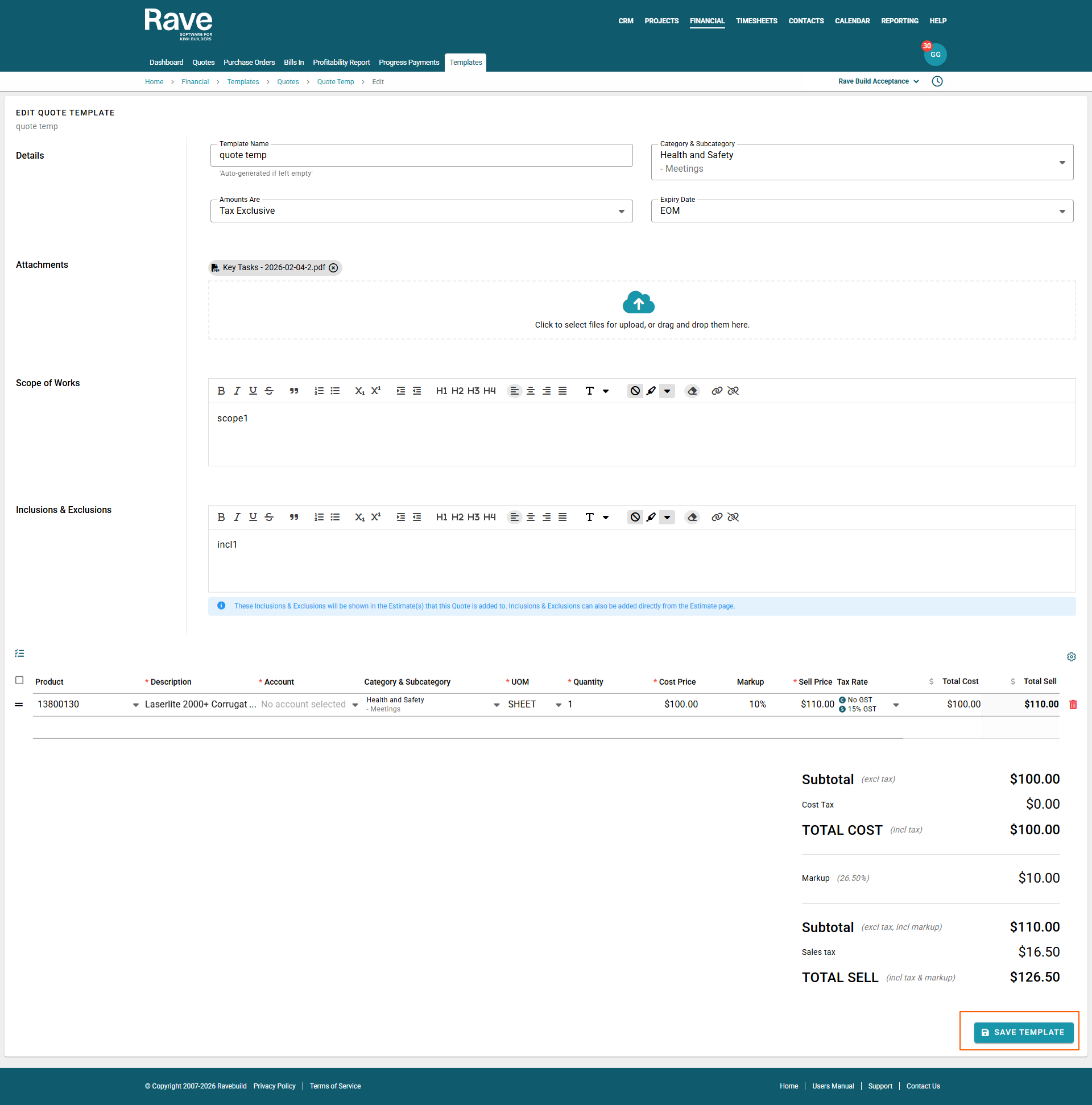
- Make your changes:
- Add/remove items
- Adjust pricing or markup
- Update descriptions
- Click Save
Important Note
- Changes to a template will not affect existing documents already created using this template.
- Updates will only apply to future use of the template
Best Practice Tips
- Use clear naming conventions (e.g. “Kitchen Variation Template”, “Standard Progress Claim”)
- Align templates with your chart of accounts
- Regularly review pricing and markups
- Use Product Inventory codes to ensure pricing consistency
- Limit template variations to avoid confusion for your team
Was this article helpful?
That’s Great!
Thank you for your feedback
Sorry! We couldn't be helpful
Thank you for your feedback
Feedback sent
We appreciate your effort and will try to fix the article