The Financial button provides access to RAVE’s Financial Management System (FMS) via shortcut screens, allowing you to easily manage the financials of each project. When clicked, it opens by default to the FMS Overview/Dashboard subtab.
Users with Financial Permissions will see the Financial Tab. If you dont see this tab you dont have at least one of the Required Financial Permissions which is Quotes, Estimates, Purchase Order, Bills or invoice full access or view only permission.
This dashboard lists all your projects with key financial details, and includes teal text links that act as shortcuts:
Client (name) clicking the teal hyperlink takes you to the Client Overview page.
Project (job number) clicking the teal hyperlink takes you to the Project Overview page.
Estimate clicking the teal hyperlink takes you to the Projects Estimate page.
PO Total clicking the teal hyperlink takes you to the Projects Purchase Orders page.
Bills In clicking the teal hyperlink takes you to the project’s Supplier Bills and Credit Notes page.
Invoices Out clicking the teal hyperlink takes you to the project’s Client Invoices Overview, which includes charge-up, progress payment, and variation invoices and credit notes.
Note: If you dont have the hyperlink option and your text is black and unclickable you do not have permission to access that page in Rave.
On the top left-hand side, there is a Search bar to search and document reference type, project reference or client name. There is also filters to filter by Project Status, Quantity Surveyor or Project Manager. There are also two convenient sliders, one to hide all projects without any financial documents attached. When enabled, this slider removes all projects that do not have at least one of the following documents: Quote, Estimate, Purchase Order, Bill, Invoice, or Credit Note. The second Slider is to switch all figured to Include or Exclude GST. By default this slider is set to show Excl GST. 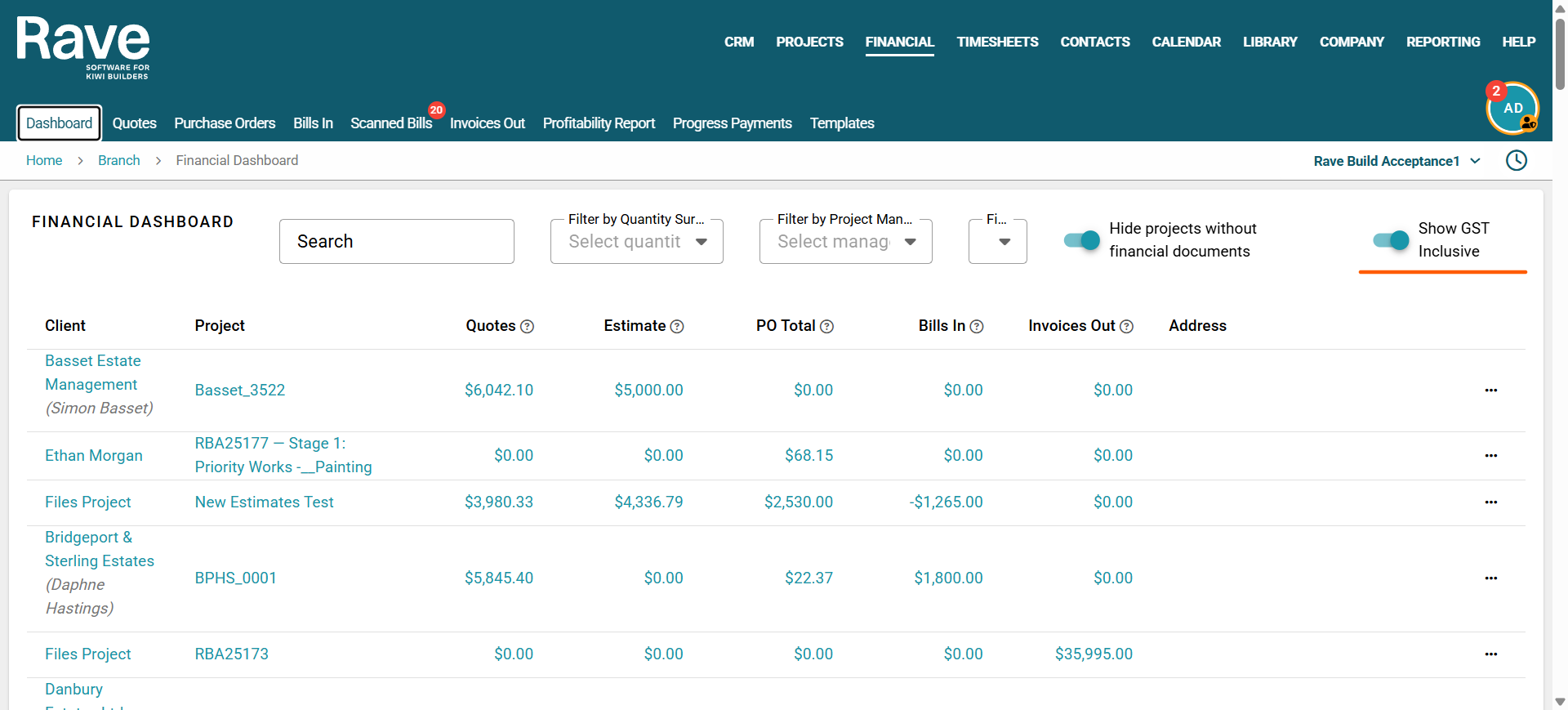
Additional elements on the dashboard include:
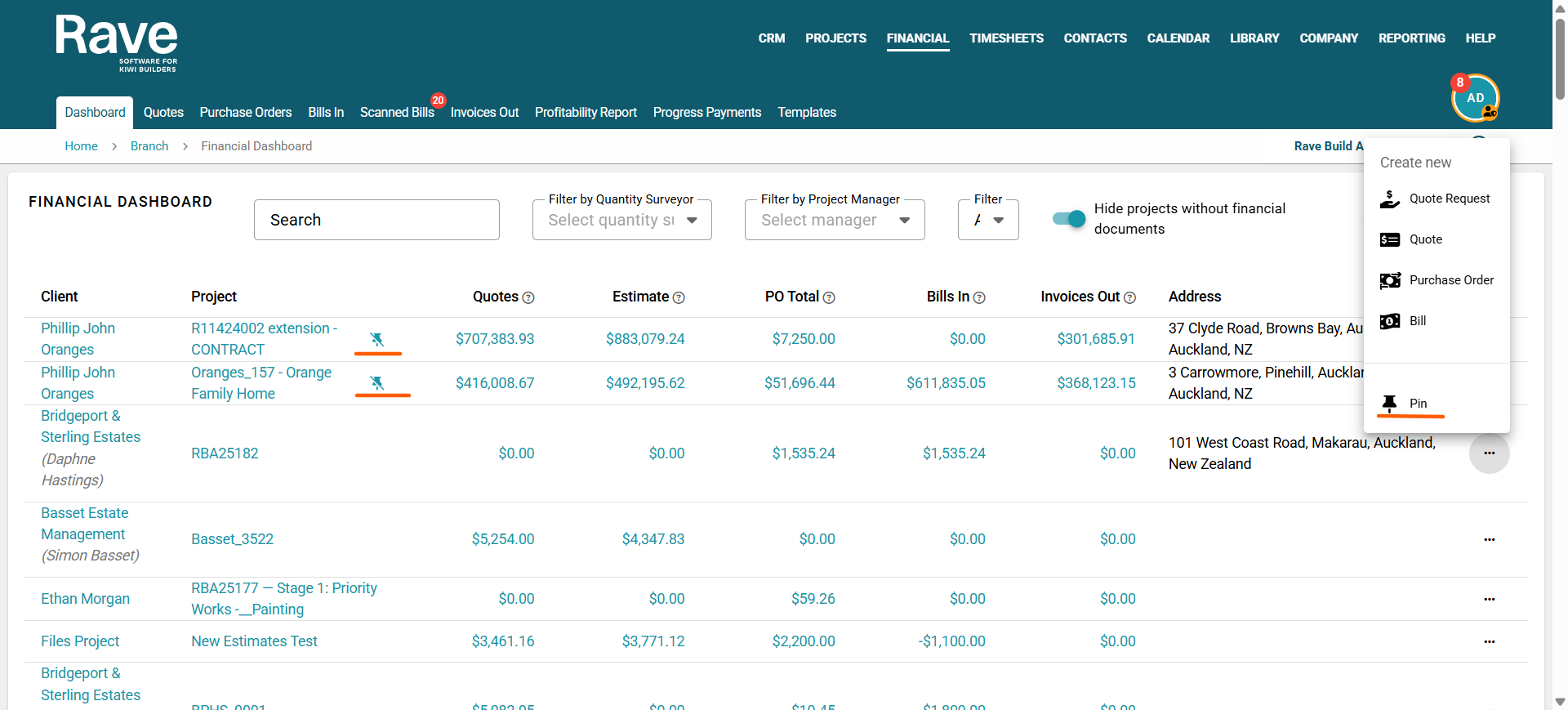
The Address, which displays the project’s specific site address.
The three-dot action dropdown, which allows you to:
Create a new Quote Request
Add a new Quote
Add a new Purchase Order
Add a new Bill
Pin - This allows you to pin projects to the top of the page allowing quicker access to specfic projects.
 At the bottom of the page, a total row displays the sum of each financial column, giving you a clear overview of your total project estimates, purchase orders, bills, and invoices.
Was this article helpful?
That’s Great!
Thank you for your feedback
Sorry! We couldn't be helpful
Thank you for your feedback
Feedback sent
We appreciate your effort and will try to fix the article