Rave can save an entire Estimate (job costing) as a template for quick, efficient reuse next time. The steps below will teach you how to turn your existing estimate into a template.
Accessing your Project’s Budget Workflows
There are two ways to access a project’s financial information.
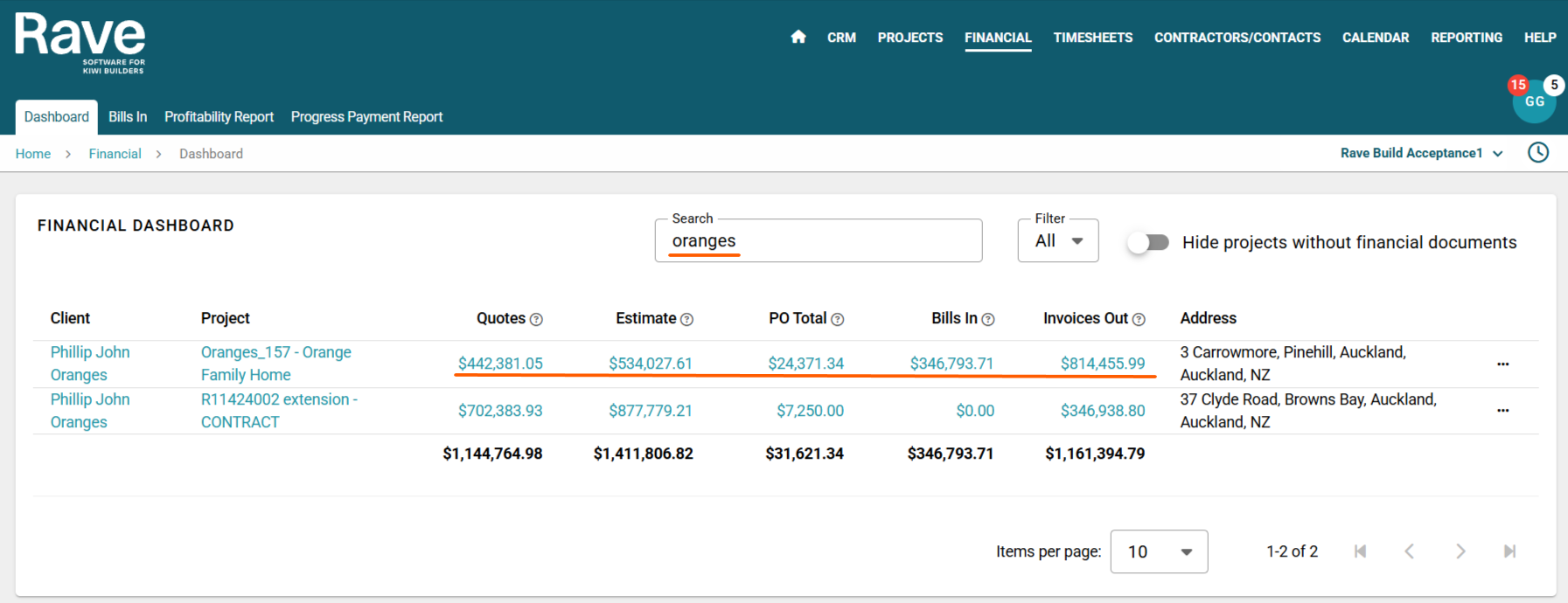
Option 1: Access via the Financial Menu
Click Financial in the main navigation.
Search for the relevant project.
Select one of the hyperlinks to open its financial workflows.
This method is useful when you want to quickly locate financial information without navigating through the full project list
Option 2: Access via the Projects Menu
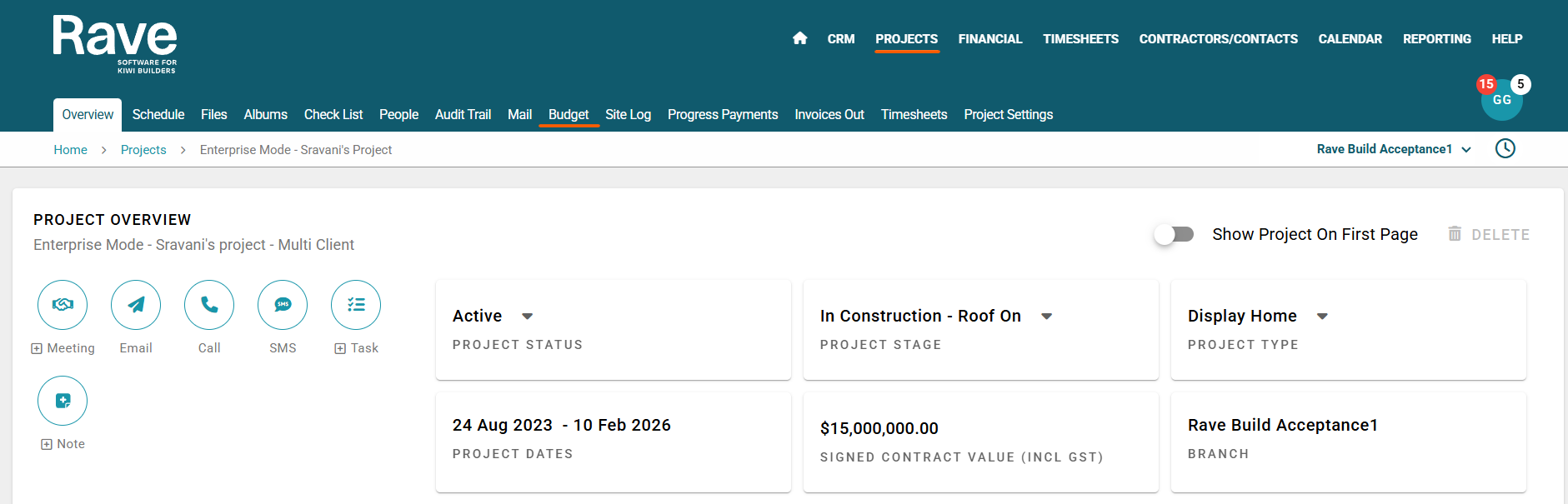
Click Projects in the main navigation.
Find and open the relevant build.
Select Budget to access the project’s financial details.
This method is ideal when you are already working within a specific project.
Once in the Budget sub-tab, click on the Estimate sub-tab.
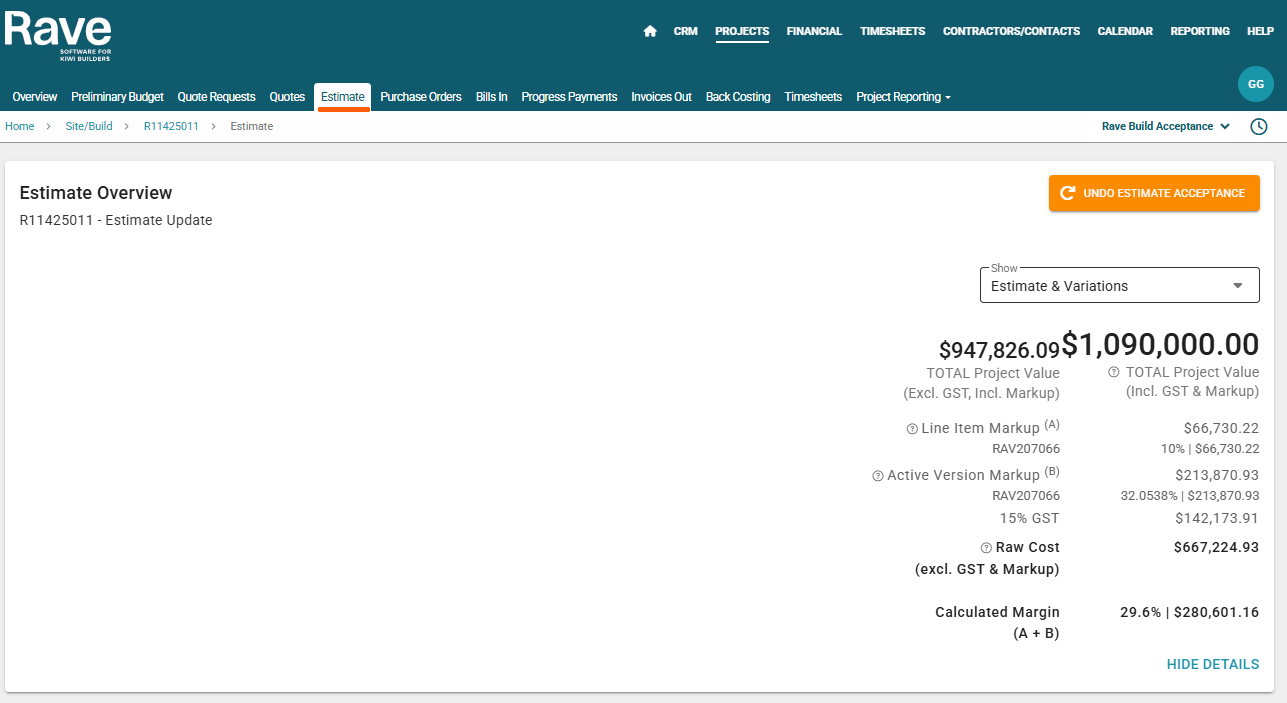
You have already learnt how to create the estimate and all the additional options that come with it in our previous help article, How to Create a Client Proposal/Estimate via the Estimate sub-tab.
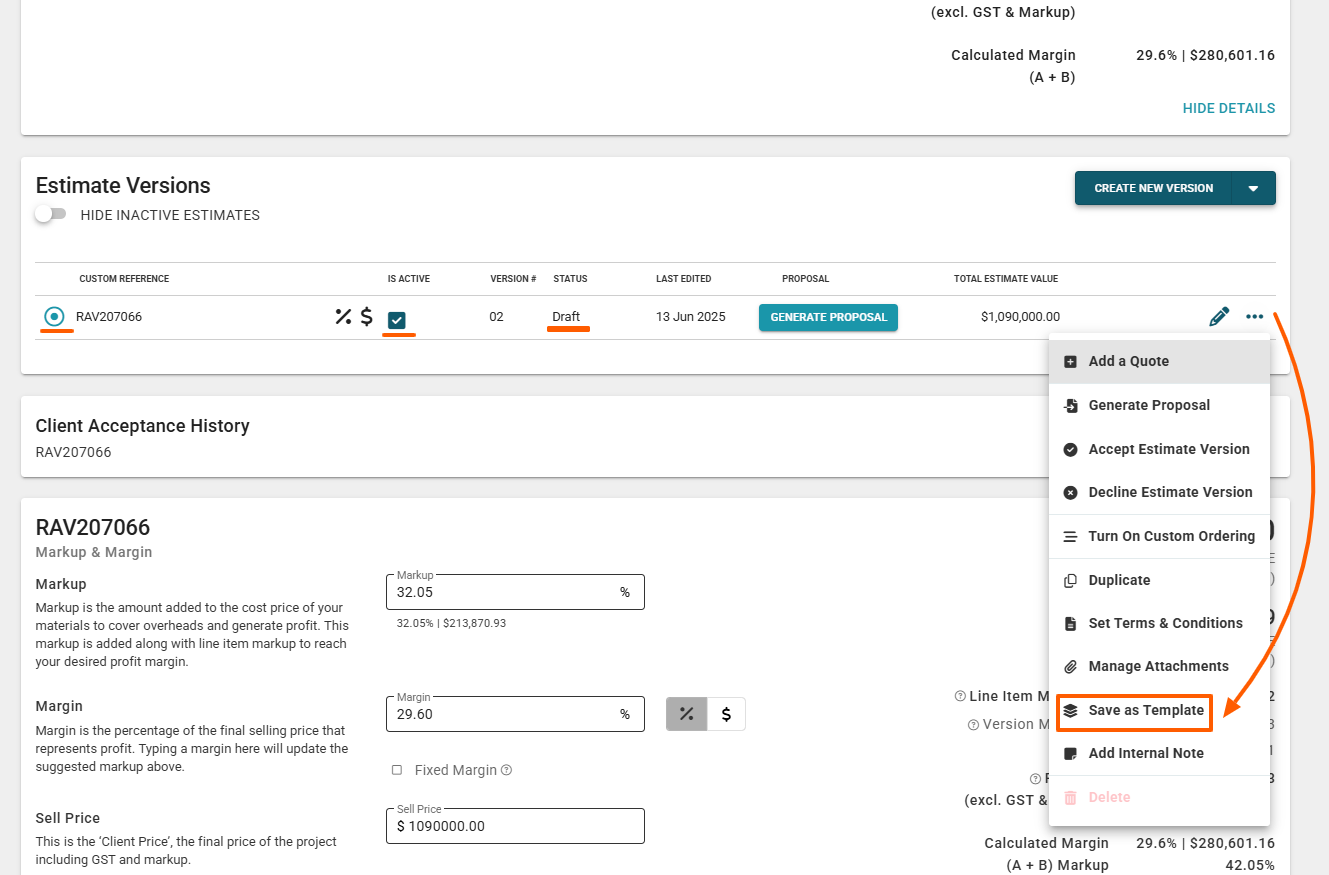
To save this estimate as a template for future use, scroll down the estimate page to the Estimate Version section.
Note: Ensure that the estimate you want to save as a template is not accepted and still displays as a Draft status.
You also need to check that the circle on the left is selected for the version you want to save as a template, i.e. there could be multiple versions, and ensure the Is Active button is checked on the same project. Click on the 3-dot ellipse and select the Save as Template option.
Once you select the Save as Template option, you need to name your template. Give it a name that is easily recognisable in case you decide to make multiple templates for different house plans or different variations of the same plan. i.e., The Matakana – Brick or The Matakana - Weatherboard. Once you hit save, your template is ready to be used in any other job.
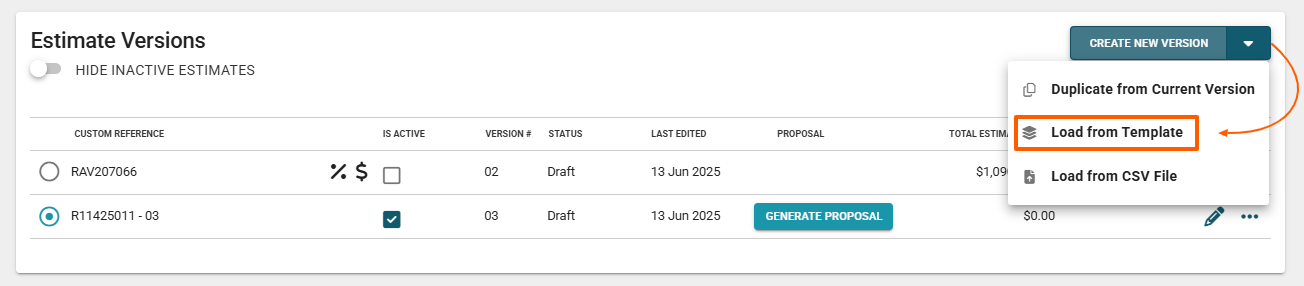
To load this new template into a fresh project, go to the budget sub-tab in that job and open the estimate page. This will currently be a blank page with no information loaded. Scroll down to the Estimate Versions section, and click on the CREATE NEW VERSION drop-down arrow, selecting the Load from Template option.
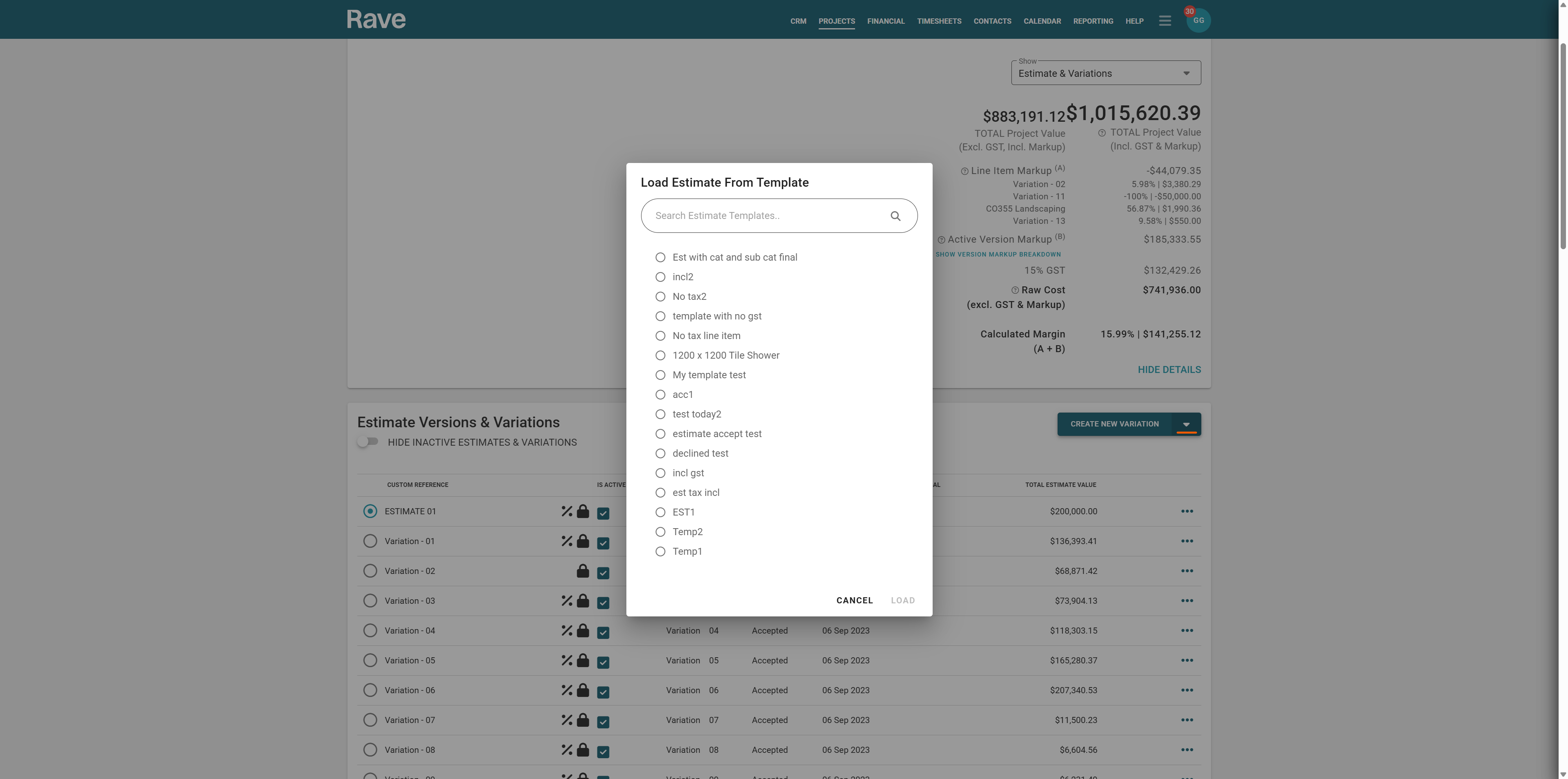
This will open the Load Estimate from Template pop-up. Choose the template you wish to load, then press Load.
It will now load the entire estimate template with all of your quotes, sales pricing and information into the project.
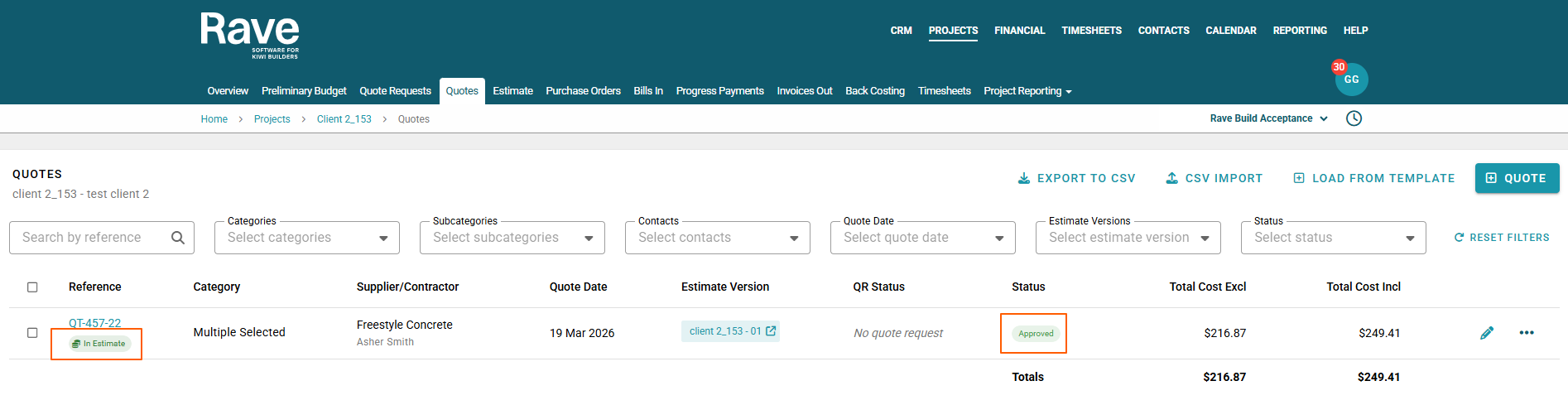
All quotes will be approved and loaded into the Estimate version and the Quotes page. The suppliers, chart of accounts, categories/subcategories and line item information are all copied from the template into this job. The pricing is not locked, as this estimate isn't approved yet. You can now proceed to make final changes/tweaks to the pricing, suppliers and other information before presenting to the client.
Managing Estimate Templates
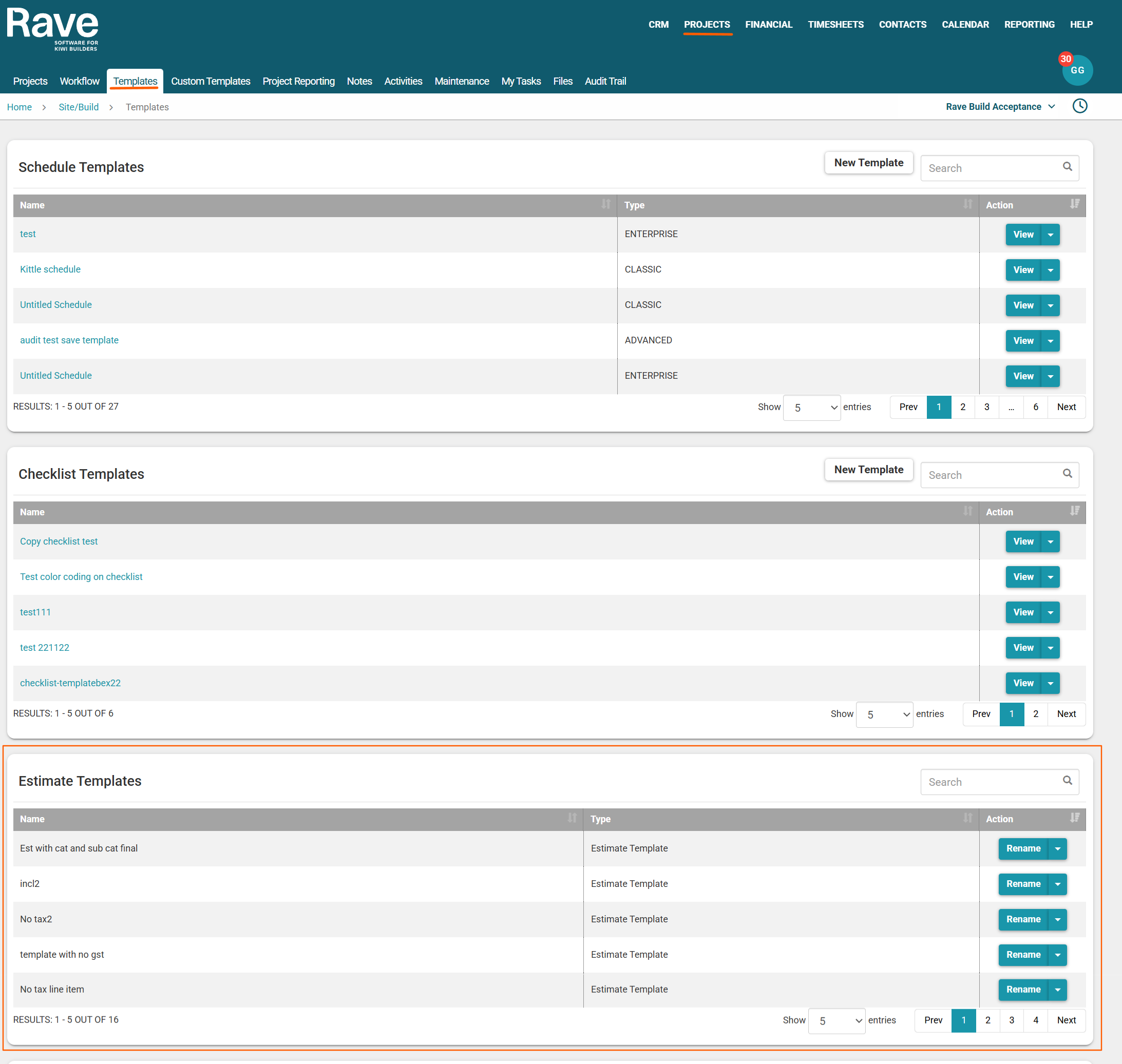
Click Projects from the top navigation
Click on Templates
Scroll down to Estimate Templates.
You can rename or delete a template from this menu. To edit a template, you must load it into a project, make changes, and re-save it as a new template.
Was this article helpful?
That’s Great!
Thank you for your feedback
Sorry! We couldn't be helpful
Thank you for your feedback
Feedback sent
We appreciate your effort and will try to fix the article