The Templates sub-tab lists the various Templates that have been saved within Rave. That includes your build Checklists, Folder templates, Estimate Templates and Instructions for Quote Requests
Schedule templates have moved to their new location under Custom Templates. The help article can be read here.
Financial Templates have moved to their new location under the Financial tab. The help article can be read here.
Checklist Templates:
Checklist templates can be created, viewed, deleted or set as the default via Templates / Checklist Templates. he search bar will allow you to keyword search for a specific template, which is handy once you have a few saved in there.
In the table, you can see the template name and the action button to either view or click on the dropdown arrow - set as default or delete. Clicking on the template name will also allow you to view the template and then edit it.
At the bottom left of the screen, you can see how many results are displaying out of your total number of results. The bottom right allows you to change how many per page you can see, along with the ability to navigate to the next page of results.

Estimate Templates:
Here you can view and rename your estimate templates.
You are unable to edit them from this menu (This will be changing in July 2026 when we move the templates to the financial page).
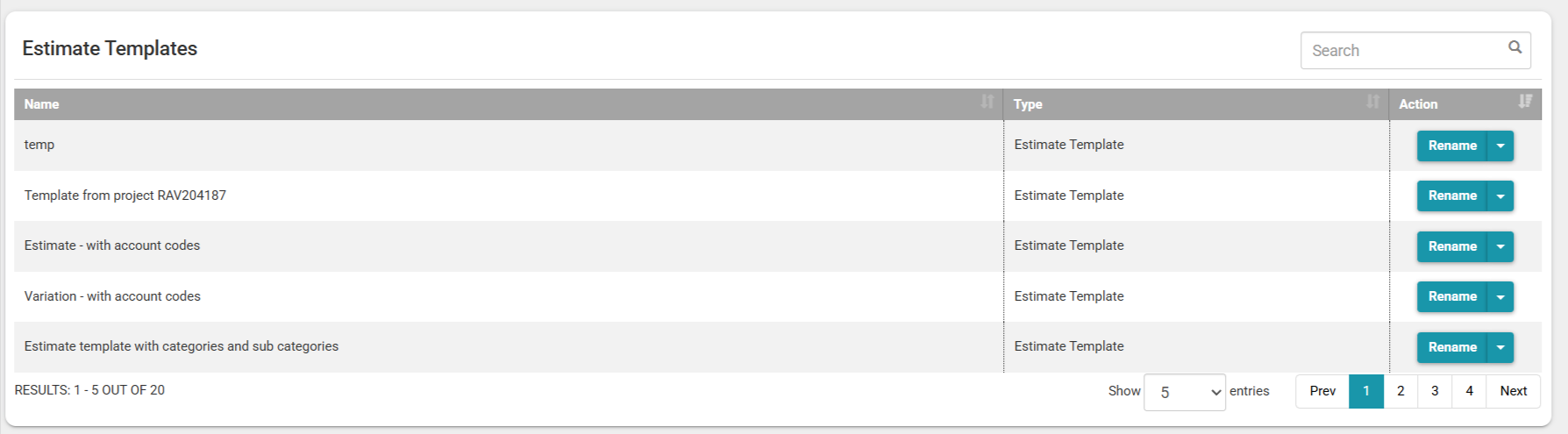
Here you can view, set/unset default, rename and delete the folder templates.
At the bottom left of the screen, you can see how many results are displaying out of your total amount of results. The bottom right allows you to change how many per page you can see along with the ability to navigate to the next page of results.

Quote Request Instructions Templates
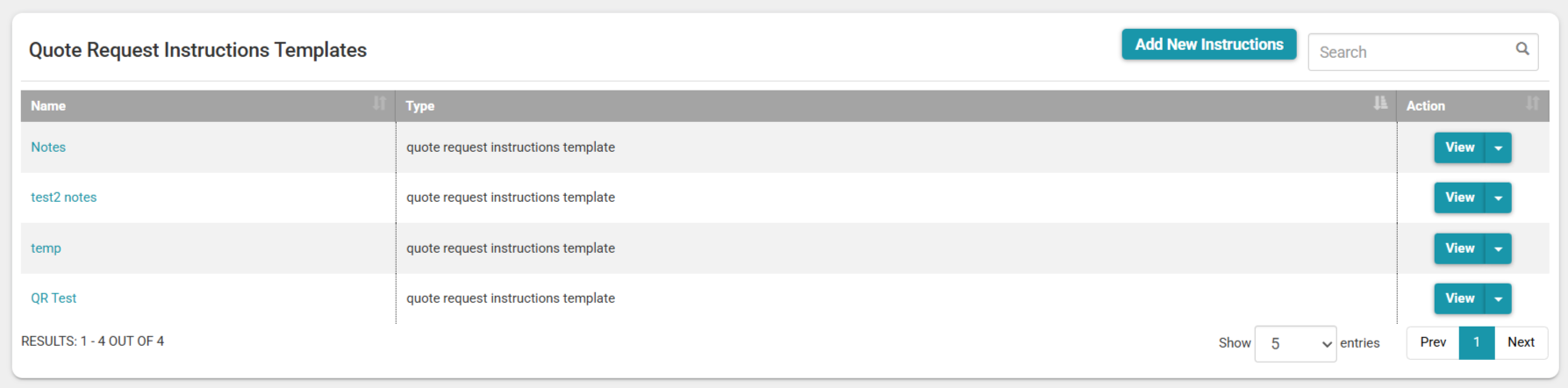
This is where instructions or notes on your quote request stored.
From here you can create a new template, view, edit and delete your templates.
In the table you can see the template name and what type of template it is for e.g quote request.
At the bottom left of the screen, you can see how many results are displaying out of your total amount of results. The bottom right allows you to change how many per page you can see along with the ability to navigate to the next page of results.
Was this article helpful?
That’s Great!
Thank you for your feedback
Sorry! We couldn't be helpful
Thank you for your feedback
Feedback sent
We appreciate your effort and will try to fix the article