RAVE’s Financial Management System includes Branch-Level Financial Document Level options. This article will focus on Quotes and Variation Quotes.
There are also articles on Bills/Credit Notes here, Client Invoices and Credit Notes here, and Purchase Orders here.
Branch Quotes is a financial admin lifesaver because it provides full visibility and control over all quotes across all projects in one place. Instead of managing quotes individually, you can make bulk changes, approve or unapprove quotes by project or supplier, clean up quotes in estimates, and even create a single quote that applies across multiple projects. This saves time, reduces errors, and ensures consistent, accurate pricing across the entire business.
If your RAVE system has the optional Financial Management System module activated and you have the correct permissions, you’ll find the Branch-Level Quotes subtab accessible via the Financial button.
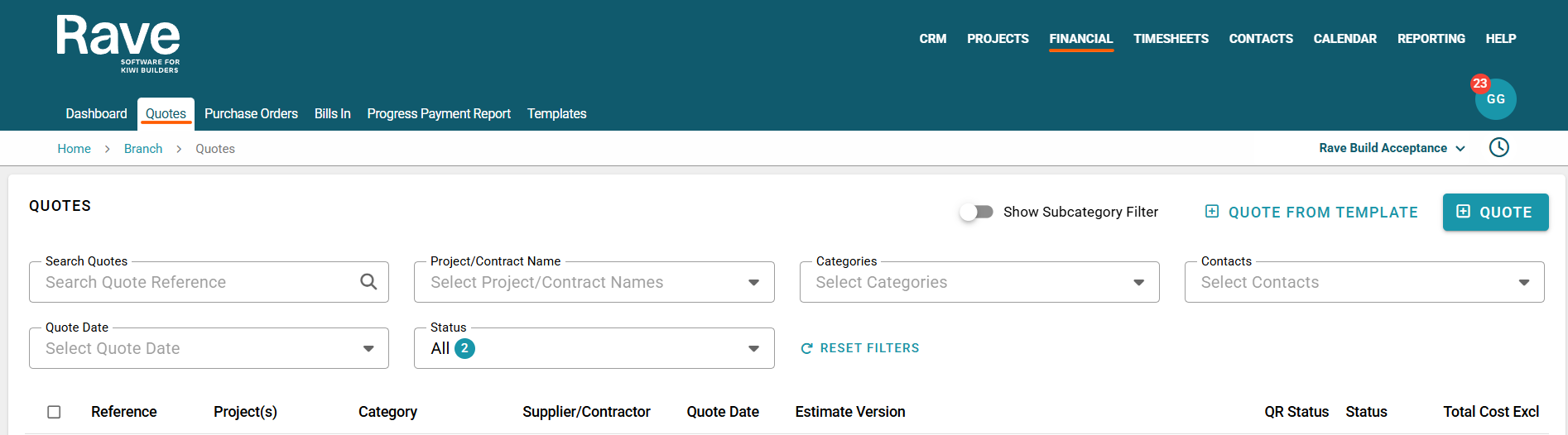
This page displays all active project Quotes and Variation Quotes in the business.
You can use the Search box to search the Quote or the Variation Quote Reference.
Filters along the top allow filtering by Project/Contract Name, Category, Contact, Quote/Variation Quote Date, Status of the document, and, if slid, Sub Category Filters.
Adding a Branch-Level Quote
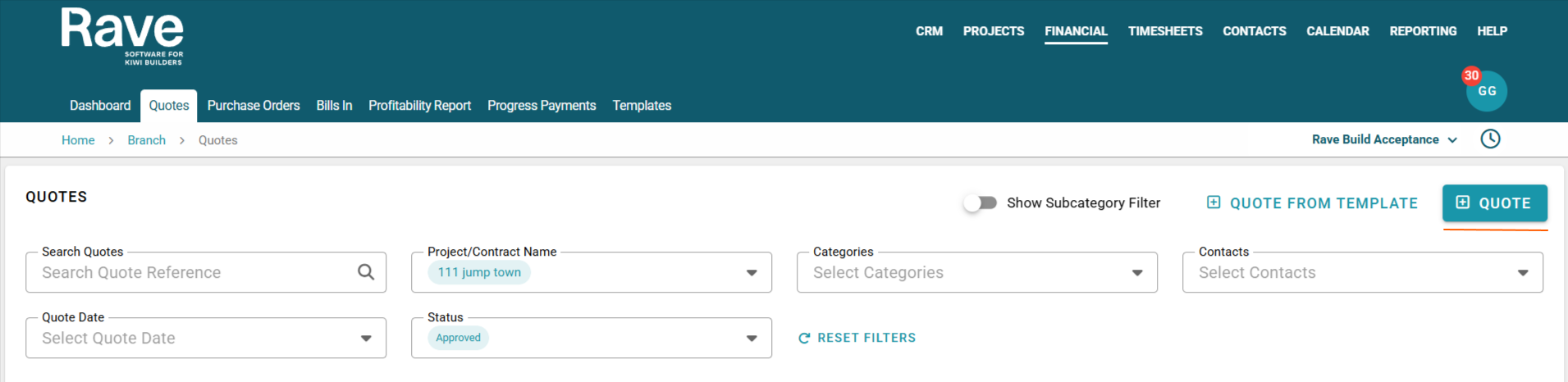
The workflow for adding a Branch-Level Quote is the same as for adding one at the project level, except that you don't select a project.
Click the +Quote button.
Select the supplier or contractor from whom the Quote is from
Enter the supplier’s quote reference number
- Select the appropriate category/subcategory
Ensure you choose the right Tax type, usually Exclusive for the whole Document
Select the Quote Date
Select the Quote Expiry Date
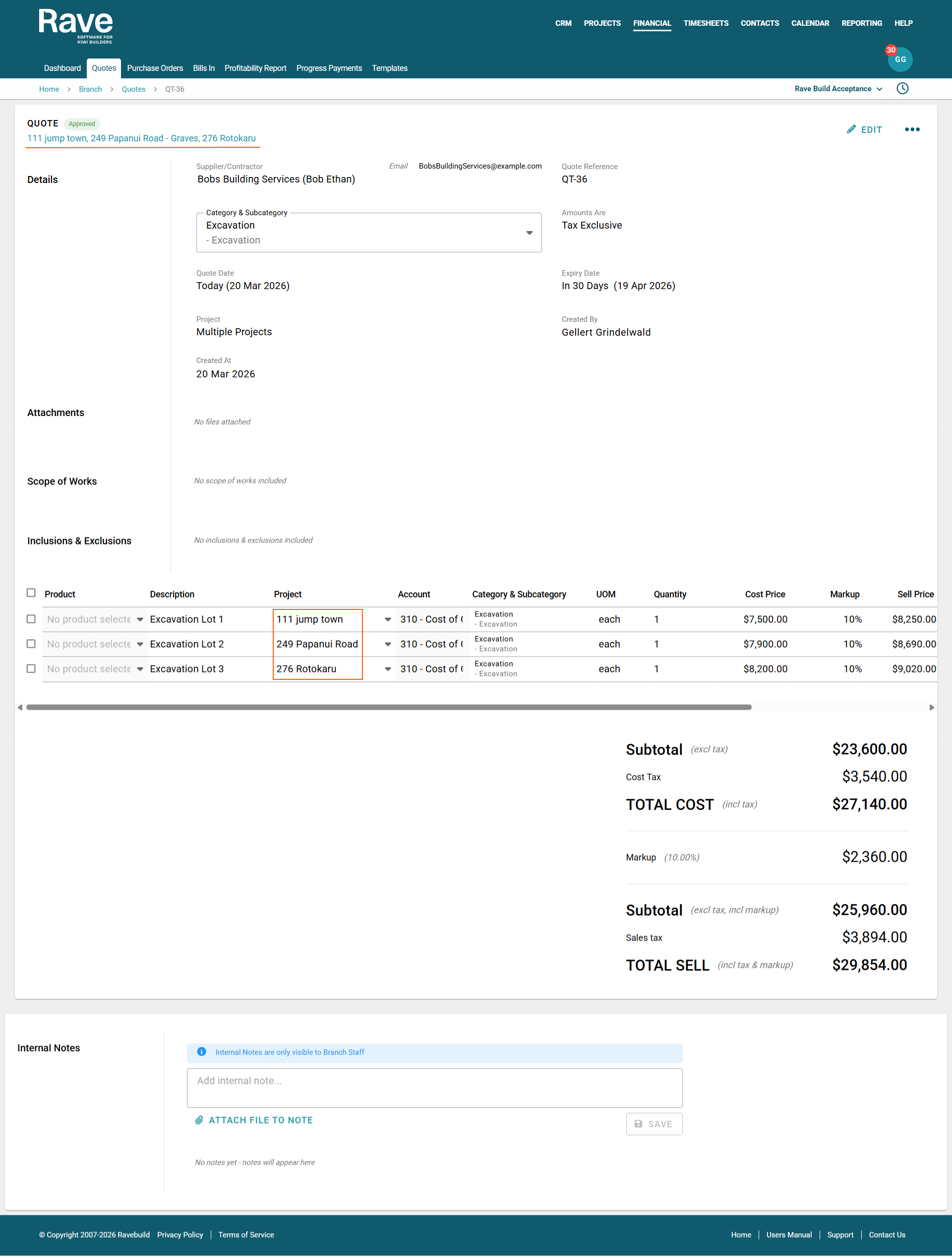
Leave the Project field blank; you will assign the project at the line-item entry stage.
Attach your supplier quote if applicable by clicking the cloud icon or dragging and dropping the file.
Enter the Line Item information and select the correct project for each Line, making sure to double-check qty, pricing, and markup, if applicable.
Once completed, you can Save as pending approval for someone else to Approve or click Approve
Note: All line items from branch-level quotes must be assigned to a project. If there are one or more lines that don’t have a specific rave project, you will need to create and assign these items to a generic project.
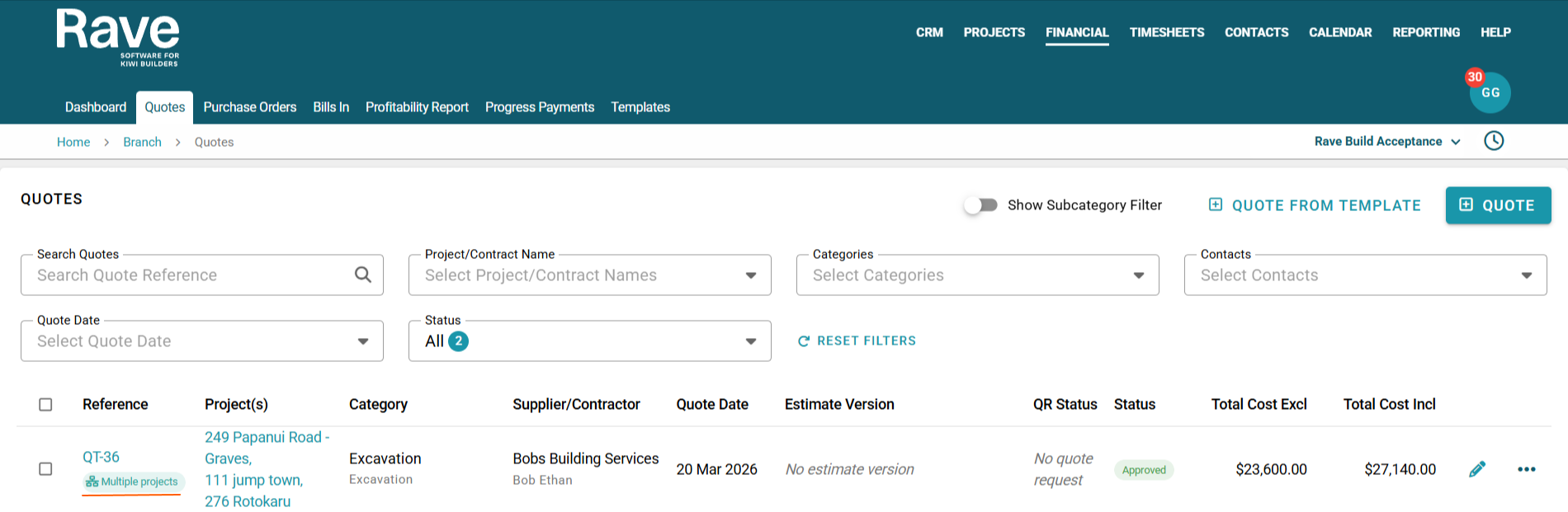
Once saved, you can see the Multi Project Icon under the reference, along with a list of each project linked to this quote. Clicking the project link takes you to that project's quotes Page.
Once the quote is loaded into the system, each project will have its portion of the quote associated with its reporting to ensure financial accuracy.
You can then choose to add the quotes from each project to your estimate. Each quote will load only the line items and values assigned to the project. You can edit branch quotes (like project quotes) until they are locked and in an estimate/variation.
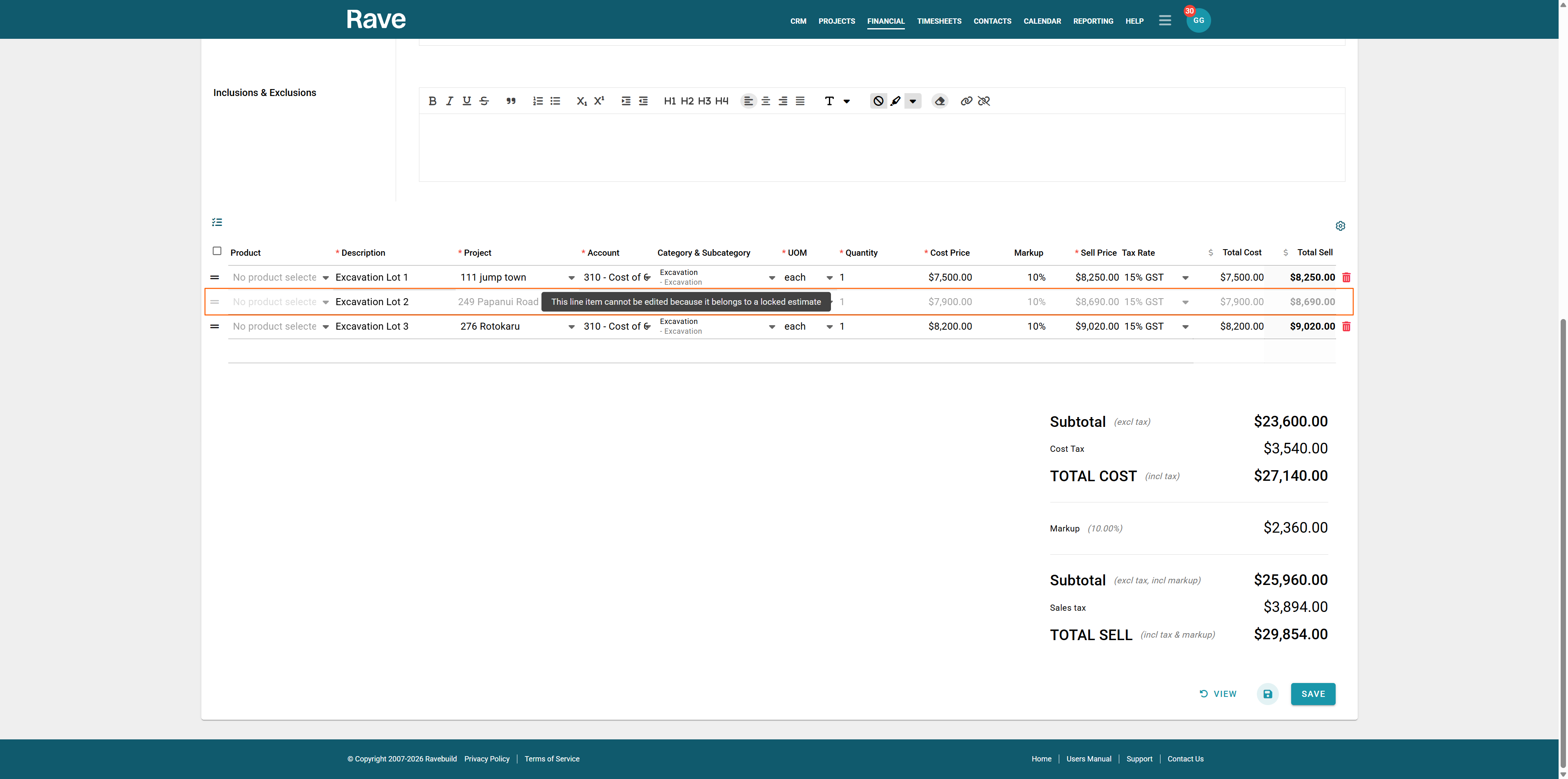
If one or more line items in the quote are locked in estimates and the others are not, the quote can still be edited. The locked lines will be greyed out. When you hover over them, the text will indicate they are in an estimate or variation, and you cannot edit or delete them.
If you need to delete a line item from the quote, you can do so as long as it's not in a locked estimate and there is at least one other line item.
The quotes List Page
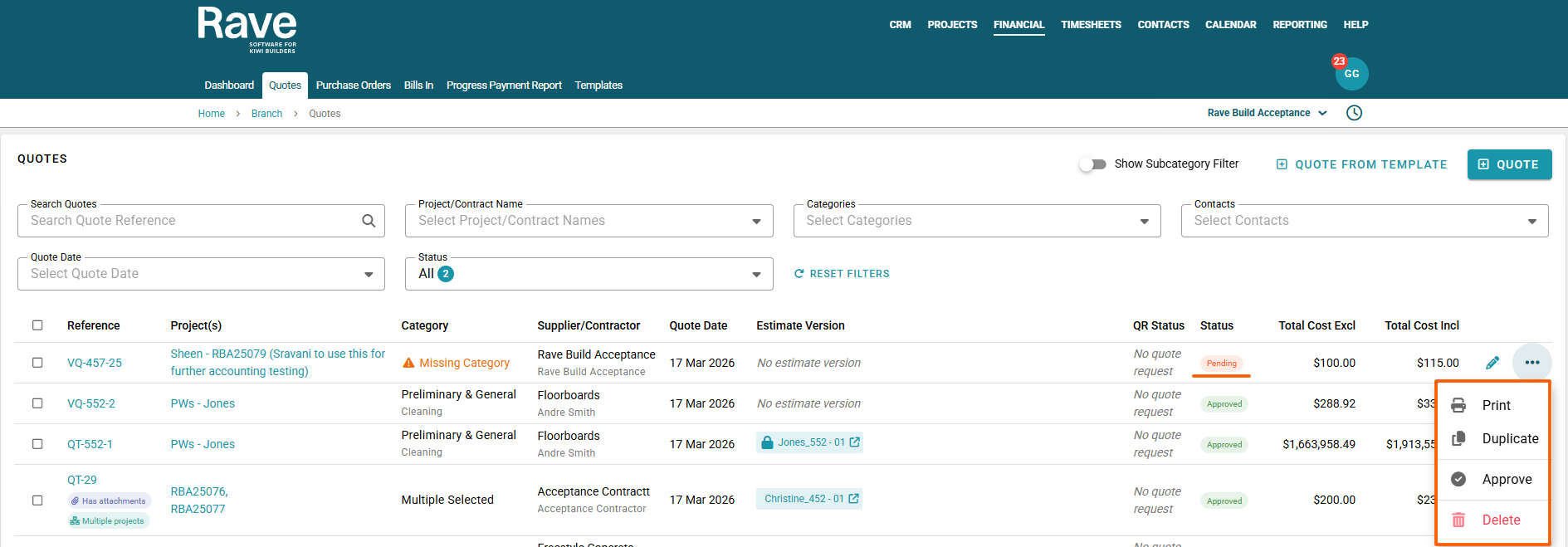
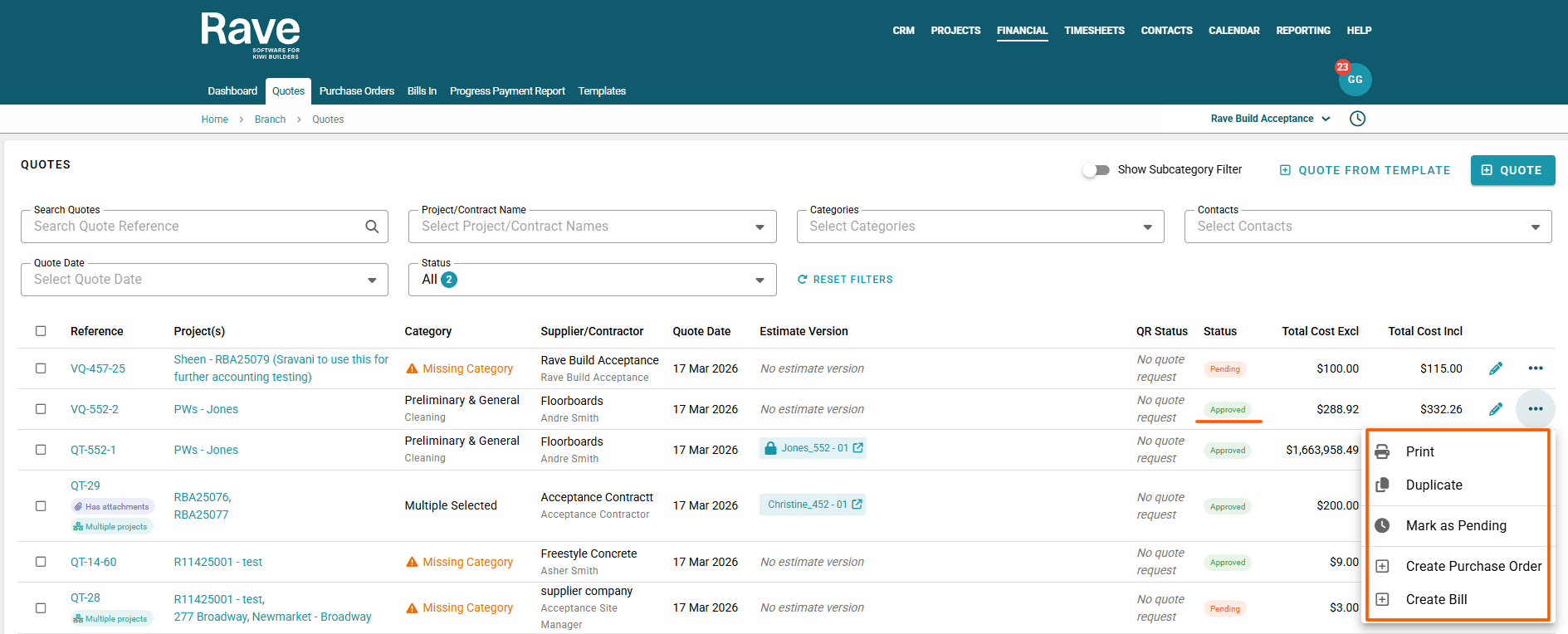
The three-dot ellipse beside each document allows you to:
Print the Quote or Variation Quote
Duplicate the Quote or Variation Quote
Approve if pending only
Delete if Pending only
Mark as Pending if approved only
+Create Purchase Order if approved only
+Create Bill if approved only
Pending Options
Approved Options
Bulk Action Items
- When bulk/Multi-selecting Quotes or Variation Quotes in Draft status, you can approve from the bulk action bar. You cannot add to an estimate or variation from this page.
- Bulk/Multi-selecting Quotes or Variation Quotes in Approved status, you can mark as pending, create a Purchase order or Bill.
- Bulk/Multi-select any documents in any status, and you can update the Account Code, Category and Subcategory or Markup
Creating a single Purchase order for the same supplier from different quotes
Use the Contacts filter to filter by a single supplier, and ensure you are only viewing Quotes in Approved Status.
Bulk or multi-select the quotes you wish to convert to a single Purchase order
From the Bulk action bar, select +Create and then +Create Purchase Order
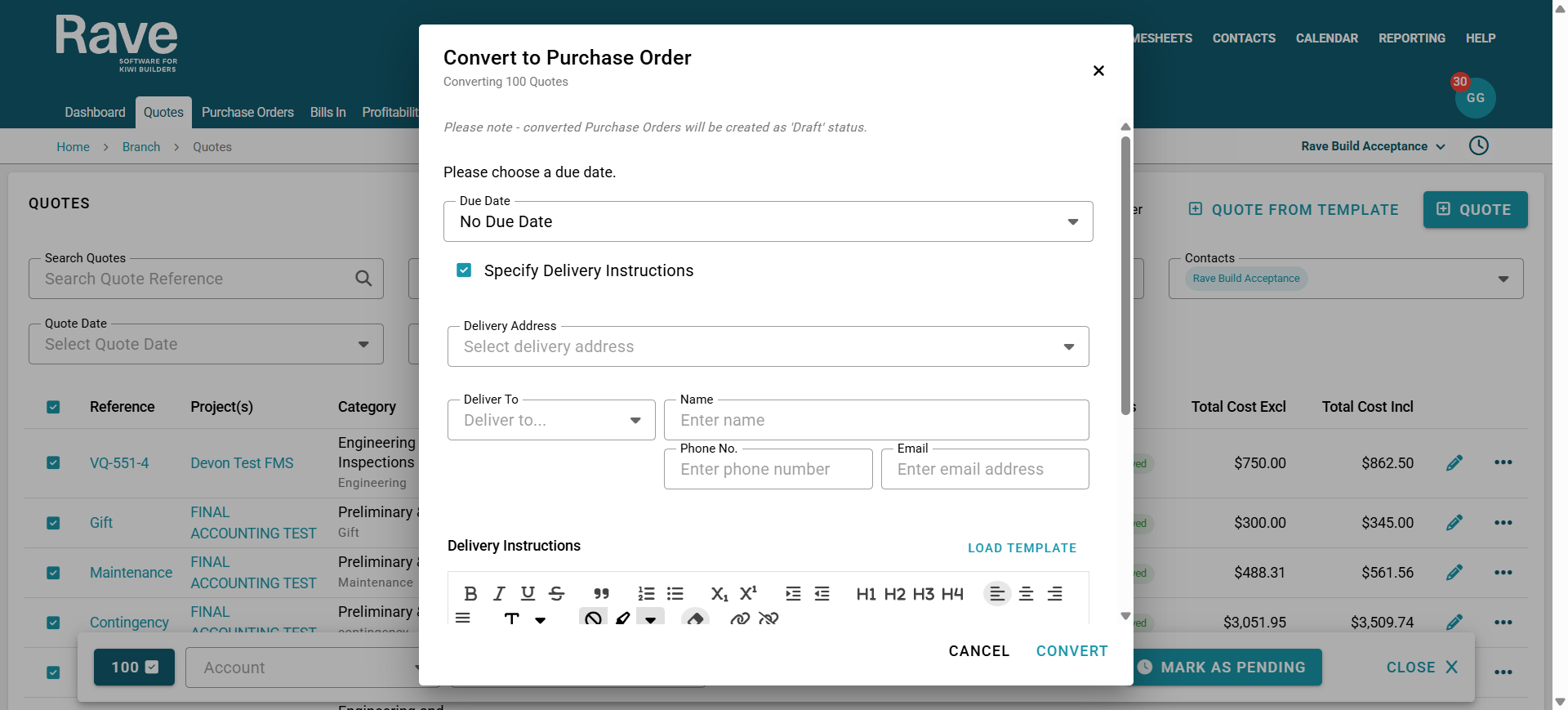
Enter the Purchase Order information, such as delivery instructions and address, and then press Convert.
This will create one Draft Purchase Order for you to check and either approve or send.
Create Many purchase orders at once from different suppliers
Use the Status filter to filter by Approved Quotes and pick a single Project
Bulk or multi-select the quotes you wish to convert to Purchase orders in bulk
From the Bulk action bar, select +Create and then +Create Purchase Order
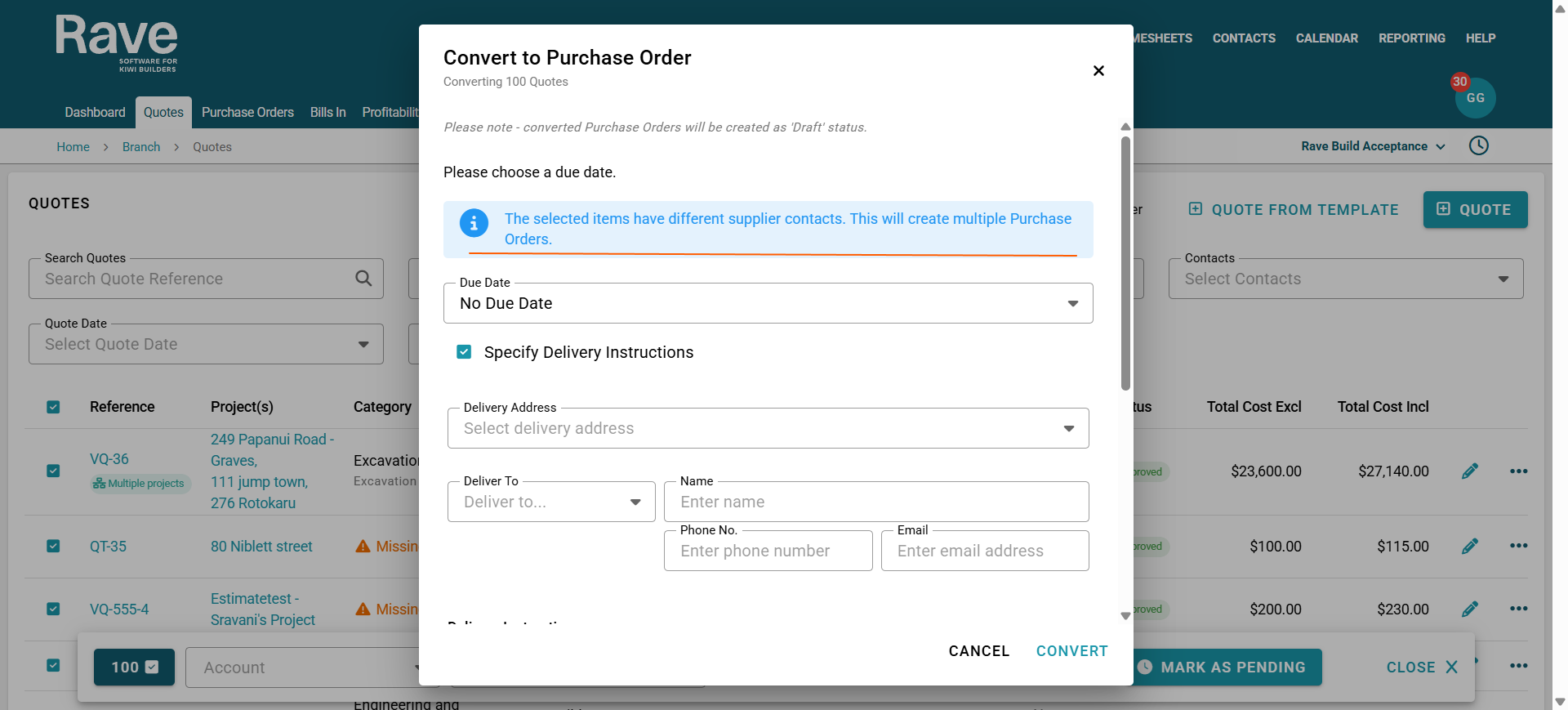
This will pop up a model informing you that the suppliers are different, so multiple purchase orders will be created. If there are some suppliers with more than one quote, it will create a single purchase order for them.
Enter the Purchase Order information. Since you have picked a single project, the delivery address can be entered. If you pick many projects, you won't be able to pre-select the address here; you'll have to wait and edit them after the draft is created.
This will create a single Draft Purchase Order for quotes from a single supplier, and a separate purchase order for the remaining quotes. from different suppliers.
You can now bulk-select the draft items on the Purchase Order page and send them, or single-select and send at your leisure.
+ Quote from Template
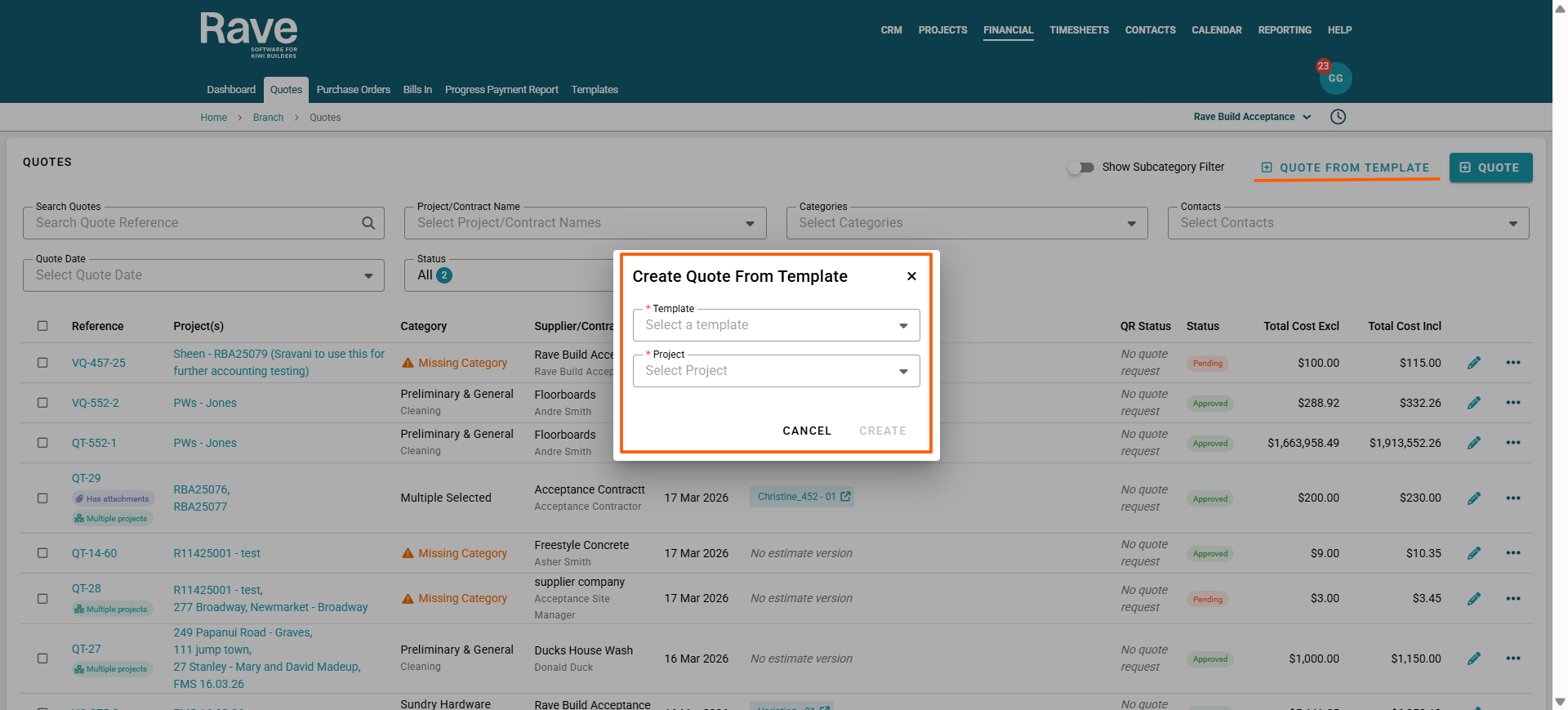
You can create a Quote from a template on the Branch Quotes Order page.
When the model pops up, you select a pre-saved Quote Template and single-select a project, and the information will pre-populate in the Quote Creation Page.
You can then add additional information, such as line items, and include other projects in the Quote.
Exporting to CSV with or without Financial Notes:
Within Rave's Financial Management System, you can add notes to Quotes, Purchase Orders, Bills, and Credit Notes.
These notes are a useful way to keep track of important financial information and decisions across your projects.
Common uses for notes include:
- Recording reasons for discounts given
- Tracking price changes
- Monitoring overspends or unexpected costs
- Adding internal reminders or financial context
Before exporting, you can use the available page filters to narrow down your results.
Filters include:
- Supplier or recipient
- Category
- Subcategory
- Additional document filtering options
These filters make it easier to find and export the exact financial records you need for reporting, auditing, or project tracking.
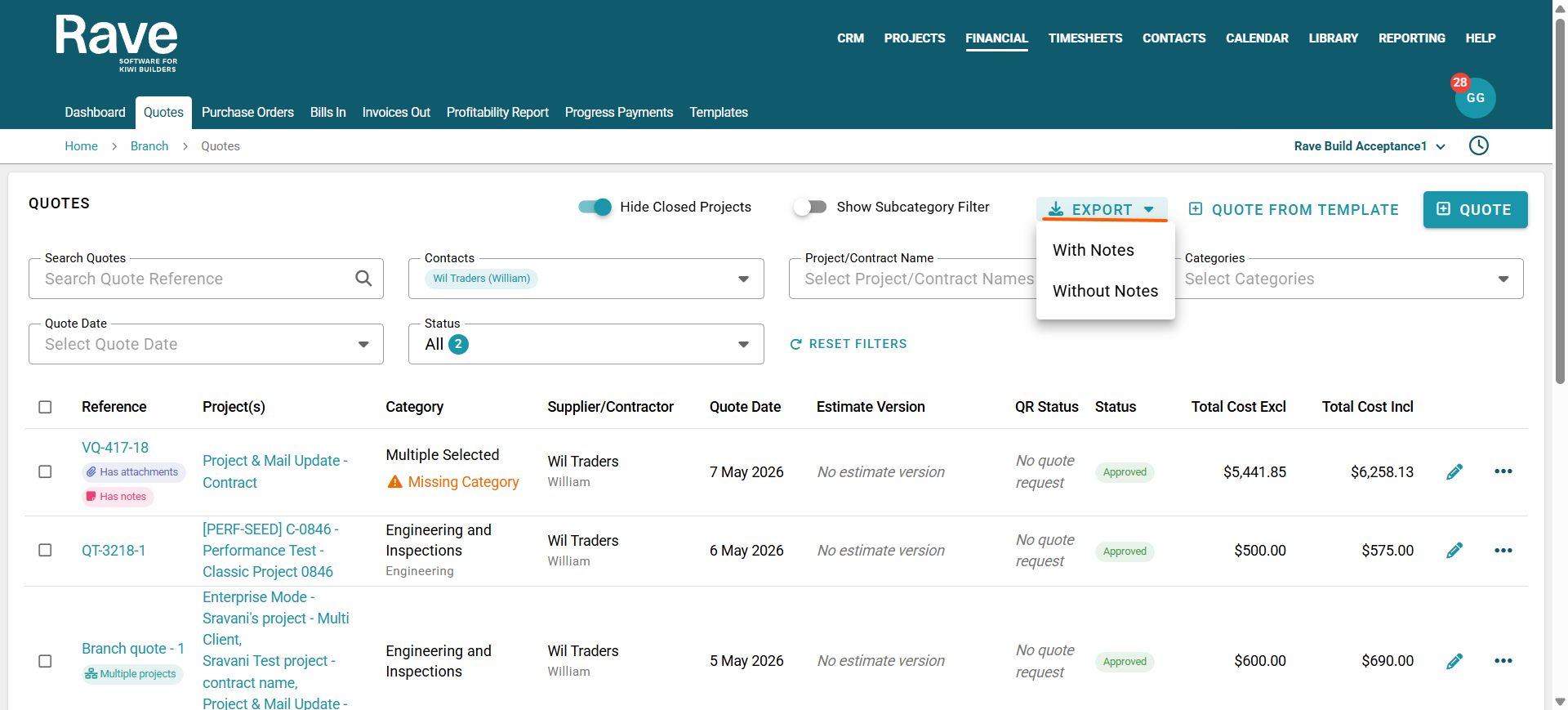
When exporting, you can choose whether to:
- Include notes in the export
- Export documents without notes
If a document contains multiple notes, all notes will be included in the CSV export in date order, with the most recent note displayed first.
Was this article helpful?
That’s Great!
Thank you for your feedback
Sorry! We couldn't be helpful
Thank you for your feedback
Feedback sent
We appreciate your effort and will try to fix the article