RAVE’s Financial Management System includes Branch-Level Financial Document Level options. This article will focus on Purchase Orders. There is also a Bills/Credit Notes article here and a Quotes and Variation Quotes article here.
Branch Purchase Orders in is a Financial Admin life saver. It allows you to bulk send purchase orders to many suppliers at once, create Branch-level purchase orders, and turn many Purchase orders into a single bill where your supplier has only sent one bill but has referenced several different purchase orders.
If your RAVE system has the optional Financial Management System module activated and you have the correct permissions, you’ll find the Branch-Level Purchase Orders subtab accessible via the Financial button.
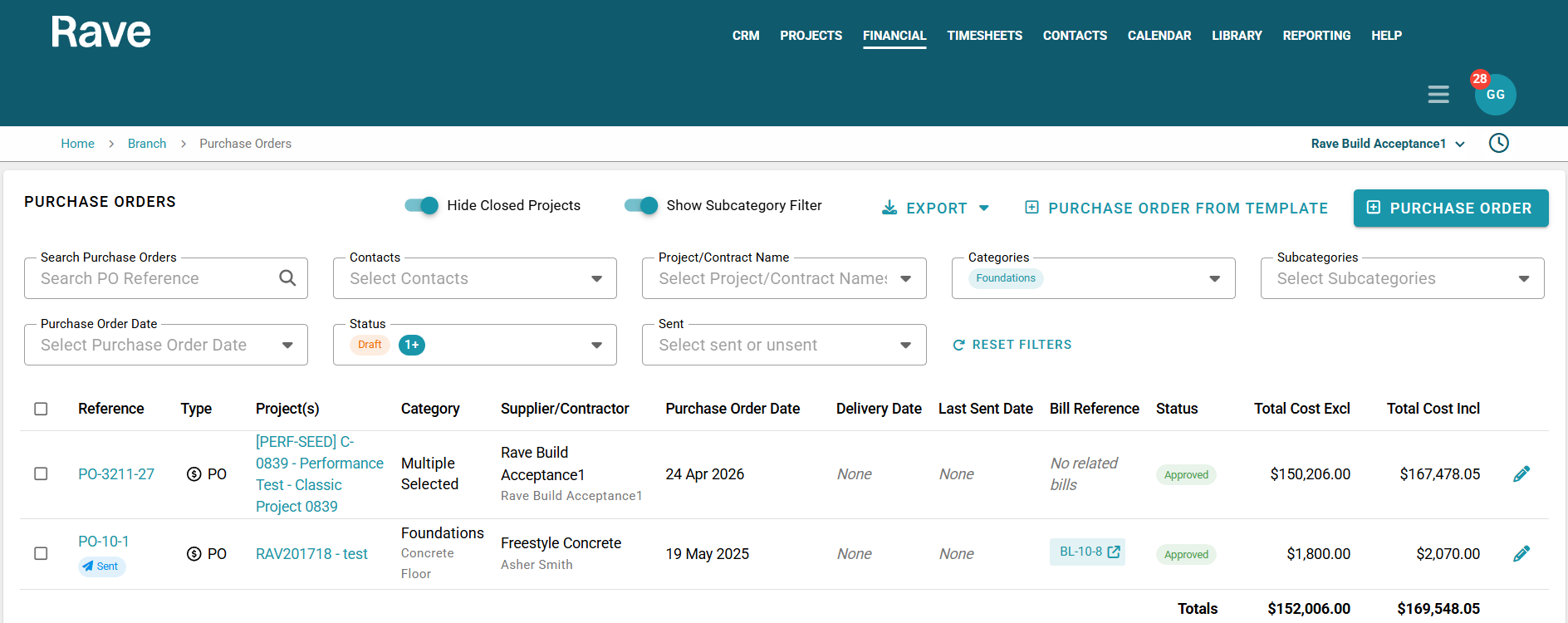
This page displays all active project Purchase Orders in the business.
You can use the Search box to search for the Purchase Order Reference.
Filters along the top allow for filtering by Project/Contract Name, Category, Contact, Purchase Order Date, Status of the document and sent status. If you have turned on sending your Purchase Orders to Xero, you will also see the Xero status column. We do not advise having Purchase Orders sent to Xero.
There is also a slider to display Subcategories.
Adding a Branch-Level Purchase Order
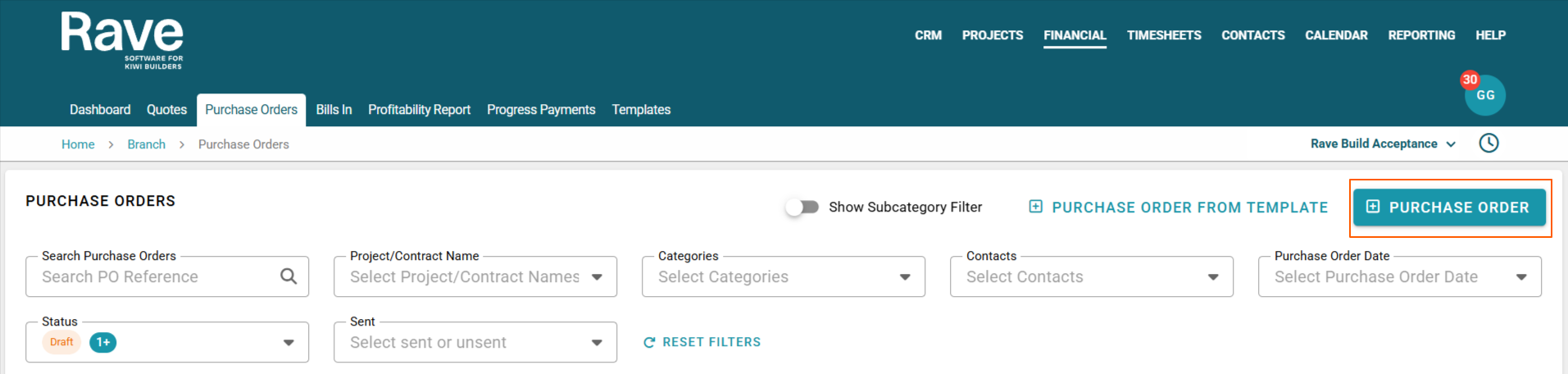
The workflow for adding a Branch-Level Purchase Order is the same as for adding one at the project level, except that you don't select a project.
Click the +Purchase Order button.
Select the supplier or contractor you wish to send the Purchase Order to
Leave the reference blank, as it will auto-generate for you to ensure no double-ups
- Select the Pre Fix or leave the default as PO
- Select the appropriate category/subcategory
Ensure you choose the right Tax type, usually Exclusive for the whole Document
Select the Purcahse Order date if you want to backdate or forward date it from today
Select the Expected bill due date if you wish to use our bill forecasting report.
Leave the Project field blank; you will assign the project at the line-item entry stage.
You can choose to mark as processing so you don't follow up on any unbilled Purchase orders, and also hide pricing if you want to send the Purchase order with no financial information.
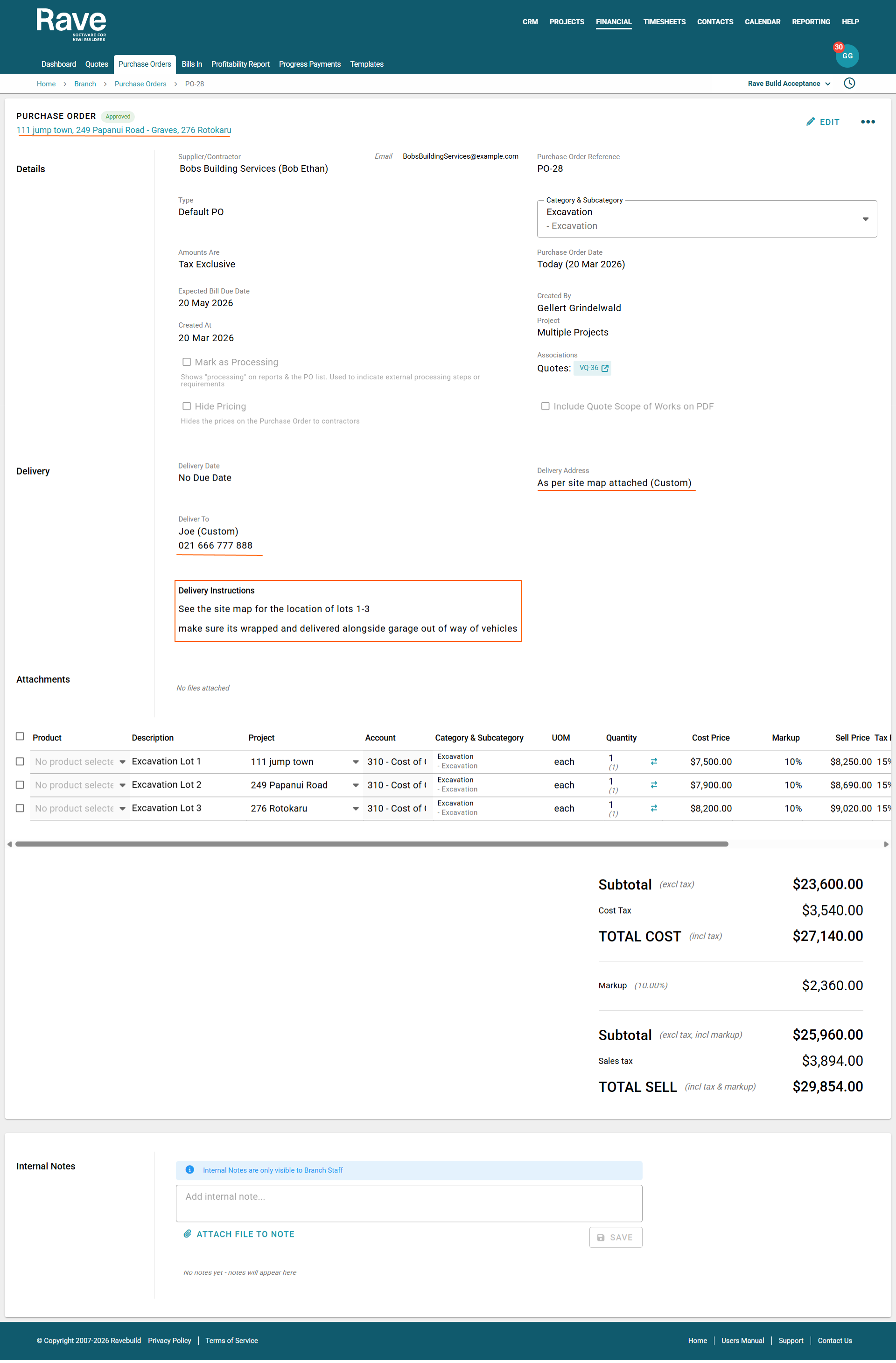
You'll need to type in a delivery person and delivery address, as multi-project Purchase Orders will have different project addresses and project managers in most cases.
Complete Delivery Instructions if applicable
Load any attachments
Enter the Line Item information and select the correct project for each Line, making sure to double-check qty, pricing, and markup, if applicable.
Once completed, you can Save as a draft for someone else to Approve or click Approve or Approve and Send.
Note: All line items from branch-level Purchase Orders must be assigned to a project. If there are one or more lines that don’t have a specific rave project, you will need to create and assign these items to a generic project.
Managing cash flow is one of the most important parts of running a successful business. While Purchase Orders (POs) help control committed spending, businesses also need visibility on when those costs are likely to become payable.
The Expected Bill Date is an estimated date entered against a Purchase Order that predicts when a supplier bill is likely to be received or fall due.
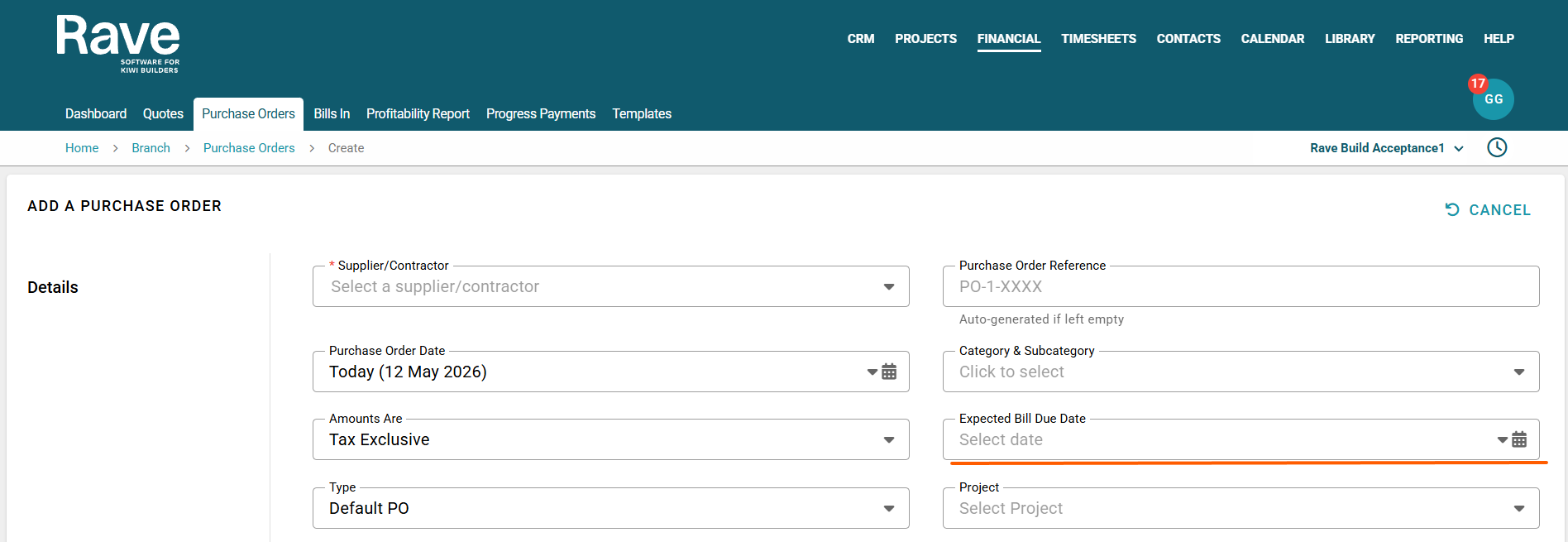
Rather than waiting for the supplier bill to arrive, the Expected Bill Date provides the business with an early indication of upcoming expenses, allowing them to be included in forecasting and cash flow planning.
It’s important to understand the difference between expected and actual:
| Field | Purpose |
|---|---|
| Expected Bill Date | Forecast of when the bill is likely to arrive or become payable |
| Actual Bill Date | The real invoice date is entered when the supplier bill is received |
The Expected Bill Date is predictive, while the Actual Bill Date becomes part of the official accounting record.
To generate this field in Reporting, you need to add a forward date on any purchase orders you generate in Rave. This field appears in both project-level purchase orders and branch-level ones and sits at the top of the page under the Expected Due Date drop-down.
To learn about the reporting feature that comes with this model. Click here for the help article.
Once saved, you can see the Multi Project Icon under the reference, along with a list of each project linked to this Purchase Order. Clicking the project link takes you to that project's Purchase Order Page.
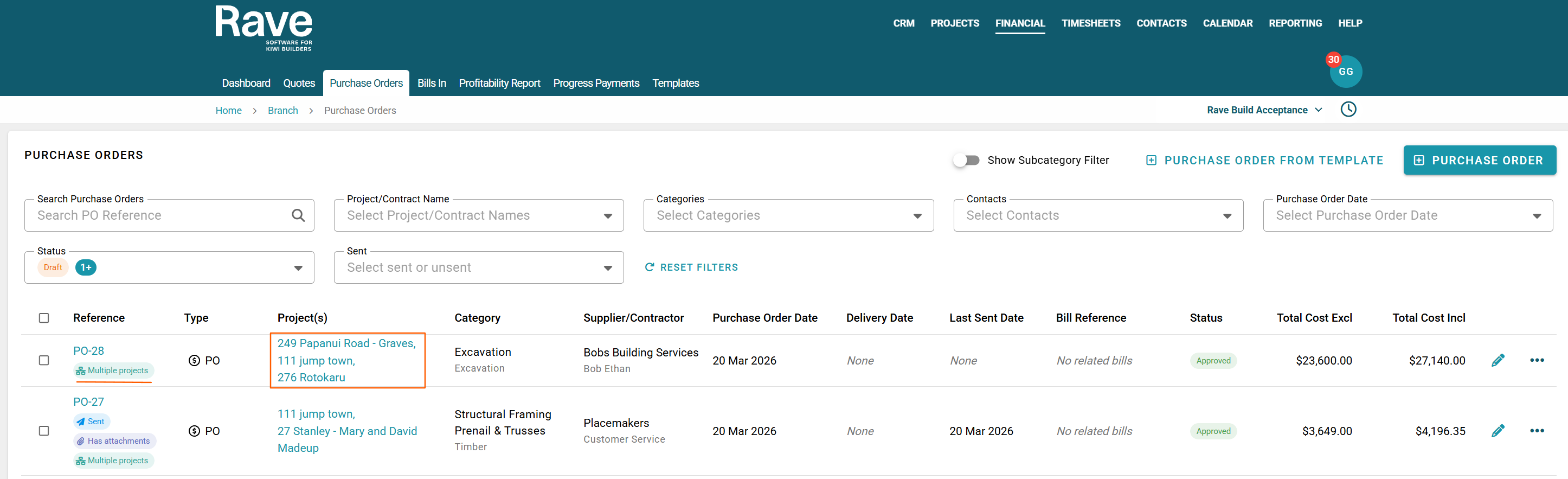
Branch Purchase Orders
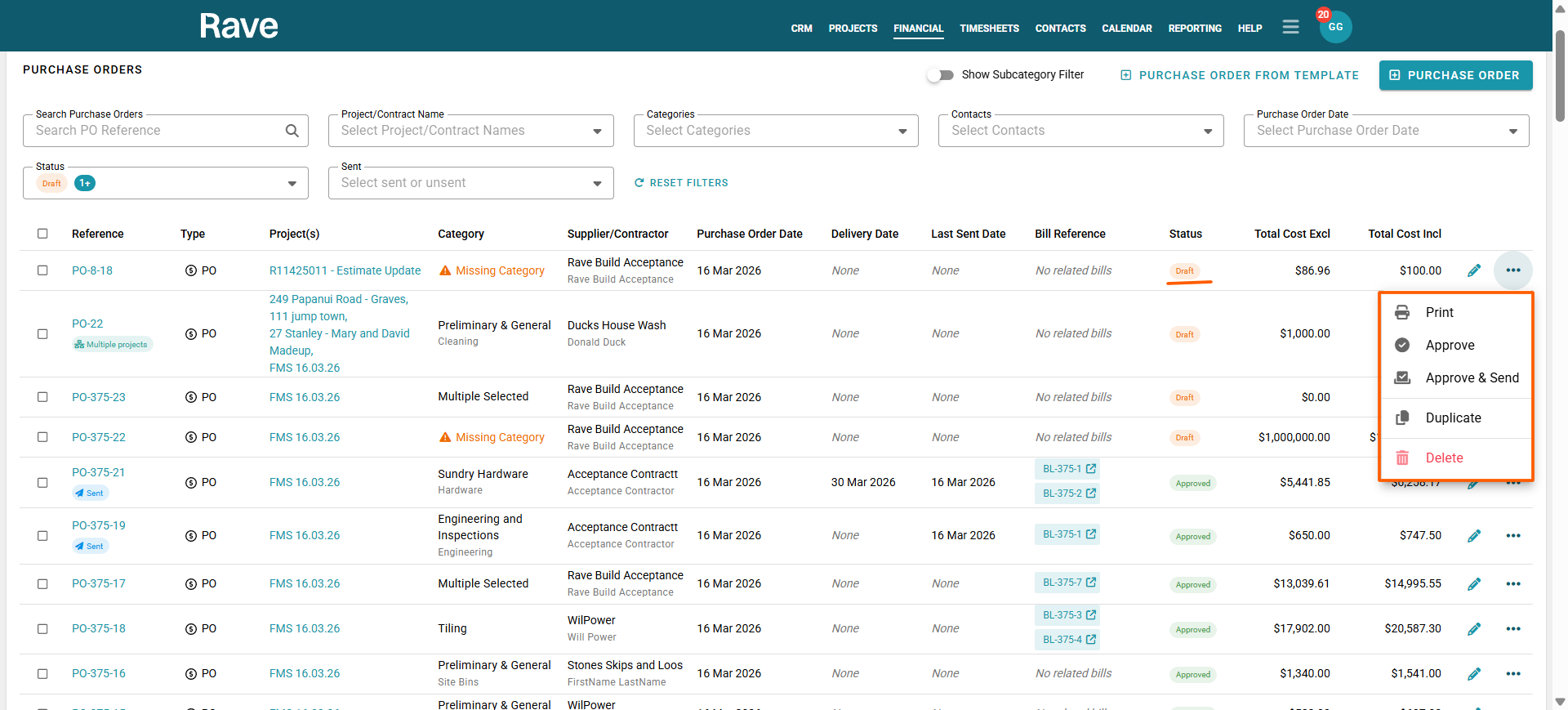
The three-dot ellipse beside each document allows you to:
Print the Purchase Order
Approve if the Purchase order is in Draft
Approve and send to the supplier if the Purchase order is in draft.
Duplicate the Purchase Order (this option requires you to create a new PO number or allow us to autogenerate a new one that is not the same as the existing
Delete if the Purchase order is in Draft
Cancel if the Purchase Order is approved and Not Billed
Resend to the recipient if the Purchase order has already been approved and sent.
Turn on Processing if the Purchase order is approved
+Create a Bill from the Purchase order if it's approved
Draft Options
Approved with Bills
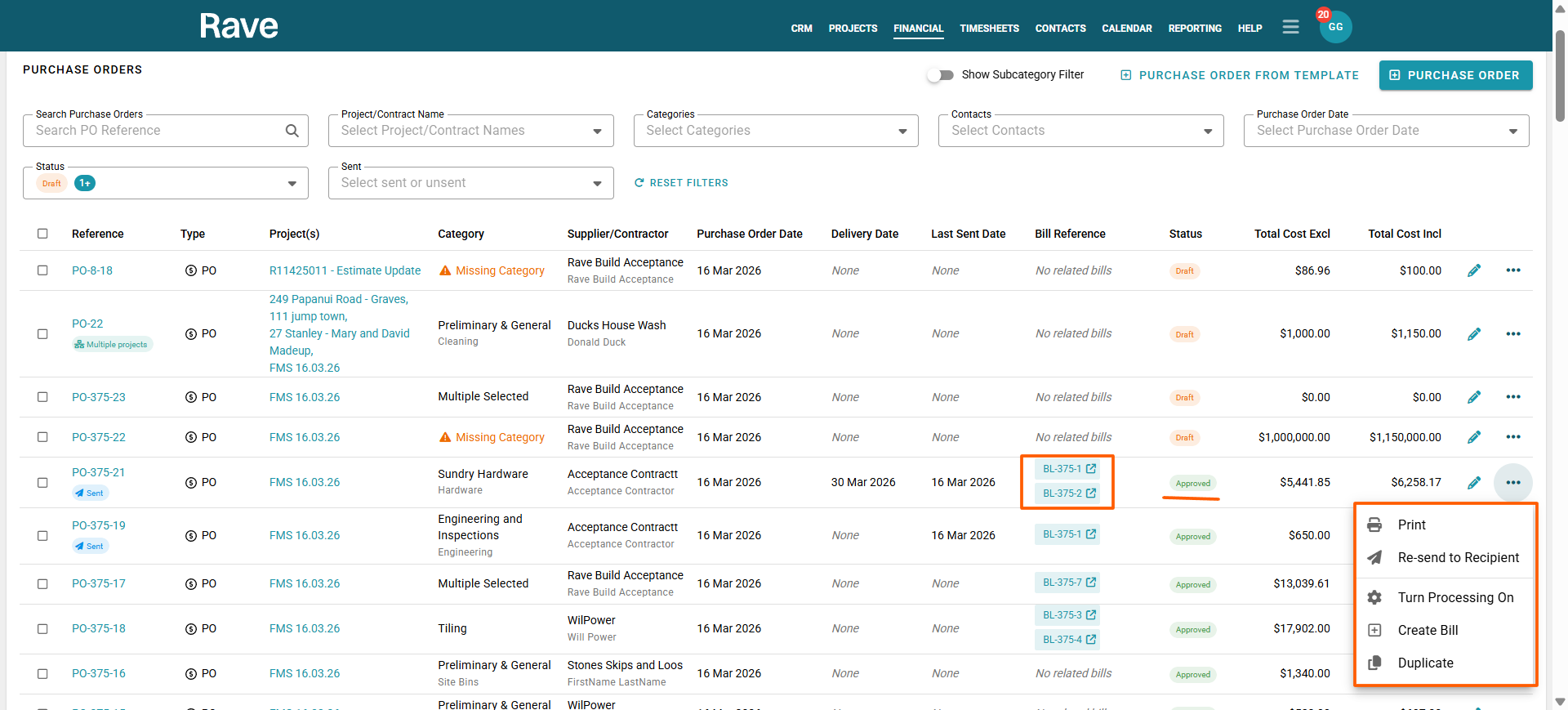
Approved Not Billed
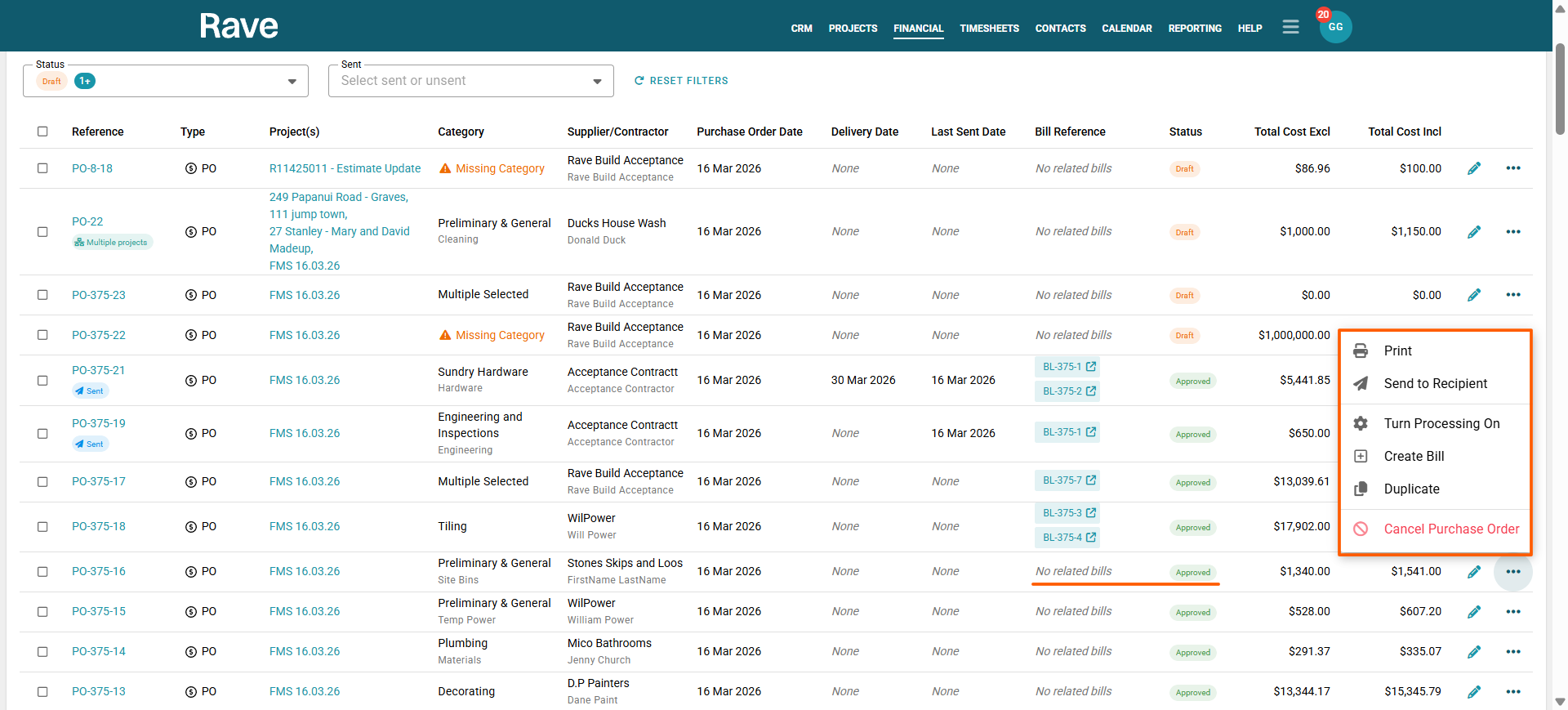
Bulk Action Items
- Bulk/Multi-selecting Purchase Orders in Draft status, you can then approve or approve and send from the bulk action bar. They do not need to be from the same supplier to do this.
- Bulk/Multi-selecting Purchase Orders in Approved and Unsent Status, you can then send to Recipient/s.
- Bulk/Multi-selecting Purchase Orders in Approved and Sent Status, you can then Re-Send to Recipient/s.
- Bulk/Multi-select any documents in any status, and you can update the Account Code, Category and Subcategory or Markup
Creating a single Bill for the same supplier from different Purchase Orders
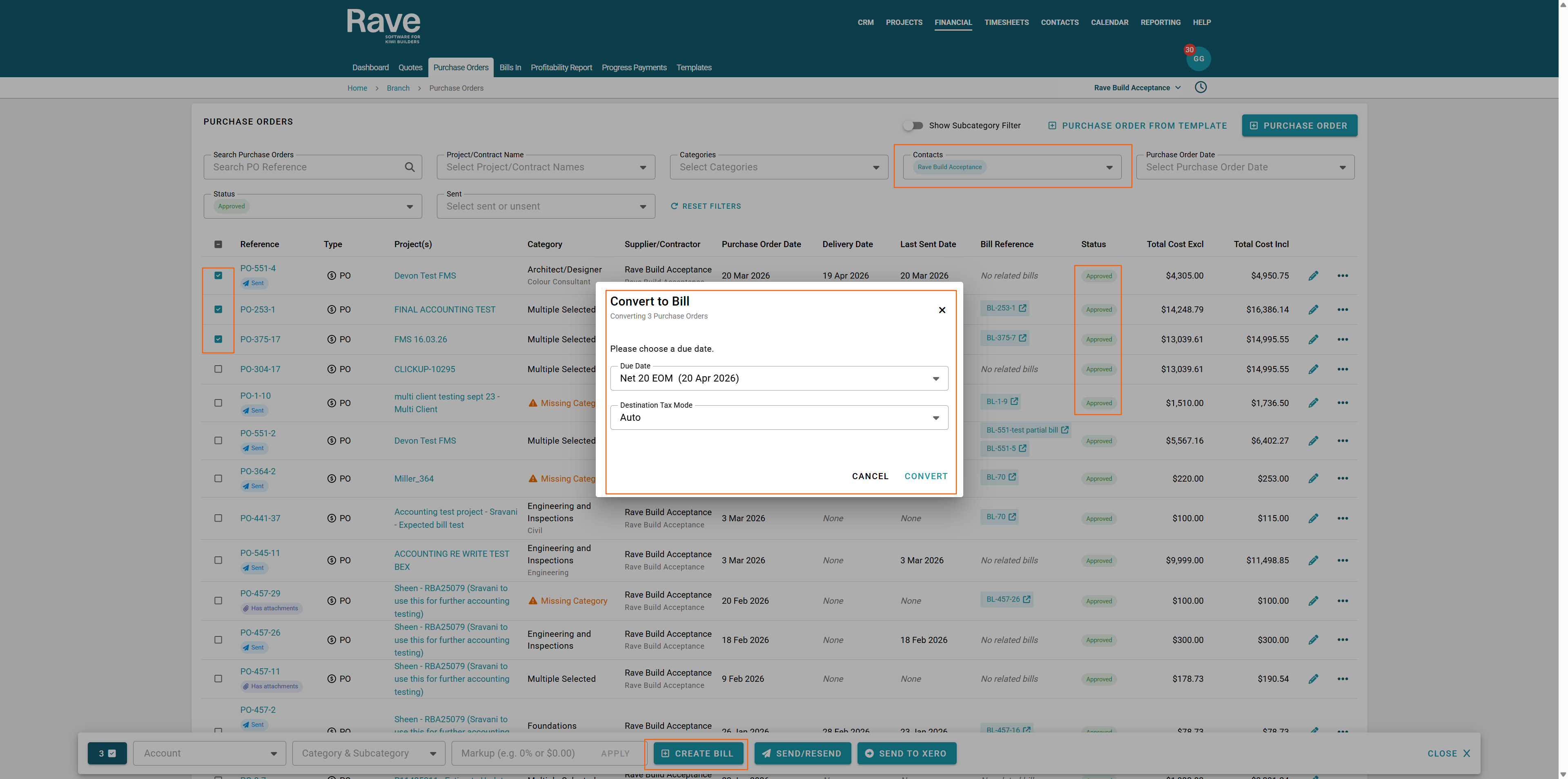
Use the Contacts filter to filter by a single supplier, and ensure you are only viewing Approved Purchase Orders
Bulk or multi-select the Purchase Orders you wish to convert to a single Bill
From the Bulk action bar, select + Create Bill
From the pop-up model, enter the Bill due date. The tax mode should be Auto.
Select Convert
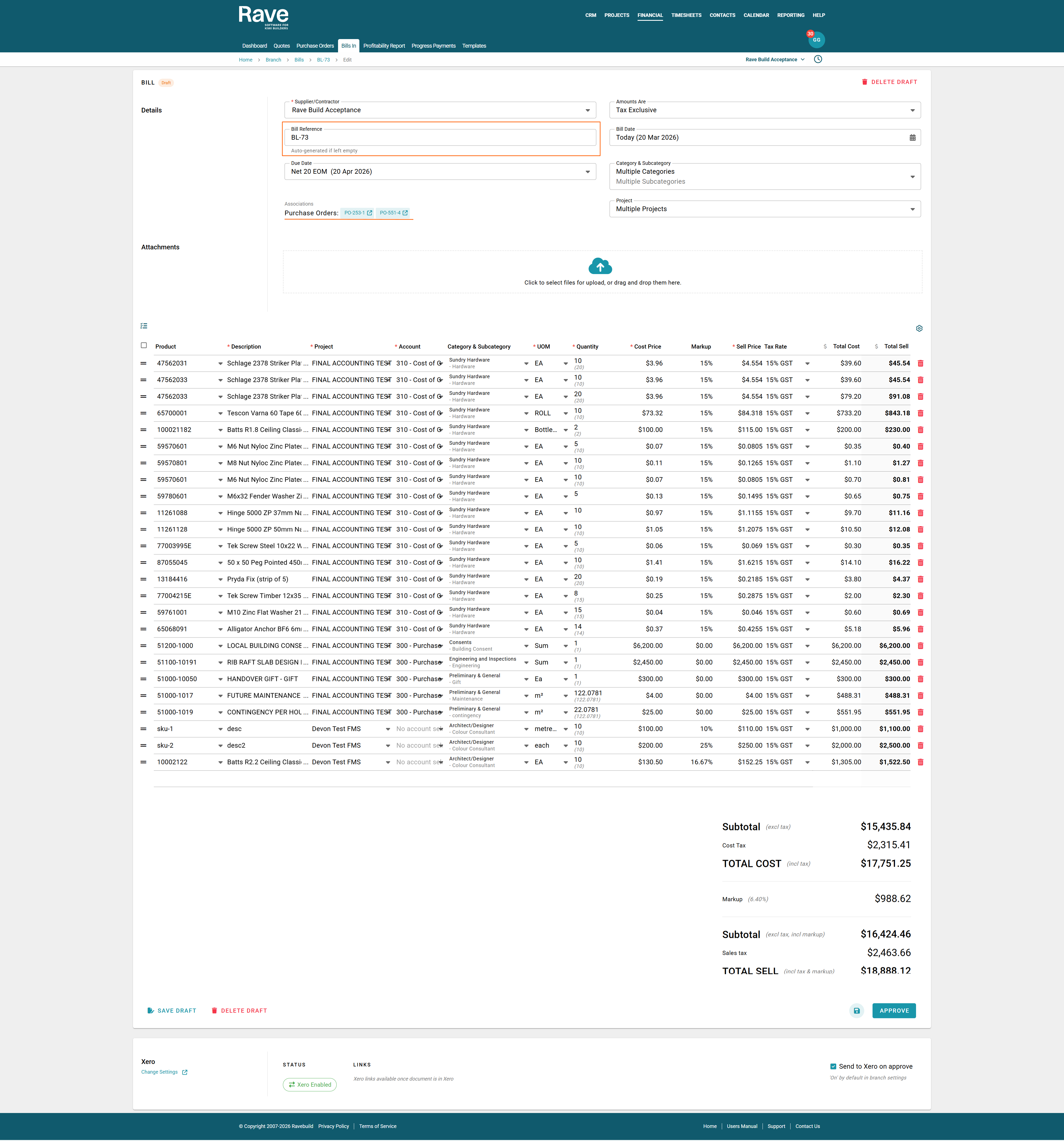
This will create one Draft Bill for you to then enter all of the supplier information like Bill Reference (their Invoice number), add the PDF of the bill, check the details and either Save as Draft or approve.
+ Purchase Orders from Template
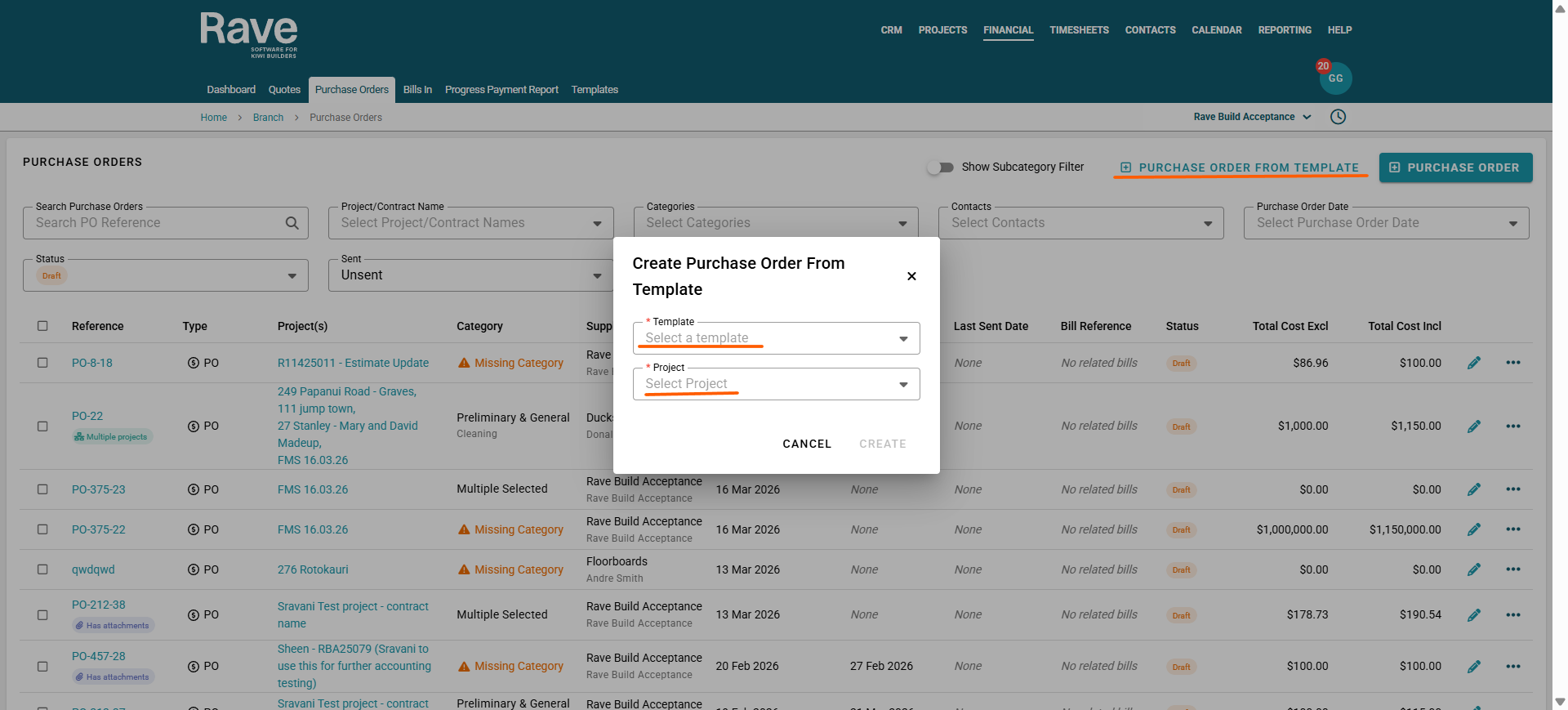
You can create a Purchase Order from a template on the Branch Purchase Order page.
When the model pops up, you select a pre-saved Purchase Order Template and single-select a project, and the information will prepopulate in the Purchase Order Creation Page.
You can then add additional information, such as line items, and include other projects in the Purchase Order.
Exporting to CSV with or without Financial Notes:
Within Rave's Financial Management System, you can add notes to Quotes, Purchase Orders, Bills, and Credit Notes.
These notes are a useful way to keep track of important financial information and decisions across your projects.
Common uses for notes include:
- Recording reasons for discounts given
- Tracking price changes
- Monitoring overspends or unexpected costs
- Adding internal reminders or financial context
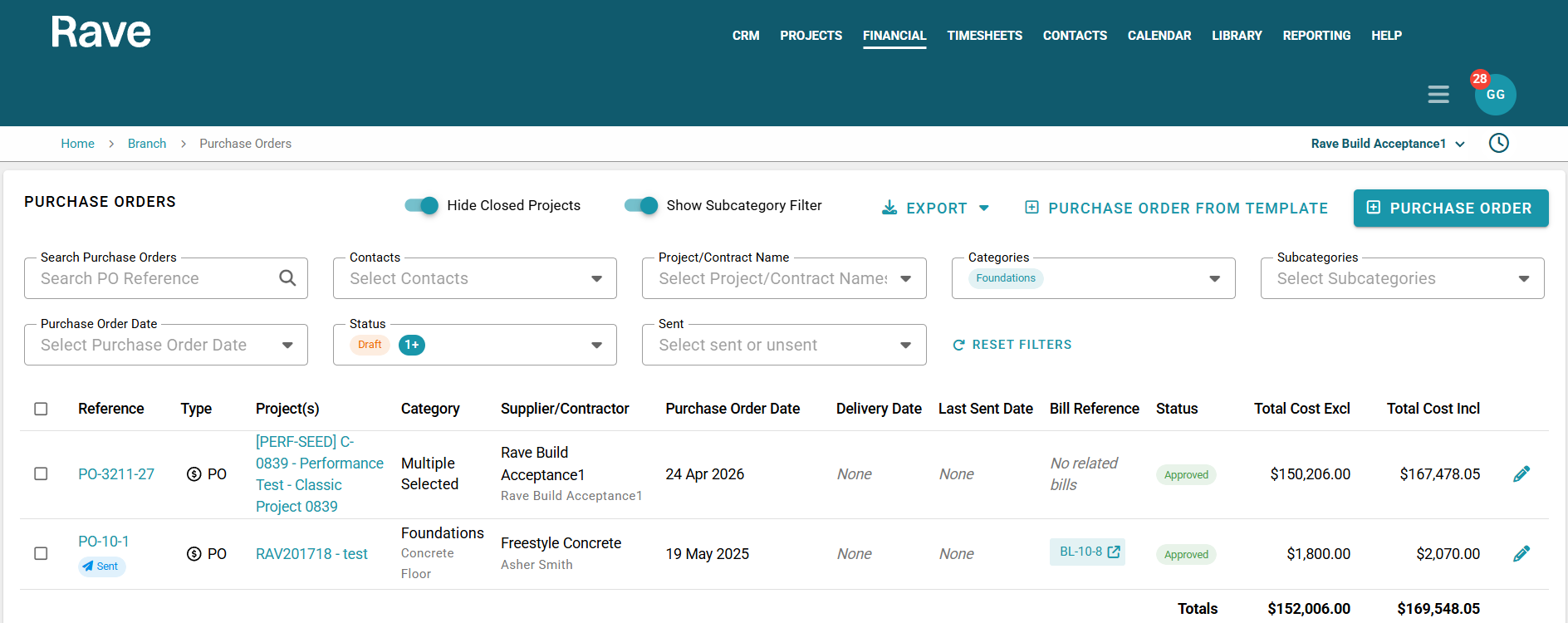
Before exporting, you can use the available page filters to narrow down your results.
Filters include:
- Supplier or recipient
- Category
- Subcategory
- Additional document filtering options
These filters make it easier to find and export the exact financial records you need for reporting, auditing, or project tracking.
When exporting, you can choose whether to:
- Include notes in the export
- Export documents without notes
If a document contains multiple notes, all notes will be included in the CSV export in date order, with the most recent note displayed first.
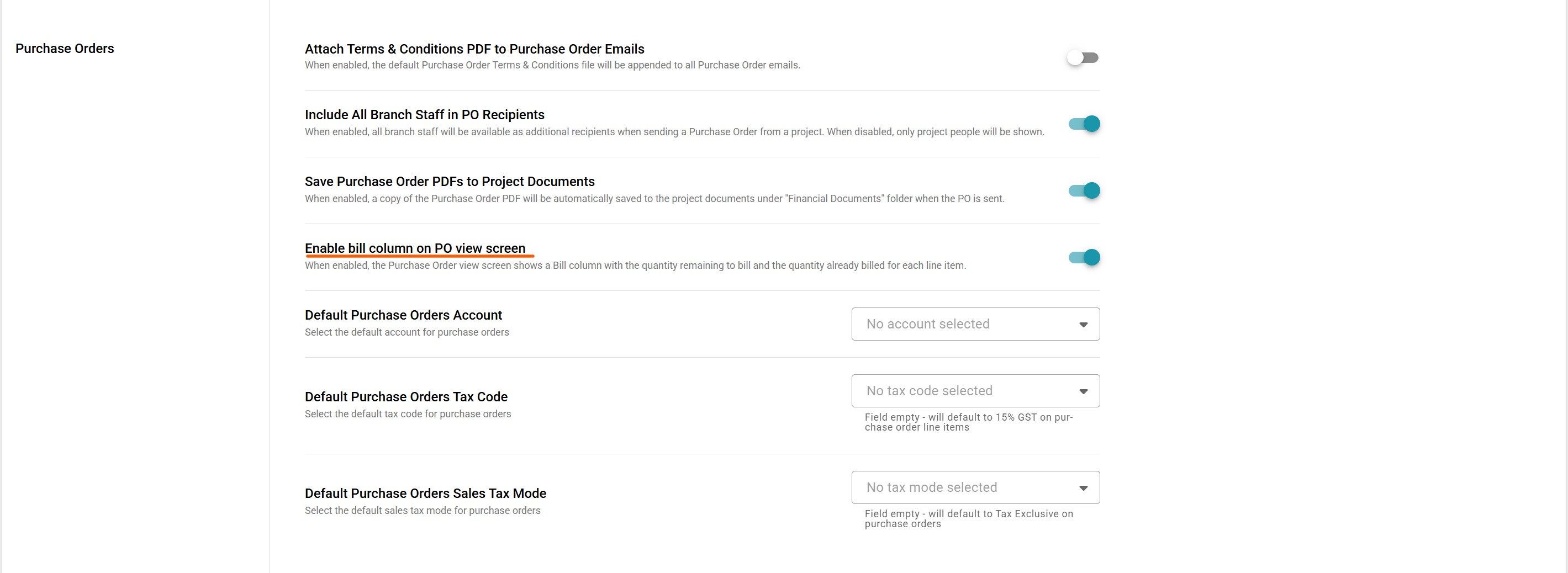
To enable or disable the Bill column shown on the view screen of your purchase orders:
- Click on your profile Drop down
- Branch settings - Financial
- scroll to Purcahse Order section and slide On or Off the Enable Bill column on PO view screen.
Note: If you dont have these permissions you will need to speak to your branch owner or contact Rave Support for help.
Understanding the Bill Column on a Purchase Order
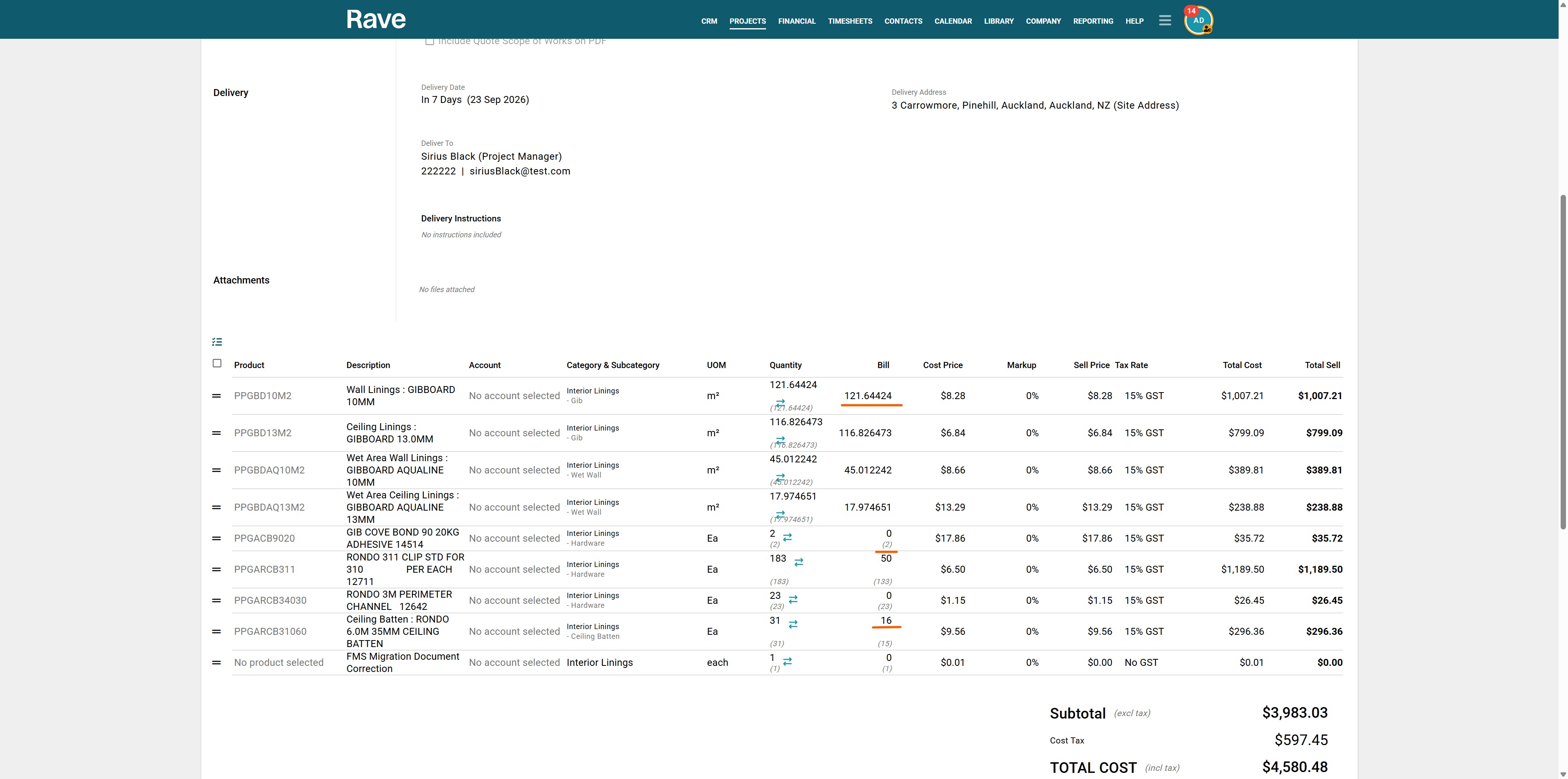
Navigate to any purchase order in Rave The Bill column on a Purchase Order helps you quickly see how much of each line item is still available to be billed, as well as how much has already been billed.
For each Purchase Order line, you will see two figures in the Bill column.
Top figure – To Bill
The top figure shows the quantity that is currently available to bill from the Purchase Order.
This is the remaining quantity you can include on a new supplier bill.
For example:
50
(133)
This means 50 units are still available to bill.
Bottom figure – Already Billed
The figure shown underneath in brackets is the quantity already billed against that Purchase Order line.
Using the same example:
50
(133)
This means:
- 50 units are still available to bill
- 133 units have already been billed
When the top figure is 0
If the top figure displays 0, the Purchase Order line has been fully billed, meaning no quantity remains to add to another bill.
- When there is only a single figure
If the figure is a single number on its own, it means nothing has been billed yet.
This makes it easy to identify at a glance which Purchase Order lines still have outstanding amounts and which have already been fully billed.
Was this article helpful?
That’s Great!
Thank you for your feedback
Sorry! We couldn't be helpful
Thank you for your feedback
Feedback sent
We appreciate your effort and will try to fix the article