RAVE’s Financial Management System includes Branch-Level Financial Document Level options. This article will focus on Bills in and Credit notes.
There are also articles on Quotes and Variation Quotes here, Client Invoices and Credit Notes here, and Purchase Orders here.
Branch Bills is a real game-changer. It simplifies managing bills and credit notes that span multiple projects.
In simple terms, the Branch-Level Bill workflows let you load multi-project bills and credit notes from a single supplier into RAVE, then split the costs or credits across several jobs.
For example, this works perfectly for handling a monthly power supply bill or a skip bin hire credit note that applies to multiple projects or sites.
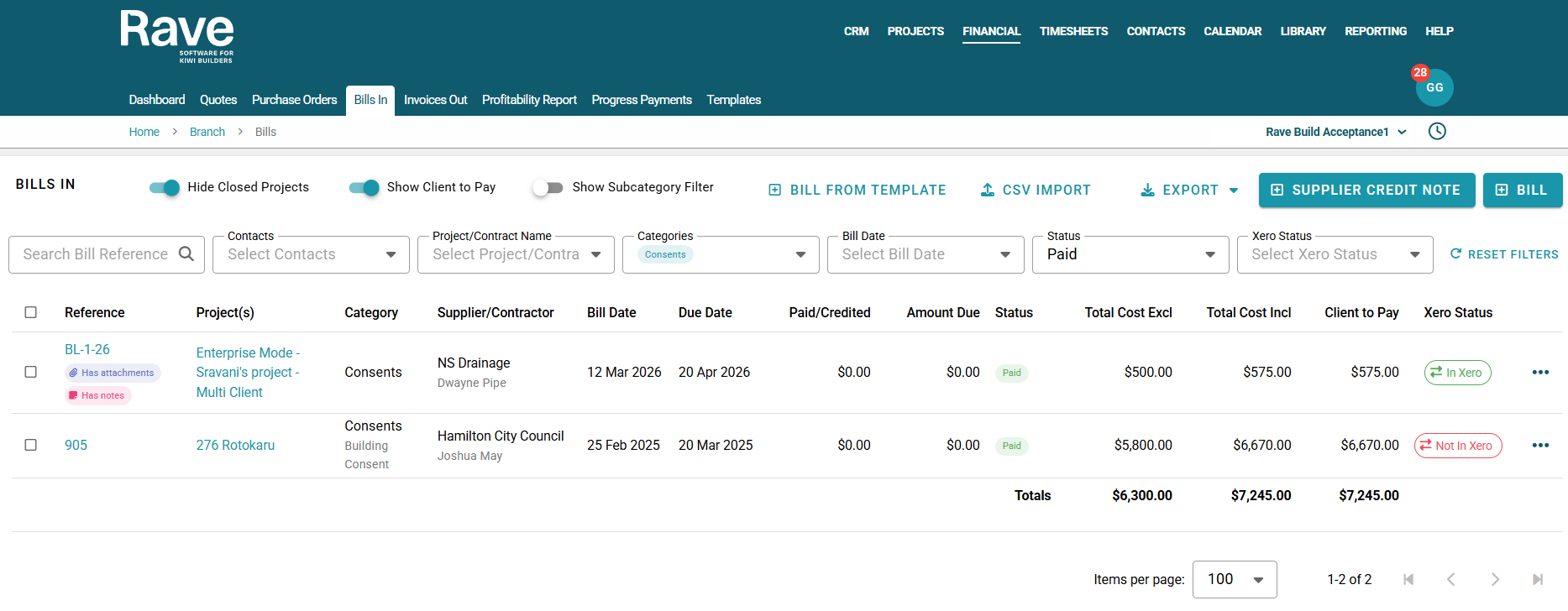
If your RAVE system has the optional Financial Management System module activated and you have the correct permissions, you’ll find the Branch-Level Bills in subtab accessible via the Financial button.
This page displays all active project bills and credit notes in the business.
You can use the Search box to search for the Bill or Credit note Reference.
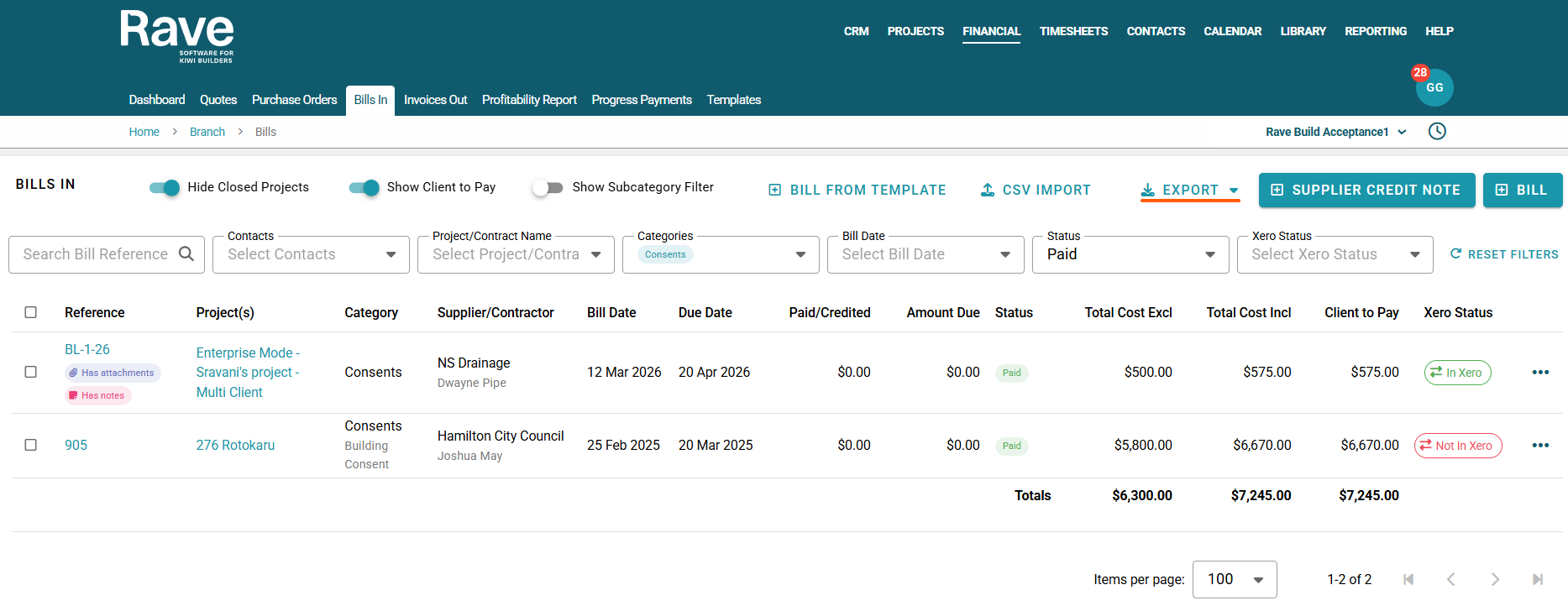
Filters along the top allow filtering by Project/Contract Name, Category, Contact, Bill/Credit Note Date, Status of the document, and, if connected to Xero, the status in Xero.
There are also sliders to show the Client paying the total and the sub-categories.
Adding a Branch-Level Bill from Scratch
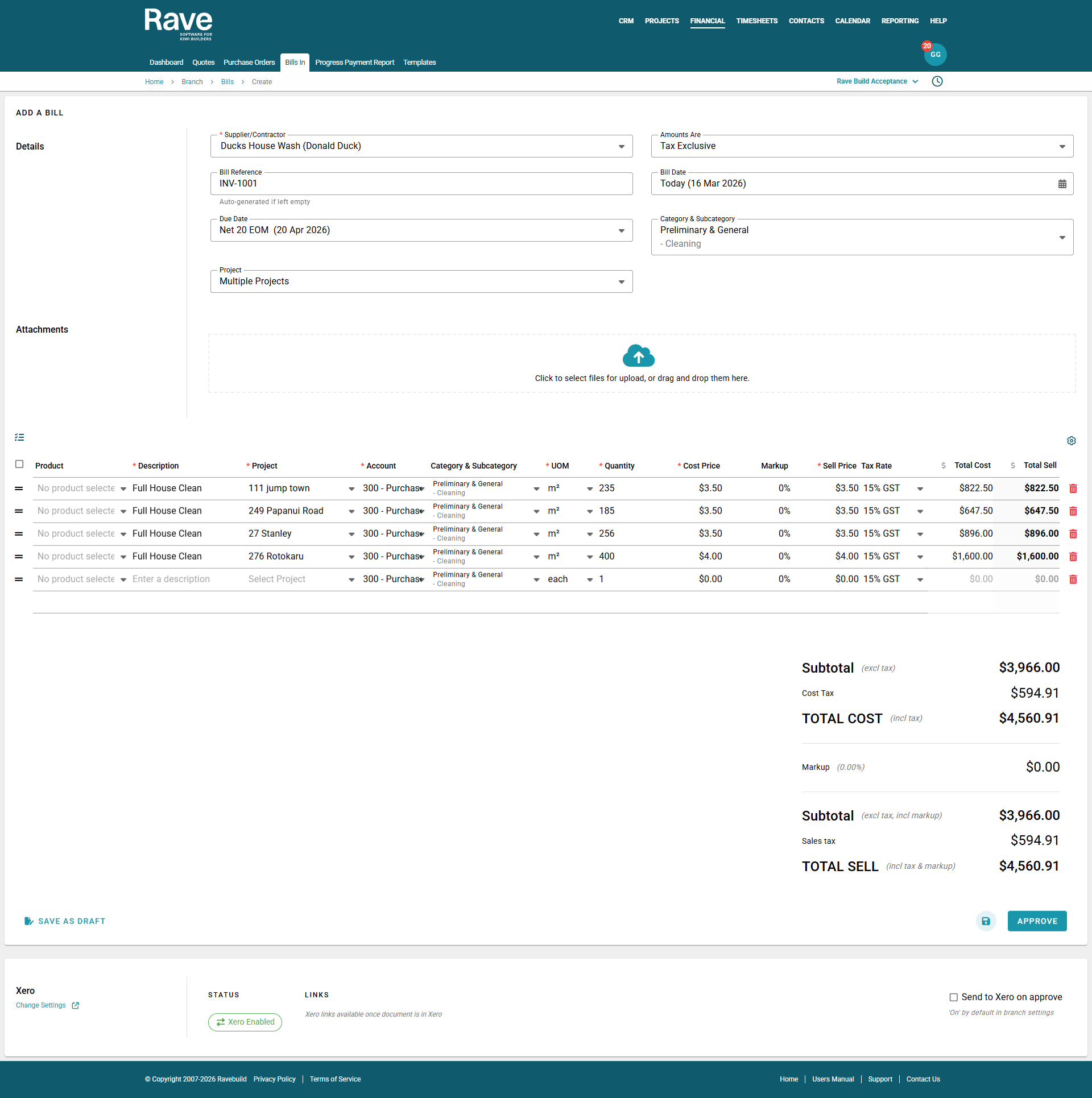
The workflow for adding a Branch-Level Bill is the same as adding one at the project level, except for selecting a project.
Click the +Bill button.
Select the supplier or contractor who issued the Bill.
Enter the supplier’s bill reference number (e.g., their invoice number).
Select the due Date
Ensure you choose the right Tax type, usually either Exclusive for the whole Document or inclusive, depending on how your supplier sends their bills to you.
Select the Billed date
Select the appropriate category/subcategory for this bill.
Leave the Project field blank; you will assign the project at the line-item entry stage.
Attach your supplier bill by clicking the cloud icon or dragging and dropping the file.
Enter the Line Item information and select the correct project for each Line, making sure to double-check qty, pricing, and markup, if applicable.
One competed you can Save as a Draft for someone else to Approve, or click Approve
Note: All line items from branch-level bills/credit notes must be assigned to a project. If there are one or more lines that don’t have a specific rave project, you will need to create and assign these items to a generic project.
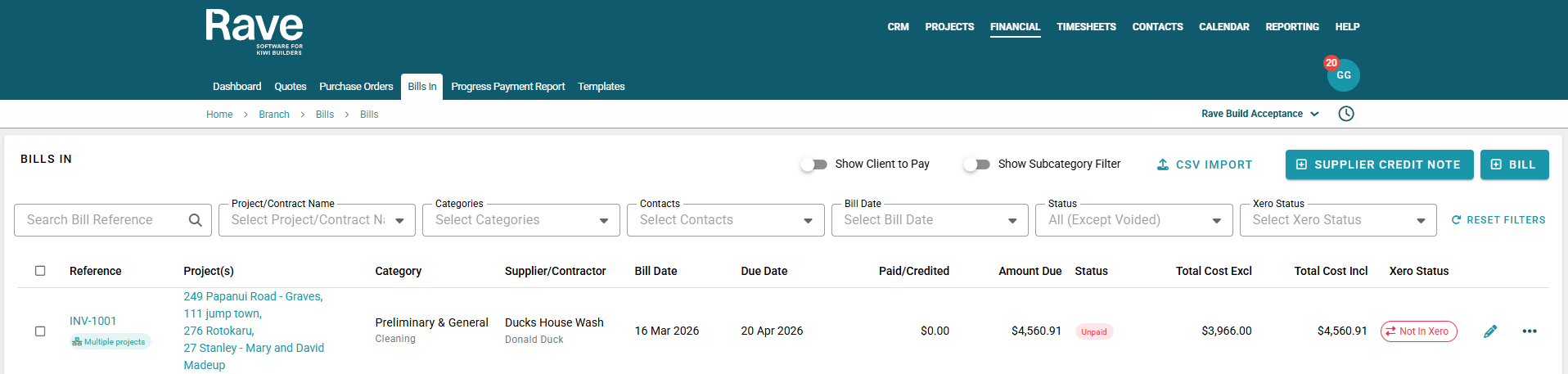
Once saved, you can see the Multi Project Icon under the reference, along with a list of each project linked to this bill. Clicking the project link takes you to that project's Bills Page.
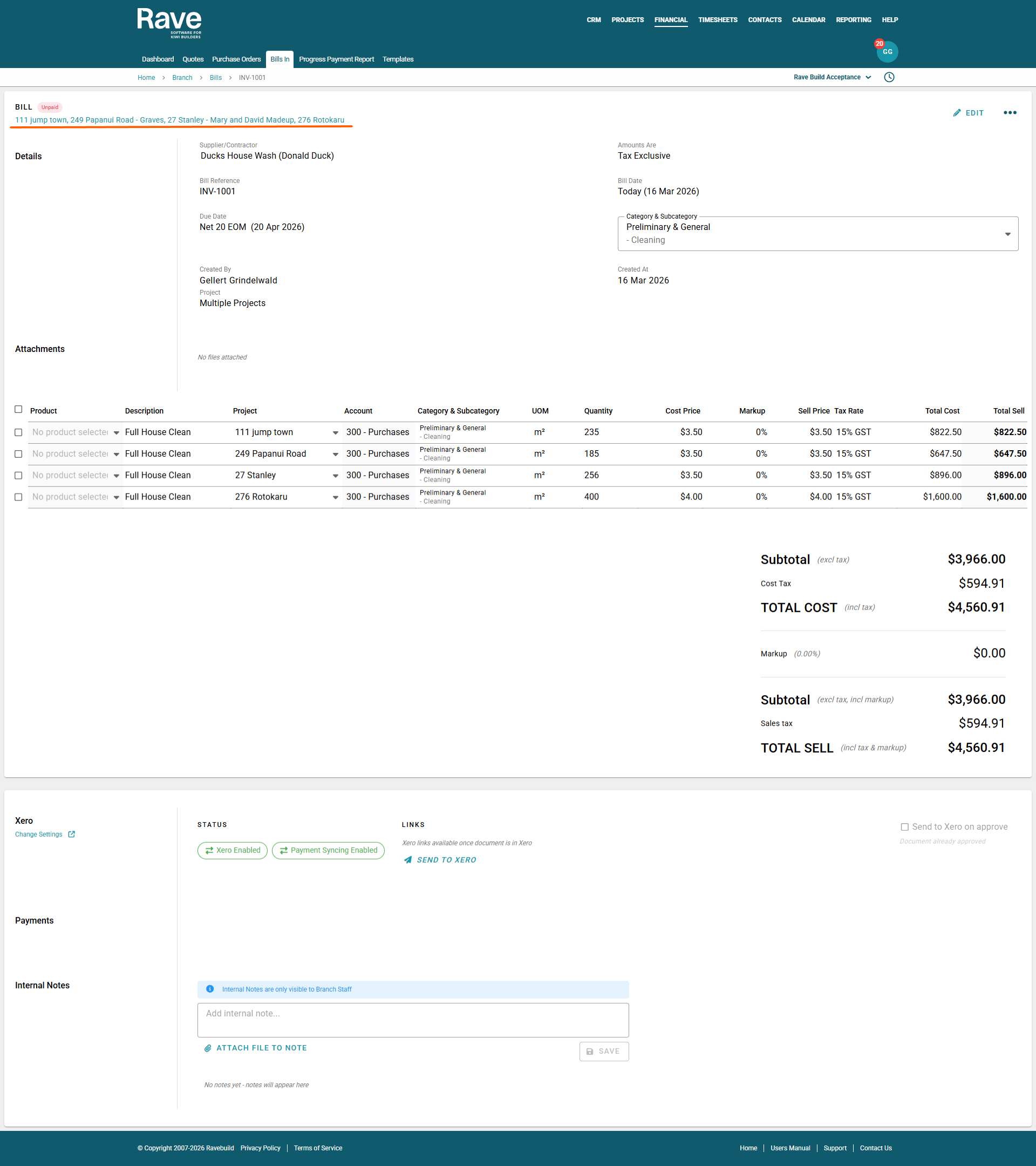
Once the bill is loaded into the system, each project will have its portion of the bill associated with the project reporting to ensure that financial accuracy is maintained.
To load a Supplier Credit Note, click + Supplier Credit Note, and you would follow the same steps from above.
Do not enter the Credit amount as a negative value, as Rave already knows the item is a credit.
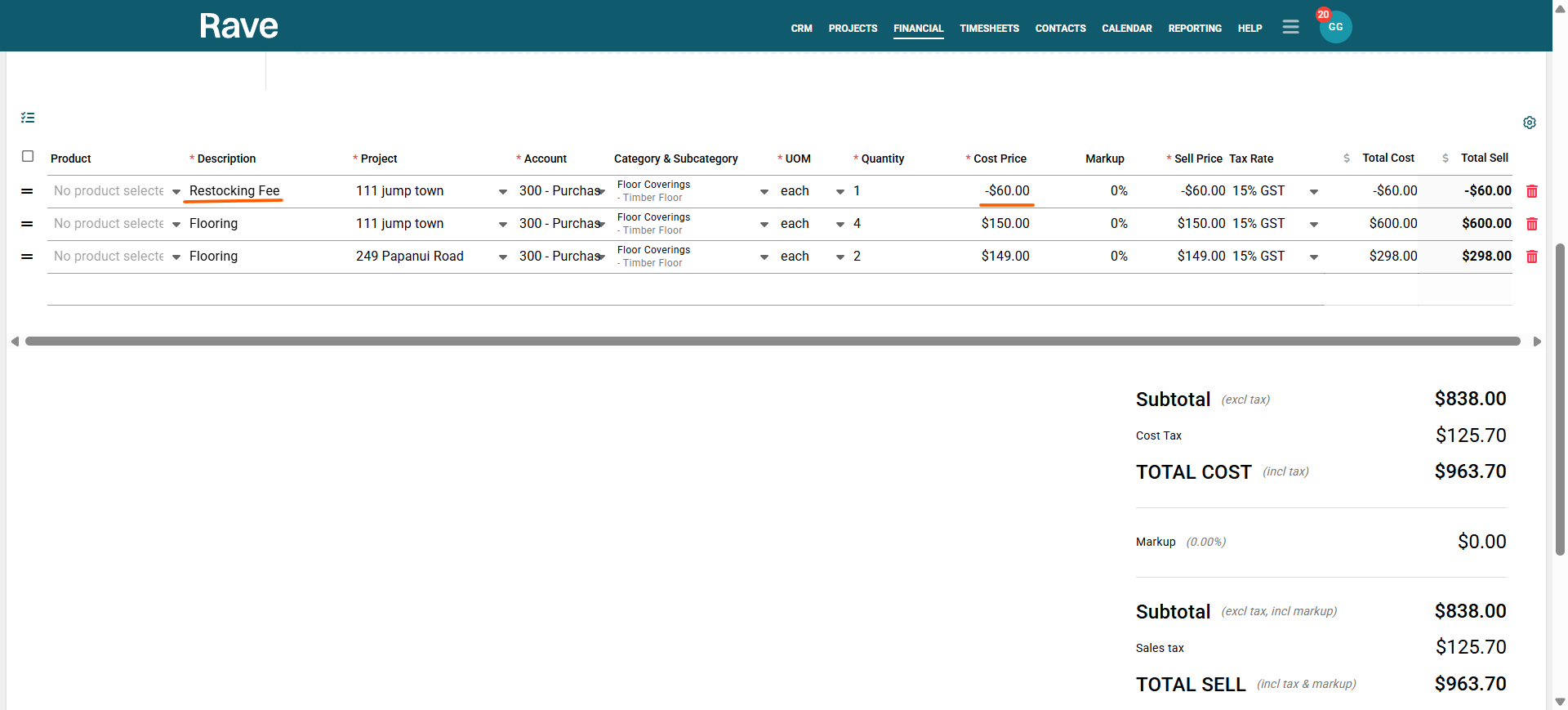
If you have a restocking fee on the credit note, enter it as a negative dollar amount, since you won't be getting that portion credited.
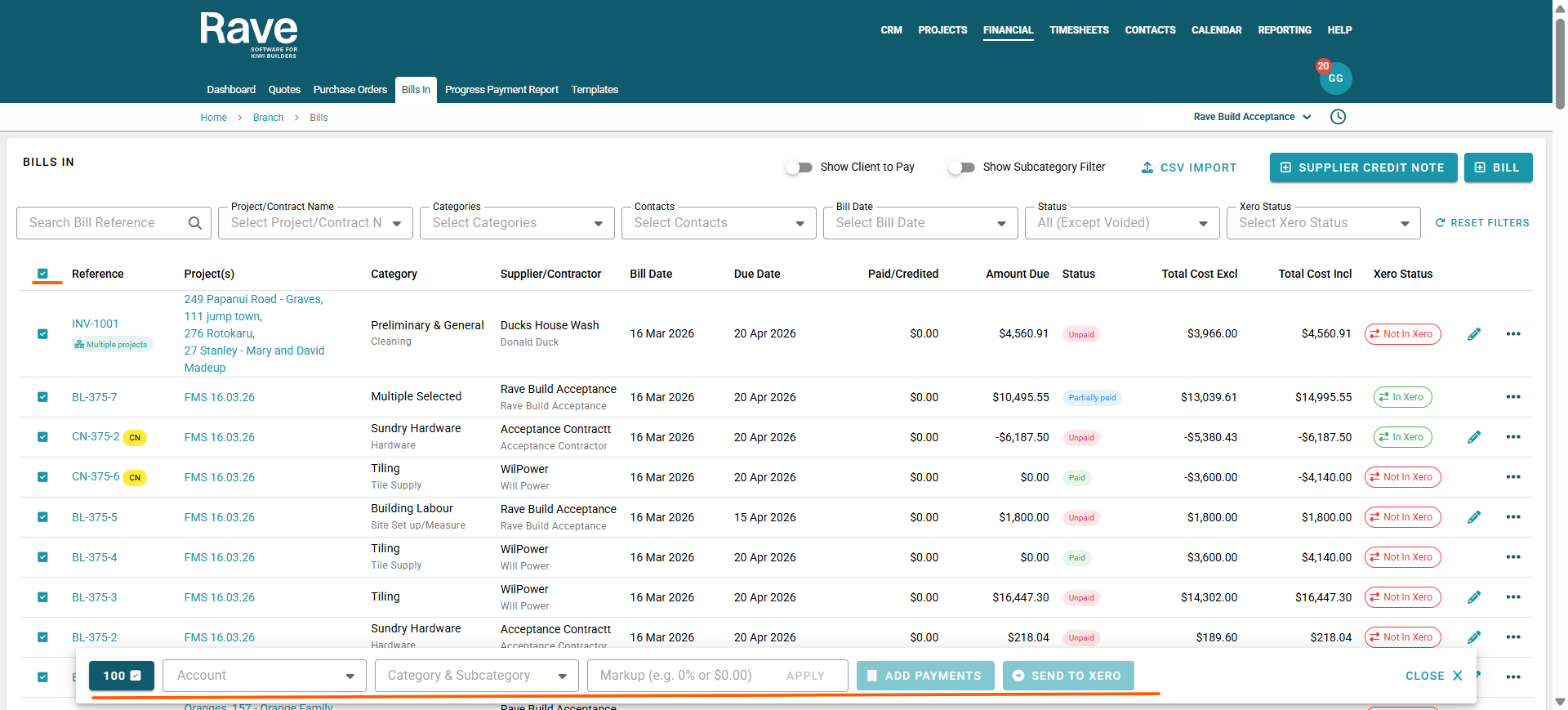
The bulk action bar on the Branch Bills page allows you to bulk update Chart of Account Codes, Category and Subcategory and Mark up across all documents you select.
With Xero payment syncing enabled, the Add payments option will be disabled, and if the documents are already in Xero or a mix of in Xero and not in Xero, the Send to Xero option will be disabled.
The three-dot ellipse beside each document allows you to:
View in Xero to see if the document is already showing there.
Send to Xero if the document is showing as not in Xero
Void if there are no payments or credits associated with the document.
Approve if the document is in Draft only
Delete if the document is in Draft only
Add a Payment (with Xero Payment Syncing Disabled only)
Remove a Payment (with Xero Payment Syncing Disabled only)
Adding a Branch-Level Bill from Template
The workflow for adding a Branch-Level Bill from a template is the same as adding one at the project level, except for selecting a project.
Click the +Bill button.
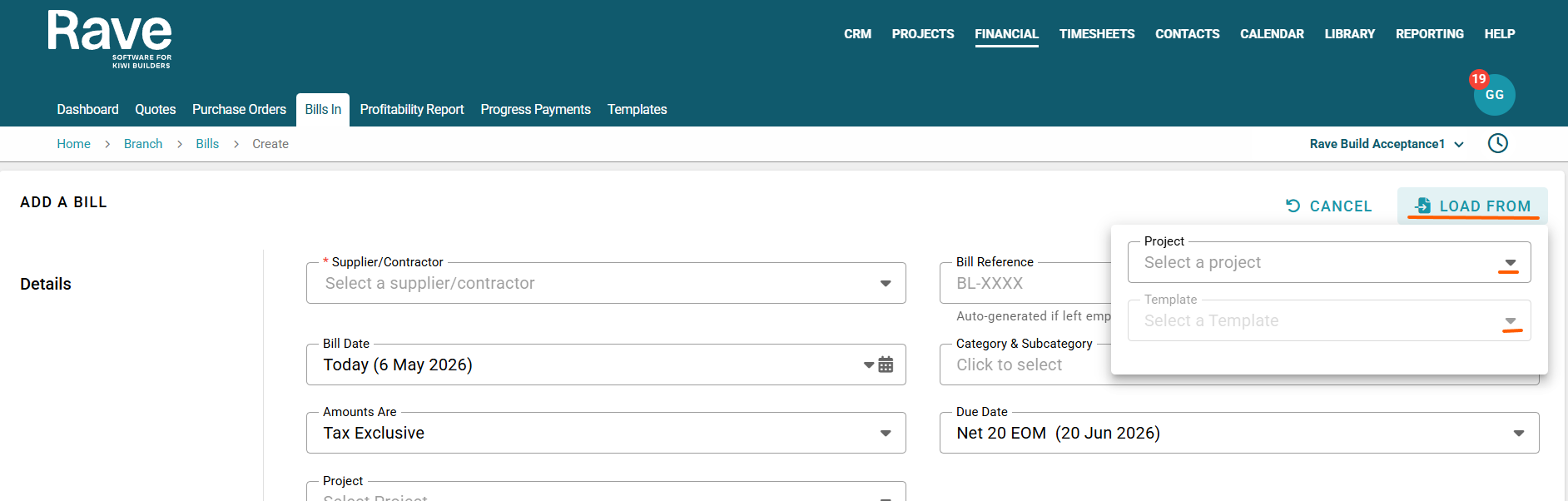
Select Load from and choose the first project you want to load this bill against (you only need to select one project to start), then select which template you wish to load.
The template will now pre load with all the relevant fields completed.
Double check you have all mandtory fields completed, assign the right project ID to each line and ensuring you attach a copy of the supplier bill.
One competed you can Save as a Draft for someone else to Approve, or click Approve
CSV Import
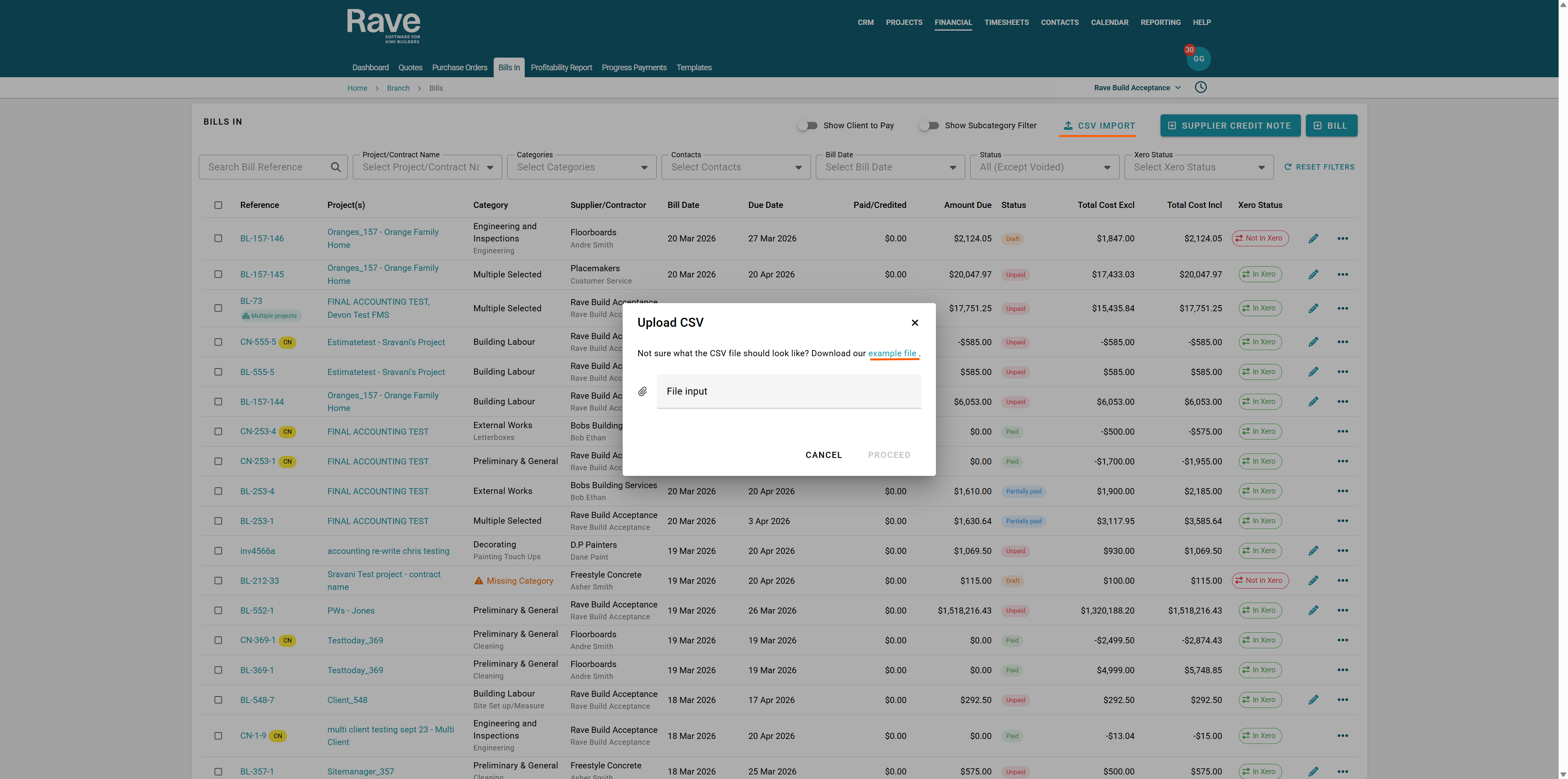
The CSV import allows you to bulk-import Branch bills from a CSV file.
By clicking CSV Import, you can download the sample file in the correct format.
The sample File will look exactly as shown in the Excel screenshot below.

You can then fill in the CSV file with all the required information. If you are copying and pasting the data into the CSV fields, ensure there are no special characters, as this will break the import.
Once you are done, you can click File Input, choose your CSV file, and Press Proceed.
Note: You must have the supplier company name (company_name) and Category/subcategory entered as it is displayed in RAVE
NOTE: If the bill upload is not successful, we will show you alerts (in RED) indicating any issues. Hovering over an item's red caution sign tells you what the issue is - if there is more than one issue, we list them all by document.
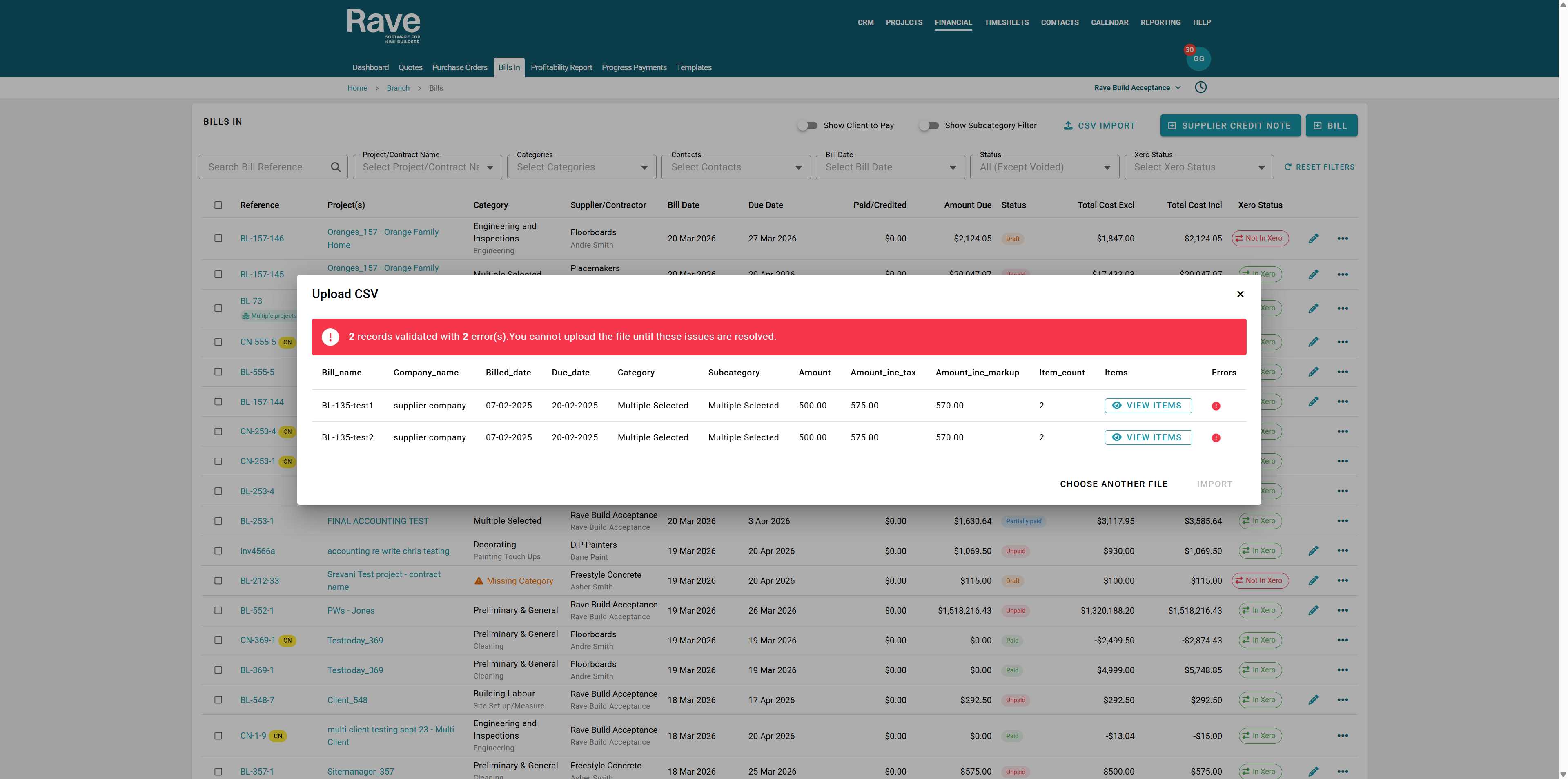
Once you have corrected any errors preventing an upload, you must re-upload the corrected version by clicking the pop-up's 'Change File' button (at the bottom right of the pop-up), or by repeating the steps.
Examples of common errors:
Company name does not exist - the supplier company name must match a company name already stored in RAVE (found under your branches, contractors/contacts button)
Account Code name invalid/does not exist - indicates a missing or incorrect chart of account code (found under your branches' Chart of Accounts drop-down)
Category or Subcategory name invalid/does not exist
Bill reference number has already been used i.e this bill already exists in RAVE from this supplier
There is no pricing, or the pricing is invalid
A successful upload will display an Import Bills button to the bottom right of the pop-up - clicking on this will complete the import process.
This process may take some time (generally up to a minute), depending on the number of lines you are importing.
Once completed, RAVE will take you back to the List page, where your new bill(s) will be displayed.
Note: To void a bill or credit note, you need to select void, type in void in the pop-up, and then press Void. This is to ensure that you are intentionally voiding the document and not 'accidentally' doing it. There is no option to bulk void as this is very risky and affects both Rave and Xero financials.
Exporting to CSV with or without Financial Notes:
Within Rave's Financial Management System, you can add notes to Quotes, Purchase Orders, Bills, and Credit Notes.
These notes are a useful way to keep track of important financial information and decisions across your projects.
Common uses for notes include:
- Recording reasons for discounts given
- Tracking price changes
- Monitoring overspends or unexpected costs
- Adding internal reminders or financial context
Before exporting, you can use the available page filters to narrow down your results.
Filters include:
- Supplier or recipient
- Category
- Subcategory
- Additional document filtering options
These filters make it easier to find and export the exact financial records you need for reporting, auditing, or project tracking.
When exporting, you can choose whether to:
- Include notes in the export
- Export documents without notes
If a document contains multiple notes, all notes will be included in the CSV export in date order, with the most recent note displayed first.
Was this article helpful?
That’s Great!
Thank you for your feedback
Sorry! We couldn't be helpful
Thank you for your feedback
Feedback sent
We appreciate your effort and will try to fix the article