Note tags are used to categorise and organise notes across Rave. They help keep information structured and easy to find. Tags allow Project Managers, Sales People and other users tag notes entered into Clients Profiles, Enquiries, Projects and Client Projects Notes making it easier to find important information, track progress updates, toolbox meetings and much more.
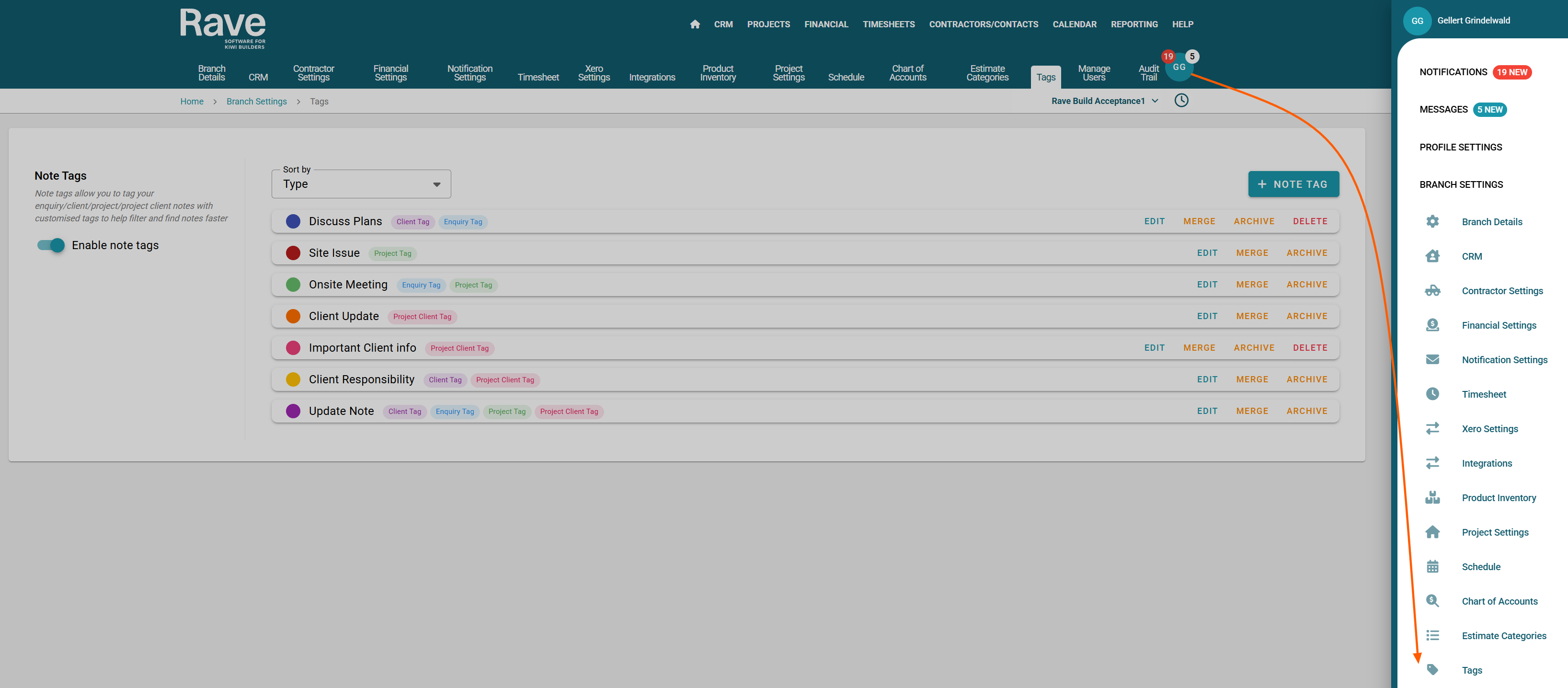
Click on your Profile dropdown menu.
Select Branch Settings.
Scroll down to the Tags section.
Open the Note Tags Management area.
From here, you can add, edit, archive, delete, or merge tags.
Creating a New Tag
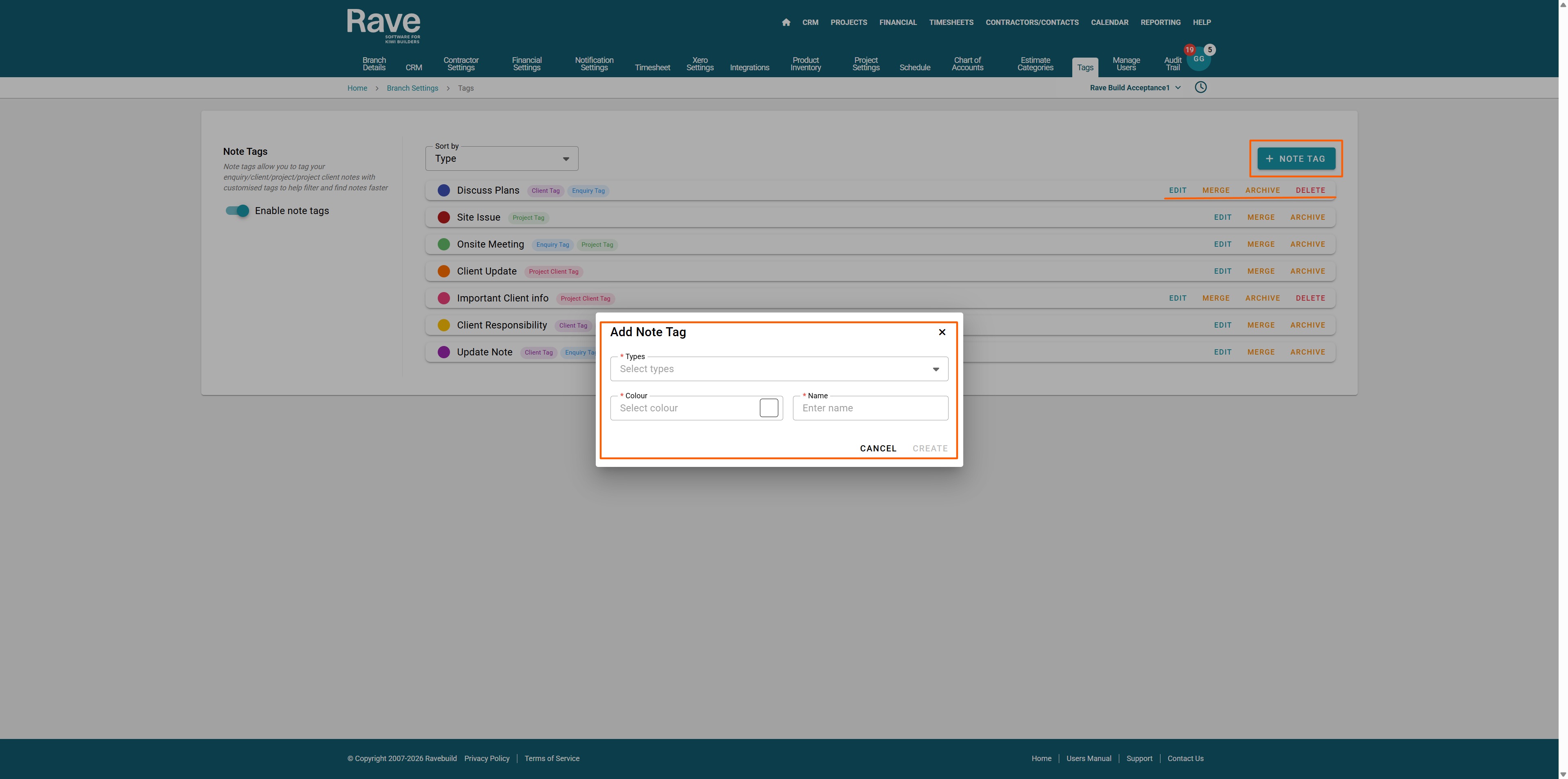
Click + Note Tag to create your first tag.
A setup window will appear allowing you to:
Choose which note type(s) the tag can be used in (Client, Enquiry, Project, or Client Project notes).
Select a colour for the tag.
Enter a name for the tag.
Once you have made your selections, click Create.
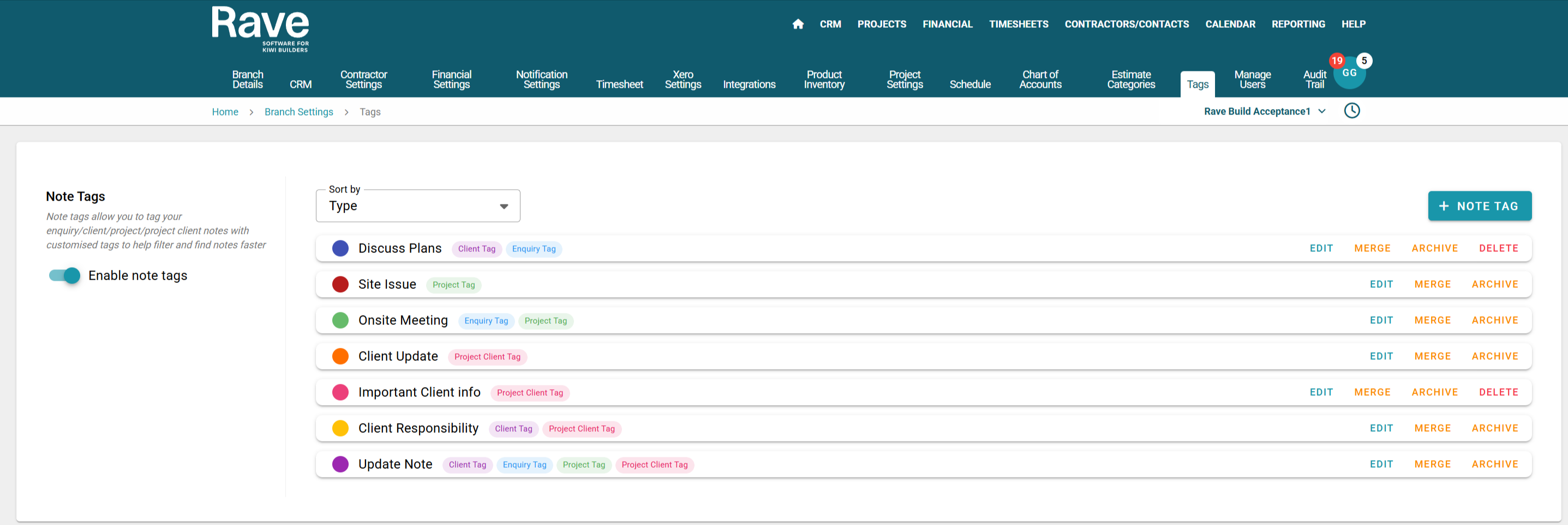
Your tag will then appear in the list, displaying:
The selected colour
The note type(s) it applies to
The tag name
Managing Existing Tags
You can manage tags using the following options:
Edit – Update the tag name, colour, or applicable note types.
Delete – Remove a tag that is not currently in use.
Merge – Combine duplicate or unwanted tags into a single new tag.
Archive – Retain historical data while preventing the tag from being used again.
Bulk Assigning Tags to Existing Notes
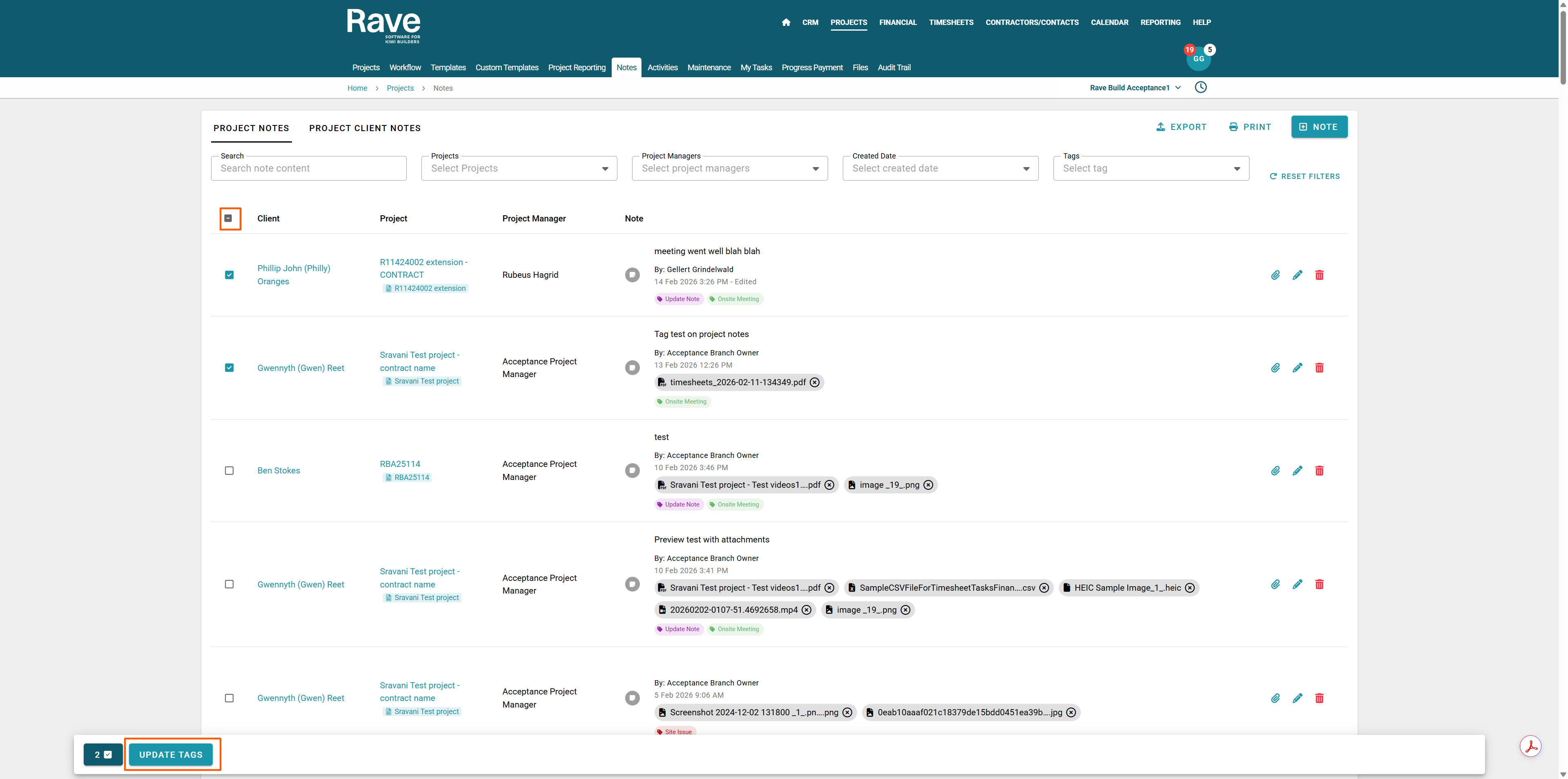
You can bulk assign newly created tags to existing notes by following these steps:
Go to CRM or Projects.
Navigate to the Notes section at Branch level.
Choose which notes you are wanting to assign.
Use the checkboxes to bulk select the relevant notes.
In the bulk action bar, choose the appropriate tag(s) to assign.
This allows you to quickly apply new tags to multiple notes at once, ensuring historical data remains organised and consistent.
Was this article helpful?
That’s Great!
Thank you for your feedback
Sorry! We couldn't be helpful
Thank you for your feedback
Feedback sent
We appreciate your effort and will try to fix the article