The Branch Financial settings screen includes several sections where you can customise different aspects of your Financial configuration.
To access your Branch Financial settings (with the appropriate permissions):
Click on your profile icon – the teal circle with your initials located at the top right of the page.
From the dropdown menu, scroll down and select Branch Settings | Financial settings
This will open the Branch Financial settings screen, which has three separate sub-tabs
This article will focus on Financial Defaults.
If you are looking for Terms and Conditions, check out the article here.
If you are looking for Footer Text, check out the article here.
The project-level Financial override options help article is here.
This page is broken down into Invoice, Progress Payments, Bills, Timesheets, Purchase Orders, Quotes, Rounding, and ready-to-convert badges.
- Default Accounts
When creating a financial document in Rave, if the account code is not entered, Rave will use the default branch code for that document.
- Default Tax Codes
When creating a financial document in Rave, you can set the default tax type for each document type. The choice is No GST, 15% GST, Tax on Imports and Zero Rated
- Default Tax Mode
When creating a financial document in Rave, you can set the default Document Tax type. The choice is Exclusive of Tax, Inclusive of Tax or No Tax.
Invoices
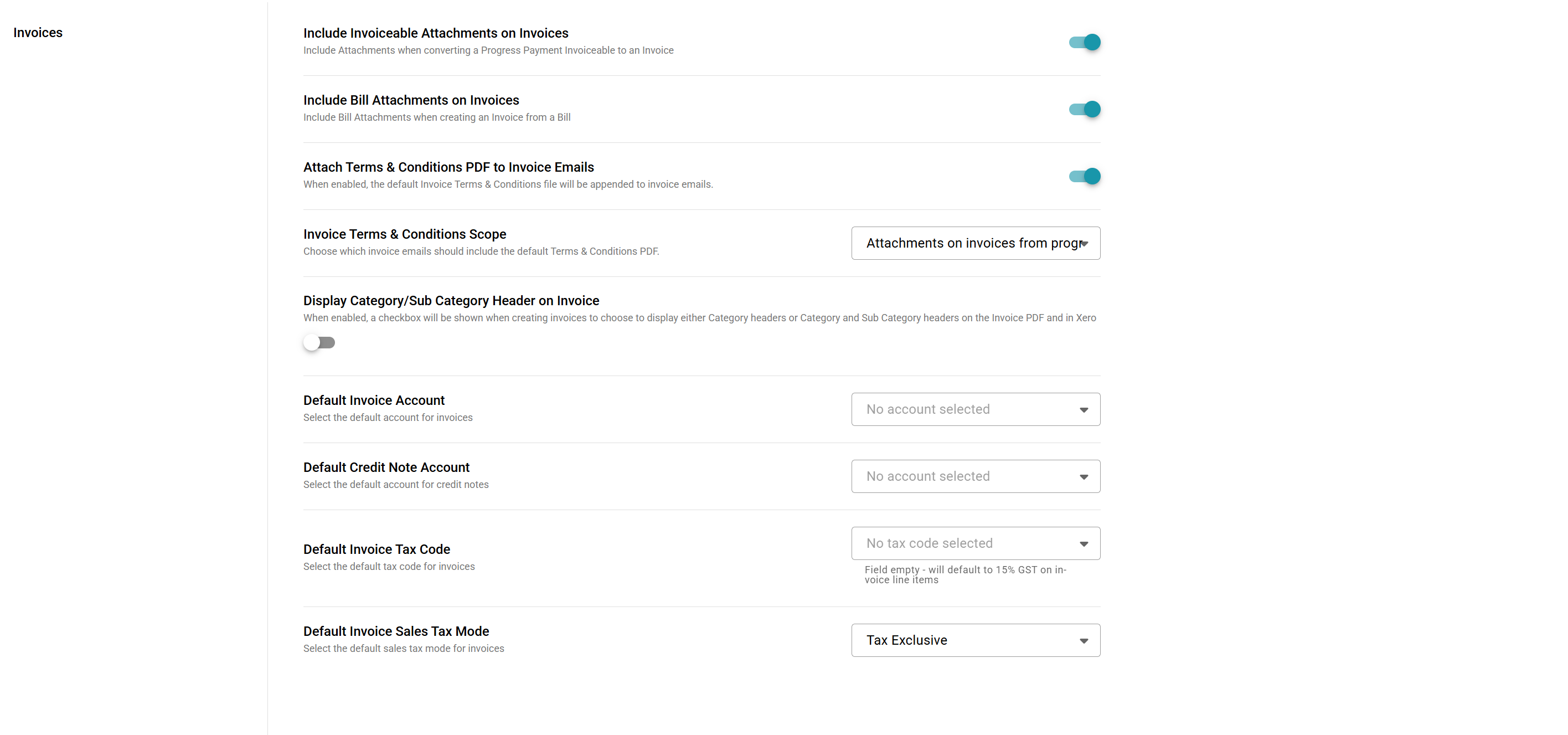
Include Invoiceable Attachments on Invoices
When enabled, Rave will include attachments when converting a Progress Payment Invoiceable to an Invoice, ensuring the documents flow through to Xero if connected.
Include Bill Attachments on Invoices
When enabled, Rave will include attachments when converting a Supplier Bill/Credit Note into a client Invoice/Credit Note, ensuring the documents flow through to Xero if connected.
Attach Terms & Conditions PDF to Invoice Emails
When enabled, the default Invoice Terms & Conditions file will be appended to invoice emails.
Invoice Terms & Conditions Scope
Choose which invoice emails should include the default Terms & Conditions PDF.
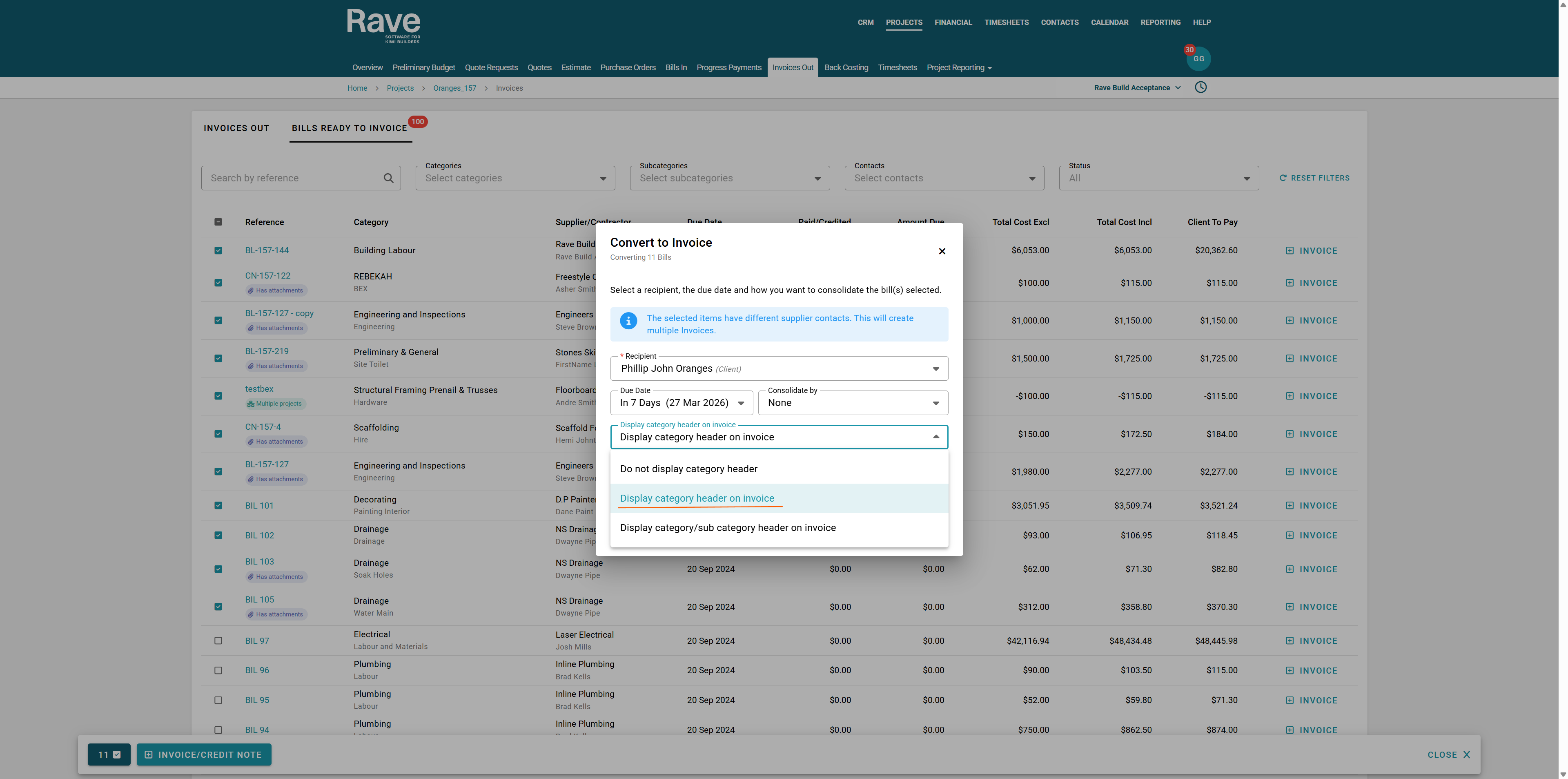
Display Category/Sub Category Header on Invoice
When enabled, a checkbox will appear when creating invoices to choose whether to display Category headers or Category and Subcategory headers on the Invoice PDF and in Xero.
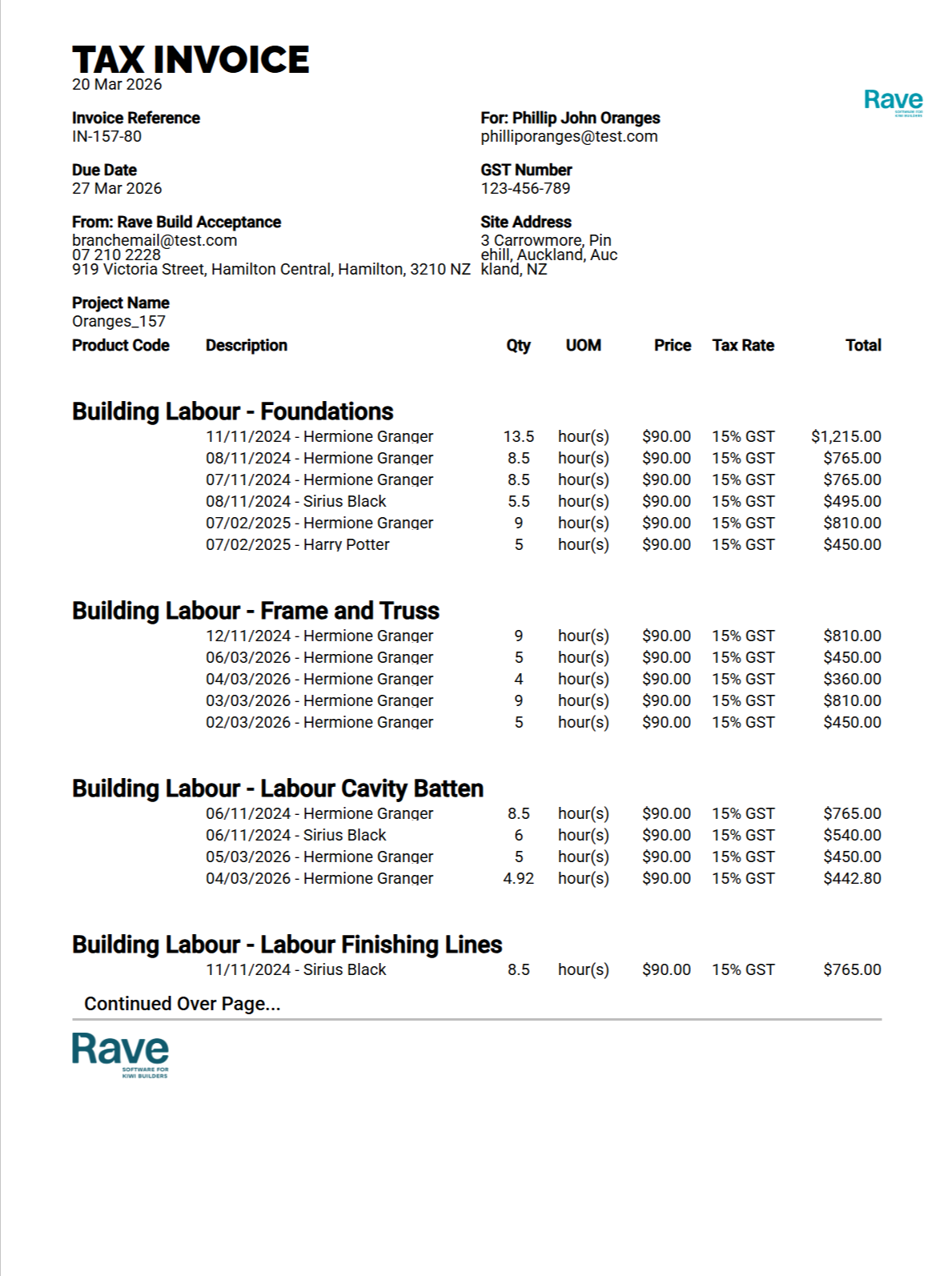
An example of choosing both Category and Subcategory Headers is shown below.
Progress Payments
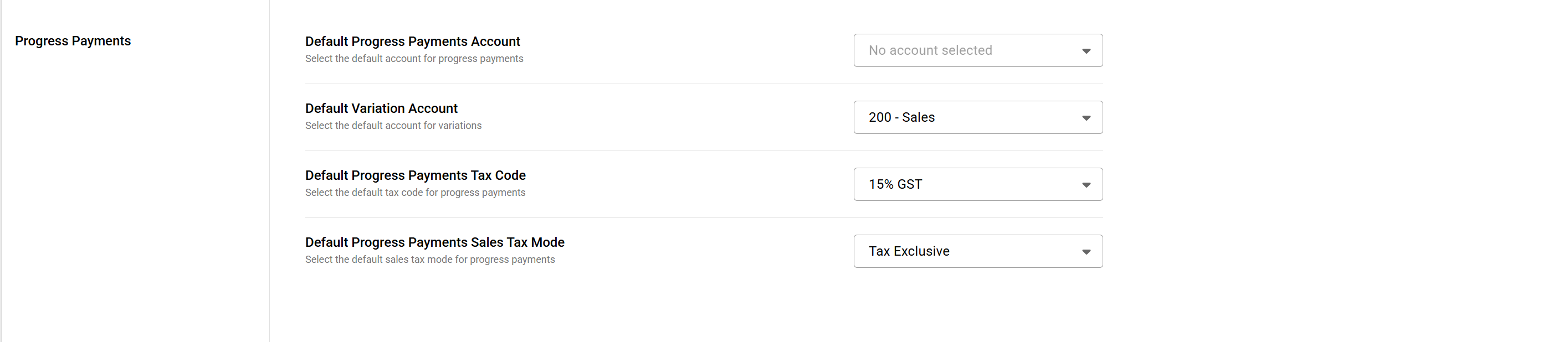
These are the default account options for Progress Payments
Bills
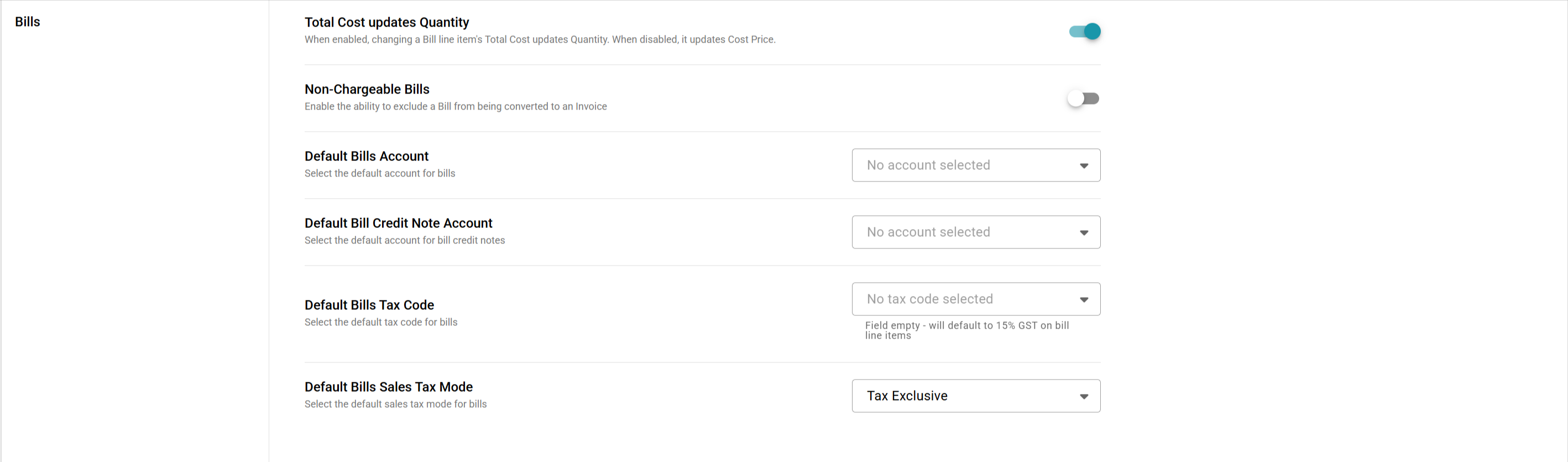
Total Cost updates Quantity - When enabled, changing a Bill line item's Total Cost updates Quantity. When disabled, it updates Cost Price.
Non-chargeable Bills - When enabled bills will not show to convert to client invoices using the charge up filters.
Timesheets
These are the default account options for Timesheets

Purchase Orders
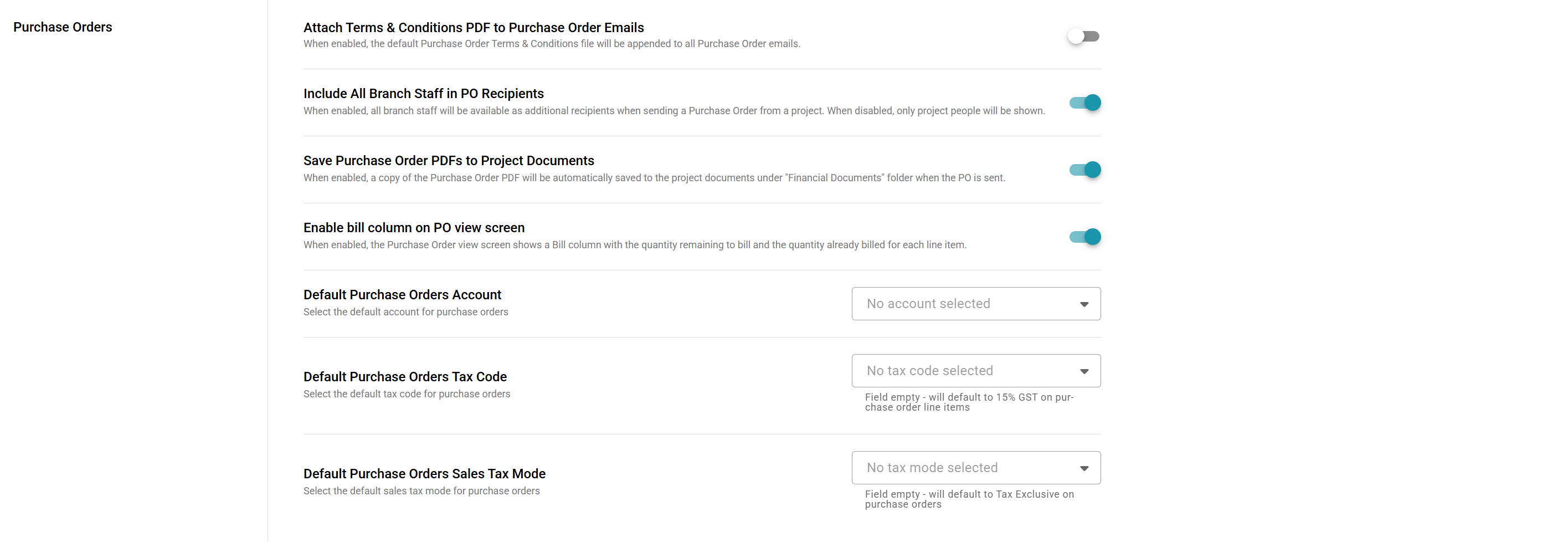
- Attach Terms & Conditions PDF to Purchase Order Emails
When enabled, the default Purchase Order Terms & Conditions file will be appended to all Purchase Order emails.
- Include All Branch Staff in PO Recipients
When enabled, all branch staff will be available as additional recipients when sending a Purchase Order from a project. When disabled, only project people will be shown.
- Save Purchase Order PDFs to Project Documents
When enabled, a copy of the Purchase Order PDF will be automatically saved to the project documents under the "Financial Documents" folder when the PO is sent.
- Enable Bill Column on Purchase Order view screen
When enabled, the Purchase Order view screen shows a Bill column with the quantity remaining to bill and the quantity already billed for each line item
Quotes
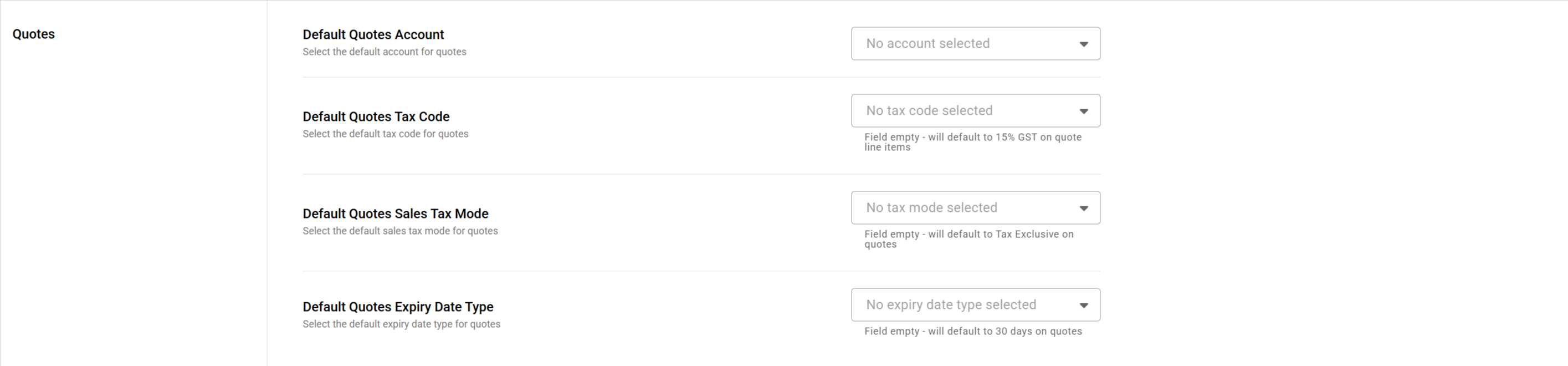
These are the default account options for Quotes
Rounding
These are the default account options for Rounding
 Default Rounding Account
Select a default account code for code rounding to
Default Line Item Rounding Method
Select a default number of decimal places that your rounding will display (2, 4 or 6)
Default Tax Rounding Method
Select a default method: either Per Line - Two decimal places or Per document total
Ready to Convert Badges
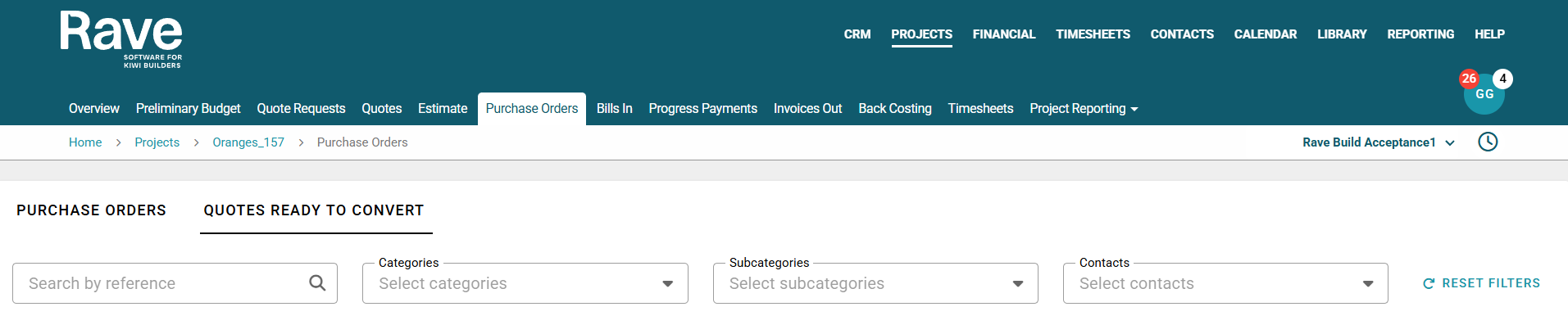
When enabled, this will display a red badge showing the number of documents awaiting conversion.
This is on the Purchase Order, Bills and Invoices Page

This is an example of the setting Enabled

This is an example of the setting Disabled
Was this article helpful?
That’s Great!
Thank you for your feedback
Sorry! We couldn't be helpful
Thank you for your feedback
Feedback sent
We appreciate your effort and will try to fix the article