Your Building Partner may provide you with access to the Progress Payments tab.
This page reflects your contract agreement and includes a record of additional non-contract charges and, where applicable, variations.
It provides an overview of what is expected to be invoiced, what has already been invoiced, and what is still to be invoiced. You can filter information by Invoiced Date and search for a specific description using the Search box.
As you scroll down the page, you will see that it is broken into several sections:
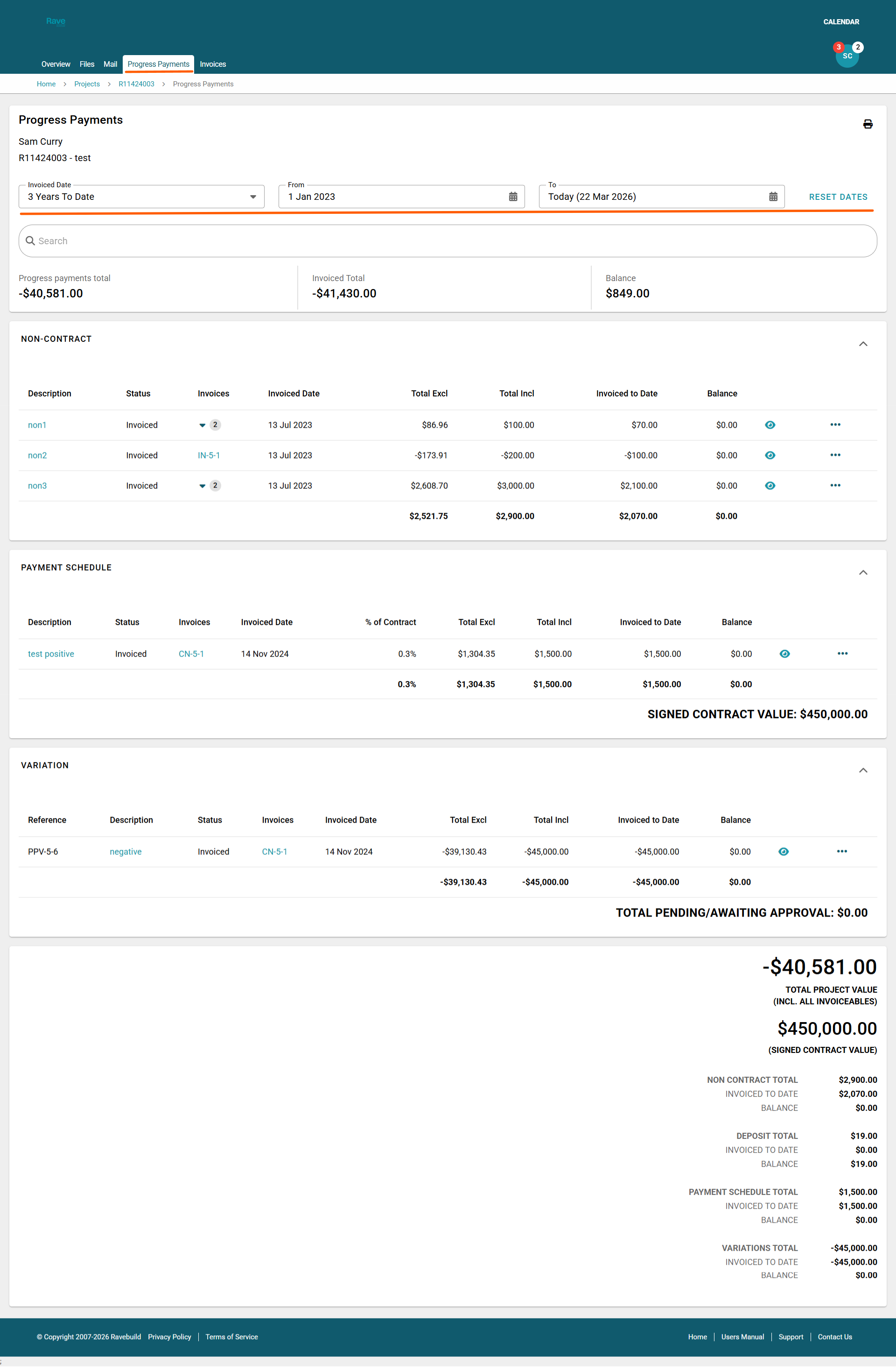
- Non-contract items – anything outside your initial build contract agreement, such as unexpected engineering fees
- Deposit – for example, a drawings deposit or unconditional/contract signing deposit. Depending on how your agreement is structured, this may instead appear in the payment schedule
- Other items – PC sums, prime sums, allowances, and similar items
- Payment Schedule – stage claim items or charge-up lines
- Variations – if applicable
Each line item shows:
- The payment description and status
- Any invoices raised against the item, including the invoice date
- The total amount, amount invoiced to date, and remaining balance
Variations
Use the 3-dot menu next to a variation to:
- Print the variation
- Add a comment for your Building Partner
- Accept the variation
- Decline the variation
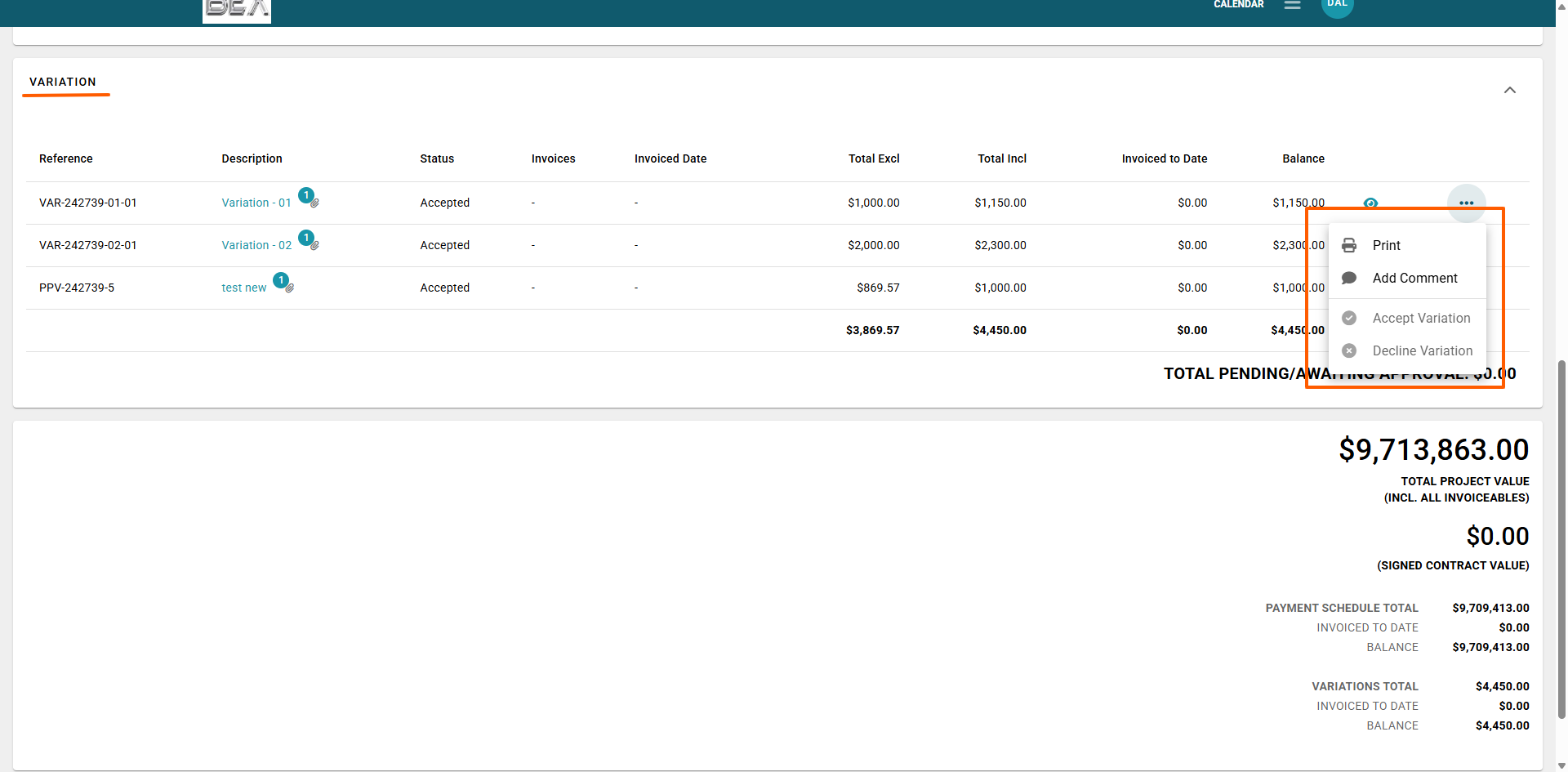
Once a Variation is declined, you can only print the variation or add a comment for your Builder.
At the bottom of the page, you will see:
- Total Project Value – the total value of the project, including variations
- Signed Contract Value
- A breakdown of the Payment Schedule and Variations, showing the total, amount invoiced to date, and remaining balance
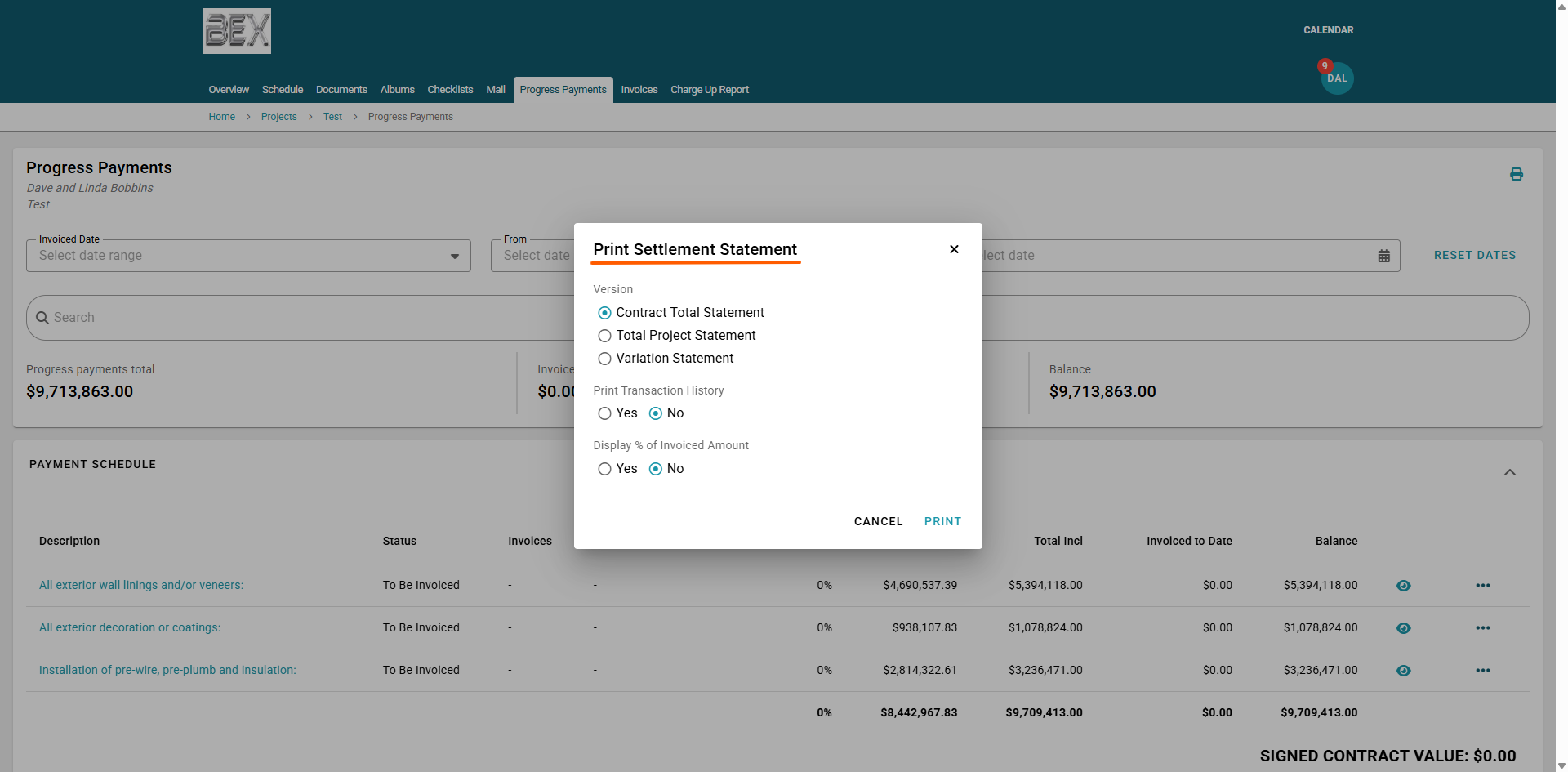
You can also print a settlement statement using the print icon. You can choose from:
- Contract Total Statement – shows the contract pricing
- Total Project Statement – shows the contract and variations together
- Variation Statement – shows variations only
You can also choose whether to include Transaction History and display the % of Invoiced Amount on the statement.
Note: All figures shown on this page include GST.
Was this article helpful?
That’s Great!
Thank you for your feedback
Sorry! We couldn't be helpful
Thank you for your feedback
Feedback sent
We appreciate your effort and will try to fix the article