RAVE's Project Mail feature allows you to communicate with your Build Partners.
Click on your Profile drop-down and then the little icon beside Mail, which will take you to My Mail
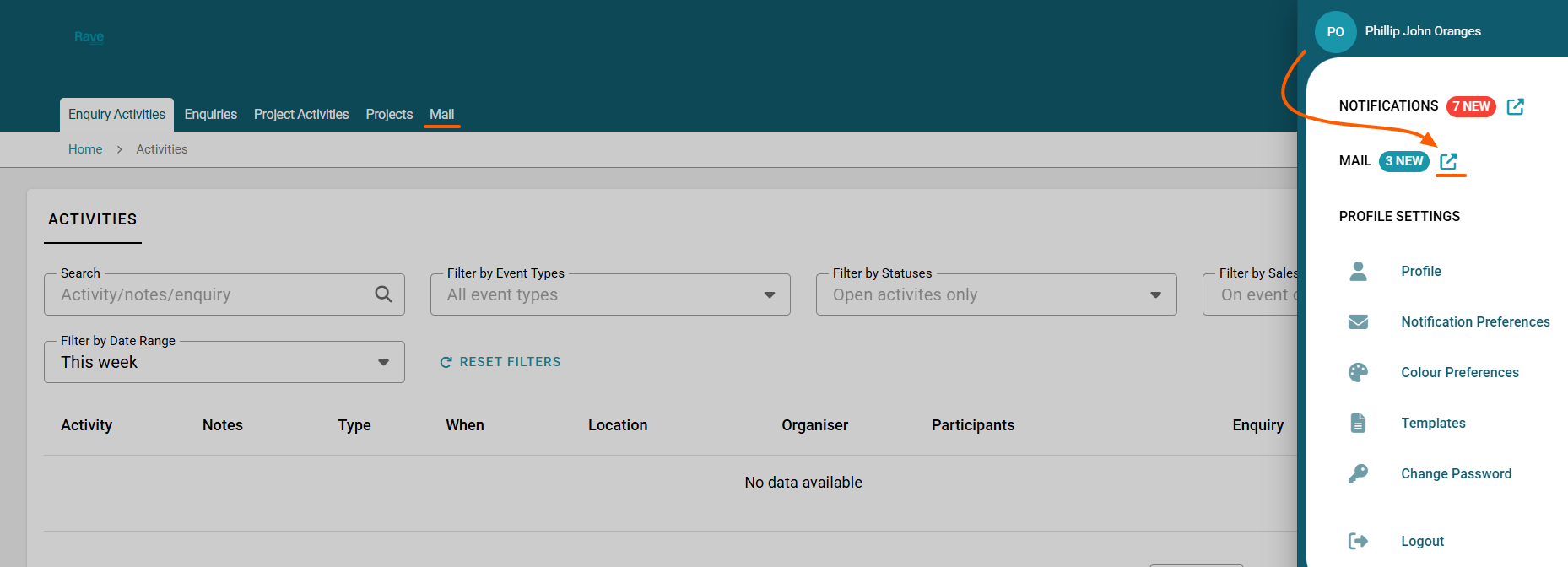
You could also choose to click the Mail Alert option. Expand the arrow beside Mail and open a specific mail alert which you take you to that Mail in the My mail tab
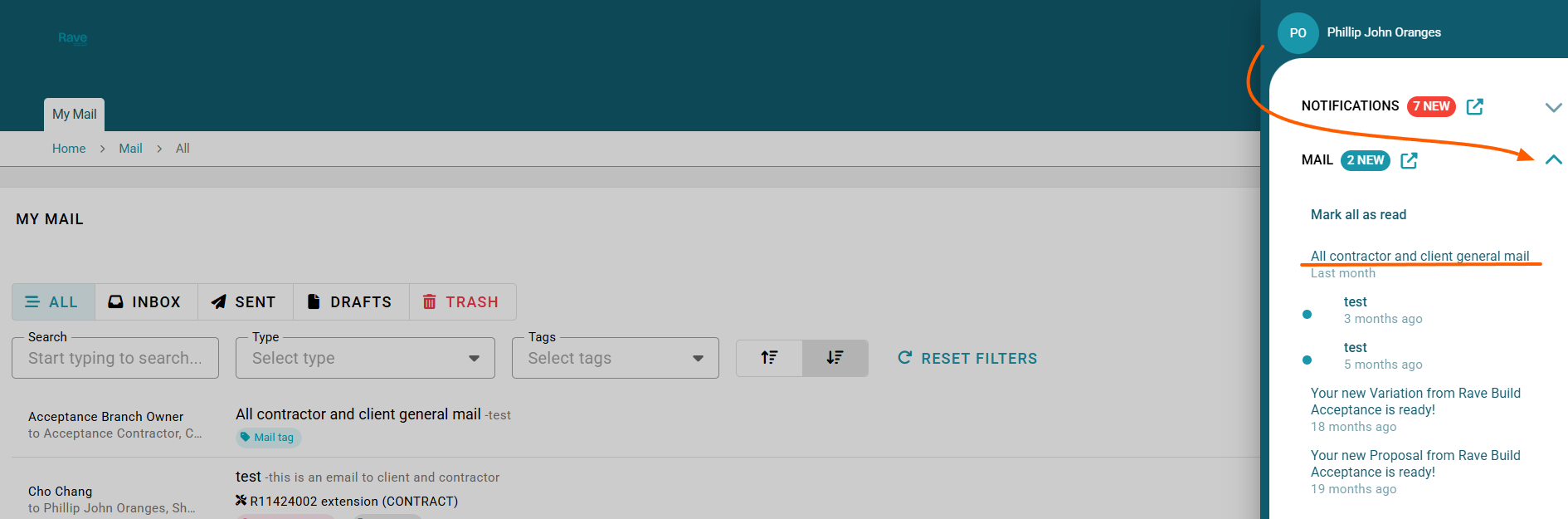
My Mail
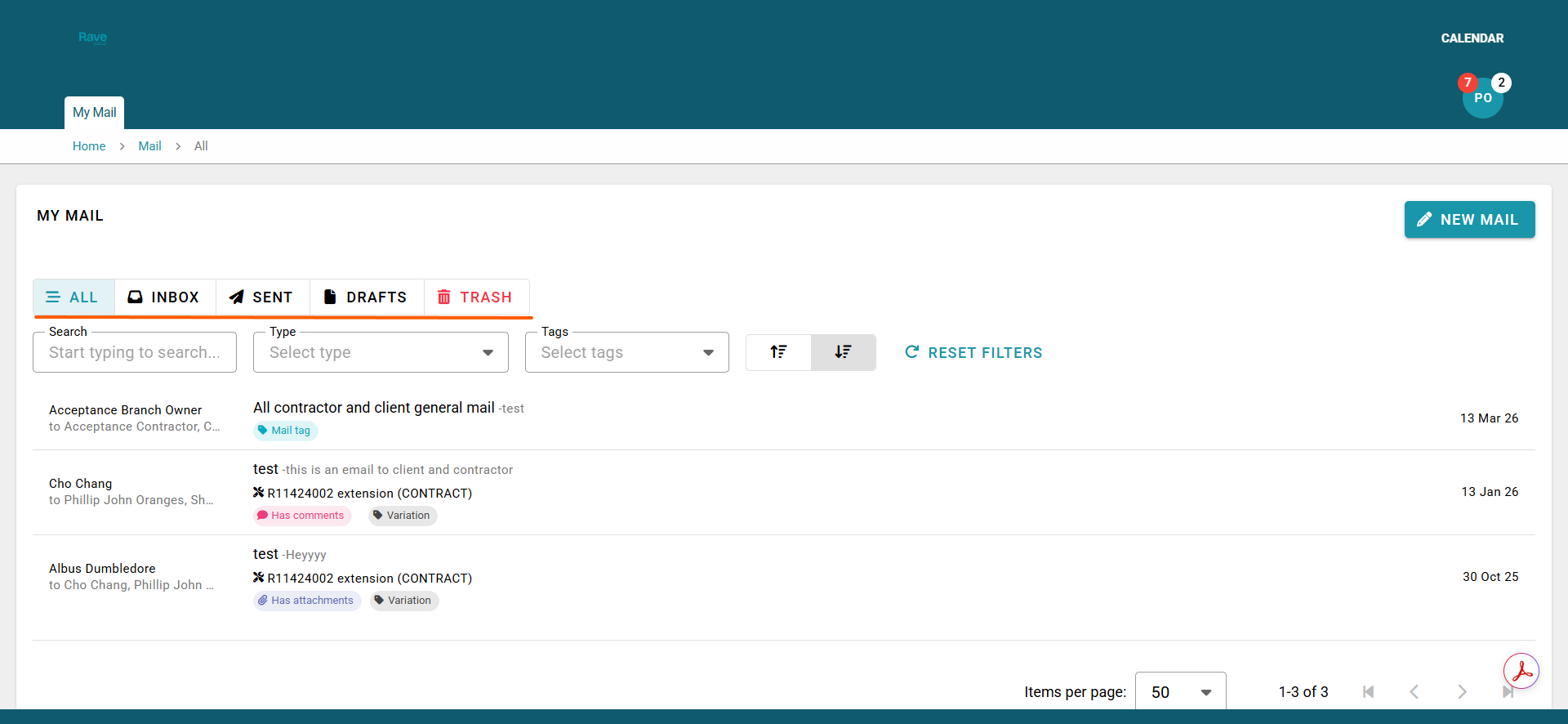
The My Mail sub-tab will default to displaying all Mail.
You can filter the Mail by:
- All Messages will display mail from your inbox, sent, and draft mail folders
- While clicking on the inbox, sent, or draft folder buttons will display only the mail items from that folder
- The Trash folder will show deleted mail.
You can search for a specific email message, email type, or email tag using the drop-down filter.
You can also change the date from newest to oldest and vice versa using the arrows.
Note: Setting filters will be remembered the next time you log in, so be sure to clear them when you are done.
Sending a new Mail item
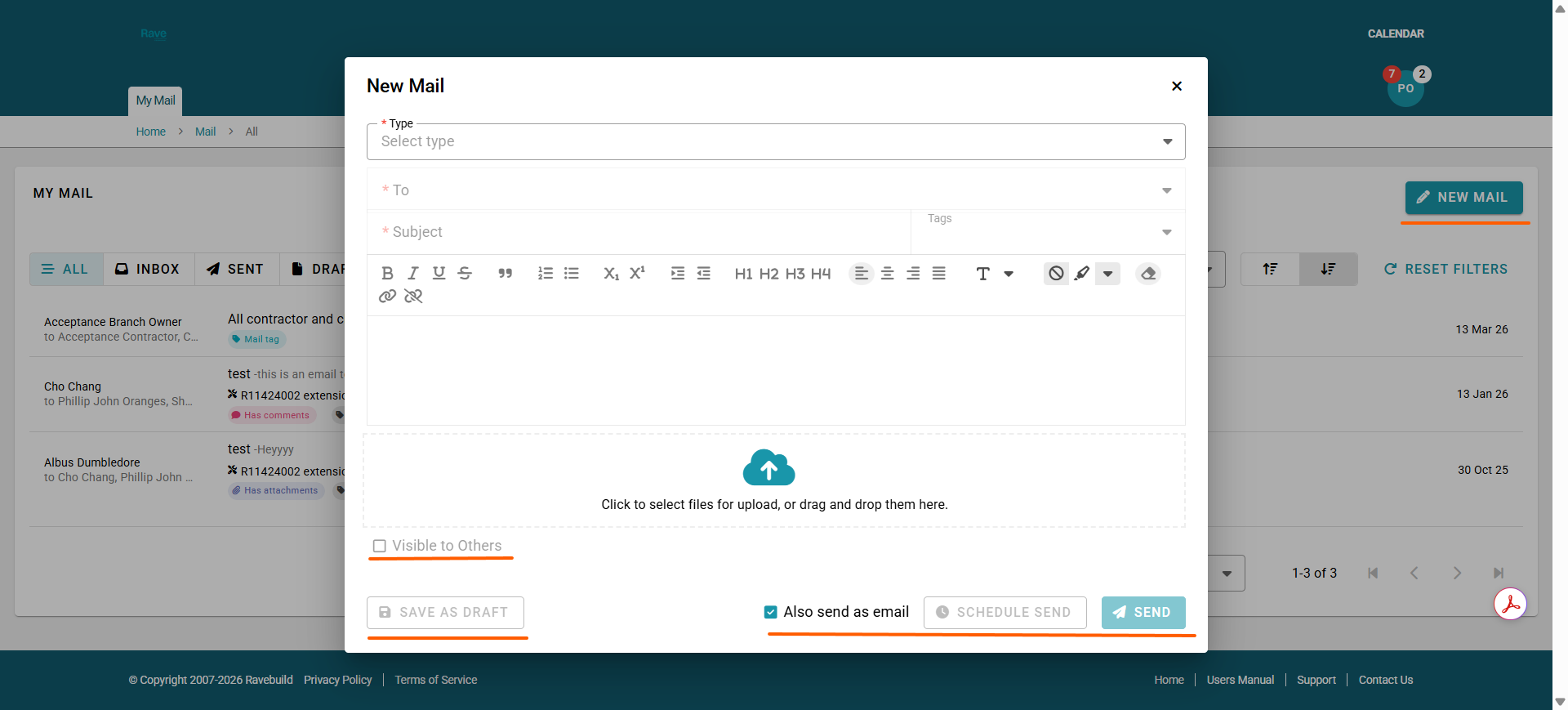
To send a new mail item, click on the 'New Mail' button
The New Mail pop-up lets you compose a new mail, just like sending an external email. You will first need to select either Enquiry or Project, and then, if you have more than one enquiry or project with your building partner, select which one you are communicating about.
You can then choose to load from a previously created mail template, or skip this step and start selecting the remaining fields.
- Choose your recipients, the project manager or office staff, via the ‘To:’ drop-down
- Add a subject line, i.e. House Update, Variation request etc
- Add a Tag if required – though this is generally left as ‘None’ as this is used by the building partners to prioritise mail.
- Add your mail copy into the body section and format it
- And add attachments to the cloud icon section
- Decide whether you want to make this mail visible to other staff within your building partner's business or just the people you have chosen to email.
You can now choose to:
- Save as a draft to send later
- Save as a mail template to send from another project later
- Schedule Send to delay sending the email until a specific date or time in the future.
- Or send now by pressing the SEND button
Note: the check box that also sends via email should always be checked, as this will send a copy to the recipients' external email addresses as well as their Rave mailbox.
Note: Until all required fields are completed, the mail item cannot be sent; the ‘Send’ button will be greyed out until all fields are completed.
Note: You can choose to cc yourself by selecting yourself as the participant
Sending a new Mail item with a Mail Template
To send a new mail item, using a mail template, click on the 'New Mail' button first. You will then need to select either Enquiry or Project if you have access to both. If you have more than one enquiry or project with your building partner, select which one you are communicating about.
Then, from the Load from template option, select the template you wish to load, and it will prepopulate all of the fields.
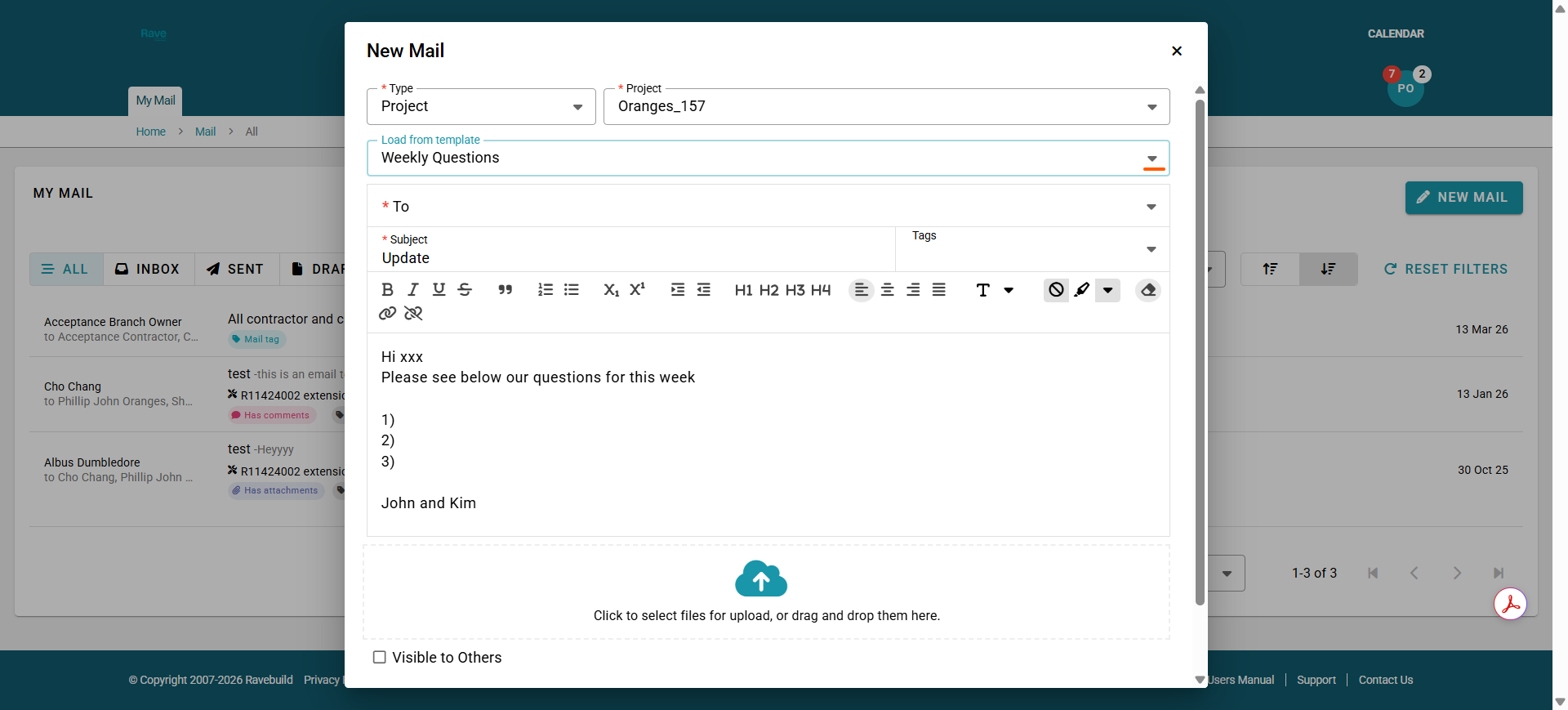
Ensure you are not missing mandatory information, and proceed with your email.
- Choose your recipients, the project manager or office staff, via the ‘To:’ drop-down
- Add a subject line, i.e. House Update, Variation request, etc
- Add a Tag if required – though this is generally left as ‘None’ as this is used by the building partners to prioritise mail.
- Add your mail copy into the body section and format it
- And add attachments to the cloud icon section
- Decide whether you want to make this mail visible to other staff within your building partner's business or just the people you have chosen to email.
You can now choose to:
- Save as a draft to send later
- Schedule Send to delay sending the email until a specific date or time in the future.
- Or send now by pressing the SEND button
Replying/Commenting on a Mail item
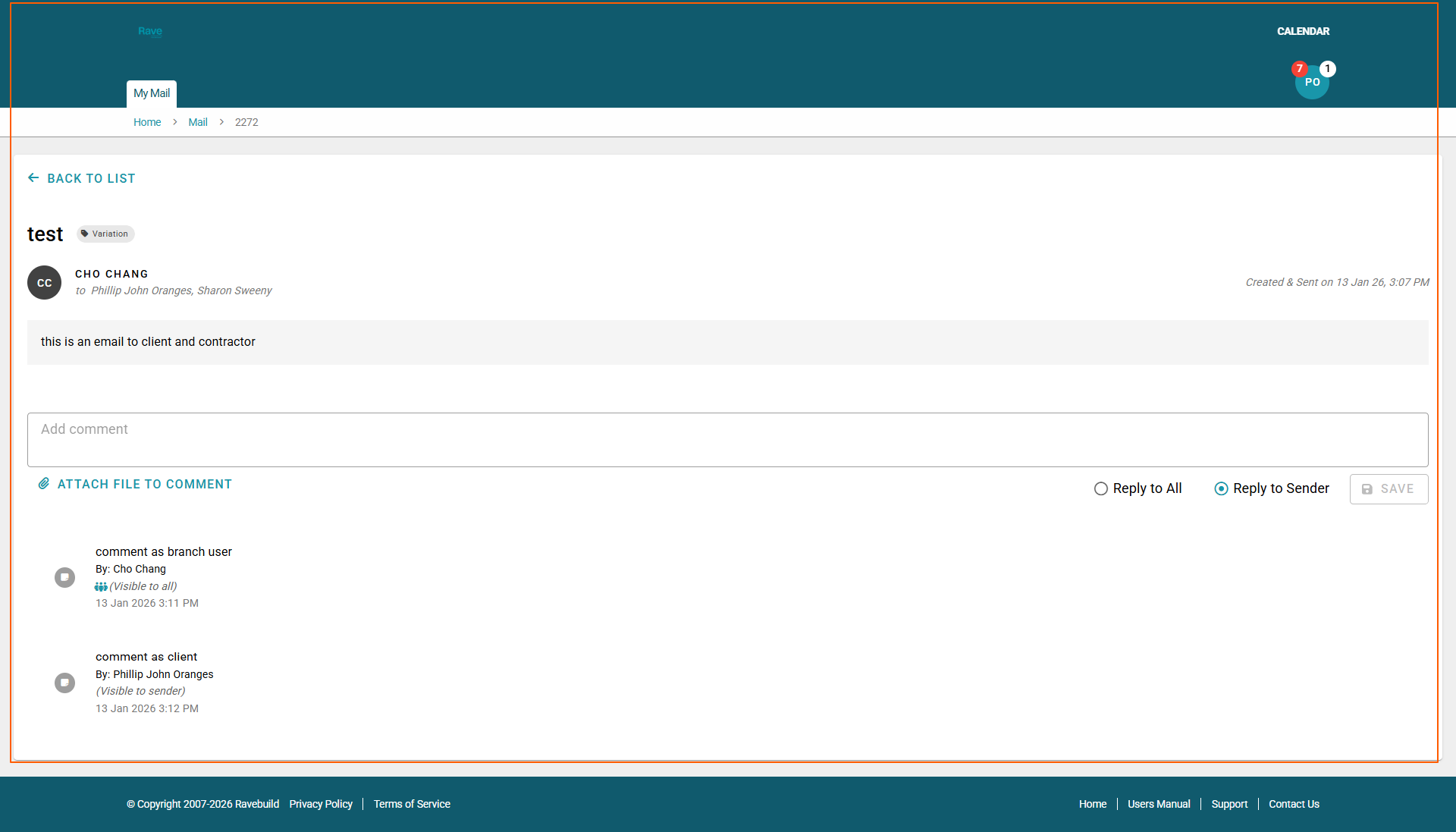
You can reply to mail items by clicking on the Mail and then adding a comment. In doing so, you can also choose to:
- Add attachments via the 'Attach File to Comment' button
- Reply to all, or just to the sender.
- Reply to all will CC all recipients on your reply.
- Reply to sender will just go back to the person who created the mail
Clicking 'Save' to add your comment - this will also alert anyone internally via their Rave Notifications that you've added a comment to the mail item.
Once done, you can click the Back to List to go back to your My Mail home page.
Was this article helpful?
That’s Great!
Thank you for your feedback
Sorry! We couldn't be helpful
Thank you for your feedback
Feedback sent
We appreciate your effort and will try to fix the article