Overview
Once you’ve set up your account email(s) for payment request notifications and linked your account to Xero (if required), you can begin using the Progress Payment (Payment Schedule) tab.
This tab allows you to manage invoiceable items for your project and generate invoices to request payments from clients.
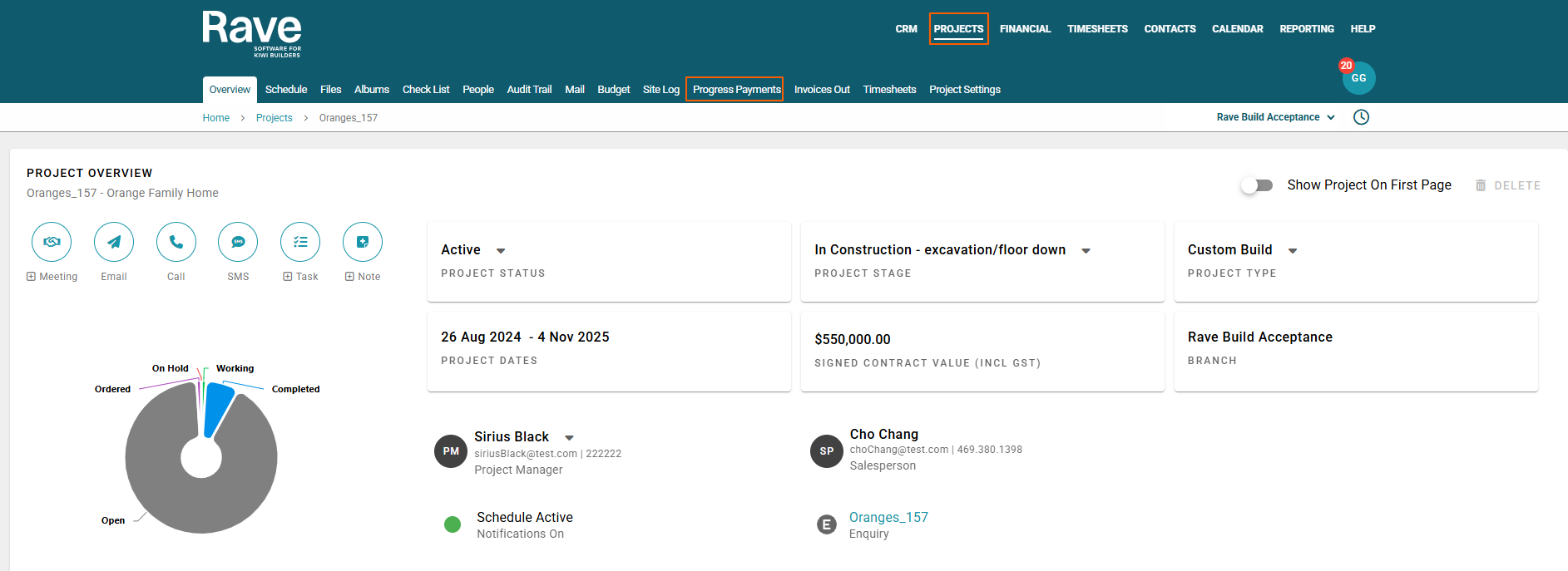
You can find the Progress Payment (Payment Schedule) tab inside your project, located between the Site Log and Invoices Out tabs.
Progress Payment Screen Overview
The Progress Payment screen reflects the structure of your contract agreement. It contains different sections where the invoiceable can be created and converted into invoices for client payment requests.
At the top of the screen, you will find:
Search Filter - An invoiceable search - allowing you to search for specific invoiceables
Invoiceable Summary Table - A quick summary of all invoiceables including:
- Progress Payment Total - Total value of invoiceables that are due to be invoiced (excludes pending variations and cancelled invoiceables).
- Invoiced Total - Total value of invoices already sent to the client.
- Balance - Total value of invoices left to Invoice the client
Payment Sections
Further down the page, invoiceables are grouped into Payment Sections.
Non-Contract Invoiceables that sit outside of your contract but are not variations.
Deposit:
Other:
Used to track fixed value invoiceables such as:
PC Sums
Prime Costs
Lump Sums
These items may have over or under charges.
Payment Schedule:
Variations:
- All approved & Pending variations associated with the project.
Declined Variations:
- All Declined Variations associated with the project
Invoiceable Line Items
Each invoiceable line contains several fields (for both basic and detailed invoiceables):
Description – Description of the invoiceable item
Status – Current payment status:
Invoiced
Partially Invoiced
Accepted
To be Invoiced
Unpaid
Partially Paid
Paid
Overpaid
Invoices – Invoice number(s) associated with the item
Date Invoiced – When the invoice was created
Total - Excluding Tax
Total – Total value including Tax
Invoiced to Date – Amount invoiced so far
Balance – Remaining amount yet to be invoiced
Each Payment Section also includes a bold summary line showing totals for that section.
Actions Available on Invoiceables
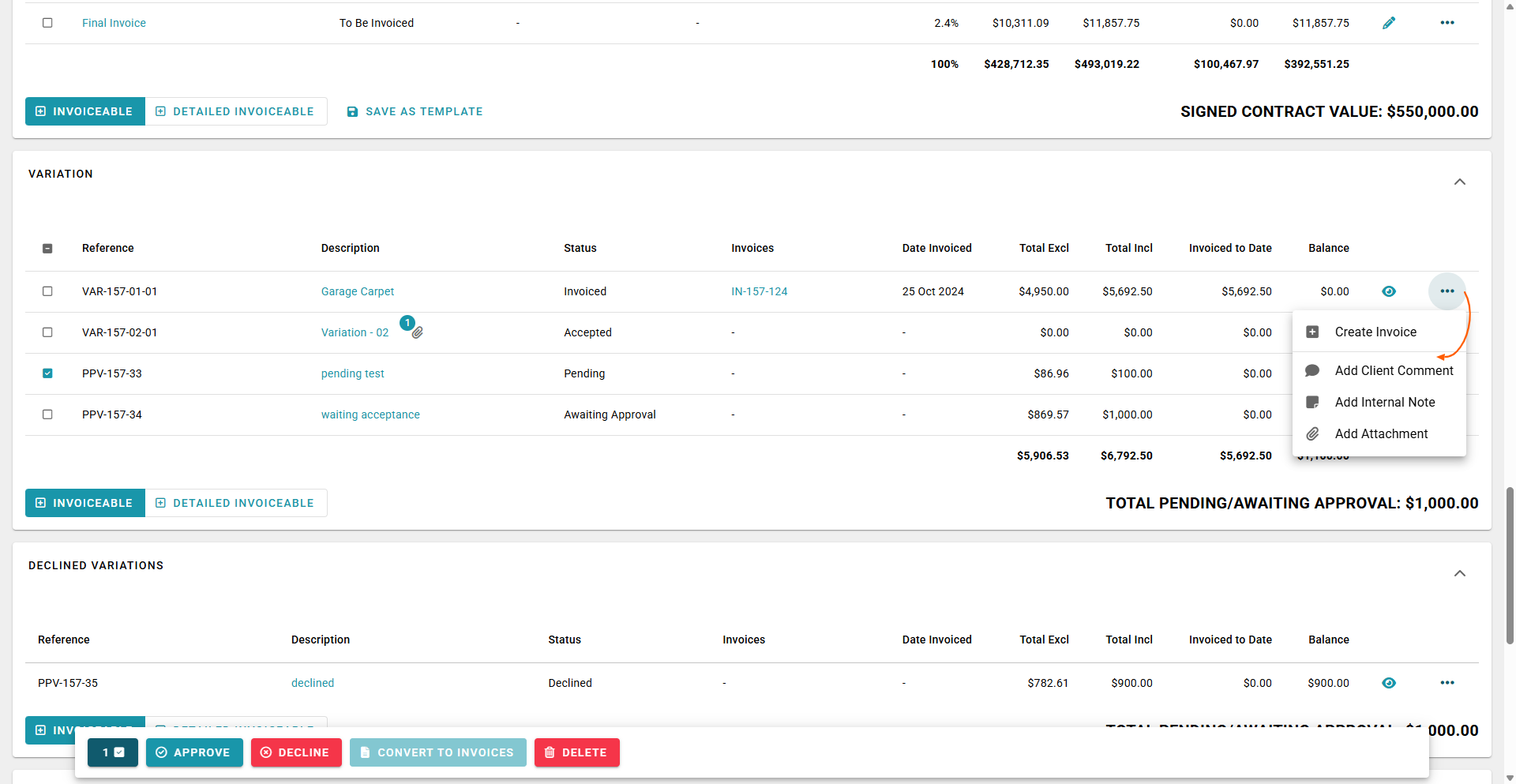
Each invoiceable item allows you to:
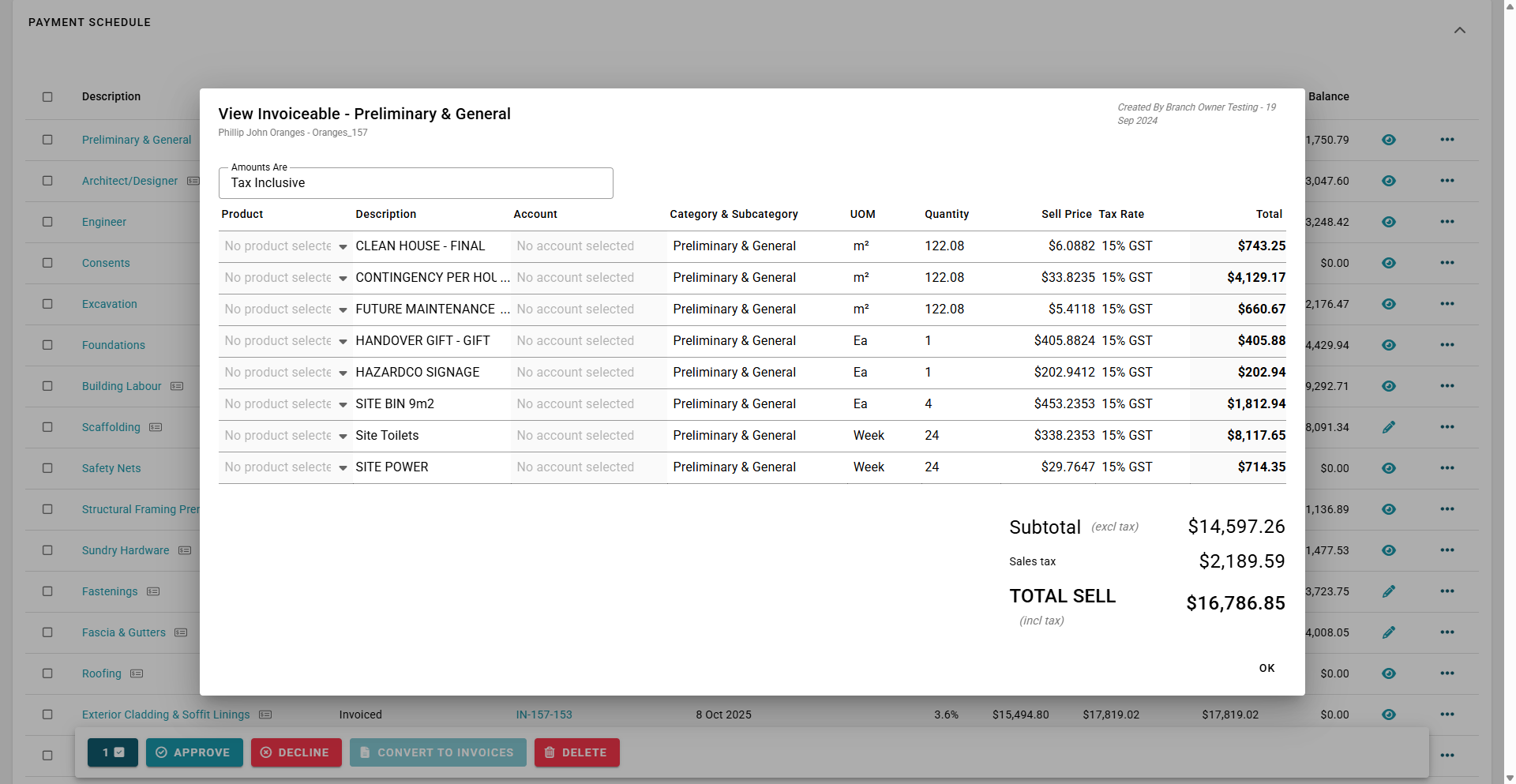
- View - The eyeball icon will show the detailed invoiceable line items
Create Invoice
Add a Client Comment (visible to branch users and clients if access is enabled) *
Add an Internal Note (visible to branch users only) *
Add an Attachment (visible to branch users and clients if access is enabled) *
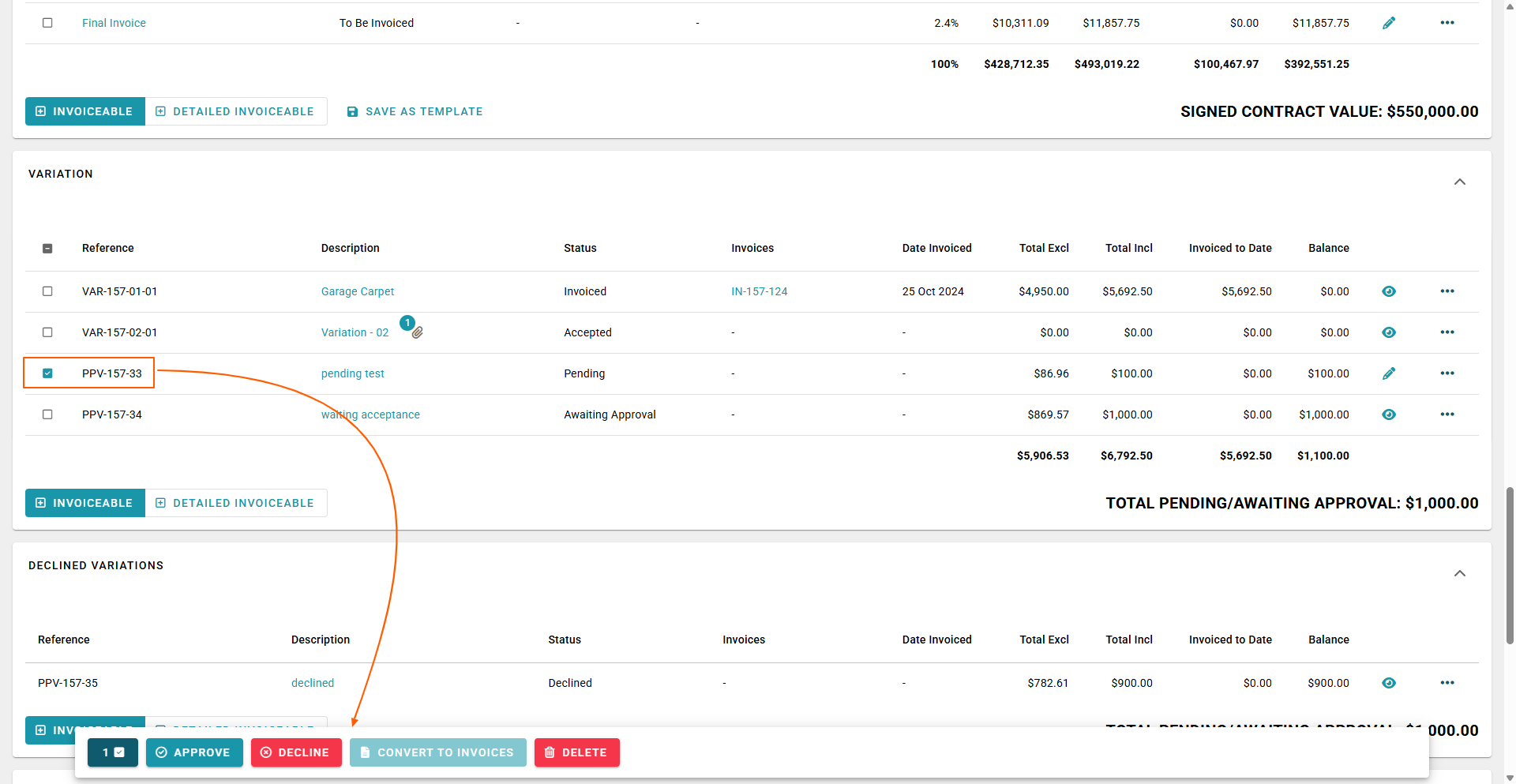
To Delete or manually Approve or Decline a variation line item - select the line by click on the box beside the Invoice Description or Variation Reference. A pop up will appear at the bottom of the screen to enable you to Approve or Decline or Delete
Variation Line Items
Each Variation line contains several fields (for both basic and detailed invoiceables):
Reference - Variation Reference
Description – Description of the variation item
Status – Current status:
Accepted
Pending
Awaiting Approval
Invoiced
Invoices – Invoice number(s) associated with the item
Date Invoiced – When the invoice was created
Total - Excluding Tax
Total – Total value including Tax
Invoiced to Date – Amount invoiced so far
Balance – Remaining amount yet to be invoiced
Eyeball Icon- To View the Details
Pencil Icon - to Edit the Details
Progress Payment Template and Detailed Invoiceables
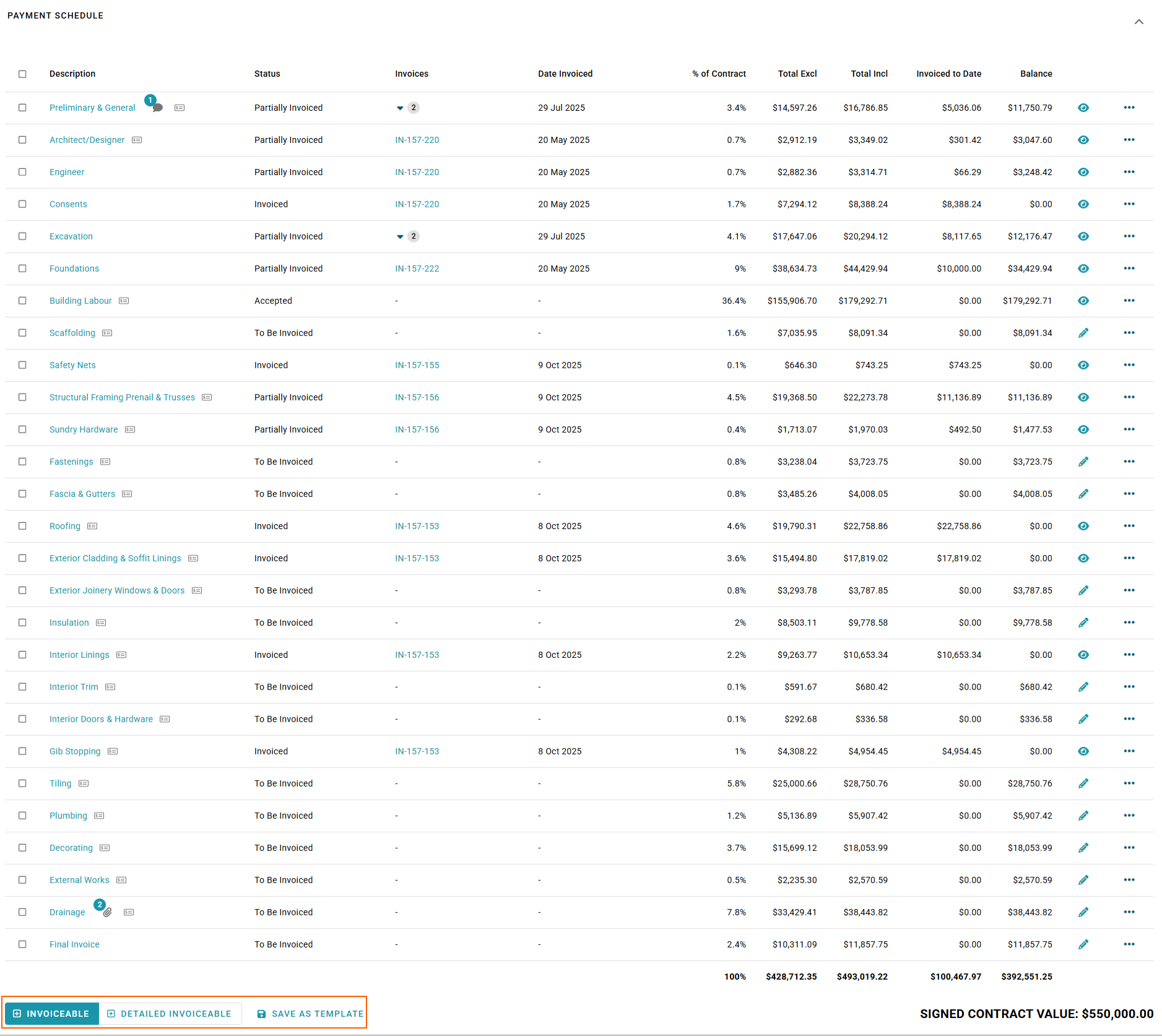
- To Template your Progress Payments, you can now do this easily by clicking on the save icon place beside the Invoiceable and Detailed Invoiceable icon at the bottom of the Progress Payments Field.
- To Bring in a Progress Payment Template and access our Financial Templates click on the link below to take you to our Article.
Rave Financial Templates
Permissions
Items marked with * have permission restrictions.
If you were not the original uploader, editing or deleting may require additional permissions.
The permission is located in:
- Manage Users → Manage Others Progress Payment Content
When enabled, this permission allows users to edit or delete:
This permission applies until the invoiceable has been invoiced.
Attachments and Email Notifications
For clients not connected to Xero, attachments will be sent directly to the account’s email address.
These attachments can then be used to create invoices within your external accounting system.
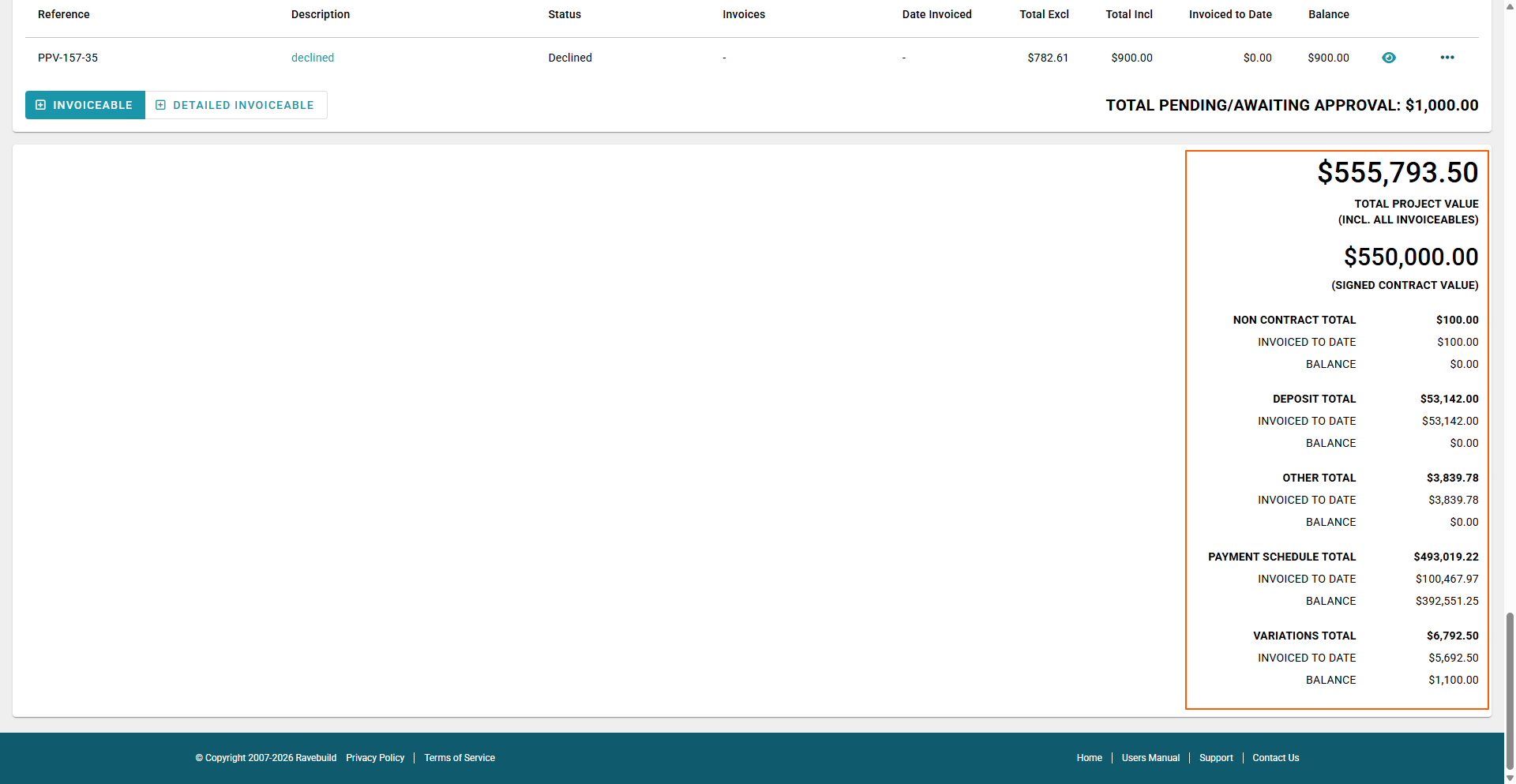
Project Pricing Summary
At the bottom right of the screen, a pricing summary displays key project values.
Total Project Value
The current total value of the project including:
Pending variations are excluded.
Signed Contract Value
The original contract value, including GST.
Payment Section Totals
A summary for each payment section showing:
Invoiced to Date
Total value of invoices already sent.
Balance - Outstanding balance of invoiceables