If a team member leaves your company, you will want to suspend their login to prevent any further access to your branch. For audit trail purposes, we do not delete branch users from RAVE. However, those with permission can suspend the exiting staff members account, and reassign their customers and/or outstanding tasks to another branch user.
To suspend a staff user:
Step 1
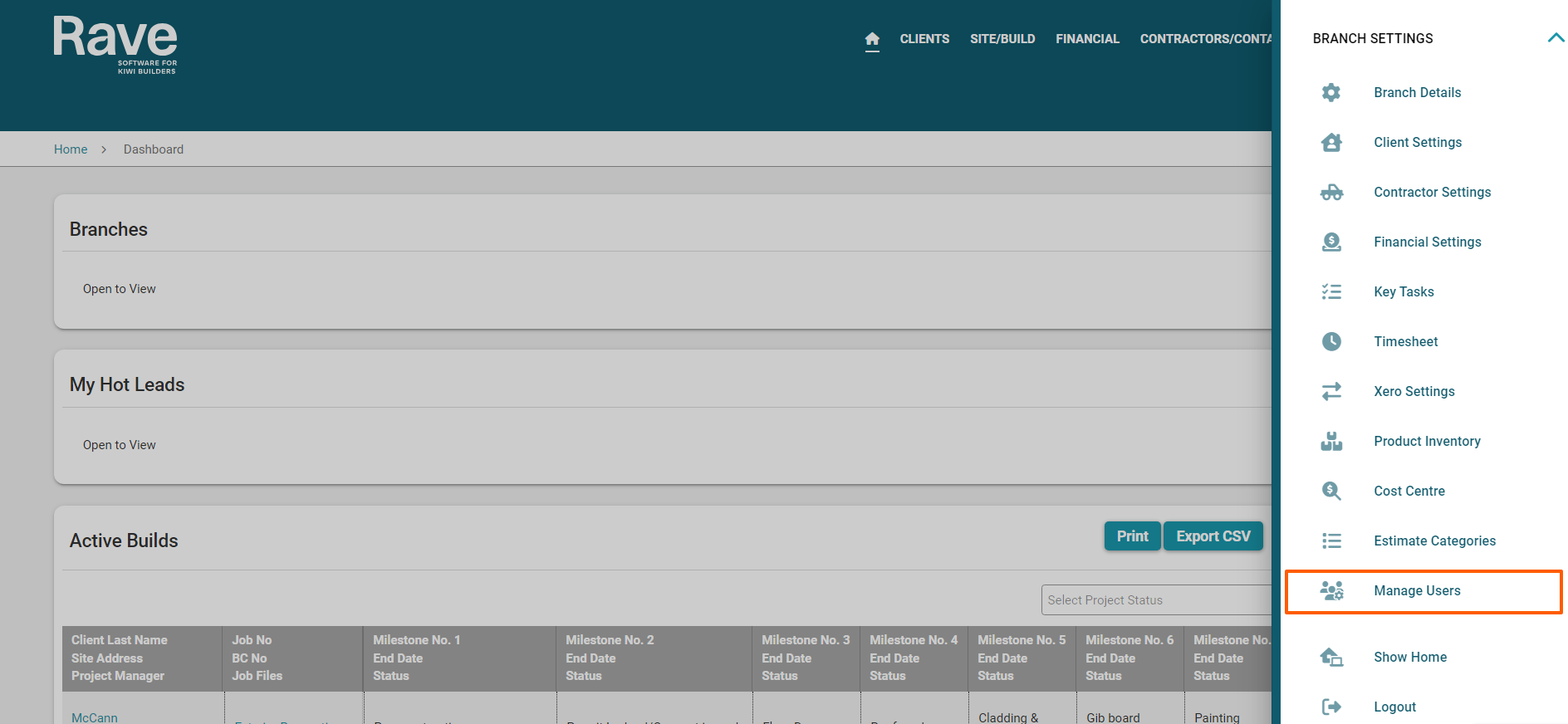
Head over to your profile dropdown to the top right of the screen and click on Branch Settings to expand out the options. Then click on Manage Users.
Step 2
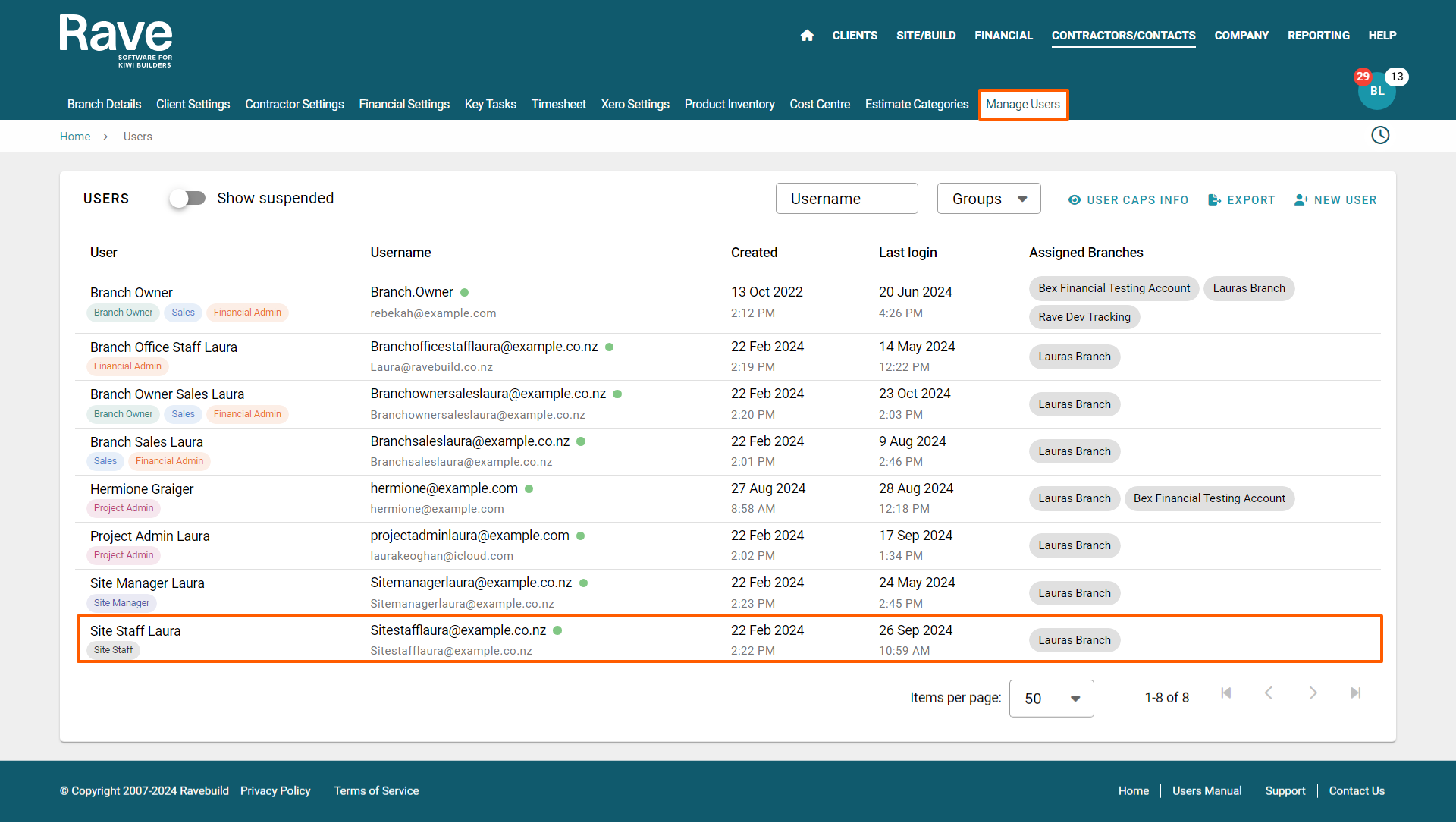
Click on the exiting users name to open their profile.
Step 3
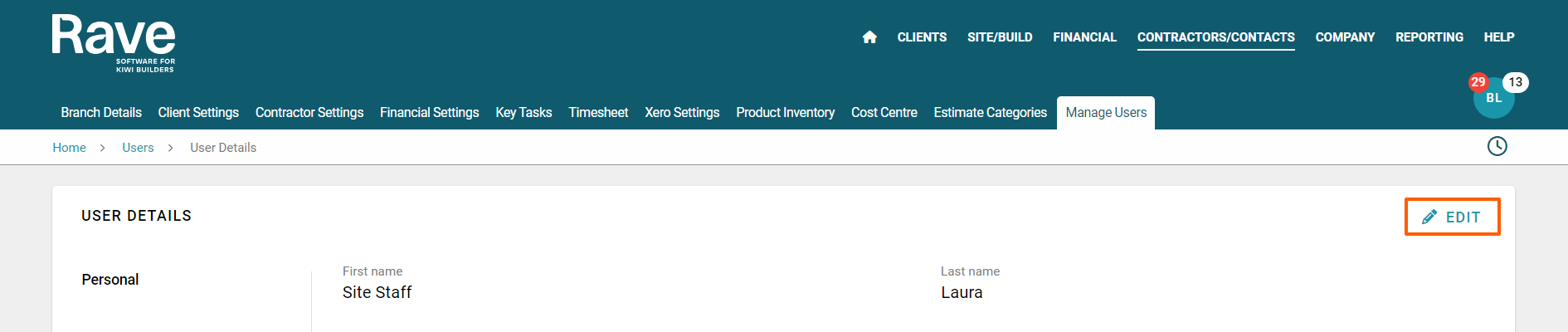
Click on the edit button in the top right corner.
Step 4
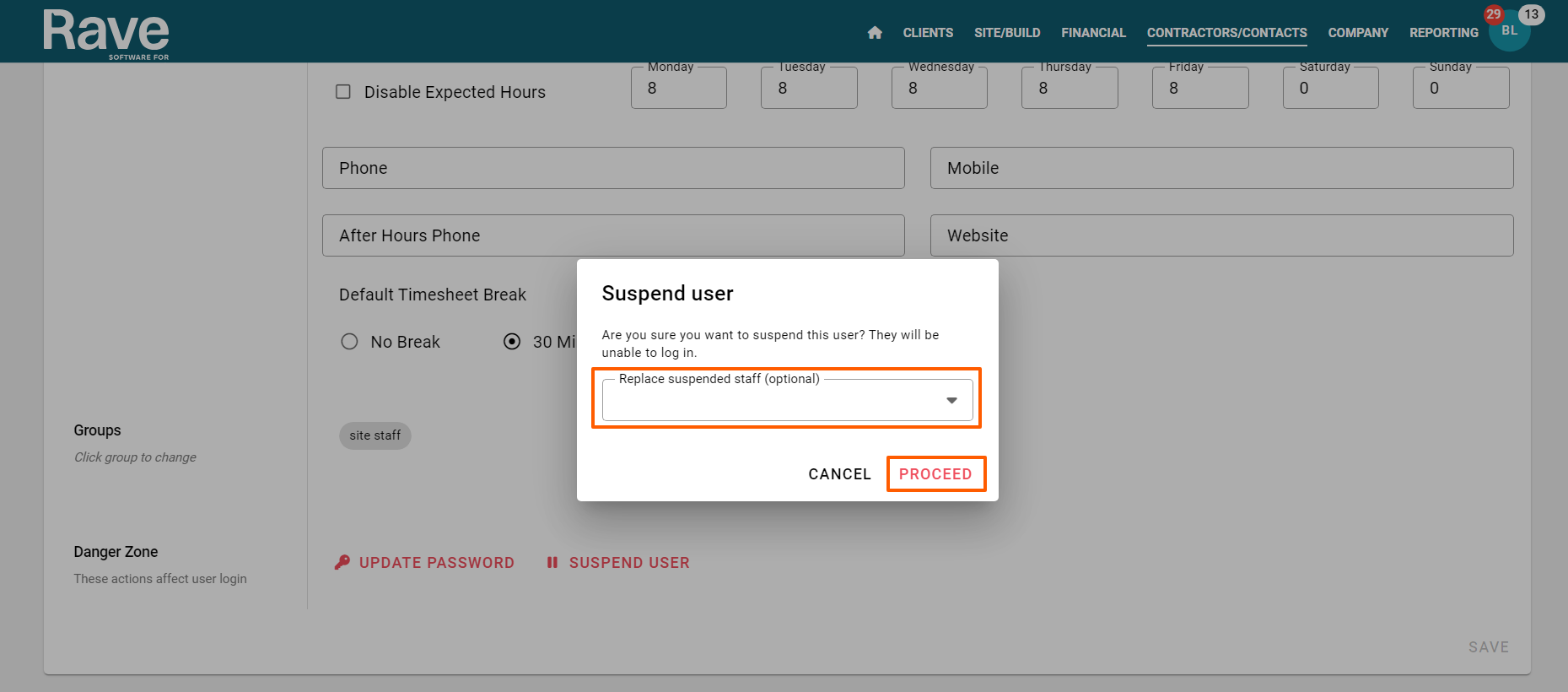
At the bottom of the screen, click on the Suspend User button. This will cause a 'Replacing suspended staff by' drop-down menu to appear - prompting you to choose another staff member to replace the one being suspended. All the customers who were previously managed by the suspended person's account and/or follow-ups etc will be reassigned to the staff member you select here.
Select the staff member to take on this work and click 'Proceed'.
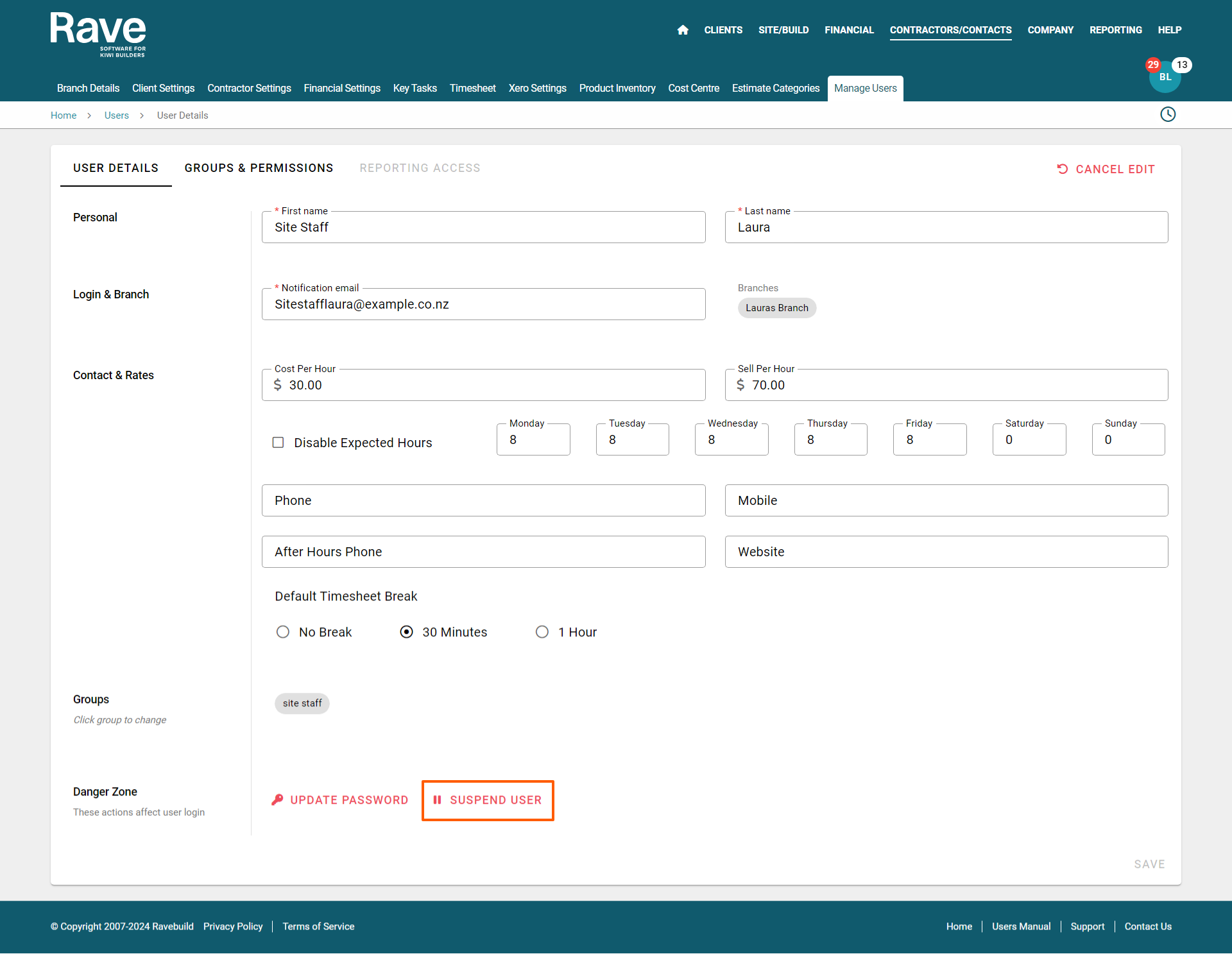
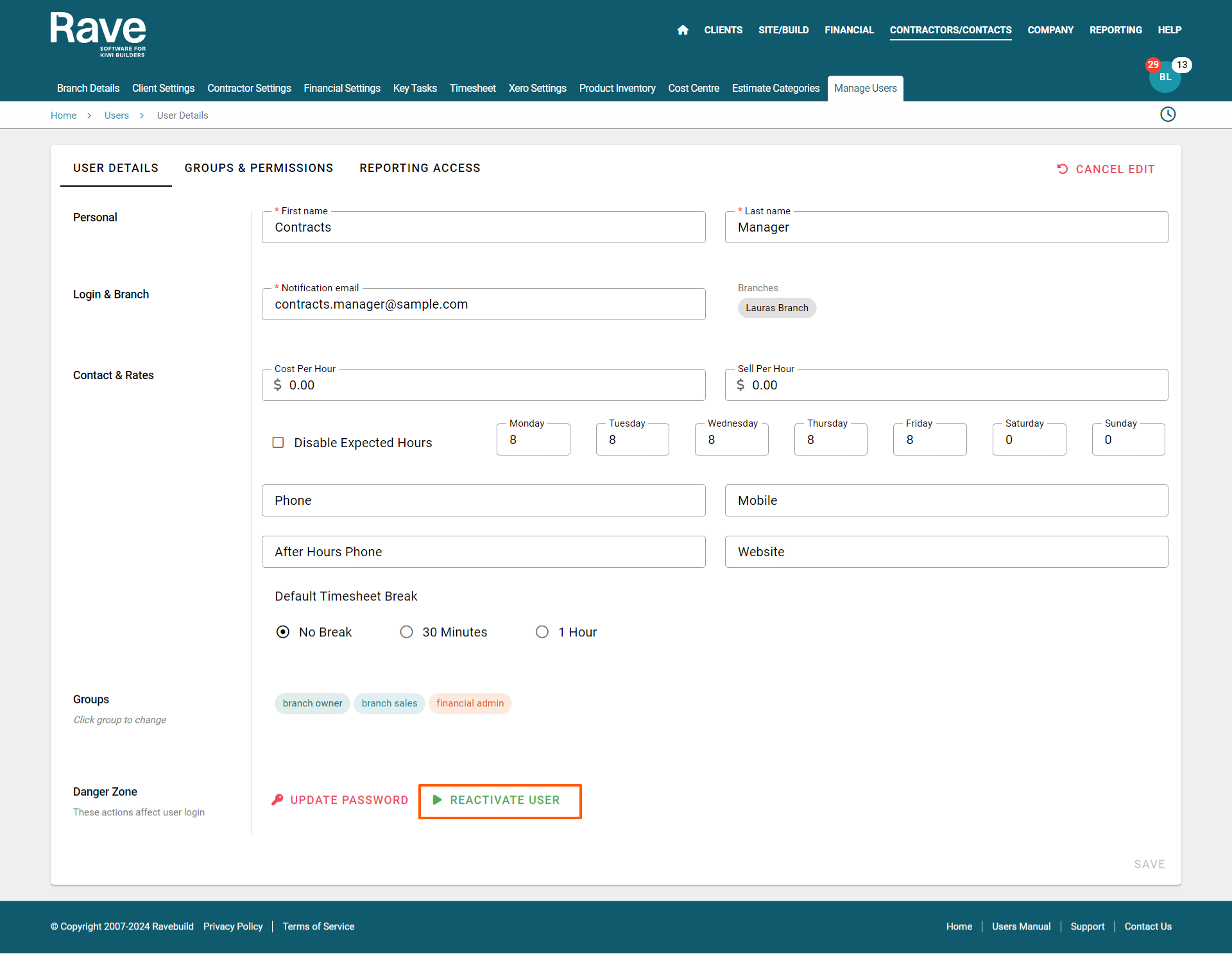
To make a user active again, follow the same process - except click on 'Reactivate User".
Was this article helpful?
That’s Great!
Thank you for your feedback
Sorry! We couldn't be helpful
Thank you for your feedback
Feedback sent
We appreciate your effort and will try to fix the article