The Project Timesheet Settings page allows you to configure a range of project-specific settings, including:
Override Branch Breaks for Billing – Control whether standard branch break rules apply when generating invoices for this project.
Include Breaks when Converting a Timesheet to a Bill - Control if time will be invoiced to clients with breaks or without breaks
Override User Profile Rates – Set project-specific cost and sell rates that override the default rates in individual user profiles.
Payroll Integration (Smartly Quick Codes) – If payroll integration is enabled, assign the appropriate Smartly Quick Codes to ensure accurate payroll processing.
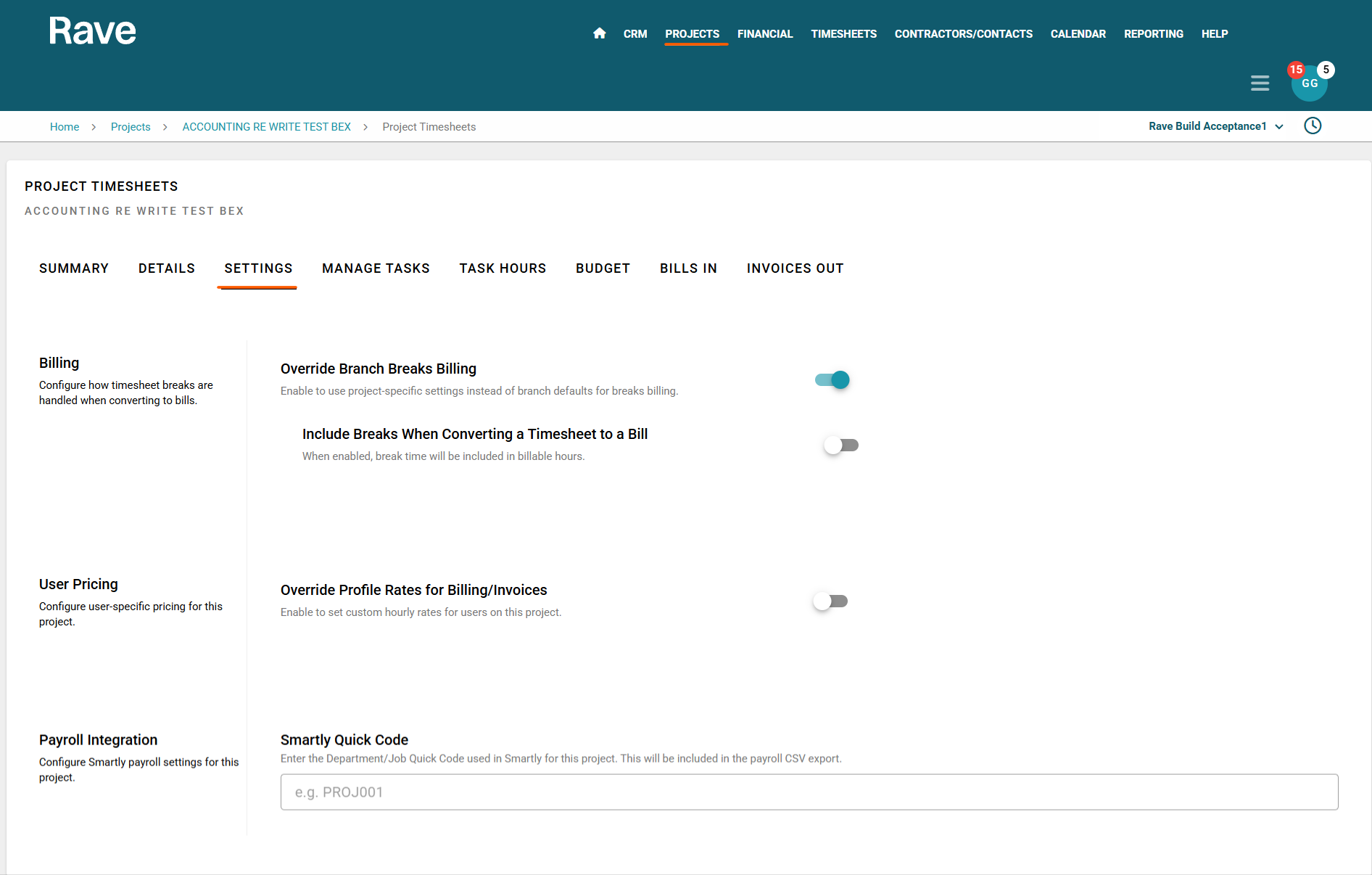
How to Include Breaks When Converting Timesheet Entries to a Bill
Step 1: Enable Project-Level Override
Slide the Override Branch Breaks Billing switch ON.
This will activate an additional setting:
“Include Breaks When Converting a Timesheet to a Bill”
Choose Whether to Include Breaks
Switch ON → Break time will be included in labour costs when converting timesheets to a bill for this project only.
Switch OFF → Break time will not be included in labour costs when converting timesheets to a bill for this project only.
Save Your Selection
Ensure your chosen settings are saved before exiting.
Here is the same content with the divider lines removed and formatting kept clean and professional:
How to Set a User’s Project-Specific Cost and Sell Price
You can override a team member’s default cost and sell rates at a project level. This allows you to apply job-specific pricing when converting timesheet entries to bills.
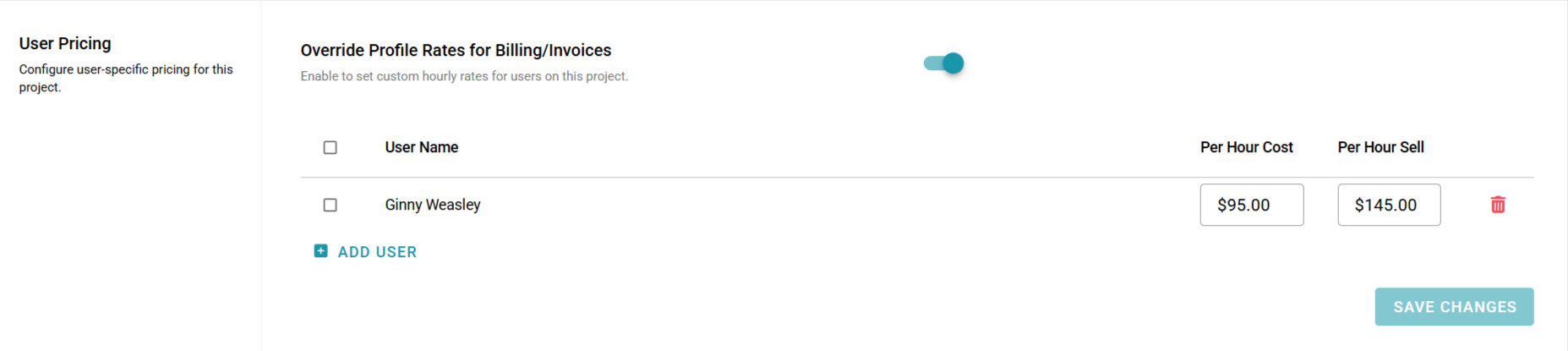
Scroll to Override Profile Rates for Billing/Invoices and slide this switch ON.
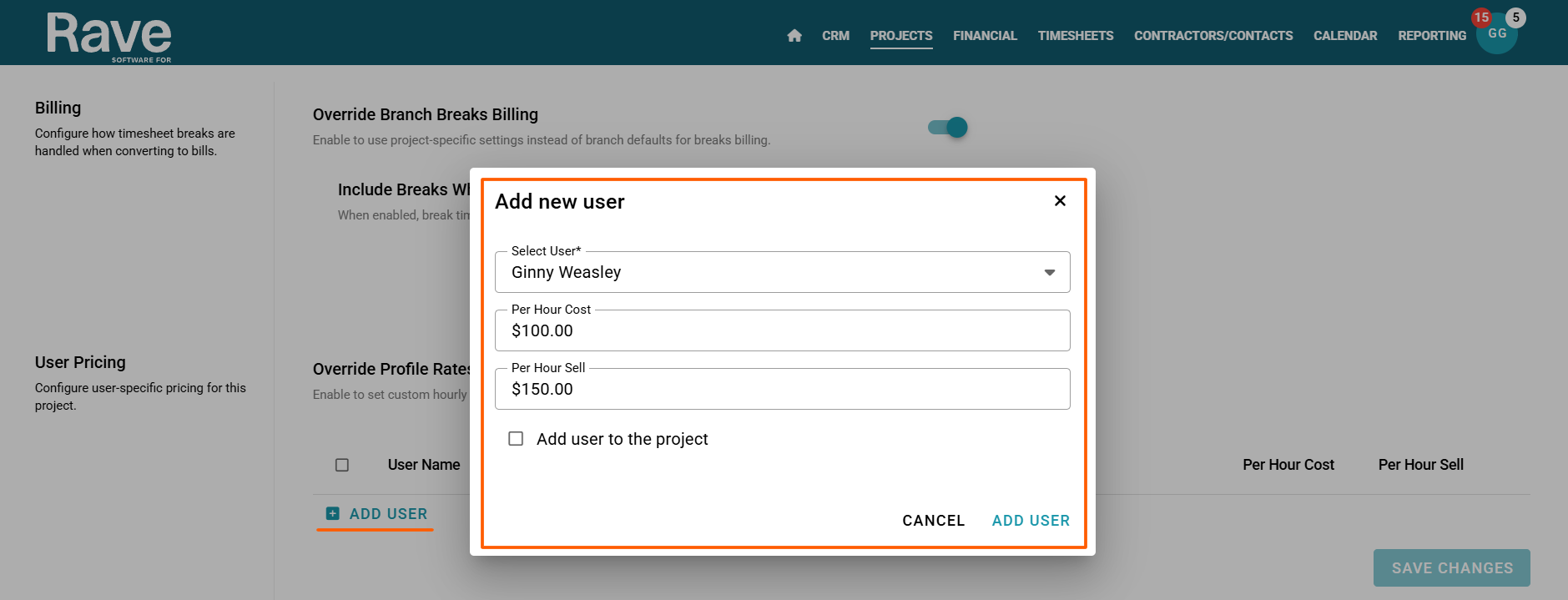
Click Add User and select the team member from the Add New User dropdown.
The system will automatically populate the user’s default cost and sell rates (from their profile).
You can now override these rates with project-specific cost and sell pricing.
Click Add User again to confirm.
Important Notes
User Visibility - Any team member with:
Timesheet visibility, and
View All Projects permission
will appear in this list — even if they are not added to the Project’s People tab.
If a user has View Allocated Projects Only permission and is not already added under the Project’s People sub-tab, you must add them there first for them to appear in this dropdown.
GST Treatment
Cost and sell rates entered here exclude GST, as they represent a labour component (PAYE applies at this stage).
Adding Users to the Project
There is an “Add user to the project” checkbox available when adding a user.
This will add the user to the project’s People tab automatically.
This feature only works for:
Timesheet Users
Site Staff
Site Managers
Users with View All Projects permission
To add any other user types (or anyone not appearing in the dropdown), you must add them via the Project’s People sub-tab as usual.
Save Your Changes
Repeat the steps above for each team member requiring project-specific rates.
Once finished, click Save Changes.
You can now generate bills from timesheet entries using these overridden, project-specific cost and sell rates.
Payroll Intergration - Smartly
Those clients who have selected Smartly as their Payroll system have the option to connect timesheet entries to Smartly Department/Job Feature. You need to enter your Quick Code for each project in the Smartly Quick Code box on this settings page

To learn more about Timesheets Advanced or how to set up your Labour Budget, click here to view our Overview article.
Are you ready to use Rave's Advanced Timesheets?
If you would like to add the Advanced Timesheets module to your Rave set-up, please contact us via help@ravebuild.co.nz
Was this article helpful?
That’s Great!
Thank you for your feedback
Sorry! We couldn't be helpful
Thank you for your feedback
Feedback sent
We appreciate your effort and will try to fix the article