The following is a full training video for Rave Checklists - for step-by-step written instructions, please refer to the help article links and guide added below.
To Access the article on Adding/Editing Checklists and Todo's, click here.
To Access the article on Checklist Permissions, click here.
To Access the article on Checklist Notifications, click here.
To Access the article on Branch Settings Checklist Status Groups, click here.
To Access the article on the Checklist Template menu, including CSV import, click here.
To Access checklists, first open the project you wish to add a Checklist to, then from the main tab click Checklists.
Saving Checklists as Templates
Once you have created and updated your Checklists, you can save them as Templates to use on future projects.
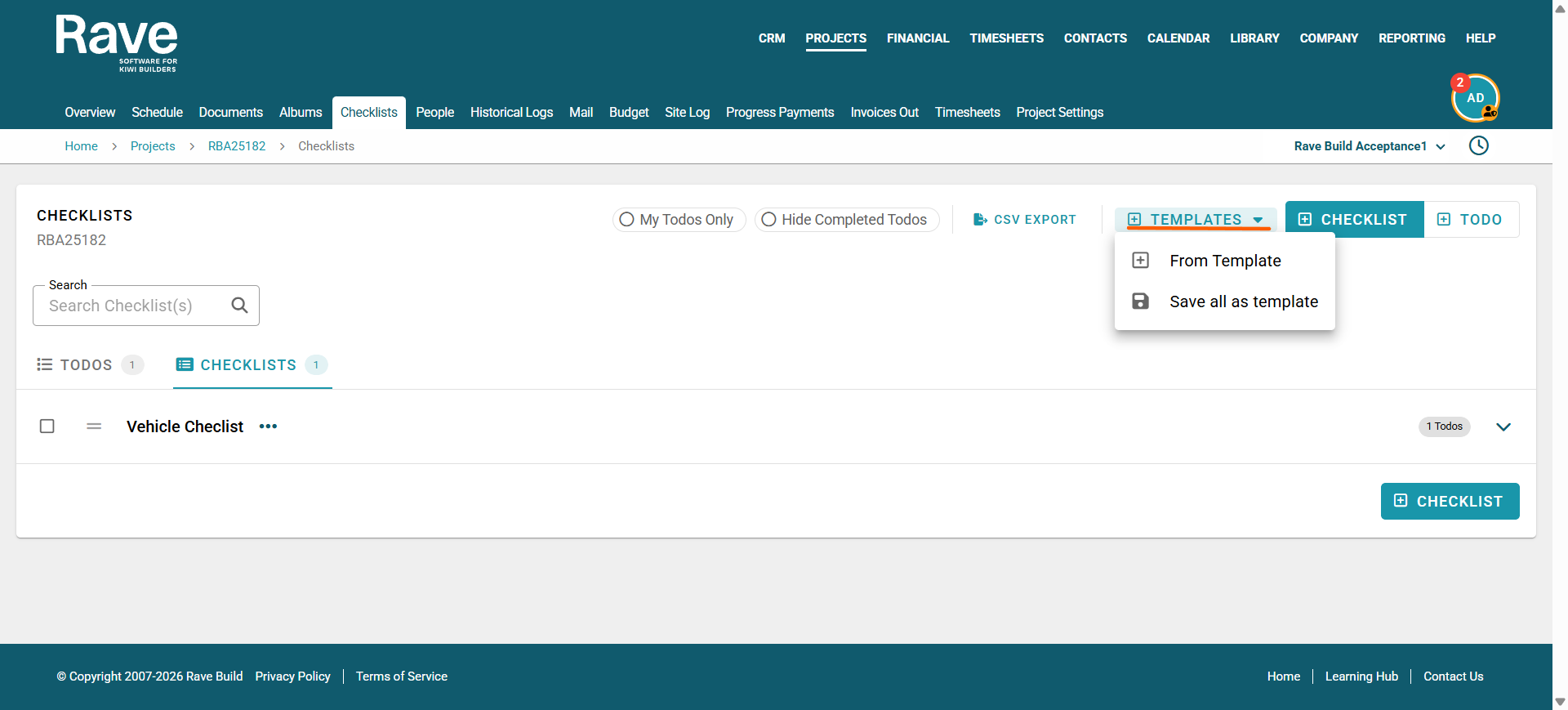
You can save either:
A single Checklist as a Template
Multiple Checklists on the project as a Master Checklist Template
You can then choose to save as a new template or add to an existing template.
Save a Single Checklist as a Template
To save an individual Checklist as a Template:
Click the three dots beside the Checklist title.
Click Save As A Template.
Choose to create a new checklist.
Enter a name for the Checklist Template.
Click Create Template.
Alternatively, select Add to an existing template
Press Create template.
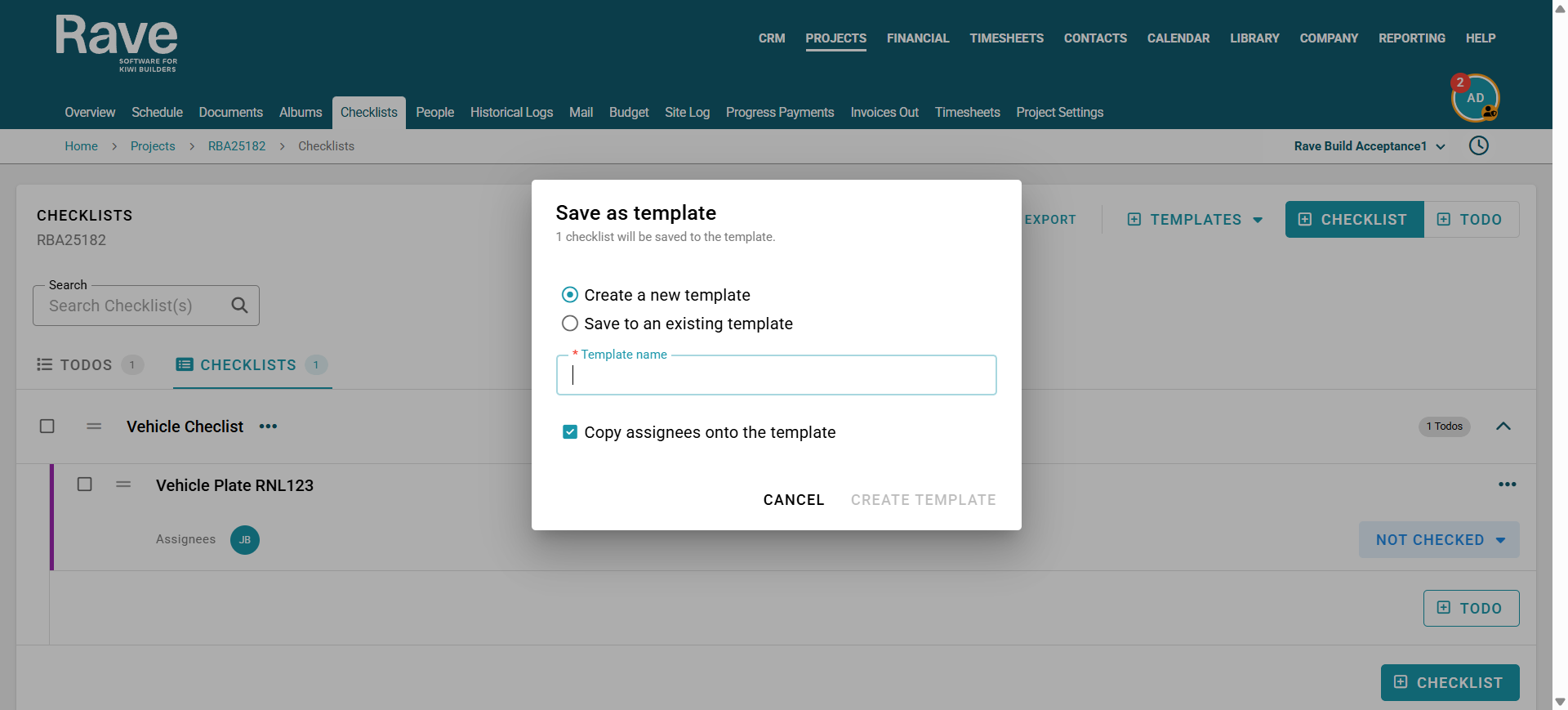
The Checklist Template will now be saved in your Custom Templates menu and can be loaded into future projects as needed.
Save multiple checklists as a New Template or Master Template
You can also save multiple checklists as a new template/master checklist template.
To save a Master Checklist Template:
1. Multi-select the checklists you wish to save using the bulk select checkboxes
2. On the pop-up bar, select Save as Template
3. Choose to create a new checklist
4. Enter a name for the Checklist Template.
5. Click Create Template.
6. Alternatively, select Add to an existing template
7. Press Create template
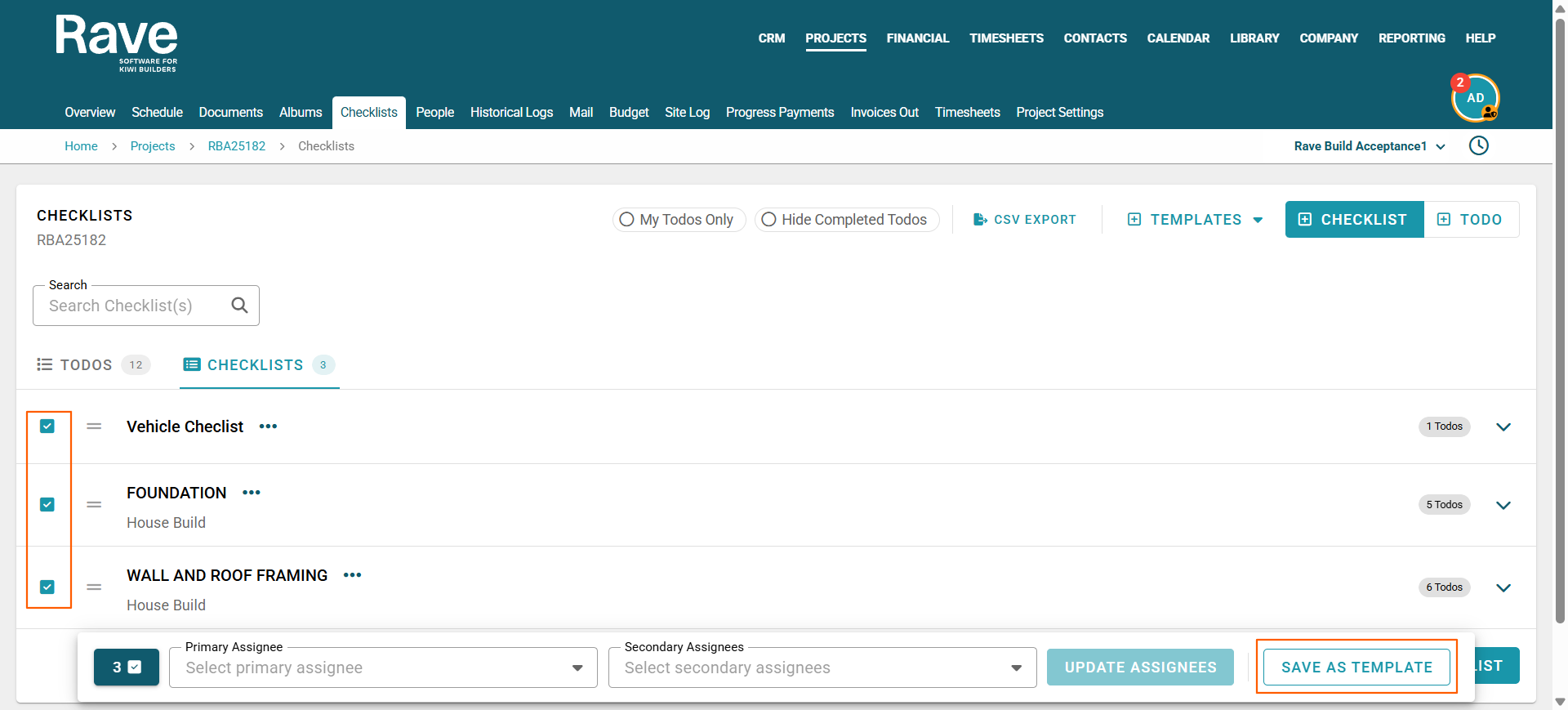
The Checklist Template will now be saved in your Custom Templates menu and can be loaded into future projects as needed.
Was this article helpful?
That’s Great!
Thank you for your feedback
Sorry! We couldn't be helpful
Thank you for your feedback
Feedback sent
We appreciate your effort and will try to fix the article