The following is a full training video for Rave Checklists - for step-by-step written instructions, please refer to the help article links and guide added below.
To Access the Article on Adding/Editing Checklists and Todo's, click here.
To Access the Article on Checklist Permissions, click here.
To Access the Article on Checklist Notifications, click here.
To Access the Article on Branch Settings Checklist Status Groups, click here.
To Access the Article on saving to a template and loading from a template, click here.
To Access the Article on the Checklist Template menu, including CSV import, click here.
Using Rave Checklists for Vehicle Monthly Checks (not restricted to Vehicles; could be trailers, safety leads, electrical equipment, Electrical Equipment etc)
Rave’s Checklists feature makes it easy to manage regular vehicle checks, ensuring compliance, safety, and smooth day-to-day operations. You can create a Monthly Vehicle Checklist to track WOFs, RUCs, Servicing, Tyres, Cleanliness, and more.
Why use Rave Checklists for vehicles?
Keeps all vehicle compliance records in one place.
Ensures nothing is missed during monthly checks.
Provides a clear history of completed checks and upcoming requirements.
Makes it easy to assign responsibility and follow-up actions.
Setting up a Vehicle Monthly Checklist
Create a new Organisation called Vehicle Checklist and create a Project (or use an already created internal project - if you have one)
Go to Checklists
In Rave, navigate to the Checklists section from your main menu.
Create a new checklist
Click + Checklist.
Name your checklist, e.g. “Monthly Vehicle Check – [Vehicle Registration and Make and Model]”.
Add checklist items
Include the following standard items (you can add more to suit your fleet):WOF expiry – Confirm expiry date and book renewal if due.
RUCs balance – Check remaining kms and top up if required.
Servicing – Check last service date, kms, and upcoming schedule.
Tyres – Inspect tread depth and pressure.
Cleanliness – Check interior and exterior cleanliness.
General condition – Note any damage, repairs needed, or unusual noises.
Safety equipment – Confirm first aid kit, fire extinguisher, and spare tyre are in place.
Assign checklist
Select who you want to view the checklist to the person responsible for the vehicle (e.g. site manager, foreman, or office admin).
Once created you can save as a template.
Once you have the template created you can load it as many times as you want. For example: if you have 4 utes and 2 trailers, you would load the template 6 times then edit each checklist with Make, Model, Year and Rego, then Assign the person in your company to their vehicle/trailer to ensure you cover each vehicle and person responsible.
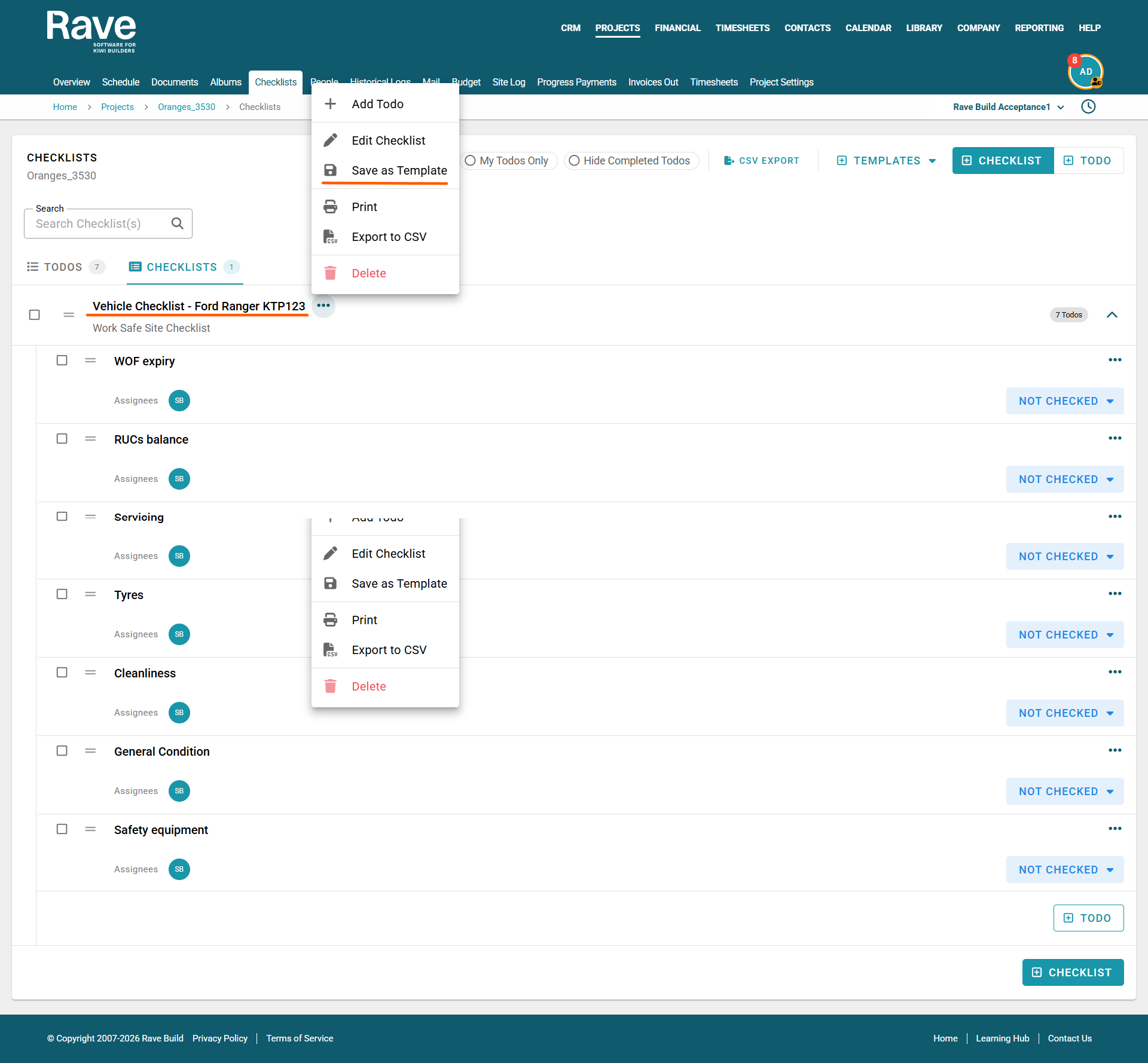
Comments and Attachments
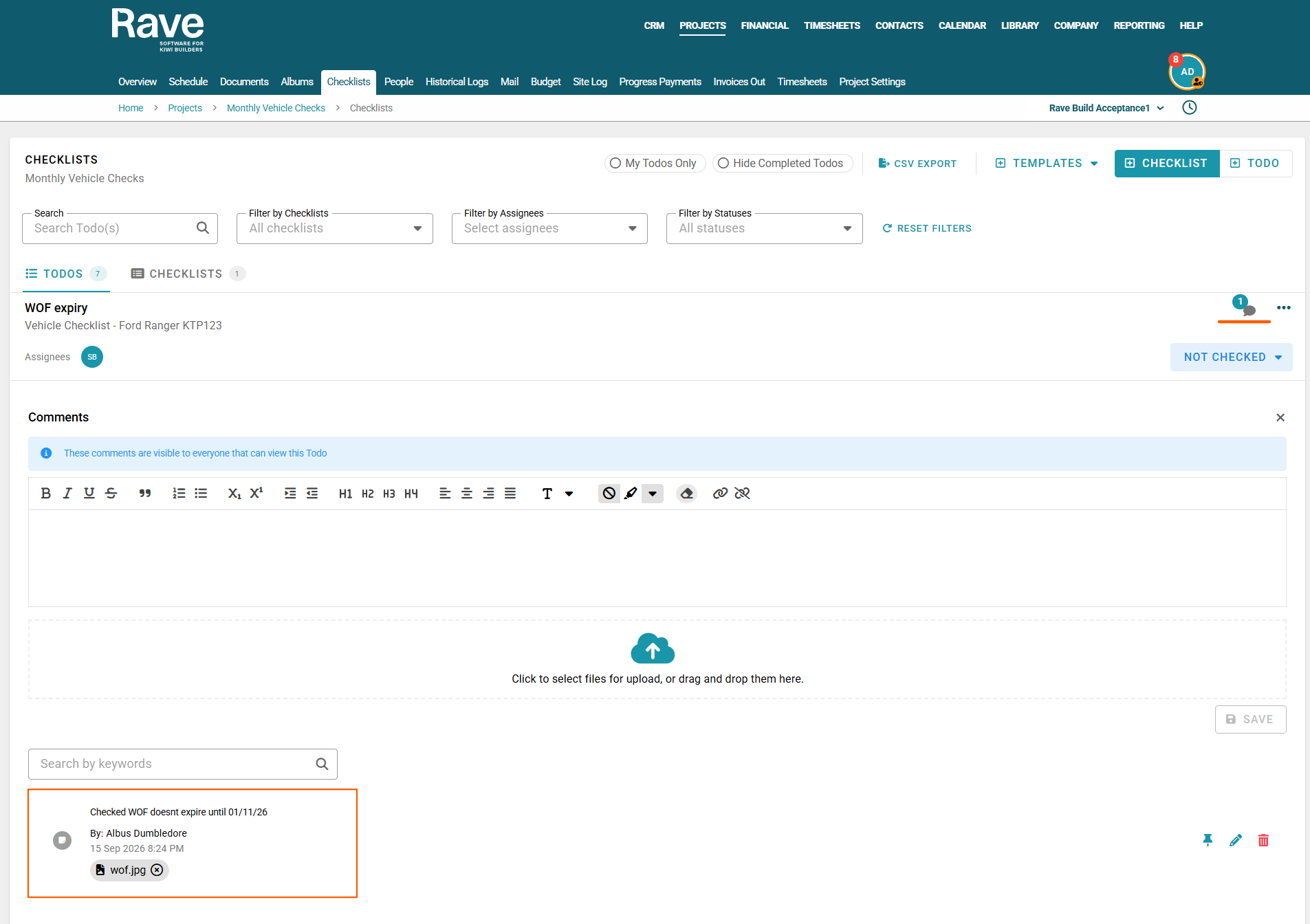
Once you have added comments and/or attachments to your todos, you can click on the bubble beside the three-dot ellipsis to view.
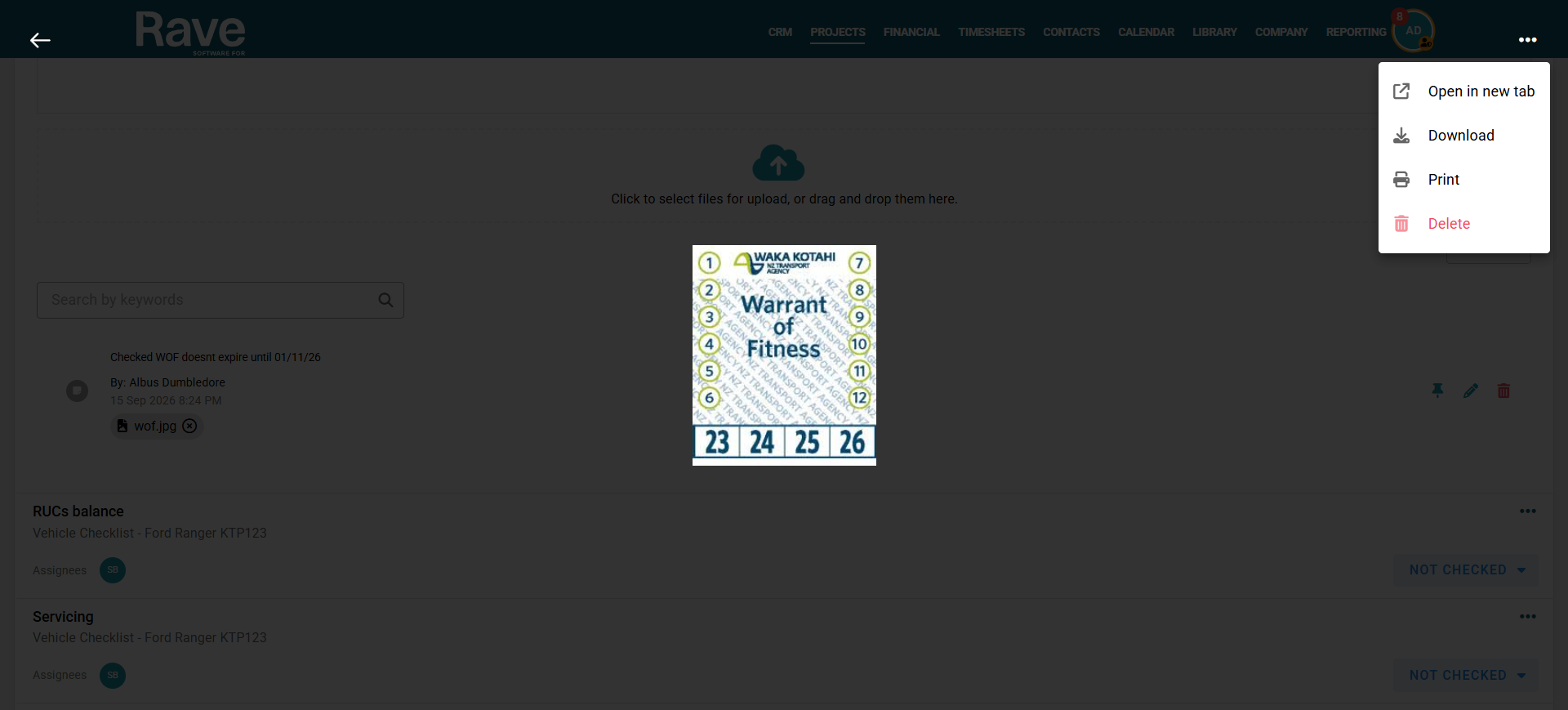
Clicking an attachment lets you preview it. You can then open it in a new tab, download it to your device, print it, or, with permission, delete it.
Bulk Action Bar
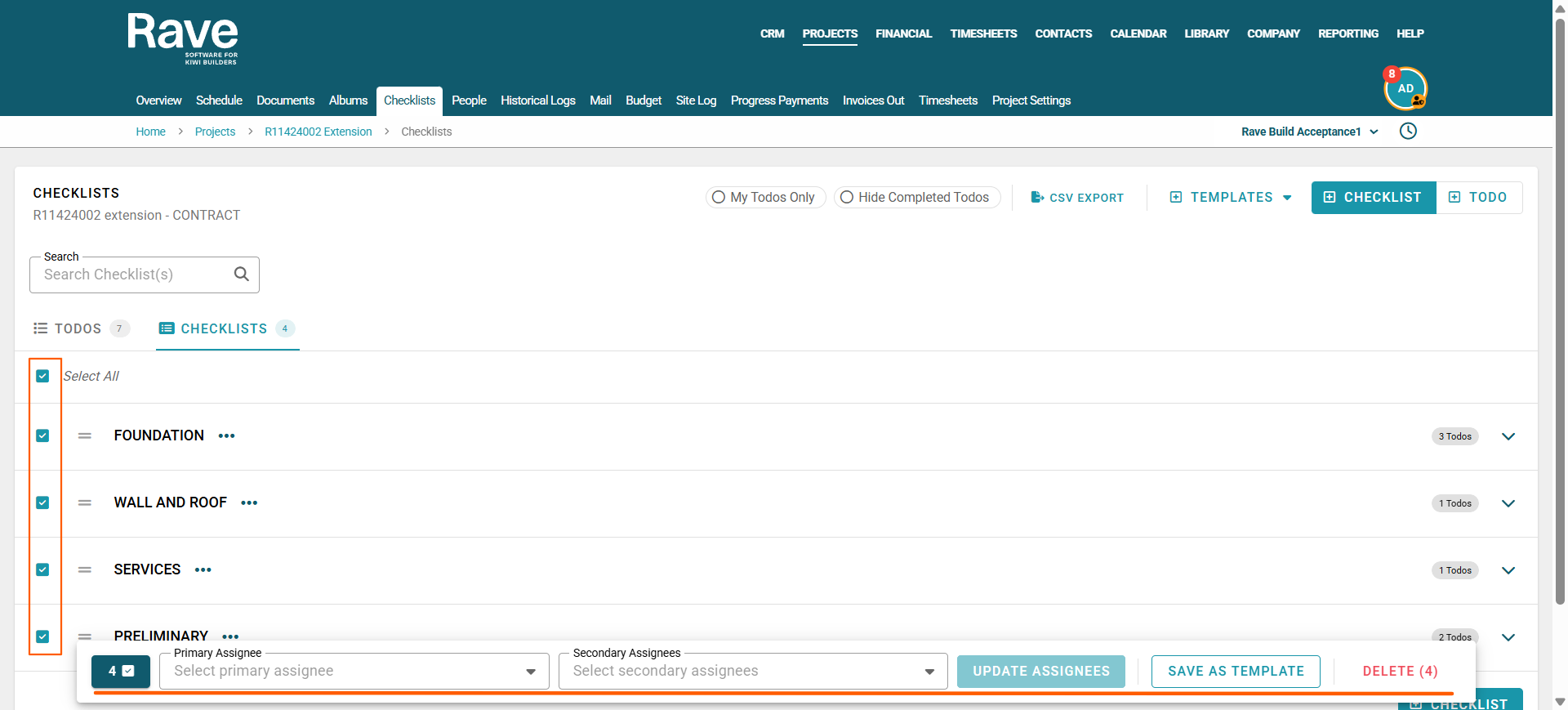
The bulk action bar allows you to multi-select checklists to update primary and secondary assignees on all todos within those checklists, save as a template, as well as bulk delete.
Print a Checklist
Click the three dots beside the Checklist title.
Select your print options
Click Print.
This will convert the checklist to a PDF for you to then print or download.
Then file the checklist in the Document Folder called Vehicle Checklist Jan2026 - Dec2026
Once printed and Filed - clear the checklists ready for next month.
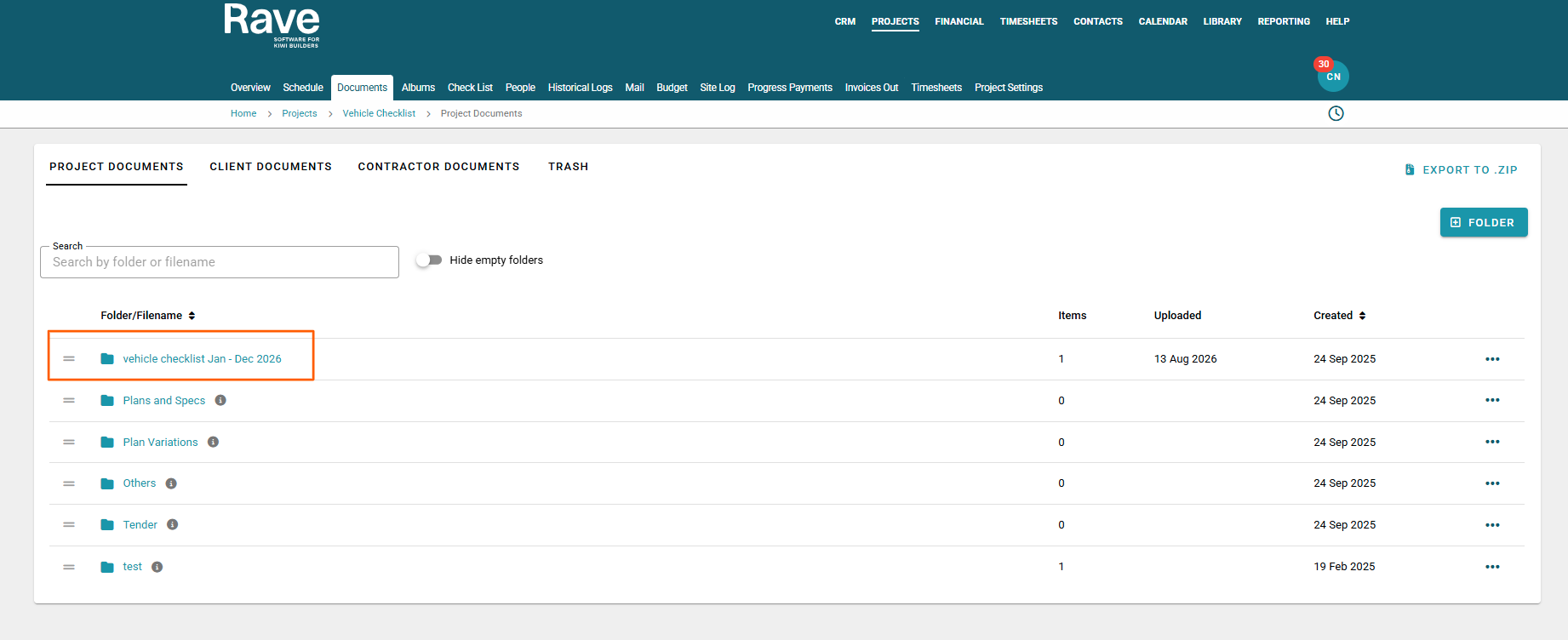
When you are completing the checklist each month (or whenever you need to do them)
attach the comments and images to the todo for each item. You can then choose to mark the items off as Checked.
A good process is to have in place that the checks are done first Monday of every Month and the person responsible for printing off and filing the checklists does this the first Tuesday of every Month to ensure WOF' RUC's etc are always kept up to date.
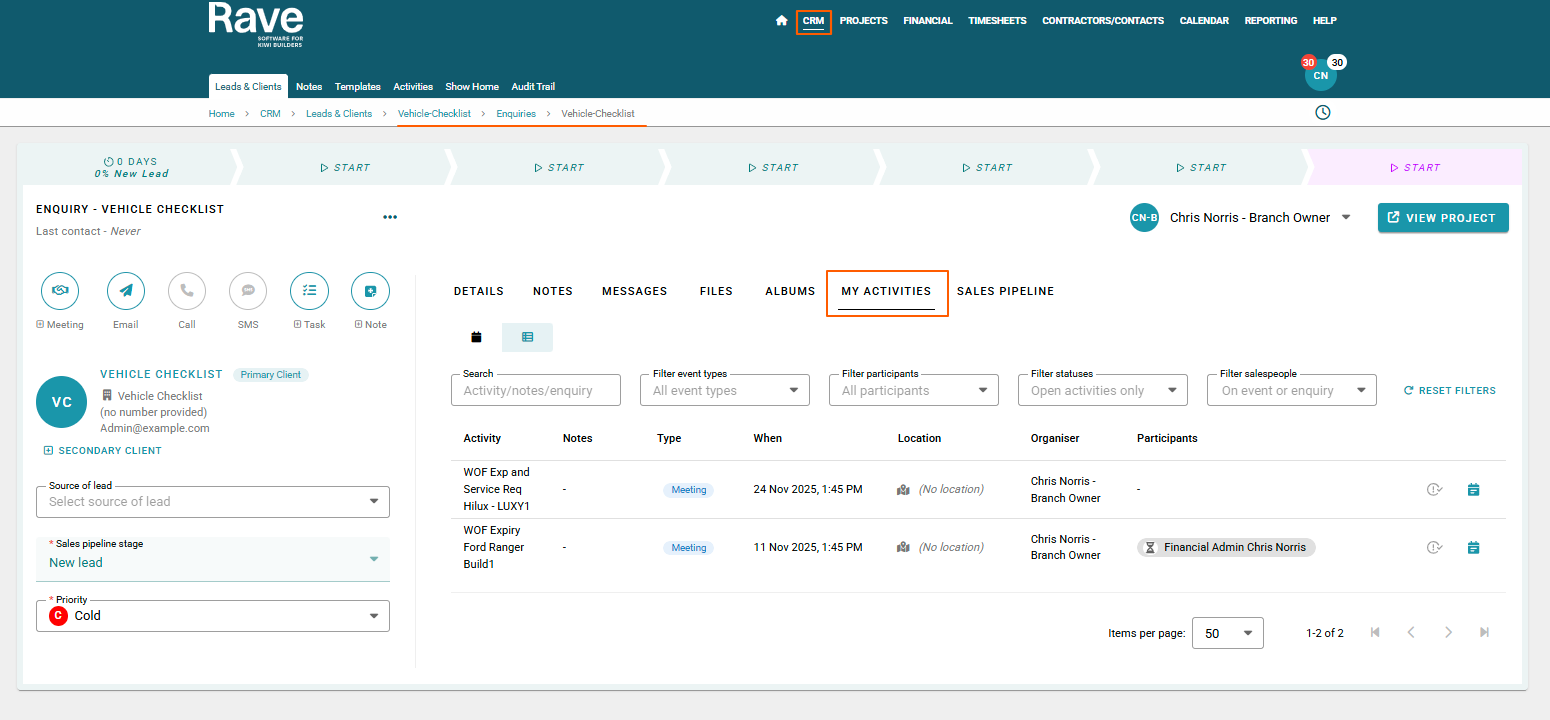
Create under the CRM- Enquiry Activities the WOF and Servicing dates for each vehicle so you can track these easily so you can Set and Forget and set up the Re-occuring Activity to remind users of their Monday Checks.
Was this article helpful?
That’s Great!
Thank you for your feedback
Sorry! We couldn't be helpful
Thank you for your feedback
Feedback sent
We appreciate your effort and will try to fix the article