Please note this is a permission-based feature - if you do not have access to this, please contact your Rave system administrator or reach out to Rave customer support.
In day-to-day processing, Invoices may occasionally be created without being linked to the correct Bill, Quote, or Purchase Order (PO). When Invoices are left unlinked, it can affect the accuracy of back-costing reporting and overall project visibility.
This feature provides the ability to:
- Back-link existing Invoices to Bills, Quotes and Purchase Orders or Progress Payments
- Edit the original source document when required
Common Use Cases
1. Invoice Created Without a Document Linked
A client invoice may be created from scratch without selecting the appropriate bills.
Using this feature, the invoice can later be linked to the correct documents on a line-item basis.
2. Invoice Linked to the Wrong Document
A Client Invoice has been associated with an incorrect bill, quote, Purchase Order or Progress Payment Line; administrators can update the linkage to ensure costs are allocated to the correct document.
3. Changes Required to the Source Document
In some situations, the Bill, Quote or Purchase Order itself may need to be adjusted where the quantities on the invoice have been entered incorrectly. This feature also allows editing of the source document where necessary.
How to Link a Quote to a Bill, Quote or Purchase Order where the Invoice has been loaded manually
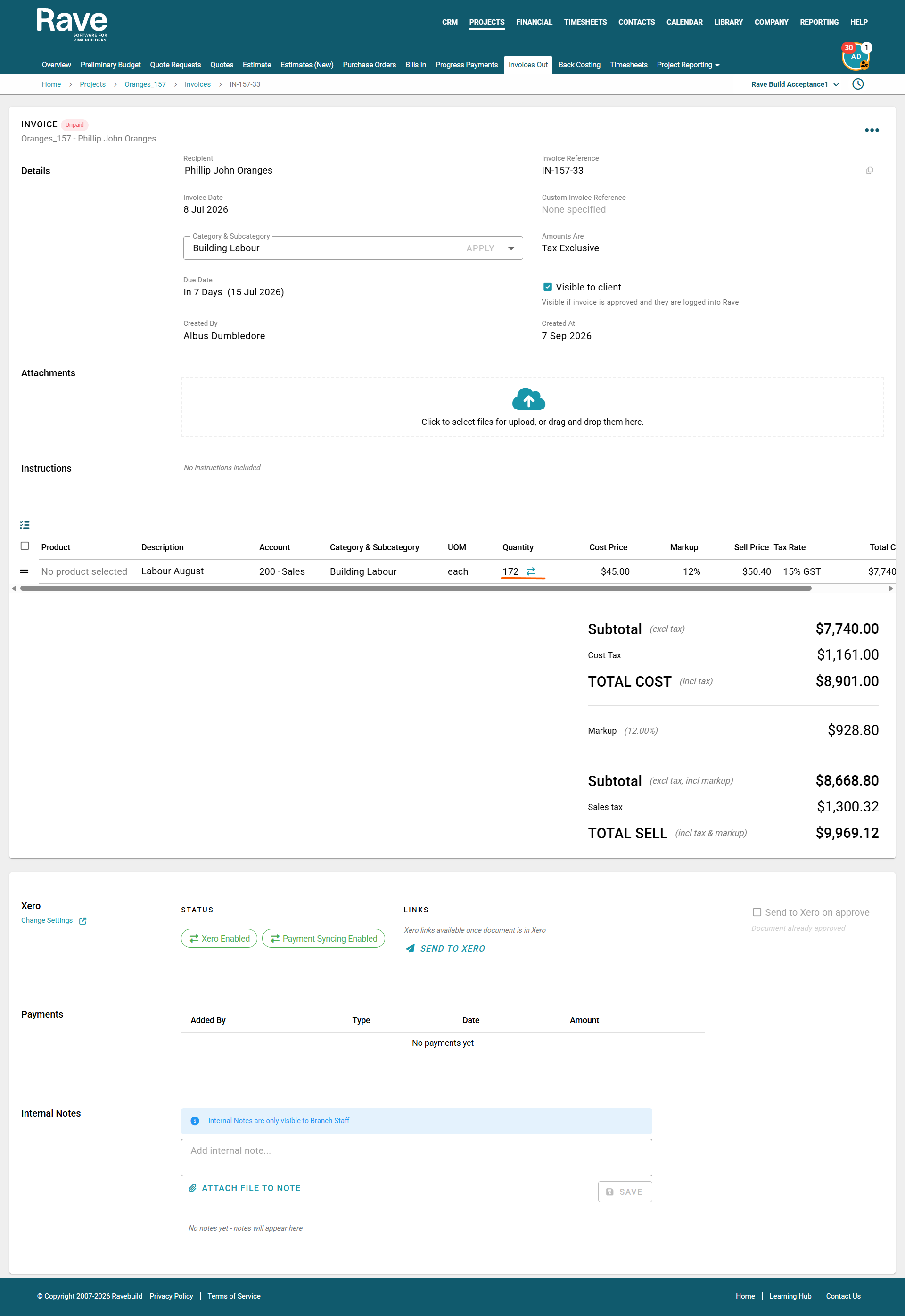
- Click on the Invoice and find the arrow icon beside the qty
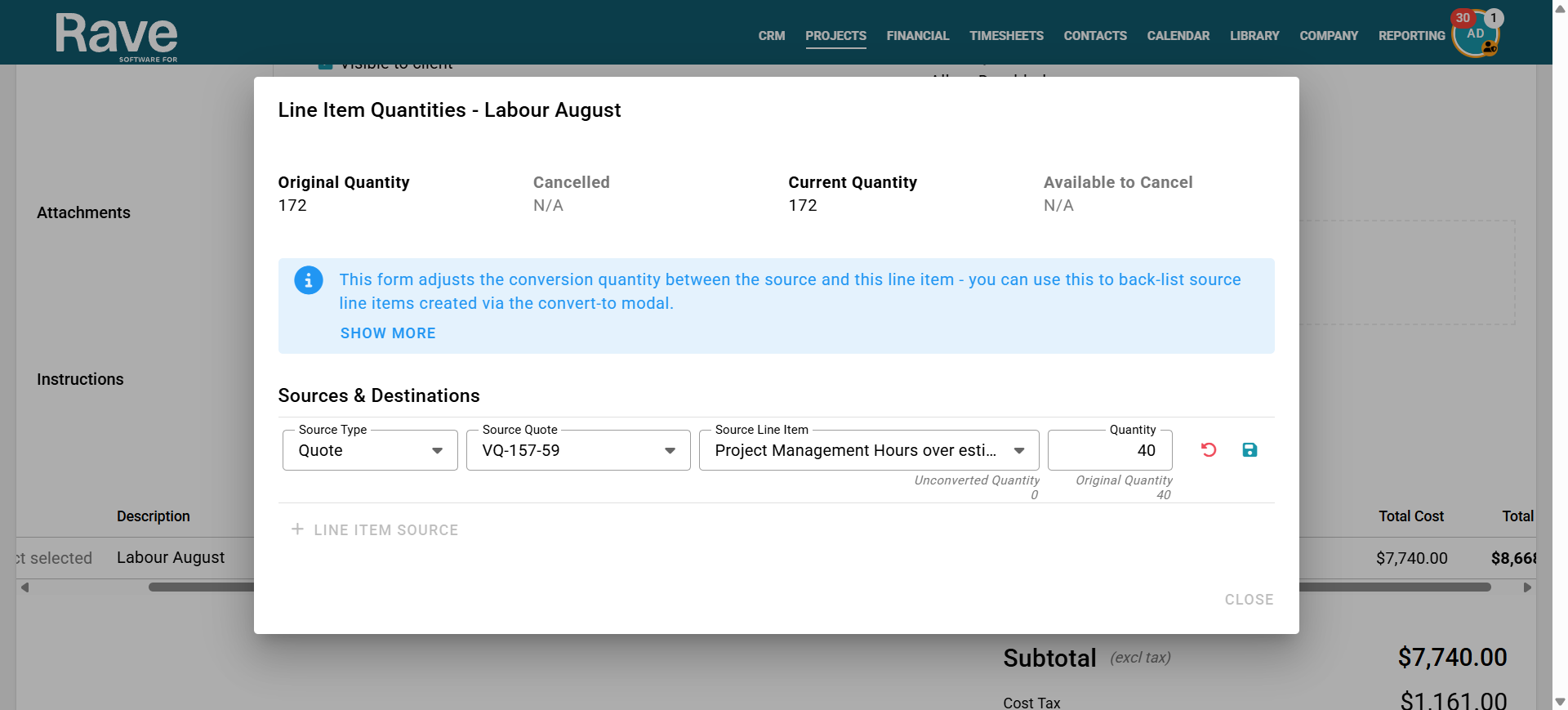
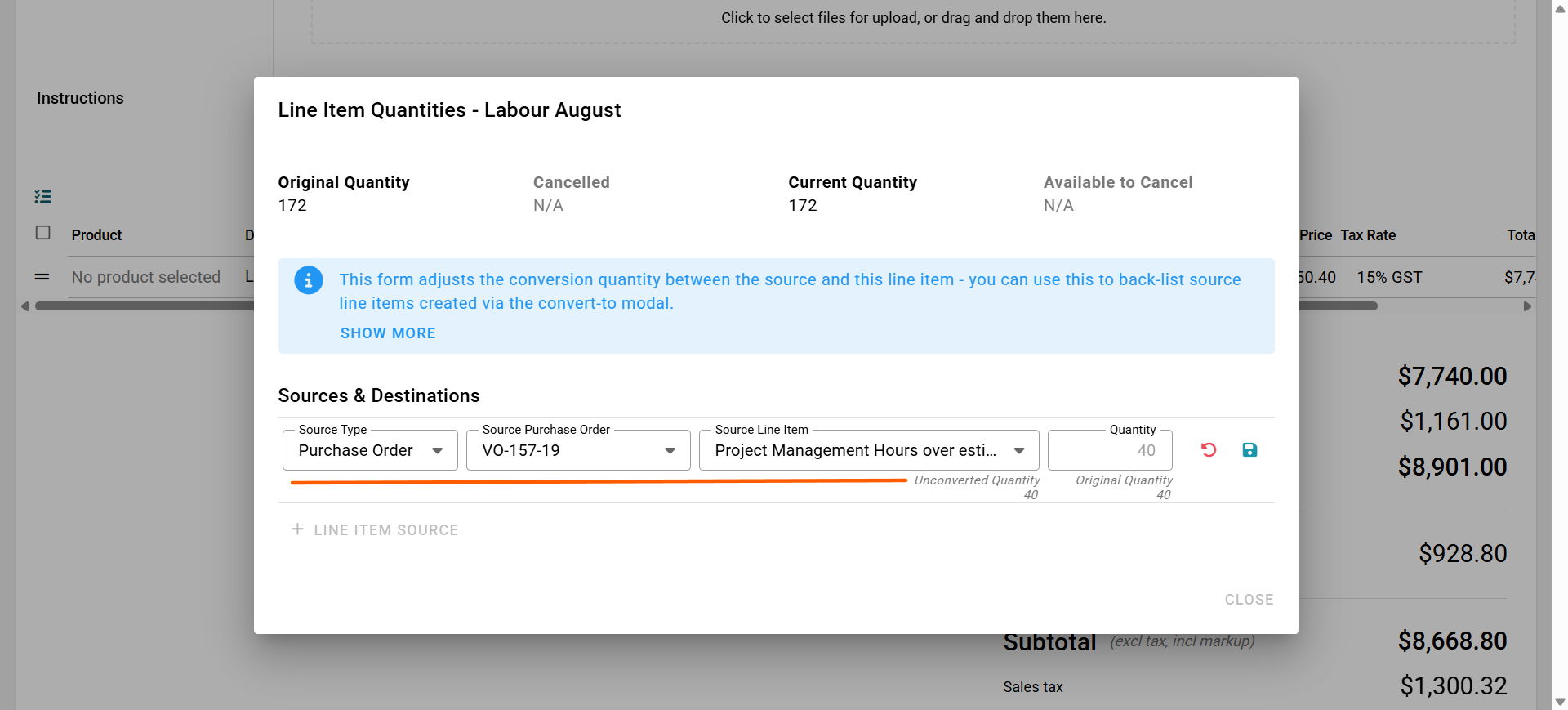
- Click the + Line item source
- Select either the PO or Quote, whichever document you wish to link to this invoice
- Select the source line item and then update the quantity to match
- In this case, the quote was for 40, and the invoice was entered for 172
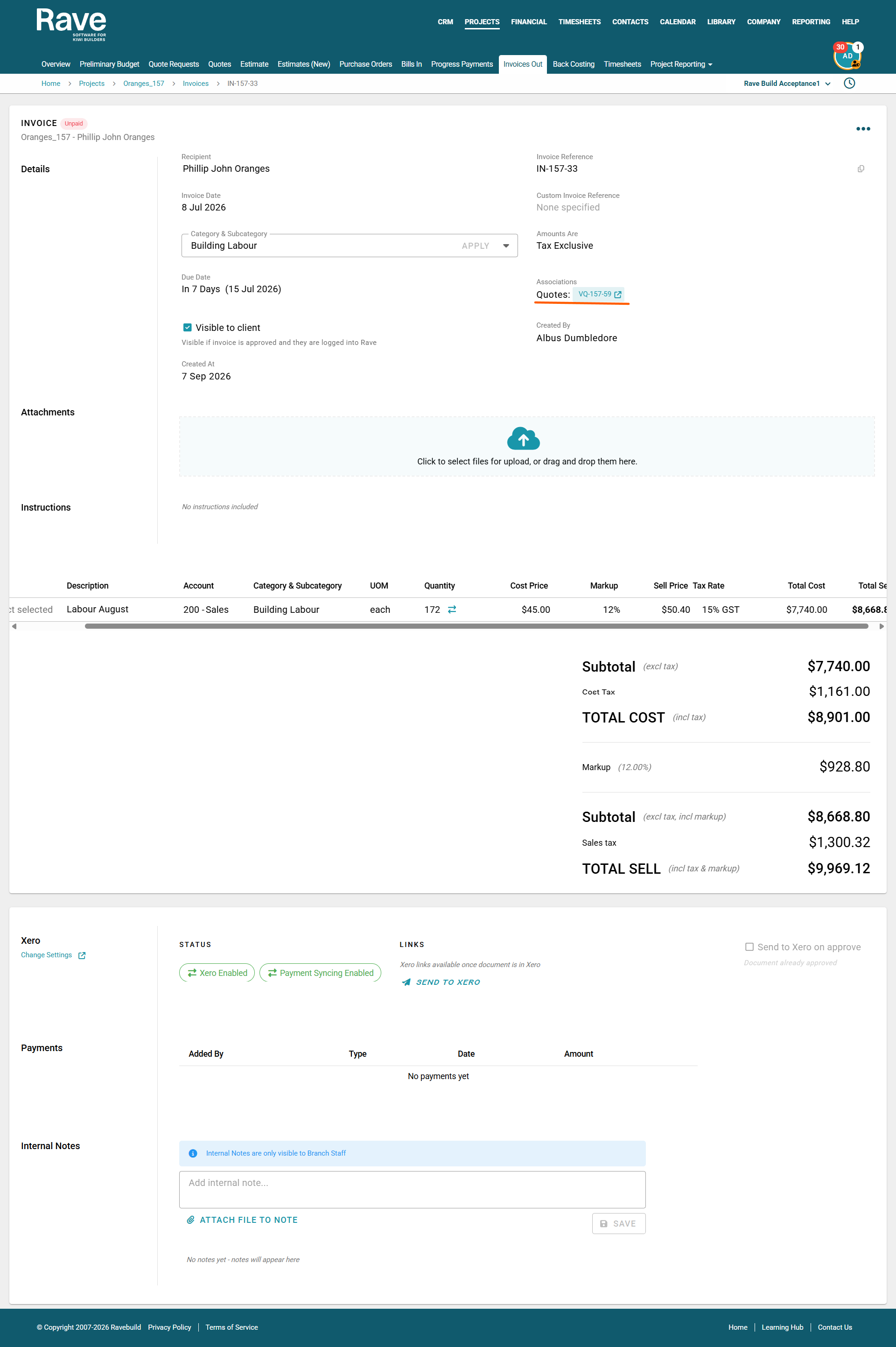
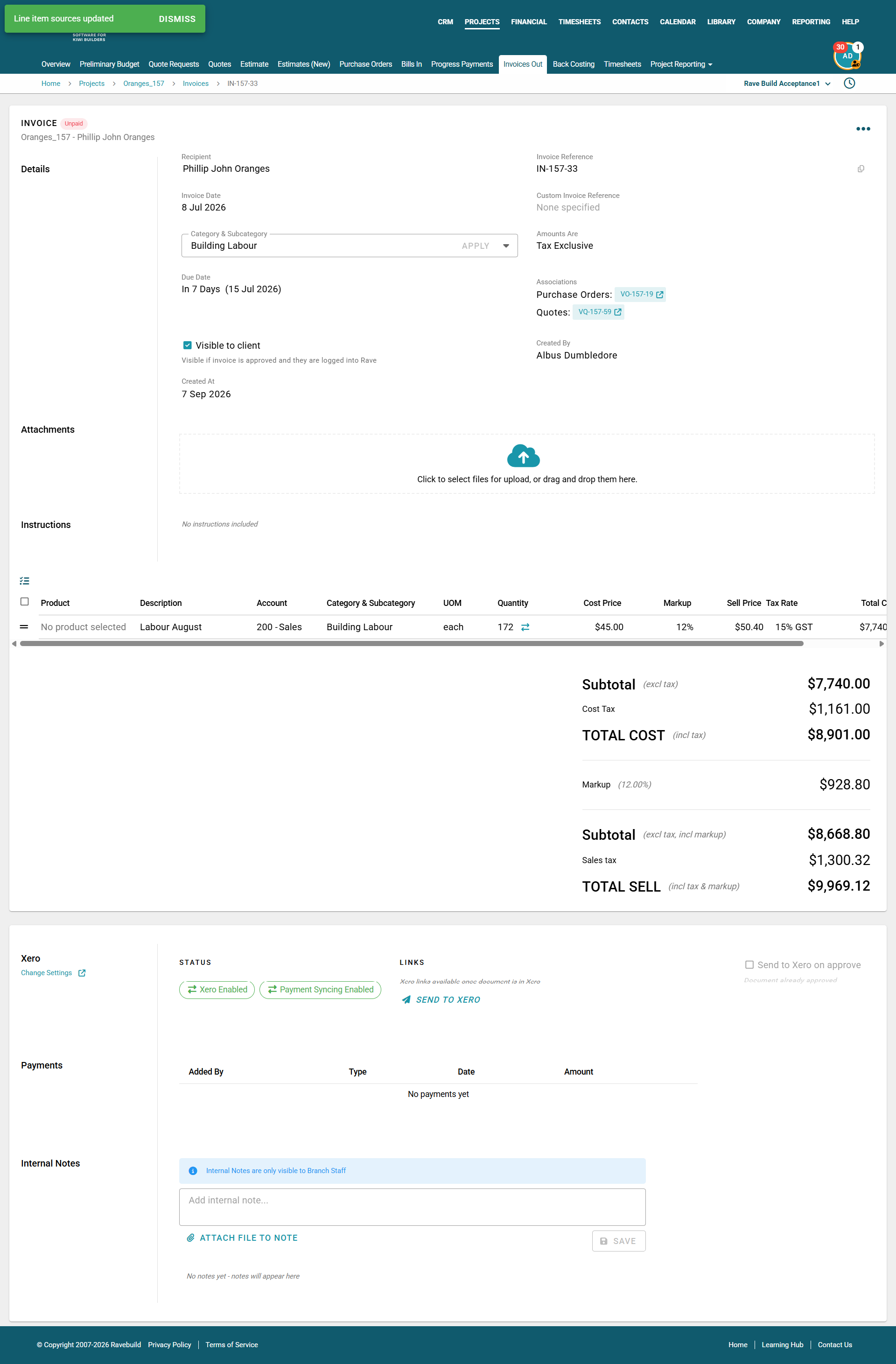
- Once you save youll now see the invoice is linked to the quote of 40 hours but has been invoiced at 172
How to fix the wrong source document being loaded or you need to add two source documents
If the bill has been created against the wrong Quote or Purchase Order:
- Click the Invoice and find the arrow icon next to the quantity
- Click the trash can icon to remove the link between this Invoice and the wrong Quote/Purchase Order. Or if you just want to add anotehr one move to step two.
- Click the + Line item source
- Select Quote/Purchase Order as the type, and then select the right document you wish to link to this bill
- Select the source line item and then update the quantity to match
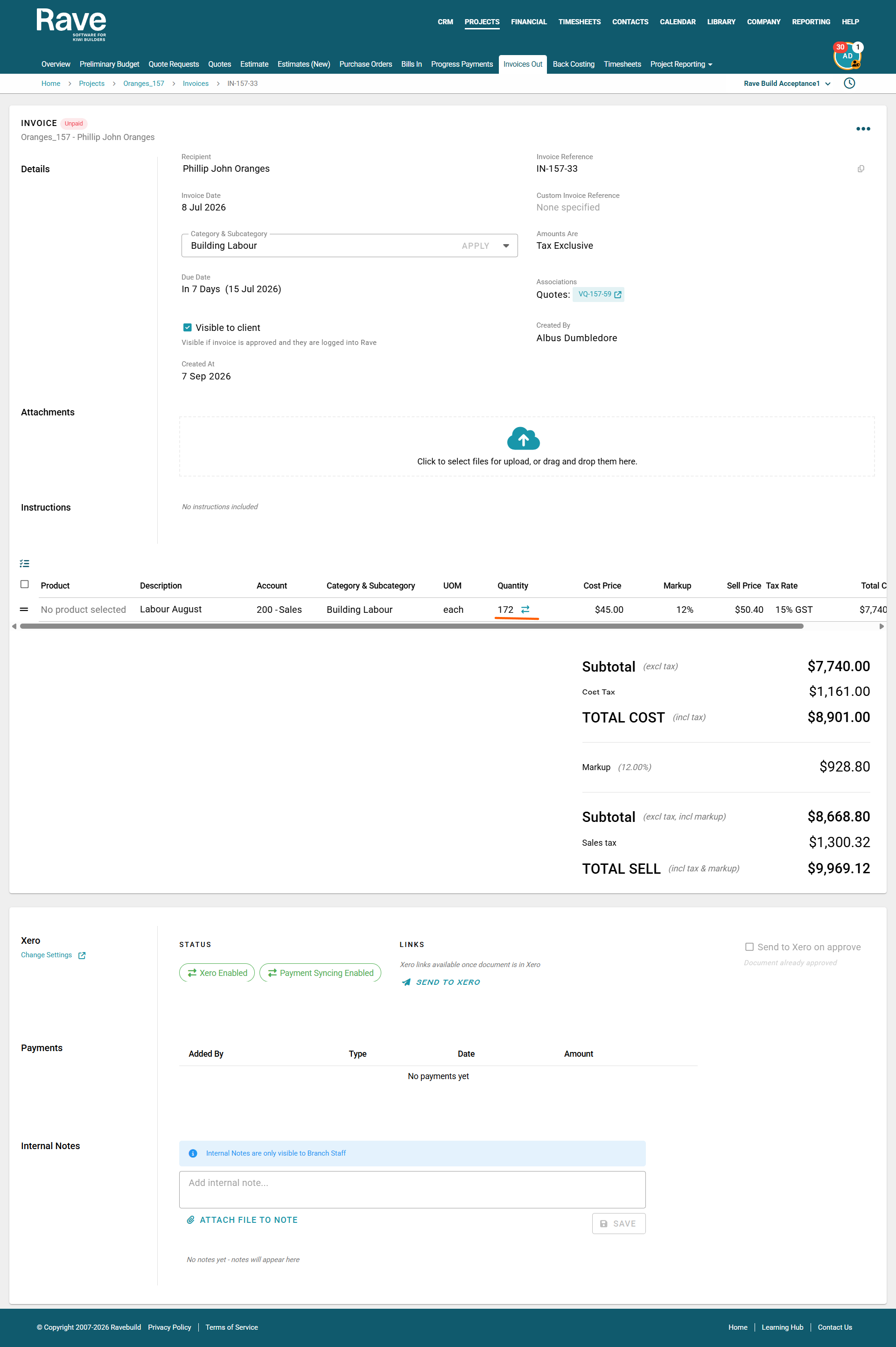
- You will now see the Invoice has the correct document type and number added under the Associations when you click into it. In this case both a quote and a Purchase Order.
Was this article helpful?
That’s Great!
Thank you for your feedback
Sorry! We couldn't be helpful
Thank you for your feedback
Feedback sent
We appreciate your effort and will try to fix the article