Please note that this is a permission based feature - if you do not have access to this please contact your Rave system administrator or reach out to Rave customer support.
The following is the recorded version of the help article outlined below.
In day-to-day processing, bills may occasionally be created without being linked to the correct Quote or Purchase Order (PO). When bills are left unlinked, this can affect back costing, PO limits, reporting accuracy, and overall project visibility.
It is also common for a PO to be raised with a specific quantity, while the related bill is entered as a single unit for the full amount. This can leave the PO showing as incomplete, even though the full value has effectively been billed.
To help resolve these issues, Rave has introduced a back-linking feature. This allows administrators to retrospectively connect bills to the appropriate source document, helping keep project financials accurate and complete.
This feature provides the ability to:
- Back-link existing bills to Quotes
- Back-link existing bills to Purchase Orders
- Edit the original source document when required
Common Use Cases
1. Bill Created Without a Purchase Order or Quote linked
A supplier Bill may be entered directly into the system before selecting the PO or Quote to link it to.
Using this feature, the bill can later be linked to the correct PO or quote on a line-item basis.
2. Bill Linked to the Wrong Quote or Purchase Order
A bill has been associated with an incorrect quote or Purchase Order; administrators can update the linkage to ensure costs are allocated to the correct document.
3. Changes Required to the Source Document
In some situations, the Quote or Purchase Order itself may need to be adjusted where the quantities on the bill have been entered incorrectly. This feature also allows editing of the source document where necessary.
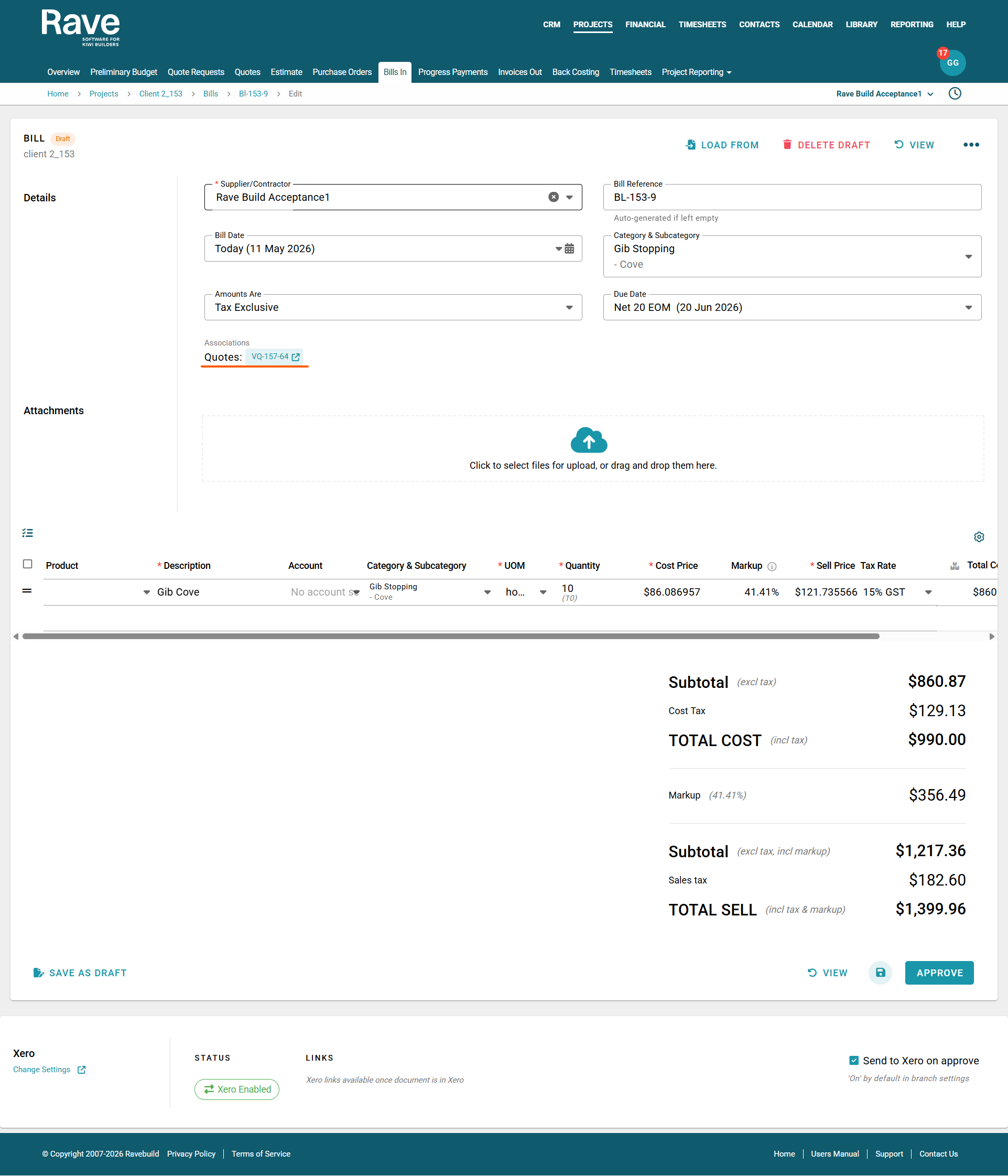
How to Link a Bill to a Quote or Purchase Order where the bill has been loaded manually
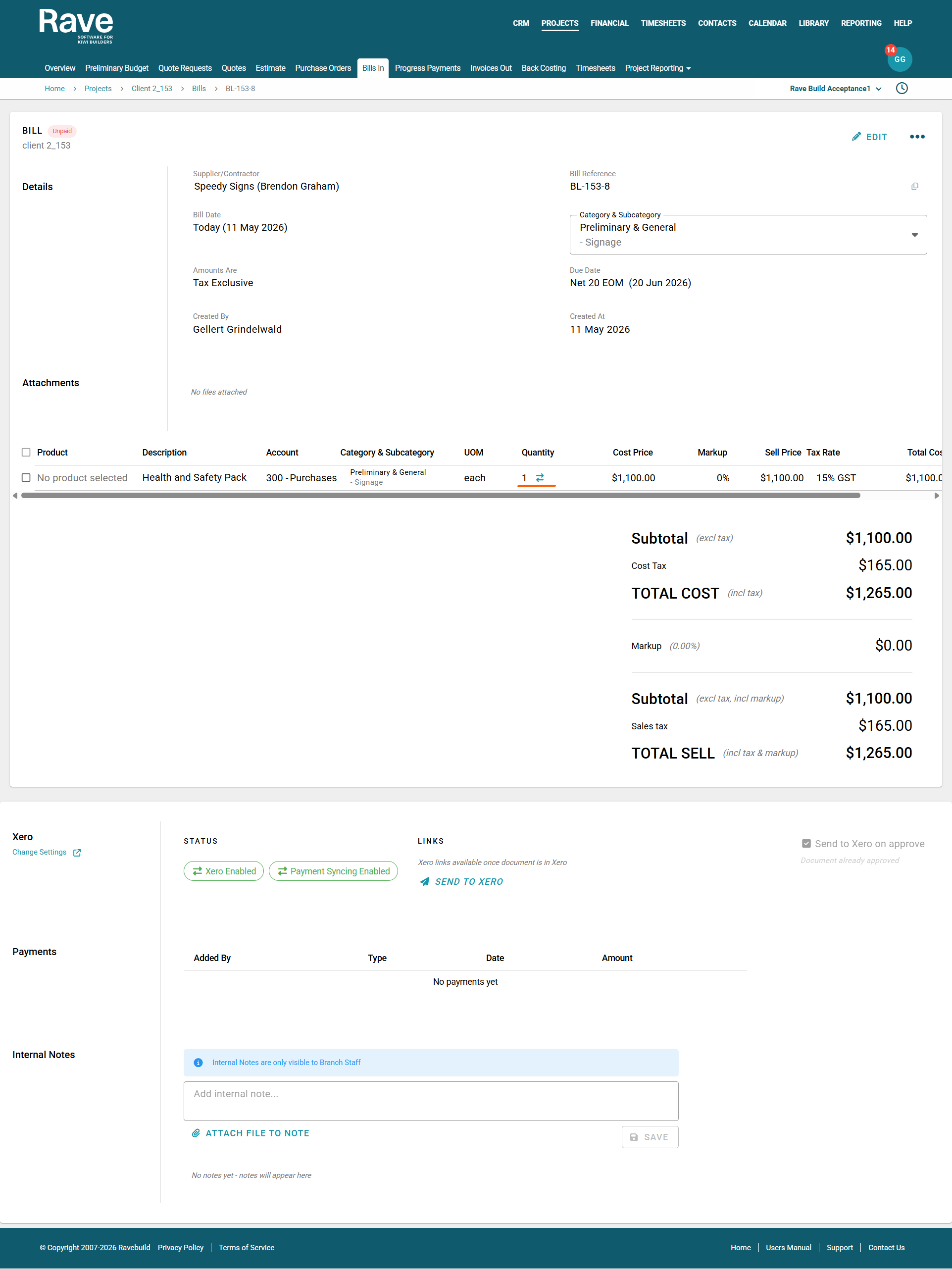
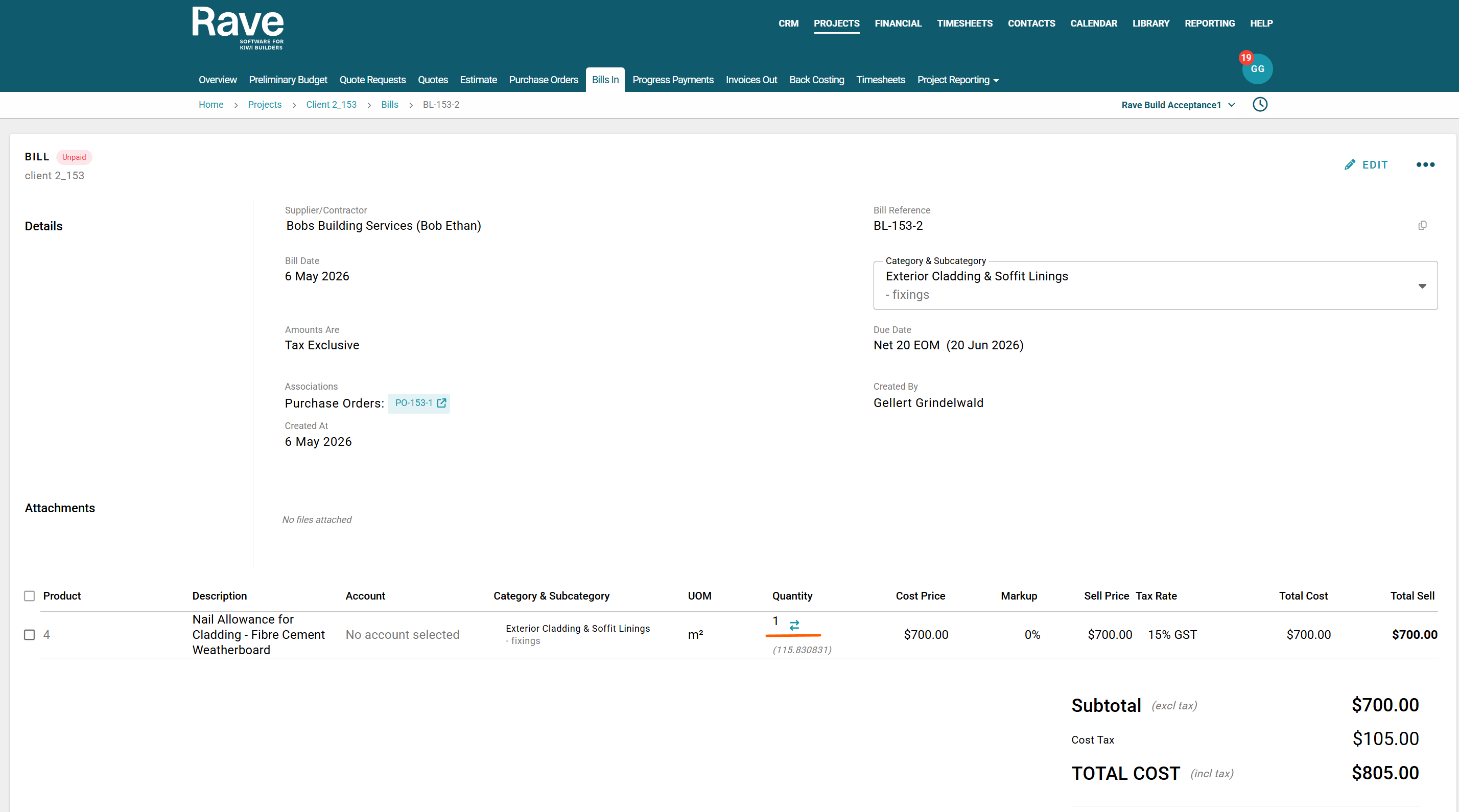
- Click on the bill and find the arrow icon beside the qty
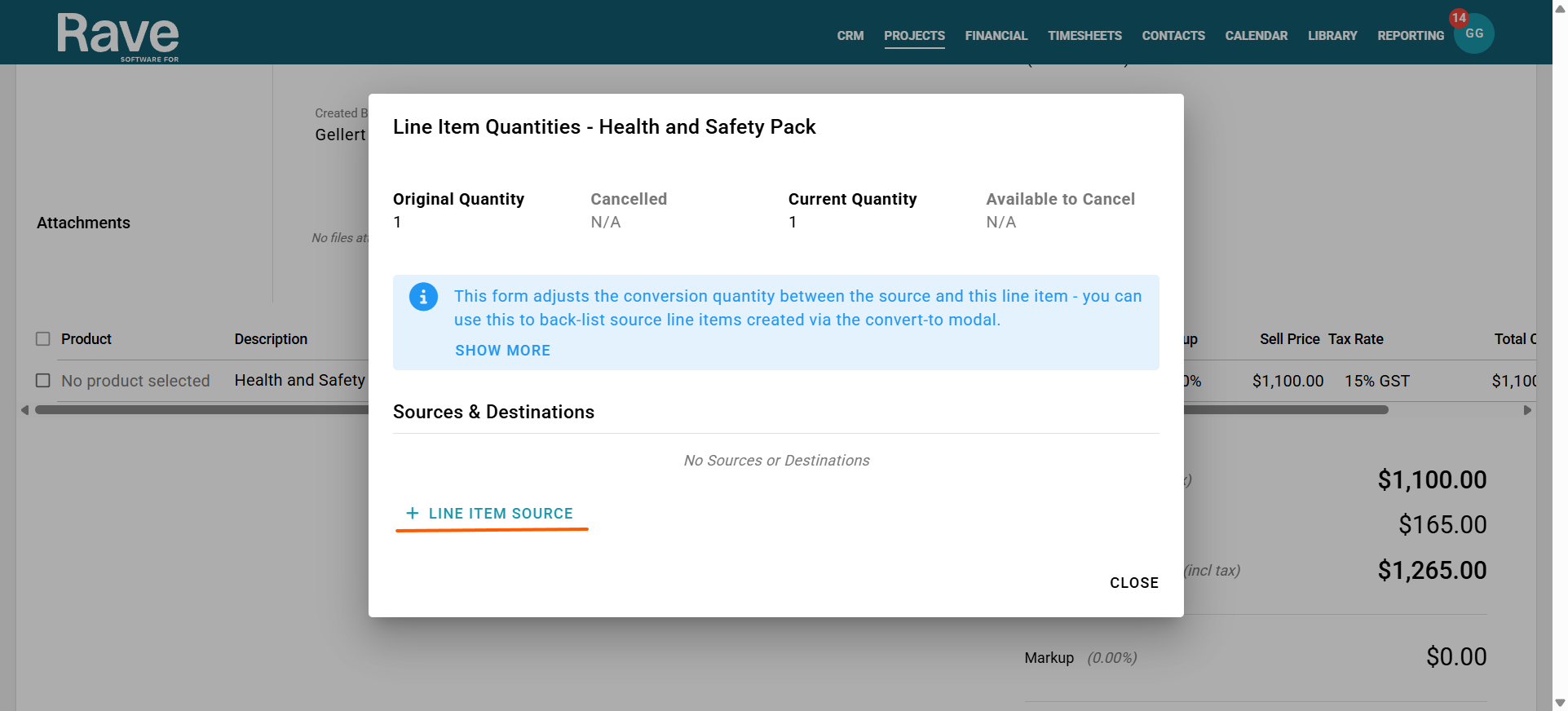
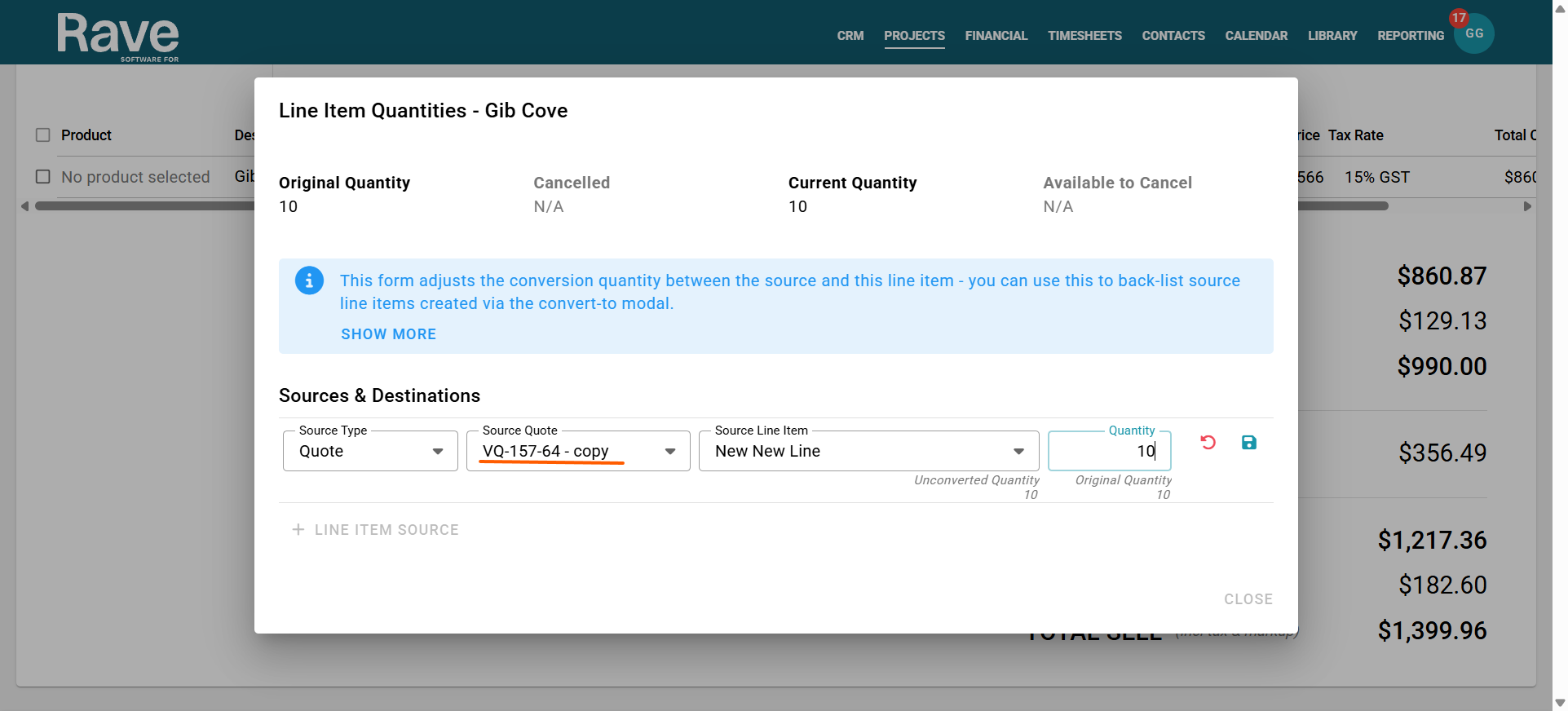
- Click the + Line item source
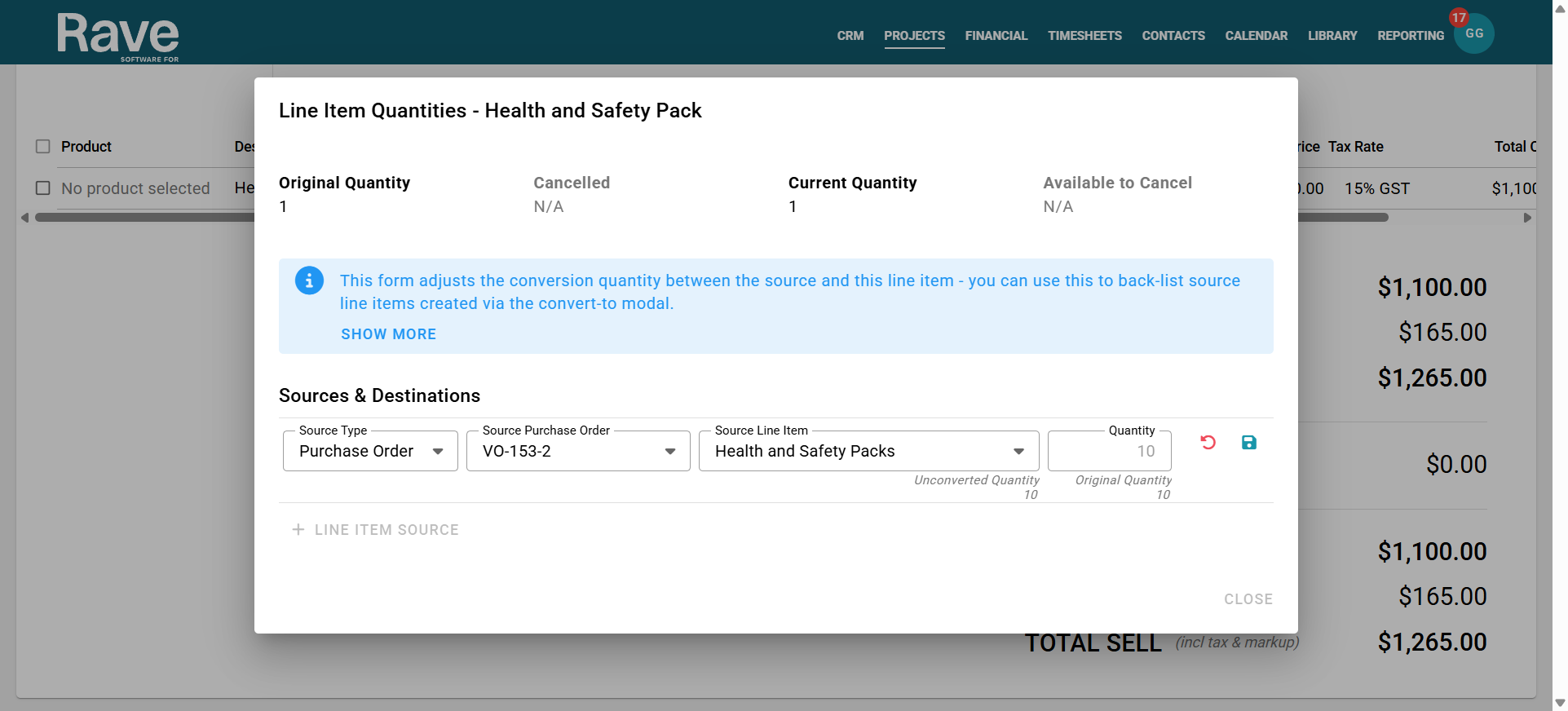
- Select either the PO or Quote, whichever document you wish to link to this bill
- Select the source line item and then update the quantity to match
- In this case, the PO was for 10, and the Bill was entered for 1. If you need the PO to balance, change the qty to 10, press save.
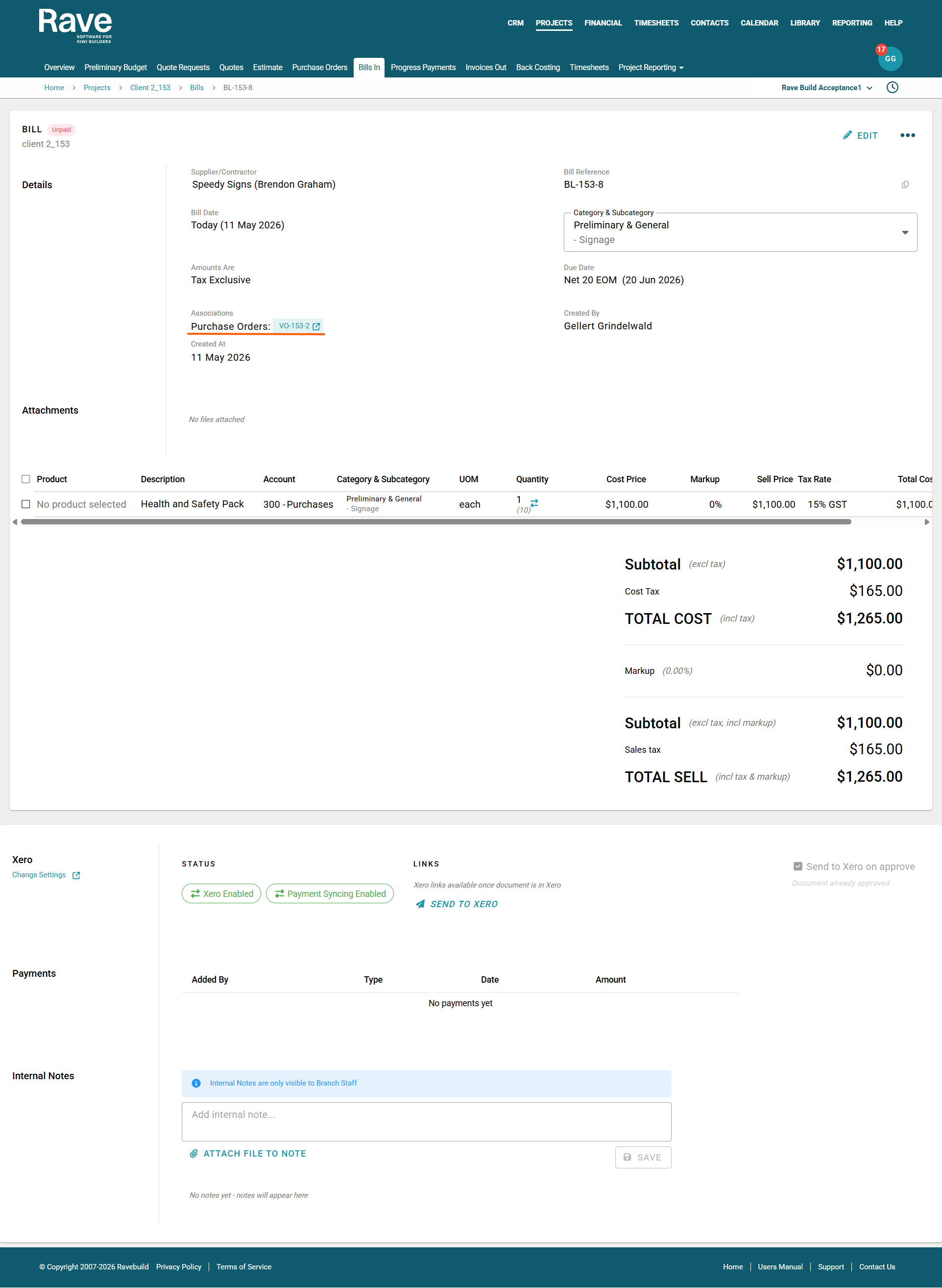
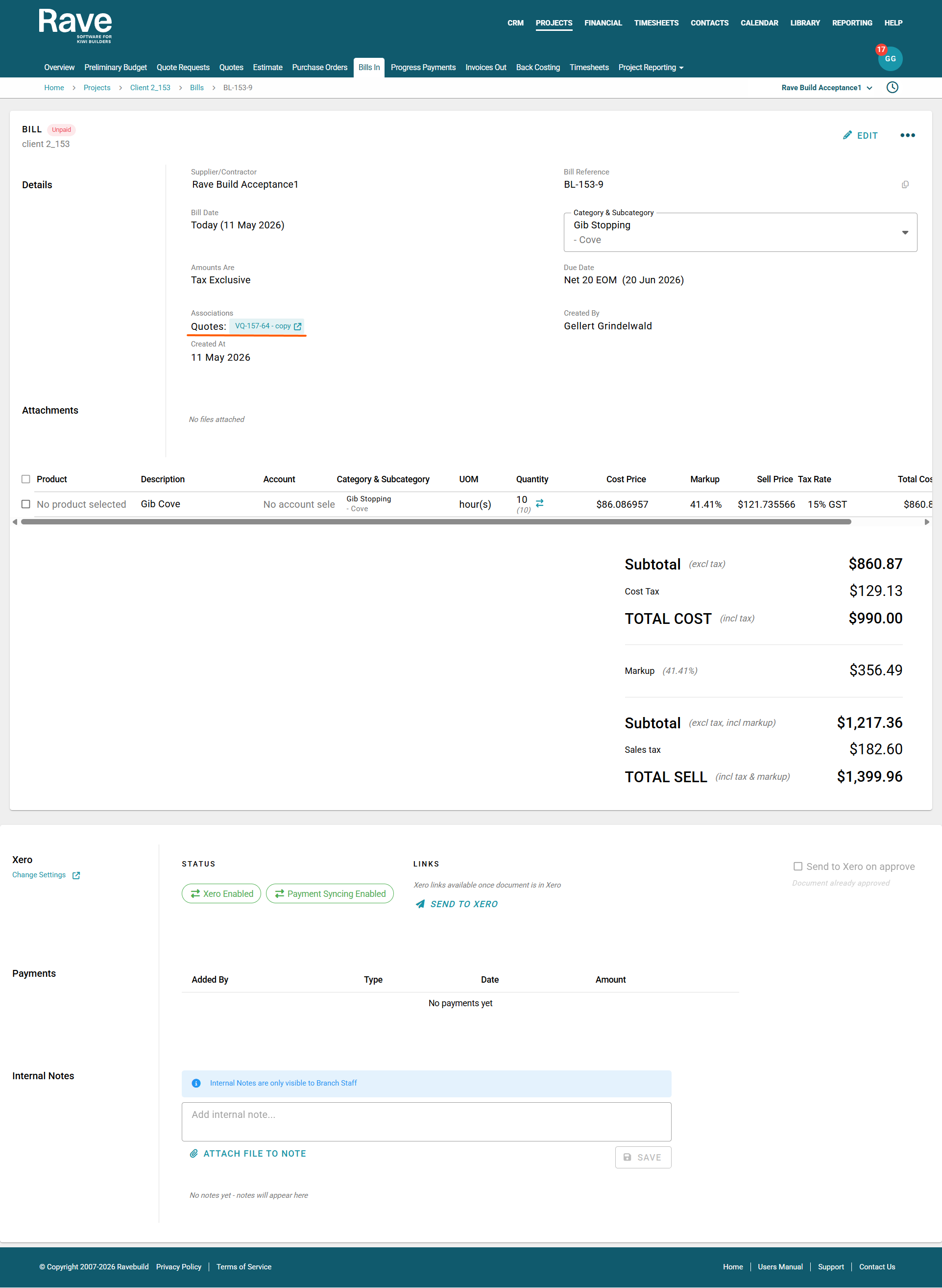
- You will now see the Bill has the PO added under the Associations when you click into it.
How to fix the wrong source document being loaded
If the bill has been created against the wrong Quote or Purchase Order:
- Click the Bill and find the arrow icon next to the quantity
- Click the trash can icon to remove the link between this bill and the wrong Quote/Purchase Order.
- Click the + Line item source
- Select Quote/Purchase Order as the type, and then select the right document you wish to link to this bill
- Select the source line item and then update the quantity to match
- You will now see the Bill has the correct document type and number added under the Associations when you click into it.
How to use this feature to fix an issue where the Purchase Order to bill Quantities and Values don't align:
A purchase order has been created for 115.83 m2 of Cladding at $ 11.44/m2, with a PO total of $1,325.10 + GST, and has been sent to the supplier.
The first bill comes in, and the admin team loads it against the PO for 15.83 m2 at a cost of $11.44 per m2.
The second bill comes in, and the admin team load the bill for a quantity of 1 but a cost price of $700 instead of the correct m2 quantity and price. The purchase order is now out of alignment, as the quantity was entered as 1 instead of the correct m2.
The 3rd and final bill for this supplier is then loaded for a quantity of 1 at $444 instead of the correct m2 amount and value. The PO has now been spent in full, but the balance still shows $1,121.13 due to incorrect handling of the bills vs. Purchase Order quantities.
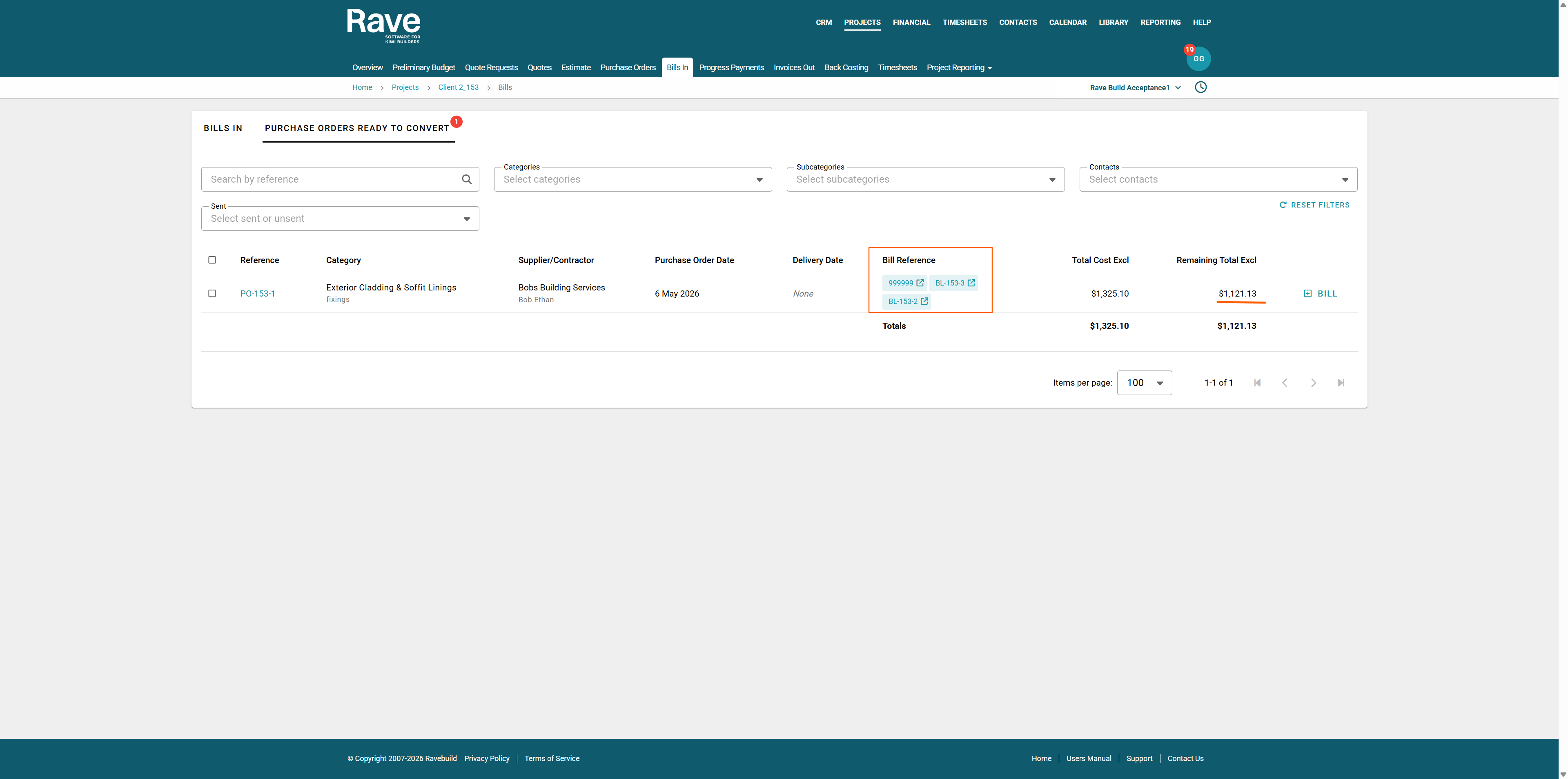
To fix this without having to delete the bills and restart.
- Click on the second bill, scroll to the qty field and select the Arrows beside the qty column.
- Then click the edit pencil icon and update the quantity to be what it should have been loaded as. The bill shows the remaining quantity as 98.00831, but this should have been set to 61.18(the bill total divided by the original per-unit price of $11.44).
- Update the quantity to 61.18 and press the Save icon.
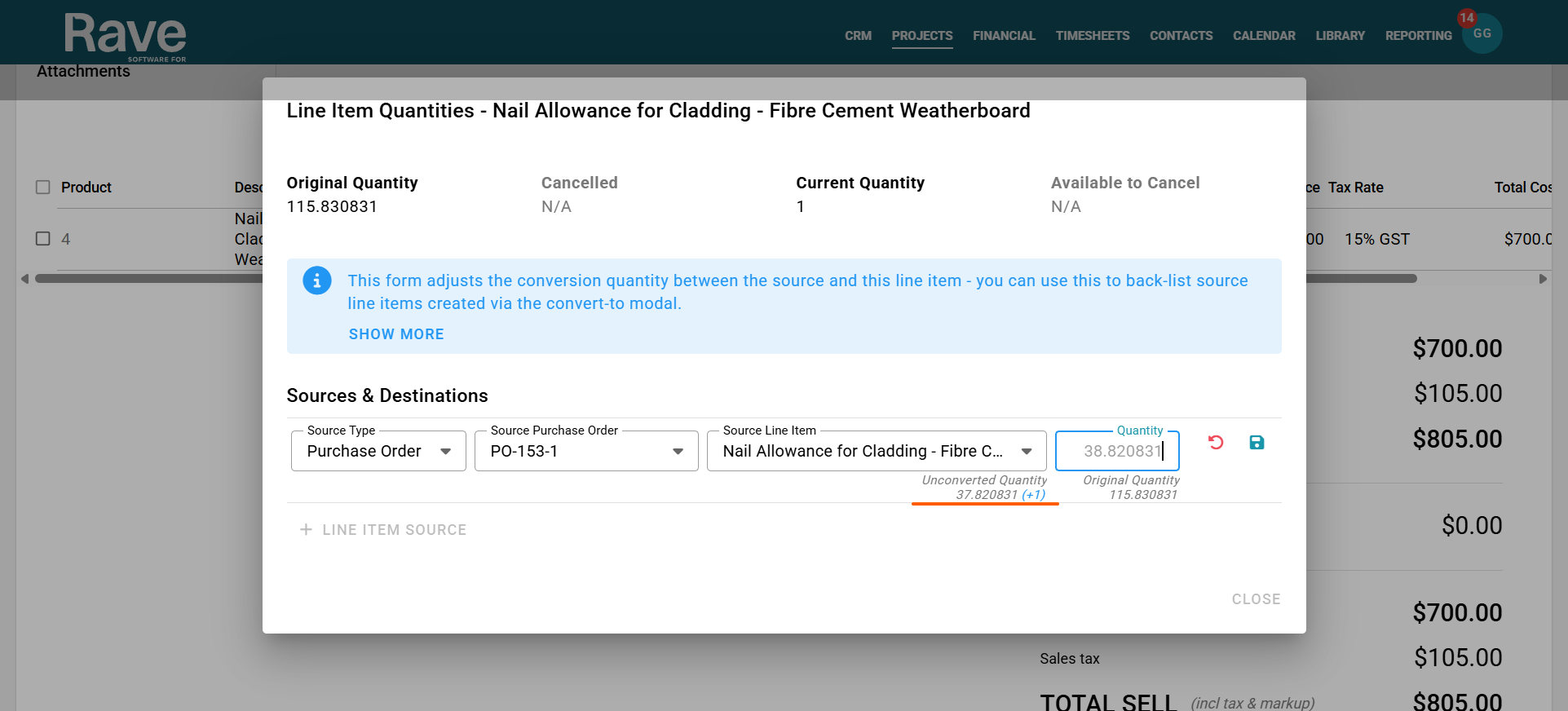
- Do the same for the third bill; it will show the balance left to convert as 37.81202. Change the Qty from 1 to 38.82 (the value of 1 you had originally, plus the unconverted balance)
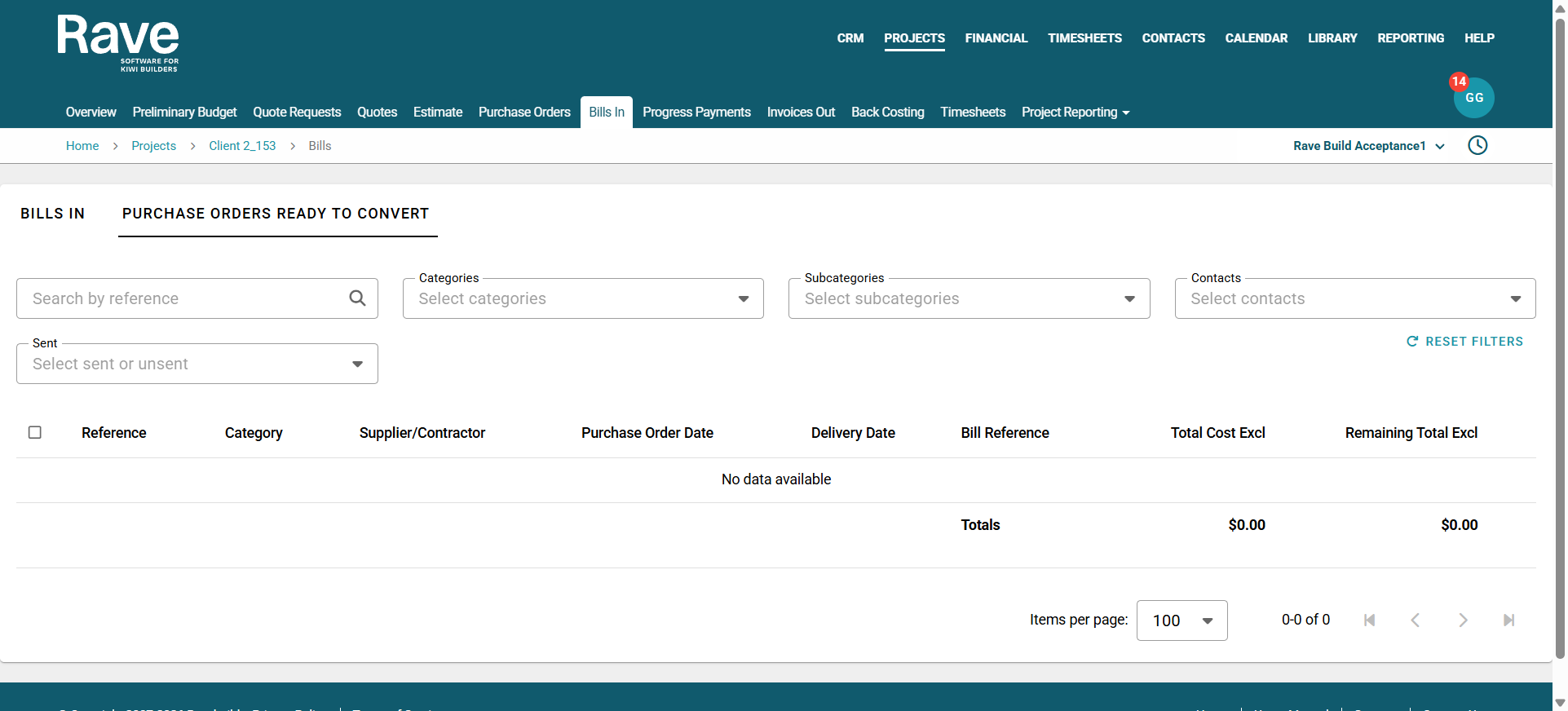
- The purchase order now has the documents matched, so the value to convert is $0.
- This does not update the actual bill quantities; it just updates the mapping between the purchase order and the bill.
Bill 1 enter in 61.18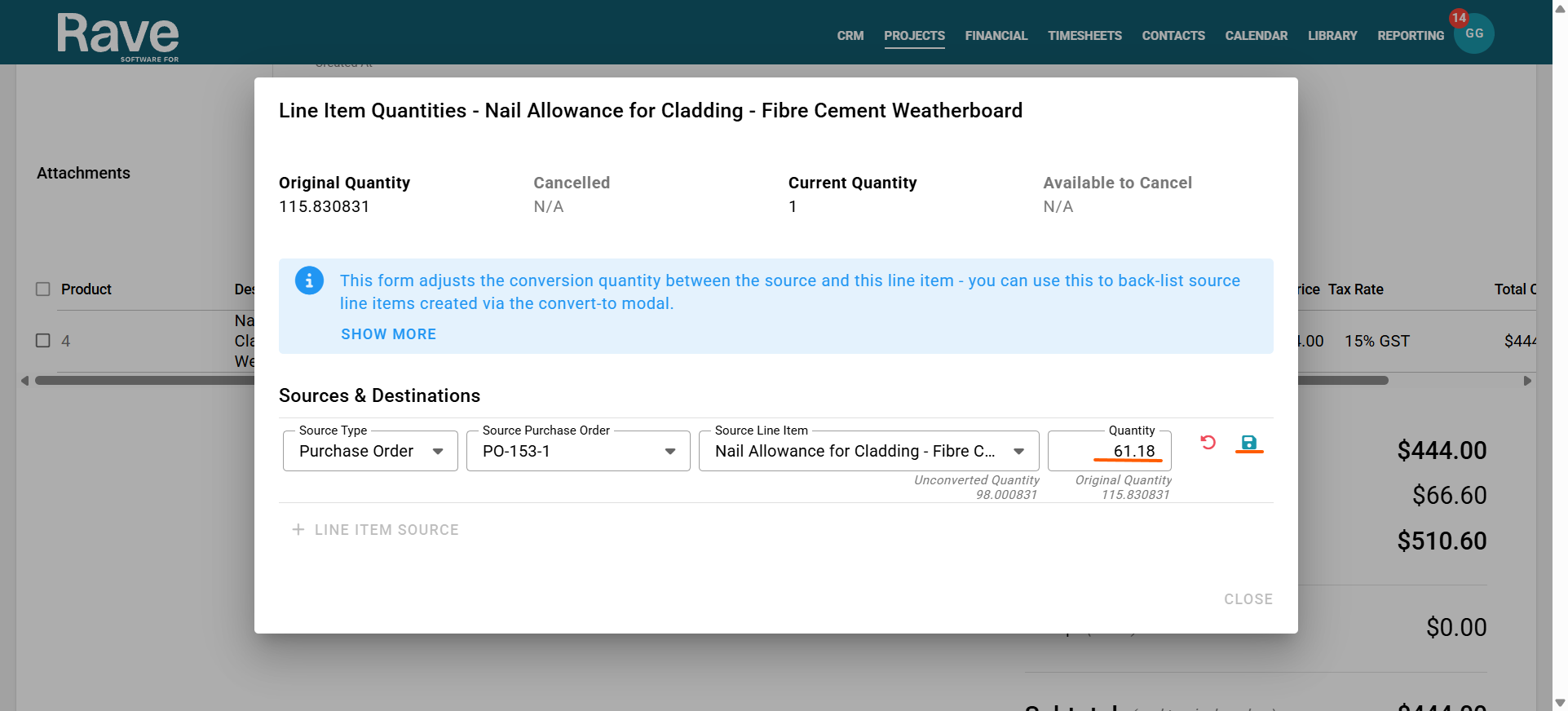
Bill 2 enter in 38.820831
Purchase order has now dropped off the convert List as the quantities match
Was this article helpful?
That’s Great!
Thank you for your feedback
Sorry! We couldn't be helpful
Thank you for your feedback
Feedback sent
We appreciate your effort and will try to fix the article