RAVE allows you to convert an approved Quote into a Bill directly from the Bills In sub-tab, streamlining your accounts payable process and ensuring accuracy between quoted and invoiced costs. This method is useful when managing bills centrally within the project’s financial workflow.
Note: When making adjustments, you now have the flexibility to toggle between Rave making Quantity adjustments OR Price adjustments - we cover this in detail below.
When to Use This Feature
Use this workflow when:
- A supplier or subcontractor quote has been approved
- You are ready to raise or record the bill
- You want to manage bills directly from the Bills In sub-tab
- You want to ensure consistency between quote and bill
Accessing the Bills Sub-Tab
- Navigate to your Project
- Click on the Budget tab
- Open the Bills sub-tab
OR Option # 2
- Navigate to your Financial Tab
- Click on the Bills In hyperlink that is associated with your project
Converting a Quote to a Bill
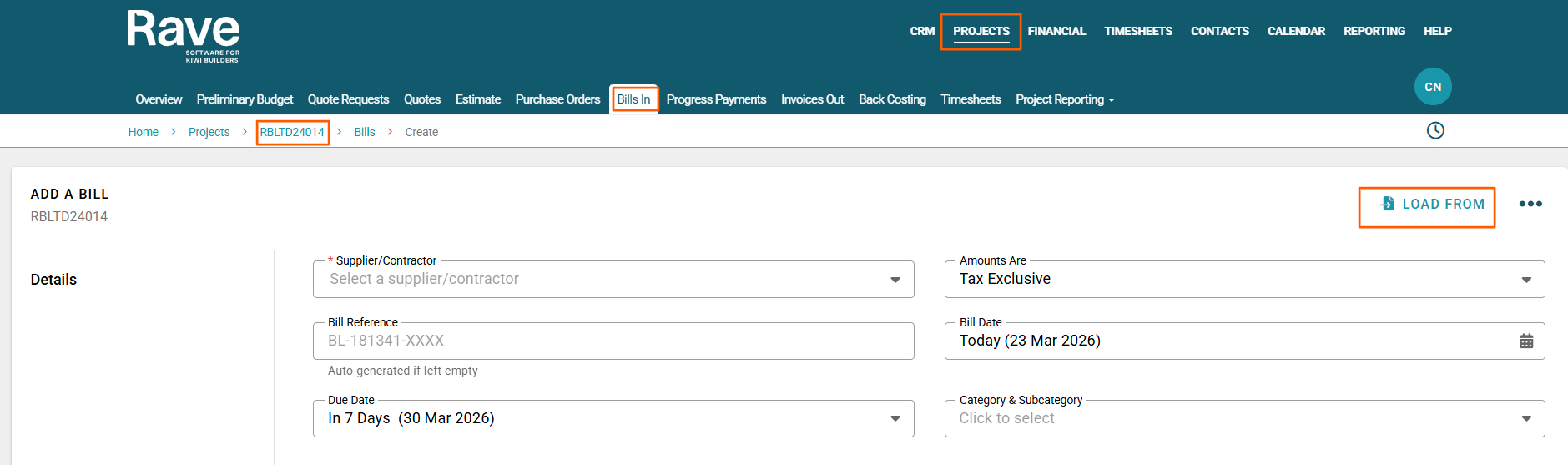
- In the Bills sub-tab, click +Bill
- Select the option to Load From
Selecting the Quote
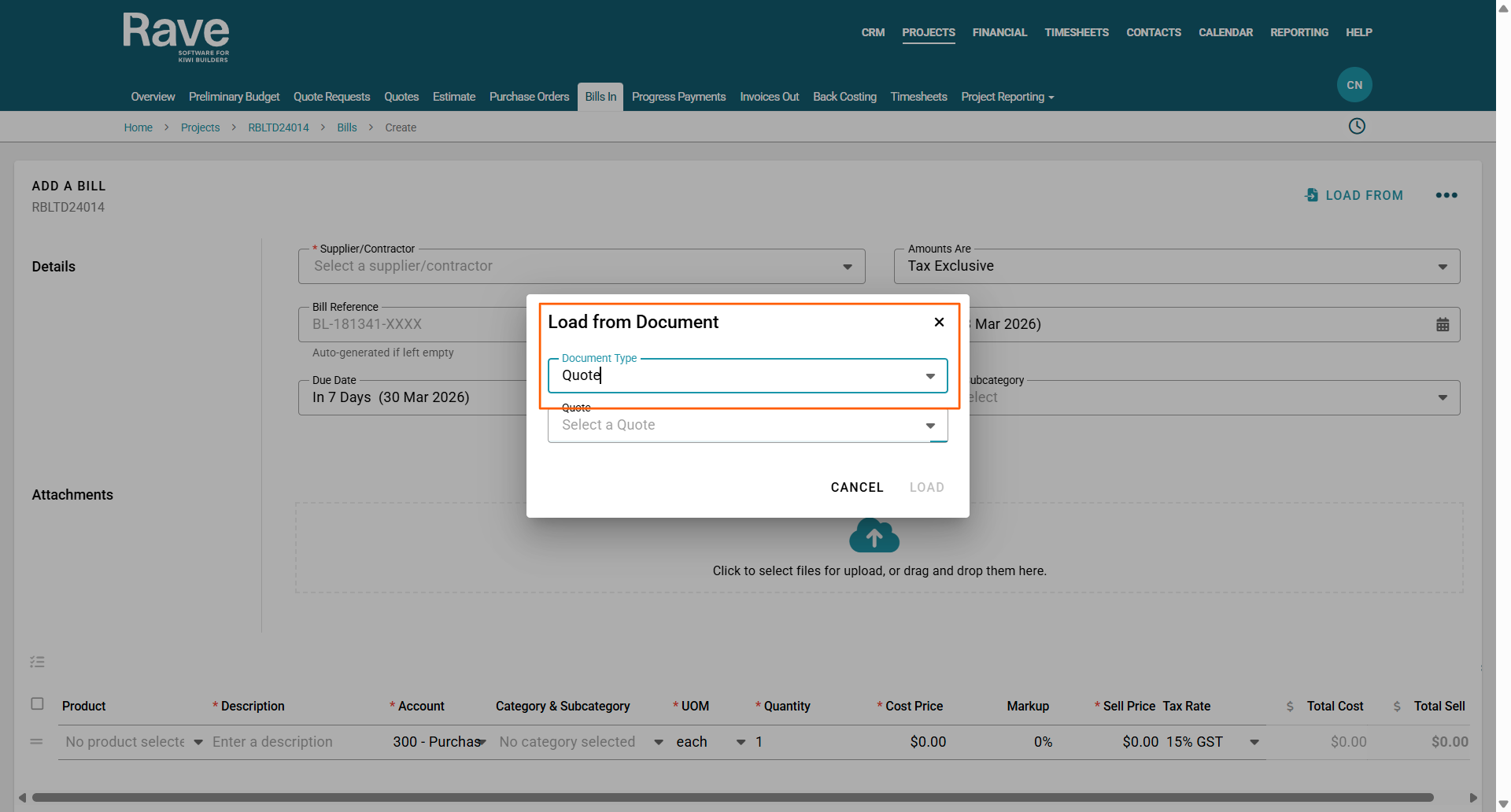
- Click Load Quote under the document type
- A list of available Quotes will be displayed
- Select the relevant approved quote you wish to convert
Reviewing the Bill
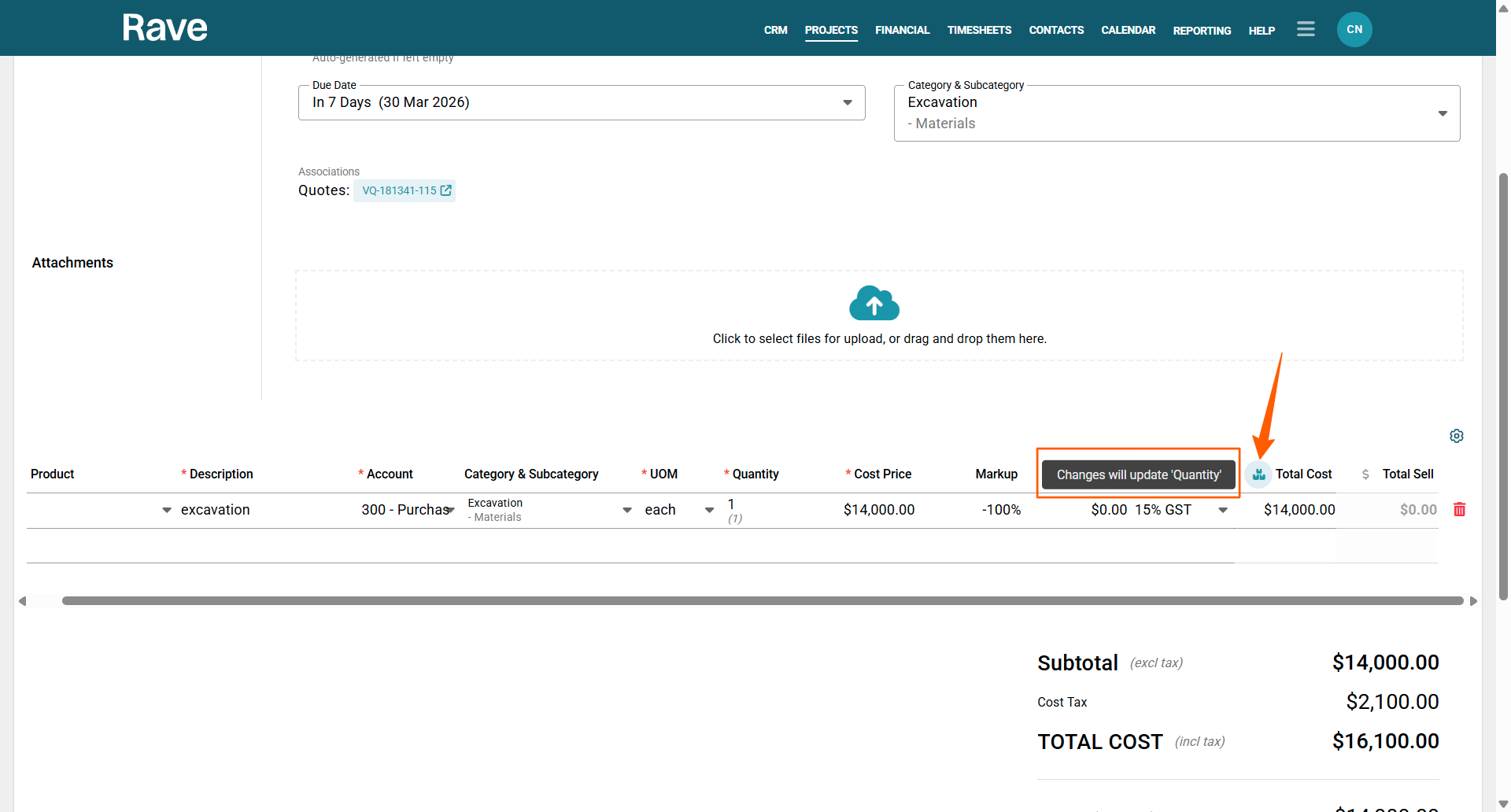
Once selected, the Bill will be automatically populated with:
- Supplier details
- Bill Reference (this can be overridden with the Bill reference on the Bill received)
- Category and Sub Category
- The Quote association will show as a hyperlink
- Drop a copy of the bill into the attachment box
- Description
- Account code
- Quantities
- Pricing
- Mark up if any
- Sell price
- GST settings
- Total Cost
Making Adjustments
If required, you can:
- Edit quantities or pricing
- Add additional line items
- Update descriptions
- Attach supporting documents
Quantity or Price Adjustment Options
When making adjustments, you now have the flexibility to toggle between Rave making Quantity adjustments OR Price adjustments - we cover this in detail below.
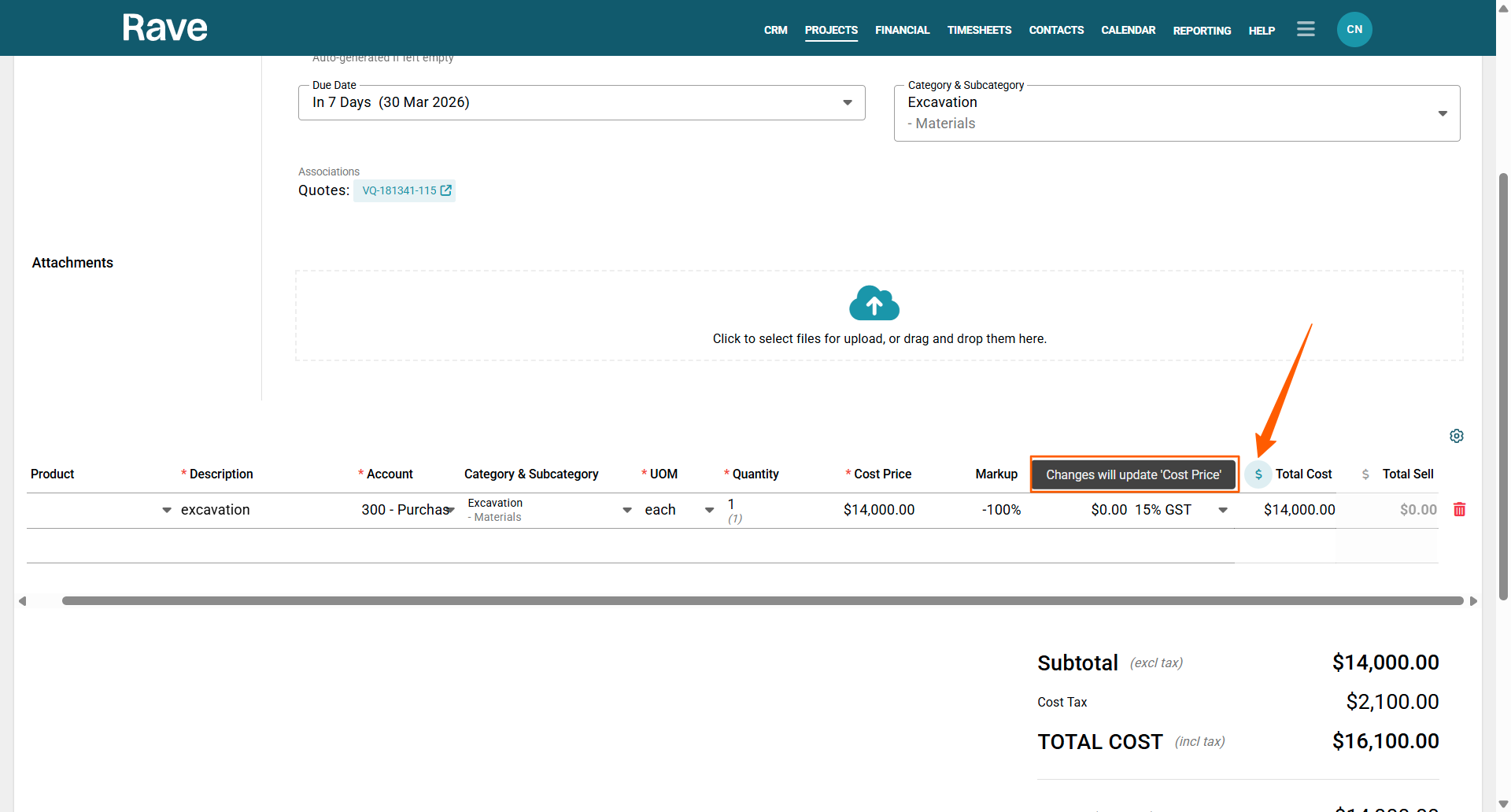
The screenshot below shows the icon that will let you toggle between making the quote update the quantity or the Price
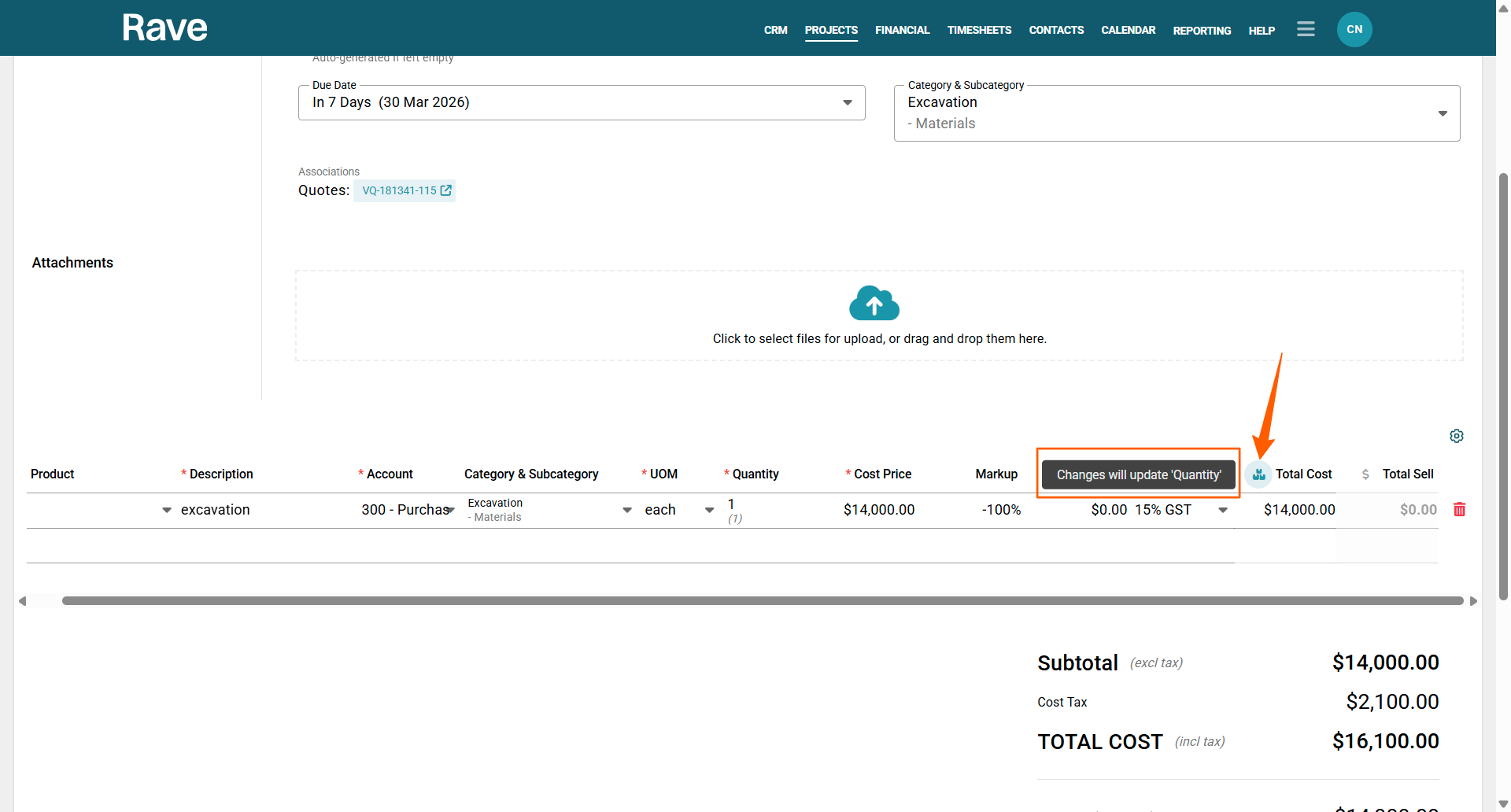
Screenshot below of icon showing changes will update 'Cost Price'
Click Approve, and the Bill will be set and sent through to Xero
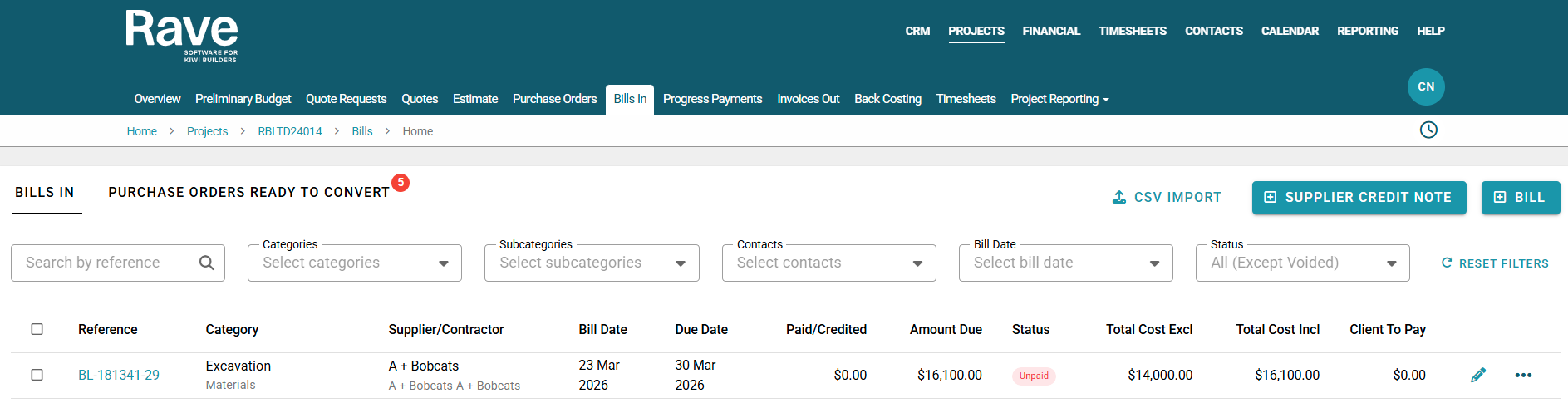
What Happens Next
- The Bill is now recorded against the project
- It is ready for:
- Approval workflows
- Payment processing
- If integrated:
- The Bill is sent to Xero
- If not:
- Enter the bill manually into your accounting system
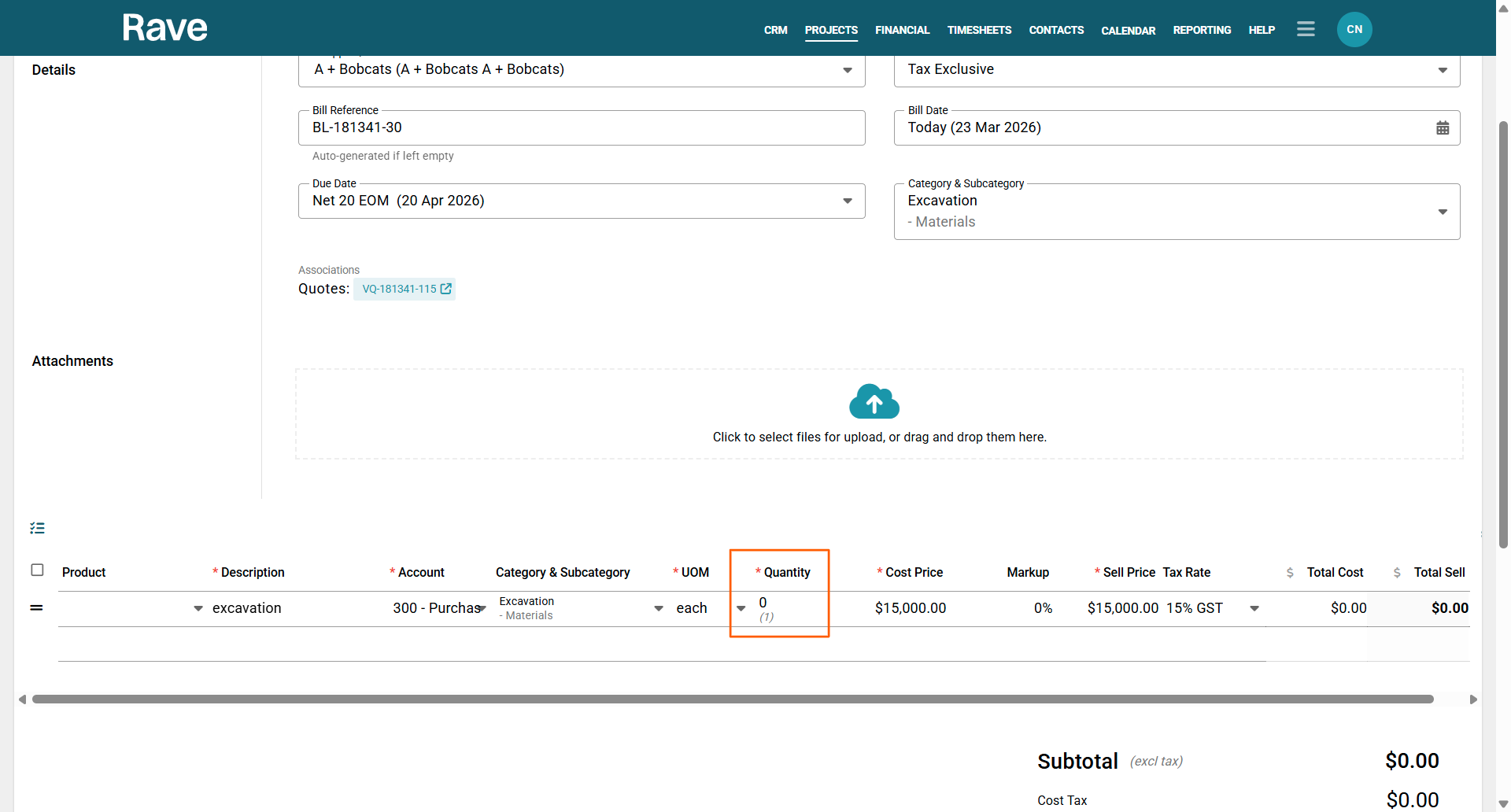
When entering a bill against this quote for subsequent bills, if the first bill didn't fulfil the quote, the quantity will show a quantity balance (if any)
Was this article helpful?
That’s Great!
Thank you for your feedback
Sorry! We couldn't be helpful
Thank you for your feedback
Feedback sent
We appreciate your effort and will try to fix the article