RAVE’s financial management system is designed to help you manage all the financial aspects of your projects, including budgeting, bills, and invoices, with ease.
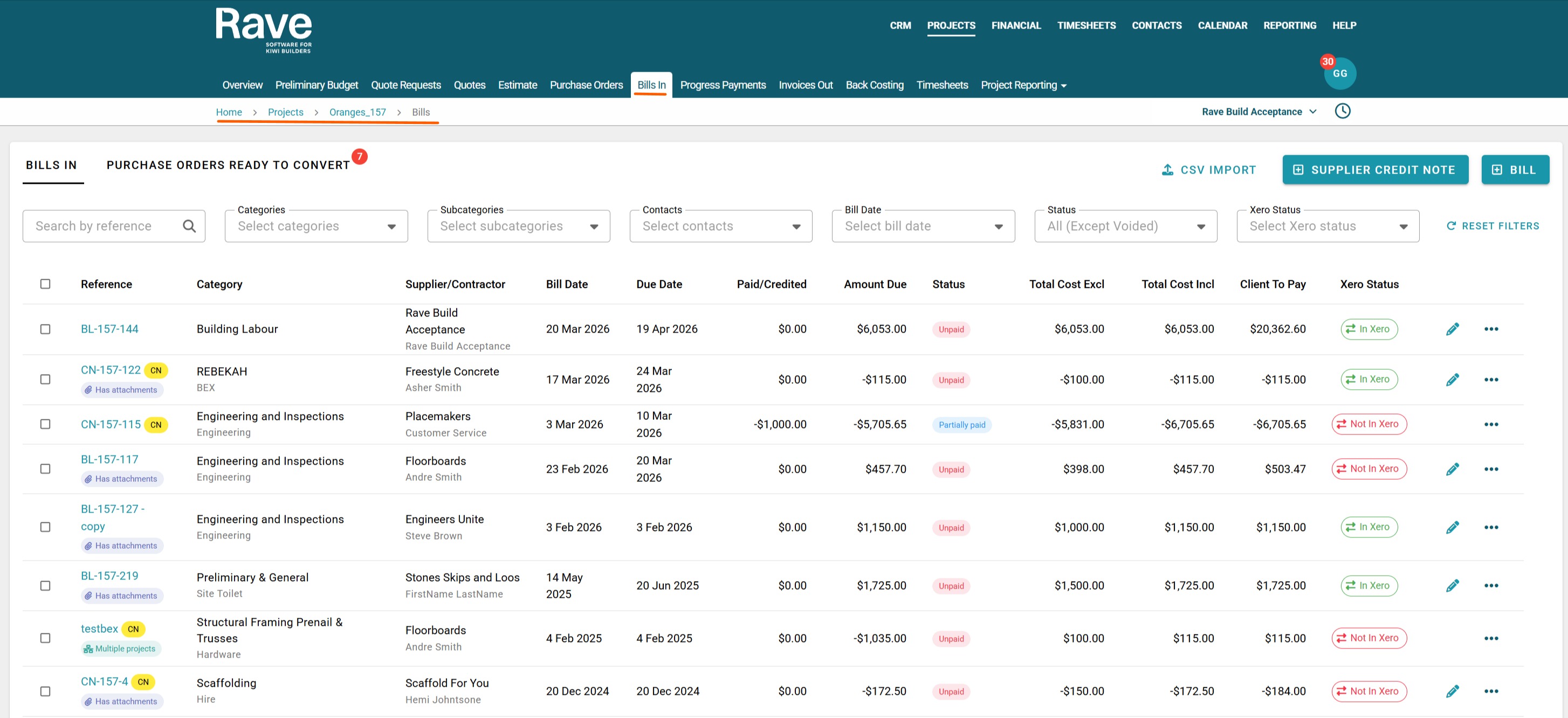
The Bills In sub-tab is where you add and manage all your project supplier/contractor invoices, which RAVE refers to as Bills. As with our Purchase Order page, there are multiple options to add a supplier bill to a project. The most common way is via the Purchase Orders Ready to Convert option.
To learn about the Bills List page, click here.
To learn how to create a Bill or Credit Note manually, click here.
To learn how to create a Bill (s) from a CSV file, click here.
You can access your Project’s financial workflows from either the Financial button or the Project button's Project list, clicking on the project’s reference number, and finally selecting the Budget sub-tab, then Bills.
Progress Claims and Stage Payment Bills
Sometimes, a supplier will issue a stage claim or progress payment bill against a purchase order where the billed values do not directly match the individual line items on the purchase order. In these situations, using the standard bill conversion process can make it difficult to accurately track the remaining value available to invoice.
The Consolidate as a Progress Claim feature has been designed specifically for this scenario. When used, Rave automatically distributes the billed value across the purchase order lines proportionally, ensuring that:
Financial reporting remains accurate.
Purchase order balances are correctly maintained.
The Balance to Bill values remain accurate.
Progress claims can be processed regardless of whether the supplier's invoice line items match the purchase order line items.
This feature should always be used when processing staged or progress payment invoices against a purchase order, as it ensures both item values and dollar values are tracked correctly throughout the life of the purchase order.
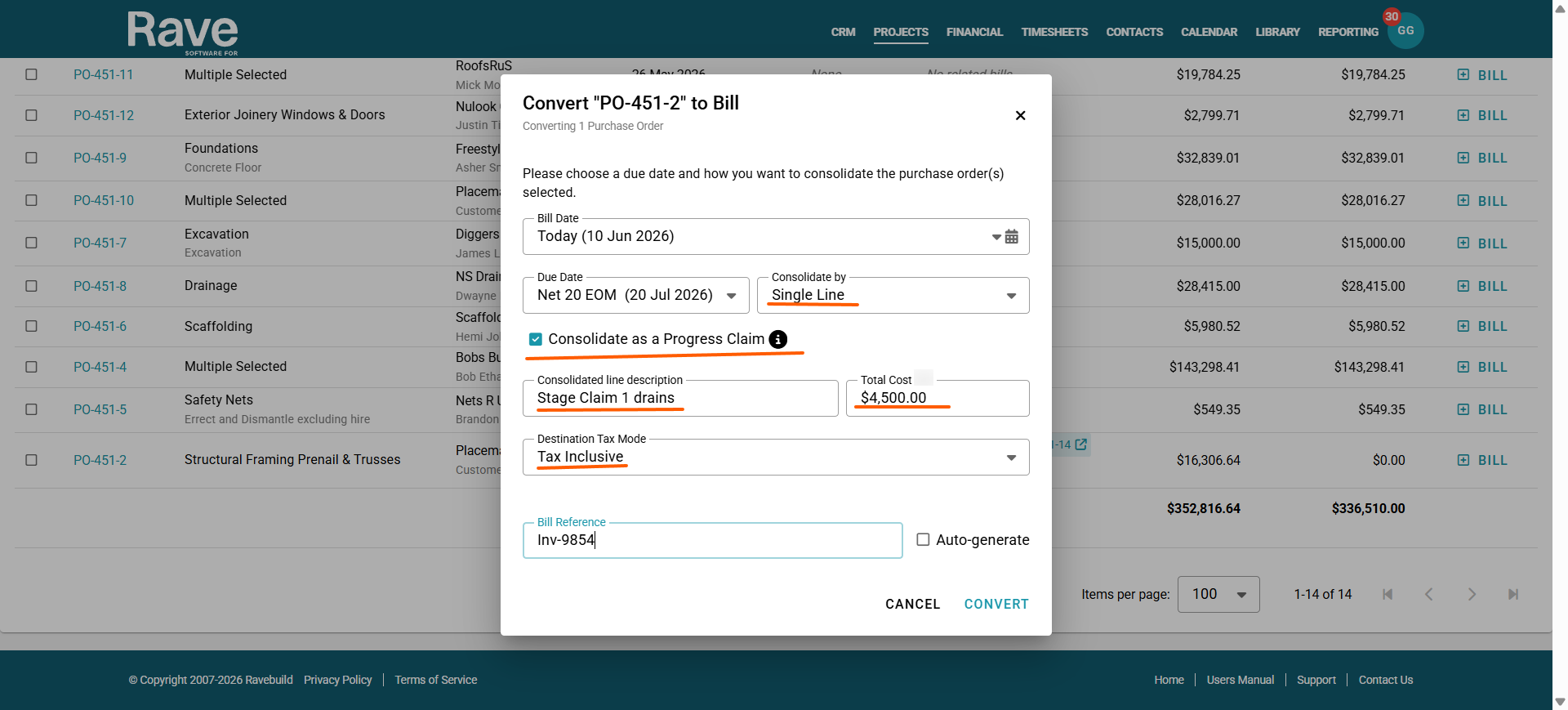
Click the + Create Bill button. A window will appear, prompting you to select the Due Date, Consolidation Type, Destination Tax Mode (set to Auto by default), and Bill Reference.
- Select Single Line from the Consolidation dropdown.
- Tick Consolidate as a Progress Claim.
- Enter a basic description for the bill line. i.e "Progress claim #1 drains"
- Enter the invoice value being claimed.
- Set the tax option to Incl or Excl, depending on whether the value entered above includes GST.
Rave will then automatically distribute the claimed value across all applicable purchase order lines, ensuring the remaining balance available to bill is calculated correctly.
This process must always be used when suppliers are billing via staged or progress claims, as the system needs to correctly calculate and track the relationship between item quantities and dollar values.
Once these details have been entered, click Convert.
The Bills will then show under the table Purchase Orders ready to convert. Once the entire budget on the Purchase Order has been spent, it will drop off the ready to convert list.
Note: You can still manually add a bill from this purchase order by clicking the Bills in the sub tab and selecting + Bill then selecting Load From Purchase Order and manually finding the PO. 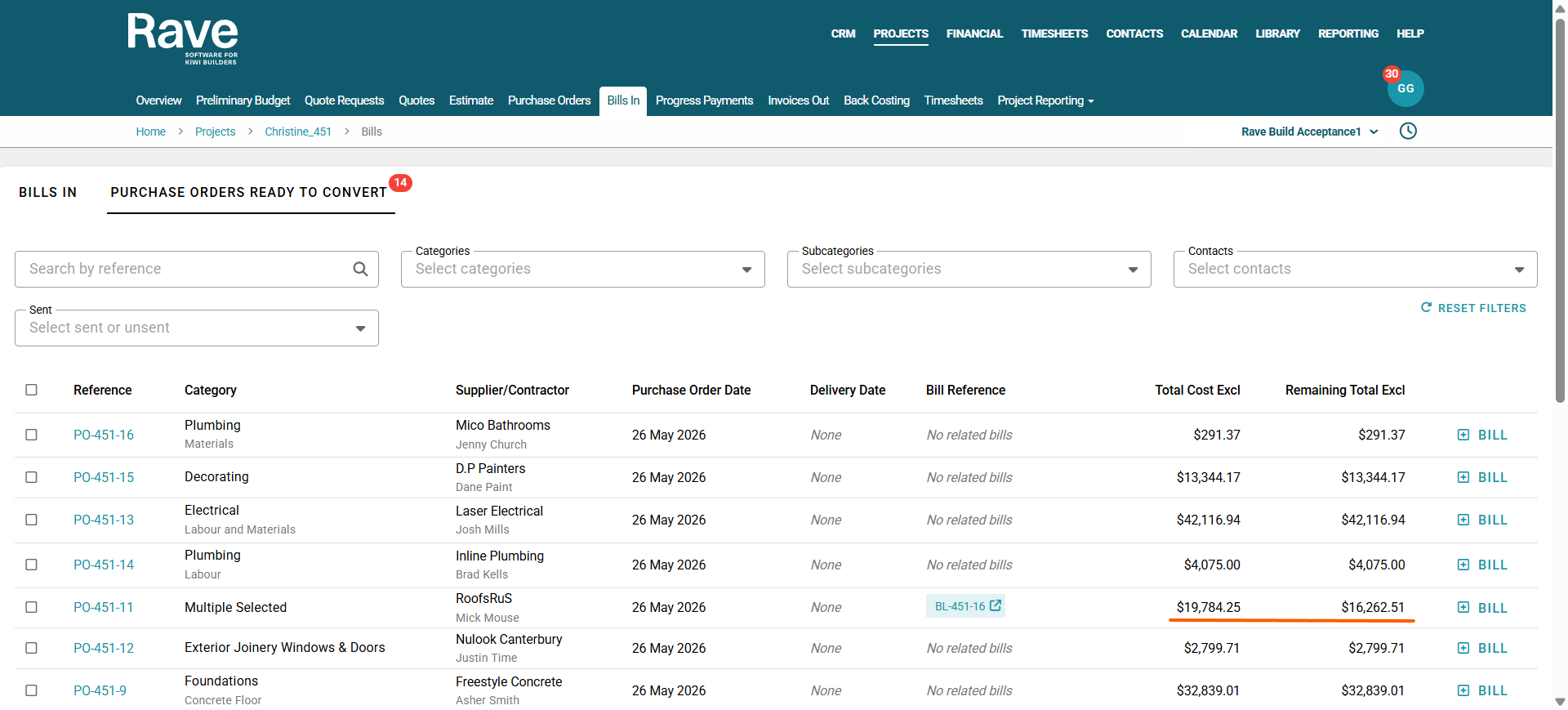
Note: Other Consolidation Options
Bills can also be consolidated by:
- Supplier Name - used when selecting multiple POs to convert to a single bill from the same supplier
- Account Code - used to replace the description with the account codes used in your accounting system
- Category - used to replace the description with the category name only
- Category and Sub Category - used to replace the description with category name and sub category
- Inventory Item - used to replace the description with inventory code reference when using product inventory.
Was this article helpful?
That’s Great!
Thank you for your feedback
Sorry! We couldn't be helpful
Thank you for your feedback
Feedback sent
We appreciate your effort and will try to fix the article