The Quotes sub-tab is where you manage contractor and supplier pricing within your project. Quotes can be used to build client proposals, compare costs against Purchase Orders and Bills for back-costing, and manage project pricing throughout the job lifecycle.
This article covers how to create a Quote from a CSV file.
To learn how to create a Quote manually and create a Quote from a Quote Request, click here.
You can also watch our current Quotes sub-tab training video here.
You can access your Project’s financial workflows from either the Financial button or the Project button's Project list, clicking on the project’s reference number, and finally selecting the Budget sub-tab, then Quotes.
Note: If you have existing Quotes, you can use the Export to CSV option to export the quote list, make changes, and then re-upload via the CSV import.
Alternatively, if you have nothing loaded yet, follow the steps below to create your quotes via CSV file upload.
How to Add a Quote(s) from a CSV File
To upload a quote(s) or project pricing into RAVE, go to your project's ‘Quote’ sub-tab:
- Click on the CSV Import button, to the top right of your screen
- Then, via the Upload CSV pop-up, download our example file
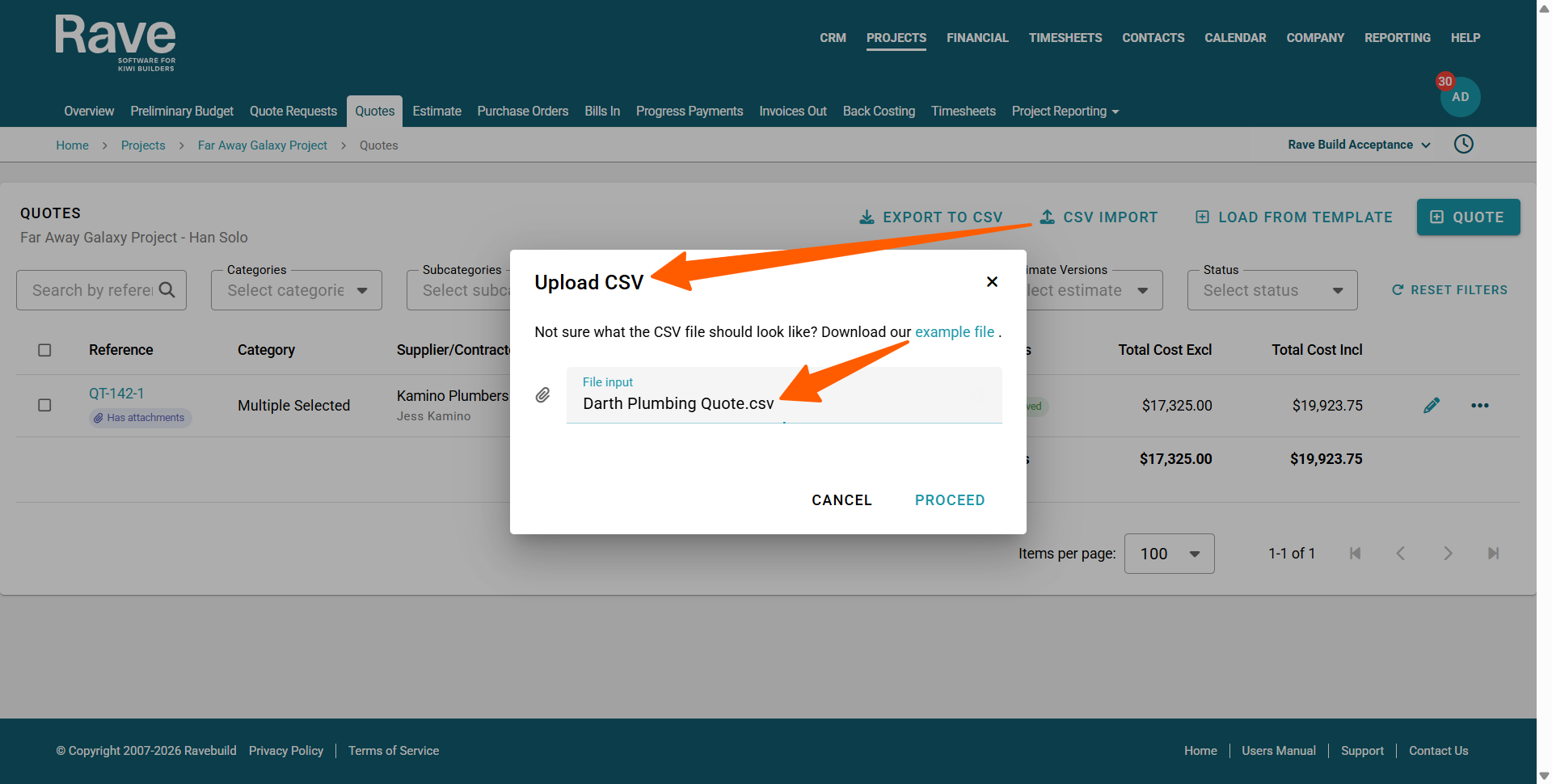
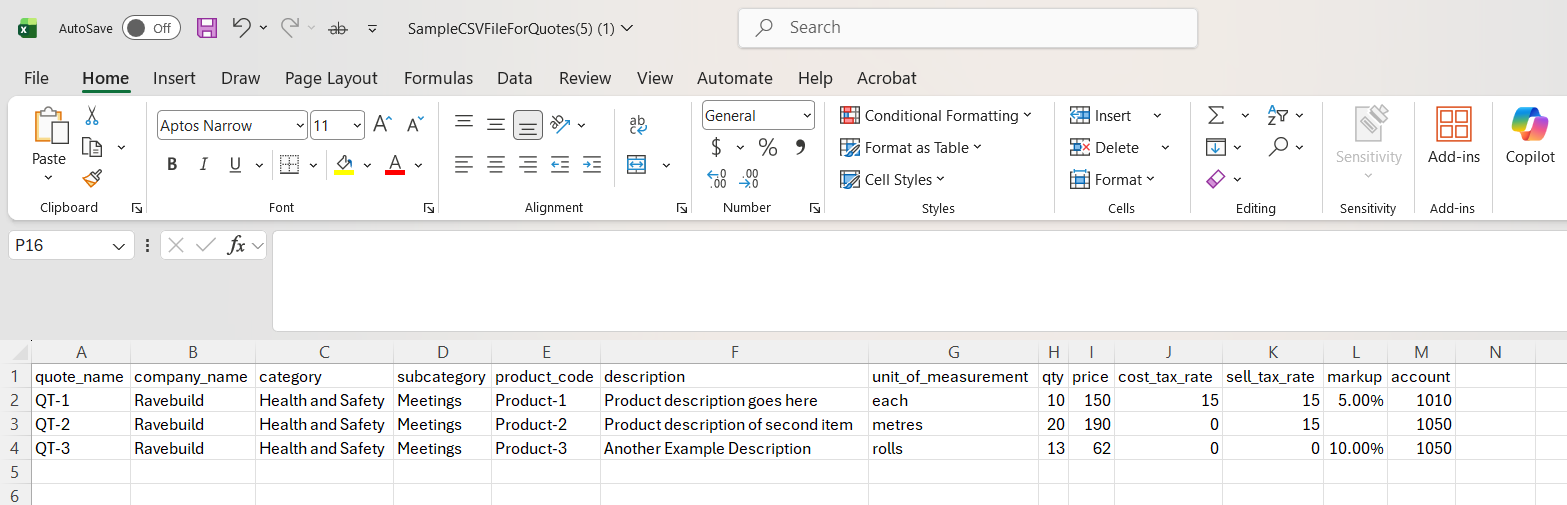
- Check that your CSV file matches the example file for both column names and headers) and data, and if not, make the necessary changes to the file
Notes:- The Quote Name - is the quote reference number. You can either use the supplier or contractor's quote reference or use something easily identifiable like 'Plumbing' or 'Building Labour'
- The Company Name field must exactly match the name you have stored in Rave under the Contractor or Supplier company name field. If you are using Xero as well, you must ensure that Rave and Xero also match exactly, i.e. if the Company Name is 'Rave Build Management Limited', you must type the entire name in for it to match. If you are unsure who is supplying you with this item, you can leave the company name field blank. RAVE will autofill it with your company name as a temporary placeholder, and you can go and edit it later.
- While you can use the same CSV file to upload multiple supplier quotes, from multiple suppliers, you can not have two different companies using the SAME quote name i.e. you can not use the quote name 'building materials' for both ITM and Carters on the same quote CSV, though you could say “Building Materials ITM” and “Building Materials Carters.
- The Category and Subcategory - must match your list of pre-populated categories and subcategories. If you dont use these skip this field
- The Product Code is only used for internal reference; this is the SKU/item code your supplier uses. This doesn’t send to Xero or go anywhere other than in RAVE.
- The Description - can be a short name or as long as you need. Don’t use this field for the scope of works or inclusions /exclusions, as these can get too long.
- The Unit of Measurement can be whatever you choose to use. Rave does have a list of prepopulated ones, such as each, sum, hours, day, week etc
- The Qty can be a full number or a part of a number i.e. 1.0, 1.5, 0.45, etc. You can not have a 0 (zero) Qty, all items must have a qty value greater than 0. You can, however, have a quantity of 1 and a price of $0.00.
- Price is your cost price either with no tax, excluding tax or including depending on what you select for the Cost Tax rate column next.
- The Cost Tax Rate and Sell Tax Rate is either 15 or 0 (% GST) you can have a cost of 0 and a sell of 15 or both the same
- The Markup is the percentage you wish to mark this item up by. If you prefer an overall job profit then you can leave this field blank and handle markup and margin on the estimate page.
- The Accounts - is your Xero chart of accounts code or whatever accounting system you use. You can just add the account code only - no wording is required.
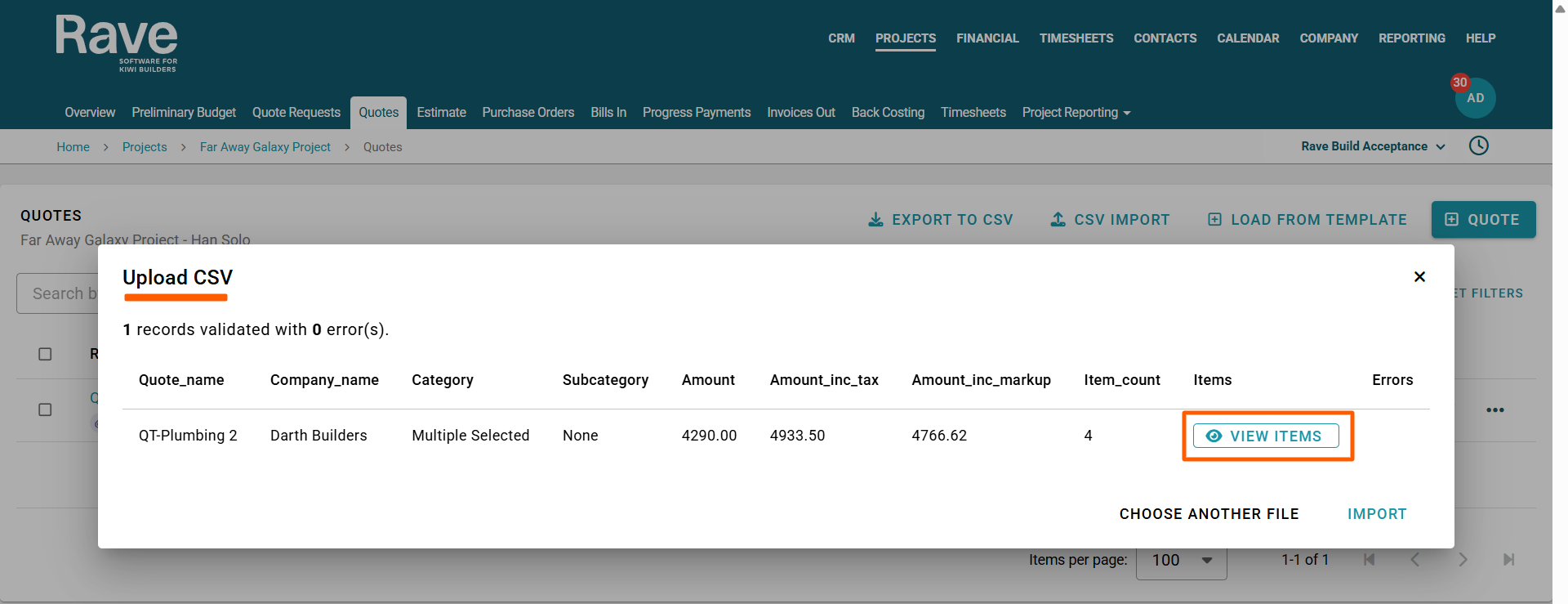
- Once the CSV file is good to go, drag it to the 'Upload CSV' pop-up to load, and click the proceed button to continue.
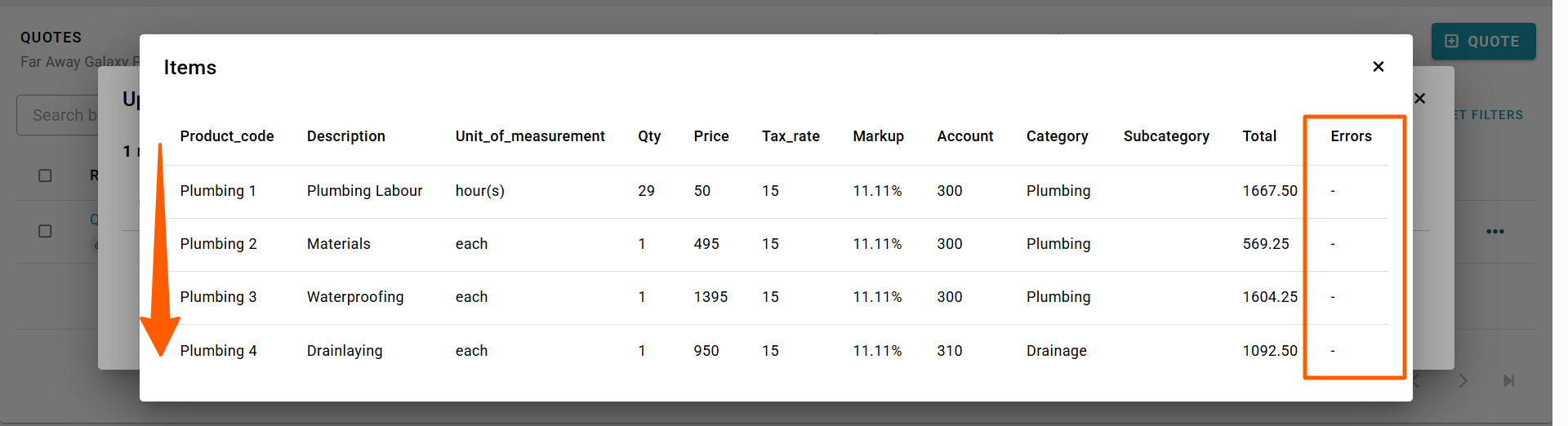
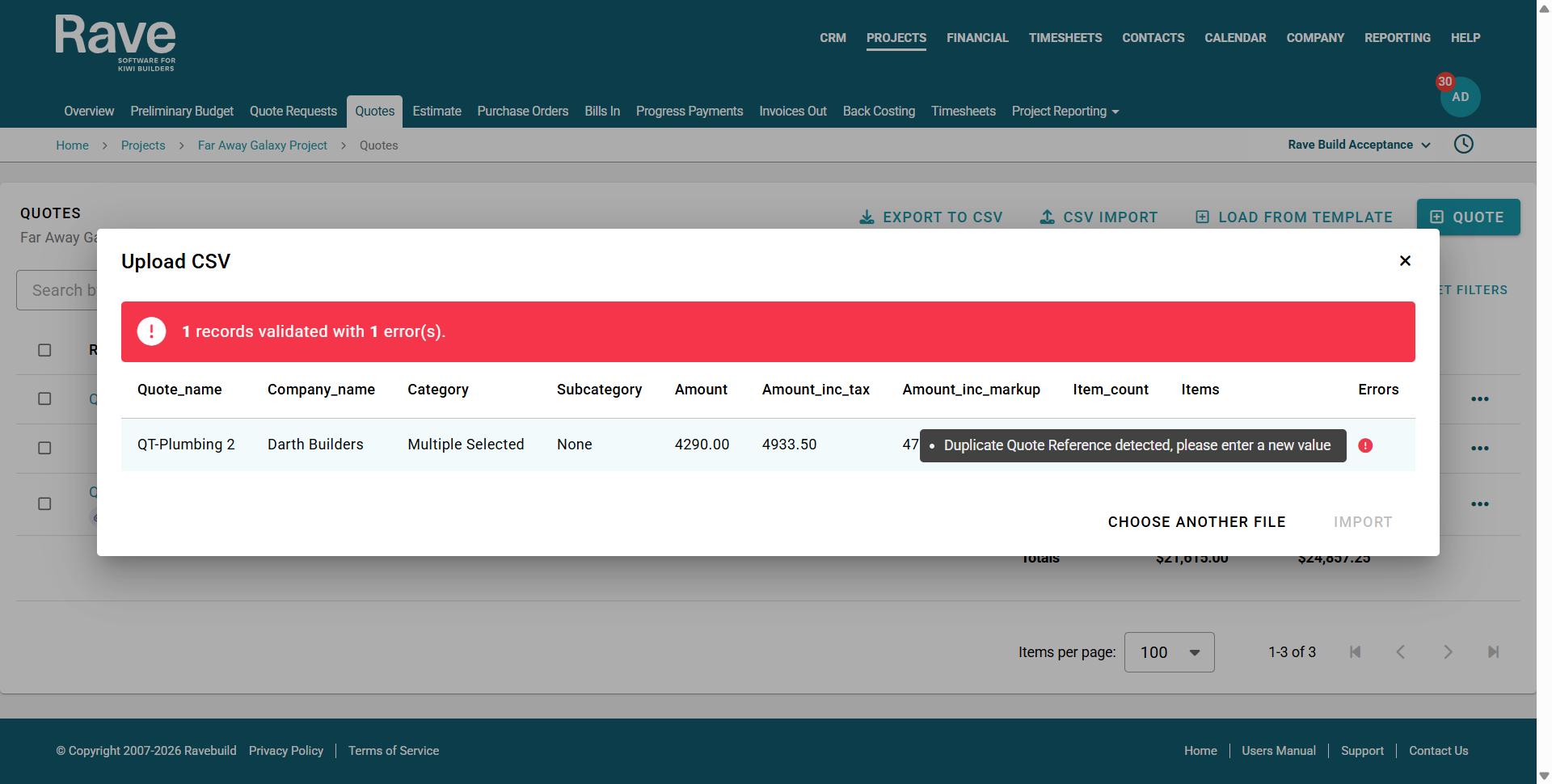
A new pop-up will appear, showing that the upload went through 100%, otherwise, any errors that need fixing will be displayed in Orange and Red.
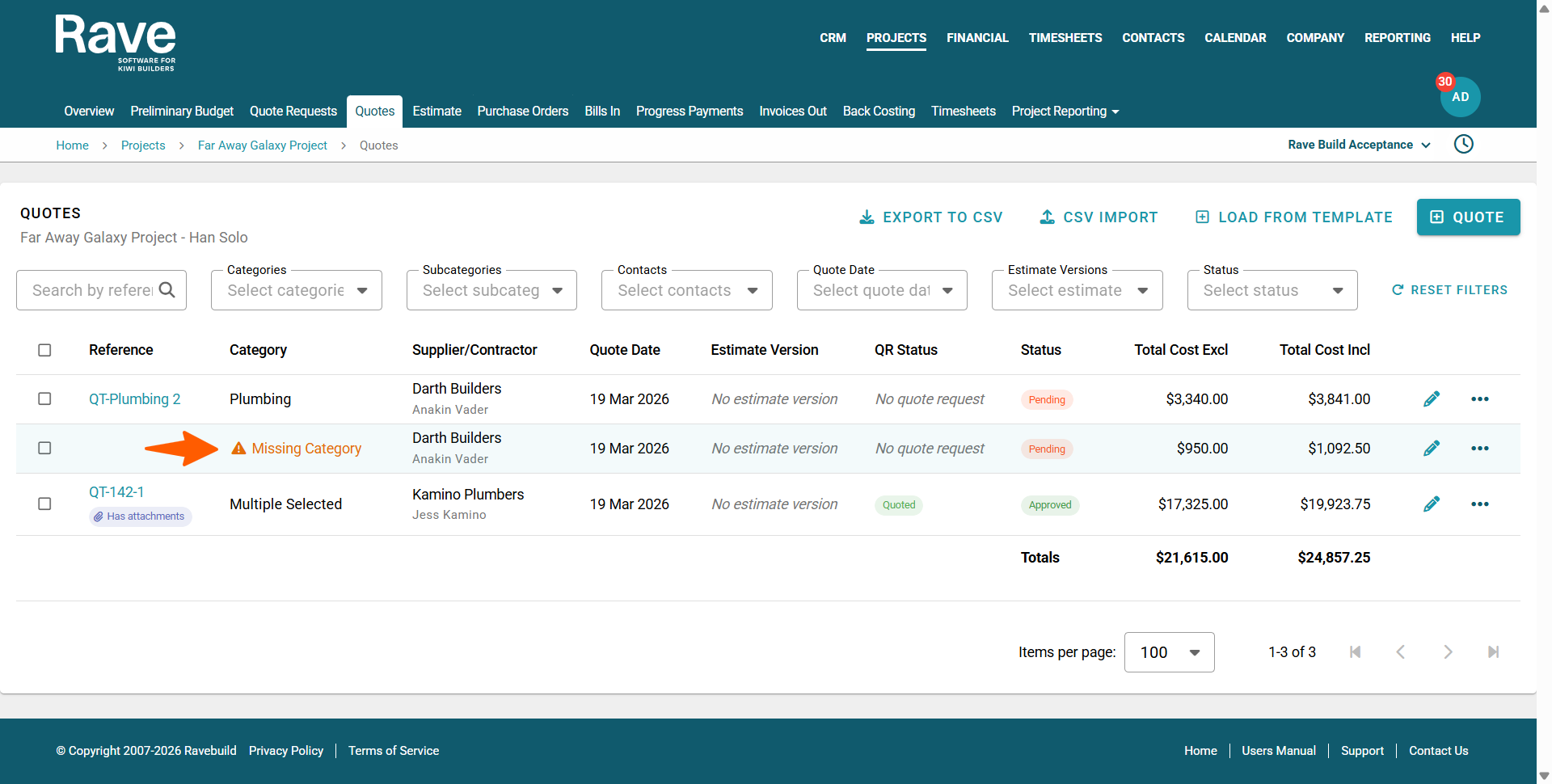
Note: An orange error indicates missing data, but it will not stop the CSV file from loading. Hovering over any of the orange caution signs will display the warning. Examples of orange errors include missing data for Category, Chart of Accounts, or Company Name.
A red error will prevent an upload from continuing. Examples of red errors include a quote with the same quote name already in use and a blank pricing field.
Once you have rectified any errors, resave your CSV file, and have another go at importing it.
You will now see all of the uploaded quotes on the quotes page - which you can now edit as required, i.e. change suppliers, pricing, add a scope of works, etc. You can also approve any quotes, add them to the Estimate, or just leave as pending while you work on them.
Was this article helpful?
That’s Great!
Thank you for your feedback
Sorry! We couldn't be helpful
Thank you for your feedback
Feedback sent
We appreciate your effort and will try to fix the article