Connecting RAVE Financial Management System (FMS) to Xero
Integrating RAVE FMS with Xero allows you to sync your Chart of Accounts, manage payments, link project tracking and more.
You must have the Branch Settings - Integration - Xero permission enabled in order to complete this setup. If you don't see this option, contact your branch owner or Rave Support.
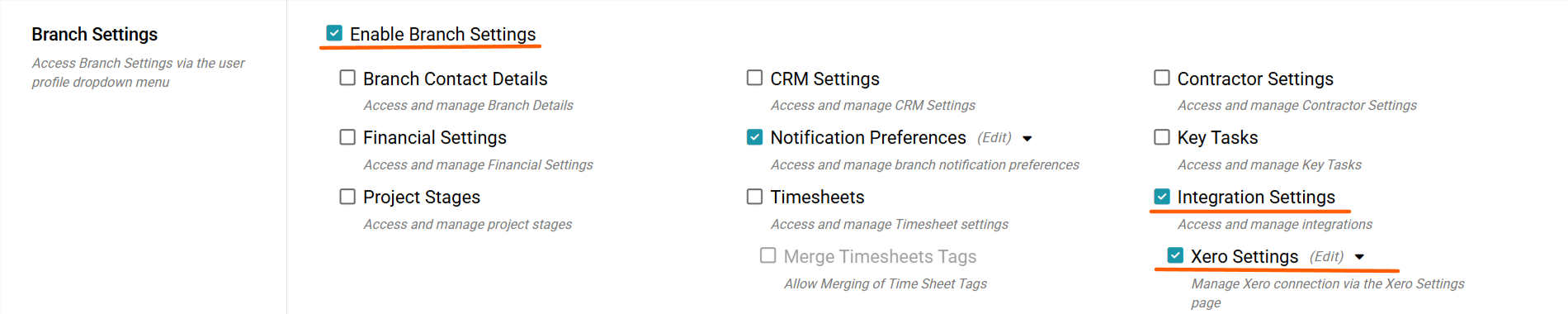
Click your Profile dropdown in RAVE.
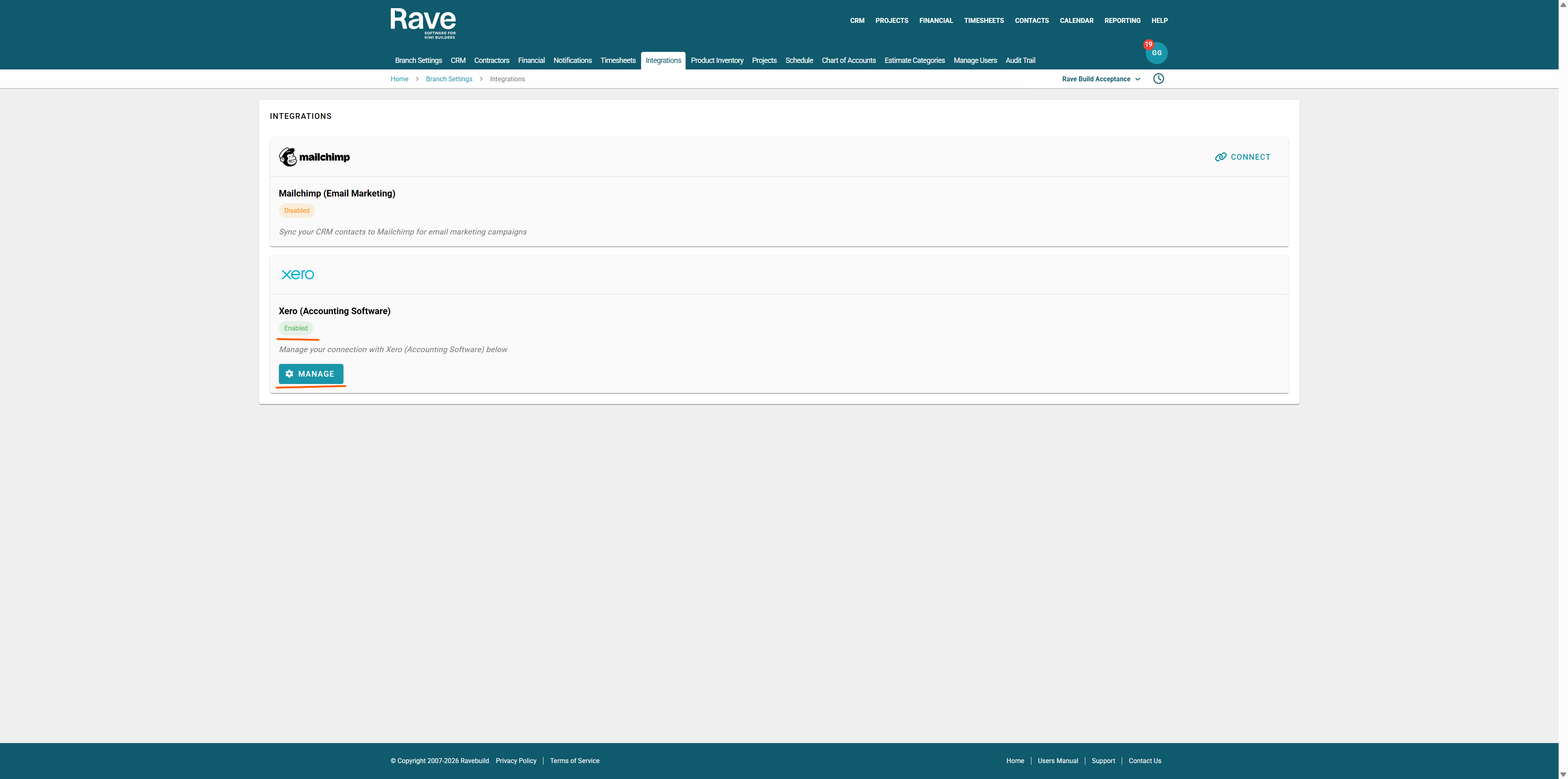
From the Branch Settings menu, select Integrations
If you don’t see this option, contact your Business Owner for access permissions.
Once in Integrations, find Xero and click Manage.
Scroll down the Xero Settings Tab to Find Xero Payment Syncing. RAVE’s Xero Payment Syncing function reduces double handling and extra workload for accounts teams by automatically syncing payment updates from Xero into RAVE.
What It Does
Bills & Invoices: Payments made in Xero will update RAVE automatically within 1-2 minutes.
Credit Notes (Supplier & Client): Payments/Credit Allocations made in Xero will update RAVE automatically within 1-2 minutes.
Important Setup Note
Once payment syncing is enabled, you cannot manually mark invoices, bills, or credit notes as paid or unpaid, or allocate credits or refunds in RAVE.
Before enabling, complete the following housekeeping:
Mark all old invoices, bills, and credit notes as paid/credited in RAVE.
Review and clean up any outdated payment records.
After Activation
Adding Credit/Payment fields in RAVE will be hidden and only updated through Xero.
Xero becomes the source of truth for payment status.
All payment updates in Xero are automatically reflected in RAVE.
Audit trails in RAVE will log synced actions, but the user field will be blank (as RAVE does not capture the Xero login name).
Special Cases
Partial Payments
If a partial payment is made in Xero, RAVE will show the bill or invoice as partially paid, with the amount paid displayed in the Paid field.Overpayments
If an overpayment is made in Xero, RAVE will show the bill, invoice, or credit note as fully paid. The overpaid amount remains in Xero and is allocated to the contact rather than to a specific bill or invoice. Once you allocate the overpayment to a document linked to Rave, the amount will be reflected in that document. RAVE will not show the bill/invoice/credit note as overpaid.Payment Removed in Xero
If a bill, invoice, or credit note is reconciled and then removed in Xero, RAVE will automatically remove the payment from its records.
Line Items Added in Xero
If a new line is added to a bill, invoice, or credit note in Xero, it will also be added in RAVE.
Item Updates
Changes to item details such as description, price, quantity, chart of accounts code, billed date, or due date in Xero will be reflected in RAVE, but making these changes in Xero may affect reporting. It's recommended that you don't alter any line items in Xero.Reference Number/Name Changes
If a reference number or name is changed in Xero, it will not update in RAVE.
You will need to manually update this in RAVE.Supplier Name Changes
If a supplier name is changed in Xero, it will not update in RAVE.
You will need to manually update or reload the supplier in RAVE.Document Attachments
Documents added in Xero are not sent to RAVE.
You will need to manually upload these documents into RAVE if required.
Example: Editing a Bill After Syncing to Xero
In this example, a bill was originally created in RAVE and sent to Xero with the following details:
Total Amount: $3,441.38 (including GST)
Chart of Account Codes: Left blank
What Happened Next:
Once the bill appeared in Xero, it was identified that:
A travel charge had been omitted
The Chart of Accounts code was missing
Actions Taken in Xero:
A new line item was added for the travel charge.
The correct Chart of Accounts code was applied.
The updated bill was saved in Xero.
Result in RAVE:
The new travel charge line item was automatically added to the bill in RAVE.
The updated account code and total cost were also reflected in RAVE, in line with the changes made in Xero.
This example highlights how updates made in Xero, such as adding line items and account codes, will sync back into RAVE, keeping both systems aligned (with some exceptions as noted under "Special Cases").
When we went back into RAVE, the updates had been automatically added - as per the screenshots below.


Example: Partial Payment Allocation
RAVE supports tracking of partial payments through Xero. When a partial payment is made in Xero, it is synced back to RAVE with the label "Partial Payment" shown in the payment box.
You can make multiple partial payments against a bill, invoice, or credit note.
RAVE will continue to update the amount paid and reflect the remaining balance until the item is paid in full.
Example:
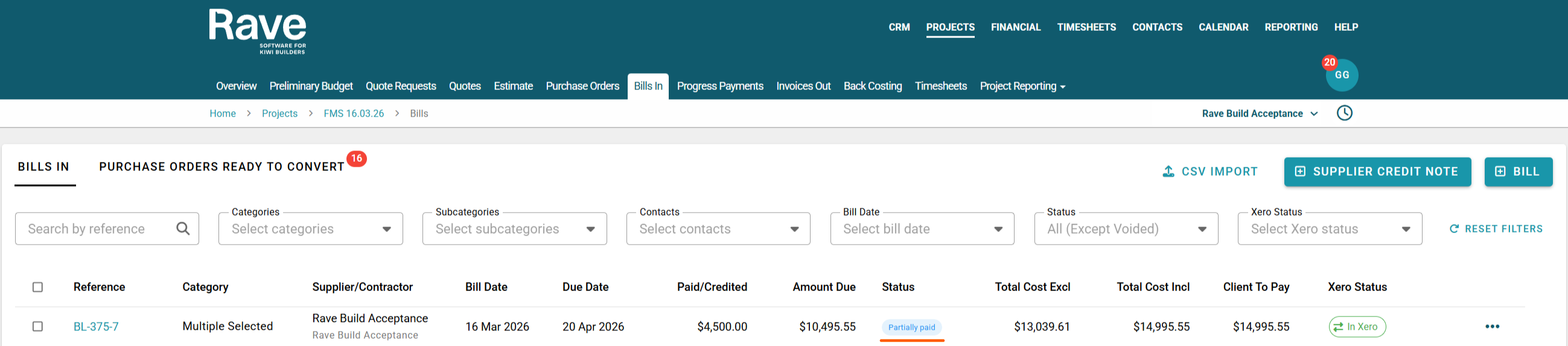
A supplier bill has been issued for a total of $10,495.55 INCL GST
A partial payment of $4,500 is made in Xero.
RAVE displays this as a Partial Payment, showing $4,500.00 in the Paid field and $10,495.55 in the Amount due Field.
The bill remains marked as Partially Paid in RAVE until the full balance is received.
Once the remaining amount is paid in Xero, RAVE will automatically update the bill to Fully Paid.
Example: Overpayment Handling in Xero and RAVE
When an overpayment is made in Xero, either to a supplier or received from a client, it is not allocated to the specific bill, invoice, or credit note. Instead, Xero stores the overpayment as a credit against the contact (supplier or client).
This is important because:
RAVE does not reflect overpayments directly on the bill or invoice, as Xero does not tie the overpayment to the original document.
RAVE will only show the amount officially allocated in Xero.
Scenario:
You have two bills in RAVE (and in Xero) for the same supplier.
You accidentally overpaid the first bill by $1,000.
Xero will allocate the payment in full to the first bill.
It will then prompt you to allocate the extra $1,000 (now referred to as a credit) to another bill.
You can choose to:
Allocate the credit (overpayment) to the second bill
Hold the credit on the supplier’s account to use later
Outcome in RAVE:
First Bill: Now marked as Fully Paid
Second Bill: Shows a Partial Payment of $1,000, if the credit is allocated in Xero
You can continue to allocate the overpayment across multiple bills or invoices until it is fully used.
RAVE will reflect:
The status of each bill/invoice (e.g. Partially Paid or Fully Paid)
The payment amount allocated from Xero
Any updates made to allocations in Xero (reflected in RAVE within 1–5 minutes)

Was this article helpful?
That’s Great!
Thank you for your feedback
Sorry! We couldn't be helpful
Thank you for your feedback
Feedback sent
We appreciate your effort and will try to fix the article