Depending on your role and permissions, you can adjust your own and, in some cases, your team’s notification settings. This allows you to control the volume and type of notifications received via:
- Rave Notifications (Alerts)
- External Email Notifications (sent to your email inbox)
Key Notes:
- All users can update their own notifications, based on the permissions they’ve been granted.
- If a user cannot see a specific notification switch, it means they do not have access to manage that particular setting.
- In these cases, a Branch Owner or another internal team member with the appropriate permissions can make the necessary updates.
- Those with permission to edit other users notifications will see a user box to the top right of their screen where they can pick a user and then select which notifications they would like to alter.
- If a category only displays one option, it’s because that specific notification does not offer both email and internal (in-app) notification types.
- Notifications marked with a House icon can be configured on a project-by-project basis. This allows you to override the default notification settings and choose exactly which projects a user will receive notifications for, rather than sending notifications for every project they have access to. To view the Project Level settings help article, please click here.
We understand how important it is for you to control the notifications you receive. That’s why we’ve designed our CRM to give you more flexibility and clarity.
Here's how it works:
- By default, notifications for activities/tasks that you create, edit, or delete will be turned off — since you're already aware of those actions.
- Notifications for activities/tasks that others create, edit, or delete that involve you will be turned on — so you stay informed when changes affect you.
You can customise these preferences at any time.
To update your notification settings:
- Click your profile icon (top right of the Rave page).
- Select Profile Settings.
- Navigate to the Notification Preferences section.
- Click on the CRM tab to manage your CRM notification settings.
- Note: There is a separate help article for PROJECT Activities here
CRM Notification
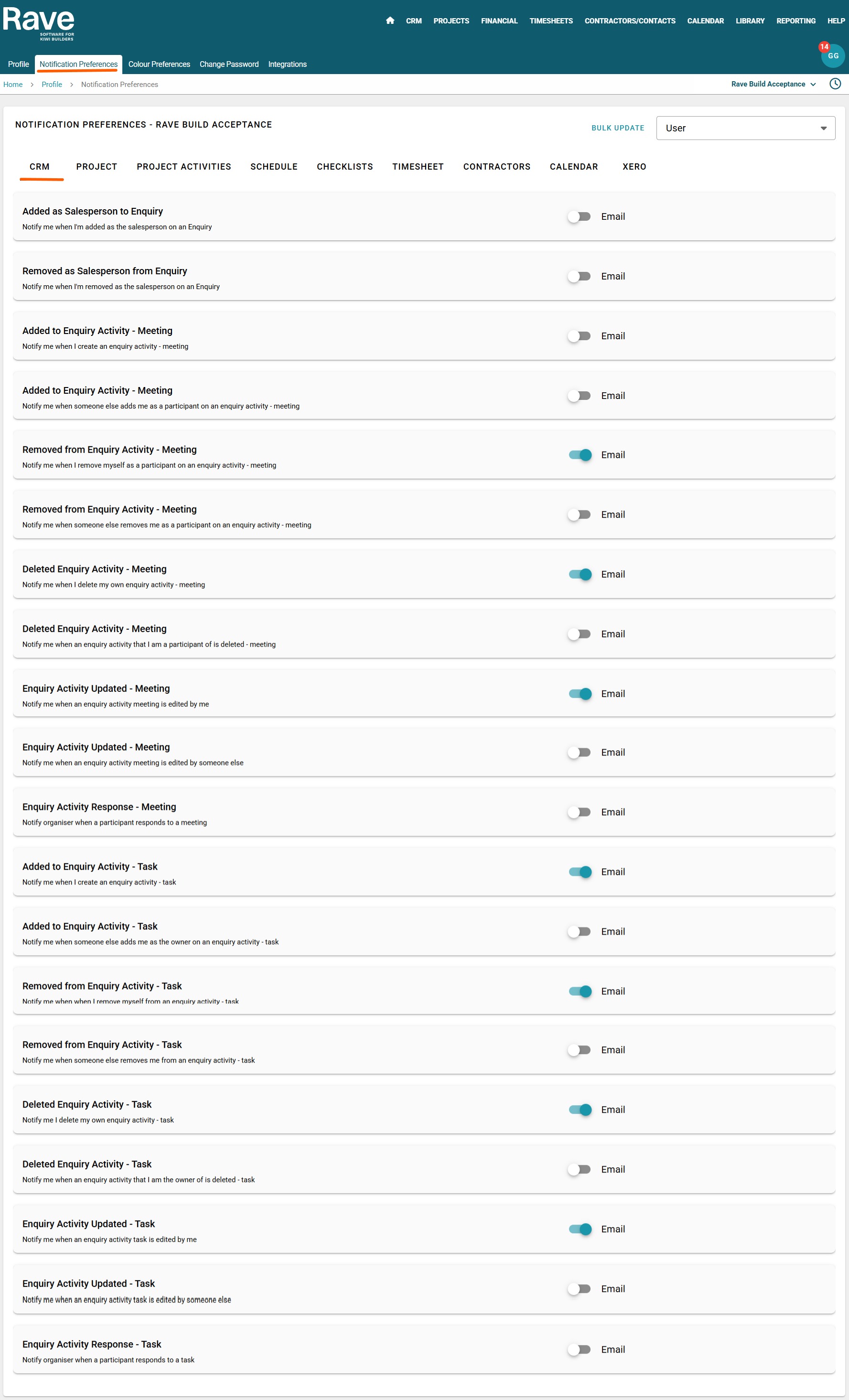
Please note: These are external email notifications — they will be sent to your inbox outside of Rave.
All notifications come from the email address noreply@ravebuild.co.nz
Email Sample
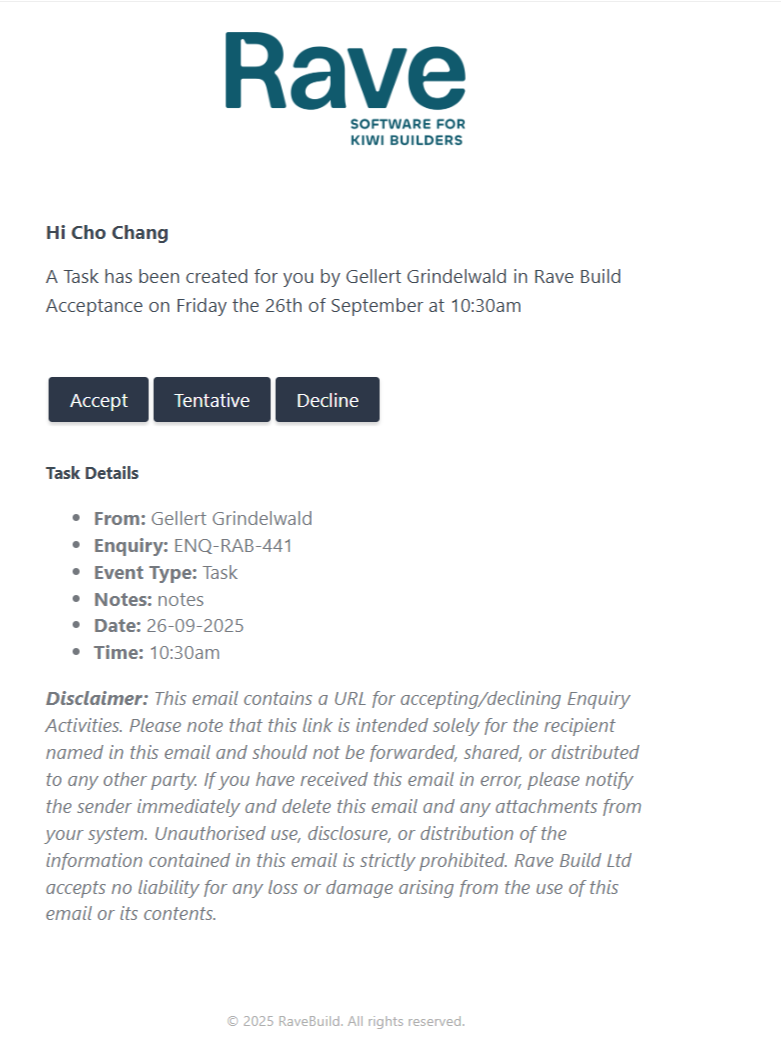
When you turn on Notifications for Activity Tasks being created for you by someone else the below is a sample of an email you will receive.
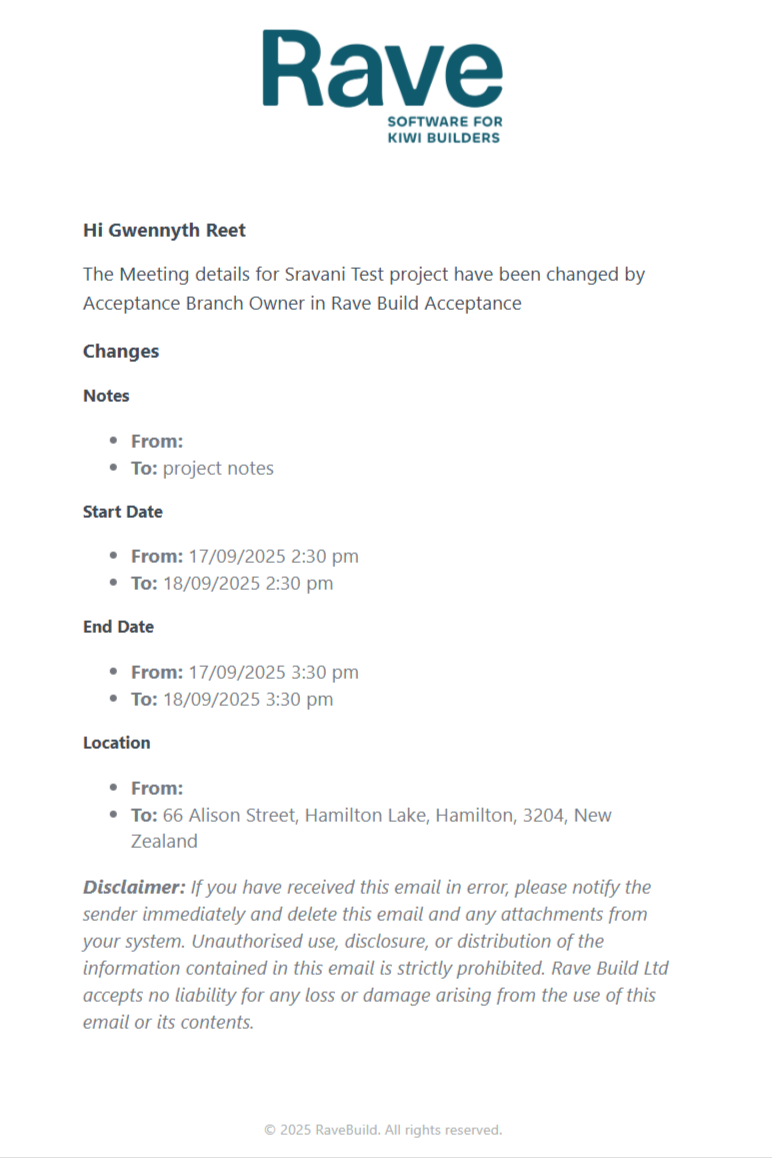
When you turn on Notifications for Activity Tasks being updated for you by someone else the below is a sample of an email you will receive.
Was this article helpful?
That’s Great!
Thank you for your feedback
Sorry! We couldn't be helpful
Thank you for your feedback
Feedback sent
We appreciate your effort and will try to fix the article