To view all Rave User Group Options Permission sets, please click here for the help article.
Branch Owner
The Branch Owner user group is designed for users who require full access to manage all areas of Rave for their branch.
Recommended For;
- Branch Owners
- Directors
- Senior Managers
Important: Branch Owners have the highest level of access within a branch. Some permissions are module-specific and will only appear if the relevant modules have been enabled for your branch.
How to View Your Branch Owner Permissions
To view and manage your users:
1. Click the profile dropdown in the top-right corner of the screen. 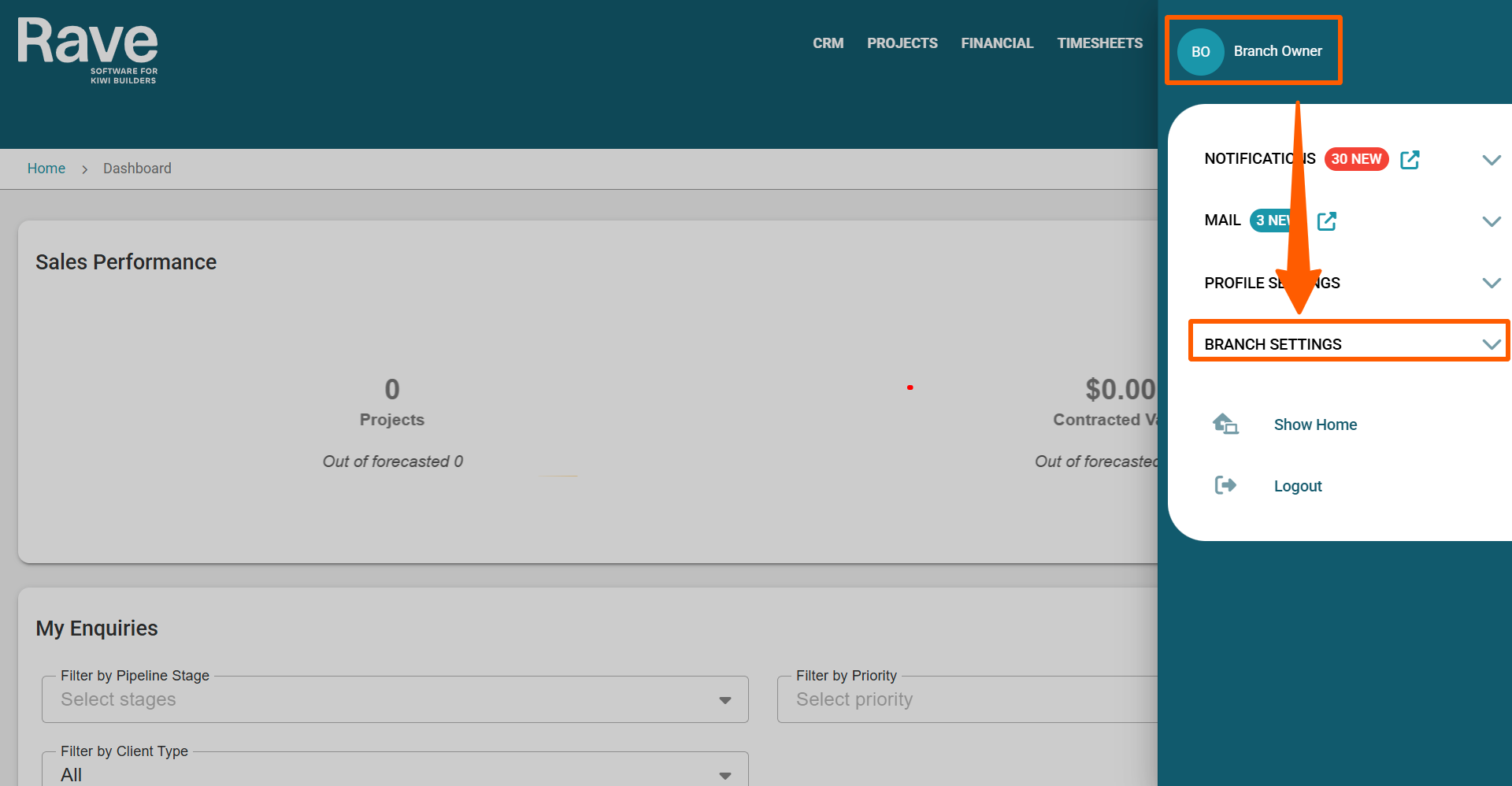
2. Scroll to the Branch Settings section, then select Manage Users. 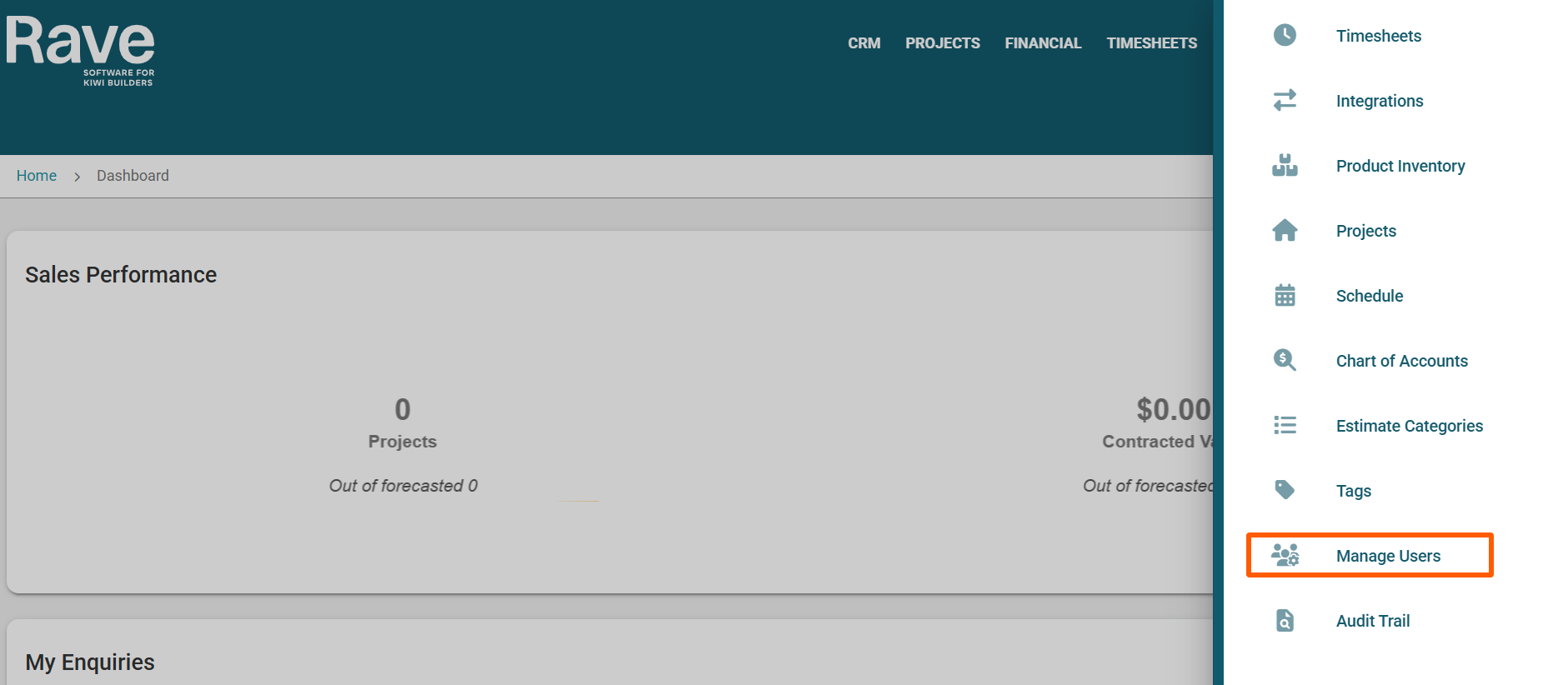
3. Select the user whose permissions you want to view (for example, a Branch Owner), then click Edit in the top-right corner of the page.
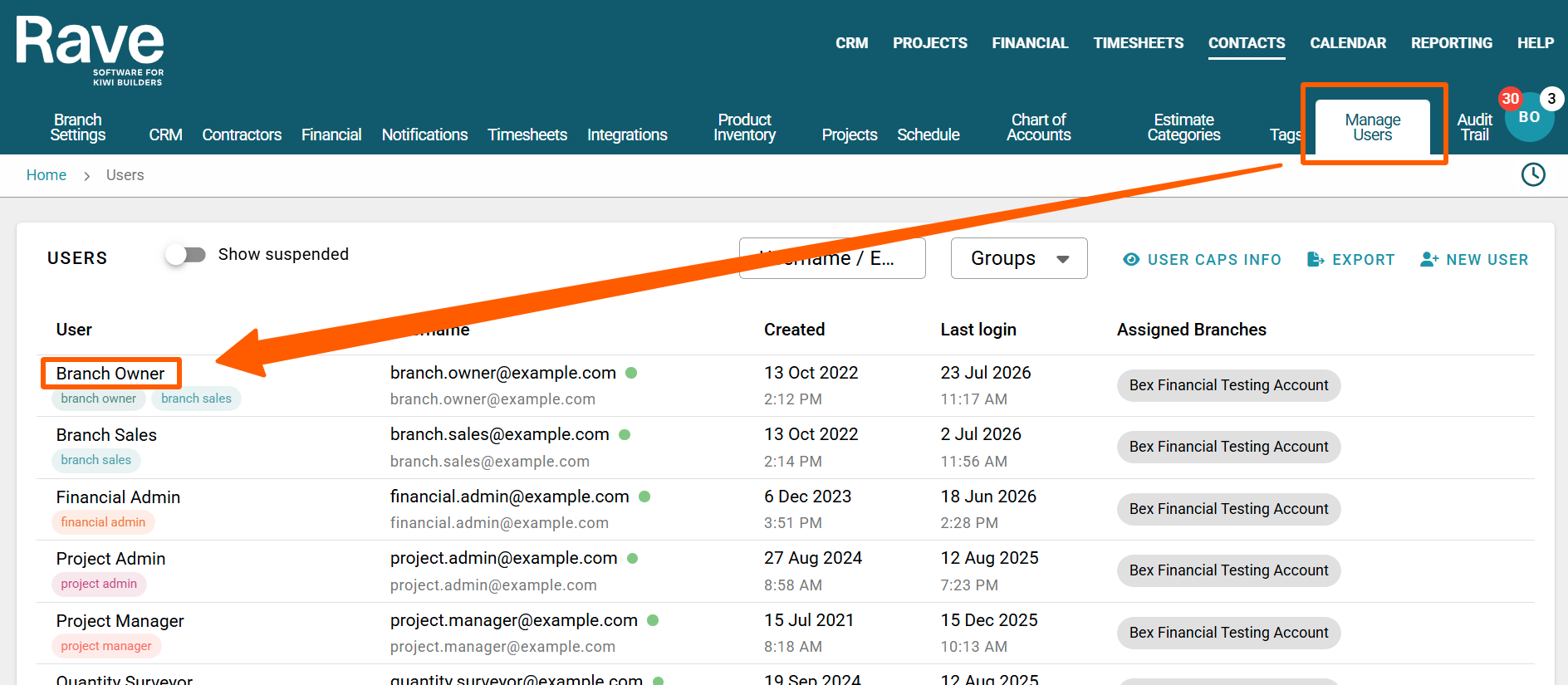
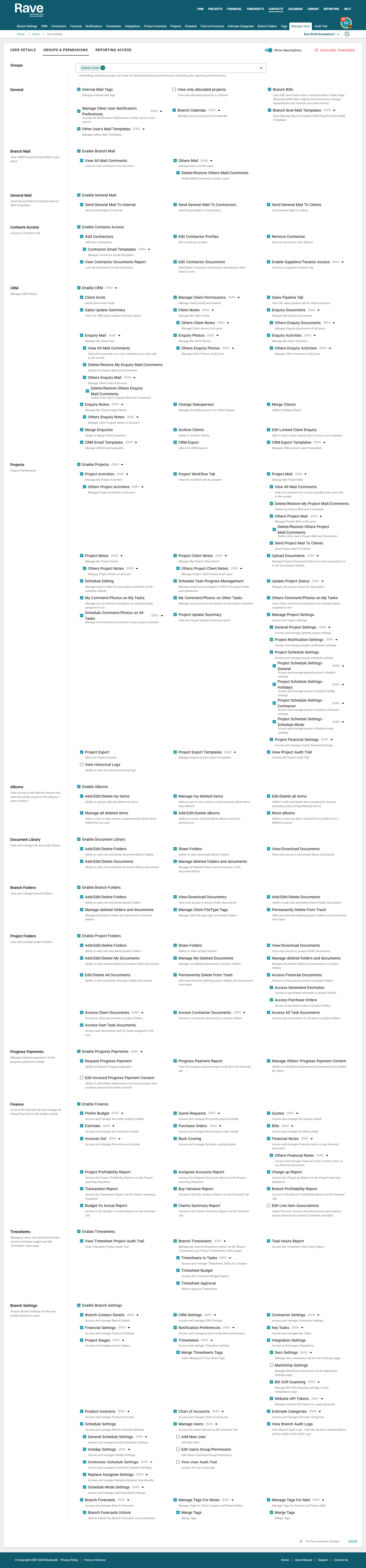
4. Select the Groups & Permissions tab. Under Groups, ensure Branch Owner is selected to view the default permissions.

To view all Rave User Group Options Permission sets, please click here for the help article.
Branch Owner
The Branch Owner user group is designed for users who require full access to manage all areas of Rave for their branch.
Recommended For;
- Branch Owners
- Directors
- Senior Managers
Important: Branch Owners have the highest level of access within a branch. Some permissions are module-specific and will only appear if the relevant modules have been enabled for your branch.
How to View Your Branch Owner Permissions
To view and manage your users:
1. Click the profile dropdown in the top-right corner of the screen.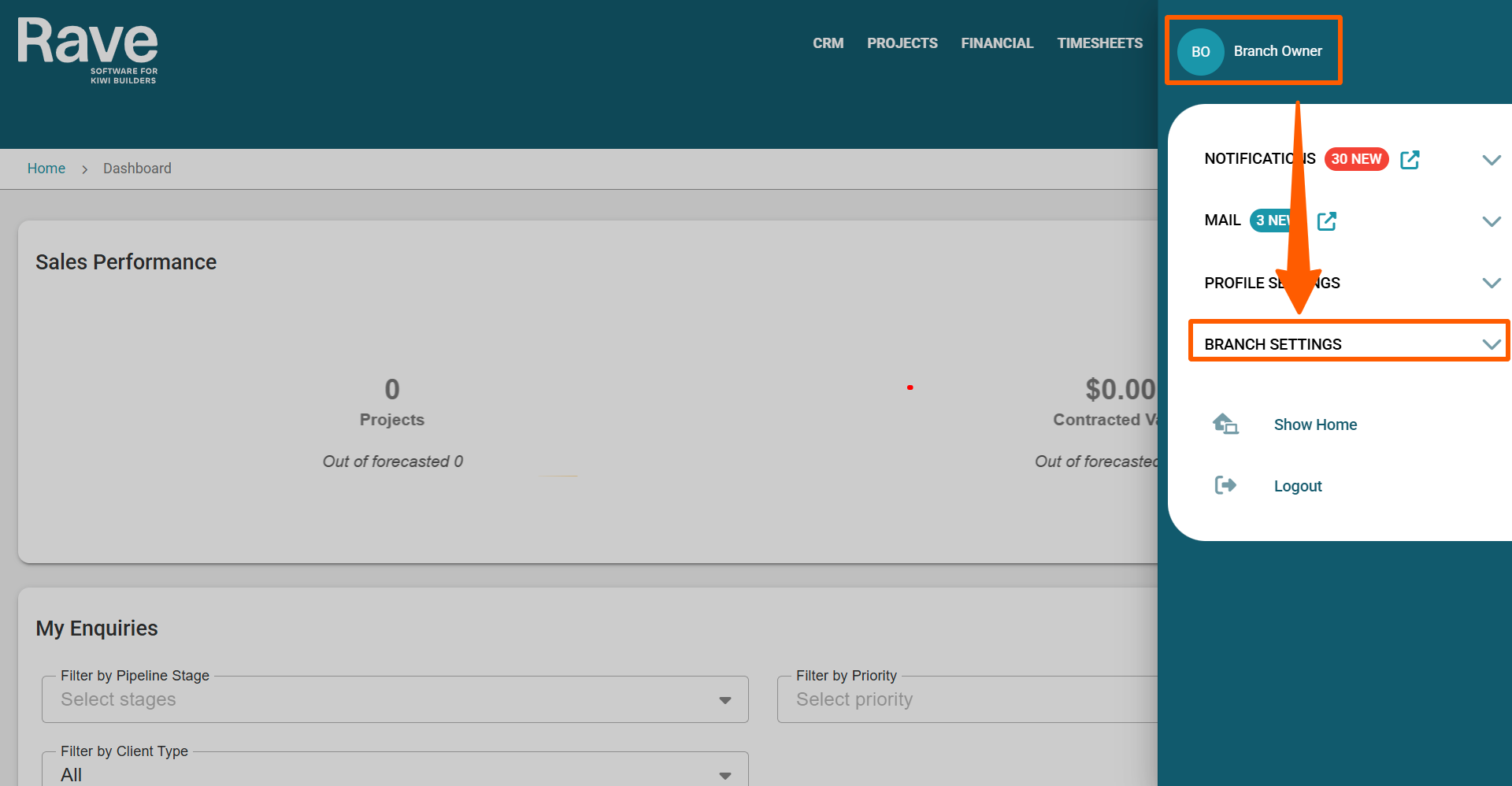
2. Scroll to the Branch Settings section, then select Manage Users.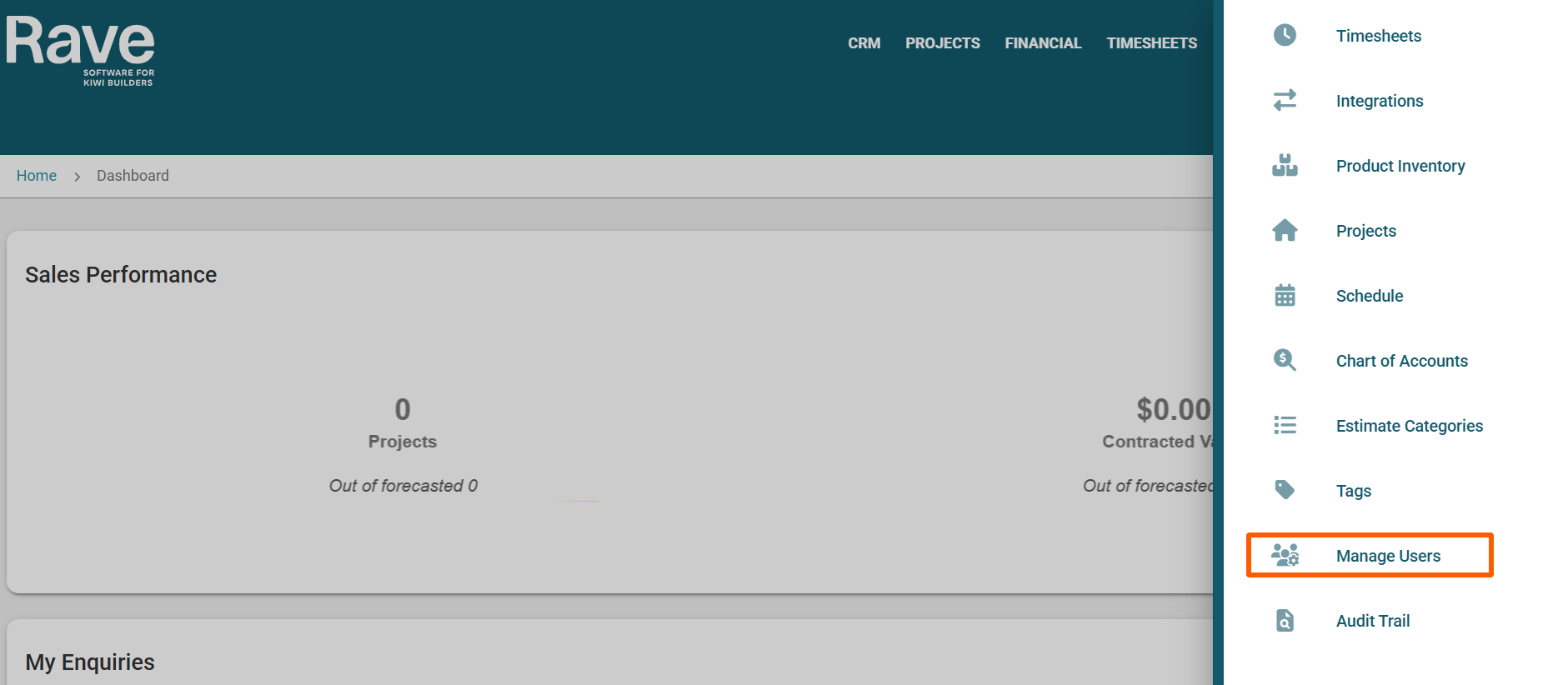
3. Select the user whose permissions you want to view (for example, a Branch Owner), then click Edit in the top-right corner of the page.
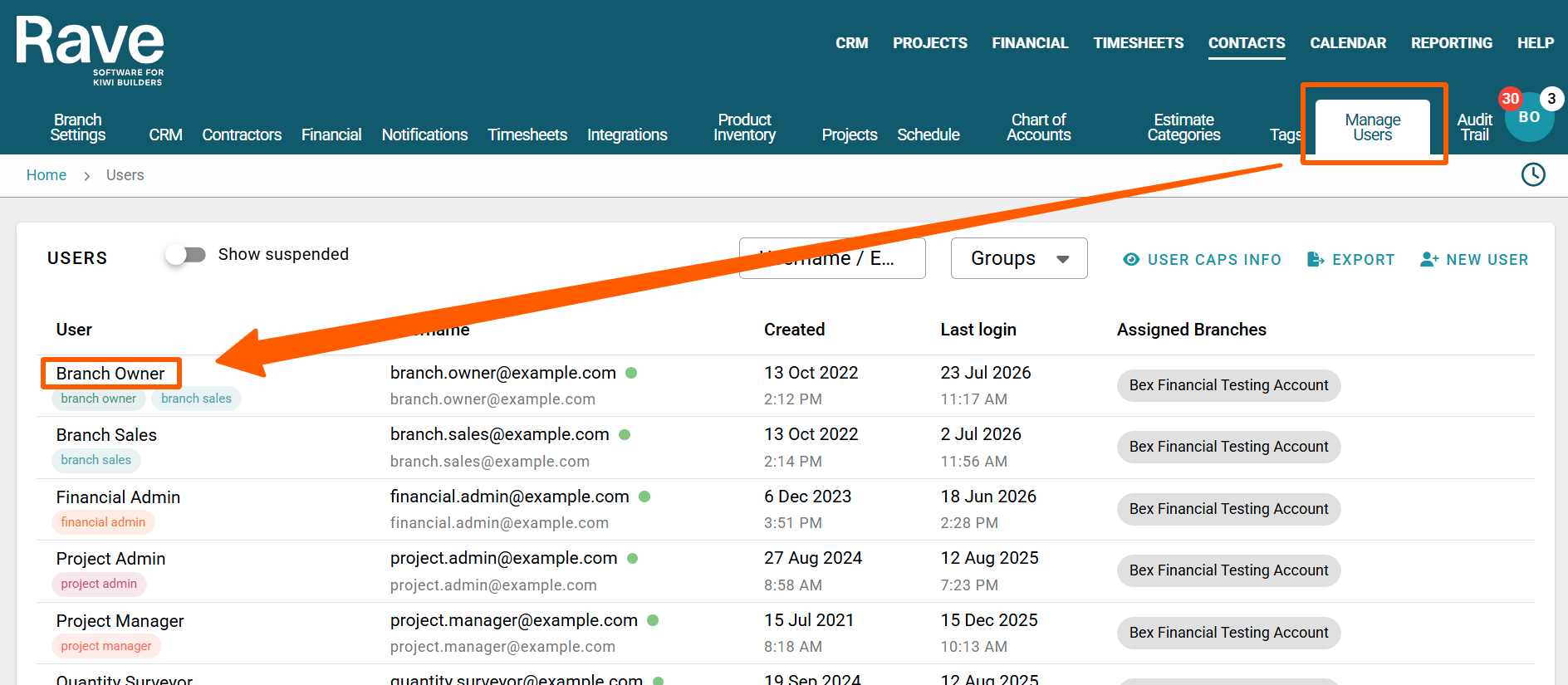
4. Select the Groups & Permissions tab. Under Groups, ensure Branch Owner is selected to view the default permissions.

Default Access
Branch Owners have access to all core areas of Rave, including:
- User Management – Manage users, user groups and permissions.
- Branch Settings & Configuration – Manage branch settings and configuration.
- CRM & Client Management – Full access to manage clients and CRM records.
- Contacts & Contractors – Manage contacts and contractors.
- Projects & Project Communications – Full access to all enabled project modules.
- Files, Documents & Albums – Manage files, documents and albums.
- Progress Claims & Payments – Manage progress claims and payments.
- Finance & Financial Reporting – Access financial reports and tools.
- Timesheets & Approvals – Manage and approve timesheets.
- Reporting & Audit Trails – Access reports and audit history.
- Branch Mail & Communication Tools – Manage branch communications.
Note: Some permissions are module-specific and will only appear if those modules have been enabled for your branch.
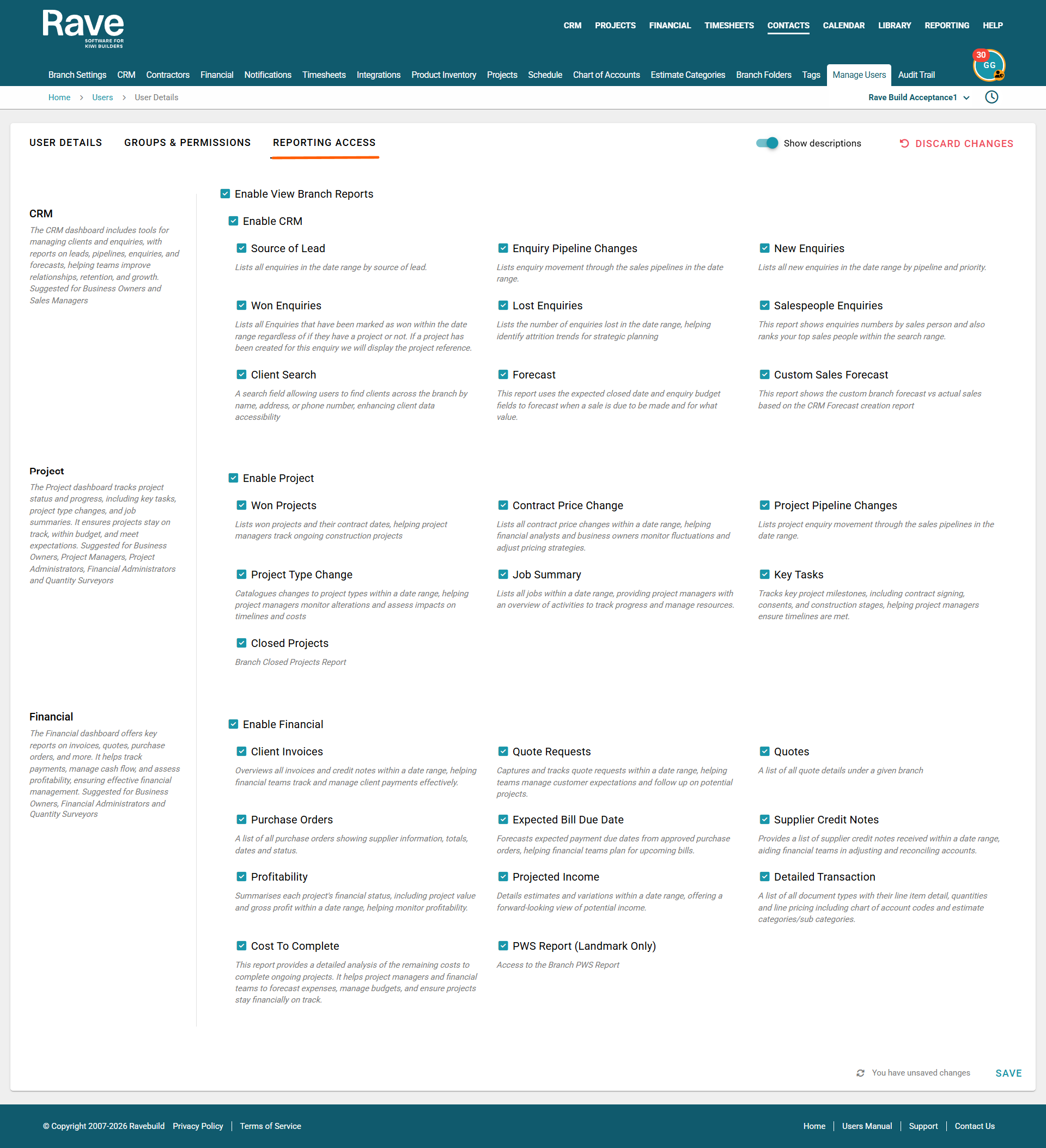
Reporting Access
Reporting Access lets users view and generate Branch reports in Rave based on the permissions they have for other modules.
Users with Reporting Access can:
- View available reports they can access.
- Filter, sort, and generate reports.
- Export reports to Excel or PDF (where available).
- View data only for the projects, clients or branches they already have permission to access.
Note: Reporting Access does not grant access to additional information. Users will only see data from modules and projects they already have permission to view.
Was this article helpful?
That’s Great!
Thank you for your feedback
Sorry! We couldn't be helpful
Thank you for your feedback
Feedback sent
We appreciate your effort and will try to fix the article