To view all Rave User Group Options and their Default and Optional Permission screenshots, please click here for the Article
At Rave Build, we know you like to have options—so we offer different user group types to suit a variety of roles within your business. These user groups give you the flexibility to control access across your team, ensuring the right people have the right tools at the right time.
In the following article, we’ll explain each user group in as much detail as possible, with the caveat that Rave is constantly improving and evolving. We add new permissions almost monthly to enhance your user experience.
Permissions are broken down into either:
The default permissions assigned to each group or the optional permissions you can enable based on your needs
The Project Admin user group is designed for team members who support project and client management, with broad access to CRM, Projects, and document management features.
Recommended For;
- Project Administrators
- Office Managers
- Project Coordinators
- Team members supporting project and client management
Important: Project Admins have broad access to CRM, Projects, documents and project administration features by default. You can enable Financial and Progress Payment access separately, as needed.
How to View Your Project Admin Permissions
To view and manage your users:
1. Click the Profile dropdown in the top-right corner of the screen. 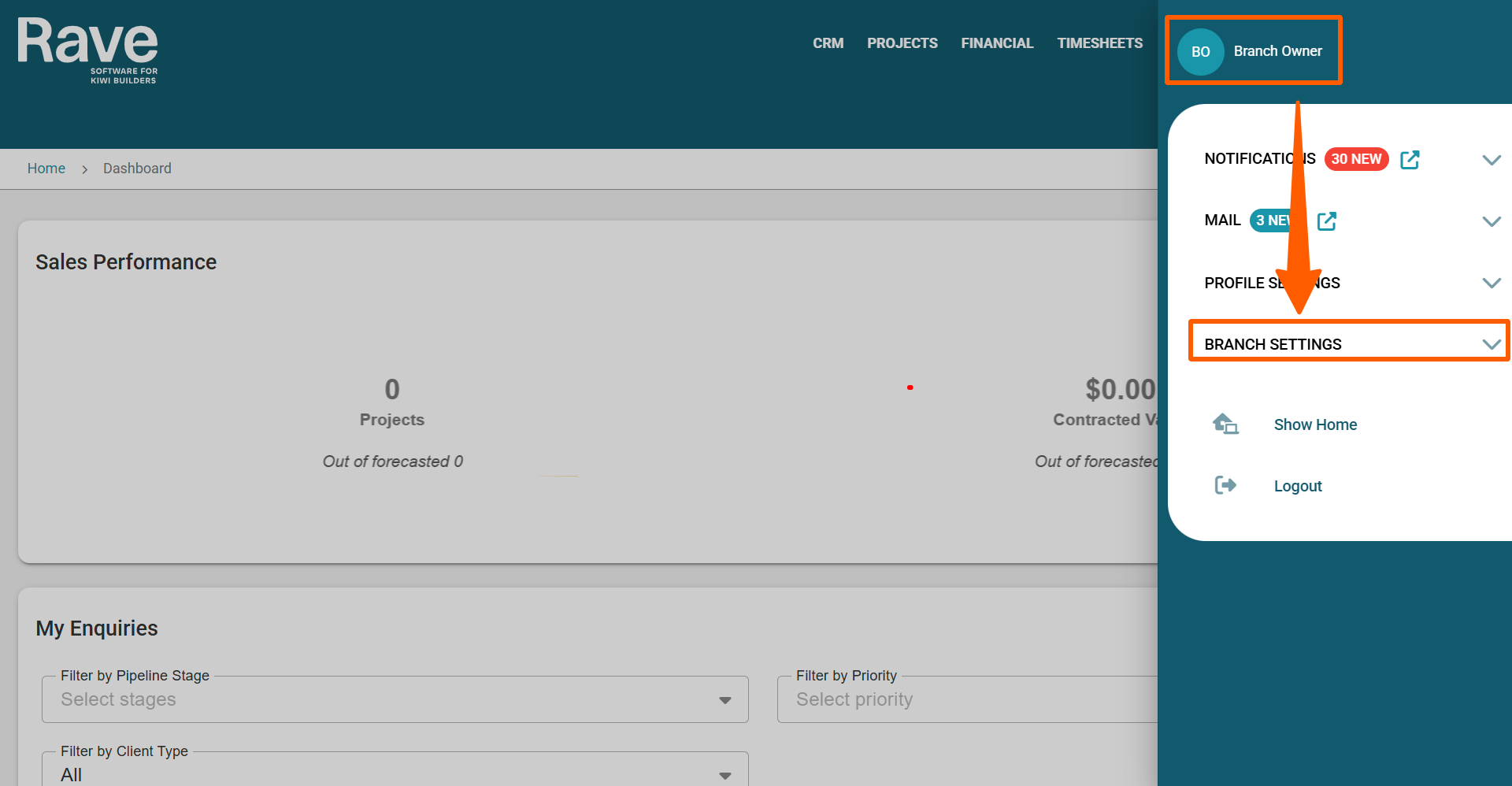
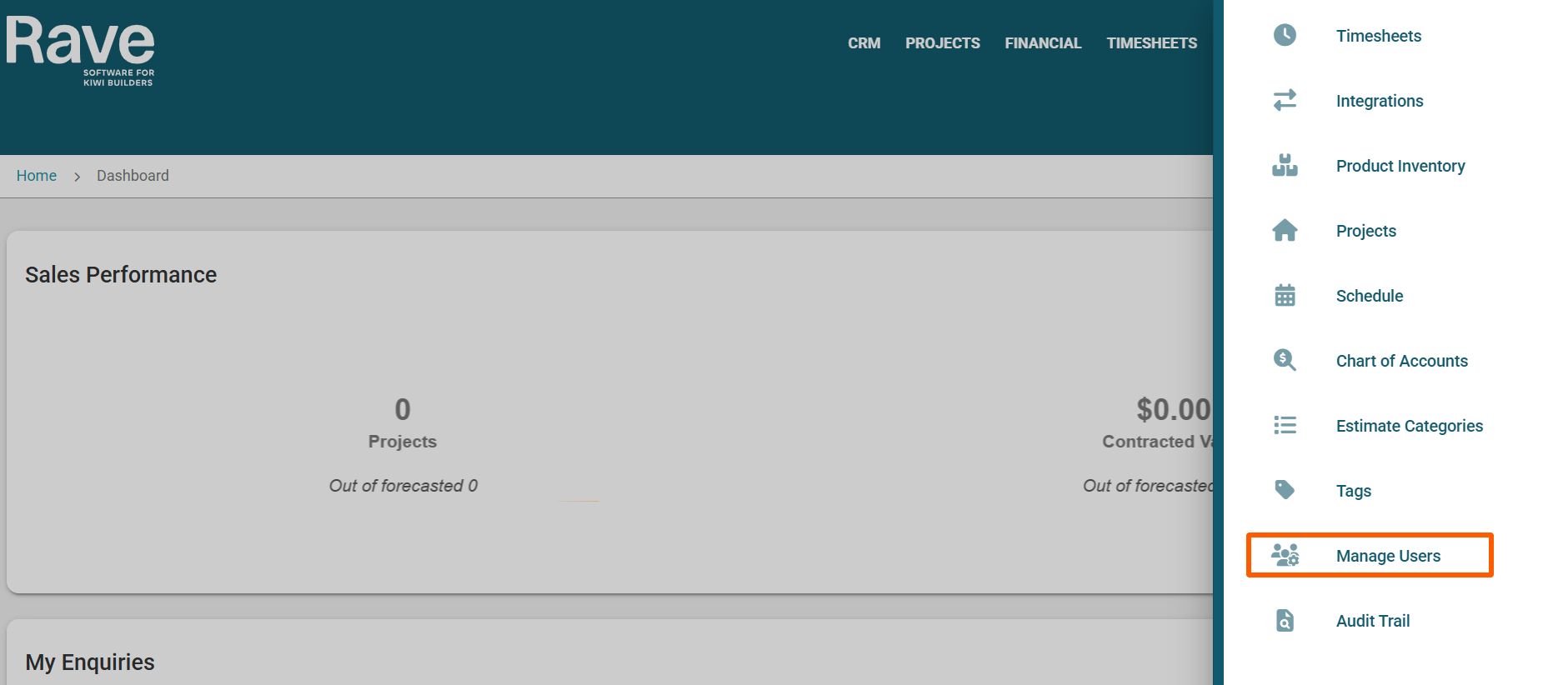
2. Scroll to the Branch Settings section, then select Manage Users.
3. Select the user whose permissions you want to view, then click Edit in the top-right corner of the page. 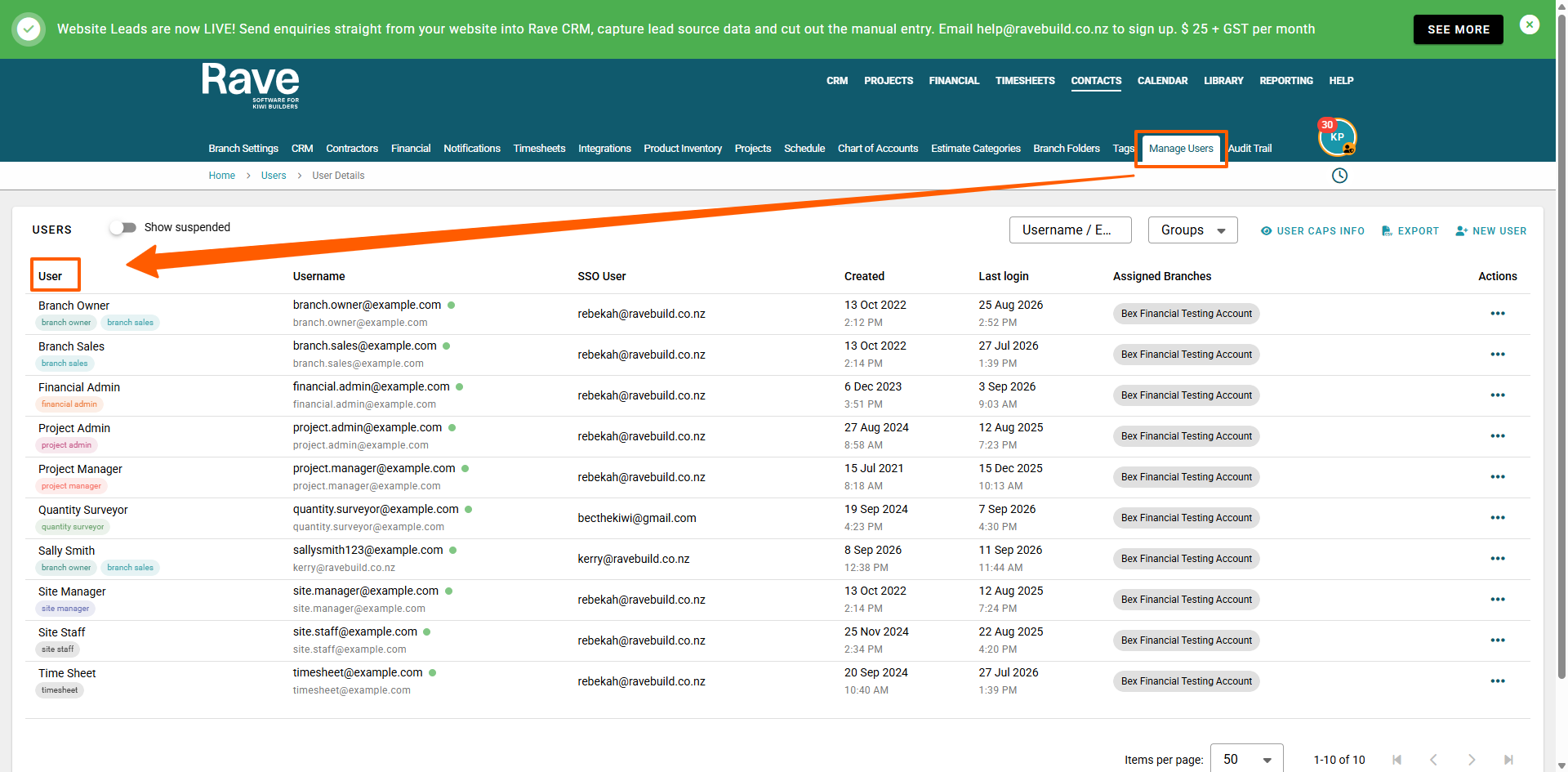
4. Select the Groups & Permissions tab. Under Groups, select Project Admin to view the permissions. 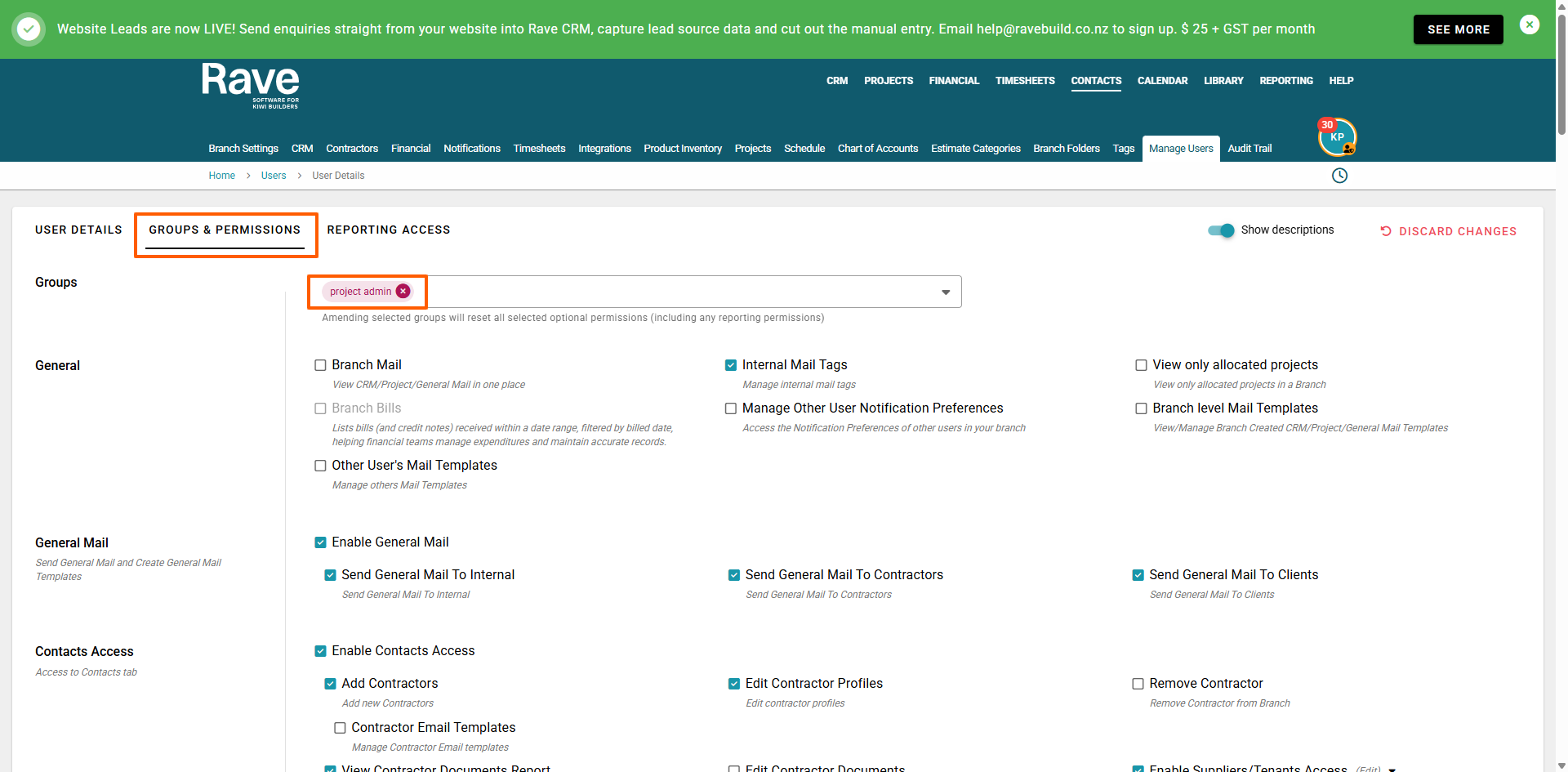
Default Access
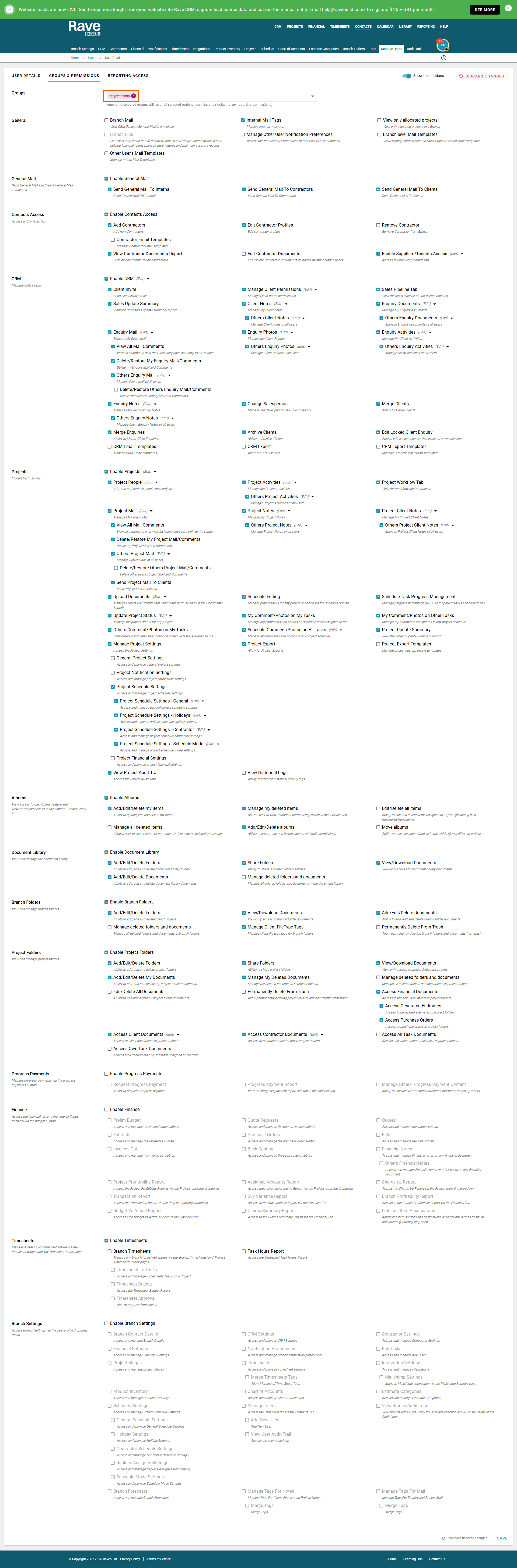
Project Admins have access to a broad range of Rave features, including:
- General Mail – Send General Mail to internal users, contractors and clients.
- Contractors & Contacts – Add contractors, edit contractor profiles, view Contractor File Reports and manage supplier/tenant access.
- CRM – Manage Clients and Leads, including enquiries, notes, documents, photos and activities.
- Projects – Access project management features including Project People, Project Activities, Project Mail, Project Notes, Project Workflow and project documents.
- Albums – Create, edit and delete Albums and manage Album items.
- Document Library – Add, edit, delete, share and view documents.
- Branch Folders – Add, edit, delete and view Branch Folder documents.
- Project Folders – Add, edit, delete and view project documents, including relevant client and contractor documents.
- Timesheets – Add and manage their own timesheets.
Finance and Progress Payments are not enabled by default.
Optional Permissions
You can enable additional permissions based on the user's responsibilities.
These can include:
- CRM – Additional permissions for Clients, Leads, enquiries, exporting, archiving and other CRM management.
- Projects – Additional permissions for projects, schedules, documents, mail, activities, exports, and project settings.
- Albums – Additional permissions for managing Album content.
- Document Library & Branch Folders – Additional document access and management permissions.
- Project Folders – Additional access to documents and financial documents.
- Progress Payments – Enable Progress Payments and additional Progress Payment reporting or management.
- Finance – Provide access to financial areas such as Quotes, Estimates, Purchase Orders, Bills and Back Costing.
- Timesheets – Branch Timesheets, Timesheet Approval and Task Hours Report.
- Branch Settings – Access selected Branch Settings features.
Some permissions are only available where the relevant Rave module or subscription feature is enabled.
Reporting Access
Reporting Access is managed separately from the Groups & Permissions settings.
Project Admins do not have Branch Reporting access by default. You can enable reporting access separately where needed.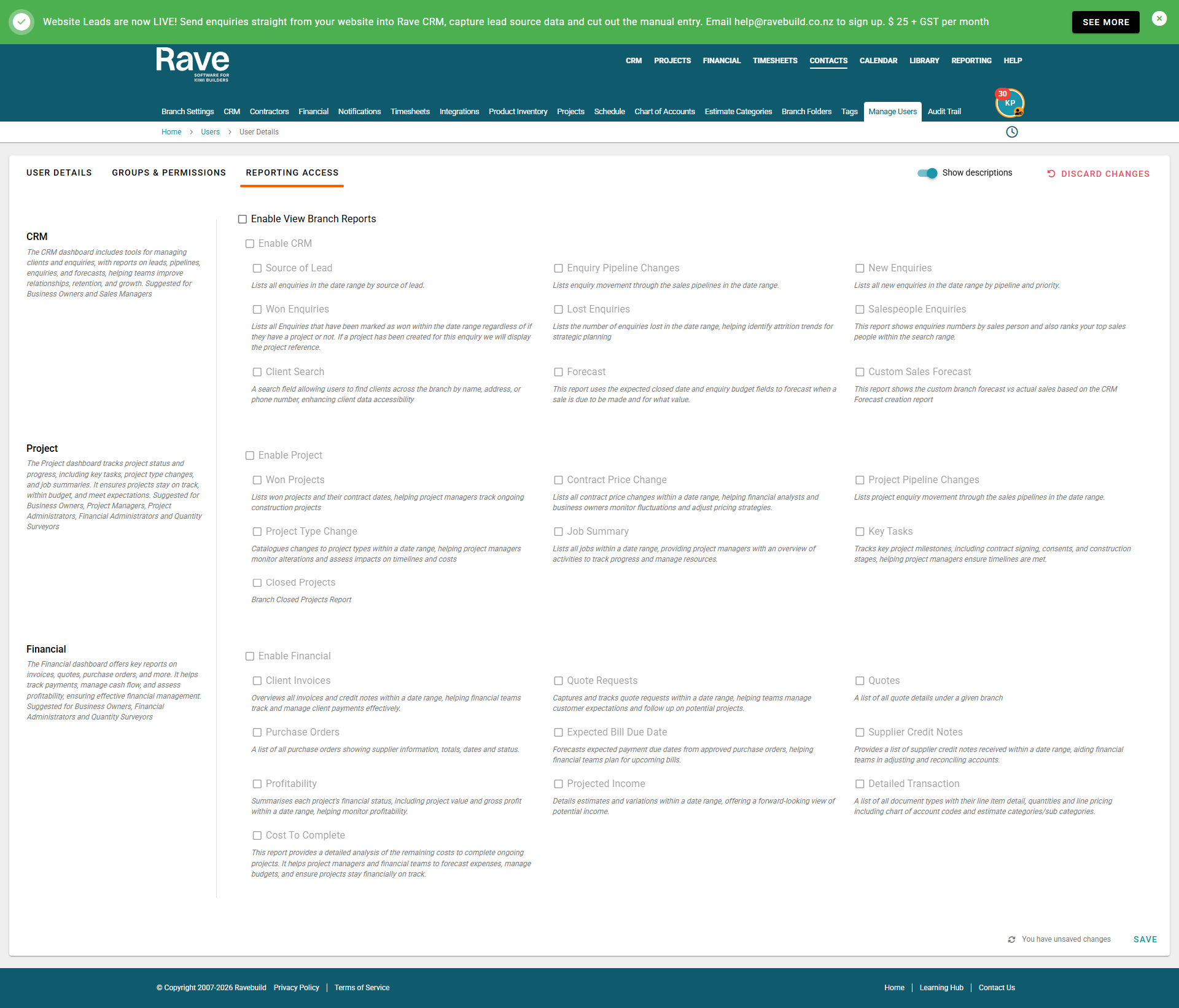
Was this article helpful?
That’s Great!
Thank you for your feedback
Sorry! We couldn't be helpful
Thank you for your feedback
Feedback sent
We appreciate your effort and will try to fix the article