You can access your Project Settings (with the appropriate permissions) from within your project by clicking the Project Settings sub-tab and then navigating to the General, Notifications, Schedule, or Financial tab.
The Project Schedule Settings help article is available here.
The Project Financial Settings help article is available here.
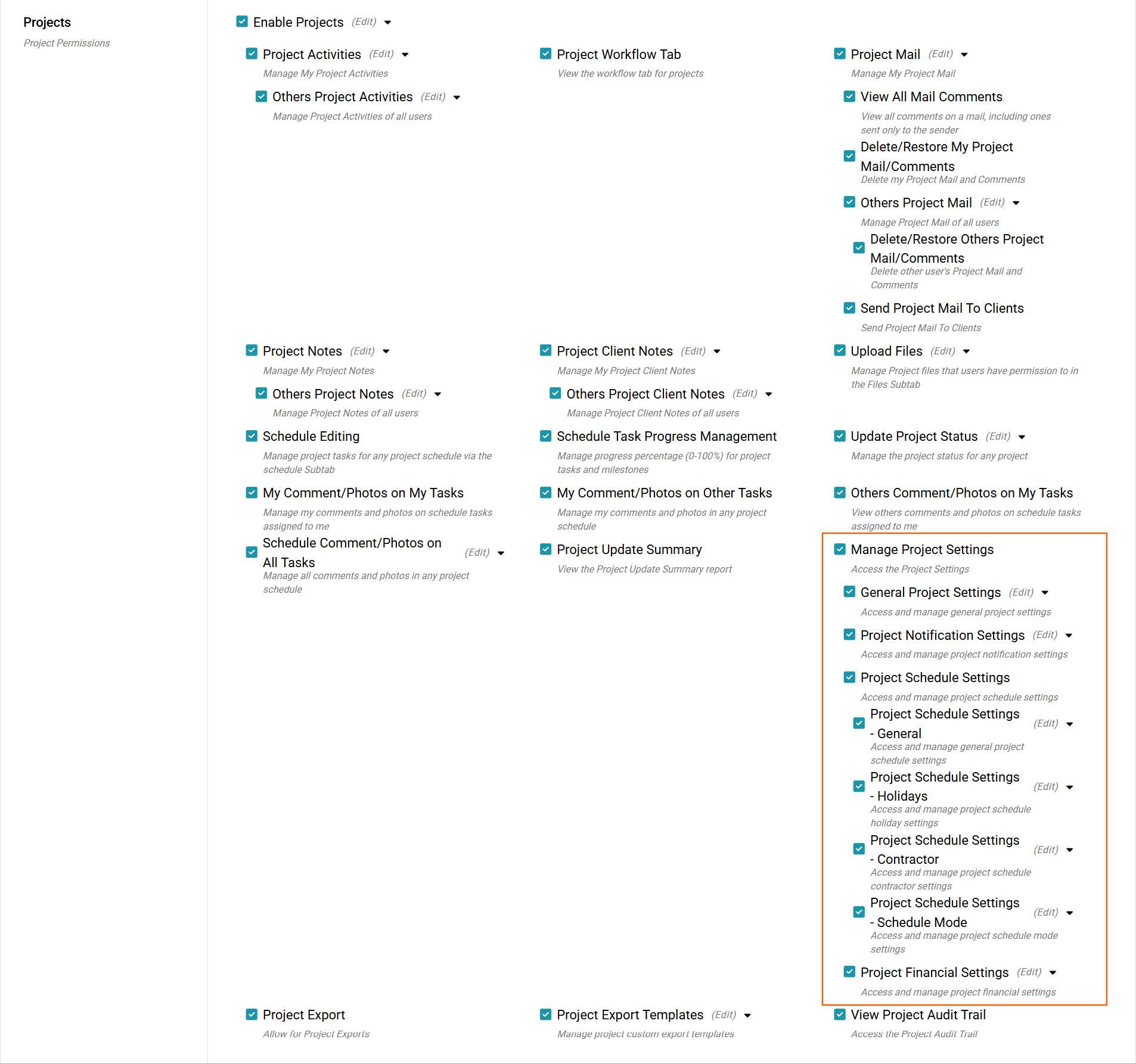
The permissions required to see this tab are under Project - Manage Project Settings. You can then choose which project settings you wish the user to have access to. The options are no access, view-only, or full add/edit access.
General Settings
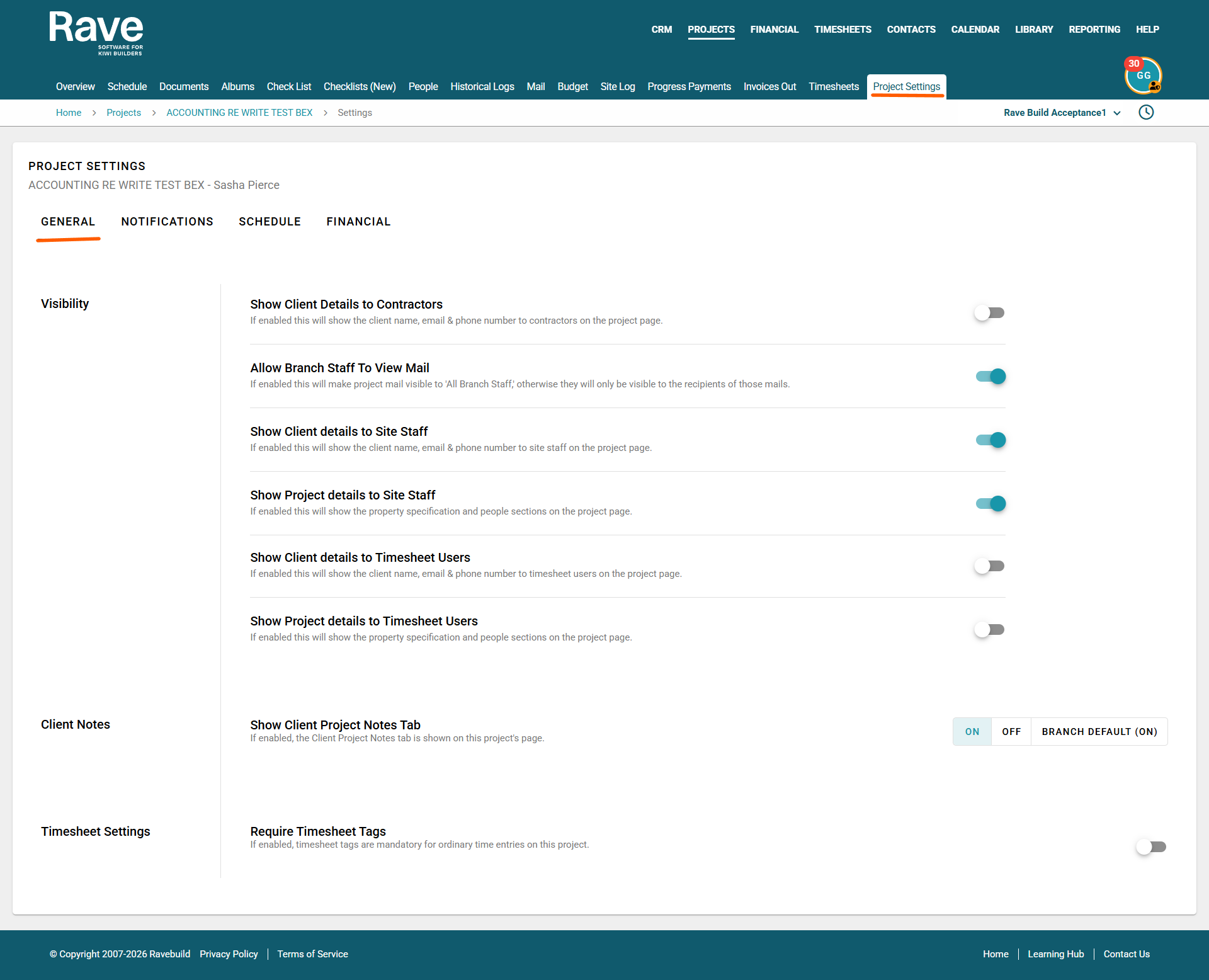
Visibility
You can now toggle specific visibility settings for this project. The available options include:
- Show client details to contractors
- Allow branch staff to view Mail
- Show client details to site staff users
- Show project details to site staff users
- Show client details to timesheet users
- Show project details to timesheet users
If all project-level notifications are turned off, Rave will not send notifications to any users—even if they have notifications turned on at the user level. To read more about Per User Notification Control please click here for our help article.
Show Client Project Notes - When slid on the client project Notes box, it will be shown to all staff members with permission to view or add notes.
Note: When disabled, the box will disappear for everyone.
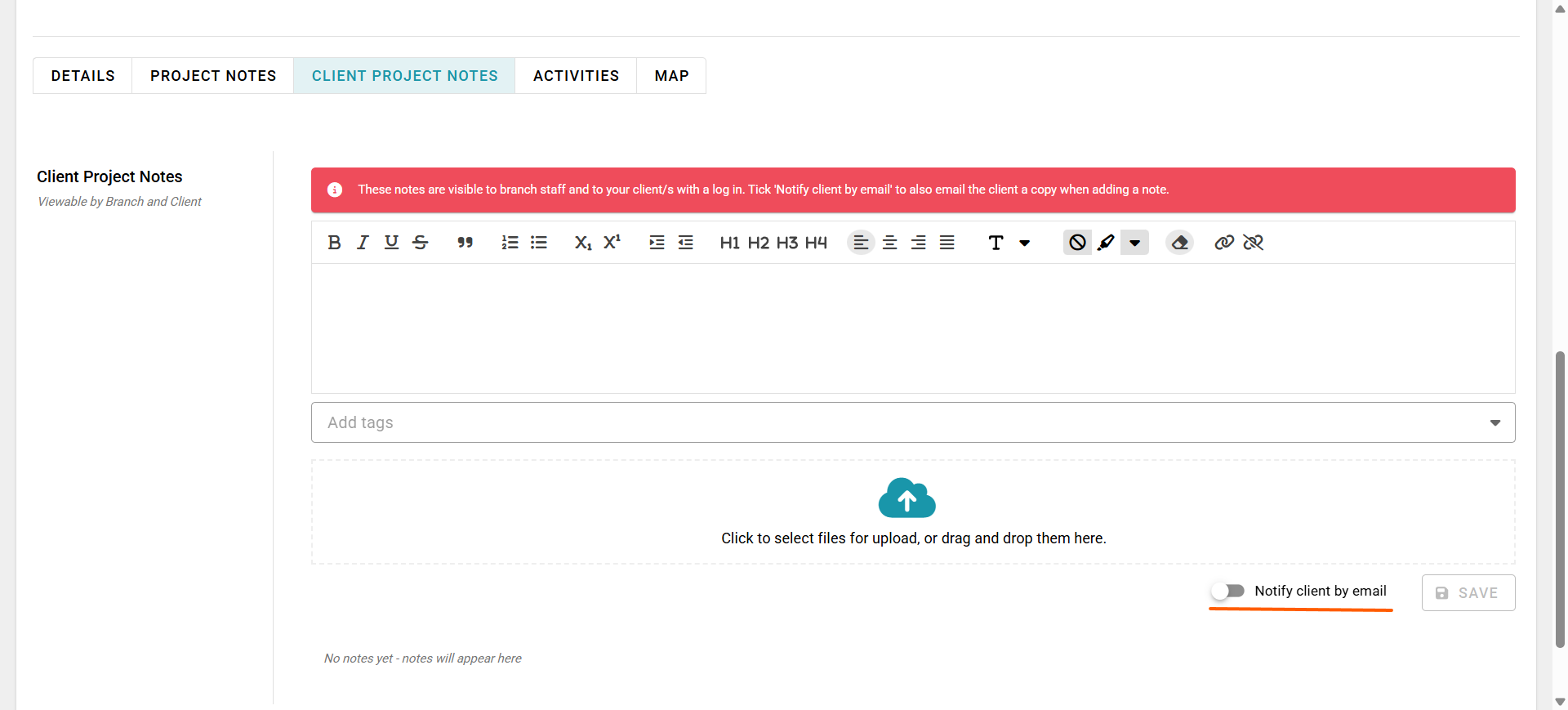
You also now have the option when adding a client note to choose to Notify the client or Not.
Timesheet Settings
If enabled, timesheet tags are mandatory for ordinary time entries on this project.
Notifications
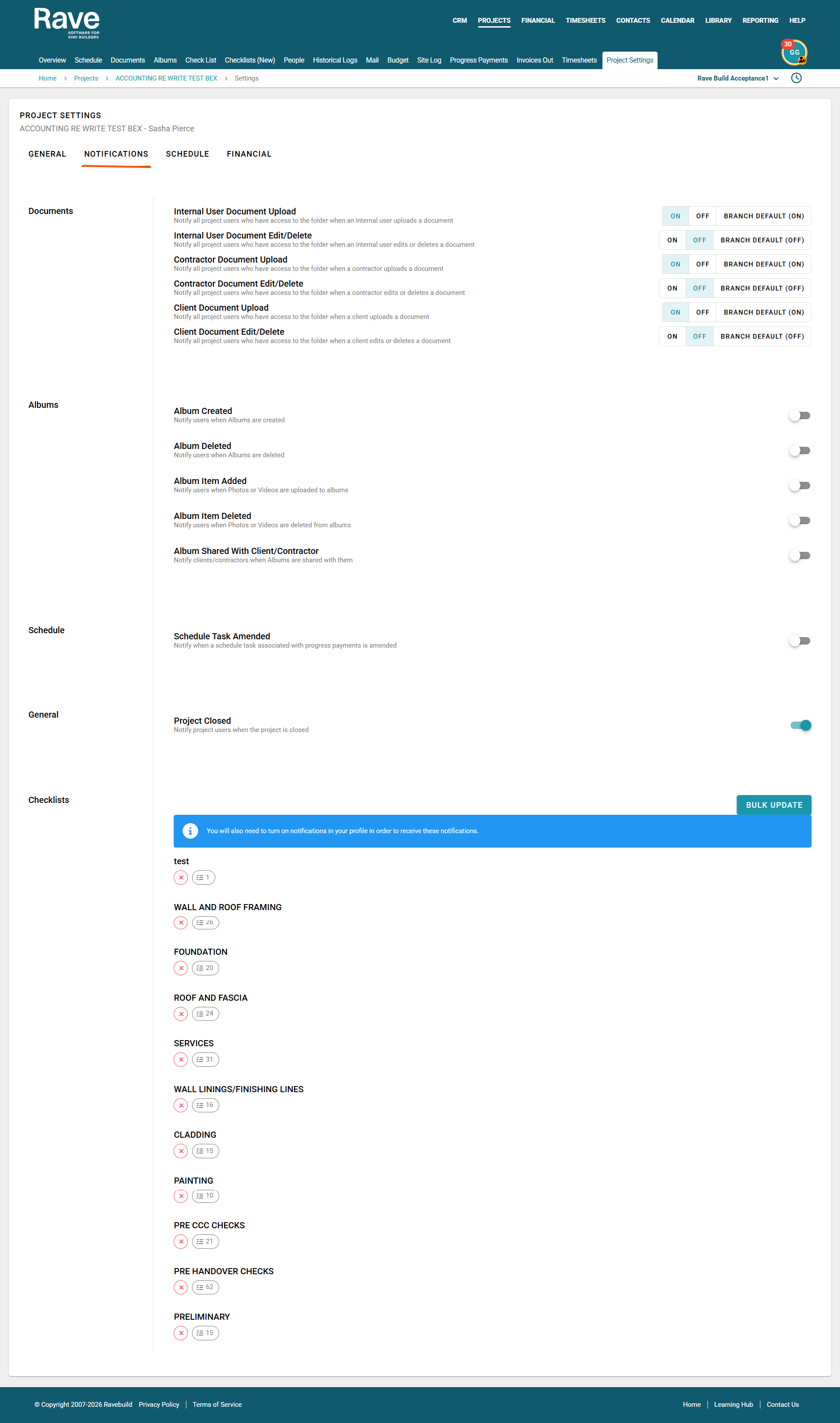
You can toggle specific notifications on or off for this project. The available options include:
Documents
Internal User Document Upload - Notify internal users on the people tab when any internal user uploads a document to any folder they have access to.
Internal User Document Edit/Delete - Notify internal users on the people tab when any internal user edits or deletes a document to any folder they have access to.
Contractor Document Upload - Notify internal users on the people tab when a contractor uploads a document to any folder they have access to.
Contractor Document Edit/Delete Notify internal users on the people tab when a Contractor edits or deletes a document to any folder they have access to.
Client Document Upload Notify internal users on the people tab when a Client uploads a document to any folder they have access to
Client Document Edit/Delete Notify internal users on the people tab when a Client Edits or deletes a document to any folder they have access to
Albums
Album Created - This will allow users to be notified when an album is created in a project they have access to
Album Deleted - This will allow users to be notified when an album is deleted in a project they have access to
Album Item Added - This will allow users to be notified when an image or video is added to an album
Album Item Deleted - This will allow users to be notified when an image or video is deleted from an album
Album Shared With Client/Contractor - This will allow users to be notified when an album they have access to is shared with a Client or Contractor.
Schedule
Schedule Task Amend - This will allow users to be notified when a schedule task associated to a progress payment has been amended.
General
Project Closed - This allows users to opt into a notification when this project is closed
Checklists
The Checklist notifications are:
When a checklist is Added | Edited | Comment added | Comment Edited | Comment Deleted | Completed and | Deleted.
Click this link to be taken directly to the Checklist Notification in-depth Learning Article to learn more about setting up your checklist notifications. Click here to read more.
Was this article helpful?
That’s Great!
Thank you for your feedback
Sorry! We couldn't be helpful
Thank you for your feedback
Feedback sent
We appreciate your effort and will try to fix the article