This section applies only to users with the optional Enterprise Scheduling (or Advanced scheduling) module, which is covered in detail during our Enterprise and Advanced Schedule Training.
For all other users, the default scheduling mode is Classic Scheduling. In Classic Scheduling, you can choose to move:
This single task
This task and all future milestone tasks
This task and all future scheduled tasks
Note:
Rave’s Enterprise Scheduling add-on includes advanced features such as task linking (predecessors and successors) and constraints (e.g. Must Start On). This provides greater control and flexibility over your project schedules, making it ideal for building companies that require enhanced scheduling precision or are familiar with tools like Microsoft Project.
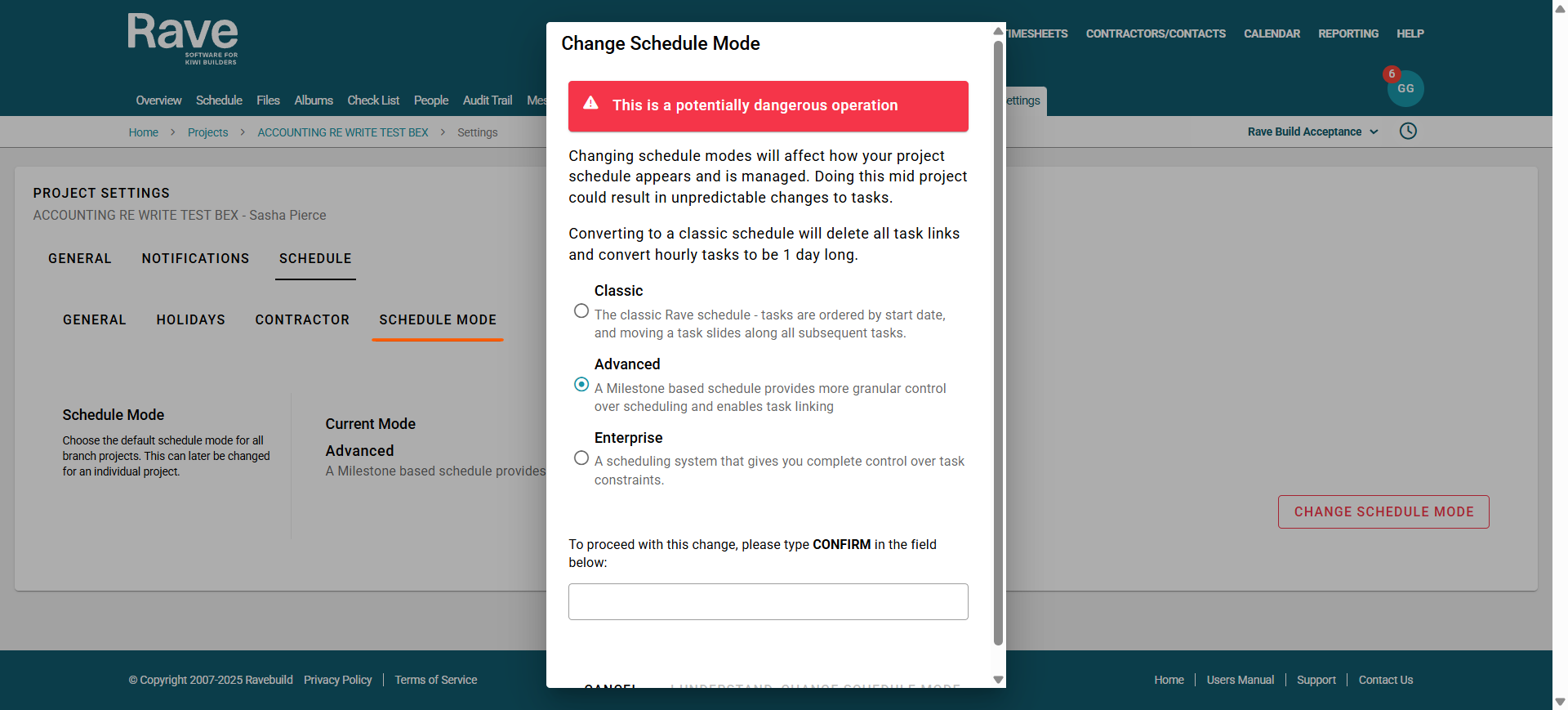
To change your project's default schedule mode
Go to your Project Settings sub-tab, then Schedule, and then select the Schedule Mode tab
- Click the red Change Schedule Mode button
- And select which mode you wish to be the new default
- Type CONFIRM, in capital letters, in the box
- select I understand, change schedule mode to complete.
Was this article helpful?
That’s Great!
Thank you for your feedback
Sorry! We couldn't be helpful
Thank you for your feedback
Feedback sent
We appreciate your effort and will try to fix the article