This article will focus on Contractor Overview, Contractor Files and Schedule sub-tabs
The First Help Article was on adding a new Contractor. You can read it here.
The Previous Help Article is on adding a New Contractor Via CSV. You can read it here.
The Next Help Article is on The Contractor Files Tab. You can read it here.
Clicking the Contact Tab takes you to the Contacts page, where you can manage contacts based on your permissions.

With your permission, you will see Contractors, Contractor Files, and Supplier/Tenants.
You may have all of these tabs, none or only 1 or 2.
In the Manage Users section, users with permission can choose to assign these tabs.
To give a user No Access, unselect the Enable Contact Access, which will hide the tabs for them.
If you choose to grant access to either Contractors, Contractor Filers, or Suppliers/Tenants, you can then select which options you want them to have.
Some options are View-only, Add/Edit/Manage, and Remove.
Note: Suppliers vs Contractors
The term Supplier in RAVE refers to suppliers and sub-trades who do not need a RAVE login to access your projects, schedules, and documents. Suppliers can be emailed a quote request and a purchase order, but they cannot log in to view project information in one place and perform actions like a Contractor can.
Contractors who do need a RAVE login to access your projects, schedules, and documents in RAVE can also view quote requests, submit a quote, and view Purchase Orders. As a result, we send a welcome email with login details to Contractors only.
Contractors
This sub-tab displays the Contractors List, with your contractors listed down the page, across the page we display their name, Company Name, First and Last Name, their notification email (top) and their login username email (bottom), their phone number, Trade, Last Log in and if applicable, their license building practitioner number and license expiry if loaded.
You can use the search bar to search for Contractor first/last name, company name, email, and Trade.
Each header also allows you to sort by selecting the up/down arrow next to the header name when hovering over it.
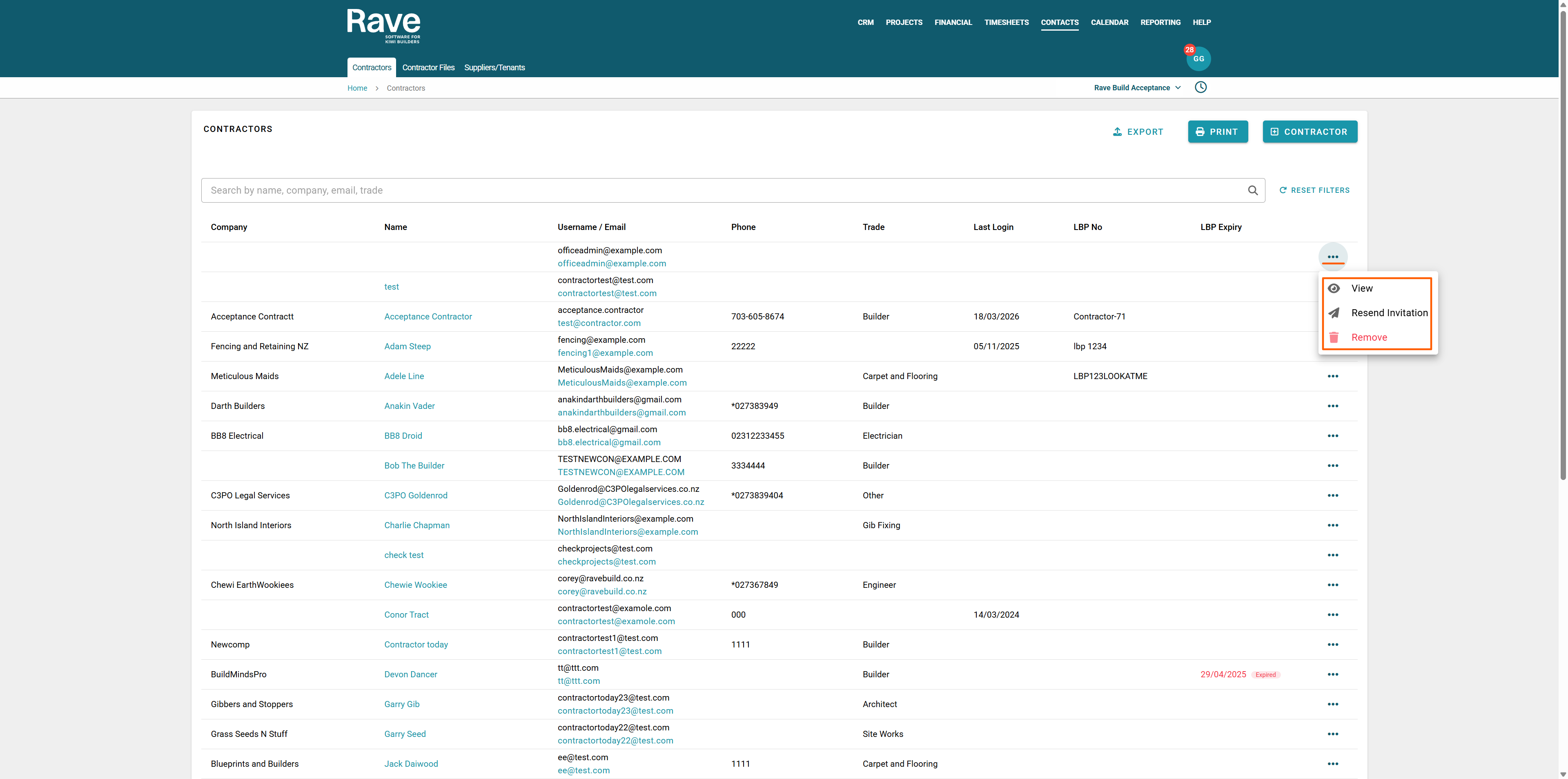
From the 3-dot ellipses, we show a view button to see the extra details attached to the contractor profile, a re-invitation to resend the welcome email to your Contractor, and, with permission, a Remove button.
Viewing and Editing a Contractor Profile from the Contractor Overview tab.
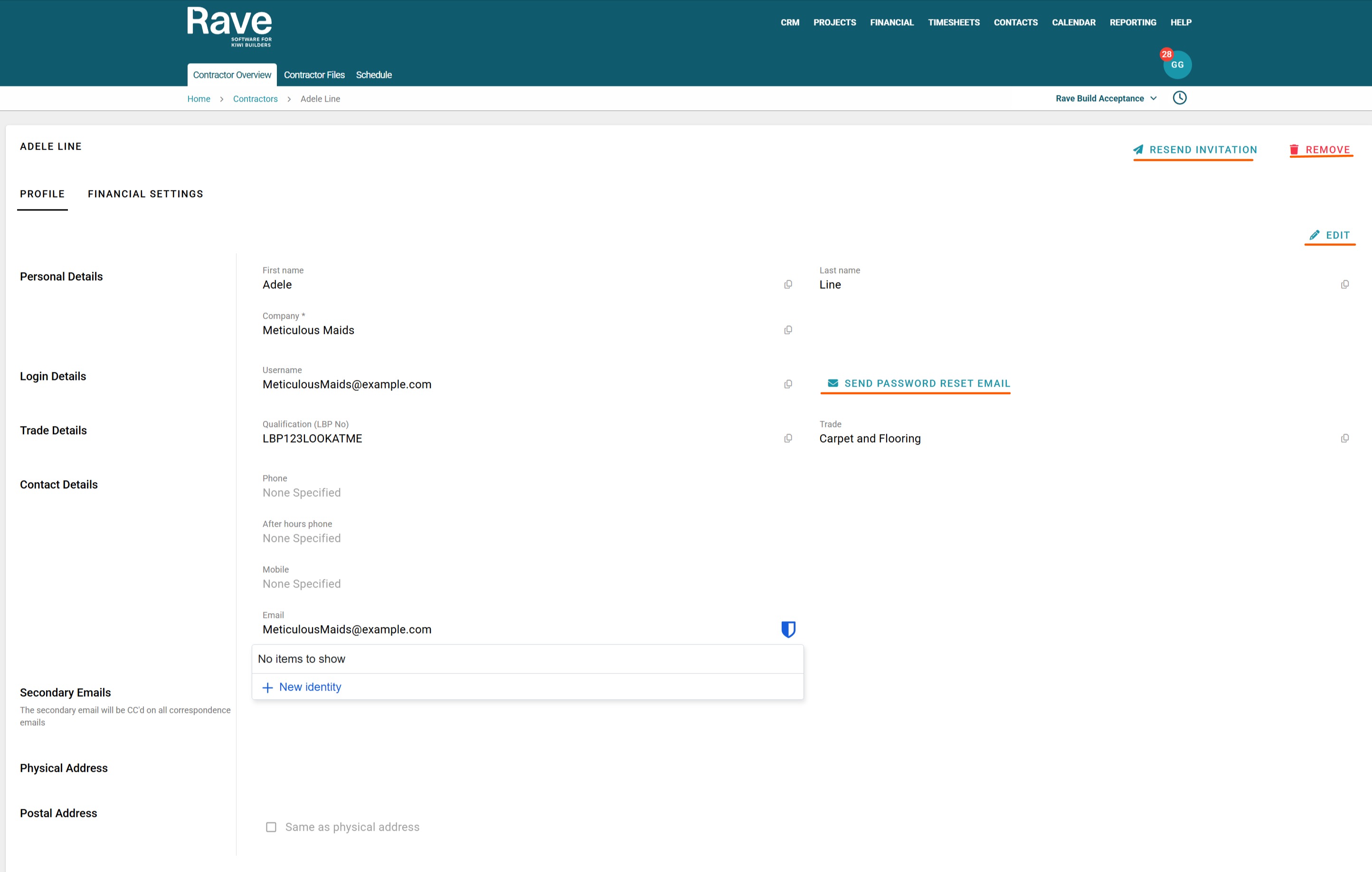
Either click the hyperlink in their first and last name column or click the three-dot ellipses and select View.
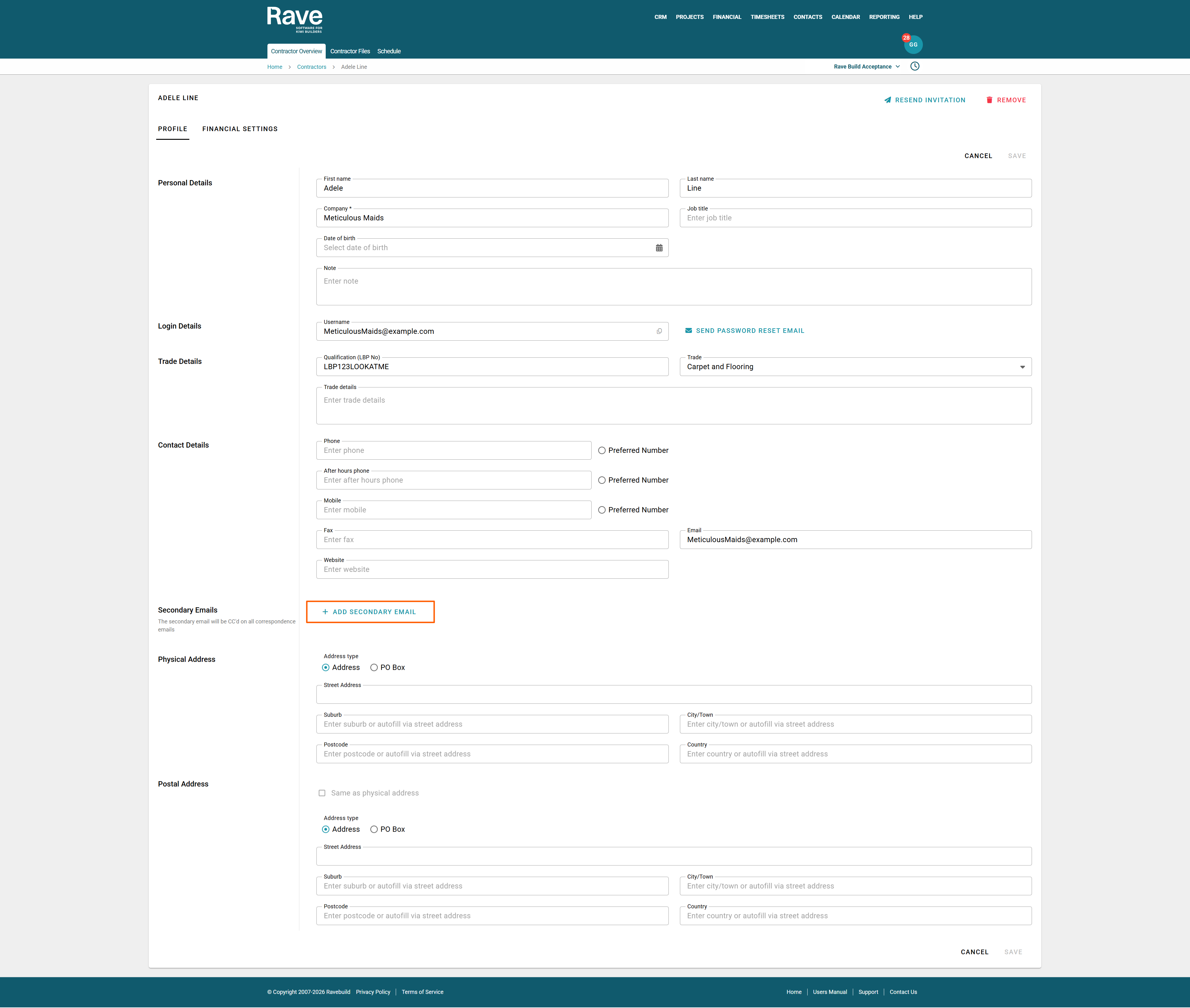
With permission, you can also edit your contractor profile to add or remove information.
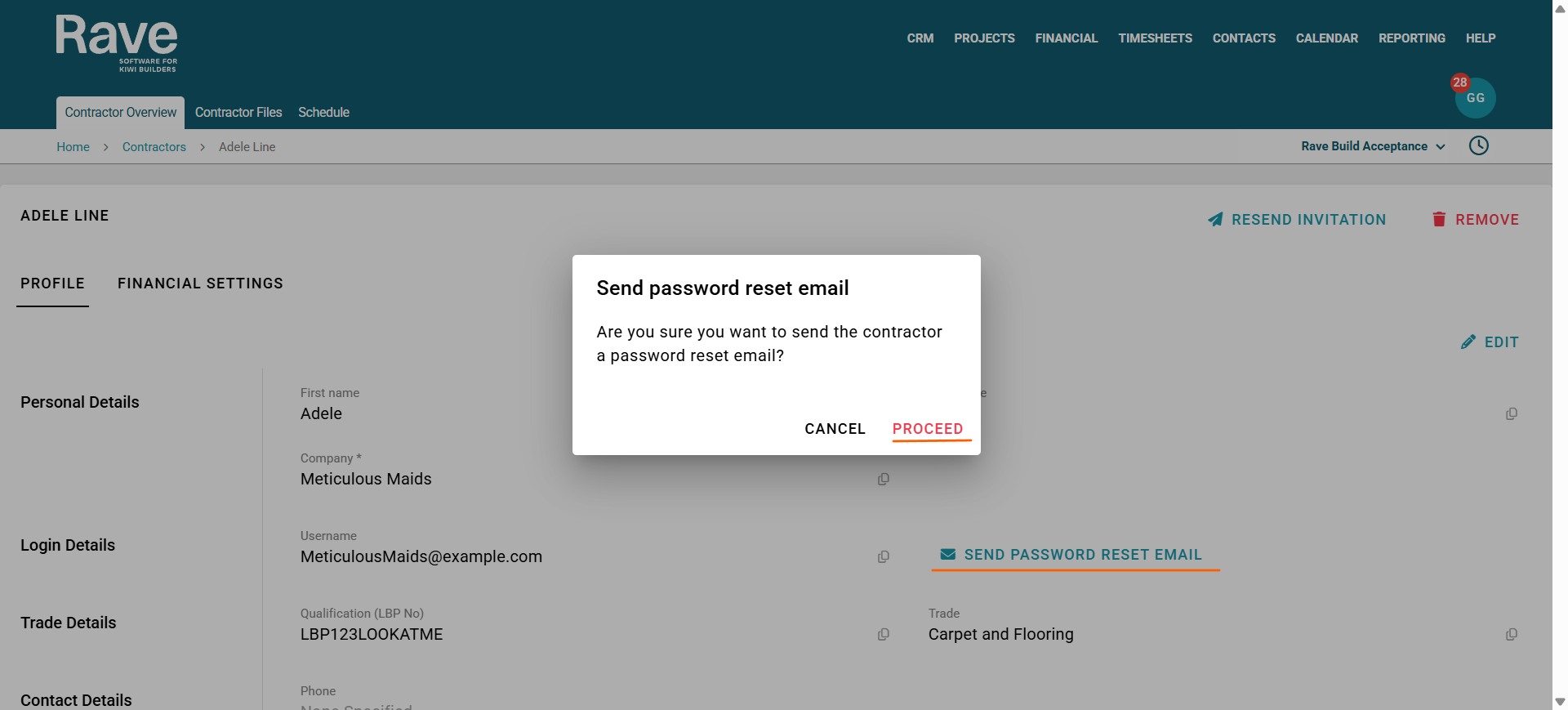
You can also send them a password reset email or re-invite them to Rave if they have lost their original invitation, using the two options in their profile.
Note: Changes to their Company name will affect Xero syncing when bills/credit notes are pushed to Xero.
Note: If your Contractor has changed their email, please contact help@ravebuild.co.nz so we can ensure their Username and Profile email match, as mismatched information can lead to data issues.
Note: If your Contractor has left the business, you can add the new Contractor to your Branch and then reassign tasks and projects to them using the bulk reassign feature here. Once they are reassigned, you can then remove them from your Branch.
Secondary Emails
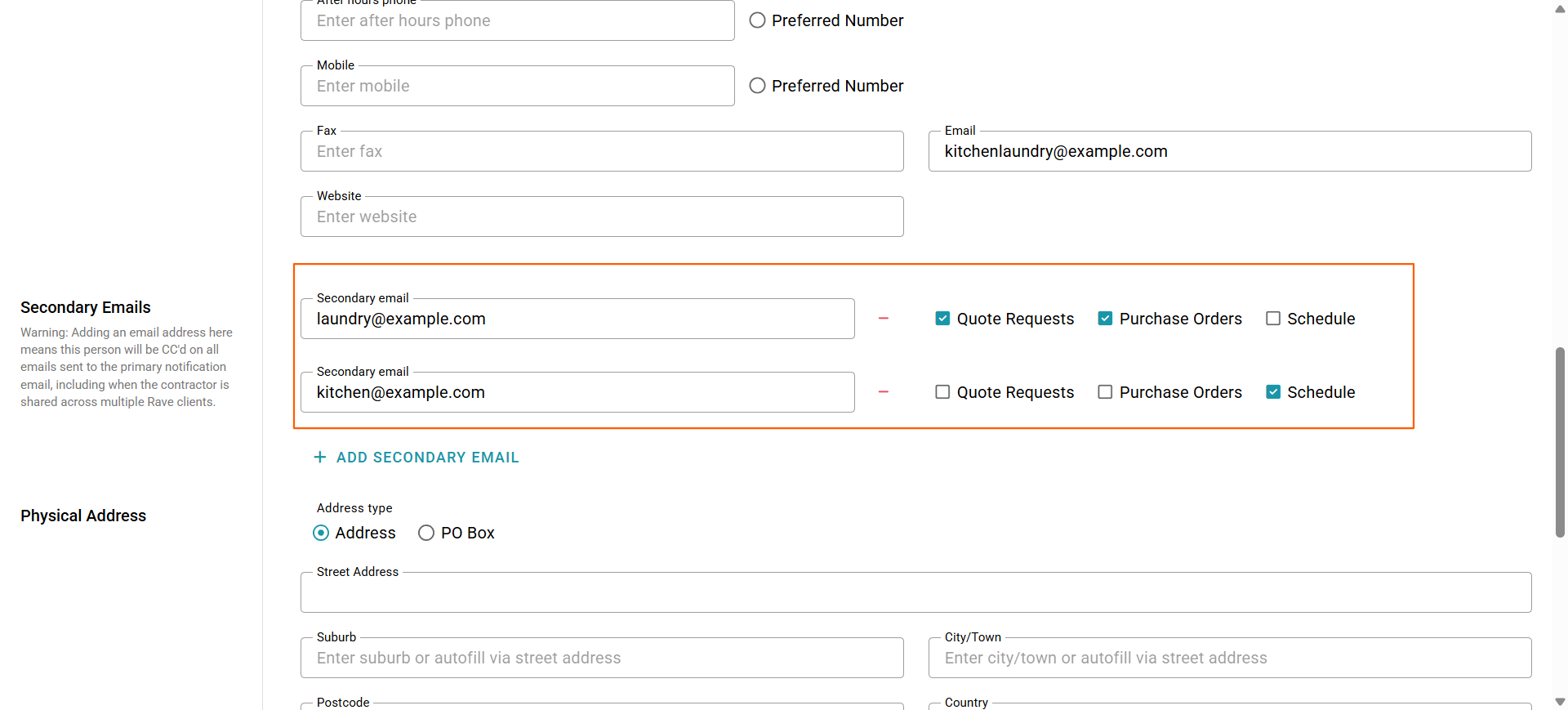
Contractors can now have multiple email addresses on their profile and choose which email addresses receive specific notifications.
The contractor’s primary email address will continue to receive all notifications, including:
Schedule updates
Purchase orders
Quote requests
Contractors can then add as many additional email addresses as required and select which of the three notification types below each email address should receive.
This makes it easy to direct different communications to the right people, for example, sending purchase orders and quote requests to an accounts or estimating email address while schedule updates go directly to the relevant project contact.
Send Password Reset Email
Clicking this button will open a model to confirm that you want Rave to send them a password reset email.
The link in the email will expire 24 hours after it is sent.
Unable to edit a Contracor
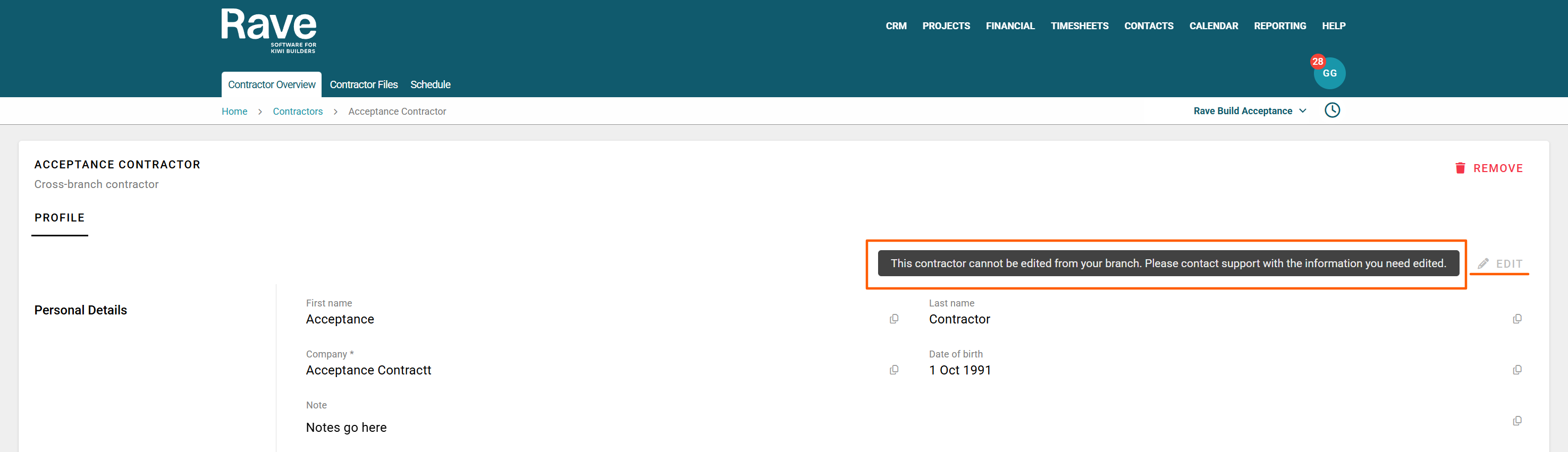
Some Contractors cannot be edited directly because they are shared across Multiple Rave Clients. While the Data is not shared, the profile is. (This will be changing at the end of 2026, and you will each have your own Contractor Profiles you can edit.
If you get the below message
Instead, you can ask the Contractor to update their own details in RAVE. Alternatively, you will need to email RAVE's customer support team at help@ravebuild.co.nz with a request to do this for you, providing the details below:
Email subject line: Request to CHANGE contractor contact details
The contractor's name, phone number, and email - this is required to verify the change request
Their current RAVE email/login username
Plus, the relevant details to change:
- Their new (or additional) notification email address(es)
- Their new Company Name
- Their new primary contact's first and Last Name
- Their new contact Phone Number(s)
- Their Trade
Resending An Invitation
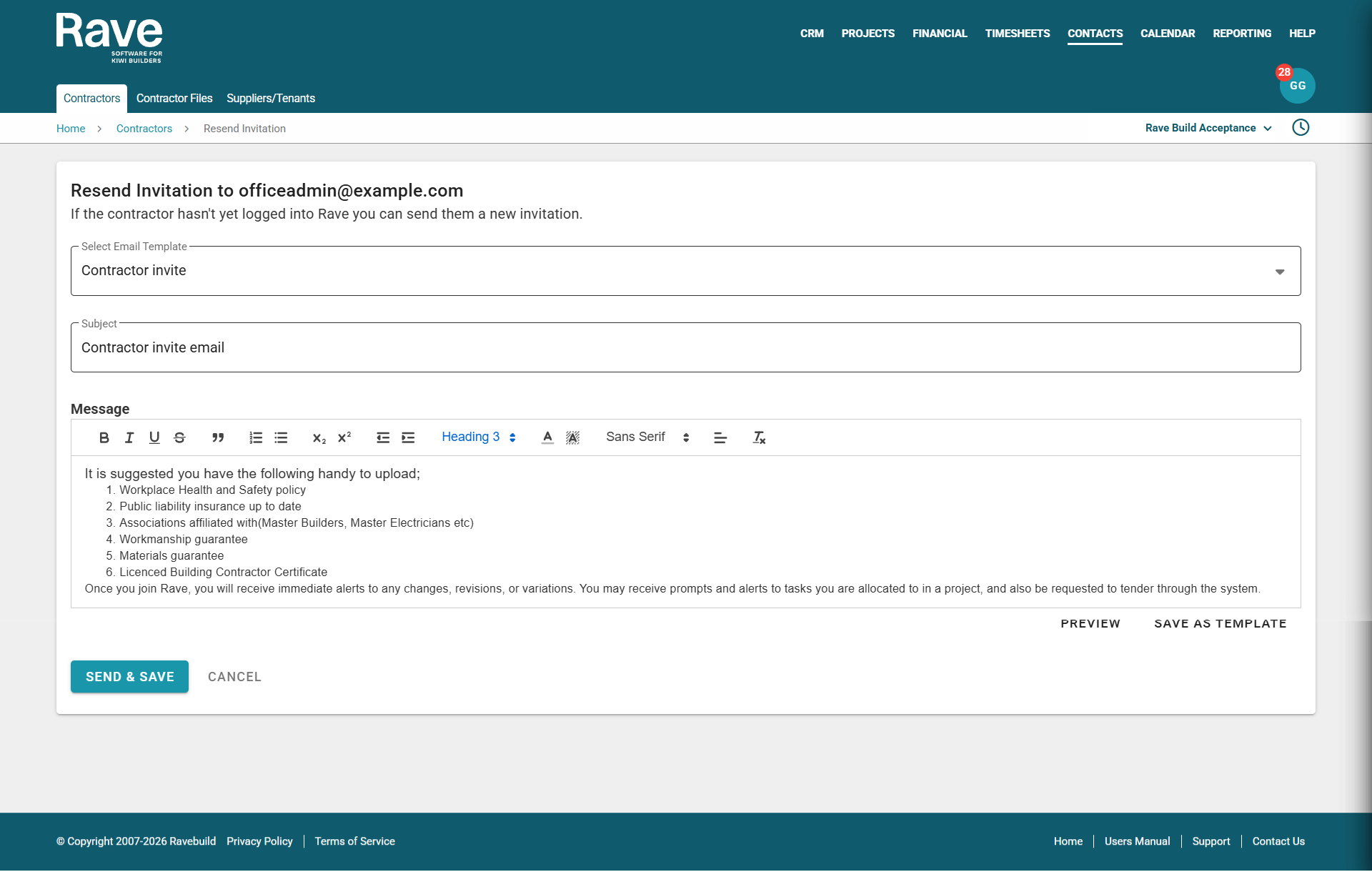
By clicking the Resend Invitation Button, the welcome email template will pop up, allowing you to update any wording, then press Send and Save. An email will be sent to the Contractor's primary email address.
Removing a Contractor
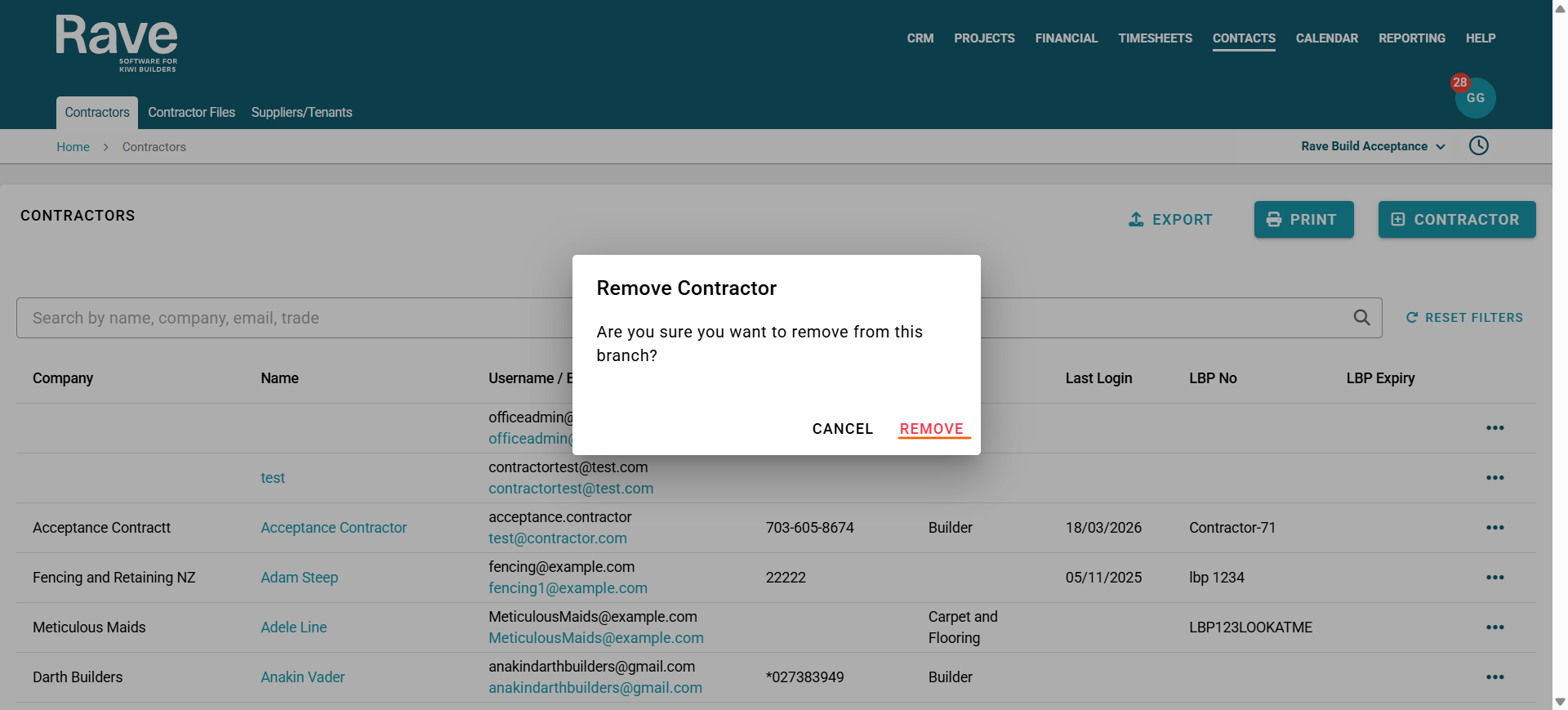
With the appropriate permission, you can click the Remove button. If the contractors are not assigned to the people tab on any projects, they will be removed automatically when you click Remove and then confirm by clicking Remove again.
If the Contractor is assigned to projects, a list of the projects will be displayed on the screen. Before removing them, we suggest reassigning them using the bulk reassign feature here. Then, removing from the Branch.
Financial Settings
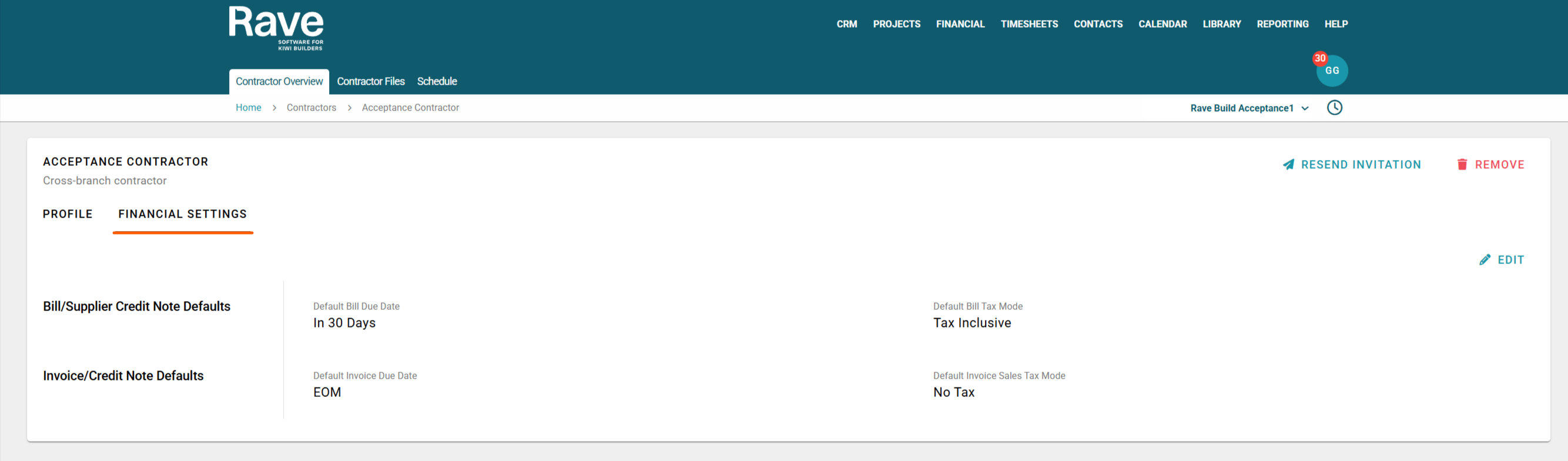
If your Contractor is not a shared Rave Contractor, you will also see a Financial Settings tab. With edit permission, you can set financial defaults for this Contractor, which will feed into our Financial Management System and, if connected, Xero.
Default Bill Due Date
Default Bill Tax Mode
Default Invoice Due Date
Default Invoice Sales Tax Mode
Contractor Files Sub Tab
The ‘Contractor Files’ page is broken into two sections:
The first is the ‘Shared Uploaded Files’ section. This is where Contractors can load documents for all branches they work with. You are unable to delete or edit these files as they are owned by the Contractor.
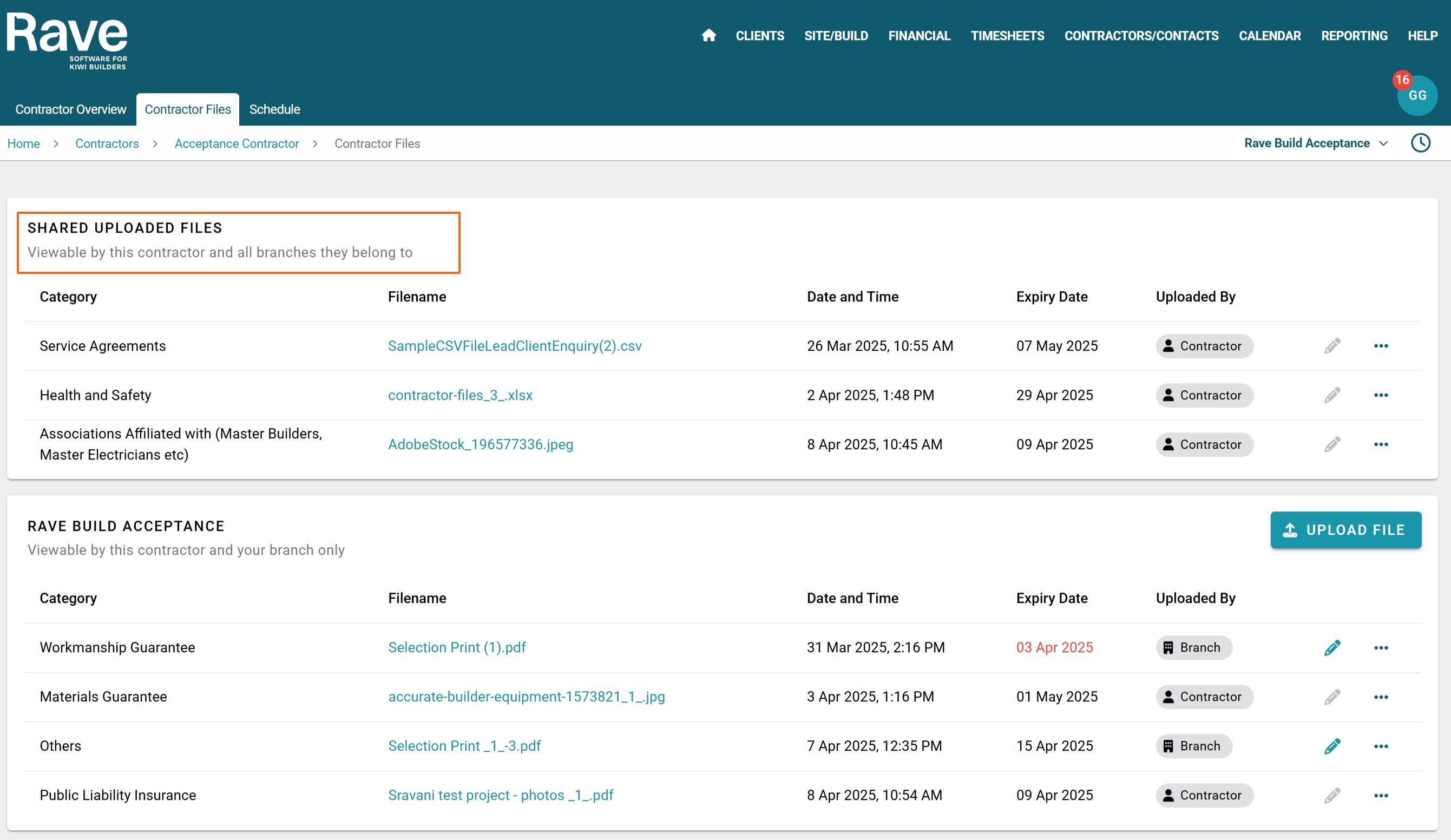
The second section is the ‘Branch Only’ folder, which is accessible by the contractor and your business only. Any Files you or your contractor upload here are visible only to the two of you.
You can see if the documents are owned by your Branch or the Contractor.
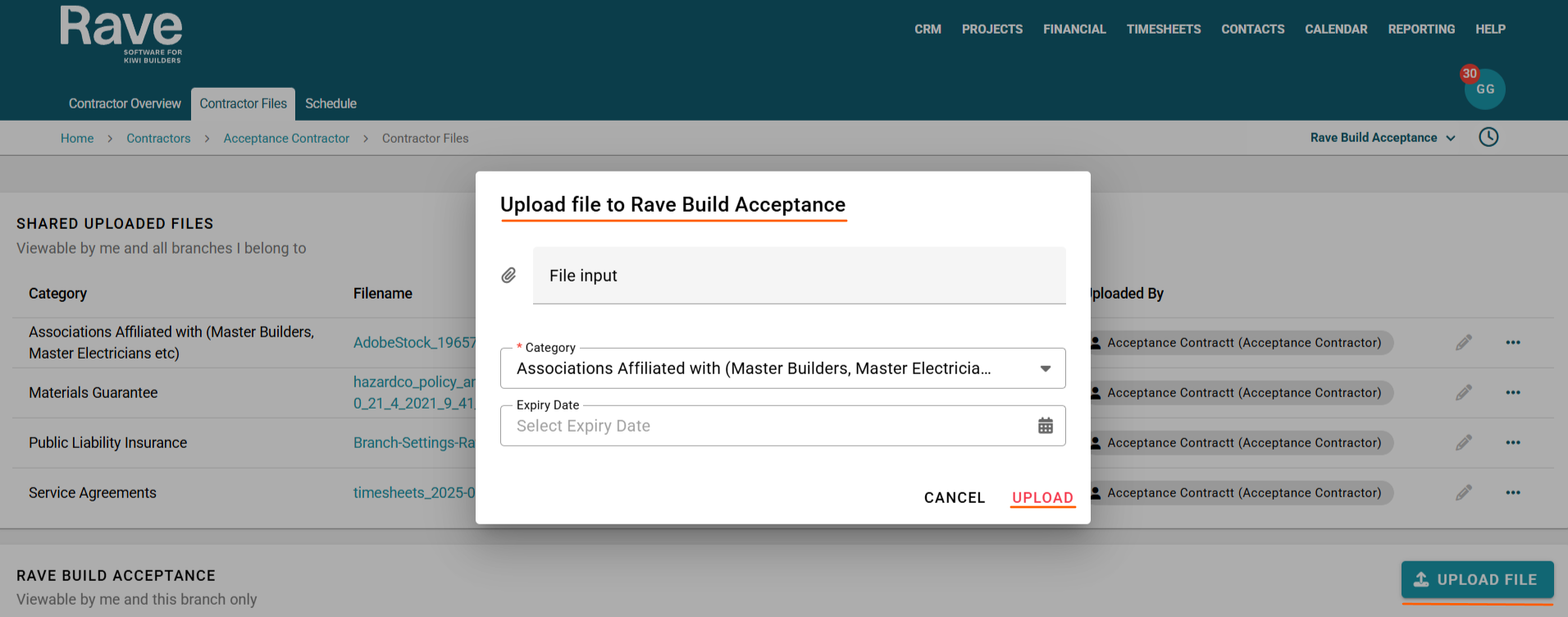
To add a document on behalf of the Contractor
Click the upload file button
You can drag and drop into the File Input Box or click it and select the document.
You can choose the Category, and if applicable, an Expiry Date, then select Upload.
We have added the ability to create customised Category Names under the Branch Contractor Settings for certain documents. This permission-based feature allows you to create and edit Category Names specifically for use in your Branch with your Contractor Files. To view the help article, click here.
Contractor File Expiry Notifications
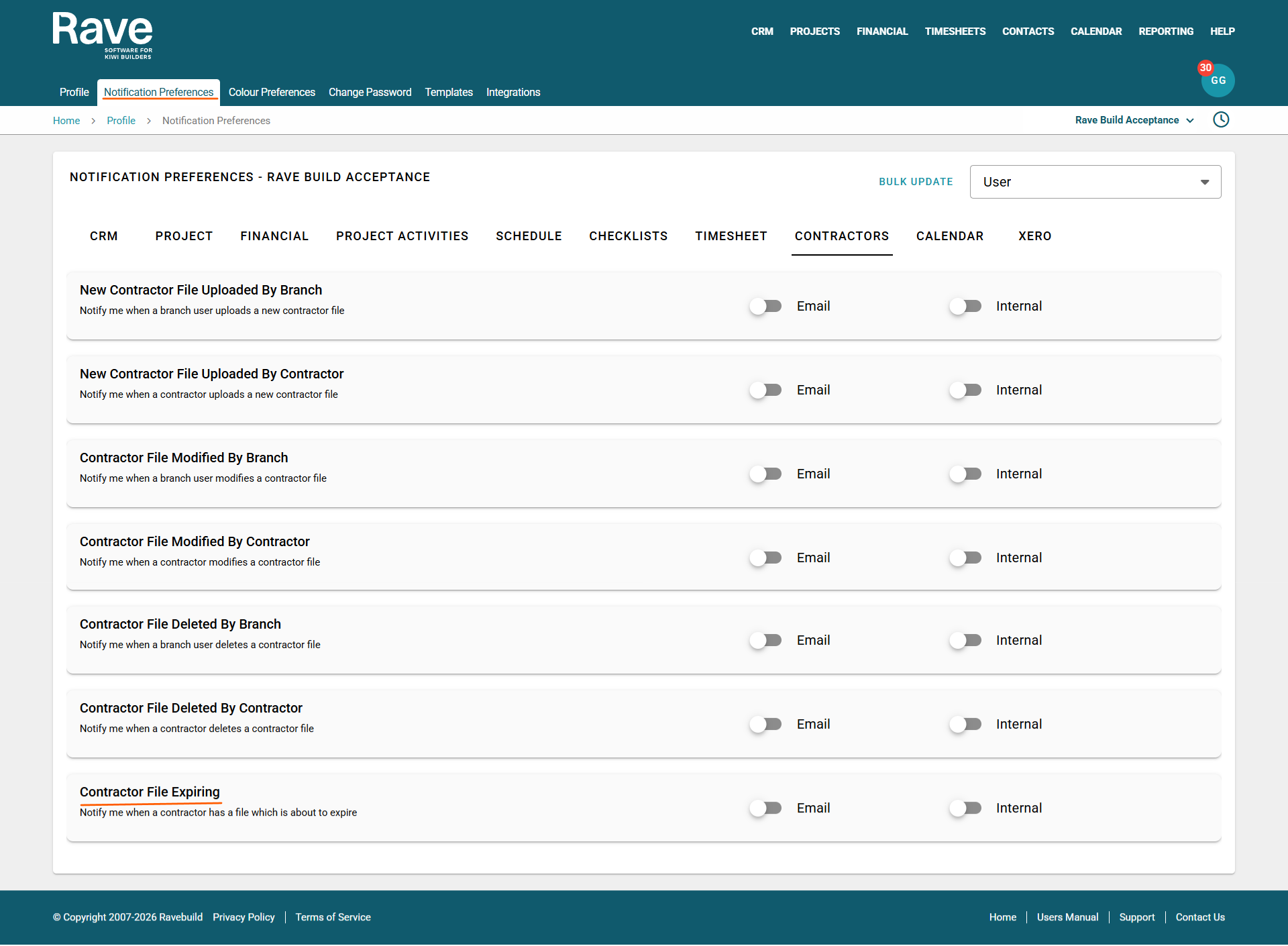
You can choose to opt into or out of Email or Internal Notifications when a contractor file is due to expire.
By default, these notifications are turned off for all Branch Users.
You can change these settings via the Manage Users permission.
To read more about this, click here for the help article.
Notifications will be sent out 1 month before the expiry date and then 1 day before the expiry date.
A sample email is below. 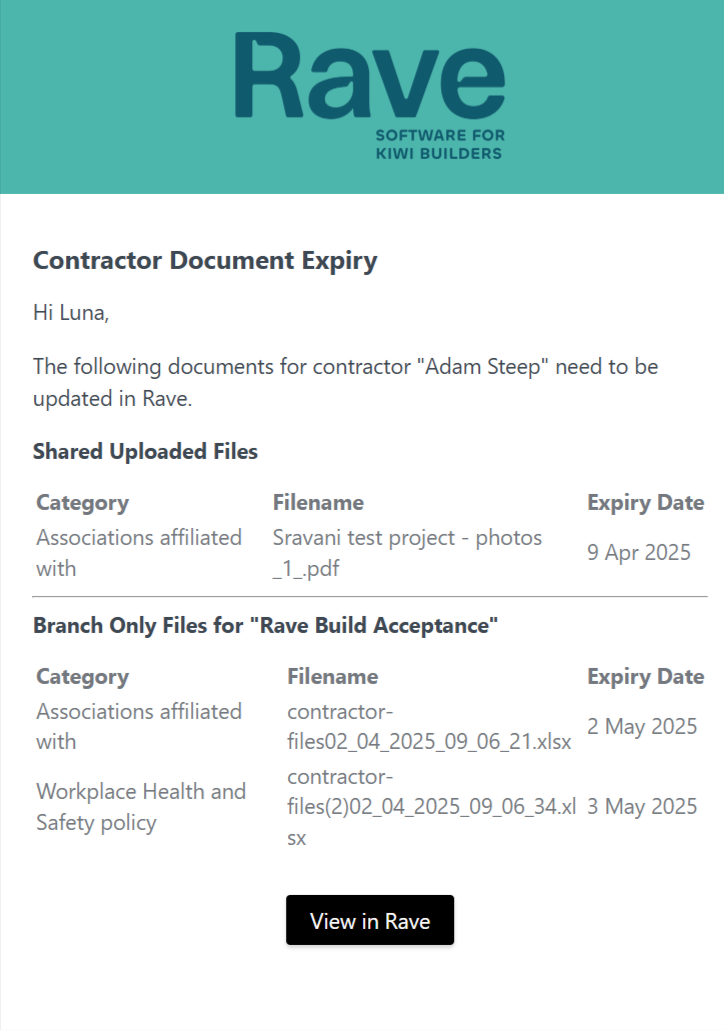
Schedule Sub Tab
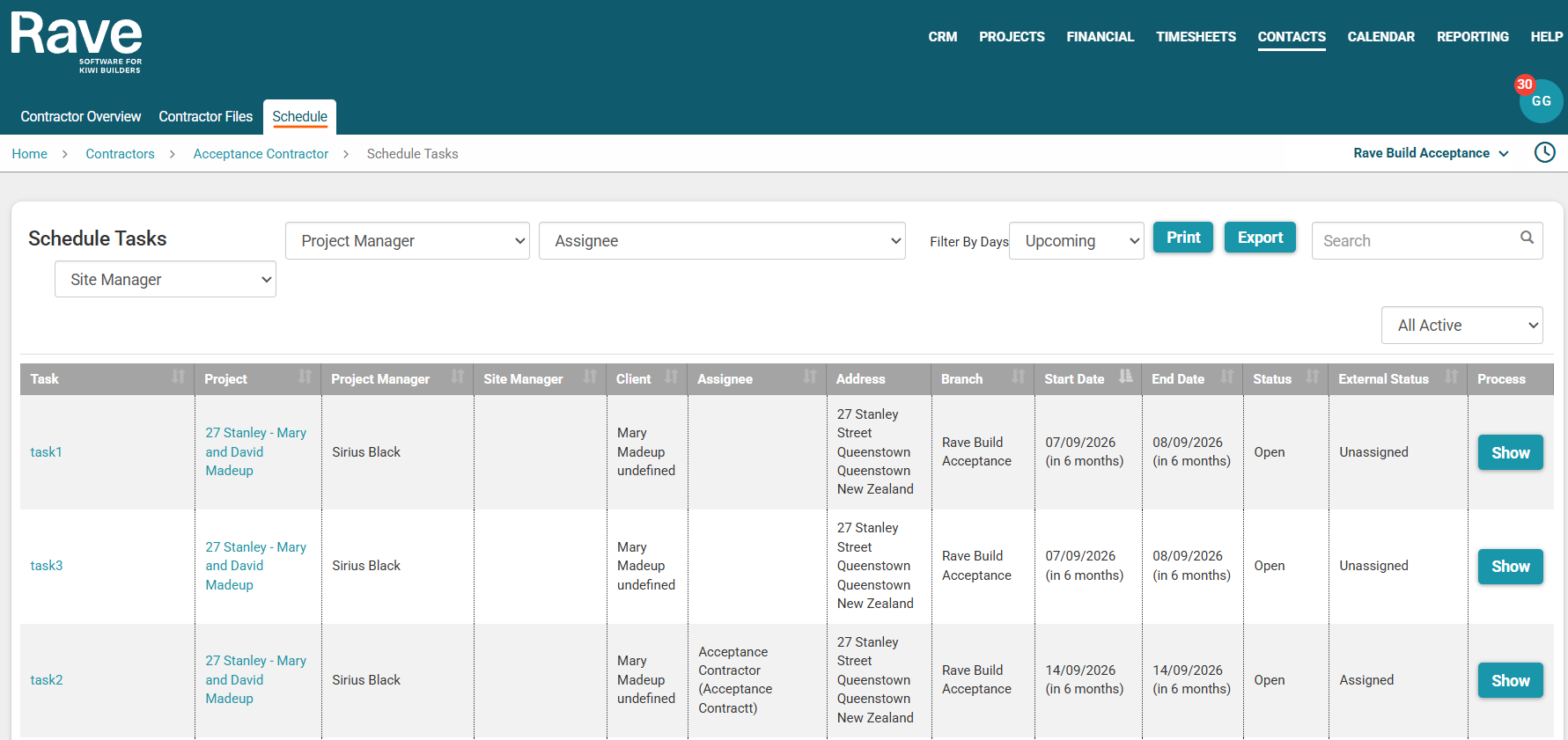
The final subtab in a Contractor's profile is the Schedule Tab.
Here, we display all scheduled tasks assigned to the Contractor, along with other useful information.
You can filter by Project Manager, Days, Site Manager and Task Status.
You can also print this page to give to your contractor or export to a CSV file.
If you click on Show it will take you to that schedule task in the project.
Was this article helpful?
That’s Great!
Thank you for your feedback
Sorry! We couldn't be helpful
Thank you for your feedback
Feedback sent
We appreciate your effort and will try to fix the article