This article will focus on Adding Contractors manually using their Email Address.
The Next Help Article is on adding a New Contractor Via CSV. You can read it here.
The Article following is on Editing/Viewing/Removing Contractors. You can read it here.
The Final Article is on The Contractor Files Tab. You can read it here.
Clicking the Contact Tab takes you to the Contacts page, where tabs let you manage contacts based on your permissions.

With permission, you will see Contractors, Contractor Files and Supplier/Tenants.
You may have all of these tabs, none or only 1 or 2.
In the Manage Users section, users with permission can choose to assign these tabs.
To give a user No Access, unselect the Enable Contact Access, which will hide the tabs for them.
If you choose to give access to either Contractors, Contractor Filers or Suppliers/Tenants, you can then select which options you want them to have.
Some options are View-only, Add/Edit/Manage and Remove.
Note: Suppliers vs Contractors
The term ‘Supplier’ in RAVE is used to describe those suppliers and sub-trades who do not need a RAVE login to access your projects, schedules, and documents in RAVE, i.e. 'Suppliers' provide quote information only - they do not need to log in to RAVE to access the project details, and therefore do not need a RAVE login. Suppliers can be emailed a quote request and purchase order, but they cannot log in to view them all in one place.
As opposed to 'Contractors' who do need a RAVE login to access your projects, schedules, and documents in RAVE, they can also view quote requests in RAVE, submit a quote, and view Purchase Orders. As a result, we send a welcome email with login details to 'Contractors', but we don't for 'Suppliers'
Adding a Contractor
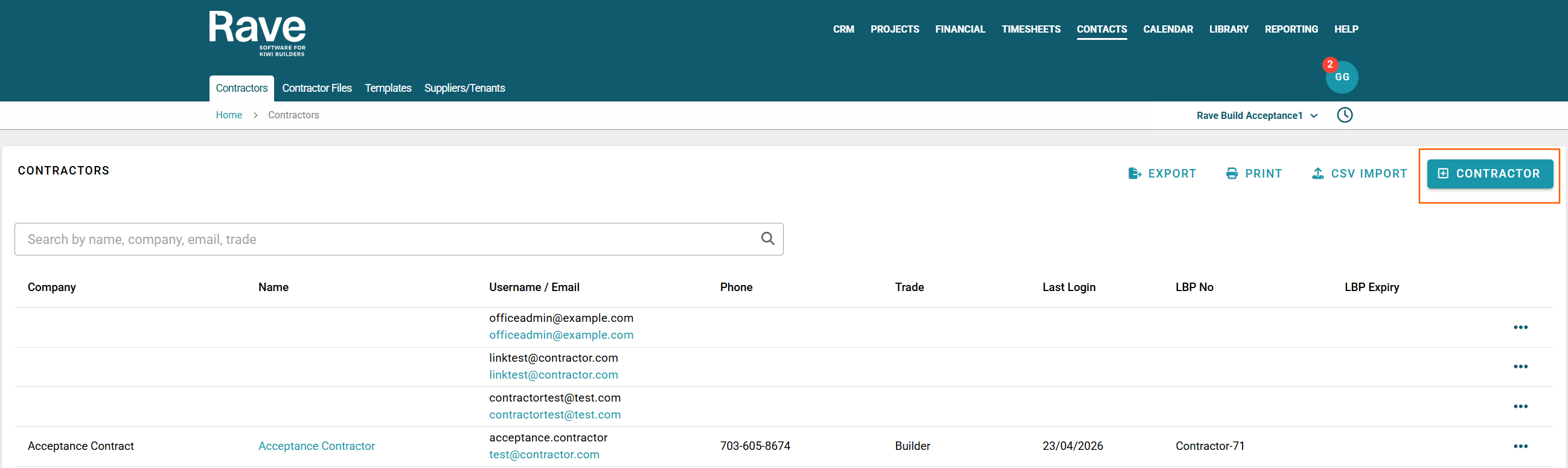
With the permission set to "Add a Contractor," you can add new contractors to your RAVE system via the + Contractor button to the top right of the page.
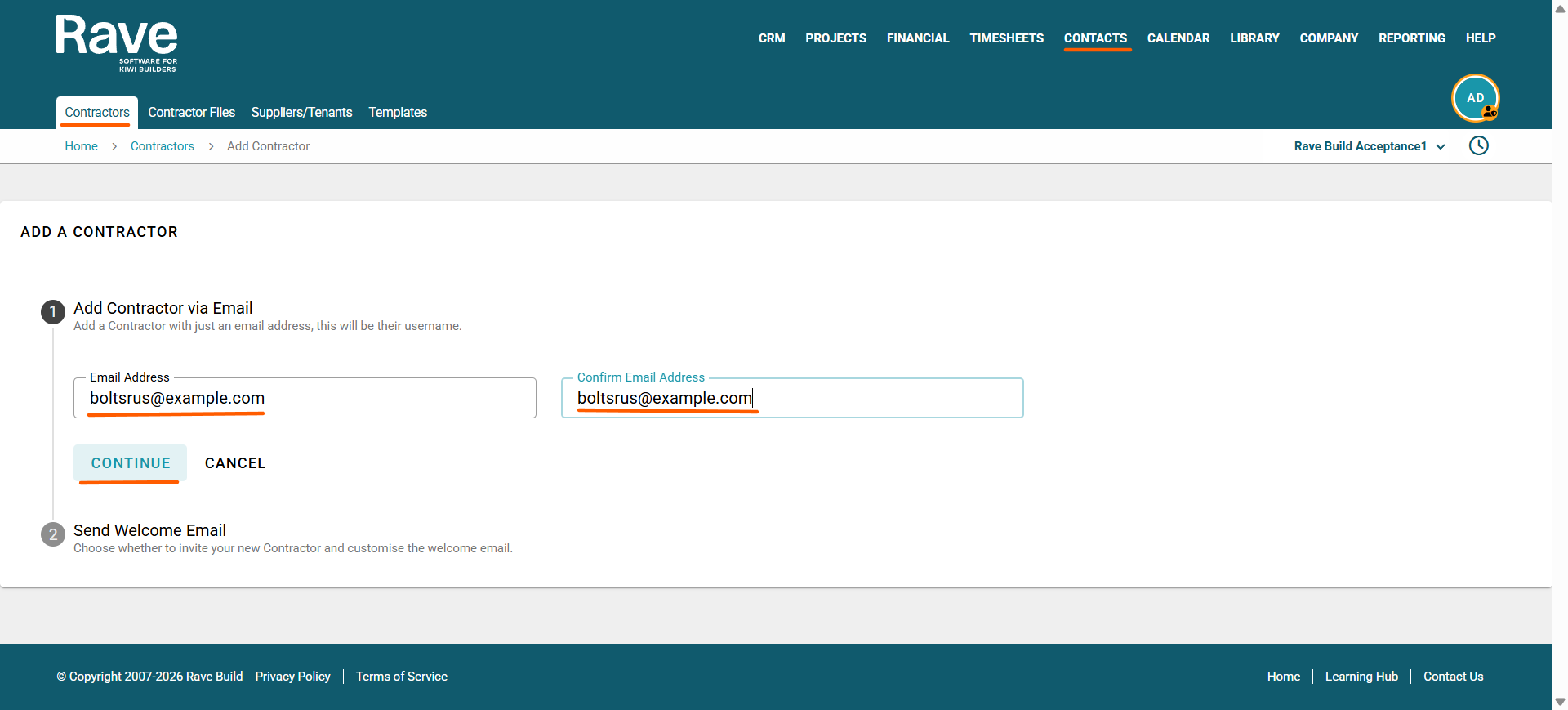
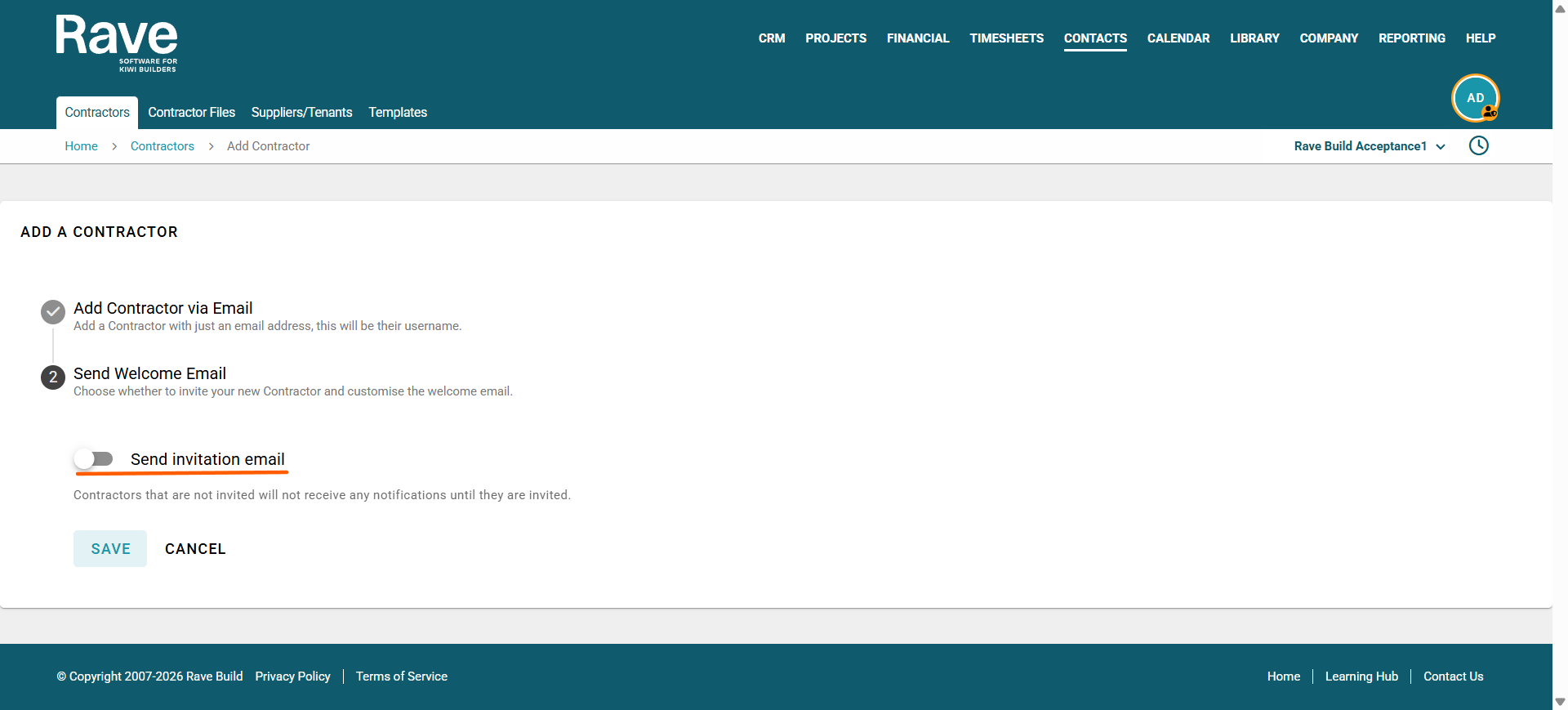
Here, you'll see that you can add contractors one at a time by entering and confirming an email address. Then, press Continue. The Send Welcome email slider is enabled by default, allowing you to change the default welcome email and send it, save it as a new template, or send it as-is.
Note: If you choose not to send a welcome email, the contractor will not be able to log into Rave or receive notifications from our system. They will also show on the Contractor Page as an Orange Not Invited Tag.
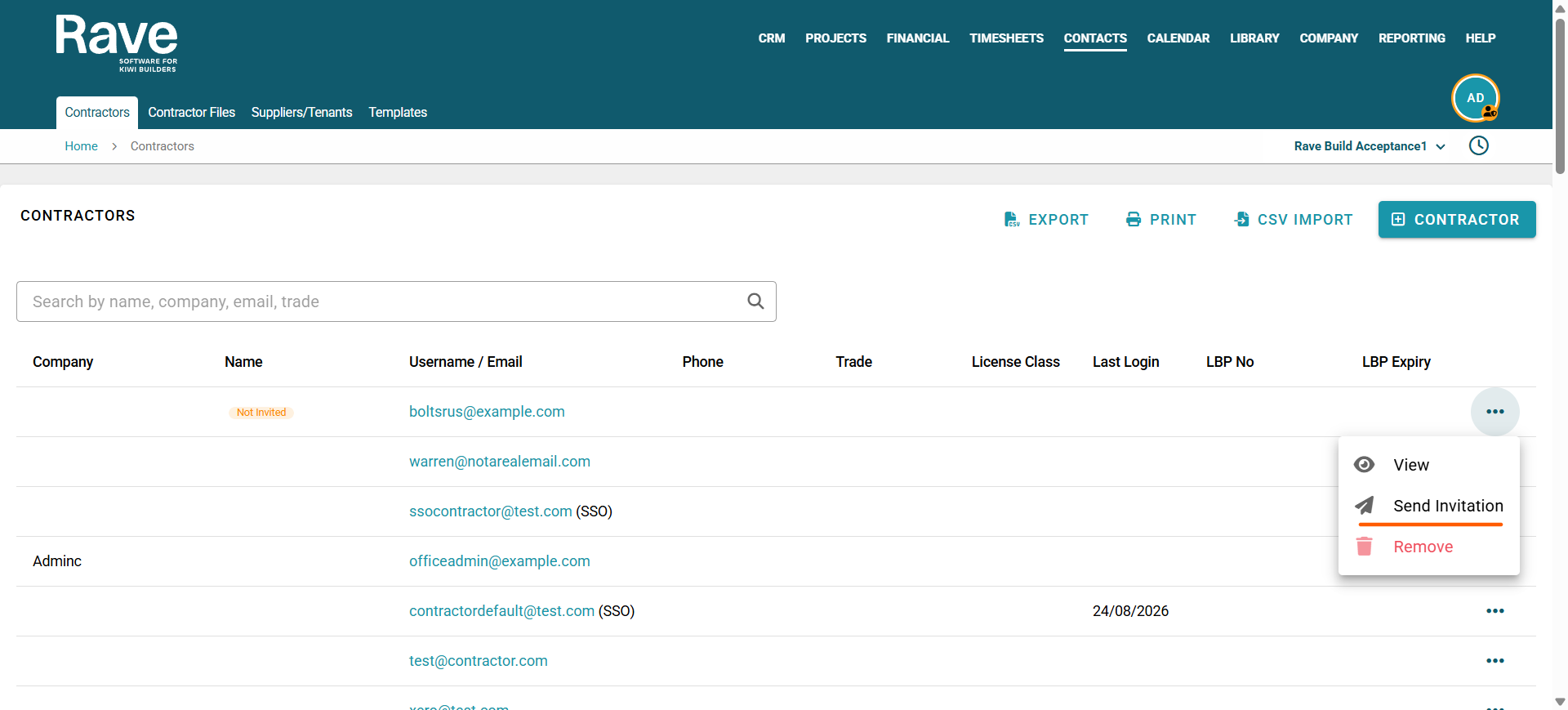
If you change your mind, you can choose to invite the contractor by clicking the 3-dot ellipsis and selecting Send Invitation.
When inviting the contractor, choose a template from the drop-down or type your invite message below.
Note: For managing existing templates, see our help article here.
Note: Most of our clients are happy to remind their trades about the suggested upload list, and the following copy about alerts, notifications, and tender submissions and set up instructions as per our default template, but if any of this doesn't sit right with you, or your business, you can just go ahead and edit the text to what is right for your message and save it as a new template to use next time.
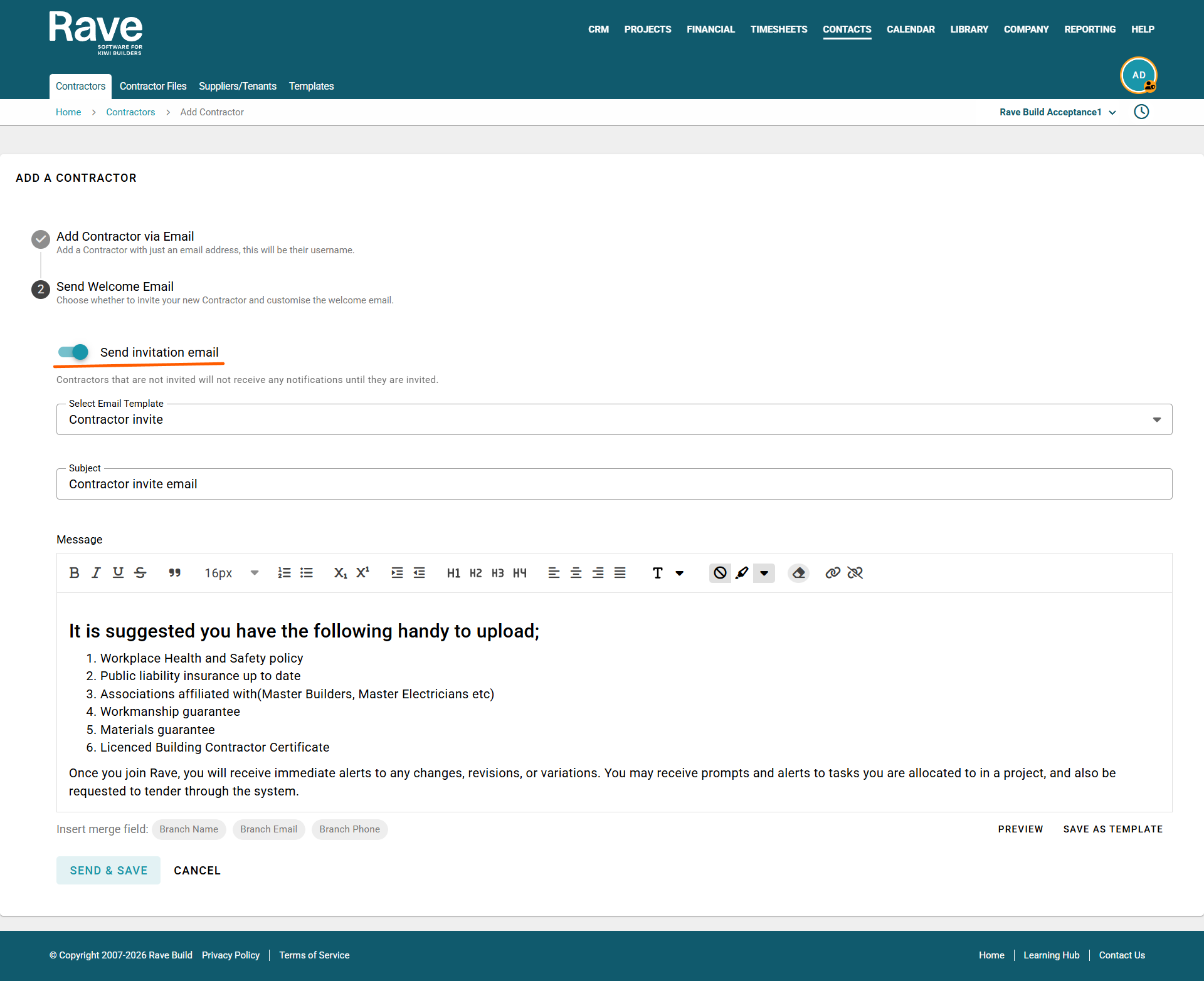
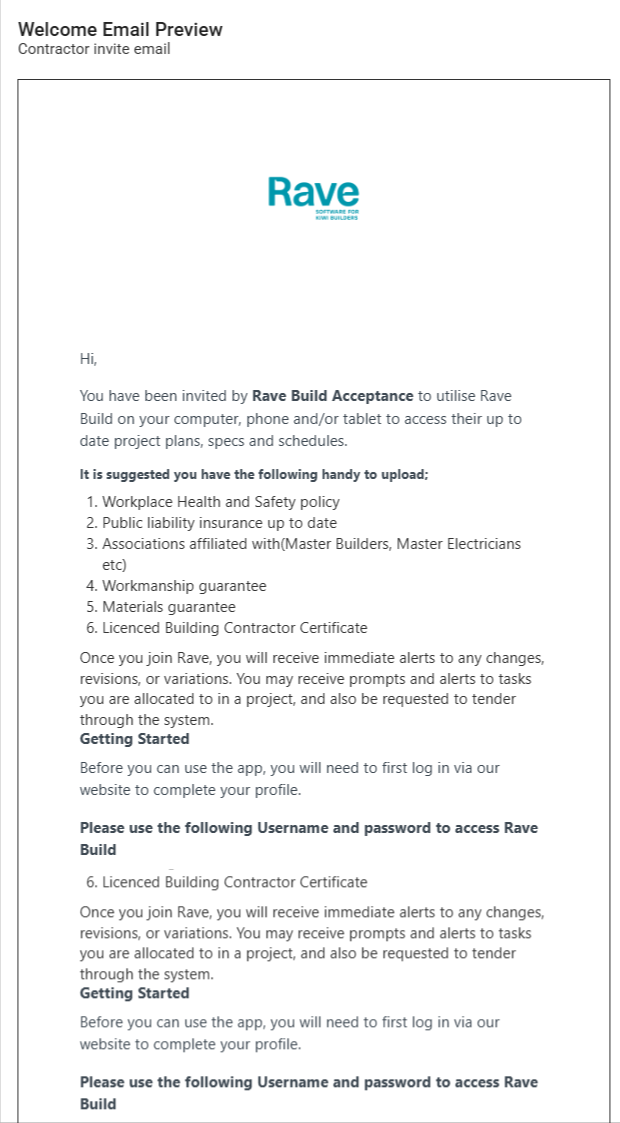
You can also click Preview to review the email the contractor will receive.
The top half is your welcome message from the previous steps.
Further down, the Getting Started section instructs them to log in on our website from their computer or phone. We give them their username (that's the email address you just loaded) and their temporary password, which is valid for approximately. 24 hours.
Next is the ‘Get Set Up!’ link, which takes them straight to their contractor profile in RAVE, allowing them to verify their details and complete the setup process.
This section also includes some short video tutorial links showing how to set themselves up in RAVE and how to use their login to get the most out of the RAVE system.
We follow that up with our contact details if they need any further assistance.
To exit the preview window, you can just click off to the side of the screen. 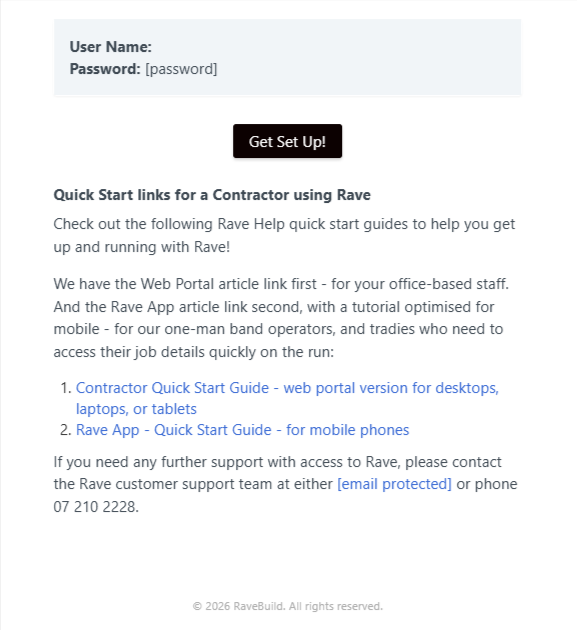
Was this article helpful?
That’s Great!
Thank you for your feedback
Sorry! We couldn't be helpful
Thank you for your feedback
Feedback sent
We appreciate your effort and will try to fix the article