This article will focus on editing/managing and archiving Suppliers and, where applicable, Tenants.
The First article was titled "Adding Suppliers or Tenants Manually." You can read it here.
The Previous article was titled "Adding Suppliers or Tenants via CSV". You can read it here.
Clicking the Contact Tab takes you to the Contacts page, where sub-tabs let you manage contacts based on your permissions.

With permission, you will see Contractors, Contractor Files and Supplier/Tenants.
You may have all of these tabs, none or only 1 or 2.
In the Manage Users section, users with permission can choose to assign these tabs.
To give a user No Access, unselect the Enable Contact Access, which will hide the tabs for them.
If you choose to give access to either Contractors, Contractor Filers or Suppliers/Tenants, you can then select which options you want them to have.
Some options are View-only, Add/Edit/Manage and Remove.

Note: Suppliers vs Contractors
The term ‘Supplier’ in RAVE is used to describe those suppliers and sub-trades who do not need a RAVE login to access your projects, schedules, and documents in RAVE, i.e. 'Suppliers' provide quote information only - they do not need to log in to RAVE to access the project details, and therefore do not need a RAVE login. Suppliers can be emailed a quote request and purchase order, but they cannot log in to view them all in one place.
As opposed to 'Contractors' who do need a RAVE login to access your projects, schedules, and documents in RAVE, they can also view quote requests in RAVE, submit a quote, and view Purchase Orders. As a result, we send a welcome email with login details to 'Contractors', but we don't for 'Suppliers'
Editing a Supplier or Tenant
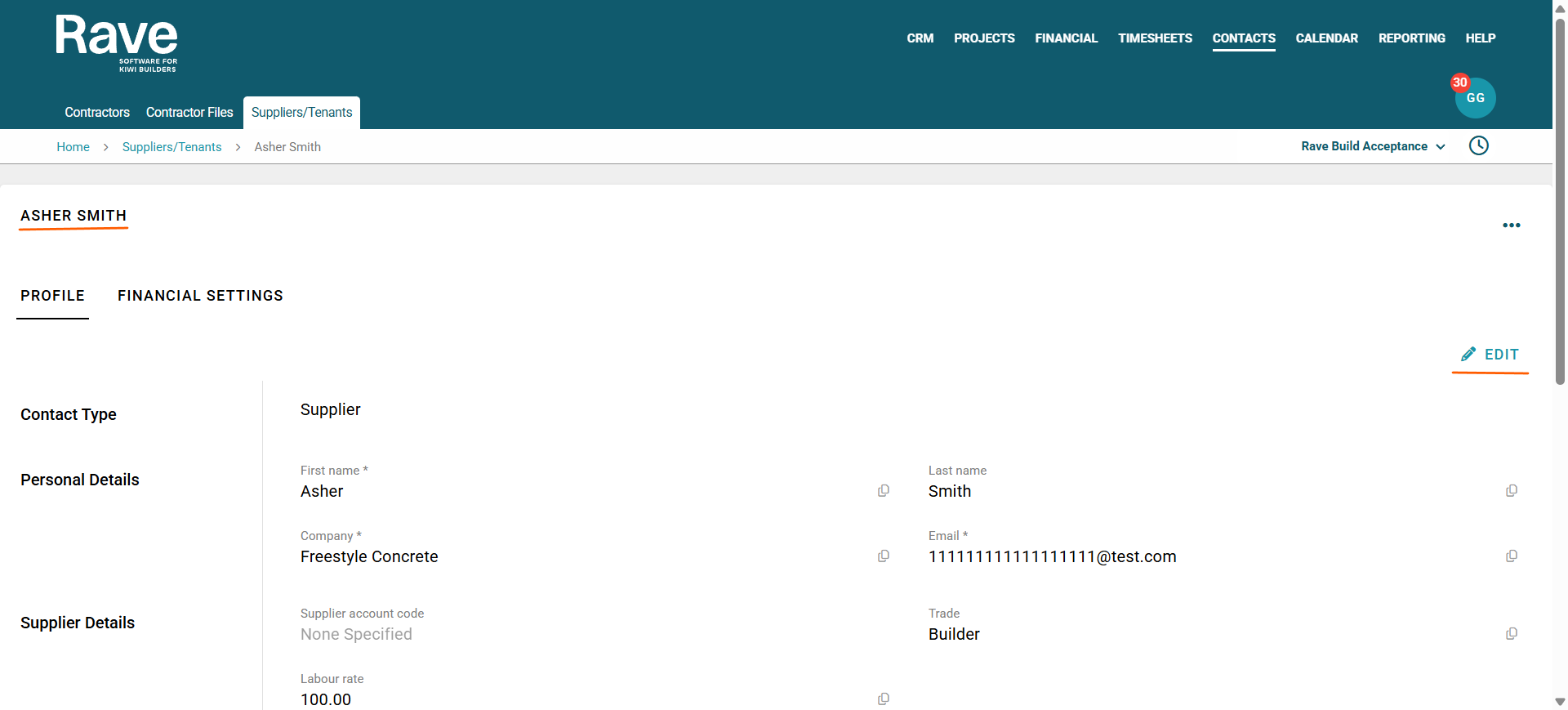
Once in the Suppliers/Tenants sub-tab, click the supplier profile you wish to edit using the teal hyperlink in the Name Column. This will open the Supplier Profile, where you can then click Edit and make your changes. Make sure to press Save once done.
.
Inviting a Supplier as Contractor
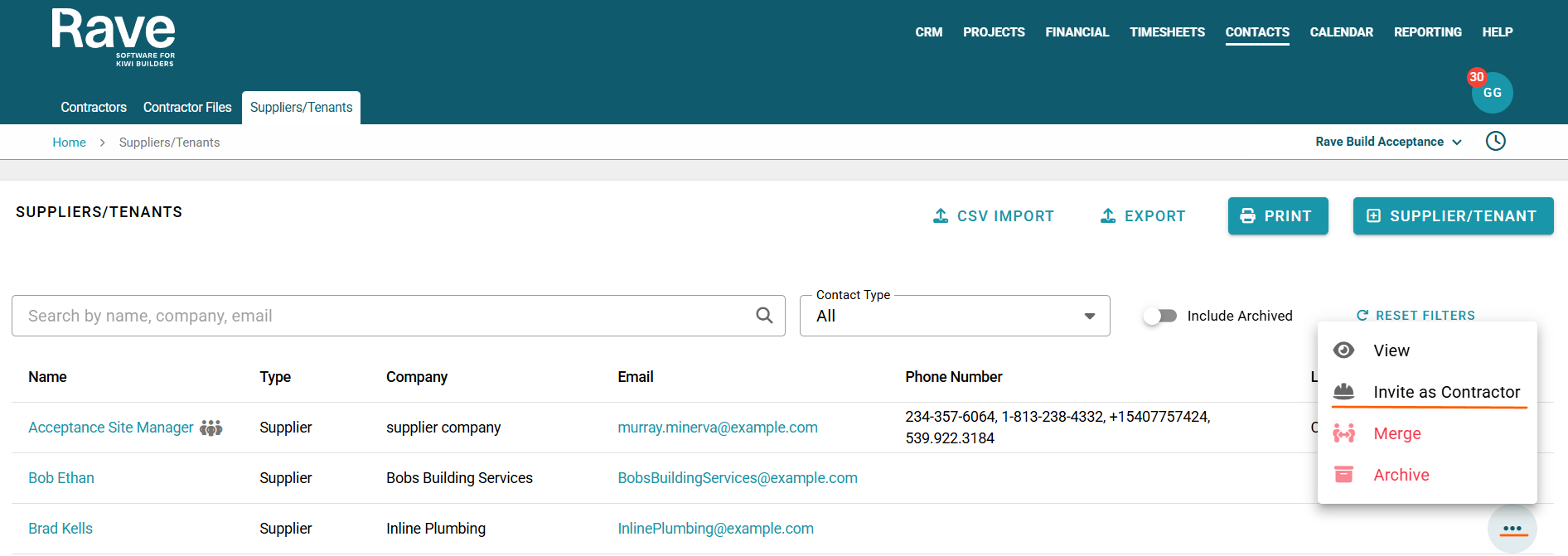
The 3-dot ellipse includes an "Invite as Contractor" button. When this is clicked, a pop-up will appear asking you to confirm this action, as it cannot be undone. Once you confirm, an invitation email will be sent to the supplier, and they will be removed from the Supplier List and appear on the Contractors page.
Merging a Supplier
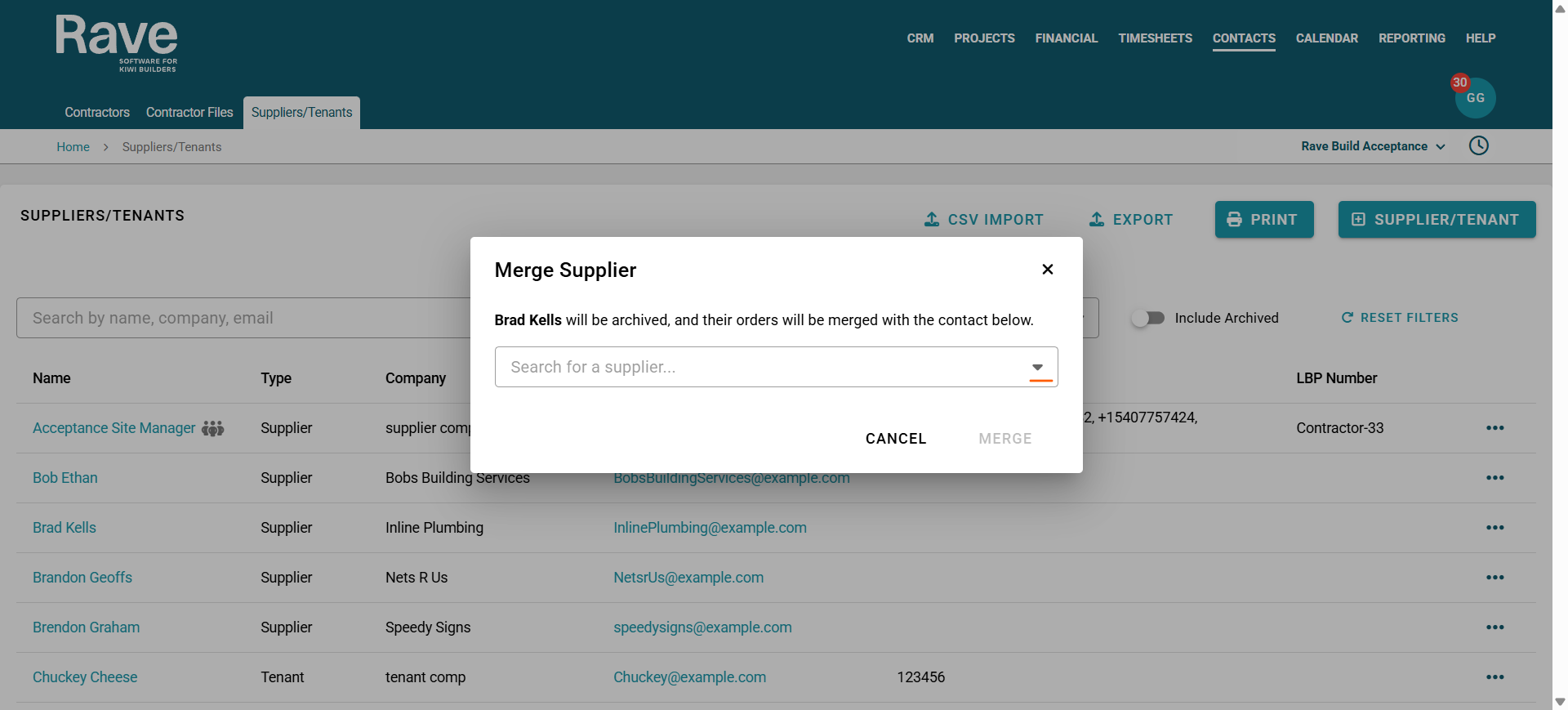
From time to time, you may discover or accidentally create a duplicate supplier already in your system. RAVE users (with permissions) can merge suppliers. Click the three-dot ellipse and select the Merge button. When this is clicked, a pop-up will appear asking you to choose a supplier from the drop-down to merge this Supplier Into. Select the right supplier, then click the Merge Button. This will merge the unwanted supplier profile and move their purchase orders, bills, etc., to the remaining supplier profile.
Archiving and Restoring a Supplier or Tenant
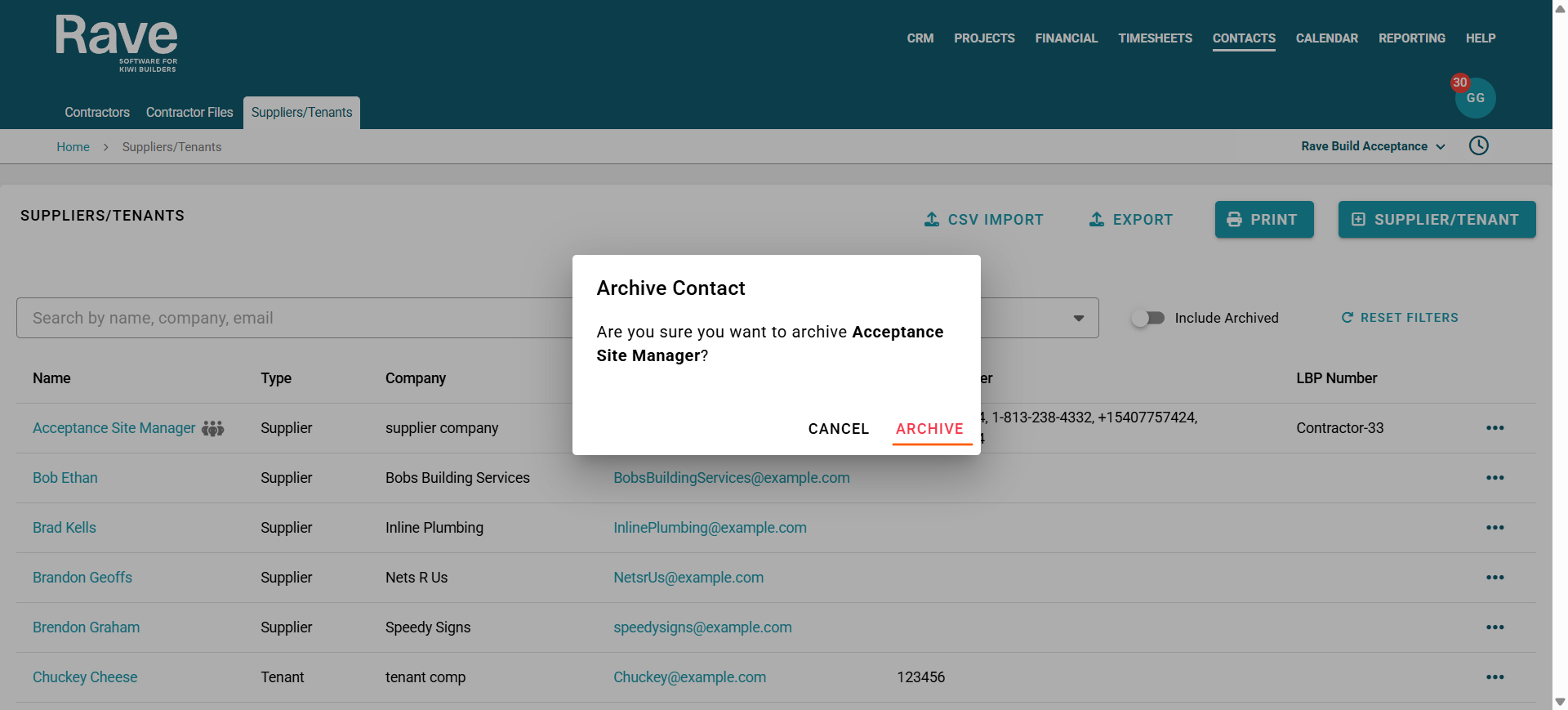
Click the 3-dot ellipse and select the Archive button. When this is clicked, a pop-up will appear asking you to confirm you want to archive this Supplier. Click the Archive Button to proceed or cancel to exit. This will archive the unwanted supplier profile and leave all documents visible under the profile, but you will not be able to add any new ones to it.
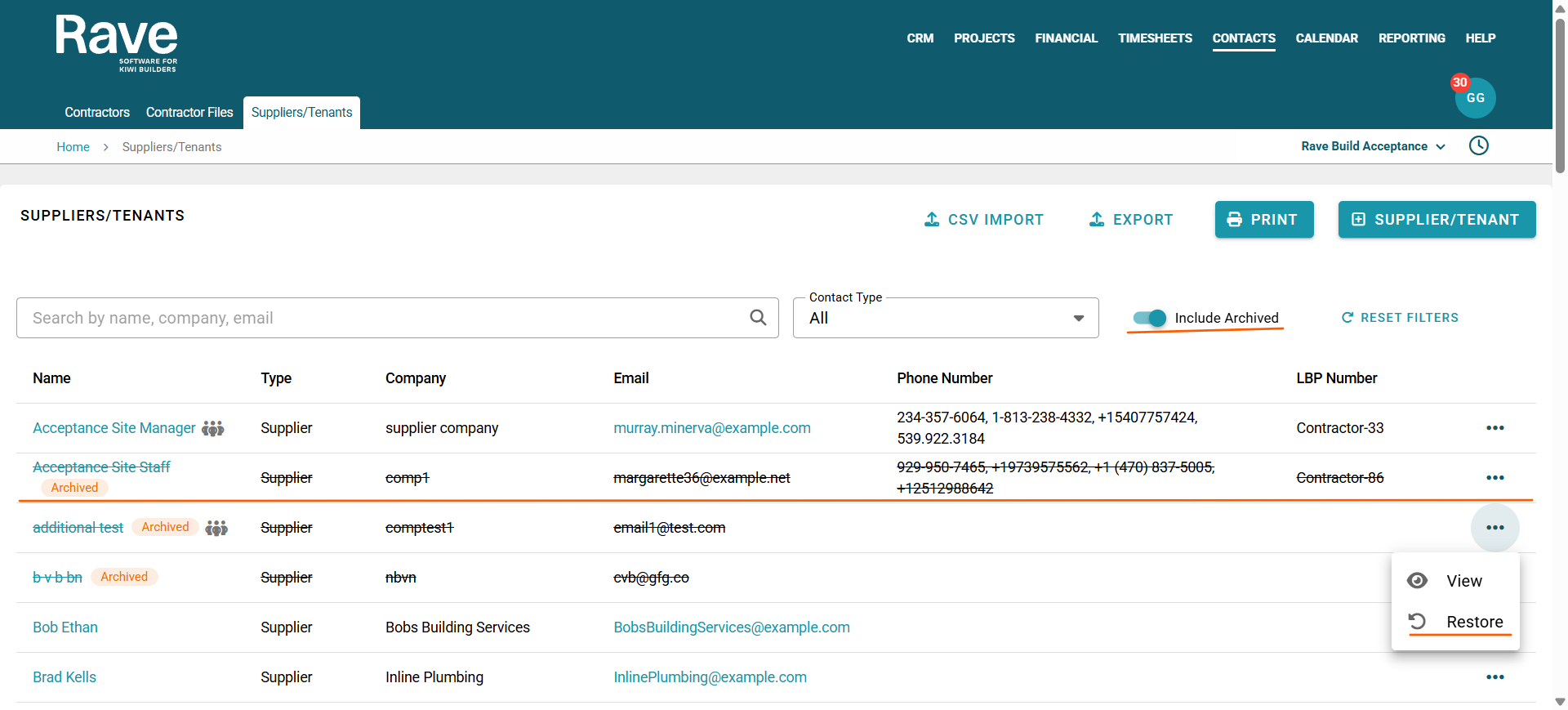
If you archive a supplier or Tenant and want to bring them back. Slide on the Include archived toggle. Find the archived supplier. Click on the 3-dot ellipse and select Restore. This will bring the supplier back.
Was this article helpful?
That’s Great!
Thank you for your feedback
Sorry! We couldn't be helpful
Thank you for your feedback
Feedback sent
We appreciate your effort and will try to fix the article