This article will focus on Adding Suppliers or Tenants Manually.
The next article will focus on Adding Suppliers or Tenants via CSV. You can read it here
The following article will focus on Merging, Archiving, and Editing Suppliers/Tenants. You can read it here.
Clicking the Contact Tab takes you to the Contacts page, where tabs let you manage contacts based on your permissions.

With permission, you will see Contractors, Contractor Files and Supplier/Tenants.
You may have all of these tabs, none or only 1 or 2.
In the Manage Users section, users with permission can choose to assign these tabs.
To give a user No Access, unselect the Enable Contact Access, which will hide the tabs for them.
If you choose to give access to either Contractors, Contractor Filers or Suppliers/Tenants, you can then select which options you want them to have.
Some options are View-only, Add/Edit/Manage and Remove.

Note: Suppliers vs Contractors
The term ‘Supplier’ in RAVE is used to describe those suppliers and sub-trades who do not need a RAVE login to access your projects, schedules, and documents in RAVE, i.e. 'Suppliers' provide quote information only - they do not need to log in to RAVE to access the project details, and therefore do not need a RAVE login. Suppliers can be emailed a quote request and purchase order, but they cannot log in to view them all in one place.
As opposed to 'Contractors' who do need a RAVE login to access your projects, schedules, and documents in RAVE, they can also view quote requests in RAVE, submit a quote, and view Purchase Orders. As a result, we send a welcome email with login details to 'Contractors', but we don't for 'Suppliers'
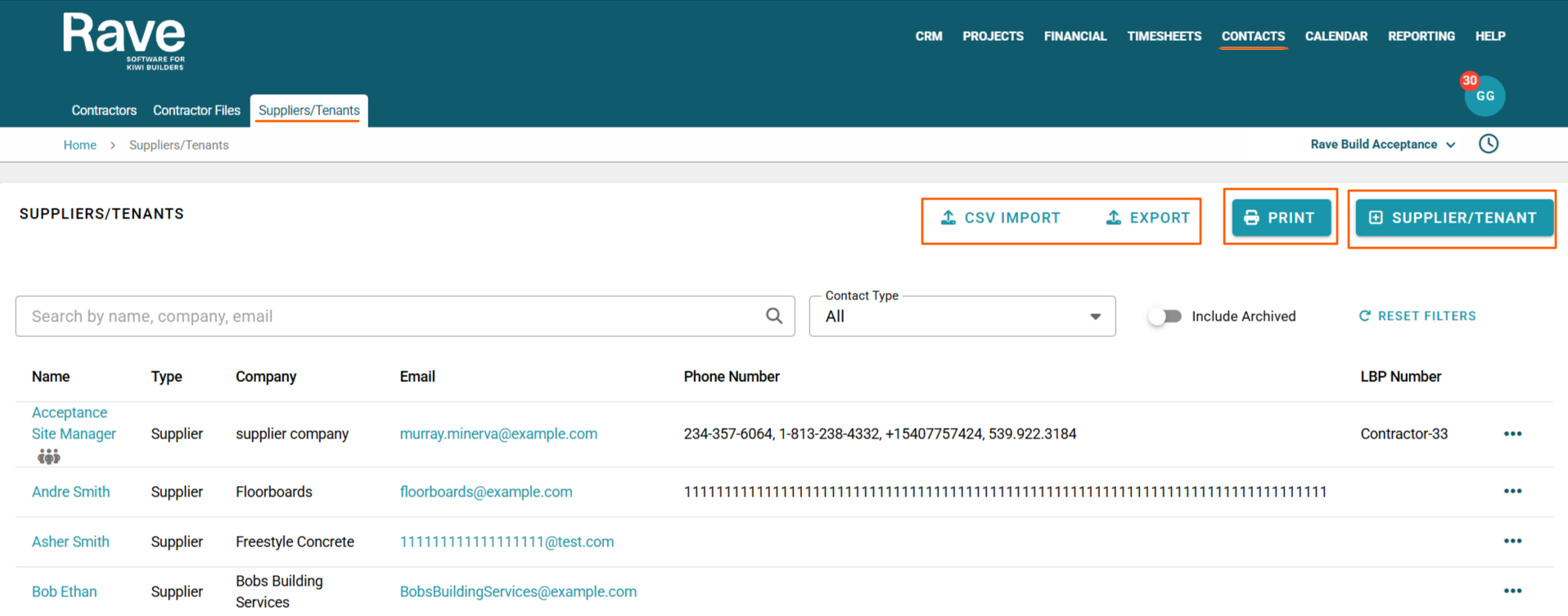
Adding Suppliers/Tenants one at a time
To add one new supplier at a time:
Click the + Supplier/Tenant Button
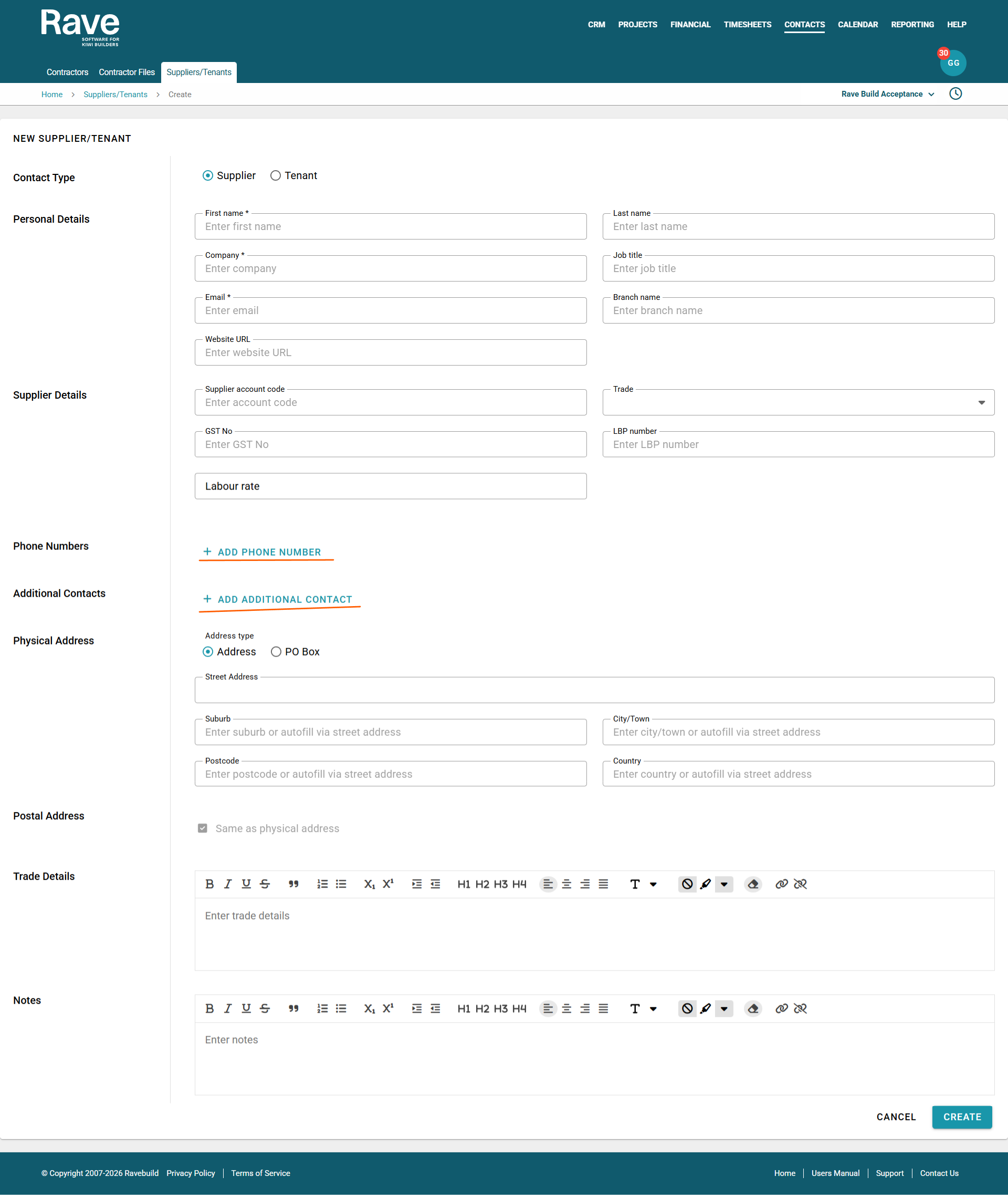
You can then enter as much or as little detail as you like.
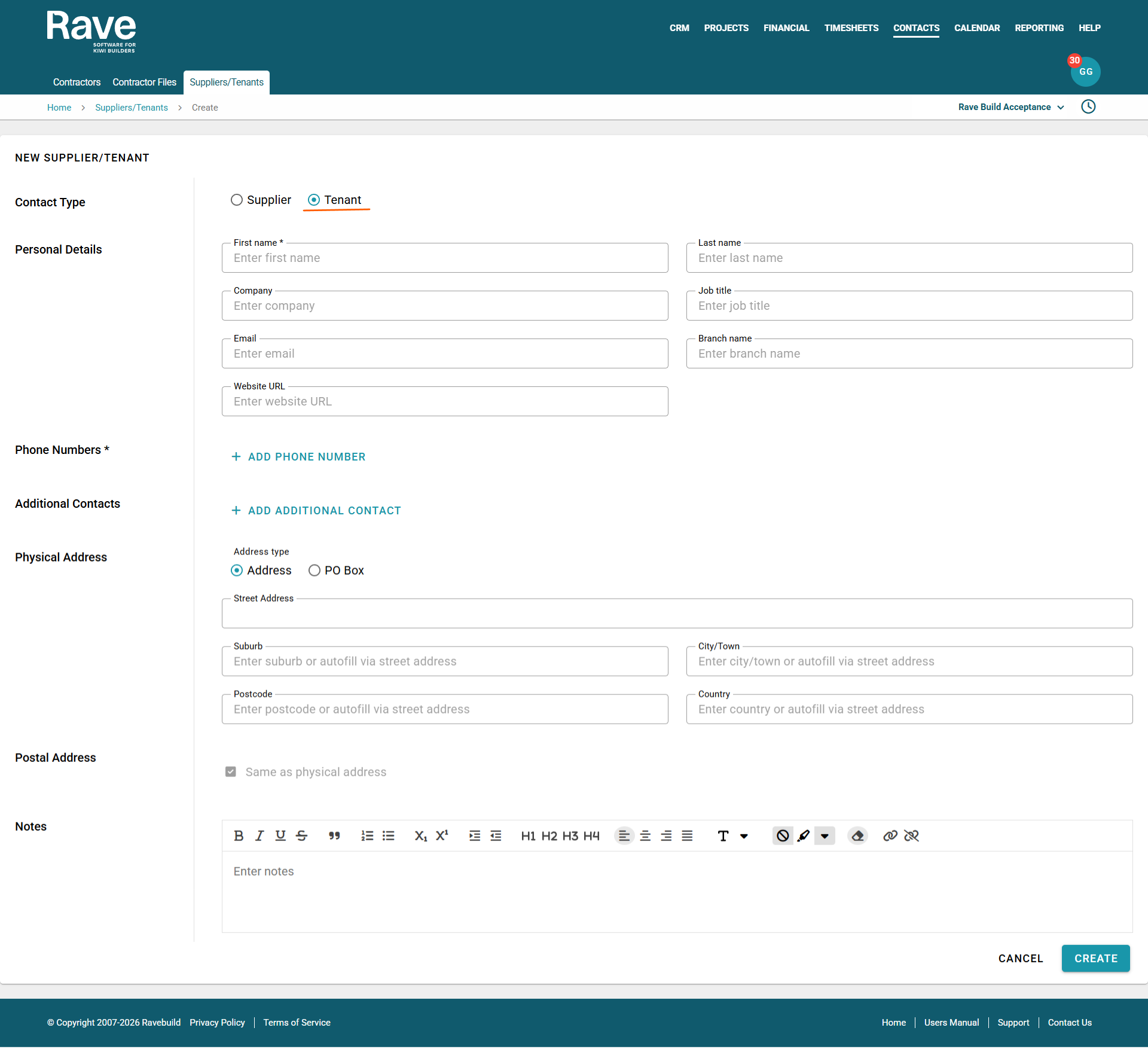
Noting that First Name, Company and Email are all mandatory for Suppliers, while only First Name is Mandatory for Tenant. We do suggest loading as much information as possible to ensure that when using these contacts in RAVE, it's easy to find the right one.
You can also add additional phone numbers via the + phone Number button
You can also add additional contacts within the same business via the + Additional Contacts Button. This allows you to add a first name, last name, and email, and select whether you want them notified, which will CC them on all emails we send to the primary email for this contact.
Once you have added an additional contact, we will show an icon on the overview page of 3 people side by side, indicating that additional contacts have been added.
Add a Supplier View
Add a Tenant View
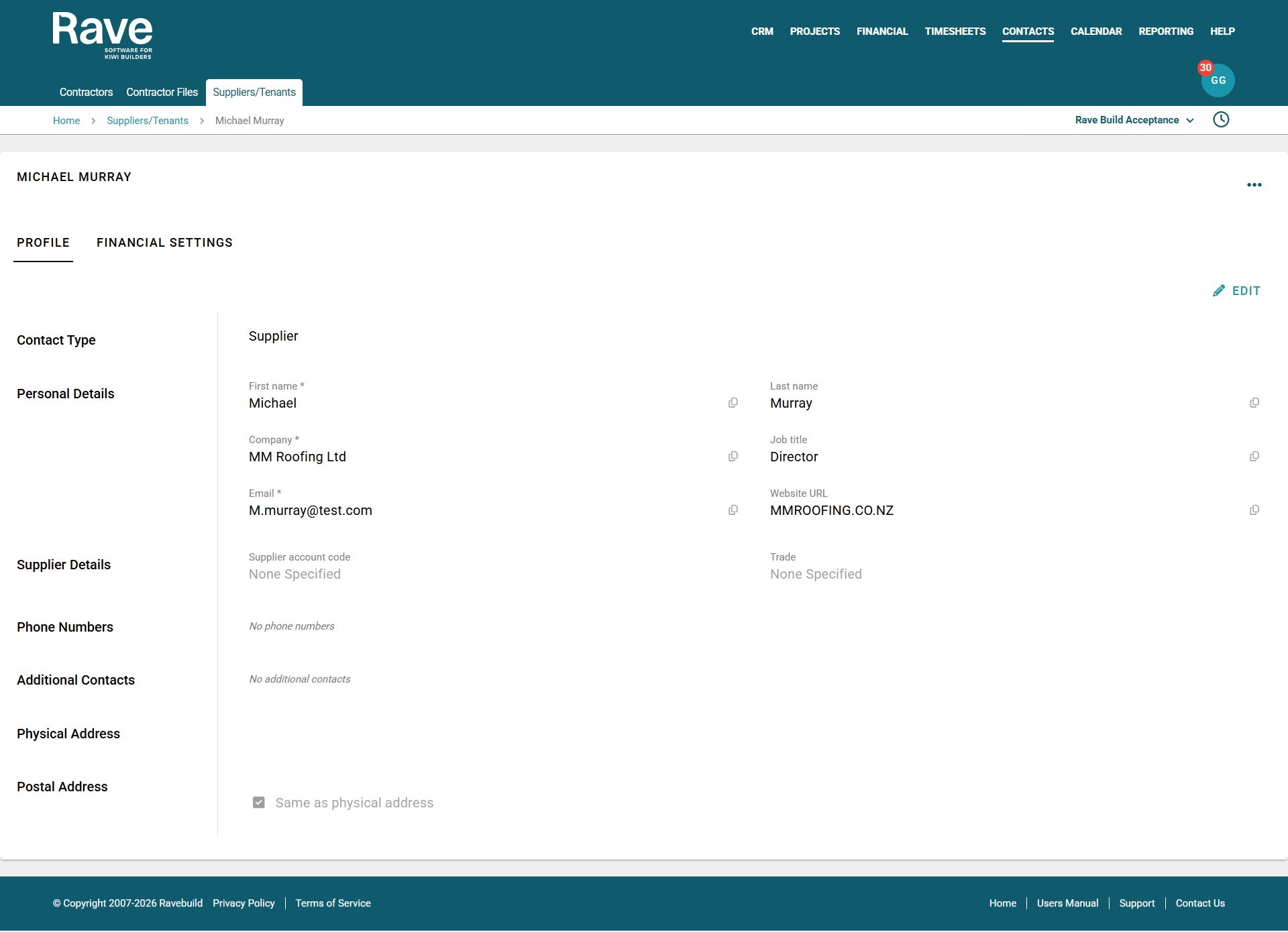
Once you press Create, you will then see the new Supplier/Tenant Profile overview.
You can press the Edit pencil icon at any time to make changes to the supplier or tenant.
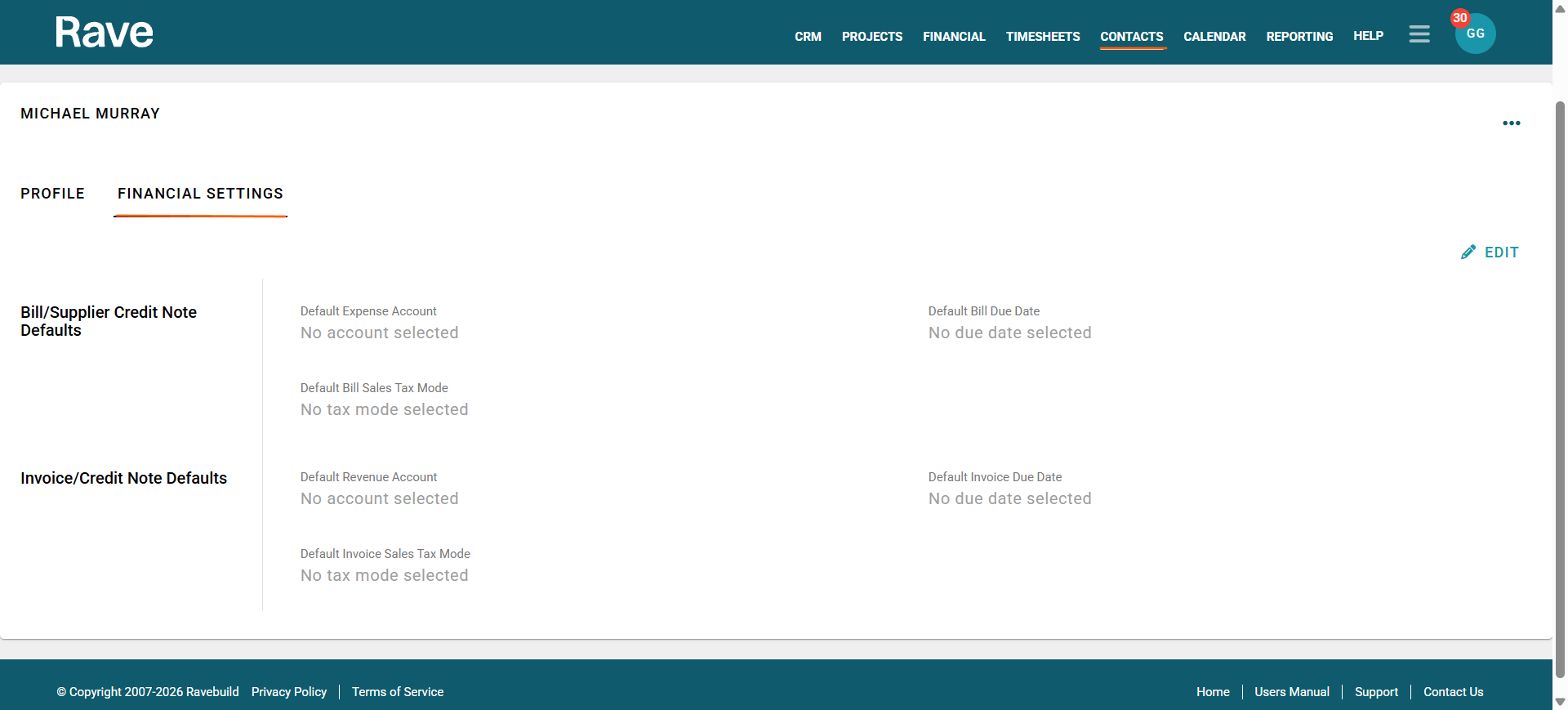
Financial Setting on Supplier Profile
The Second Tab is Financial Settings. With edit permission, you can set Financial defaults for this Contractor, which will feed into our Financial Management System and, if connected, Xero.
Default Expense code for Quotes/Bills/Credit Notes and Purchase Orders for this Contractor
Default Bill Due Date
Default Bill Tax Mode
Default Revenue Account for On-Charge Invoices and Credit Notes
Default Invoice Due Date
Default Invoice Sales Tax Mode
You can also export your suppliers and tenants list by clicking Export, which will download the list as a CSV file.
Was this article helpful?
That’s Great!
Thank you for your feedback
Sorry! We couldn't be helpful
Thank you for your feedback
Feedback sent
We appreciate your effort and will try to fix the article