
From the Projects main navigation, select Custom Templates, then select Schedule.
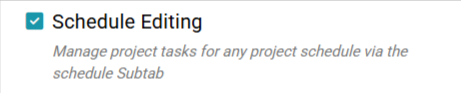
With the correct permission, you can view only or add/edit/delete schedule templates.
- This permission is linked to Schedule Editing
- The Eyeball icon allows you to view your template
- The edit pencil icon allows you to edit your template
- The Trash Can icon allows you to delete your template (this is permanent and cannot be undone)
In Edit mode, you can:
- Rename the template
- Change the template type (if you are using Enterprise and Classic Schedule)
- Add or remove Milestones or Tasks
- Edit task duration, assignees, colour coding, (predecessors and successors as well as Constraints with Enterprise)
- Upload a pre-populated CSV file
Note: You have more schedule editing functionality in the project sub-tab rather than the templates section i.e. access to a Task Gantt view, the ability to link progress payments, and more control with linked tasks if you have 'Advanced' and 'Enterprise' scheduling.
Add a new template:
From the + Schedule Template button, you can create your own new schedule template
First, you need to name the template,
Then you need to either load a pre-set CSV file or create your first milestone, and then add the remaining information one by one. 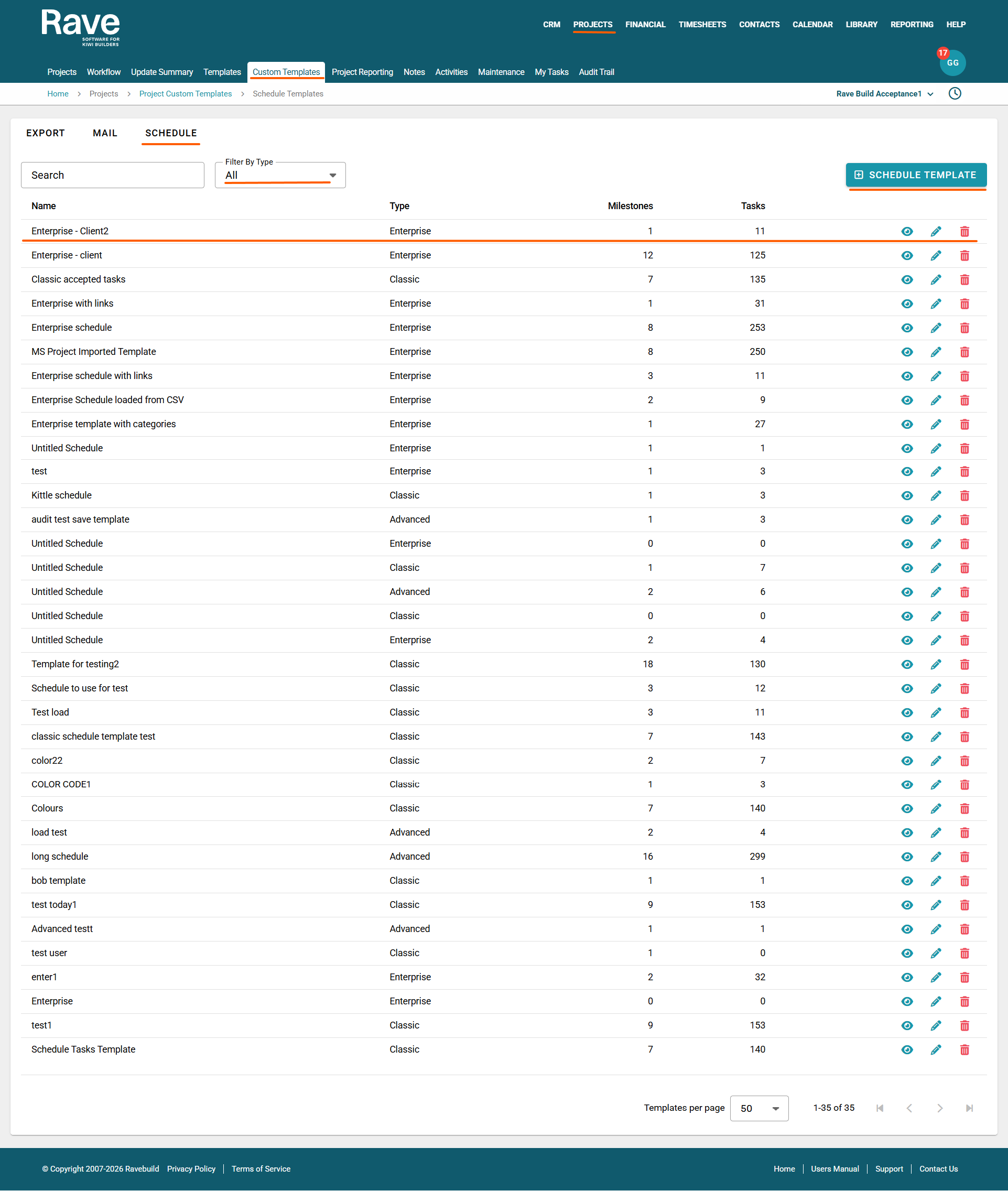
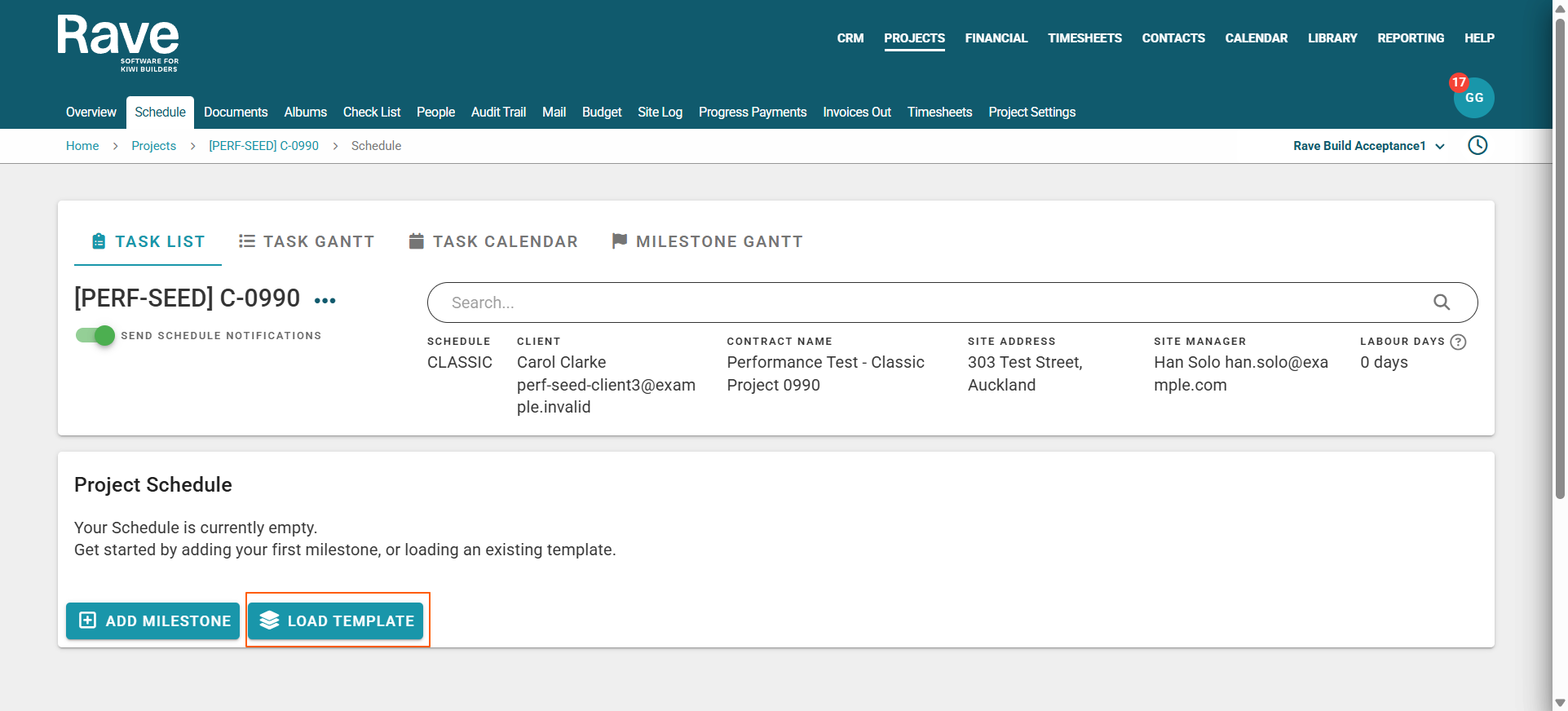
Once your templates are sorted, you can go back into a project, click on schedule, and then load the schedule from a template
Was this article helpful?
That’s Great!
Thank you for your feedback
Sorry! We couldn't be helpful
Thank you for your feedback
Feedback sent
We appreciate your effort and will try to fix the article