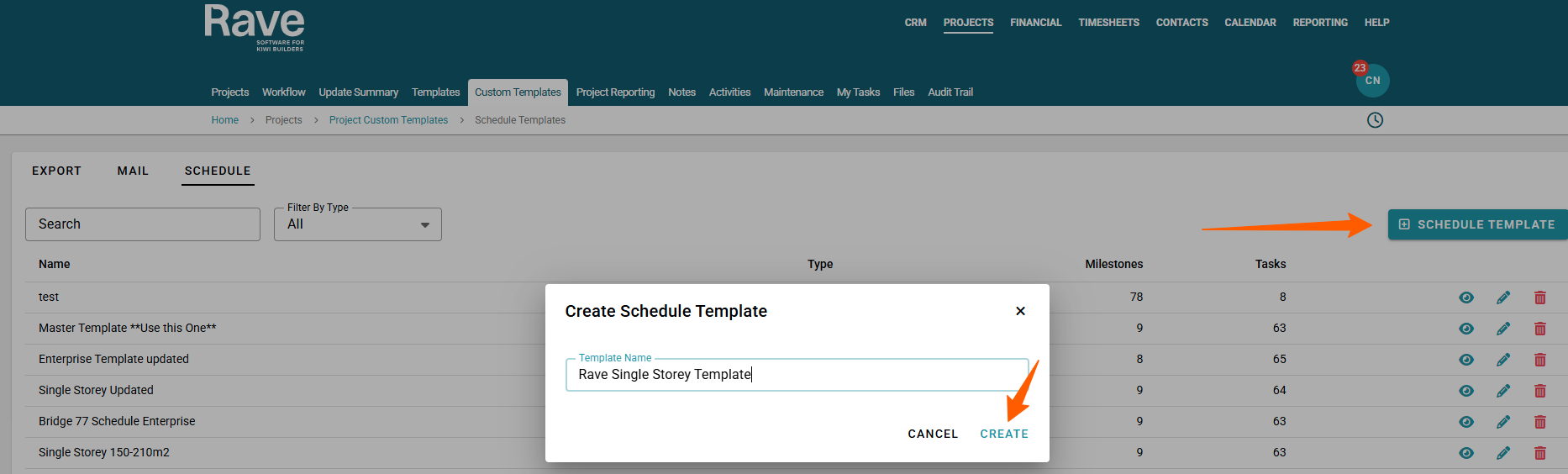
Do you want to upload a schedule CSV? go to Projects Tab | Custom Template | Schedule |+ Schedule Template

Give your Template a name and click Create
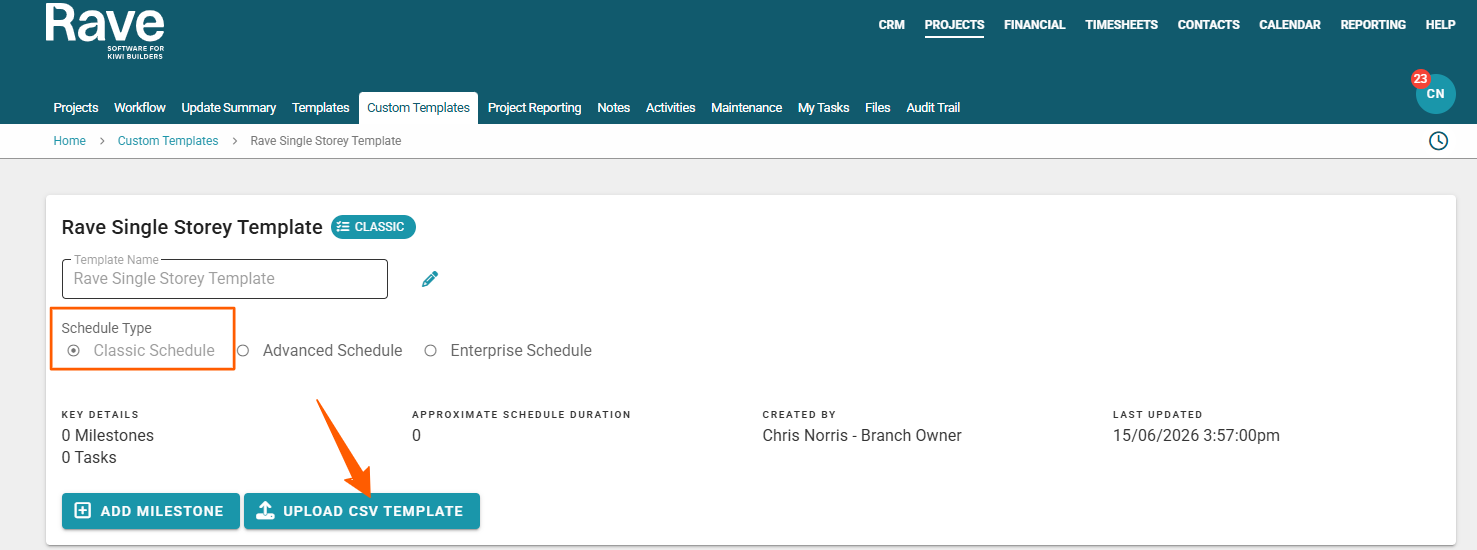
Choose what type of schedule you want to upload NOTE: Enterprise Schedule will require 2 uploads - First upload is the main schedule the second upload is the links and constraints.
once you have chosen your schedule type - click upload csv template
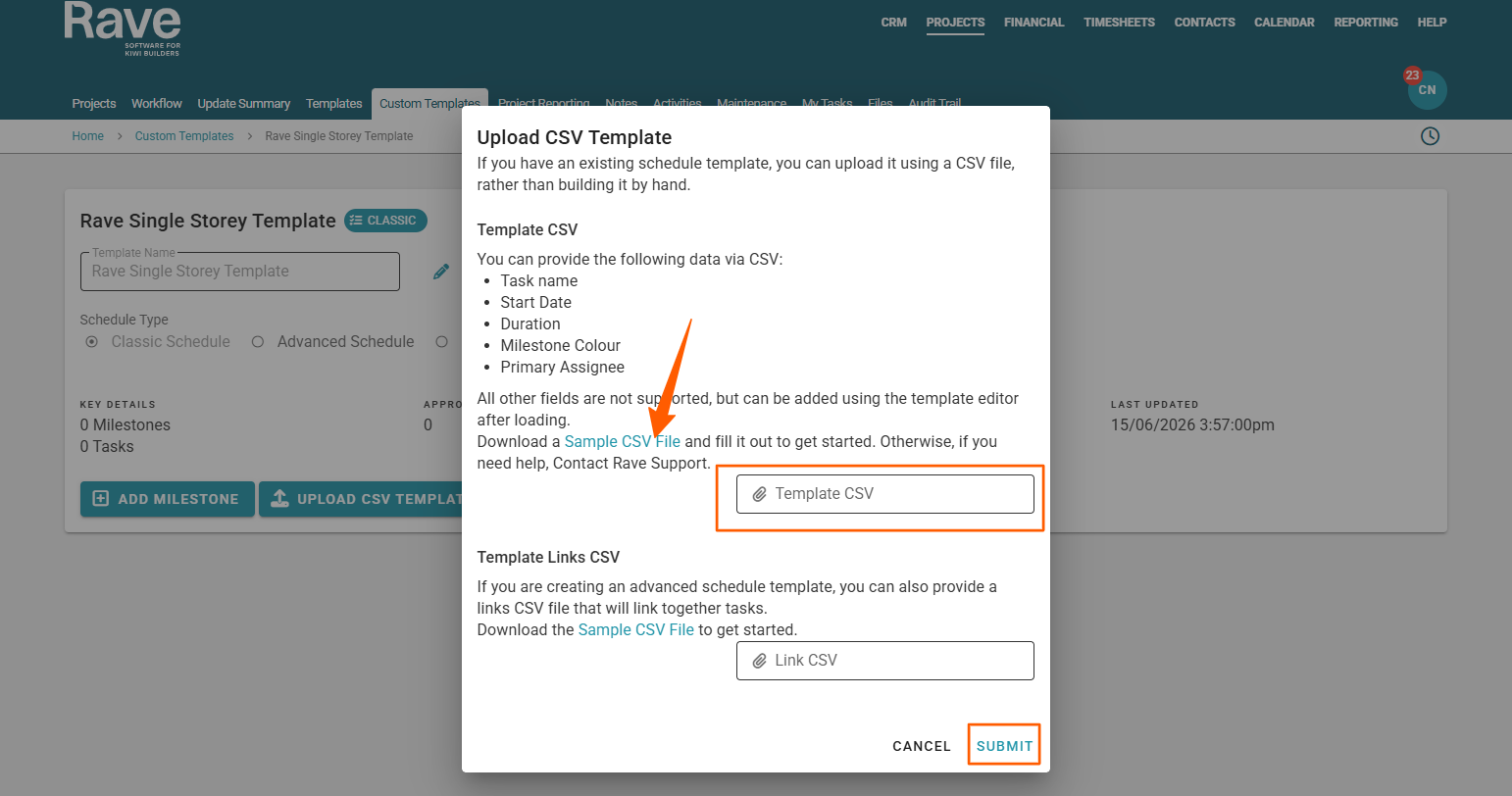
If you are not sure what your csv needs to have to allow for a successful upload you can click on the Sample CSV File hyperlink to get an example csv to copy your details into - this will help you have a successfull upload.
Once you have your file ready - drop your csv into the box with the paper clip icon and click on submit.

If your schedule 'Sample_CSV_File' upload fails, check out this list of potential causes and solutions:
- Firstly, the file needs to be saved as a CSV (plain text comma-delimited) file - an Excel file will not work.
- Milestone headers must only have a milestone name (column A) and the optional milestone colour field completed (column E), i.e. if you add a start date plus a duration to a milestone line, Rave will treat it as a task.
- All tasks need to be listed under a milestone header, and each task must have a valid start date and duration.
- All task assignees must already be in your system - as a staff member, a site manager, a site staff member, or as a contractor (by name, email or company name). Furthermore, the assignee's name must match the format as it appears in RAVE.
NOTE: If all these conditions are not met, your schedule upload will fail, and your RAVE session might time out.
If you still have a problem with a failed upload:
- Return to your CSV template and verify that all the conditions above are met. Once you have corrected any data issues, have another go at uploading your CSV.
- If you have checked for data issues and are still experiencing problems uploading your CSV schedule file, email us at help@ravebuild.co.nz with your CSV file attached for us to check that out for you.
Was this article helpful?
That’s Great!
Thank you for your feedback
Sorry! We couldn't be helpful
Thank you for your feedback
Feedback sent
We appreciate your effort and will try to fix the article