Select the project that you want to create a Payment Schedule for. Once you have selected the project, click on Progress Payments tab.
Invoiceables can be loaded to the Progress Payment's Payment Schedule section at any time. You can load these one at a time (as a basic or detailed invoiceable), or load a list of invoiceables from a pre-saved template.
NOTE: Any branch users with Edit Stage claim permissions can load and save payment schedule templates. If your business is a franchise, then stage claim templates will usually be loaded at a support/head office level, so please check with them before adding or editing any payment templates.
How to Load a Payment Schedule Template
To load a payment schedule template:
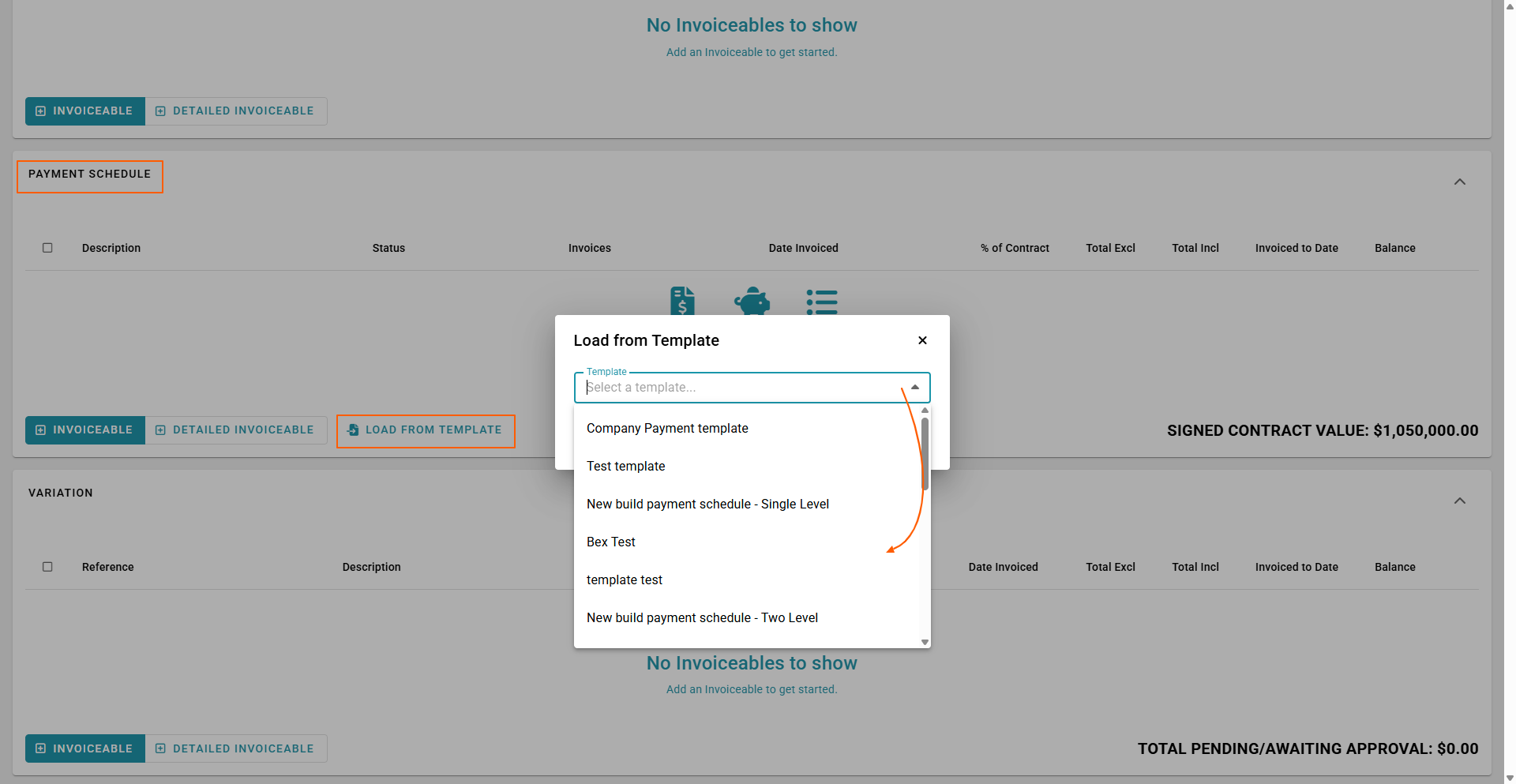
- Scroll down to Payment Schedule
- Click the ‘Load from Template’ button
This will open the 'Load from Template' pop-up, for you to select a template from the pre-saved template list
- Select your desired payment schedule template by clicking the corresponding radio button and clicking 'APPLY'
This will load your payment schedule template - displaying a list of invoiceable descriptions, each with a status, % of contract, a total excluding tax, and a total Including Tax, along with the invoiced to date and balance.
NOTE: Your Payment Schedule line percentages should add up to 100%, the actual line dollar values (for each payment schedule line) will be calculated as follows:
[ (Signed Contract Price) – (the SUM of all Deposit and Other Items) ] / divided by the invoiceable percentage value
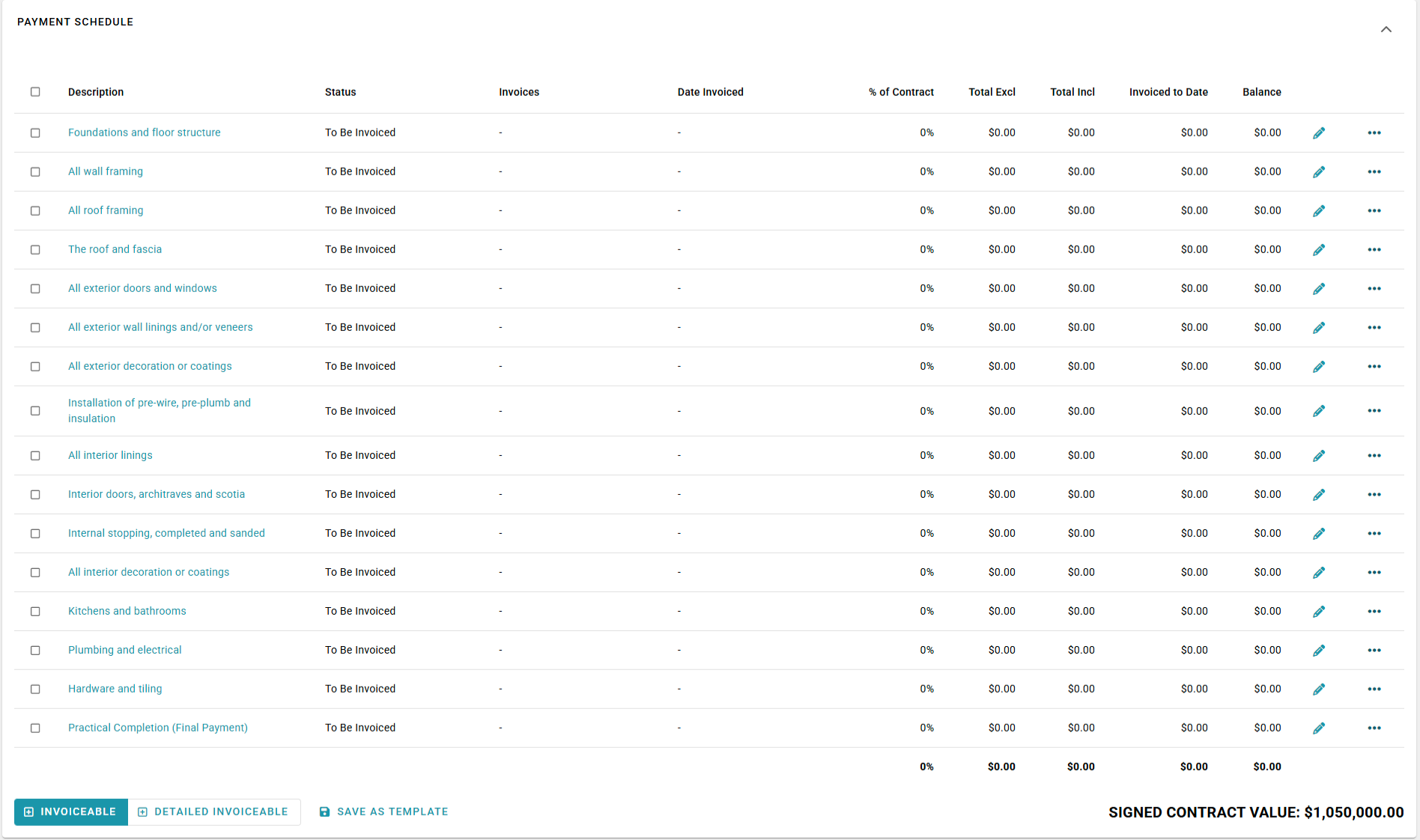
TIP: If the number of payment schedule lines, the descriptions, or the % and/or $ values do not match your Build Contract:
- Check you have loaded the 'correct' payment schedule template - if you have loaded the wrong template, delete these payment schedule entries (via the 'Remove all Stage Claim Payments' dropdown option) and load the correct payment schedule template
- If you have loaded the 'correct' payment schedule template - but the payment values or percentages do not match your Build Contract - check you have included ALL of your Deposit and Other Items lines
- If the details are still not right, manually edit each line as required.
How to Create (Save) a Payment Schedule Template
To save a payment schedule template:
- Click on 'Save as Template' sitting beside the add invoiceable button
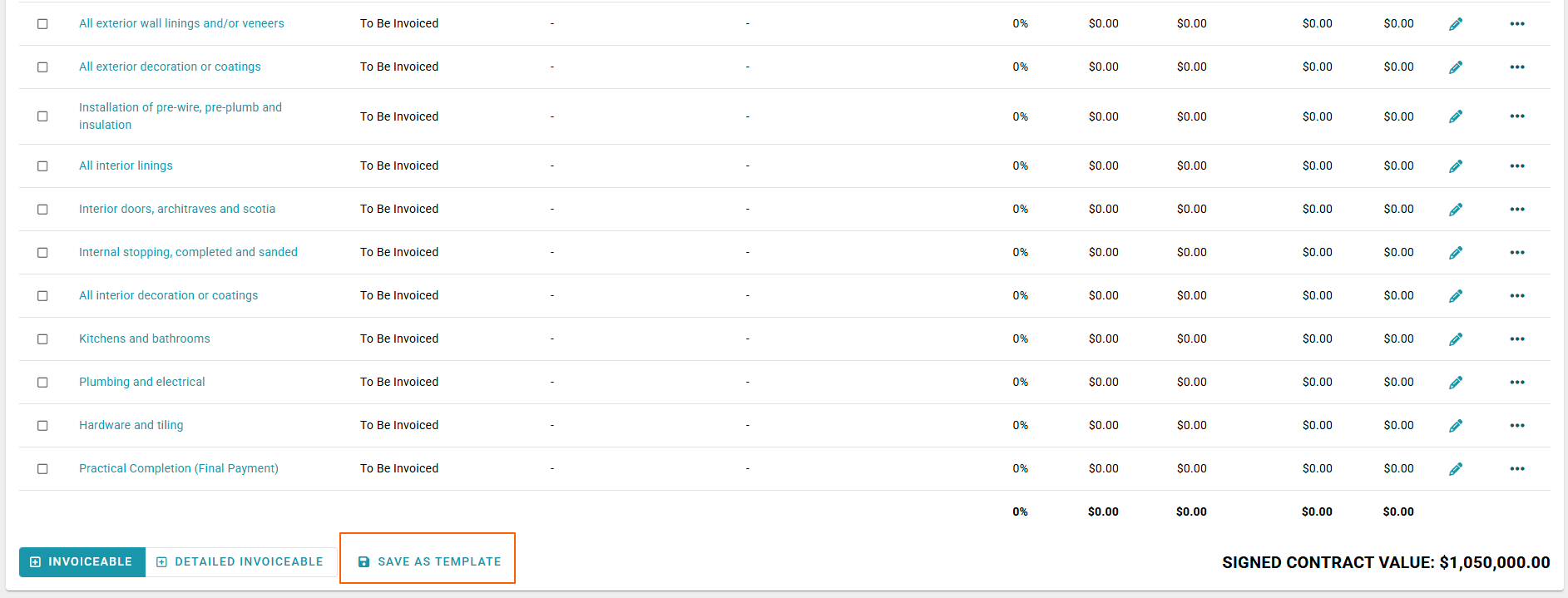
Your new payment schedule template will now be available next time you select the 'Load from Template' button
To Delete your Schedule Template and Re-Load
- Bulk select your Payment stages down the left-hand side of the page - click on the box beside the work Description to bulk select.
- Click Delete button
- Payment schedule will be deleted ready to re-load
Was this article helpful?
That’s Great!
Thank you for your feedback
Sorry! We couldn't be helpful
Thank you for your feedback
Feedback sent
We appreciate your effort and will try to fix the article