A quote or tender request is used to gather competitive pricing and evaluate suppliers’ ability to meet specific requirements. It ensures transparency, clear expectations, and provides a foundation for budgeting and contractual agreements. Getting accurate prices for quotes or variations is a breeze with our easy-to-use Quote Request feature.
Previously, we explained the process of generating Quote Requests in detail. You can find that article here. This article explains how to save and load a Quote Request Instruction Template into your quote requests.
You can access the quote request workflows via the Budget tab in the Project's Overview screen by clicking the Quote Requests subtab, then the Add a Quote Request button. 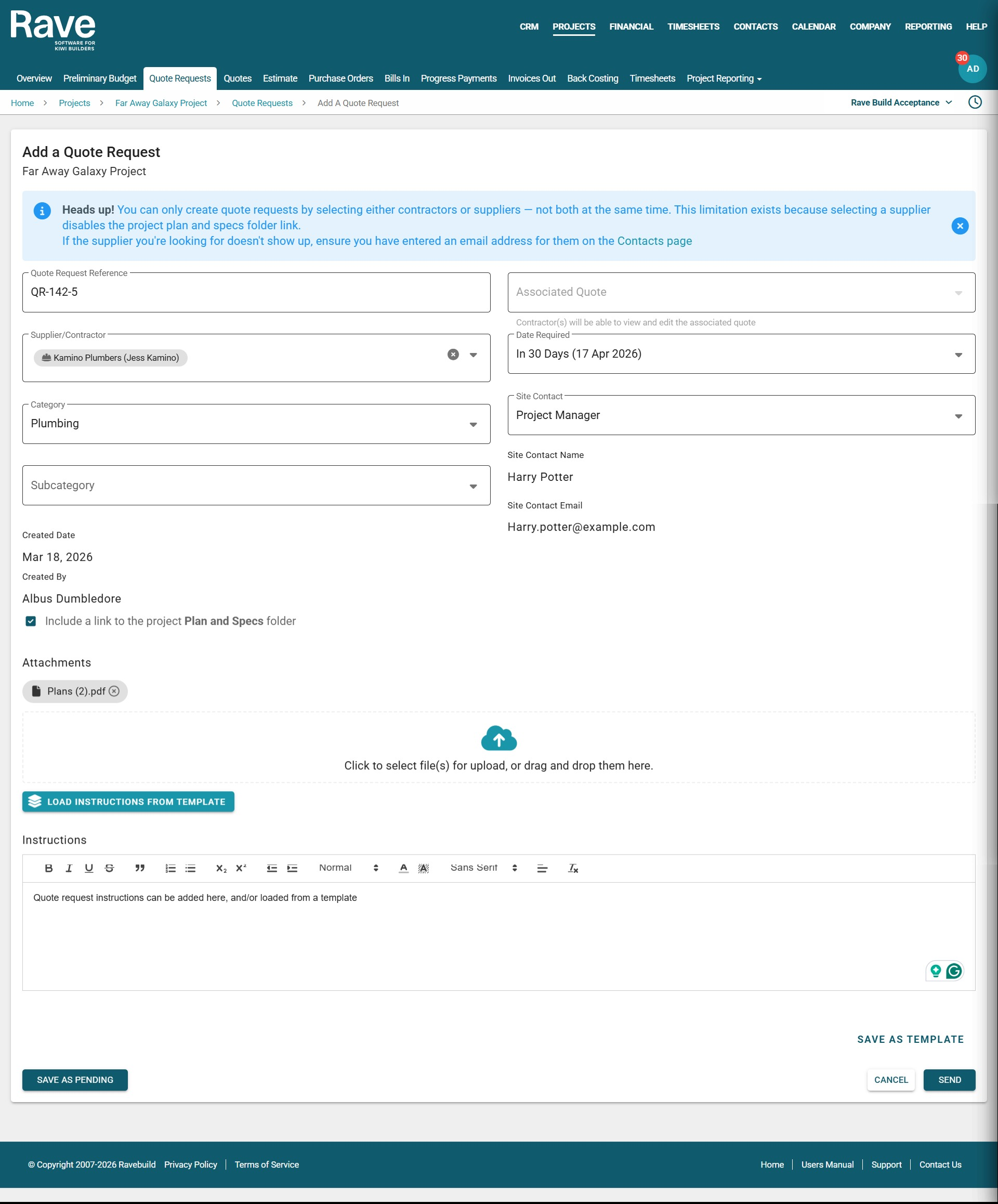
How to Create a Quote Request Instructions Template
Rave allows you to create reusable message templates to simplify your quoting process. This is especially useful when you need different messages for Suppliers and Contractors. For example:
A Supplier template might say:
“I’ve attached the plans & specs for you to quote on. Please reply/email your pricing back to me as soon as possible.”A Contractor template might say:
“I’ve given you access to the project’s ‘Plans & Specs’ folder for you to quote on. Please reply/email your pricing back to me as soon as possible.”
When adding a new Quote Request, and once you have written your Quote Request Information, including instructions, you can:
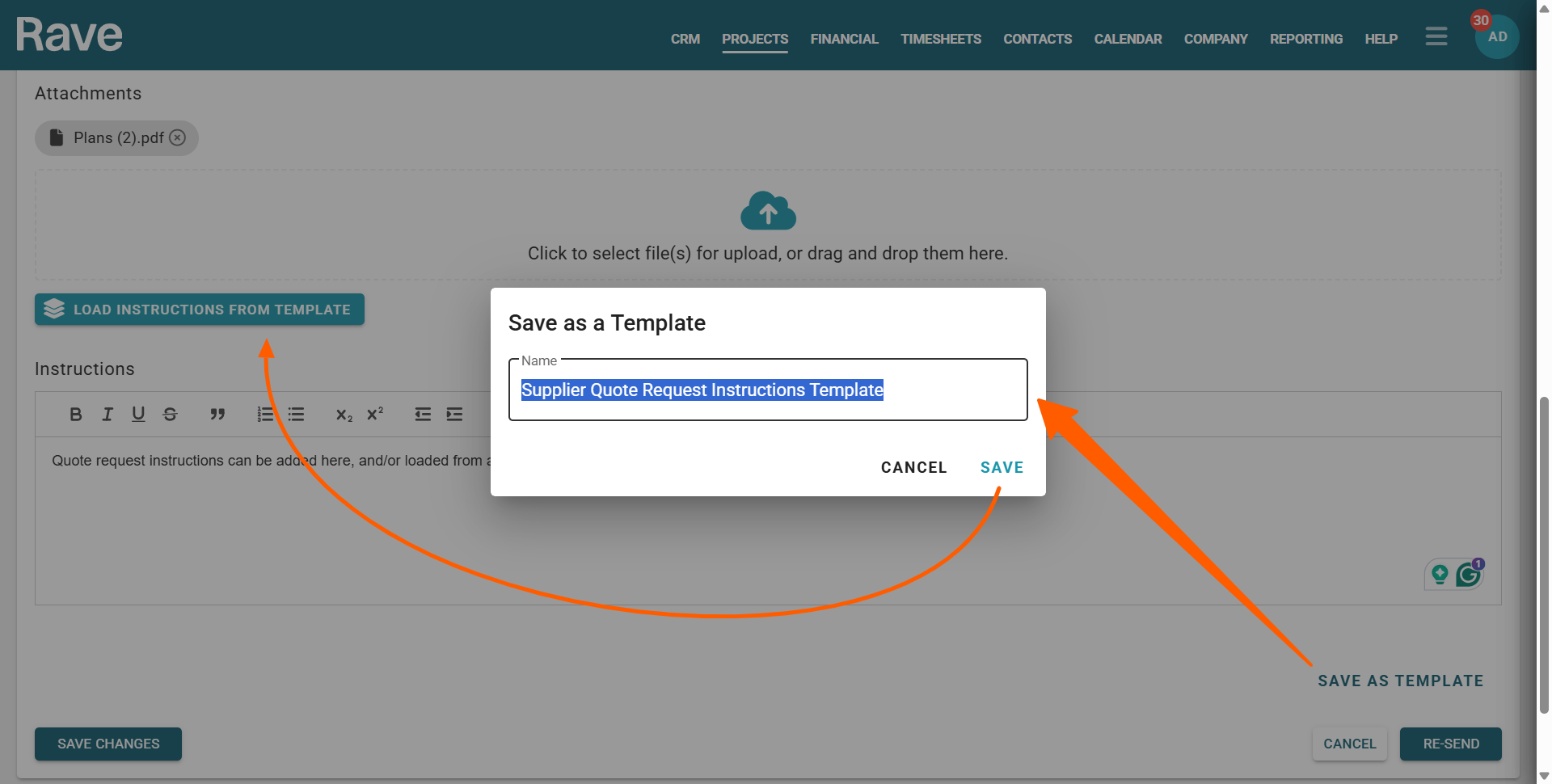
Click the Save as Template button (lower right corner of the message box).
Give your template a clear name (e.g. Supplier Quote Request Instructions Template).
Click SAVE to store the template for future use.
How to Load an Existing Quote Request Instructions Template
To reuse a previously saved message for your quote request, follow these steps:
- Scroll down to the Messages section of the Add a Quote Request form
- Click the Load Instructions from Template button in the upper left corner of the Messages section
- Choose your template from the list, then click Load.
You can then update the text and use the formatting tools to make any final adjustments before sending
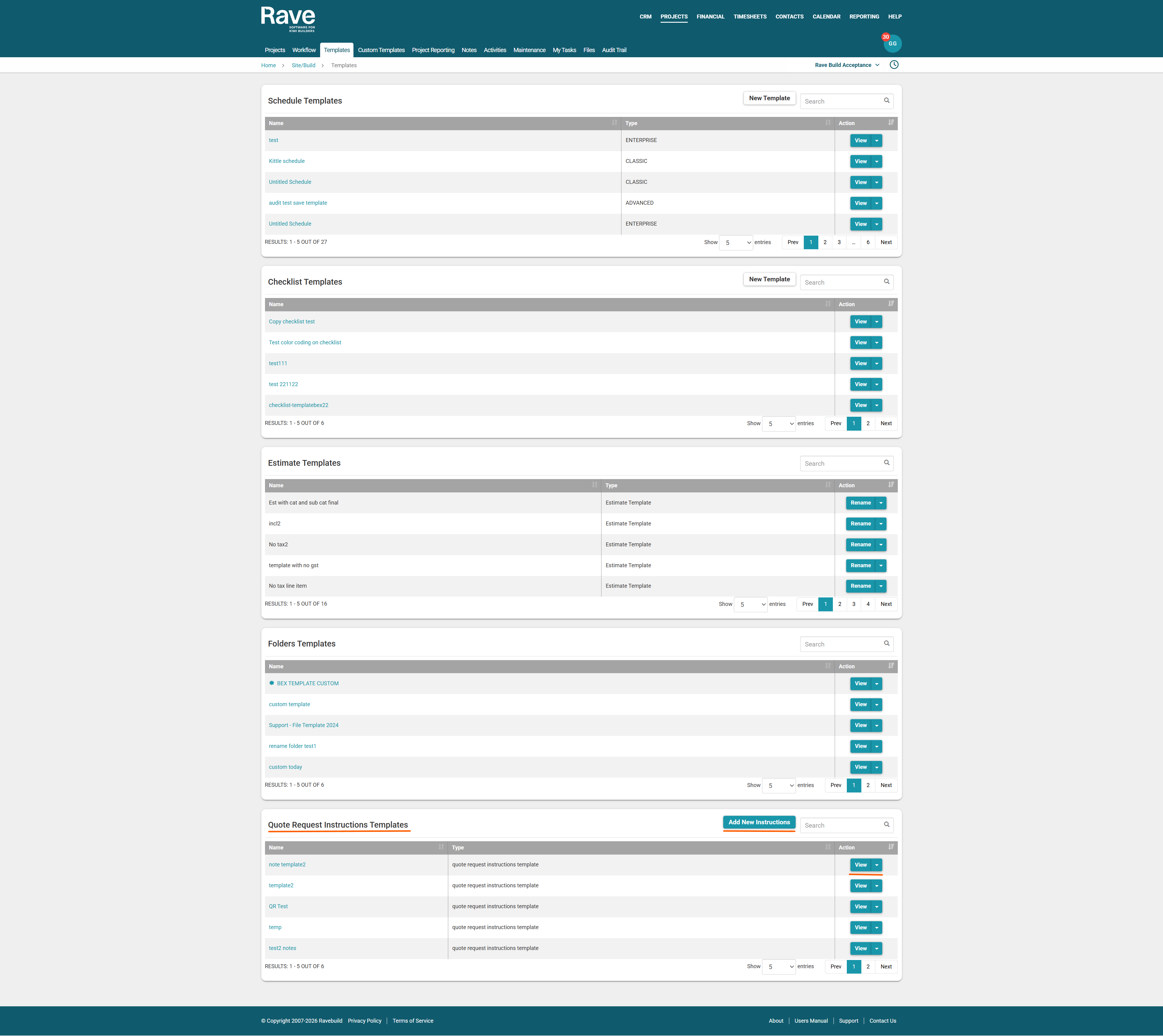
To find and manage your Quote Request Instructions Templates
Select Projects from the top navigation
Click on Templates
Scroll down to Quote Request Instruction Templates.
Here you can view your existing templates by clicking view.
Clicking the arrow drop-down, you can edit or delete templates.
Or you can create a new template by clicking Add new instructions
Was this article helpful?
That’s Great!
Thank you for your feedback
Sorry! We couldn't be helpful
Thank you for your feedback
Feedback sent
We appreciate your effort and will try to fix the article